Repository navigation
customising
QElectroTech lets you set up the way you work with it: which key runs which command, how big the toolbar buttons are and whether they show text, what each toolbar holds, and which commands the right-drag gesture ring offers. This page covers all of it. The ideas come from SolidWorks' Tools → Customize window (discussion #1319).
Everything here is a personal setting: it is stored with your QElectroTech settings, never in a project, so a project you send to someone opens with their toolbars and keys. Nothing changes for anyone who never opens these pages — every default is what QElectroTech did before.
Every section below is in QElectroTech, merged on 6 and 7 October 2026.
| § | What you can change | Where | Since |
|---|---|---|---|
| 1 | Keys for every command; find a command by its key; copy the list | Configurer QElectroTech → Raccourcis | #1326, 2026-10-06 |
| 2 | Toolbar icon size, text with the icons, lock the toolbars | Configurer QElectroTech → Barres d'outils | #1327, 2026-10-07 |
| 3 | What each sheet editor toolbar holds; toolbars of your own | Configurer QElectroTech → Contenu des barres | #1363, 2026-10-07 |
| 4 | The gesture ring's own commands; 4 or 8 directions | Configurer QElectroTech → Gestes de la souris | #1364, 2026-10-07 |
| 5 | All of the above in one window | Configuration → Personnaliser… | #1365, 2026-10-07 |
Configurer QElectroTech (Configure QElectroTech) is in the Configuration menu of every QElectroTech window. The S shortcut bar is customised there too, on its own page — see Drawing faster §6.
Configuration → Configurer QElectroTech → Raccourcis (shortcuts) lists every command that can have a key, grouped by where it applies (Général, Éditeur de schémas for the sheet editor, Profondeur for the depth commands, and so on).
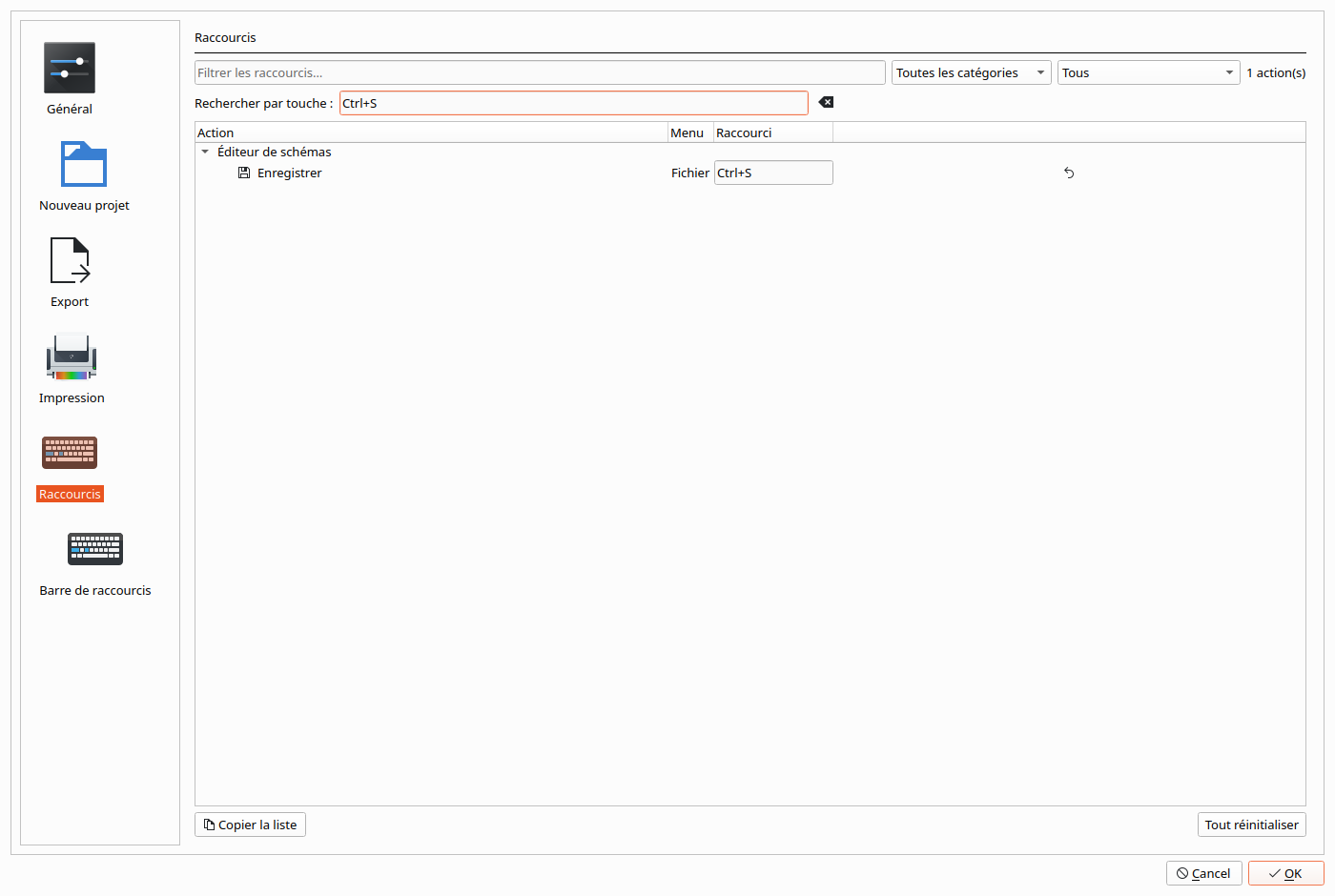
| Column or control | What it does |
|---|---|
| Action | the command, with its icon |
| Menu | the menu the command lives in, read from the program itself, so you can tell two commands with the same name apart |
| Raccourci | the key. Click it and press the combination you want — no typing key names. The arrow at the end of the row puts that one command back to its default |
| Filtrer les raccourcis… | narrows the list to commands whose name or key contains what you type |
| Toutes les catégories | shows one group only |
| Tous / Attribués uniquement / Non attribués uniquement / Conflits uniquement | all commands, only those with a key, only those without, or only keys used by two commands |
| Rechercher par touche (search by key) | press a combination here and the list shrinks to the command that uses it. The quickest answer to "what does Ctrl+Shift+F do?" or "is F6 free?". The eraser button clears it |
| Copier la liste (copy the list) | copies the rows on screen to the clipboard, separated by tabs, so they paste straight into a spreadsheet or a document — a printable cheat sheet |
| Tout réinitialiser (reset all) | every key back to its default |
A key already used by another command is shown, not silently taken: the row says which command also uses it, and Conflits uniquement lists every clash.
Every sheet editor command is listed. Until early October 2026 about forty commands had no entry at all, so they could not be given a key or found by command search (Ctrl+Shift+M) — among them Exporter en pdf, Afficher la grille, Afficher les guides, the project commands (Propriétés du projet, Nettoyer le projet, Exporter le plan de câblage, the terminal strip commands), the window layout commands and most of the Aide menu. They are all there now. Only the choices inside a few small submenus are left out (the text grid steps, Affichage → Afficher's kinds of items, the background colours).
Shortcuts you set are kept when QElectroTech is updated. For the keys themselves and what needs no mouse, see Keyboard-only control.
Configuration → Configurer QElectroTech → Barres d'outils (toolbars):
| Option | Choices | Default |
|---|---|---|
| Taille des icônes (icon size) | Par défaut, Petites (16 px), Moyennes (24 px), Grandes (32 px), Très grandes (48 px) | Par défaut — the size your system style uses |
| Boutons (buttons) | Icône seule (icon only), Texte à côté de l'icône (text beside), Texte sous l'icône (text under) | Icône seule |
| Verrouiller les barres d'outils (lock the toolbars) | on / off | off |

The settings apply to the sheet editor, the element editor and the title block editor. OK applies them at once to every one of those windows already open.
Locking stops a toolbar from being dragged out of place by accident — the grab handles disappear. Panels such as Collections are not affected.
Showing or hiding a toolbar stays where it always was: right-click any toolbar (or Configuration → Afficher) and tick or untick it.
Larger icons and text make the toolbars wider; anything that no longer fits goes behind the » button at the end of a toolbar.
Configuration → Configurer QElectroTech → Contenu des barres (toolbar contents) chooses the buttons on each toolbar of the sheet editor.
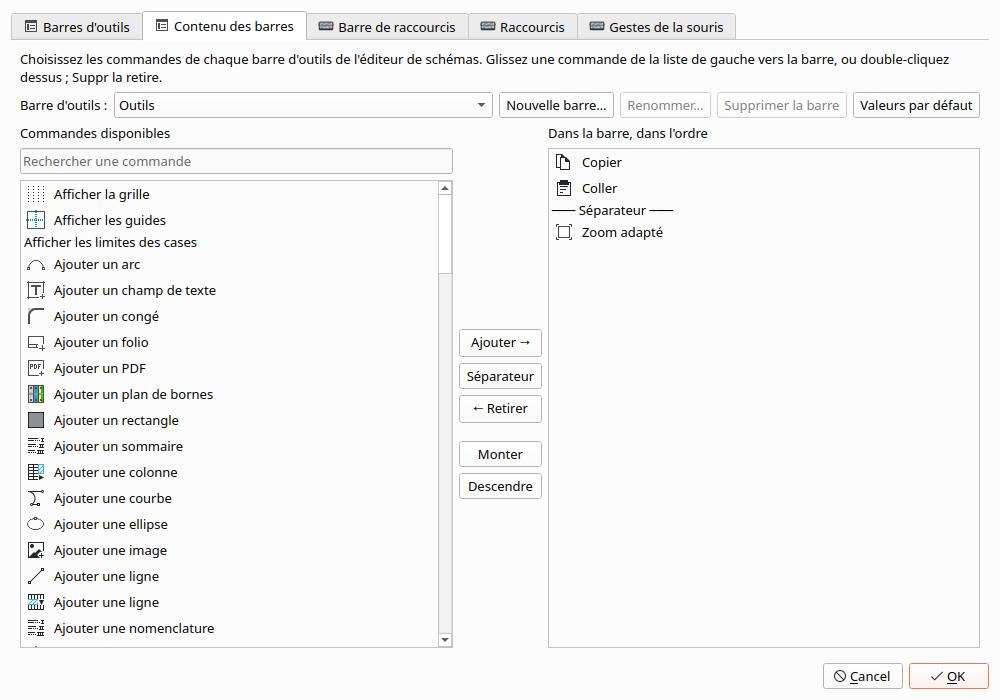
- Pick the toolbar under Barre d'outils (Outils, Affichage, Schéma, Ajouter, Profondeur, or one of your own).
- The right-hand list, Dans la barre, dans l'ordre (on the toolbar, in order), is what the toolbar shows. The left-hand list, Commandes disponibles, is every command you can add; type in Rechercher une commande to narrow it. Hover over a command to see its description.
- Add a command by dragging it to the right, double-clicking it, or selecting it and pressing Ajouter →.
- Remove one with Delete, a double-click, or ← Retirer.
- Séparateur puts a dividing line after the selected button. Monter / Descendre, or dragging within the list, change the order.
- OK — the toolbars of every open sheet editor change at once.
| Button | Does |
|---|---|
| Nouvelle barre… | asks for a name and adds an empty toolbar of your own. It appears at the end of the top toolbar row; drag it where you want it like any toolbar |
| Renommer… | renames one of your own toolbars |
| Supprimer la barre | deletes one of your own toolbars (the five built-in ones cannot be deleted, only emptied) |
| Valeurs par défaut | gives the shown toolbar its original buttons back; your own toolbar is emptied |

What you can put on a toolbar: every sheet editor command listed in Raccourcis (§1), the depth commands, and your stored scripts (Script buttons) — a script you use every day can sit on the main toolbar instead of only in the Scripts toolbar. Four buttons are controls rather than commands: Taille des poignées (handle size), Grille des textes (text grid), Couleur de fond du folio (sheet background colour) and Couleur des conducteurs (wire colour). Each of those can be on one toolbar at a time, so it is offered only while it is on none; take it off one toolbar to move it to another.
Good to know:
- A separator at the very start or end of a toolbar, or two in a row, is not drawn.
- A command that no longer exists in your version (a script you deleted, a command from a newer version) is skipped on the toolbar, and still listed by its internal name on this page so that saving does not drop it.
- The Scripts toolbar is not on the list: it always shows every stored script.
- Only the sheet editor's toolbars, for now. The element editor and title block editor keep theirs.
Right-dragging on a sheet opens a ring of commands (Drawing faster §10). Until you set it here, the ring shows the first eight commands of the S shortcut bar. This page gives the ring its own commands, and a choice of four or eight directions.
Configuration → Configurer QElectroTech → Gestes de la souris (mouse gestures):
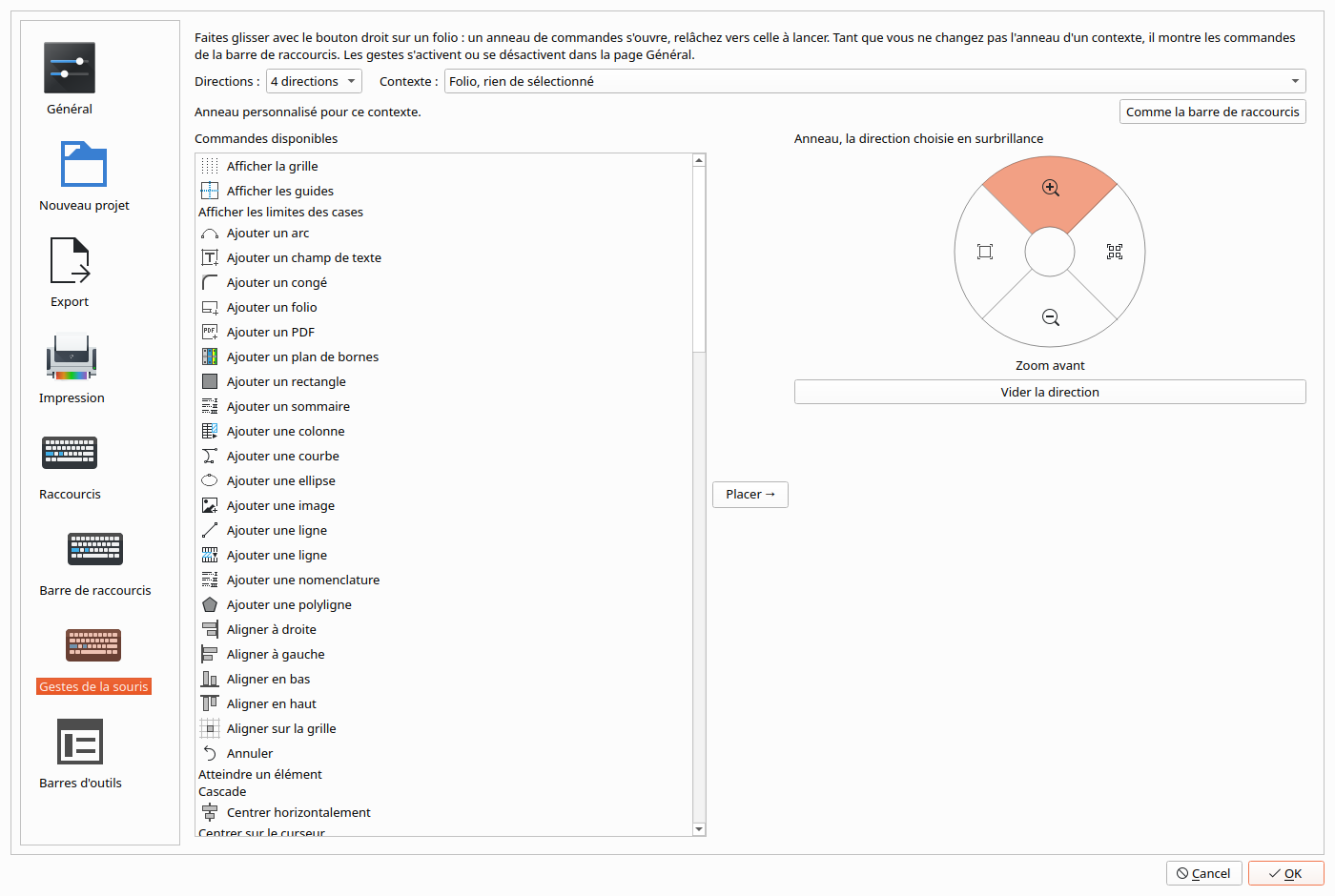
| Control | Does |
|---|---|
| Directions | 8 directions (the default) or 4 directions. Four big wedges are easier to hit without looking; eight hold more commands |
| Contexte | which ring you are editing: Folio, rien de sélectionné (nothing selected), Éléments sélectionnés (symbols, texts or shapes selected), Conducteurs sélectionnés (only wires selected) — the same three situations as the shortcut bar |
| the ring | click a direction to select it (or use the arrow keys); its command's name shows underneath |
| Placer → | puts the command selected on the left into the selected direction. Dragging a command onto a direction, or double-clicking it, does the same |
| Vider la direction (clear direction) | leaves that direction empty; Delete does the same |
| Comme la barre de raccourcis (same as the shortcut bar) | gives this context's ring back to the shortcut bar's list |
Each command stays in the direction you put it in: up is up, whatever else you change. A direction can be empty — dragging that way runs nothing. A command already on the ring moves when you place it again, so it is never there twice.
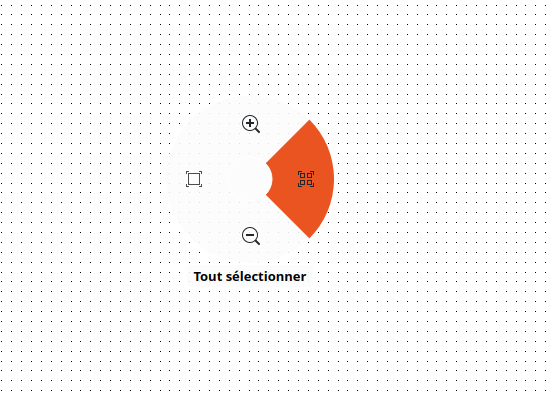
Until you change a context's ring, it keeps following the shortcut bar, exactly as before: the first four or eight of the bar's commands, clockwise from the top. The line under Contexte says which applies: Cet anneau suit la barre de raccourcis or Anneau personnalisé pour ce contexte.
Turning gestures on or off is still on the Général page: Gestes de la souris avec le bouton droit (see Preferences reference).
Configuration → Personnaliser… (Customise…) brings every page above into one window, one tab each, in the order SolidWorks uses:
| Tab | Section |
|---|---|
| Barres d'outils | §2 |
| Contenu des barres | §3 |
| Barre de raccourcis | Drawing faster §6 |
| Raccourcis | §1 |
| Gestes de la souris | §4 |
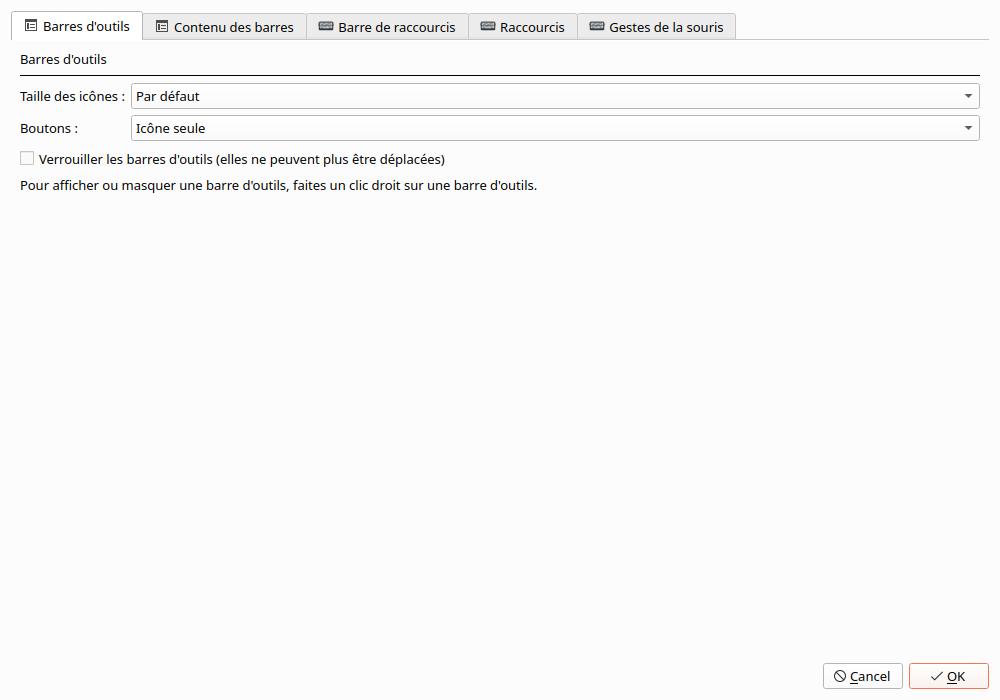
It opens three ways: the Configuration menu, right-clicking any toolbar (it is the last entry, under the list of toolbars and panels), and command search (Ctrl+Shift+M, type Personnaliser). OK applies every tab; Cancel throws away the changes on all of them.
The tabs are the same pages Configurer QElectroTech shows, and they stay there too; use whichever you prefer.
All of this is saved with your other settings, so Configuration → Enregistrer la configuration sous… (save the configuration as) writes your keys, toolbar contents and gesture rings to a file, and Charger une configuration… loads them on another computer. Toolbar positions are not in that file — they belong to the screen they were arranged on (see Saving and loading settings).
For the curious, the keys in the settings file:
| Setting | Key |
|---|---|
| a command's key | shortcuts/<command id> |
| icon size, button style, lock |
toolbars/icon_size, toolbars/button_style, toolbars/locked
|
| a toolbar's contents | diagrameditor/toolbars/<toolbar> |
| your own toolbars |
diagrameditor/custom_toolbars/names, .../titles
|
| gesture rings |
diagrameditor/gestures/canvas, .../selection, .../conductor, .../directions
|
A setting left at its default is not written, so a later version's new defaults still reach you.
- Menus cannot be customised (hidden, reordered or renamed). This was considered and set aside: a moved or hidden item would make every "go to Projet → …" instruction on this wiki and the forum wrong for that user, and every command is already reachable by command search, a key, a toolbar or a gesture.
- The element editor's and title block editor's toolbar contents (§3 is the sheet editor only).
- Drawing faster — the S shortcut bar, command search, the gesture ring itself
- Keyboard-only control — the default keys
- Preferences reference — every settings page
- Script buttons — stored scripts, which can go on any toolbar (§3)
