Repository navigation
Light Meter Dial Support
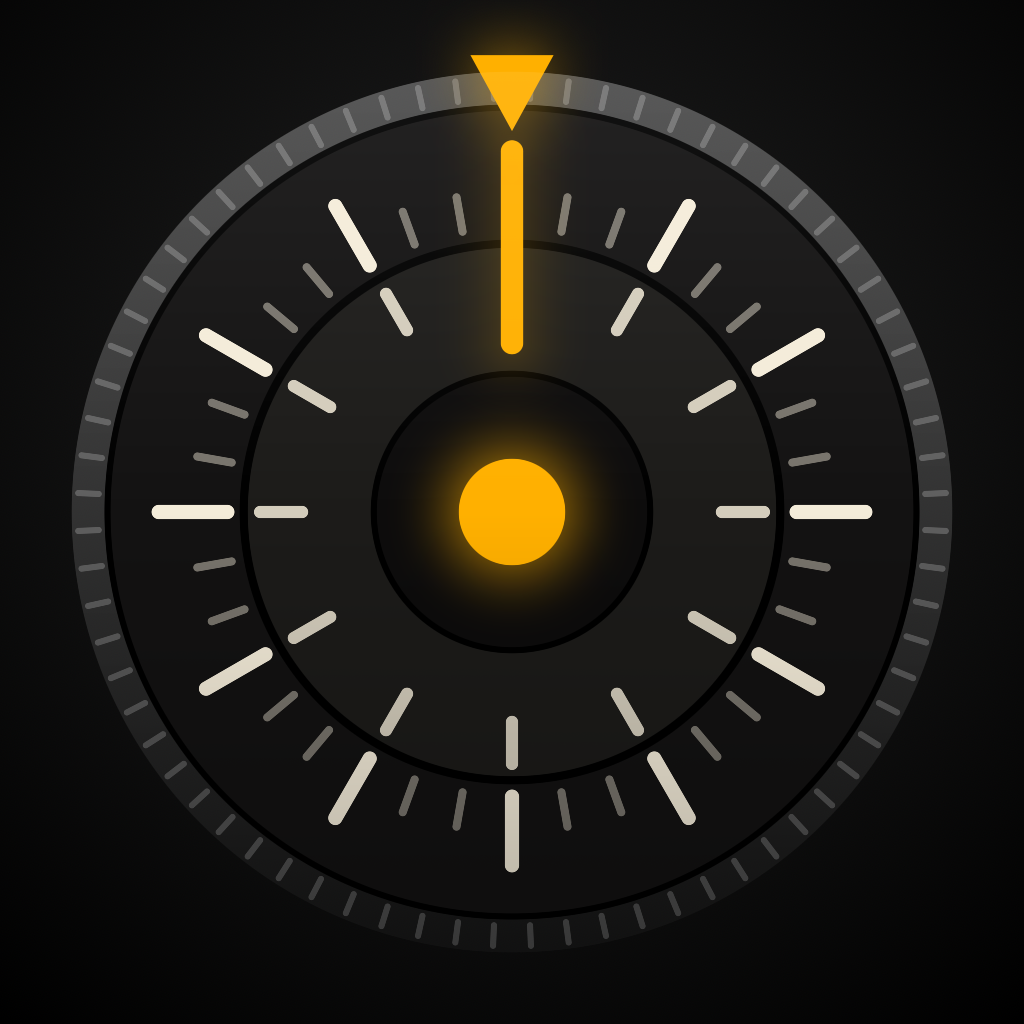
A light meter for film cameras, built around a dial you turn. Aim the spot, read aperture and shutter, and keep a log of every roll.
Light Meter Dial measures the light with your iPhone's camera and shows the exposure on a calculator dial: aperture and shutter speed face each other on two rings, and every pair that lines up is a correct exposure. It also tells you when golden hour and blue hour fall where you are, and keeps a frame-by-frame log of your rolls. Everything runs on your iPhone; there is no account and nothing is sent anywhere.
Open the Meter tab and drag the circle onto the part of the scene you care about. The big numbers show the exposure. Tap the preview to hold the reading (the circle turns amber) while you set your camera; tap again to release it.
The outer ring is shutter speed and the inner ring is aperture. Turn the dial to choose a value; the other ring follows the light. Each click is a third of a stop. The window at the bottom of the dial sets ISO, the arc at the top sets exposure compensation (±3 stops; tap the same spot twice to return to zero), and a swipe across the centre switches between aperture priority (A), shutter priority (S) and EV only.
Phone cameras differ slightly from one model to the next. Open the settings on the Meter tab and use Calibration to trim the reading by up to ±2 stops. The value is remembered for your iPhone's camera. A good way to set it is to meter an evenly lit wall with both meters and adjust until they agree.
Below about EV −2 a phone camera can no longer measure light reliably, so the app tells you rather than showing a number that may be wrong. Meter a brighter part of the scene, or use a dedicated meter for very dark scenes.
From the sun's position for your location and date, calculated on your iPhone. Golden hour is the time the sun is between −4° and +6° above the horizon; blue hour is between −6° and −4°. Near the poles there are days with no golden hour, or with golden light all day, and the app says so.
Load a roll (camera, film, ISO, number of exposures), then tap Log on the meter after each shot. The aperture, shutter speed, ISO, compensation, EV and time are saved to the next frame. You can add a note to each frame and mark the roll as finished, developed or scanned.
- Free: metering, all three modes, exposure compensation, calibration, today's golden hour at your current location, and one roll
- Pro (one-time purchase): unlimited rolls, saved cameras and lenses, CSV and text export, golden hour for other dates and saved places, golden hour reminders, Home Screen widgets, long exposure tools (ND filters, reciprocity correction, timer), the red night display, and extra dial finishes
Pro is a single purchase, not a subscription, and supports Family Sharing.
Open the settings on the Meter tab and tap Restore purchase while signed in with the same Apple Account.
Your rolls and settings are stored on your iPhone only. If iCloud Backup is turned on in iOS, they are included in your device backup and come back when you restore to a new iPhone. With Pro you can also export any roll as CSV or text and keep it wherever you like. Deleting the app deletes its data.
Where a film's maker publishes a correction, the app uses it and marks it "published". For other films it uses the commonly quoted rule of thumb. Treat the result as a starting point and bracket important exposures.
Please report problems or send requests through Issues.
It helps if you include:
- Your iPhone model and iOS version
- The app version (shown at the bottom of the settings screen)
- What you did and what happened