Repository navigation
Getting started
🌐 English · Русский
Turn a document image into text you can copy, search or save. An image returns a string; a PDF returns one string per page.
Run this in your project's Python environment. Matplotlib displays the sample image:
python -m pip install "occular-ocr==0.5.1" matplotlibThe first OCR call downloads model files and needs internet. Later calls reuse them. These pages describe release 0.5.1; model files can change independently of the package, so see offline reproducibility for fixed deployments.
Download sample.png into your current working folder. In Python or Jupyter:
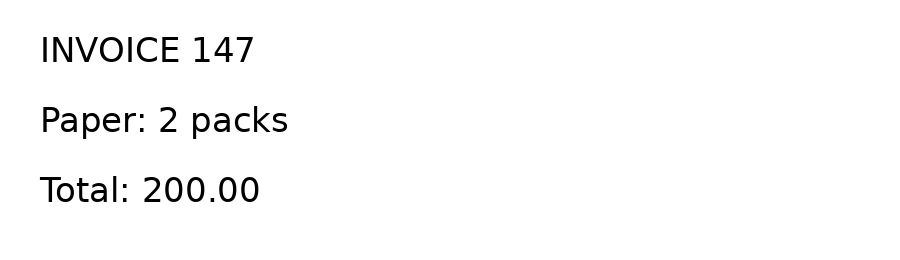
import matplotlib.pyplot as plt

plt.figure(figsize=(8, 3))
plt.imshow(plt.imread("sample.png"))
plt.axis("off")
plt.show()
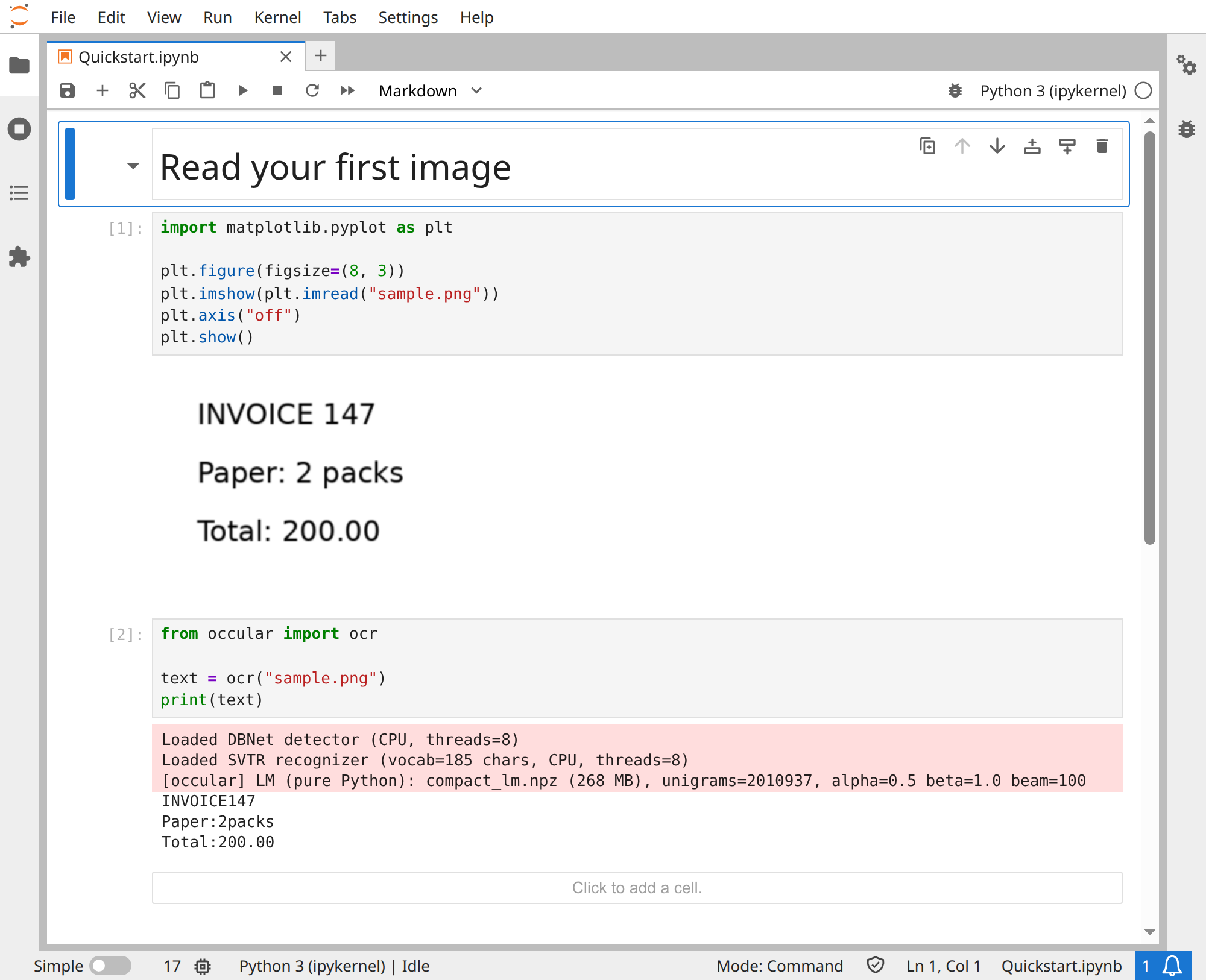
from occular import ocr
text = ocr("sample.png")
print(text)Actual returned text (model-loading messages omitted):
INVOICE147
Paper:2packs
Total:200.00
The spaces missing from INVOICE147 and Paper:2packs are actual OCR errors. Check important values against the image. Russian and English work by default.
Open the real Jupyter run (all code visible)
from pathlib import Path
from occular import ocr

Path("result.txt").write_text(ocr("sample.png"), encoding="utf-8")
This creates result.txt in the current folder. To read a PDF, use the PDF example; it may extract existing text instead of recognizing the page image.
Every feature page links its notebook and input. For the complete set:
- Download the examples ZIP and extract it into a folder.
- In that folder, install the notebook dependencies and start Jupyter:
python -m pip install "occular-ocr==0.5.1" jupyterlab matplotlib
python -m jupyterlab- Open a notebook and run its cells in order. Keep each input file beside the notebook, using the filenames shown in the code. The ZIP includes a README and all inputs;
Simple-OCR.ipynbusesreceipt.jpg.
The package installs NumPy, Pillow and PyMuPDF used by the examples. The GPU notebook additionally needs the GPU setup. Standard Python scripts need Occular only; Matplotlib and Jupyter are for the illustrated examples. All code cells are visible, using ordinary Matplotlib and print().
If installation fails, use a fresh Python 3.11 or 3.12 environment with compatible ONNX Runtime wheels. Troubleshooting covers import/model problems.