Repository navigation
Command line
🌐 English · Русский
Use ocr to print text from one document or save a folder of scans as text files.
Install 0.5.1 and get the sample files.
ocr scan.png
ocr scan.pdf
The recognized text appears in the terminal. Save image text to a file with:
ocr scan.png > result.txtocr ./scans ./outYou get one .txt file per input file in ./out. Files must be directly in ./scans; subfolders aren't traversed.
| Want to… | Run |
|---|---|
| Read a sideways image | ocr photo.jpg --orientation |
| Keep table cells together | ocr invoice.png --tables |
| Choose Ukrainian | ocr scan.png --lang uk |
| Replace old PDF OCR results | ocr scan.pdf --force-ocr |
| Use two workers | ocr scan.pdf --workers 2 |
| Save text and coordinates as JSON | ocr scan.png --out result.json |
Use python -m occular in place of ocr if you want to select a particular Python environment. Run ocr --help for the full list.
Download sample.png into your current folder, then run:

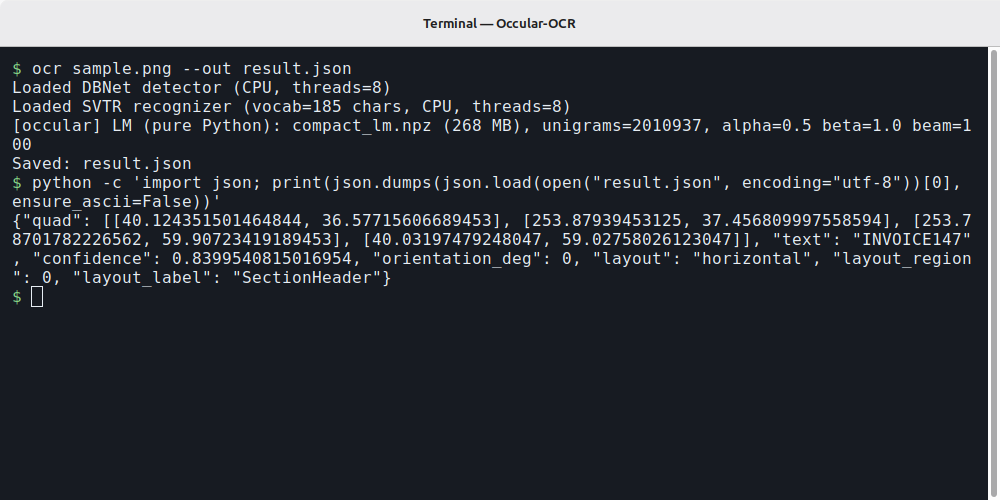
ocr sample.png --out result.json
python -c 'import json; print(json.dumps(json.load(open("result.json", encoding="utf-8"))[0], ensure_ascii=False))'
The first command saves all line records. The second prints the complete first record. Here it is with line breaks added for reading; values are unchanged:
{
  "quad": [[40.124351501464844, 36.57715606689453],
            [253.87939453125, 37.456809997558594],
            [253.78701782226562, 59.90723419189453],
            [40.03197479248047, 59.02758026123047]],
  "text": "INVOICE147",
  "confidence": 0.8399540815016954,
  "orientation_deg": 0,
  "layout": "horizontal",
  "layout_region": 0,
  "layout_label": "SectionHeader"
}
text is the recognized string, quad its four corners, and confidence its recognition score. The remaining fields describe orientation/layout assignment; field meanings. This is an image result, so coordinates use processed-image pixels.
Without --tables, image JSON is a list of line records; PDF JSON is a list of pages, each with results. With image --tables, JSON is an object containing results and tables. The real terminal run below shows both executed commands and the whole first record:
Batch naming, JSON and other details
Files with the same stem, such as scan.png and scan.pdf, both write scan.txt. Give them distinct names or separate output folders. Existing output files can be overwritten.
Batch output is .txt; --out and --json are single-file options. Check the final success count because failed batch files can be skipped.
PDF text output includes page headers. Image loading reads one frame of TIFF/GIF files. Orientation correction is image-only in 0.5.1.
The CLI also accepts --gpu, --dpi, --no-reading-order, --model and --json. Use Python for dewarping, LM and thread controls.