Repository navigation
Languages
🌐 English · Русский
Read a supported Cyrillic-language document with its own recognizer and decoding configuration, instead of treating every line as Russian or English.
Install 0.5.1 and get the sample files.
Russian and English work by default. For another supported language, tell Occular which one to expect:
from occular import ocr

text = ocr("ukrainian.png", languages=["uk"])
print(text)The linked input is a synthetic Ukrainian request. With languages=["uk"], the code above returns:
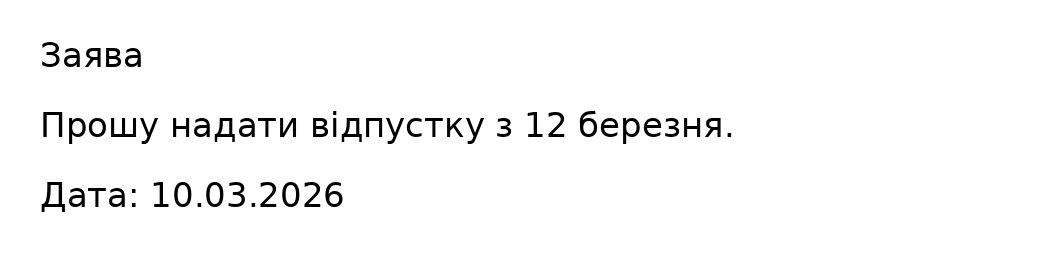
Заява
Прошу надати відпустку з 12 березня.
Дата: 10.03.2026
Compare the spelling with the input shown in the real run below. Choosing a code routes recognition; it does not translate the text.
Open the real Jupyter run (all code visible)
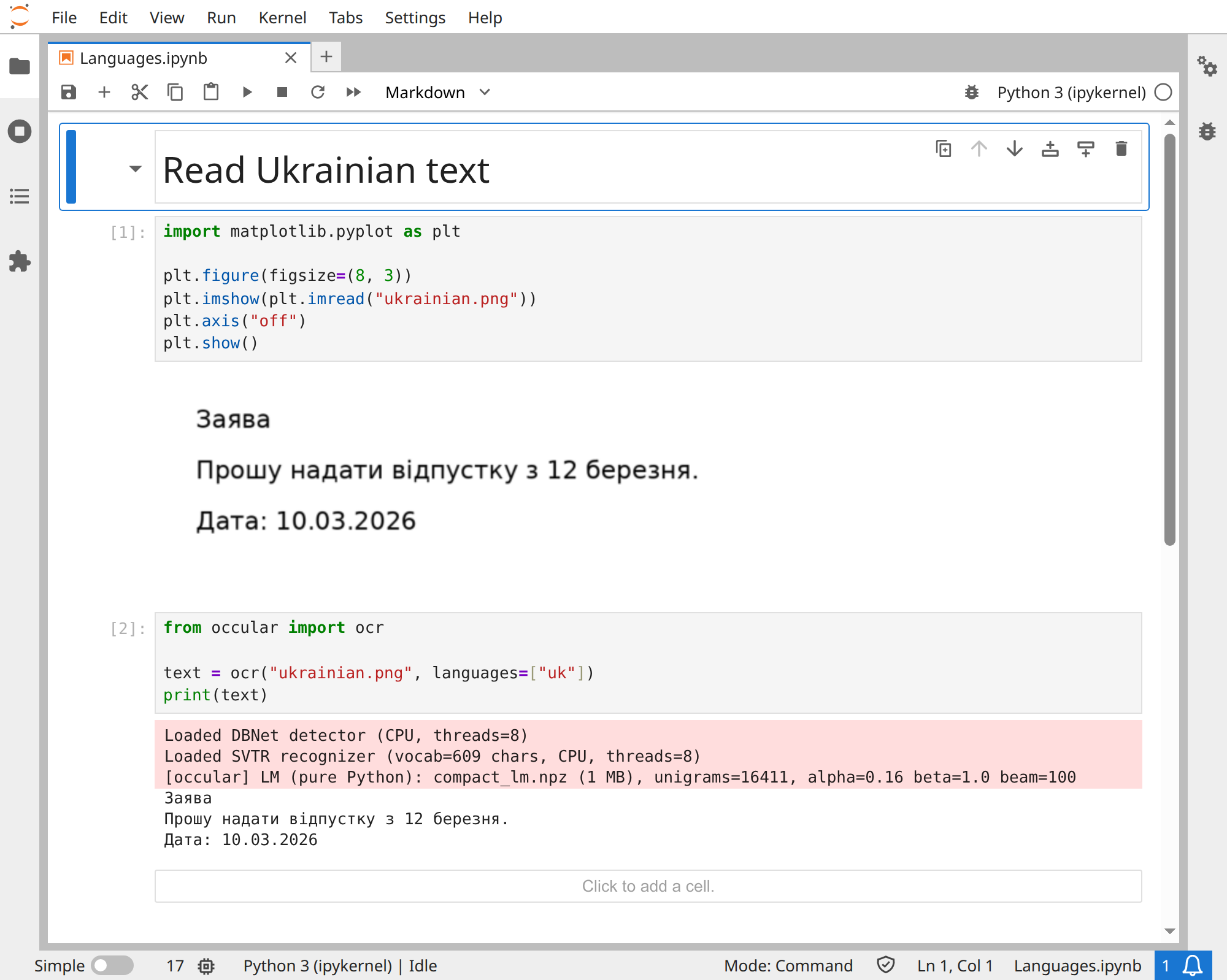
Download notebook · ukrainian.png
from occular import ocr

text = ocr("mixed.png", languages=["ru", "kk"])
Occular tries to choose a language for each line. If you don't know the languages in advance, use languages="auto".
Give it the language when you know it. Short lines and similar languages are harder to distinguish automatically.
| Language | Code | Language | Code |
|---|---|---|---|
| Russian | ru |
English | en |
| Bashkir | ba |
Belarusian | be |
| Bulgarian | bg |
Chuvash | cv |
| Kazakh | kk |
Kyrgyz | ky |
| Macedonian | mk |
Mongolian | mn |
| Serbian | sr |
Tajik | tg |
| Tatar | tt |
Ukrainian | uk |
The additional-language model reads Cyrillic script. A language code doesn't add every writing system that language may use.
From the terminal: ocr document.png --lang uk. Multiple CLI codes use commas: --lang ru,kk. In Python, use a list as shown above.