Repository navigation
Preprocessing
🌐 English · Русский
Install 0.5.1 and get the sample files.
Use deskew for a small tilt, orientation for a quarter-turn, and dewarping for bent text lines. These change the pixels before recognition; they do not repair spelling afterward.
| Your input | Choose | Default |
|---|---|---|
| Scan leans a few degrees | deskew=True |
On |
| Whole image is rotated 90°, 180° or 270° | orientation=True |
Off |
| Text curves near a book spine | Settings(unwarp=True) |
Off |
Start with the correction matching the visible problem; flat, upright scans usually need only the defaults.
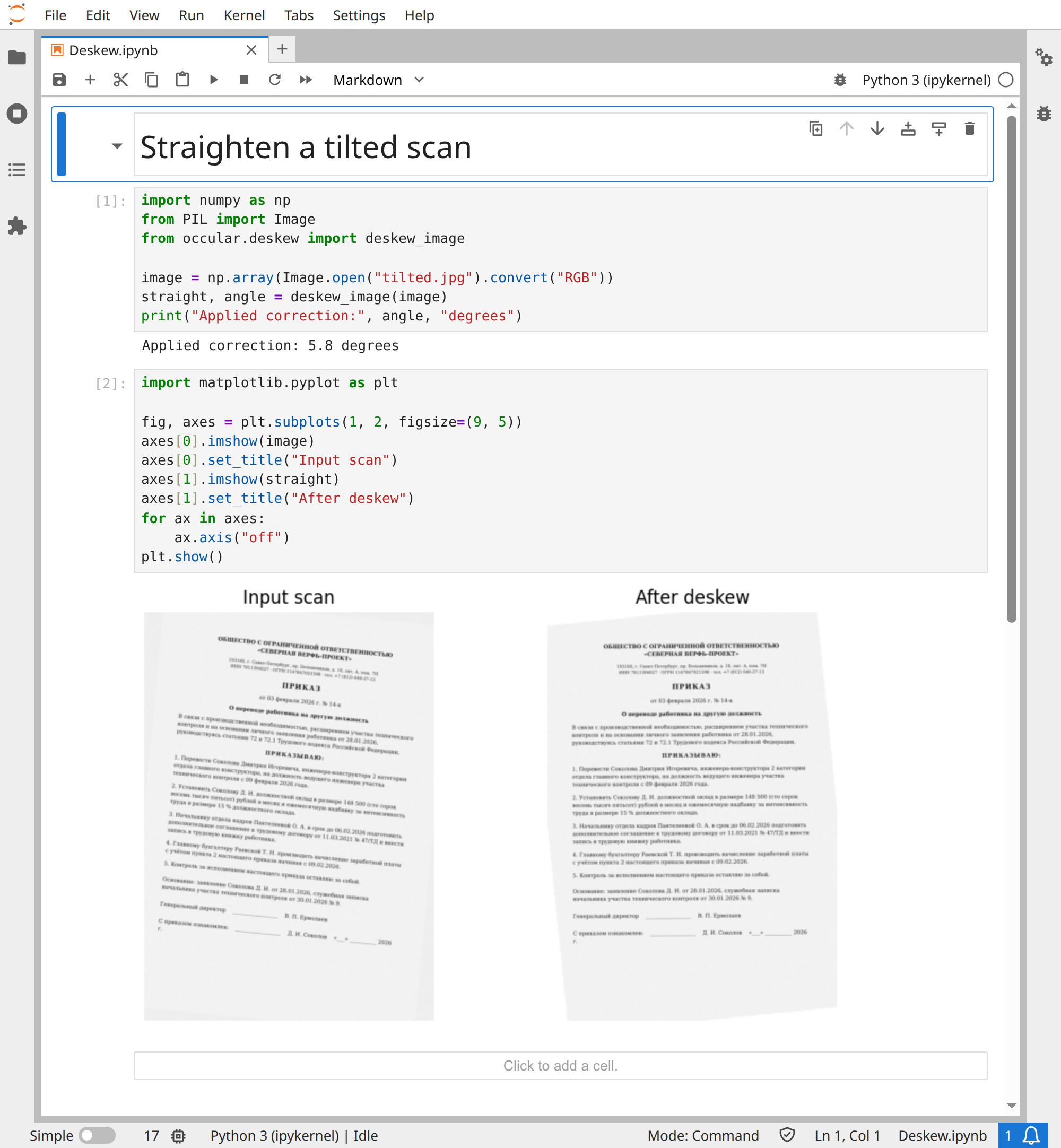
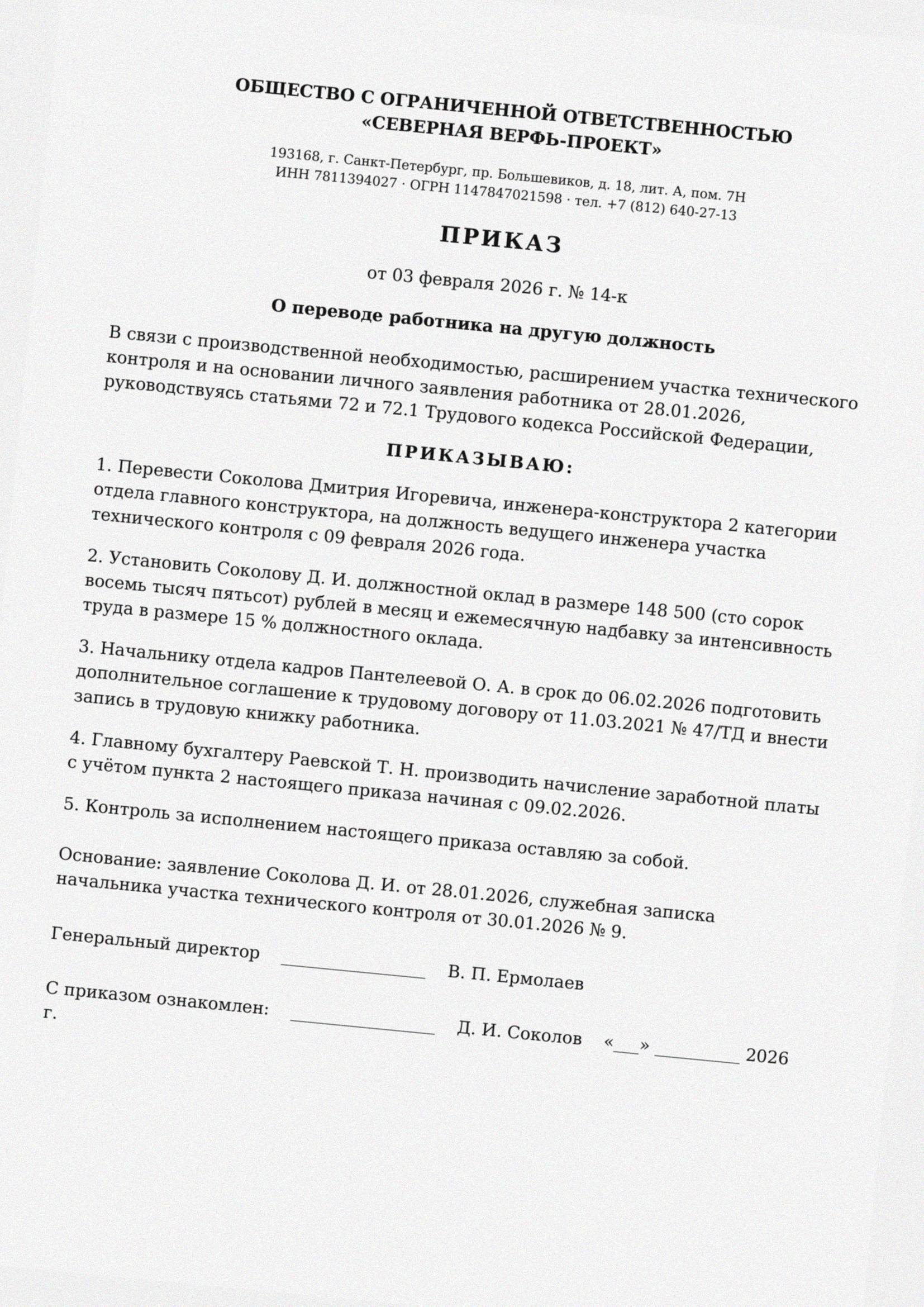
The supplied tilted.jpg leans a few degrees. The notebook uses the same deskew routine directly, then displays both images:
import numpy as np
from PIL import Image
from occular.deskew import deskew_image

image = np.array(Image.open("tilted.jpg").convert("RGB"))
straight, angle = deskew_image(image)
print("Applied correction:", angle, "degrees")
Actual output:
Applied correction: 5.8 degrees
Normal OCR already applies this correction; this low-level call makes its pixel effect visible. Open the run to compare before and after.
Open the real Jupyter run (all code visible)
Download notebook · tilted.jpg
You usually don't need to do anything. Small-angle correction, called deskew, is already on.
from occular import ocr

text = ocr("tilted-scan.png")Turn on page orientation:
from occular import ocr

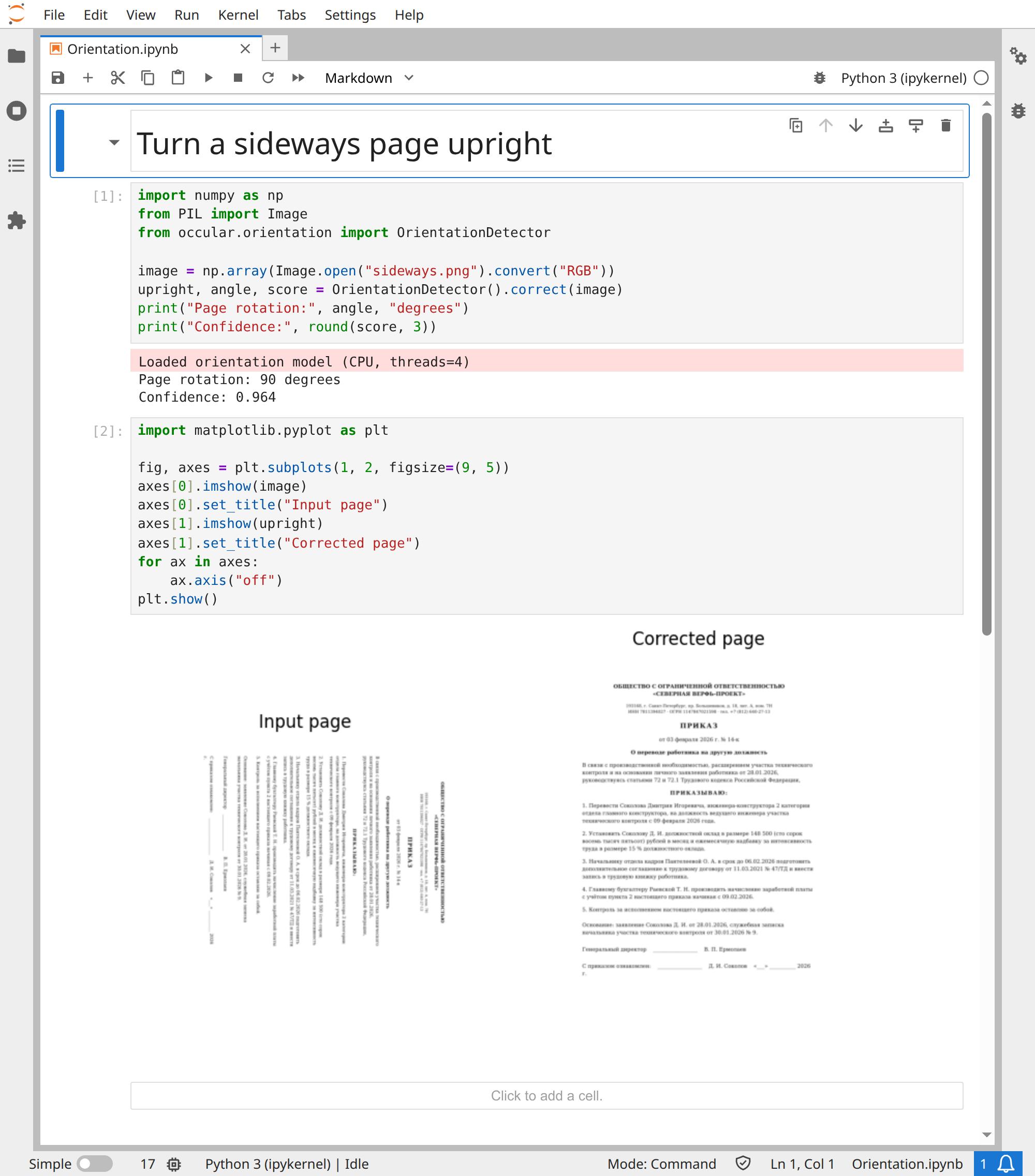
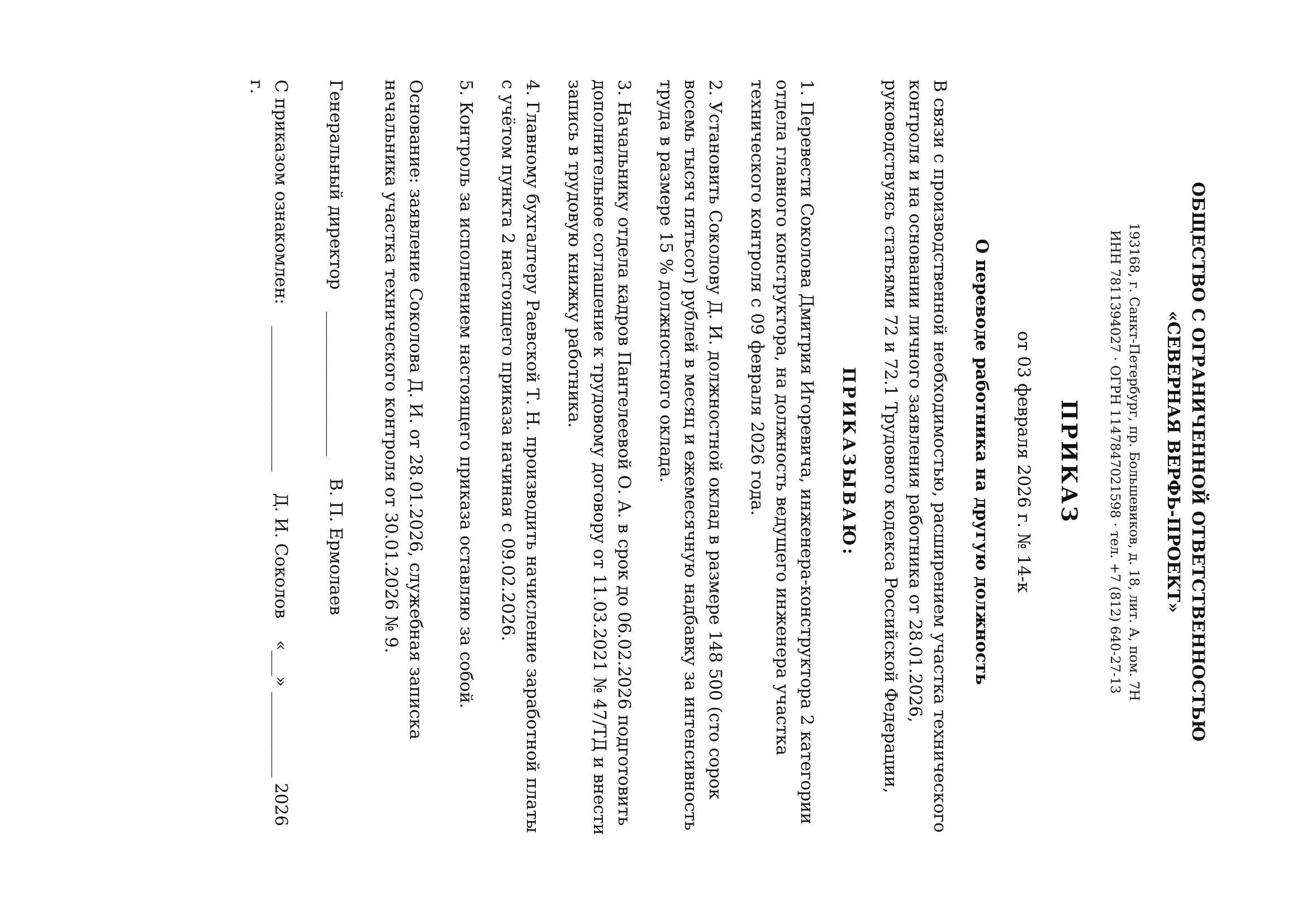
text = ocr("sideways-photo.jpg", orientation=True)For sideways.png, the notebook calls the orientation model and shows its correction:
import numpy as np
from PIL import Image
from occular.orientation import OrientationDetector

image = np.array(Image.open("sideways.png").convert("RGB"))
upright, angle, score = OrientationDetector().correct(image)
print("Page rotation:", angle, "degrees")
print("Confidence:", round(score, 3))
Actual output:
Page rotation: 90 degrees
Confidence: 0.964
The 90° page rotation is a different task from the 5.8° deskew above. Open the run to see the page upright.
Open the real Jupyter run (all code visible)
Download notebook · sideways.png
Occular tries to turn the page upright before reading it. If it isn't confident about the direction, it leaves the page as it is.
Try dewarping. It attempts to flatten the page before reading:
from occular import OCRPipeline, Settings

reader = OCRPipeline(Settings(unwarp=True))
text = reader.get_text("book-photo.jpg")
print(text)
This recognizes both the original and flattened candidates and compares a text-length/confidence heuristic. It keeps the flattened candidate only if its score is sufficiently higher. That is not measured reading accuracy: it takes longer and can still choose incorrectly. Test it on your actual curved pages.
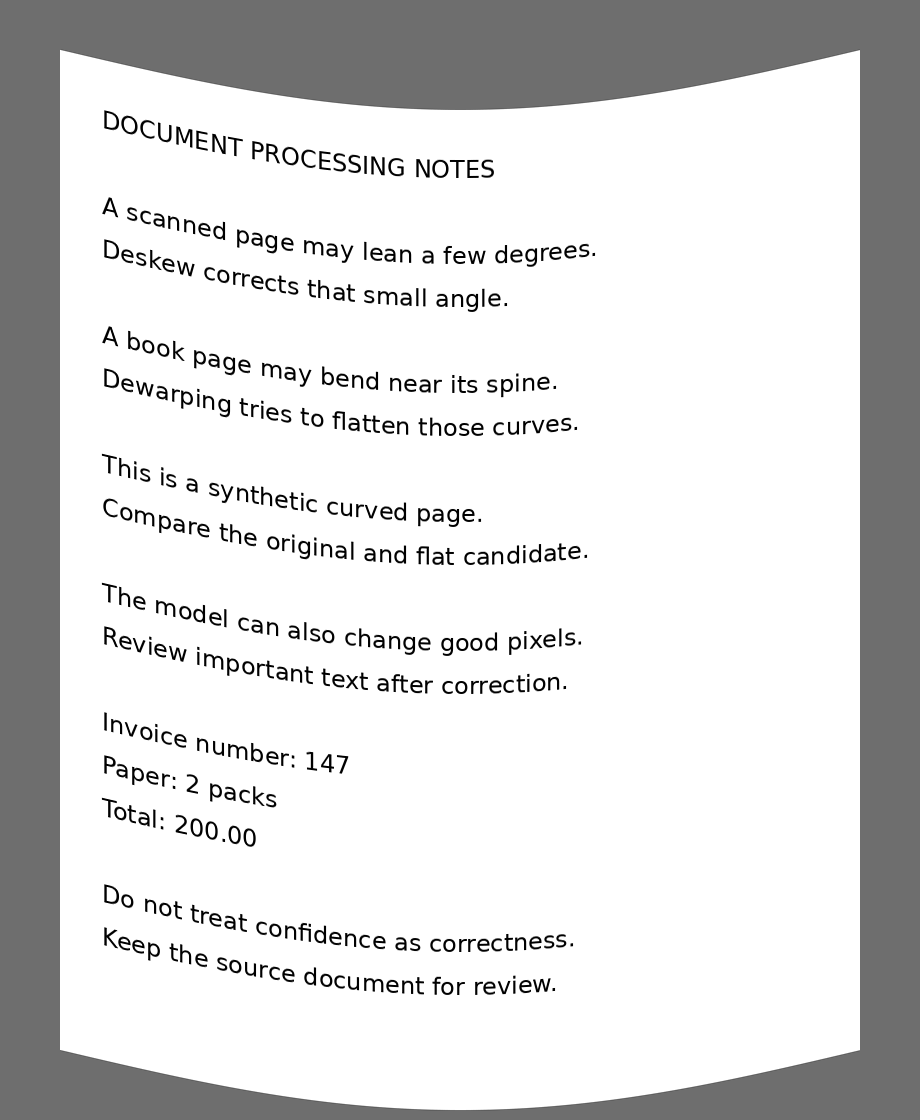
This supplied input is synthetic: straight text was bent along a smooth curve. The following direct call exposes the actual flattened candidate, using the same default UVDoc model as unwarp=True:
import cv2
from occular.unwarp_uvdoc import UVDocUnwarper

image = cv2.imread("curved.png")
flat = UVDocUnwarper(model_id="Shivin11/occular-uvdoc").unwarp(image)
print("Input and candidate dimensions:", image.shape, flat.shape)
The notebook uses ordinary Matplotlib to display the upper part of each image. The title and text baselines become nearly horizontal; no output pixels were manually retouched:
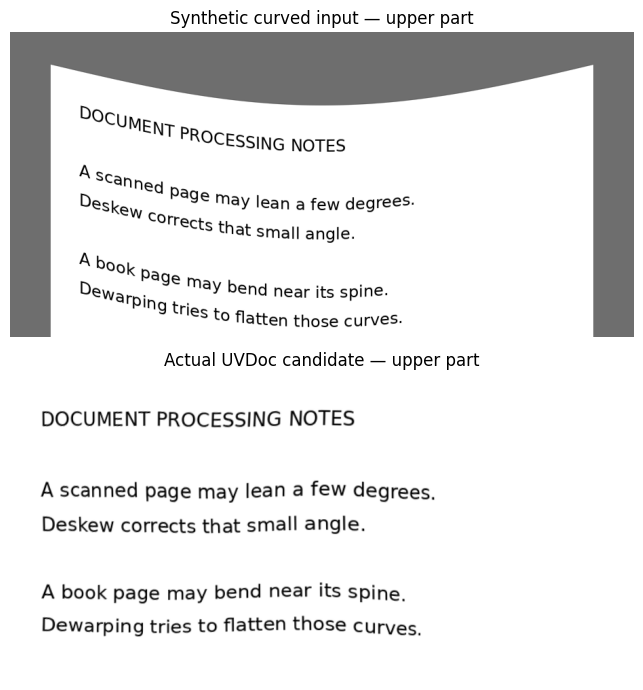
A visible flattening is not proof of correct text. Run the normal guarded pipeline too; deskew=False isolates dewarping in this comparison:
from occular import OCRPipeline, Settings

original = OCRPipeline(Settings(deskew=False, reading_order=False))
guarded = OCRPipeline(Settings(deskew=False, reading_order=False, unwarp=True))
plain = original.process_image("curved.png")
chosen = guarded.process_image("curved.png")
original_score = sum(len(x["text"]) * x["confidence"] for x in plain)
guarded_score = sum(len(x["text"]) * x["confidence"] for x in chosen)
print("Original score:", round(original_score, 2))
print("Guarded score:", round(guarded_score, 2))
print("ORIGINAL — first 3 lines")
for line in plain[:3]:
    print(line["text"])
print("GUARDED — first 3 lines")
for line in chosen[:3]:
    print(line["text"])
Actual output:
Original score: 248.95
Guarded score: 433.13
ORIGINAL — first 3 lines
DOCUMENT PROCESSING NOTES
scanned page may lean edges
skew corrects that small anale
GUARDED — first 3 lines
DOCUMENT PROCESSING NOTES
A scanned page may lean a few degrees.
Deskew corrects that small angle.
The guarded score increased from 248.95 to 433.13, so the default comparison selected its flattened candidate on this input. Its first lines also read more accurately against the supplied source. These scores measure the release's heuristic, not accuracy or calibrated confidence; this synthetic example does not establish performance on real book photos.
Open the real Jupyter run (all code visible)
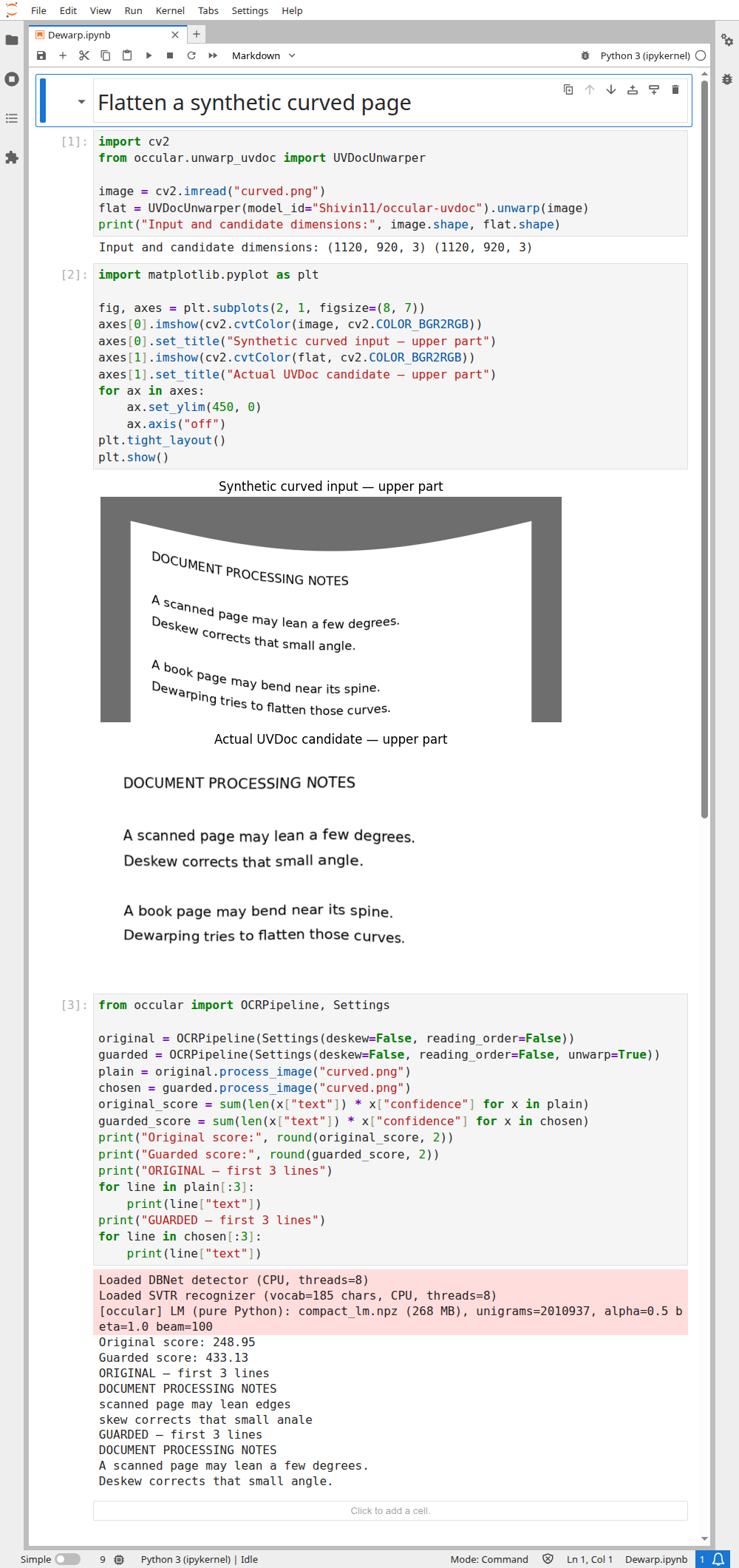
Notebook · curved.png · Run these examples
For PDFs: in version 0.5.1, orientation and dewarping work through the image path. Render PDF pages to images first →
More control: disable deskew or always dewarp
Use ocr("scan.png", deskew=False) to disable the default deskew handling. This also disables its per-line orientation handling.
OCRPipeline(Settings(unwarp="always")) skips the original-versus-flattened comparison. Use it only after checking that it helps your images; flat scans can get worse.