Repository navigation
Now playing
Now playing is where you listen with artwork, lyrics and the queue in front of you. All views share the same audio and queue, so switching between them never restarts playback. For the player controls, queue and sound settings, see Playback and queue.
| View | Good for | How to open it |
|---|---|---|
| Listening page | Artwork, lyrics and the queue in the app window | Now playing, above the sidebar |
| Fullscreen or in-window view | Cover, CD or Vinyl, with lyrics or a visualization | The expanded-view icon in the player |
| Mini Player | A small window beside other apps (desktop app) | View → Open Mini Player |
| Playlist and Details panel | The queue and track details next to your browsing | The panel button in the header |
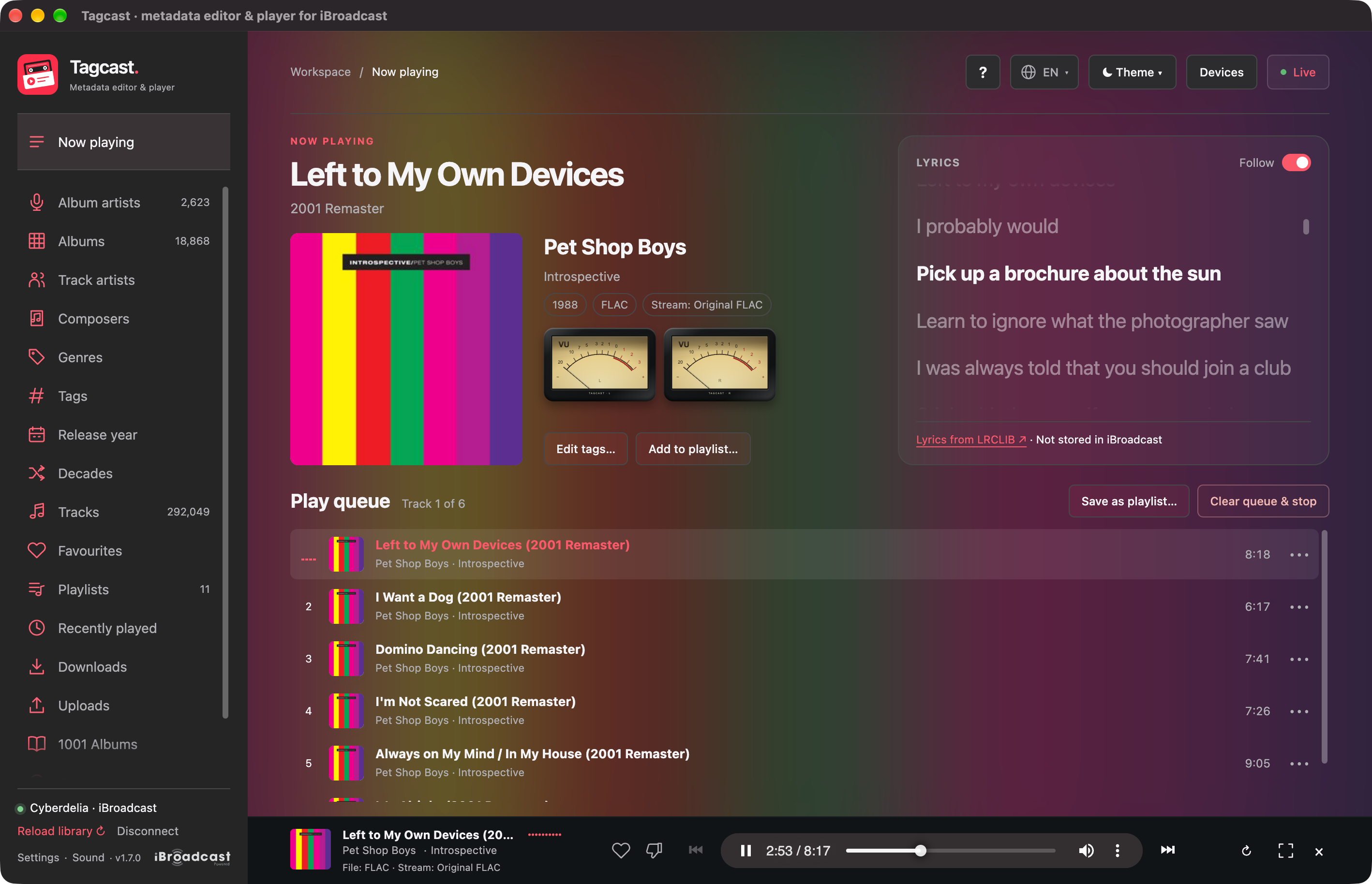
Tagcast 1.7.0: Now playing with lyrics, queue and compact transport controls. LRCLIB attribution and the temporary-display label remain visible.
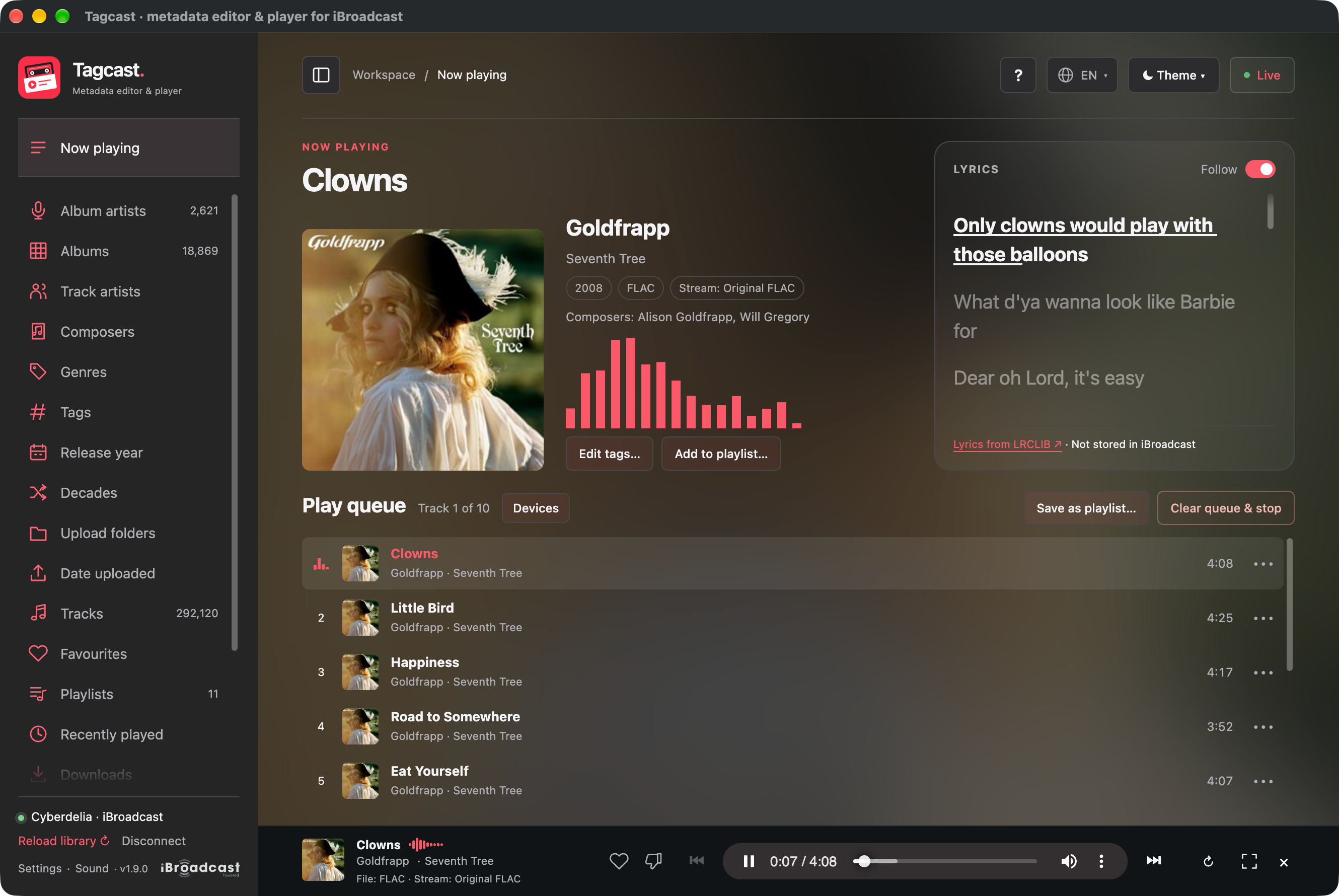
Tagcast 1.9.0, 13 November 2026. Listening page with lyrics and the existing playback queue.
Choose Now playing above the scrolling sidebar. Artwork, linked performer and album details, format information and Edit tags… / Add to playlist sit beside the lyrics panel. On a suitably sized desktop window only the queue and lyrics scroll; narrow windows adapt the layout. The background follows the artwork and respects Light and Dark appearance.
With an empty queue the page shows one Browse albums action. The empty lyrics panel and queue controls stay hidden until there is something to play. Nothing starts playing automatically.
- Queue rows show artwork and an actions menu (…) with the track actions and Remove from play queue. Save as playlist… and Clear queue & stop sit beside the queue heading.
- Edit tags… opens the normal reviewed editor. Online lyrics on this page are for display only.
- Open Now playing from the cover (Settings → Playback) chooses what the player cover opens: the Listening page (default) or the Side panel. The Now playing shortcut above the sidebar always opens the page.
- Listening page visualisation offers Off (default), Spectrum or Stereo VU meters. They observe the existing player where the browser supports it and do not start another audio engine. The meters are uncalibrated digital visualisations, not measurements of speaker loudness.
The expanded-view icon in the player opens a focused cover view. Settings → Playback → Now playing view chooses Fullscreen (default) or In app window. In app window fills the current window without asking the operating system for fullscreen. The choice is remembered in this browser or desktop profile and applies the next time you open the view. The desktop View → Toggle Full Screen command is independent.
- Cover / CD / Vinyl is one segmented choice. Lyrics is a separate toggle.
- Without lyrics, artwork and track details are centred. With lyrics, artwork and details sit on the left and the timed text uses the space on the right.
- The top bar shows the queue position and the next track when available, with separate Mini Player and Exit icons. The player controls stay centred below.
- Press Escape or use either Exit full screen icon to return. Playback and the queue continue without restarting. Where native browser fullscreen is unavailable, the view fills the browser window.
- No extra album or track details are downloaded for this view.
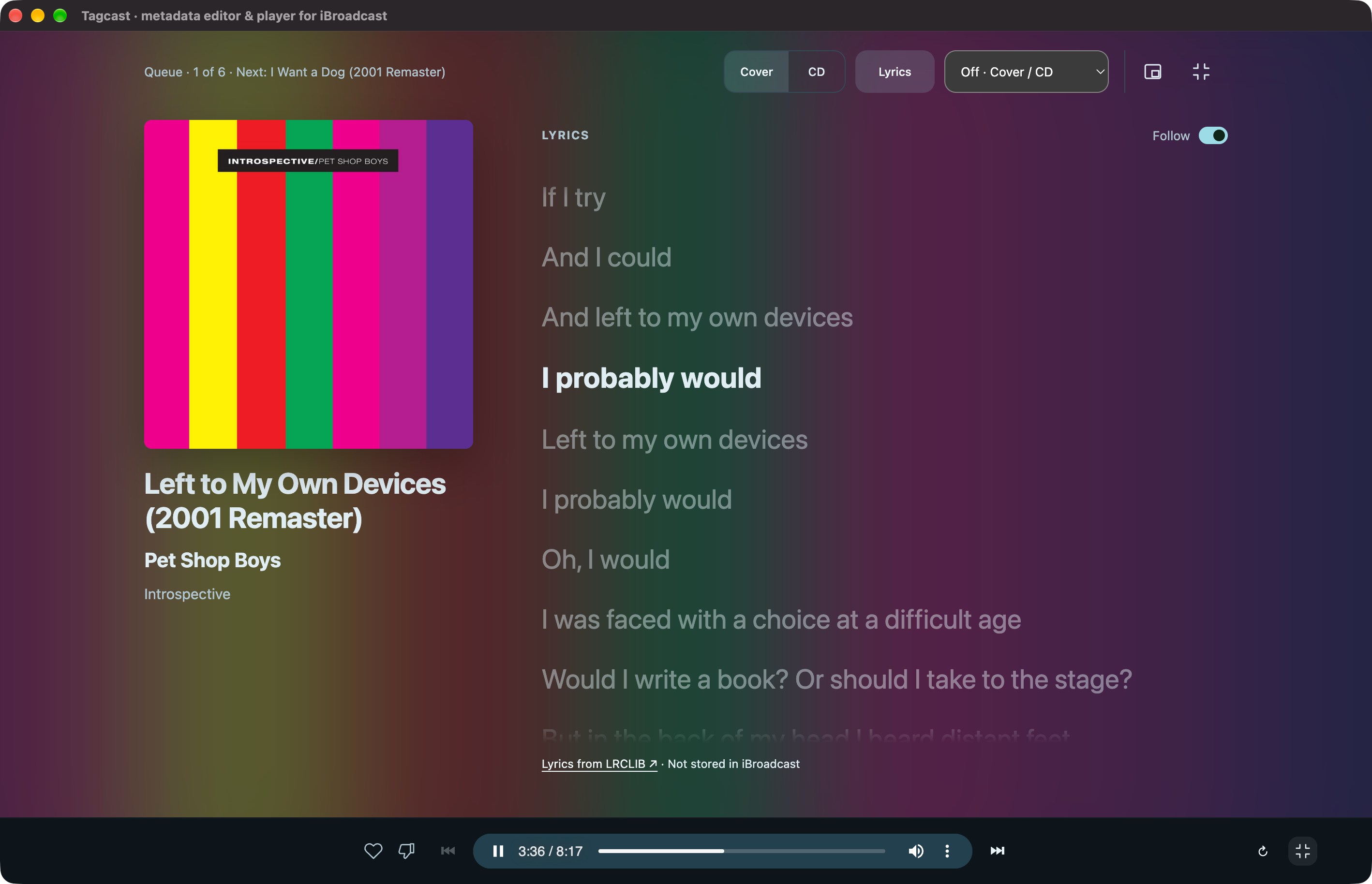
Tagcast 1.7.0 expanded cover view beside LRCLIB lyrics. The shared controls remain below; the source label identifies temporary display.
The album cover is the default. Choose CD in the Cover / CD / Vinyl control, or use Settings → Playback → Now playing artwork → Spinning CD or Album cover. Both give the same remembered choice, independent of Fullscreen / In app window.
The sleeve stays upright and readable while a tinted, printed disc rotates partly outside it. Only the printed label rotates; reflections and the centre hub stay still. The CD turns while audio plays, pauses during pause or buffering and resumes from the same angle. It stays still when your system requests reduced motion. The audio, queue and artwork are the same, so changing the display never restarts playback, and the layout adapts to smaller windows.
Choose Lyrics to keep the CD beside the lyrics. Source choices and lookup rules are described in Now playing lyrics. Displaying online text does not save it to iBroadcast.
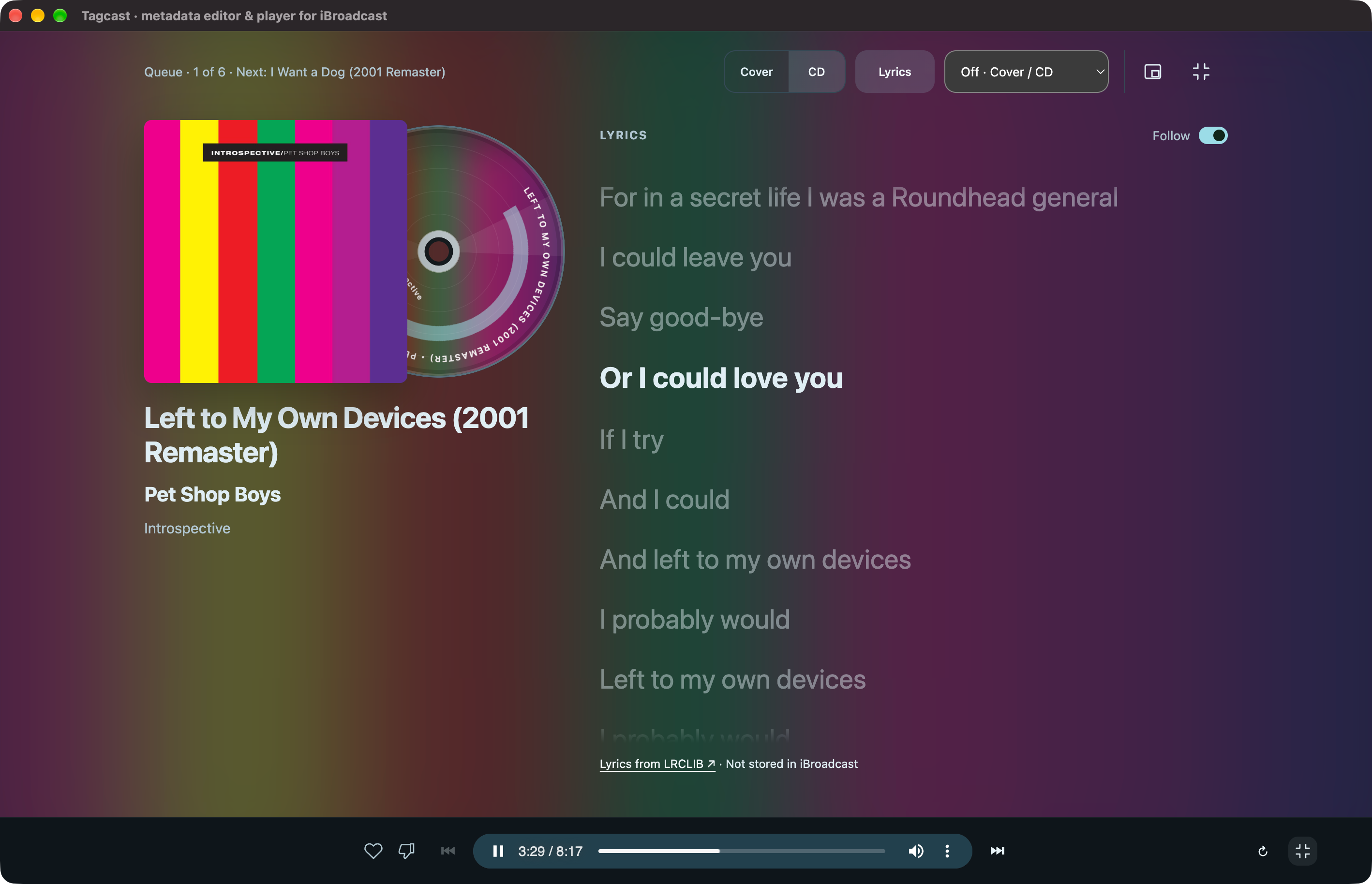
Tagcast 1.7.0: upright sleeve and printed disc beside LRCLIB lyrics, with the shared player controls. Attribution and the temporary-display label stay visible.
Choose Vinyl in the expanded player or under Settings → Playback → Now playing artwork. A record turns behind the sleeve and the tonearm moves inward as the track progresses, including when you seek. The record stops while paused or buffering. Reduced motion keeps it still and moves the tonearm directly to the current position.
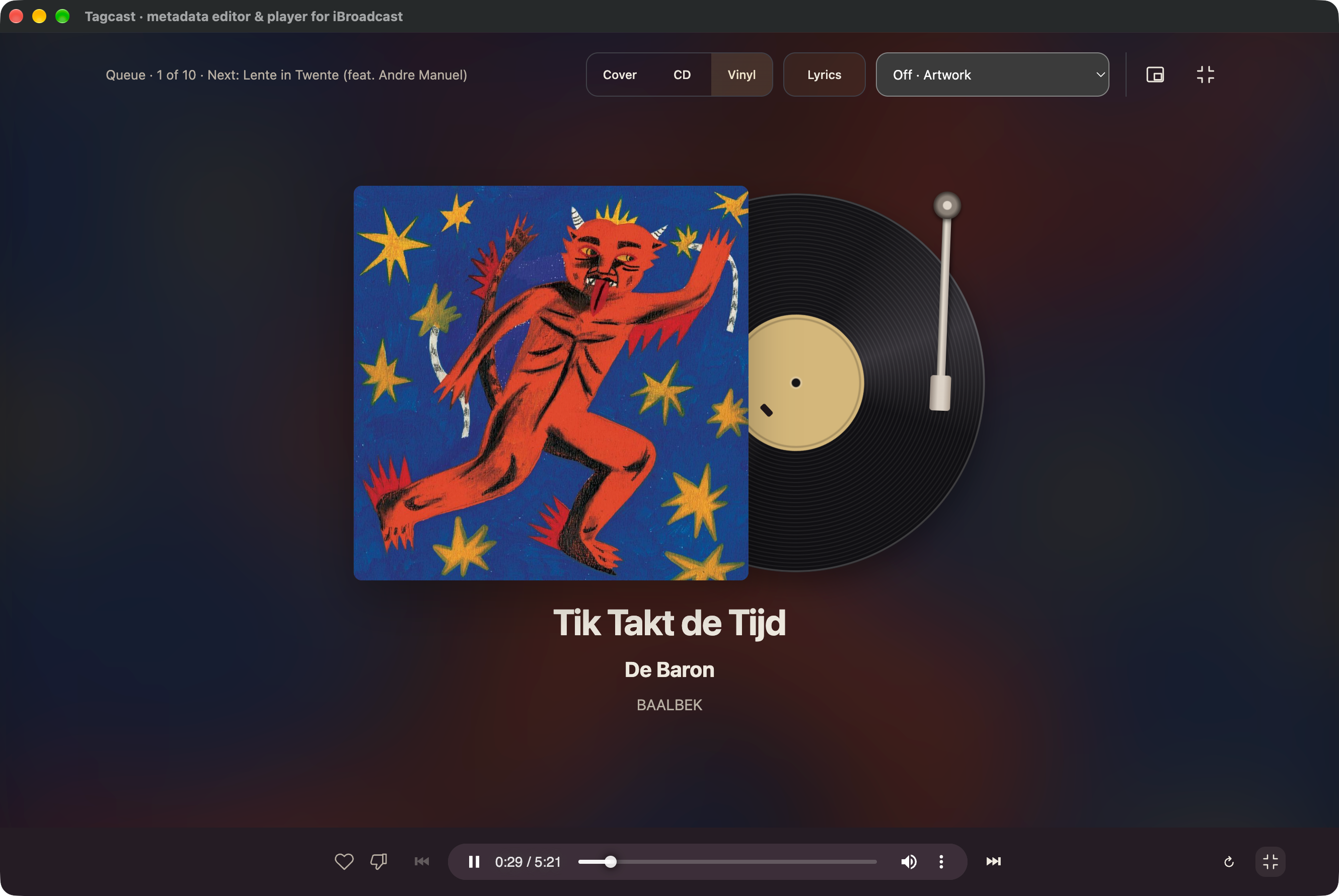
Vinyl with the album sleeve, record and tonearm.
Use Lyrics to put the timed text next to the record. See Vinyl with lyrics.
The Lyrics button in the expanded view, and the lyrics panel on the listening page, can follow timed text from Unison and LRCLIB when you choose an online source. iBroadcast only is the default. See Now playing lyrics for source order, following, cover colours and privacy. Displaying text never saves it to iBroadcast.
An optional live spectrum under Settings → Playback can sit next to the title, over the cover or along the top edge. Where audio capture is supported, animated bars can also mark the playing row. It observes the existing player, leaves the output selection unchanged and respects reduced motion. Choose Off to switch it off.
Off by default. Choose Visualization in the expanded view, or Settings → Playback → Fullscreen visualizations. This is separate from the listening page's Off / Spectrum / Stereo VU choice and from the compact spectrum. The choice is local to this browser or desktop profile, and lyrics can stay visible beside an effect.
| Choice | Presentation |
|---|---|
| MilkDrop · Aurora | Bundled Butterchurn effect |
| MilkDrop · Orbit | Bundled Butterchurn effect |
| MilkDrop · Ribbons | Bundled Butterchurn effect |
| MilkDrop · Ember Tunnel | Orange tunnel that reacts to bass |
| MilkDrop · Kaleido Bloom | Mirrored purple shapes |
| Stereo · Vectorscope | Left and right channel trace |
| Retro · LED spectrum | Segmented frequency bars |
| Retro · Oscilloscope | Waveform and grid |
| Spectrum · Neon ring | Circular frequency spectrum |
| Space · Starfield | Stars and bass-reactive trails |
| Spectrum · Waterfall | Rolling frequency history |
Random · changes every 30 seconds rotates through all eleven effects in a shuffled cycle. Each effect gets a turn before any repeats, and no effect repeats directly after a cycle ends. Only visible playback advances the clock: pause, buffering, seeking and hidden views do not. Selecting a fixed effect stops the rotation. Off · Artwork, or choosing Cover, CD or Vinyl, returns to artwork.
The effects observe the existing analyser and audio element. They do not create another audio output or change the queue, speed, output device or Gapless engine. Butterchurn and its presets are bundled locally, so no external visualization service or preset download is used.
Limits. MilkDrop needs WebGL2 and supported audio capture. Reduced motion, unsupported capture or a rendering failure keeps or returns the artwork while the music continues. Pause freezes the effect, and hiding it stops its rendering. Browser support varies, including a fallback in Safari/WebKit. If an effect shows artwork instead, see Troubleshooting.
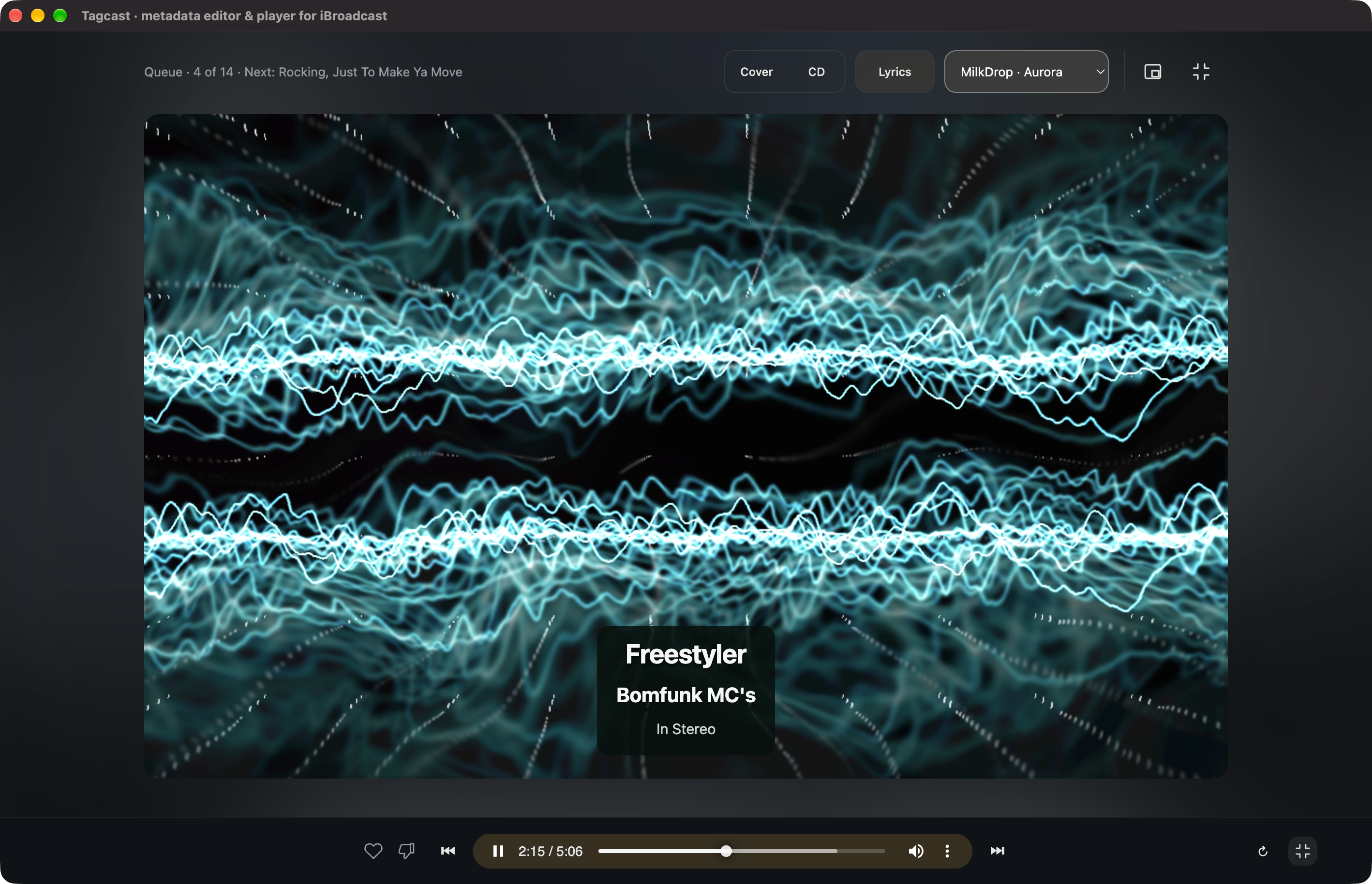
Maintainer-supplied capture, 11 November 2026: MilkDrop · Aurora.
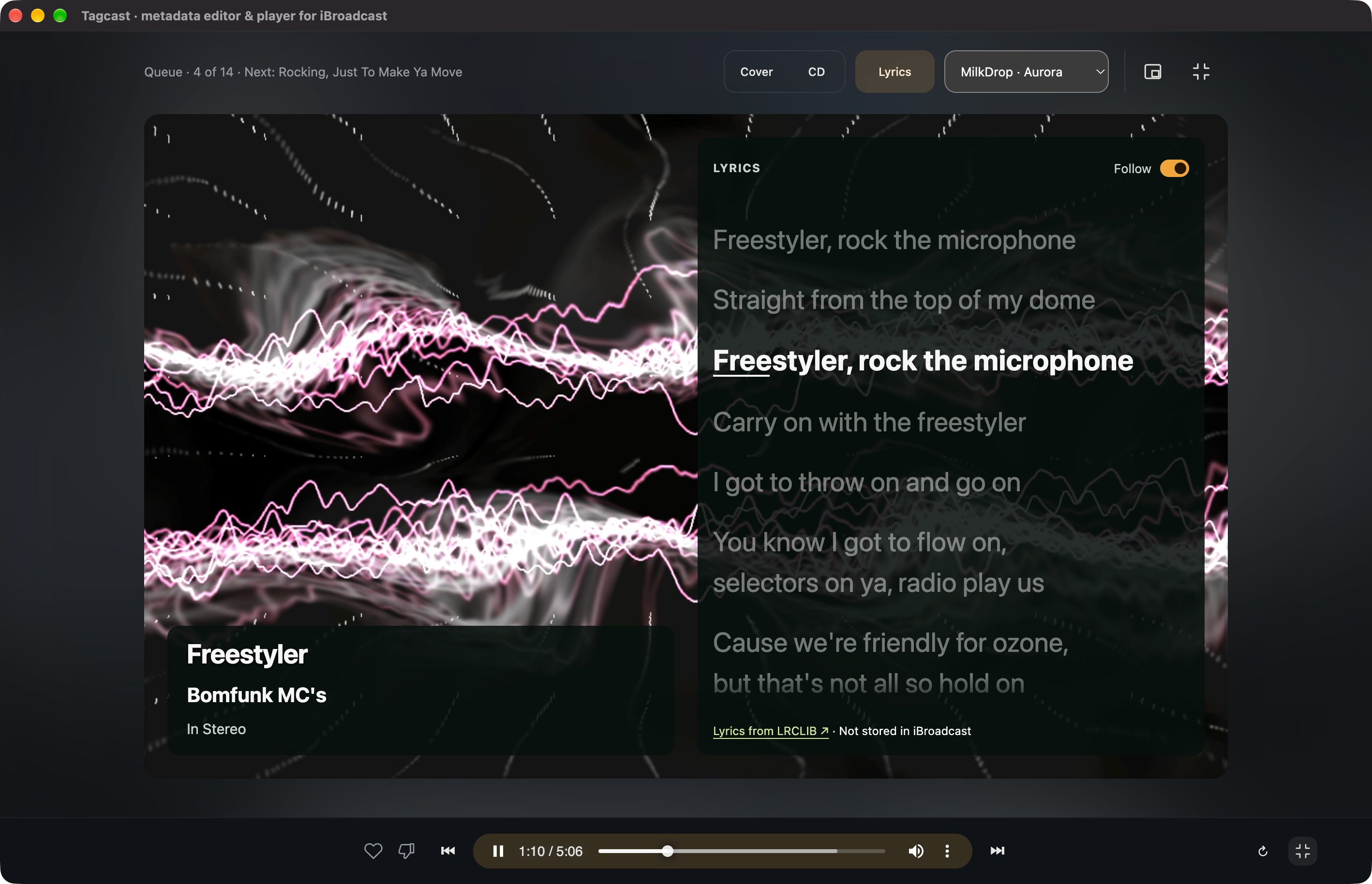
Aurora with lyrics. Provider attribution stays visible; displaying text does not save it. See the visualization captures.
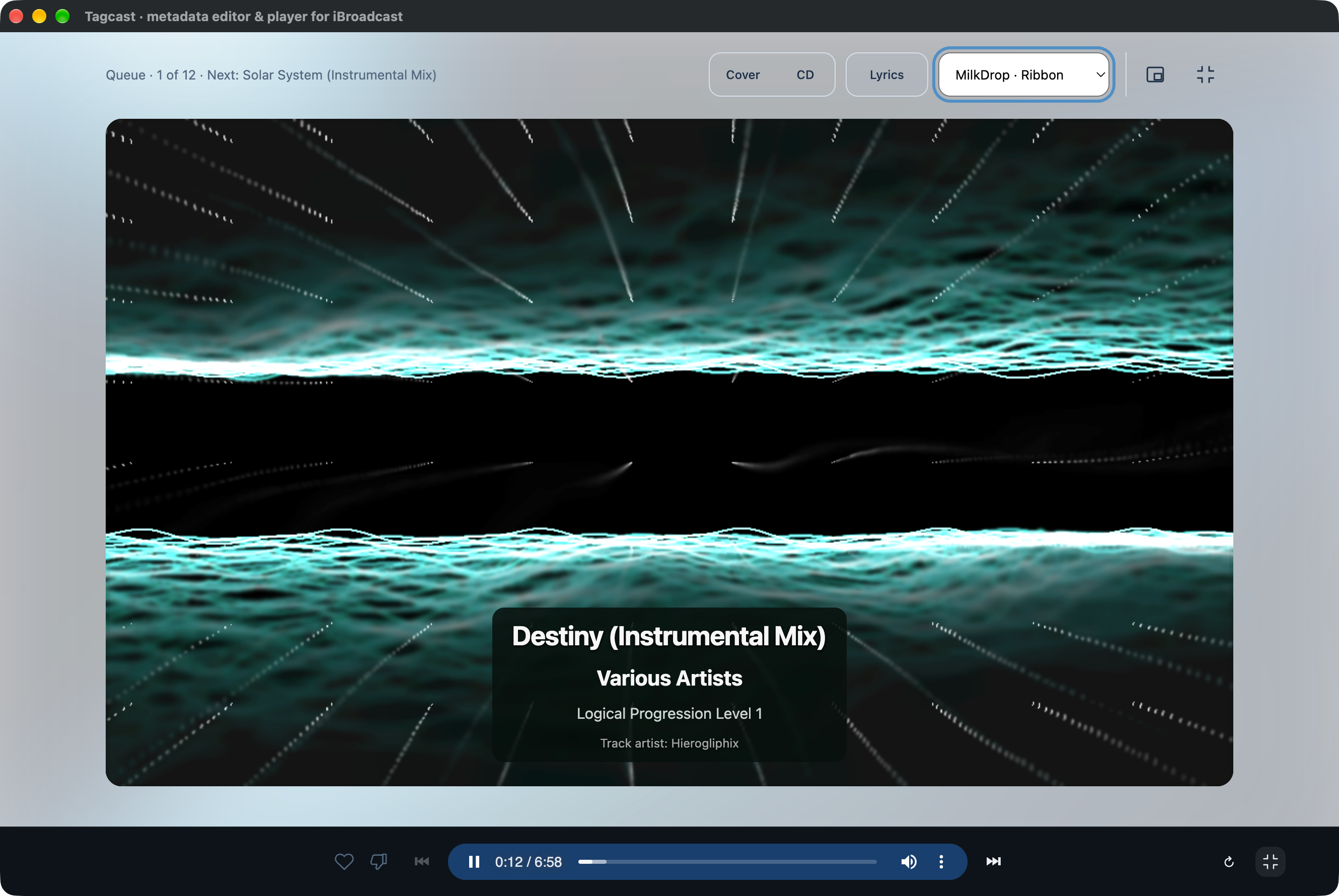
Tagcast 1.9.0, 13 November 2026. MilkDrop · Ribbon in the expanded Now playing view.
Choose View → Open Mini Player, press Cmd/Ctrl+Shift+M, or choose Mini Player in the expanded view. Artwork and track information sit above the transport controls and a track-relative seek bar. Pin keeps the window on top where supported; it is unavailable on Linux/Wayland. Window size and Pin are remembered in the desktop profile.
Opening the Mini Player hides the main window. Open Tagcast, closing the Mini Player or returning to the main window restores the full interface and closes the compact window. Playback continues through the same audio element and queue, including supported experimental Gapless playback; there is no second player. Normal Quit still stops the app, and the usual unsaved-change warnings apply. The Python and browser version keeps its existing player.
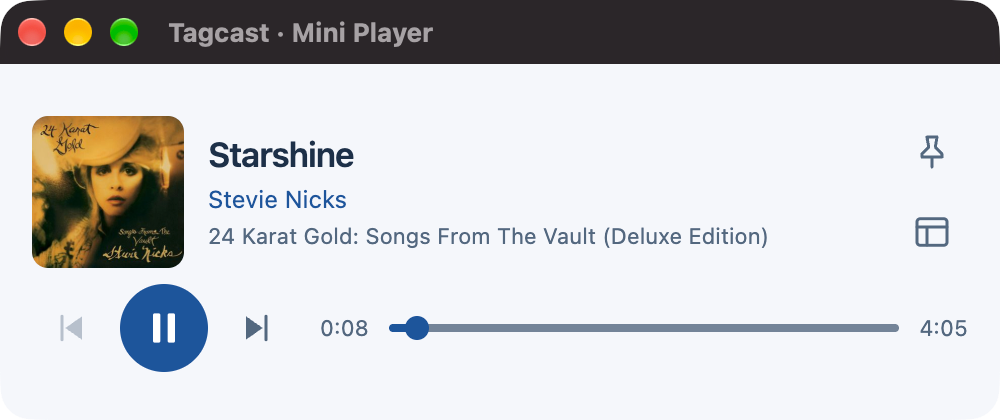
Tagcast 1.7.0 guide capture, 11 November 2026. The compact native Mini Player with artwork, transport, seek, pin and return-to-window controls in Light appearance.