Repository navigation
Updating Tagcast
Tagcast checks the public GitHub release information for a newer stable version. You choose when to download and install it. Checking for updates sends no iBroadcast credentials or library records.
From 1.8.0 · Checks and release notes · Download and install · Platform routes · Recovery
Install the latest stable release manually once. Version 1.8.0 can notify you about releases, but does not contain the new desktop installer. Quit the old app or terminal server, then follow Getting started to replace the package or update through Homebrew. Settings, sign-in data and library caches stay in their normal folders.
1.9.0 is the first version that can download and install a later stable release on supported installations. Windows downloads remain unsigned and use manual updates.
Open Settings → About & updates → Tagcast updates. Automatically check for new stable releases controls the daily startup check; Check for updates checks immediately. Failed checks stay separate from the iBroadcast connection.
When a newer release is available, open its notification or choose View release & downloads → in Settings to read the release notes inside Tagcast. The dialog does not open itself. From 1.9.7, notes use safe formatting for headings, lists, emphasis, code and simple tables. Embedded images and executable HTML are not loaded; links are restricted to HTTPS. Earlier updater versions show plain text. Download progress preserves the notes' scroll position and keyboard focus. Inside the dialog, View release & downloads ↗ opens the official page for complete notes and manual downloads.
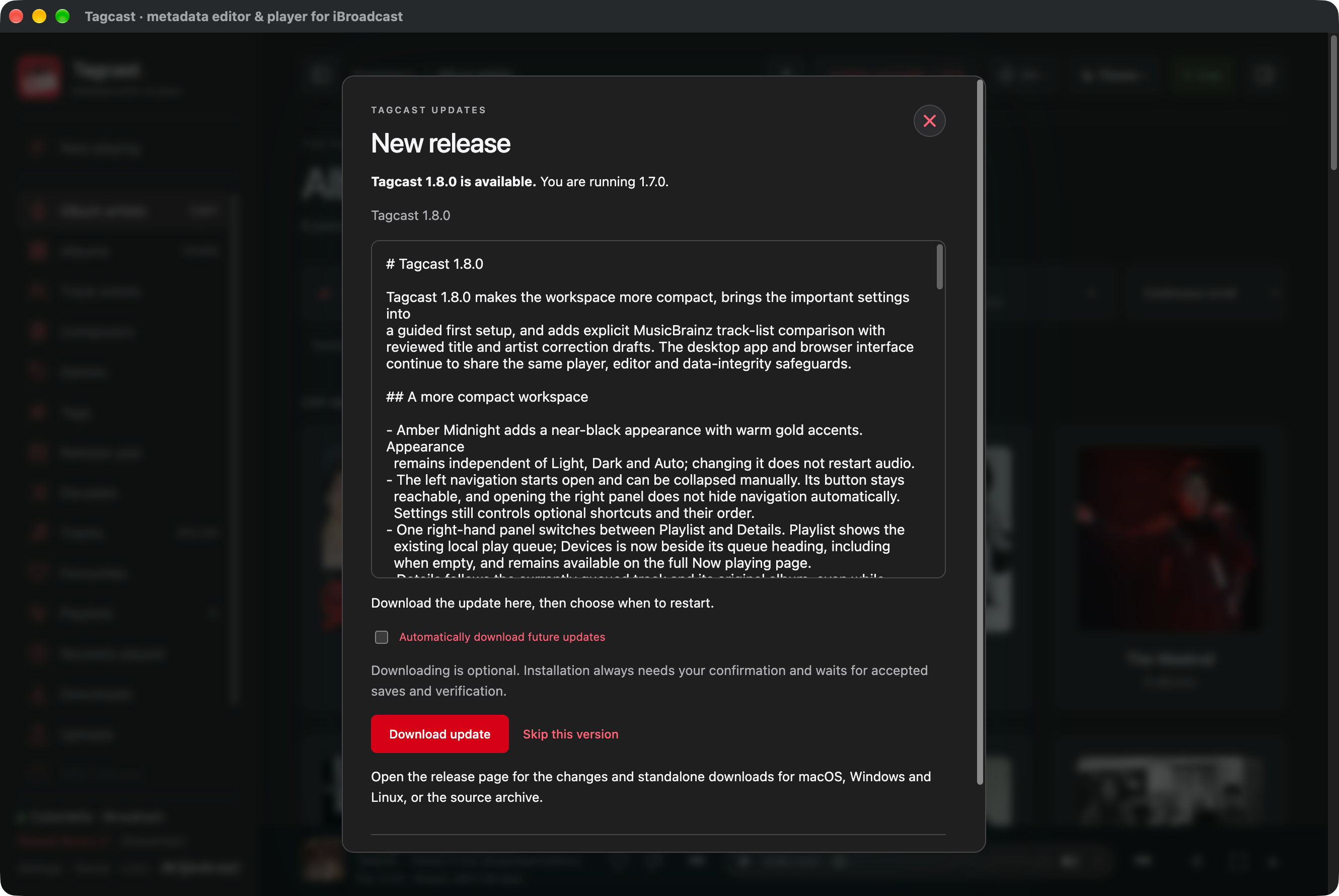
Tagcast 1.9.0, 13 November 2026. Example update dialog. The version numbers illustrate an earlier update offer; a real check only offers versions newer than the running app.
On a supported installation:
- Choose Download update. Progress appears in the dialog; playback can continue.
- When the download is ready, choose Restart and install and confirm in the native dialog.
- Tagcast checks unsaved drafts, finishes accepted writes, their read-back checks and local storage, then lets the installer replace the app and restart it.
Later closes the dialog. Skip this version suppresses its automatic notification; an explicit check can still show it. Automatically download future updates starts off. This preference and the skipped version stay in the local desktop profile, separate from the daily release-check setting. A manual check alone does not download a package.
Ordinary Quit never installs an update. Keep Tagcast open cancels that installation attempt. Uncertain writes postpone installation; they are not force-terminated or automatically retried. See Saving, history and recovery and Closing and restarting safely.
| Installation | Route for a later stable update |
|---|---|
| Developer ID signed macOS app, Apple Silicon or Intel | Download in Tagcast, then confirm replacement and restart. |
| Homebrew-managed macOS app | Use brew update, then brew upgrade --cask cyberdeliaAI/apps/tagcast. |
Debian/Ubuntu package installed in /opt/Tagcast
|
Download in Tagcast, then approve the package installer's privilege request. |
| Windows installer or portable ZIP | Download and install manually while Windows signing remains pending. |
| Linux TAR.GZ or Python/browser version | Replace the package or update the source manually. |
| Ad-hoc macOS test app, or a window reusing a separately started backend | Update manually. Tagcast will not stop a server it does not own. |
The Windows per-user NSIS installer and portable ZIP are both available. Both remain unsigned; the presence of an installer does not enable in-app Windows updates. Keep system-wide security protections enabled. See signing and download verification.
Downloads use this repository's version-pinned release feeds, exact platform filenames and SHA-512 package digests. Each public package also has a SHA-256 companion. A checksum checks file integrity; it does not replace publisher signature verification.
Read the displayed error and keep the current app until the cause is clear. A failed download does not authorize installation. If a write is still being checked, let it finish; do not repeat it to get past shutdown. A canceled installation leaves the app available for a later attempt.
Manual installation remains available from the official releases. Quit Tagcast fully before replacing files. If this window reused a terminal server, stop that server separately and wait for it to finish. See Troubleshooting.
The desktop update implementation notes describe feed validation, platform detection and the actual two-version upgrade testing required before the first subsequent in-app update chain. Unit and package smoke tests alone do not establish signed in-place upgrade behavior.