Connecting To Kepware OPCUA Server
Article Type: How-To Audience: Developers, App Admins Module: How To
This guide walks through enabling the OPC UA server in Kepware and connecting to it from the Edge Gateway using the OPCUA Client driver, including common troubleshooting steps for certificates and OpenSSL.
Connector type: Physical device connector — requires the OPCUA Client device driver and is added as a device connection on the Edge Gateway.
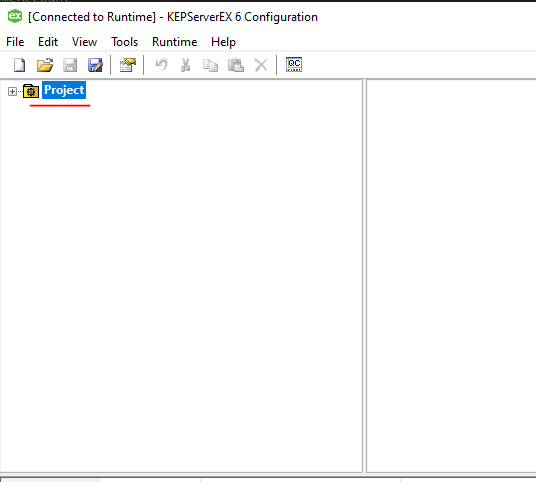
- In the configuration application, go to the Project pane and right-click the project you wish to enable OPC UA on.
- Select Properties.
- Under Property Groups, select OPC UA.
- On the right side, change the Enable property to
true.

- Open the Kepware Administration application by right-clicking the Kepware icon in the system tray.
- Select OPC UA Configuration.
- This opens the OPC UA Configuration Manager, where you can:
- Enable/disable endpoints
- Configure security policies
- Configure port numbers
- Trust client certificates


- Install the Edge Gateway.
- Select the Plugins tab on the left side of the Edge Gateway.
- Select the OPCUA Client driver.
- Press the download button.
- Create and configure a new device.


OPCUA device won't show up in the gateway admin site on the local server and keeps throwing a redux error
OpenSSL is required for the OPCUA device to generate certificates. Even if the OPC UA server is configured to have no security, the gateway device will still need to generate certificates to act as its identity when talking to the server.
The gateway attempts to download OpenSSL at the time of device creation. If that download is blocked, the gateway will get hung up when trying to first initialize the device, as it has no way to create the certificates it uses to identify itself to the OPC UA server.
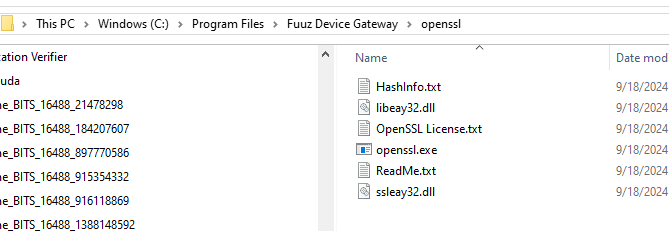
If you have an empty OpenSSL folder after attempting to create an OPCUA Client device, you will need to download the OpenSSL files and place them in the Edge Gateway installation folder, e.g. C:\Program Files\Fuuz Edge Gateway\OpenSSL.
The files can be downloaded at https://indy.fulgan.com/SSL/openssl-1.0.2t-x64_86-win64.zip.
OPC UA uses certificates as a means for clients and the server to state their identity to each other.
The OPCUA Edge Gateway driver will automatically generate its own identity certificate as well as pull Kepware's identity certificate. By default these are all stored at C:\Fuuz Edge Gateway\opcua\<deviceId>\. This location can be changed in the device settings if you do not have access to write files to the default location.
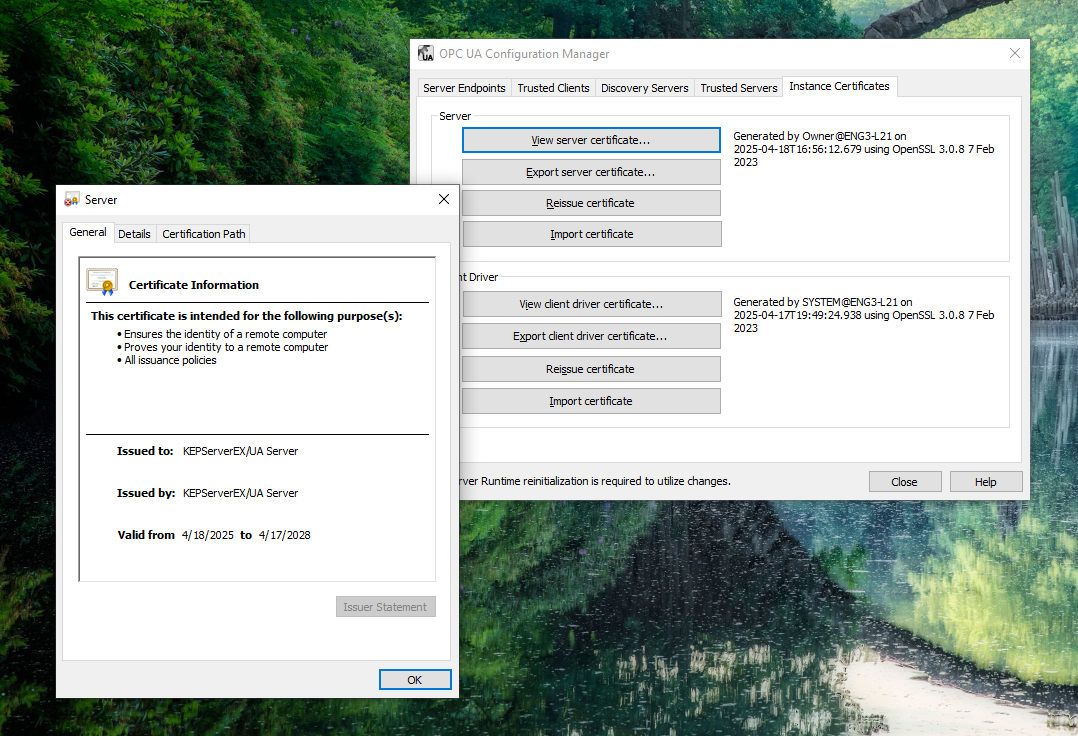
Kepware Certificate
You can view the expiration date of the Kepware certificate in the OPC UA Configuration Manager by going to the Instance Certificates tab and clicking View server certificate…. From this tab you can Reissue a new certificate if your current certificate is expired.
This can have implications for connections that are using the old certificate.
When the Kepware certificate is reissued, you will need to delete the certificate out of the trusted folder in the device's certificates folder (path mentioned above). This causes the device to re-pull the certificate from the server in its device configuration.
If you delete the entire folder, and not just the trusted folder inside of it, the device will recreate the folder, pull the certificate from the server, and reissue new certificates for itself. This requires that trust be re-granted to the device in Kepware.
Fuuz Device Certificate
To view the device certificates, you will need to use a tool like OpenSSL to decode the x509 PEM data in either the default or the overridden location for the device certificates. Running the command below in the folder of the certificate displays all of the certificate data:
openssl x509 -in name_of_cert.pem -noout -textTo generate new certificates for the device, delete the own folder out of the device's certificate folder. This forces the device to generate new certificates for itself and send them to the server. Because these are new certificates from the device, Kepware will see this as a new device, and you will need to re-grant trust in the OPC UA Configuration Manager on the Trusted Clients tab.
Note: By default, Kepware certificates have a lifetime of 3 years.
- Edge-Connections-Complete-Industrial-Integration-Reference
- Gateway-Deployment-and-Architecture
- Fanuc-Robot-Connectivity-using-Edge-Gateway
- Debugging-and-Testing-our-Fuuz-Data-Flows
Source: support.fuuz.com