Training Grant Permissions with Policies
What you'll learn: how Fuuz application permissions flow — Policy → Policy Group → Role — and how to wire the chain end to end. You need: Administrator access type, any application, an existing role (create one first). Time: 10 minutes.
Permissions are defined once in a Policy, bundled into a Policy Group, and attached to a Role. Users get the role; everything upstream is reusable. Build in this order: policy → group → role.
- Go to Left menu → Access Control → Policies. (Fallback: header Search.)
-
Click +. Enter a Name (e.g.
Screen Access) and Description, then click the orange +. You land on the policy's detail page. - In the Policy Editor, click + to add a statement.
- Pick a base for the statement: GraphQL, Orchestration, Integration, Websocket, or Screen.
-
Check the actions and resources the statement covers — e.g. Actions ▸ Screens, Resources ▸ All Screens. The statement header summarizes itself ("Screen: 1 Action, 1 Resource, 0 Rules").
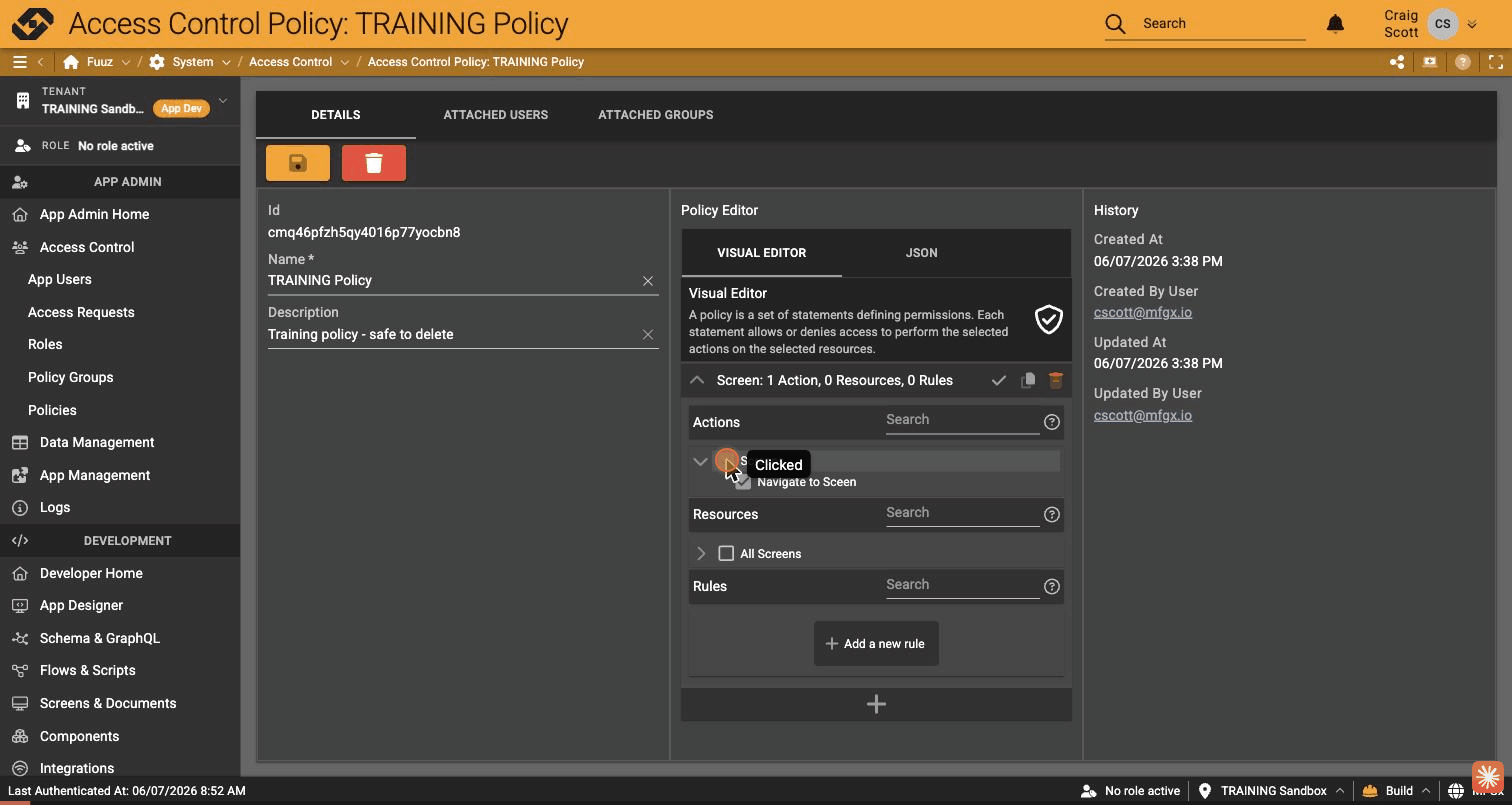
- Click Save (💾). A toast confirms "Data updated successfully."
- Go to Left menu → Access Control → Policy Groups.
-
Click +, enter a Name (e.g.
Operators) and Description, click the orange +.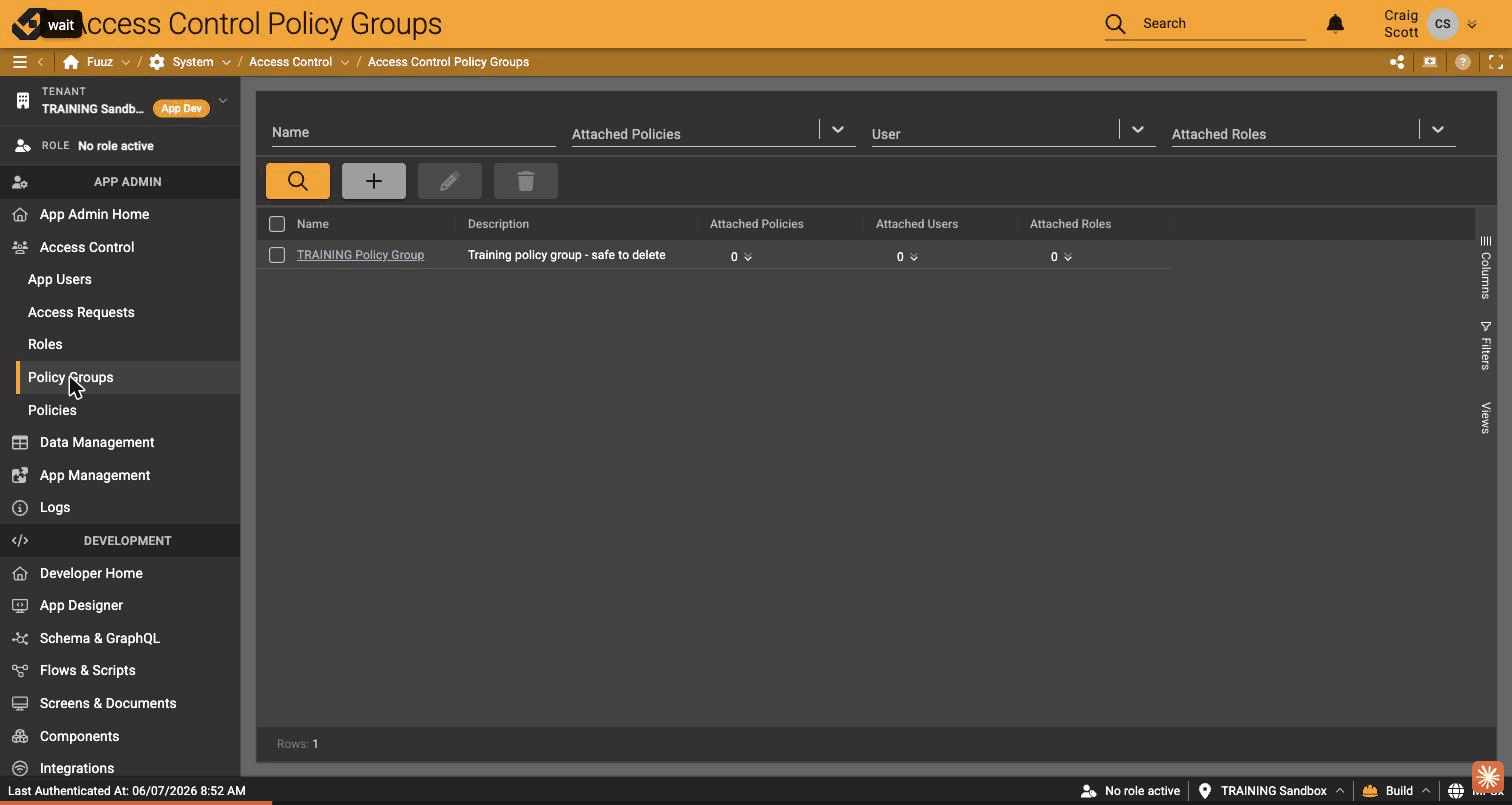
- Click the group's Name to open it, then open the ATTACHED POLICIES tab.
-
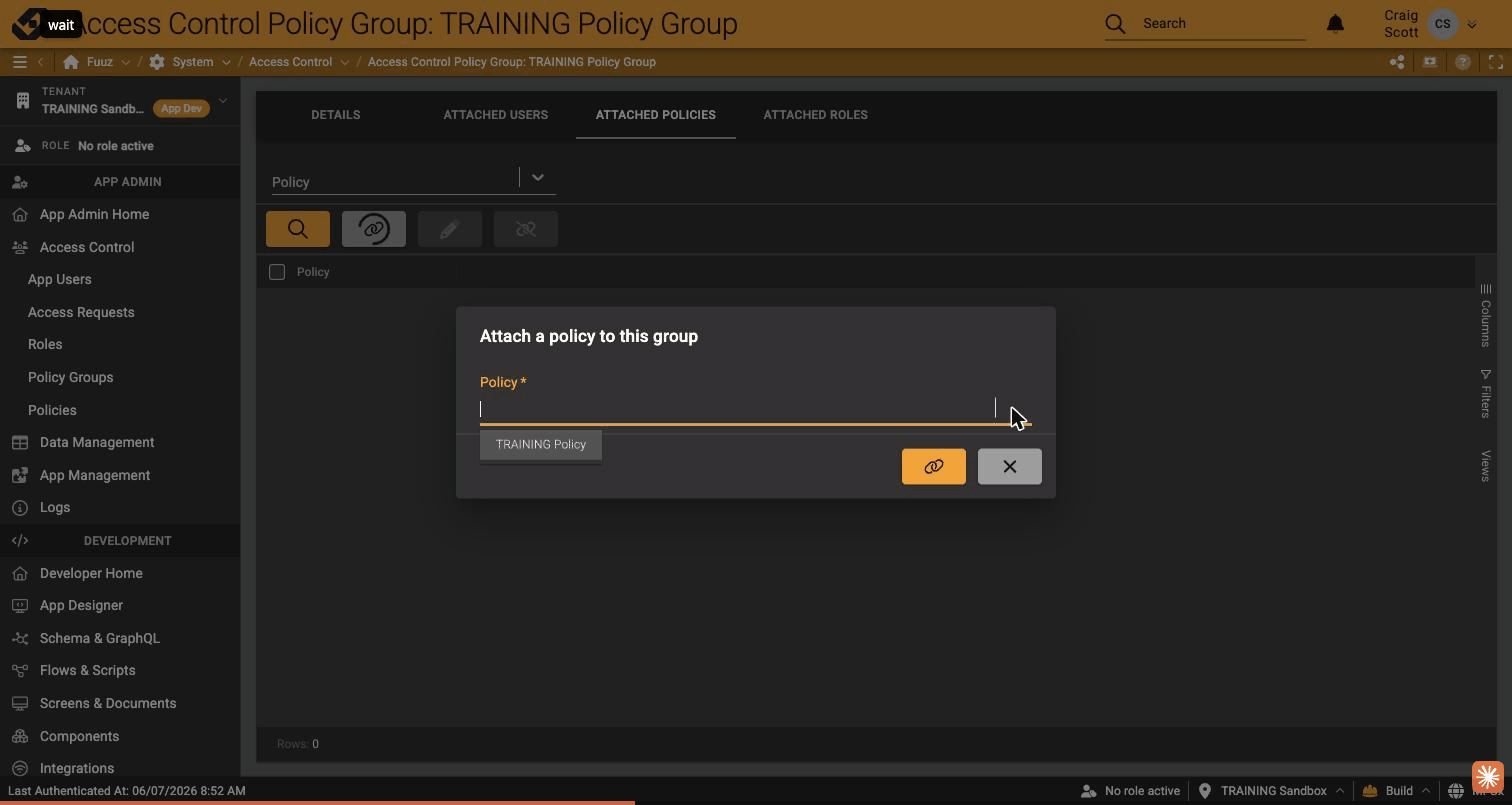
Click the link icon (🔗), pick your policy from the Policy dropdown, and click the orange 🔗. Toast: "Policy attached successfully."
- Go to Left menu → Access Control → Roles and open your role.
- Open the ATTACHED POLICY GROUPS tab.
-
Click the link icon (🔗), pick your policy group, click the orange 🔗. Toast: "Role attached successfully."
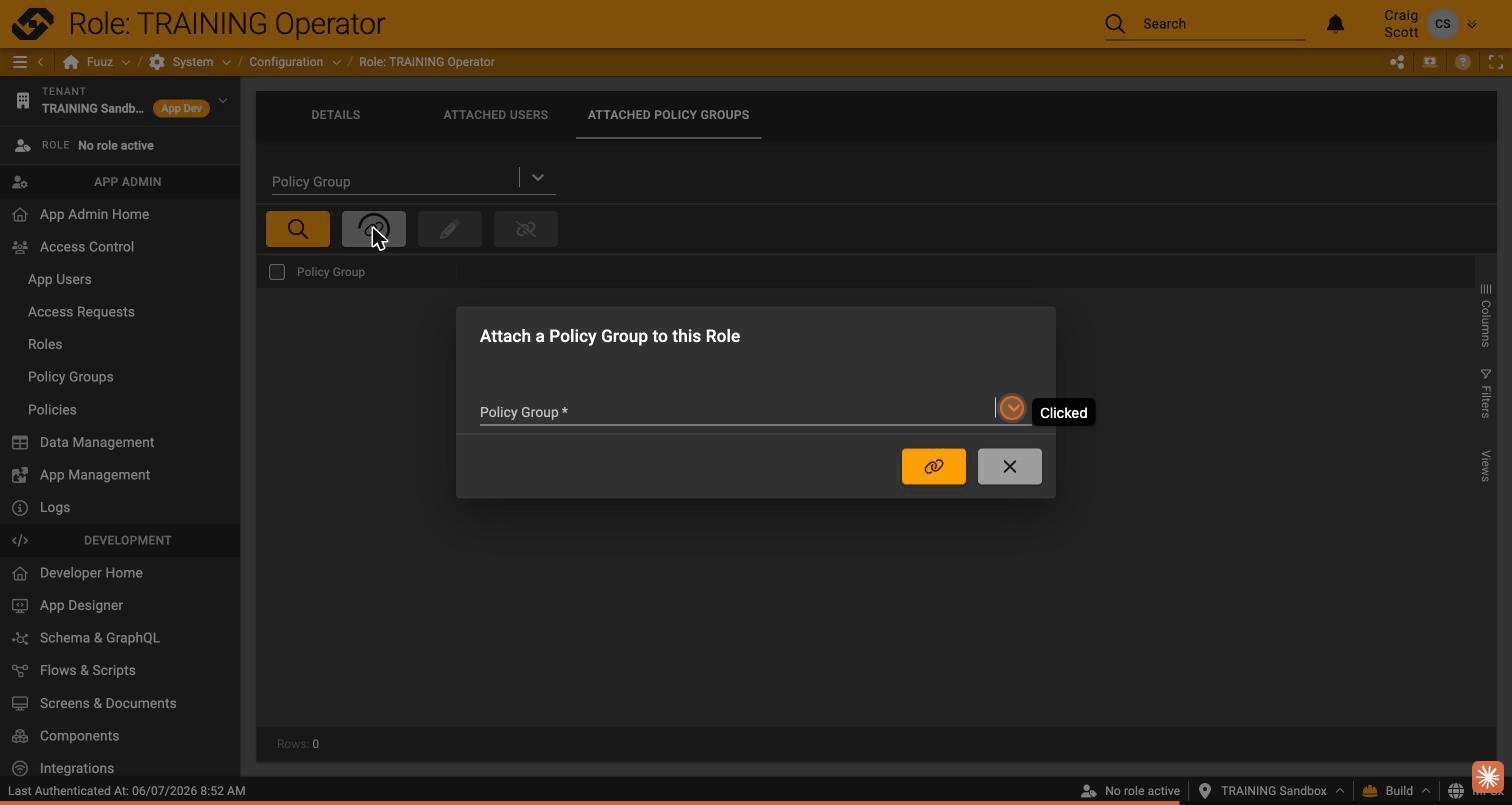
Open the role's DETAILS tab: Effective Permissions now shows the inherited statement (e.g. "Screen: 1 Action, 1 Resource, 0 Rules"). This view is read-only — to change permissions, edit the policy, never the role.
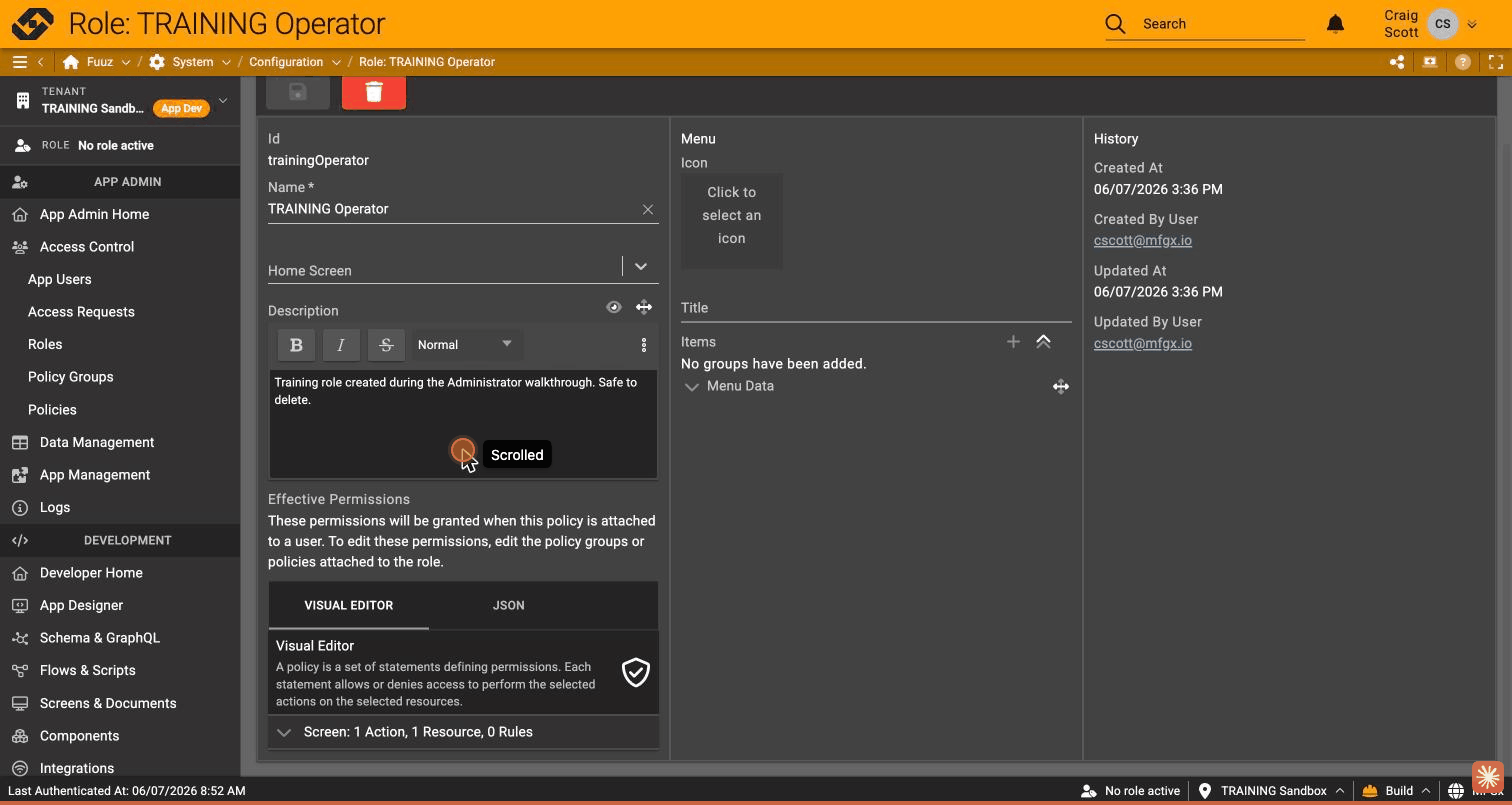
Full wiring walkthrough: 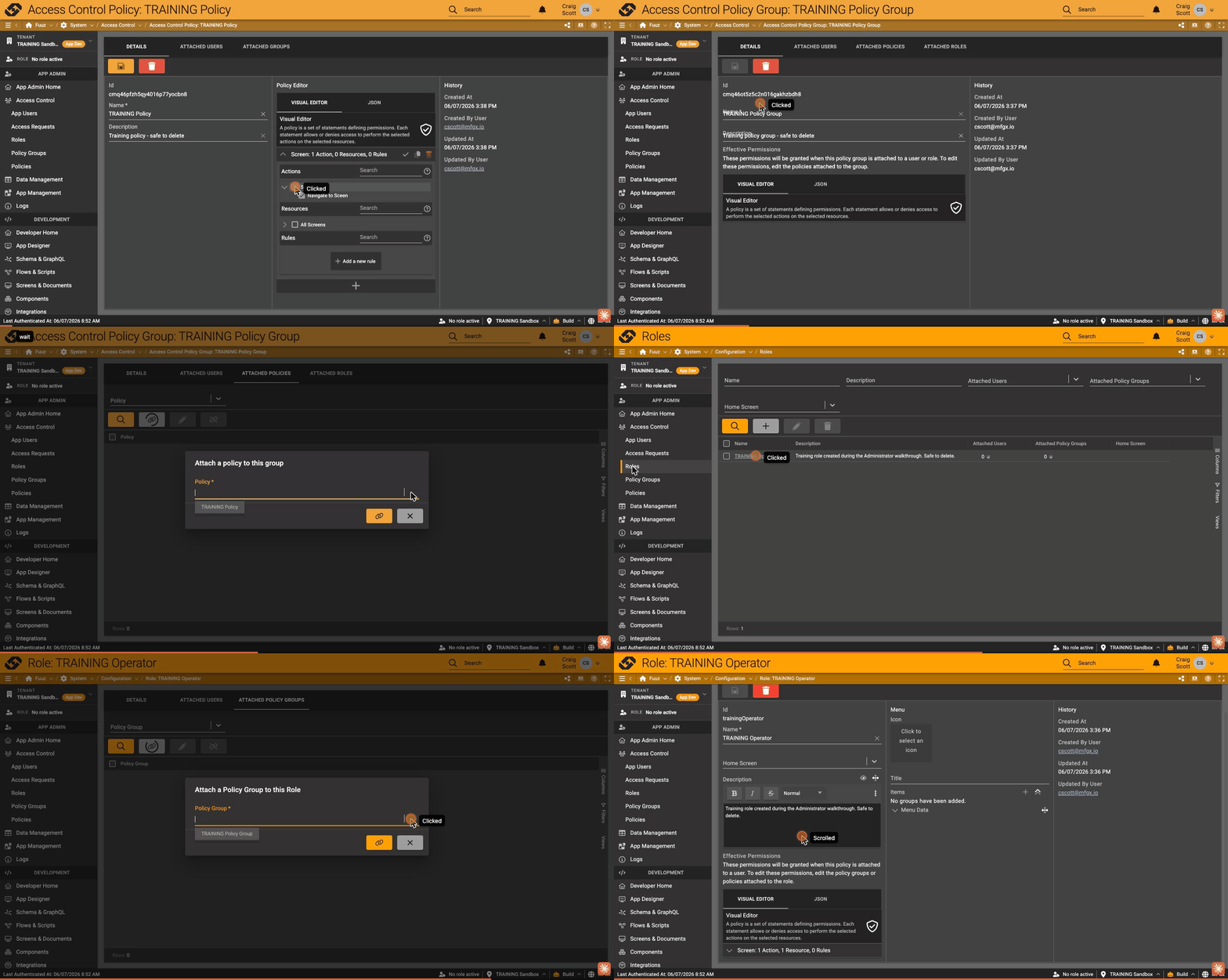
Create a second policy with a GraphQL base statement, attach it to the same group, and watch the role's Effective Permissions update without touching the role.
Training: Create a Role · Training: Invite a User to an Application