Troubleshooting User Login Errors Due to Identity Provider Misconfiguration
Article Type: Troubleshooting Audience: Platform Administrators, IT Support Module: Enterprise Admin – Access Control
This article provides step-by-step guidance for troubleshooting user login failures caused by Identity Provider (IdP) misconfiguration or incorrect IdP association within the Fuuz platform. When users are unable to authenticate, the root cause is often an incomplete Identity Provider setup or an incorrect IdP assigned to the user account.
Users experiencing this issue may encounter one or more of the following symptoms:
- Error message on login screen:
Cannot read properties of undefined (reading 'url') - Login page loads but authentication fails without clear explanation
- User credentials appear valid but access is denied
- Authentication prompt does not appear or displays incorrectly
Important: Example error — when attempting to log in at
https://build.yourEnterprise.fuuz.app, users may see "Cannot read properties of undefined (reading 'url')" displayed on the login form.
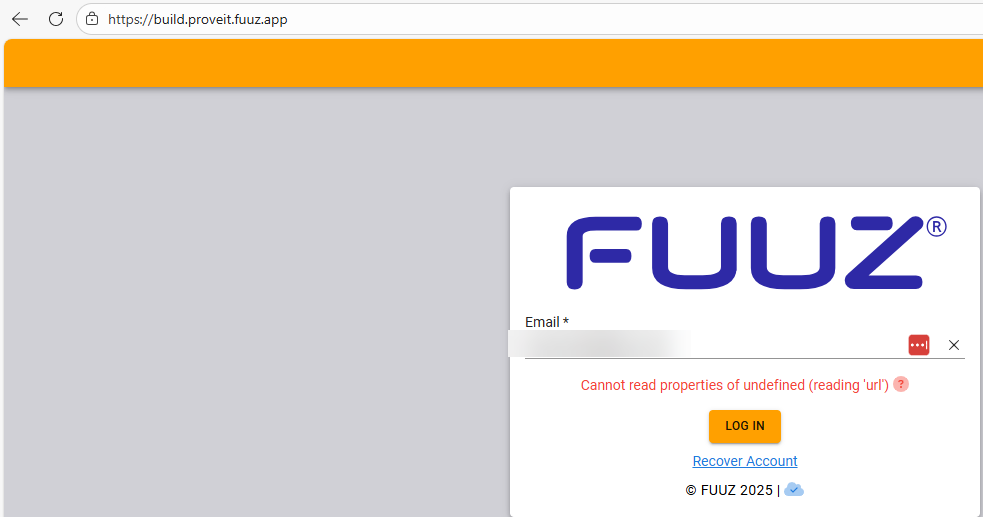
This issue typically occurs due to one of two primary causes:
Cause 1: Incomplete Identity Provider Configuration
The Identity Provider associated with the user lacks required configuration fields, such as:
- OIDC configuration data
- URL endpoint
- Client ID
- Authentication parameters
Cause 2: Incorrect Identity Provider Association
The user has been associated with the wrong Identity Provider during the user creation process, pointing to an IdP that does not match their organization's authentication system.

- Navigate to Enterprise Admin Home → Access Control → Identity Providers.
- Locate the Identity Provider associated with the affected user.
- Click on the IdP to view its configuration details.
- Verify that all required fields are populated:
- Configuration section must show "OIDC" or the appropriate protocol
- URL field must contain the authentication endpoint
- Client ID must be configured
- Authentication Prompt and Configuration Data must be present
Important: If any required fields are empty or missing, the Identity Provider is incomplete and cannot authenticate users. All configuration fields must be fully populated before users can successfully log in.

- Navigate to Enterprise Admin Home → Access Control → Enterprise Users.
- Locate the user experiencing login issues in the user list.
- Click on the user to view their details.
- Check the Identity Providers field to see which IdP is associated with their account.

If the user is associated with an incomplete or incorrect Identity Provider:
- From the user's detail page, locate the Identity Providers field in the Access Control section.
- Remove the association with the misconfigured IdP.
- Select the correct, fully-configured Identity Provider from the dropdown.
- Save the changes using the Save button.
Alternative method — if the misconfigured IdP is no longer needed:
- Navigate back to Identity Providers.
- Select the misconfigured IdP.
- Delete the IdP (ensure no other users are dependent on it first).
- Return to the user's detail page.
- Associate the user with the correct Identity Provider.
- Save the changes.
- Instruct the user to refresh their login page in their browser.
- The user should now be able to authenticate successfully using their credentials.
- Verify the user can access their designated home tenant and applications.
- Check the Authentication Events log to confirm successful authentication.
Note: Changes to Identity Provider associations take effect immediately upon saving. Users only need to refresh their login page — no logout or system restart is required.
To avoid this issue in future user setups, follow these best practices.
Ensure all Identity Providers are fully configured with all required fields before associating them with users. Complete IdP setup includes:
- Complete configuration data (OIDC settings, endpoints)
- Valid authentication URLs
- Proper client credentials (Client ID, Client Secret)
- Successful test authentication (if available)
Before adding new users, confirm that the intended Identity Provider has been tested and verified. Review the IdP configuration to ensure:
- All required fields contain valid data
- The authentication endpoint is accessible
- No error messages appear in the IdP configuration
Maintain clear documentation of which Identity Providers are intended for which user groups, organizations, or tenants. This prevents accidental misconfiguration during user provisioning.
Periodically check the Authentication Events log to identify failed authentication attempts and their associated IdPs. This proactive monitoring can reveal configuration issues before users report them.
- Changes to Identity Provider associations take effect immediately upon saving.
- Users do not need to take any action other than refreshing their login page.
- Multiple users can be affected if they share the same misconfigured Identity Provider.
- Review the Authentication Events screen (Enterprise Admin → Access Control → Authentication Events) to see detailed logs of failed authentication attempts, including failure reasons and associated Identity Providers.
- The "Failure Reason" column in Authentication Events often provides diagnostic information such as "Cannot read properties of undefined" or other configuration errors.
- Trouble-Logging-Into-Fuuz
- Logging-into-Fuuz-–-Cloud-Access
- Recovering-Your-Fuuz-Account
- Switching-my-active-Role-within-Fuuz
Source: support.fuuz.com