Skip to content
ispyisail edited this page Nov 26, 2026 · 1 revision

Connectors: plugs, sockets and their pins

A connector is a plug or a socket whose terminals are its pins. QElectroTech has no separate connector object. A connector is a terminal strip with a different kind, or a device drawn as a head symbol with child pin symbols (the usual way to draw a motor plug). Both can be given a device type that says how many pins the connector has, so QElectroTech can report pins you forgot to draw and plan the pins nobody drew as spare rows.

Everything on this page is optional. A project without connectors is saved exactly as before.

Task Section
Make a strip a plug or a socket 1
Say how many pins a connector has 2
Check the pins 3
Draw the pin plan 4
A connector drawn as a head with its pins 5
Cable sides and per-core destinations 6

1. The kind of a strip

The terminal strip editor (Lists > Terminal block manager (DEV)) has a Kind box:

Kind Meaning
Terminal strip An ordinary strip. The default.
Plug The male side of a connector. Its terminals are its pins.
Socket The female side of a connector. Its terminals are its pins.

Changing the kind is one undo step, like changing the strip's name.

The kind is saved as one more information of the strip, <information name="kind">, written only for a plug or a socket, so a project without connectors saves the same bytes. An older QElectroTech reads a connector as a terminal strip. A .qetz or .qetdb file keeps a connector's strip as XML, as it already does a strip with a manufacturer.

The qet_terminals database view has a strip_kind column (terminals, plug or socket) as its last column.

Added in #1933.


2. The device type of a connector

For a Plug or a Socket the editor shows a Device type row, with a Choose... button and a None button. Choose... opens a list of the project's device types. The type says which pins the connector has: it is the list of the pins (A1, A2, C1...) of its terminal parts. Setting or clearing it is one undo step. The row is hidden for a plain terminal strip.

How to make a device type is on Device types.

The type is saved only when set. The qet_terminals view gets a strip_device_type column.

Limit: the type is found by the strip's name only, so two strips of one name in different places would share it.

Added in #1943.


3. Checking the pins

Project > Check device types... reads a connector with a type as one device with a set number of pins. It reports, without blocking anything:

Report Meaning
X1: 5 of 6 pins drawn the connector's type has 6 pins and 5 are drawn
Free pin: C2 this pin of the type is not drawn
Pin C1 is drawn twice two terminals carry the same pin
X1 has no pin 7 a terminal is drawn that the type does not have

Terminal strips, and connectors without a type, are checked exactly as before.

Added in #1943.


4. The pin plan

Edit > Add > Add a terminal plan draws a plan of a strip on a sheet (see Terminal strips). A connector has its own layout, built in code and not saved with the project:
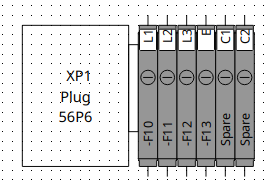
The pin plan of a plug XP1 of device type 56P6: a header with the name, Plug and the type, then six pin columns L1, L2, L3, E, C1, C2, the last two marked Spare

  • A header with the connector's name, Plug or Socket, and the device type, one per line.
  • One row per pin. The pins the device type has but nobody drew follow the drawn ones as spare rows, marked Spare where a drawn pin says where it is drawn. A 6-pin socket with 4 pins drawn plans 6 rows, 2 of them spare.
  • Pins drawn that the type does not have, or drawn twice, are still listed.

For the drawn pins, hover, double-click and PDF links keep pointing at the right terminals. A strip that is not a connector is planned as before.

Added in #1944.


5. A connector drawn as a head with its pins

A connector does not have to be a strip. Many drawings use a head symbol with child pin symbols, one per pin. Such a device gets the same pin plan, with each pin's wires.

  • Add a terminal plan lists these devices after the strips, as -XP1 (connector).
  • The plan reads each pin of the type from the device's symbols and their wires. Pins drawn nowhere are spare.
  • A device type counts as a connector if it has terminal parts with named pins, or if its informations say connector = plug or socket. That value gives the header's Plug or Socket. The device type file format does not change.

The list fills only when the project has a connector type. The plan is saved as <device uuid="..."/> where a strip plan has <terminal_strip uuid="..."/>, which an older QElectroTech does not draw.

Left out: cable-core targets and bridges in these plans, which are strip terminal features.

Added in #1945.


6. Cables on a plan

These two options belong to every terminal strip plan, connector or not.

  • Cable sides... in the strip editor places each cable Below (the default) or Above its strip. Shields, core labels and destination boxes follow the cable in all three drawing styles. The side is saved per cable and strip, and can be undone. Connector kind and device type are kept with the choices.
  • Configure QElectroTech > General > Appearance, group Drawing on the sheet: Show the destination terminal of each cable core in terminal strip plans shows the device and terminal of each core in the destination box, for example 3 β†’ K1:A1.

Details are in Terminal strips.

Added in #1879, #1880.


Limits

  • A connector is a strip with a kind: it is not a separate part in the parts list.
  • Connectors are planned from the device type's pins only; a connector with no type has no spare rows.
  • The device type is matched by strip name.

See also

Checked against build b49ce16c4 on 2026-11-27 (by hand: the screenshots and menu paths in the sections added on 2026-11-27 were taken on that build; the other details of those sections read from source).

Getting Started

Home

🌐 Languages β€” English Β· FranΓ§ais Β· Deutsch

Downloads

Windows without admin rights β€” the portable archive, no installer

Quick Start Guide

User Manual

FAQ

Tips & Tricks

Guides

Conductors β€” wire properties, what feeds which export, cables, and hops where wires cross

Wires per terminal β€” limit the wires on a terminal, chain wiring instead of stars

Printing and exporting β€” paper, PDF, images, and what each path does differently

Linking elements β€” master, slave, terminal

PLC modules β€” I/O tables and linking a wire to a specific point

Using the element editor β€” drawing tools, saving, checks

Generic devices β€” a quick box symbol with terminals on any side, made by a wizard

Grid size and element size β€” why symbols aren't all the same scale, and scaling one without leaving the grid

Preferences reference β€” what each settings page does

Saving and loading settings β€” your whole setup in one file, to copy or keep

Keyboard-only control β€” mouseless QET, and what still needs a mouse

Mouse modifiers β€” what Shift, Ctrl and Alt change while you drag

3D mouse β€” SpaceMouse pan, zoom and buttons

Aligning items β€” snap symbols back to the grid, or line them up

Drawing aids β€” dark mode, snap and grid step, crosshair, dimensions, the tape measure

Symbols already on the sheet β€” select the same symbols, replace them, show a T-junction as a dot, update placed copies from the collections

Symbol texts β€” place the texts at nine points, fixed or free size, format painter, title block cells, GOST ESKD, %T

Wiring tools β€” automatic connections, the Connections toolbar, chained folio reports, a cable across wires

Symbols and parts β€” edit several symbols, relay contact display, grouped parts list

Device types β€” what a device is made of: check, place and change its parts, Device Navigator

Project languages and checks β€” languages in a project, cell origin, duplicate labels, the Check panel

Reports and lists β€” project lists to CSV/PDF, tables on a folio, label-printer export, symbol list

Pictures on a sheet β€” labels, crop, transparency, what they cost in the file

Arcs and curved wires β€” the Arc tool, pulling an arc in or out, rounding a corner with a fillet, dashed arcs for lighting layouts

Grouping items β€” select, move and copy several items as one

Finding your place on a sheet β€” go to a cell like B13 or 4-B7, keep the headers in sight, show the cell limits, zoom and pan

Showing and hiding kinds of items β€” hide texts, wire numbers, shapes, pictures, tables or cross-references on every sheet

Drawing faster β€” place without dragging, the S shortcut bar, command search, gestures

Customising QElectroTech β€” keys, toolbar size and contents, the gesture ring

Managing collections β€” folders, writability, building your own shortlist

Templates β€” reusable multi-element blocks, placed by double-click or drag

Search & Replace β€” bulk property changes

Building a nomenclature query β€” the BOM/summary table builder

Formula columns β€” build a calculated column in a parts list without writing SQL

Linking wires across pages β€” sheet reports

Variables & formulas β€” %f, %{label}, sequences

Auto-numbering β€” schemes, sequences, freezing

Terminal strips β€” strips, levels, bridges

Connectors β€” plugs and sockets as terminal strips or head-with-pins devices, device types, pin check, spare-pin plans

Title block templates β€” the .titleblock format

Title block alignment β€” place a title block inside or outside the sheet, left, centred or right

Plants and locations β€” list, rename, copy a plant, suggestions

Designations and structure boxes β€” IEC 81346 names, structure boxes, ==/++ levels, folio groups, company prefixes

Revisions, document kinds and drawing standard β€” revision list and table, IEC 61355 document kind, project standard

Importing EPLAN parts (.edz) β€” EPLAN Data Portal

DXF import & export β€” two unrelated features, one format; command-line export and layers

Project files β€” .qetz (zipped, the default) and .qet, what is inside, opening big projects faster, starting from a template

The one-file project, .qetdb β€” history of saves, repair, --query over many projects

Saving safely β€” previous versions, a project open elsewhere, damaged files, crash recovery

The project database β€” the working SQLite database built when a project opens

File formats
Elements XML
Project XML
Development

Building from Source

Contributing Code

Code style β€” the QET house style for C++, and formatting only the lines you change

Fix or add with an AI assistant β€” beginner build setup and a prompt that does the work

Check your change: qet-verify β€” run it before every pull request

Posting with an AI assistant β€” short, plain pull requests and replies

Translate with an AI assistant β€” draft the interface in your language, check it, send it

Making a how-to video β€” a short feature video from a checked story

Writing wiki pages with an AI assistant β€” the rules, and a checker to run before you push

Automating QET β€” CLI, XML formats, external tools

CLI Reference β€” command line usage

JavaScript Scripting β€” --run, geometry editing, undo

MCP server β€” let an AI assistant read, verify and edit projects

Connecting an AI assistant β€” setup for Claude, Copilot, Gemini, Codex, Cursor, LM Studio

Script buttons β€” stored scripts with an icon, by hand or by an assistant

Live mode β€” an assistant working in the open project while you watch

Macro recorder β€” record a task by hand, for an assistant to script

Development Roadmap

Vision β€” proposal, under discussion

Developer Tools

About

Features

History

Community

License

Contributing to this Wiki

Clone this wiki locally