Repository navigation
designations_and_structure_boxes
IEC 81346 names a device by where it is and what it is: =FACTORY+CP1-K1 is
device K1 in cabinet CP1 of plant FACTORY. QElectroTech builds that name
from the symbol's label and from places it already knows: the symbol itself, a
structure box drawn around it, and the title block of its folio.
| Sign | Part | Set on |
|---|---|---|
== |
Higher-level function | symbol, structure box, folio |
= |
Plant | symbol, structure box, folio |
++ |
Higher-level location | symbol, structure box, folio |
+ |
Location | symbol, structure box, folio |
- |
Prefix (product) / label | label of the symbol; prefix of a structure box |
For each part the nearest one wins: the symbol's own value, else the smallest structure box around it, else the folio's. An empty part is left out.
Nothing here changes an existing project until you use it. A project that uses none of these saves as before.
In a composite text (the text editor of a symbol), the information list has these entries.
| List entry | Variable | Gives |
|---|---|---|
| Prefix (-) | %{prefix} |
the symbol's prefix |
| Reference designation, IEC 81346 (=+-), short on its own page | %{structure_id} |
-K1 when the symbol is in the folio's own plant and location; a different plant or location is kept, for example =OTHER-K1
|
| Full reference designation, IEC 81346 (=+-) | %{structure_id_full} |
always the complete =plant+location-label
|
- A part typed with its own sign is kept as typed: label
-M1gives+F1-M1, not+F1--M1; plant=P1is not doubled either. - When the title block of the folio changes, the symbols' texts that use
%{structure_id}are worked out again at once. -
%{plant}and%{location}still give only the symbol's own values. To make them follow the structure box or folio too, tick Elements without their own plant or location show those of their structure box or folio in Project properties → General. It is off by default.
Added in #1818, #1821, #1825, #1859, #1860.
A structure box is a dash-dot frame (the IEC 60617 location boundary) that sets the plant, location and prefix of every symbol whose centre is inside it.
Choose Edit → Add → Add a structure box, then click the first corner and click the opposite corner on the folio. Click the frame to select it and edit it in the side panel.
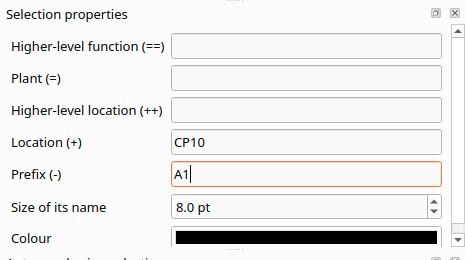
| Field | Meaning |
|---|---|
| Higher-level function (==) | the == level; empty, the folio's |
| Plant (=) | the plant; empty, the folio's, or the next box around |
| Higher-level location (++) | the ++ level; empty, the folio's |
| Location (+) | the location; empty, the next box around, or the folio's |
| Prefix (-) | the product of the box, for example A1
|
| Size of its name | size of the box's name text, in pt |
| Colour | colour of the frame and of its name |
Boxes can be nested. A symbol takes each field from the smallest box that has it filled in.
The box's name (its designation) stands above the top left corner of the frame, the way a device's designation stands outside its frame. It is a text of its own: drag it anywhere (one undo step each time; hold Ctrl to place it freely, otherwise it snaps to the text grid). A box with no plant, location or prefix has no name to click. A locked box keeps its name where it is. Undo follows name drags and the size field.
| Setting | Where | Effect |
|---|---|---|
| Colour of new structure boxes | Settings → General → Appearance, group Drawing on the sheet | colour a new box is drawn in; black by default |
| Ask for the place of a structure box when it is drawn | same place | off by default; when ticked, a small dialog asks plant, location and prefix as soon as the box is drawn. Cancel leaves the box empty. The entry is part of the same undo step as drawing the box |
Added in #1846, #1877, #1919.
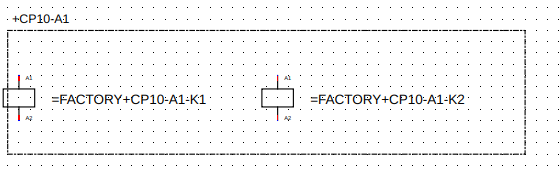
A box with a prefix shows it as the product above the symbols inside it. A
symbol labelled -K1 in a box with prefix A1 reads =PLANT+LOC-A1-K1. Boxes
inside boxes chain, outermost first: -B2-A1-K1.
- The prefix reaches
%{structure_id},%{structure_id_full}, the label display (section 5), the project database views and the duplicate-label check.-K1in boxA1and-K1in boxB2are not reported as duplicates. - A label typed in full (
-A1-K1inside boxA1) is not doubled. - In the short form, the levels of the box the text is drawn in are left out.
A contact on another folio shows its coil as
-A1-K1.
Added in #1964.
== (higher-level function) and ++ (higher-level location) sit above the
plant and the location: -K1 on a folio with ==A1, =FACTORY, ++S1, +CP1
reads ==A1=FACTORY++S1+CP1-K1.
| Set on | Where |
|---|---|
| Folio | Folio properties: Higher-level function (==): and Higher-level location (++): |
| Structure box | its properties (table above) |
| Symbol | the Information tab: Higher-level function (==) and Higher-level location (++), after Plant and Location |
The values can be typed with or without their signs. Empty means: the box's, else the folio's.
- Title blocks get the variables
%{higher_plant}and%{higher_location}. - A symbol on a
==A1folio inside a box with==A2reads==A2=FACTORY++S1+CP1-K2; one outside the box keeps==A1. A symbol given==A3of its own reads==A3=.... -
A box shortens what is inside it. With the short form, a box
==A1=FACTORY+CP1names the place once, and the symbols inside read only-S1,-S2. Their full name stays==A1=FACTORY+CP1-S1in%{structure_id_full}, the lists and the duplicate check. A contact drawn elsewhere shows the levels that differ. -
-K1under==A1and-K1under==A2are two devices for the duplicate check. - A new folio takes the previous folio's
==and++when the setting A new folio takes the group and sub-group of the folio before it is on (section 7). - They also reach the terminal strip ids, the cable ids, the plants and
locations list and Project → Reports. In
Plants and locations the same plant under another
==or++is another row. - Saved only when set. A project without them saves no new attribute, and an older QElectroTech reads the file and skips them.
Added in #1992, #1993, #1994, #1995.
Project properties → General has Element labels show:
| Choice | A symbol labelled K1 shows |
|---|---|
| The label only (K1) |
K1, as before (default) |
| Short reference designation, IEC 81346 (=+-), without what the folio or structure box already gives | -K1 |
| Full reference designation, IEC 81346 (=A1+B2-K1) | =A1+B2-K1 |
- Only the label field changes. The label stays as typed. A text written with
%{label}or%{structure_id}shows what it did before, so a symbol that already builds its own designation does not show it twice. - A contact on another folio shows its coil's designation, shortened against
the contact's own folio:
+CP1-K1on a CP2 folio. - The fields update when a structure box, the title block or the symbol changes.
- Saved only when it is not the default.
Added in #1960.
The public views read the same rule. qet_devices, the parts list
(qet_device_list) and both ends of qet_wires give a device its own plant and
location, else those of the smallest structure box it is in, else its folio's,
with the box's prefix, == and ++. This reads folios that are not loaded yet,
from the saved data. See Project database.
| Device | Before | After (box CP10 around K10 to K12 on a CP1 folio) |
|---|---|---|
| K1 | =FACTORY+CP1-K1 |
=FACTORY+CP1-K1 |
| K10 | =FACTORY+CP1-K10 |
=FACTORY+CP10-K10 |
Added in #1875.
A folio can have a group and a sub-group, for example "Lists" and "Material list". Type them in the folio properties as Folio group: and Folio sub-group:. Left empty, the group is the folio's plant (=) and the sub-group its location (+), so a project already organised by plant and location needs nothing typed.
| Where | What |
|---|---|
| Title blocks |
%{folio_group}, %{folio_subgroup}
|
| Summary table | "Folio group" and "Folio sub-group" are offered as columns (not added to an existing summary) |
qet_folios view |
folio_group and folio_subgroup, after folio_uuid
|
| Settings → General → Projects, group Folios and macros | A new folio takes the group and sub-group of the folio before it (off by default) |
| Settings → General → Projects, group Folios and macros | List folios by group and sub-group in the Projects panel (off by default) |
- A new folio takes only a group typed on the folio before. A folio whose group is just its plant leaves the new folio with its own plant. The first folio has none before it. Undo and redo carry the values.
- With the panel setting on, the Projects panel lists the folios under their group, then their sub-group. A level appears only where it splits the folios; a project with no groups, or one place, stays flat.
- Folio order does not change. Group rows come in the order of their first folio, so Move up/down can change folio numbers without the row moving when its neighbour is in another group.
- Changing a folio's group moves it at once. Folded rows stay folded and the selection is kept.
- Group and sub-group are saved only when typed.
Added in #1808, #1811, #1816, #1965.
The letter put in front of a symbol's label (K, Q) comes from the
qet_labels.xml file of the symbol's folder. Settings → General → Collections has a
Configure prefixes… button for the user collection, and a second one next
to the company collection directory with the same dialog.
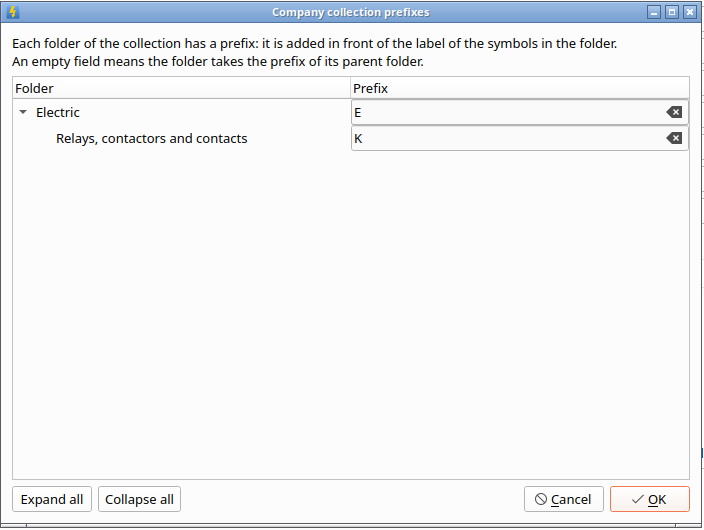 It was only possible
to edit the company file by hand before.
| Behaviour | Detail |
|---|---|
| Titles | folders show the title the collection panel shows; the folder name is the tooltip. A folder without a title shows its folder name |
| Company dialog | opens "Company collection prefixes"; an extra column, "Used instead (user collection)", shows the prefix the user collection gives a folder, because the user collection wins |
| Missing company folder | reported, not created, so prefixes never go to an empty local folder standing in for an unreachable shared drive |
| Company folder not writable | reported before the dialog opens, not when OK is pressed |
File without <labels> around it |
read; on the first save it is rewritten with <labels> and the old file is kept as qet_labels.xml.bak; a message says so. If a folder would not keep its letter, the file is reported as damaged as before |
| Folders written without their top-level folder | such a folder is read by QElectroTech for that name in every top-level folder; the dialog copies it under each top-level folder that has one of that name, when every folder keeps its letter. The original stays; a copy of the file is kept first |
Limits: the dialog writes its own layout, not the file's. A file that has
<labels> but lists folders one level down, as the common collection's files
do, is still not editable in the dialog. It does not warn when the common
collection's own file wins (a company folder with the same name as a common
one, for example 10_electric).
Added in #1840, #1956, #1970, #1975.
Plants and locations · Revisions and document kinds · Title block templates · Variables & formulas · Project database · Terminal strips · Symbol texts
Checked against build
b49ce16c4on 2026-11-27 (by hand: the screenshots and menu paths in the sections added on 2026-11-27 were taken on that build; the other details of those sections read from source).
