Repository navigation
project_languages_and_checks
Project-level features added between 15 October and 26 November 2026.
| Feature | Section |
|---|---|
| Show a project in several languages | 1 |
| Choose which corner the cells are counted from | 2 |
| Find labels used twice | 3 |
| Run every check at once in the Check panel | 4 |
| Wires that go nowhere | 5 |
| Wires of different potential types on one potential | 6 |
| Keep check choices, switch checks off, accept findings per project | 7 |
Project → Project languages... opens Project languages. You add languages to a project, collect the words drawn in it, type (or import) the translation of each, and show a folio in any of them. The folios keep their own text; only what is shown and printed changes.
| Control | Does |
|---|---|
| Show the folios in | Chooses the language displayed. The source language is listed as <code> (as drawn). |
| Add language... | Asks for a language code such as de, fr or pt-BR. A code that is unusable or already there is refused. |
| Remove language | Removes the language of the selected column and all its words, after a confirmation. |
| Collect texts of the project | Adds every text of the project to the table that is not there yet, and says how many were new. |
| Add text... | Adds a text that is not collected, such as a column title of a table. |
| Export CSV... | Writes the table to a CSV file for a translator. |
| Import CSV... | Reads the translations back and says how many were imported. |
The table's first column, Text as drawn, is the key; there is one further column per language. Table headings and table cells are translated too.
A workflow that works:
-
Add language...
de. - Collect texts of the project, then Add text... for table column titles.
- Export CSV..., send it to the translator, Import CSV... the result.
- Choose
deunder Show the folios in.
In the project's own properties, Origin (of a coordinate system) chooses the corner the cells are counted from: Top-Left (the default), Top-Right, Bottom-Left or Bottom-Right. Column numbers and row letters on the border follow it, and so do the cross-references and Jump to cell, which use the same count. This replaces the old reverse column / row switches.
Project → Find duplicate signals and components... reads every folio and lists each label used more than once.
-
Duplicate signal:
<label>and Duplicate component:<label>are the groups; under each, one row per occurrence with its sheet and its x, y position. - Click an occurrence to select it and show it on its sheet.
- Occurrences in one group belong to one signal; the group is shown as Group n.
-
Case-sensitive comparison: unticked, labels that differ only in case, such
as
K1andk1, count as duplicates. - One designation is one device; report different part numbers: ticked, one label in one place counts as one device, and only different part numbers are reported. See Symbols and parts.
- Refresh after editing the project. The dialog says No duplicate signals or components found. when the project is clean.
The qet MCP server counts duplicate labels per plant and location. See MCP server.
Project → Check project opens the Check panel under the folios and runs every check at once. Display > Check shows or hides the panel without running anything. Run checks runs them again; it only reports and never edits the project. The panel does not update by itself, so press Run checks again after a change.
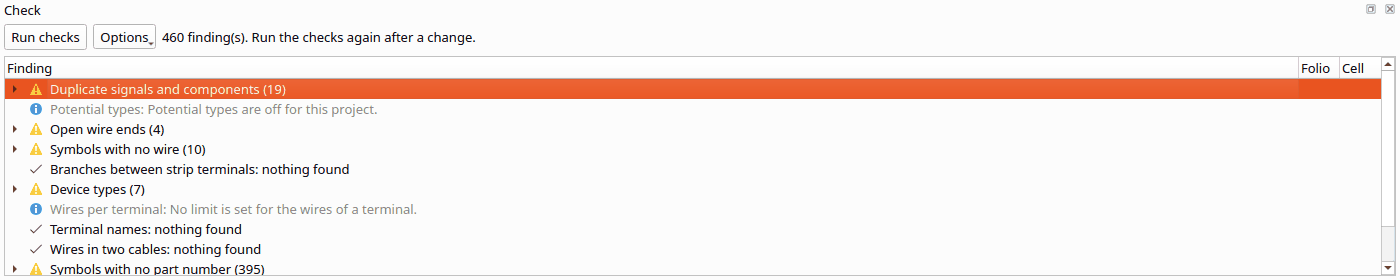
Findings are listed by check, each with its Folio and Cell. Double-click a finding to go to its folio: the panel zooms in and selects the symbol, wire or text.
| Check | Finds |
|---|---|
| Duplicate signals and components | Labels used more than once (section 3). |
| Potential types | Wires of different types on one potential (section 6). |
| Open wire ends | Wires that go nowhere (section 5). |
| Symbols with no wire | A symbol none of whose terminals has a wire, such as a breaker drawn over a wire without joining it. Folio reports are never listed. |
| Branches between strip terminals | A junction where a wire running from one strip terminal to another is split off to a third place. That cannot be built: the branch has to be made on a terminal. |
| Device types | Parts of a device type not drawn, symbols beyond the type, contacts linked to no master. See Device types. |
| Wires per terminal | Terminals over the limit set in Project properties. See Wires per terminal. |
| Terminal names | Symbols with two terminals of one name. The symbol editor warns about that only when the symbol is saved. |
| Wires in two cables | One wire set as a core of more than one cable. |
| Symbols with no part number | Symbols the parts list holds that have an empty manufacturer reference. Folio reports, junctions drawn as terminals and symbols left out of the parts list are not listed. Each strip terminal is checked on its own. |
| Unanswered prompts | A label or text that still holds a ? or ?name a macro asked for. Looked for in symbol information, texts typed into a symbol, wire texts and free texts. |
Branches between strip terminals. The check follows the wire through junctions and linked folio arrows and stops at every other terminal, so wires that meet on a terminal are not flagged. A junction whose symbol sets its chain order, with one wire on each connection, is not flagged. A terminal is named by its label, or X1:7 when it has none.
The panel's Options menu has three choices for Symbols with no wire:
| Option | Default |
|---|---|
| Leave out folios with no wire (panel layouts, terminal plans) | on |
| Leave out strip terminals | on |
| Leave out auxiliary contacts | off |
The old check windows keep working and are unchanged.
Added in #1967, #1991, #2011.
Project → Check open wire ends... opens Check open wire ends. A wire always joins two terminals, so it cannot be loose. The check finds three ways a wire can still stop:
| Problem | Meaning |
|---|---|
| Folio report linked to no other report | A folio report with a wire and no partner. |
| Junction with one wire | A junction with a wire on one side only. |
| Wires that reach only one symbol terminal / Wires that reach no symbol terminal | Connected wires that, once folio reports and junctions are followed, touch one terminal or none. |
The columns are Problem, Folio, Position, Symbol and Wires. Click a row to open that folio and select the wires and the symbol. Refresh reads the project again. The dialog says Every wire leads somewhere. when the project is clean.
A wire ending on a strip terminal with nothing on its other side is not reported.
Added in #1963.
A project can give wires a type (for example 24V or PE) that sets how they are drawn. In the project's Potential types page, the mode chooses how the types apply:
| Mode | Meaning |
|---|---|
| Draw conductors from their own style | Types are off. This is the default. |
| Draw conductors from their potential type, chosen on each conductor | Each wire has its type. |
| Draw conductors from their potential type, set on the source terminal | Reserved; it does nothing yet. |
Project → Check potential types... lists every potential whose wires have different types, for example a neutral wired onto a protective earth. Click a row to select its wires on their sheet. It says Potential types are off for this project, so there is nothing to check. when the mode is off.
Types that are joined on purpose, such as 0V and PE at a power supply, can be declared on the Potential types page: pick two types and press Join. A potential that holds only joined types is not listed. Pairs are project-wide and are saved in the project.
The same result can be read with a query: SELECT * FROM potential_mismatch, on a .qet, .qetz or .qetdb project.
Added in #1768, #1770.
By default the options of the Check panel and of Find duplicate signals and components belong to the application, so two computers can give different results for one project. Project properties → General → Checks lets the project keep its own.
- Use the application settings is ticked by default and stores nothing. Untick it to give the project its own value for six switches: the three duplicate options (case-sensitive comparison, one designation is one device, a wire number is unique within its plant) and the three Symbols with no wire options of section 4. The Options menu and the duplicates window then change the project's value.
- A box for each check says whether the Check panel runs it on this project. The same is in the panel: right-click a check and choose Switch this check off for this project (or on).
- Right-click a finding and choose Accept this finding.... You are asked Why it is right as it is (kept in the project):. An accepted finding is neither listed nor counted, also after the project is reopened. Options → Show accepted findings lists them greyed with their note; List this finding again undoes it.
An accepted finding is known by its check and the symbols and wires it is about, not by position. It stays hidden while it concerns the same symbols and wires, even if its numbers change. Everything is saved in the project's properties, in .qet, .qetz and .qetdb, and only when used.
Added in #2008.
- Navigating folios
- Title blocks
- Languages of QElectroTech
- Search and replace
- Reports and lists
- Device types
- Wires per terminal
- Conductors
Checked against build
b49ce16c4on 2026-11-27 (by hand: the screenshots and menu paths in the sections added on 2026-11-27 were taken on that build; the other details of those sections read from source).
