Repository navigation
placed_symbols
Commands that work on symbols you have already placed, instead of placing new ones. The first three are in the Edit menu, under Selection and Symbols, and in the folio's right-click menu. The last two are in the Project menu.
| Command | Does | Section |
|---|---|---|
| Edit → Selection → Select the same symbols | selects every symbol drawn from the same definition as the selected one | 1 |
| Edit → Symbols → Replace the symbols... | puts another symbol in place of each selected one, keeping place, label and wires | 2 |
| Edit → Symbols → Show as a dot | draws a selected T-junction as lines and a filled dot | 3 |
| Project → Update elements from the collections | brings the project's copies of symbols up to date with their collection | 4 |
| Project → Lay out the symbol texts as in the symbol | puts the texts of placed symbols back where their definition places them | 5 |

None of these has a default shortcut. Each is registered, so you can give it one on the Shortcuts page (see Customising QElectroTech).
Edit → Selection → Select the same symbols (also in the right-click menu of a selection) selects every symbol on the sheet that comes from the same definition as a selected symbol, and deselects everything else, the way Select all conductors does. Several kinds can be selected at the start.
The command is greyed out unless a symbol is selected.
Use it to change all symbols of one kind at once, for example their texts with the text format painter (see Drawing aids §9).
Added in #1777.
Edit → Symbols → Replace the symbols... (also in the right-click menu) asks for a symbol in the collections, then puts it in place of each selected symbol. One undo step covers all of them.
Each new symbol takes over from the one it replaces:
| Taken over | |
|---|---|
| place, rotation and mirroring | the new symbol stands where the old one stood |
| identification | label, formula, plant, location, function and comment |
| wires | each wire goes to the new symbol's terminal at the same point |
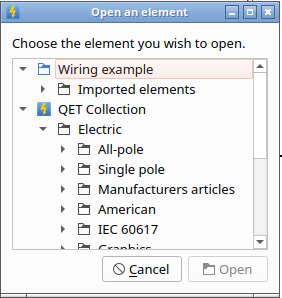
A terminal at the same point comes first. A terminal that moved is found by its name. A wire that finds no terminal on the new symbol is removed, and a message says how many. Undo brings the old symbol and its wires back.
Added in #1867.
A T-junction symbol shows which way the branch leaves the line. A plain junction dot on a straight line is the classic way to draw a branch, so each T-junction can be shown that way.
Select one or more T-junctions and tick Edit → Symbols → Show as a dot (also in the right-click menu). The symbol is drawn as the lines from its terminals to the point where they meet, with a filled dot there, the size of a wire junction dot. Untick it to get the symbol's own drawing back.
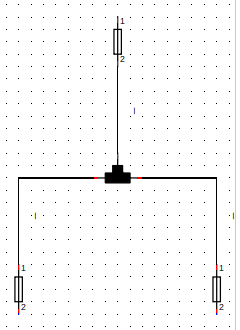
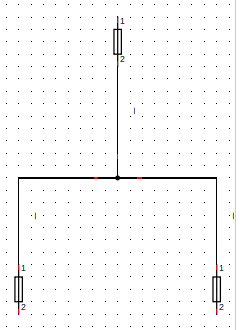
- A T-junction is any symbol with three terminals, two of them facing away from each other and the third off the line between them. That covers the shipped T-junctions and your own. Other symbols do not offer the command.
- The choice is saved with the project, in the project database too.
- One undo step.
See also Wiring tools.
Added in #1792.
Placing a symbol from a collection stores a copy of it in the project. Placing it again reuses that copy as long as both carry the same uuid. So when you edit a symbol in your collection afterwards (the element editor keeps its uuid), a project that already holds it never sees the change. The only way to bring it up to date used to be deleting and placing every instance again, which also deletes their wires.
Project → Update elements from the collections does it:
- It compares each symbol copy in the project with the symbol at the same path in the user, company or common collection (the first that has one). Terminal uuids are left out of the comparison, and so are whitespace and comments between tags.
- If every symbol matches, it says so. Otherwise a question says how many differ, with their names in the details, and asks you to confirm.
- The copies are replaced, the placed symbols are redrawn, and the wires stay connected. The project is marked modified. It cannot be undone.
A new size and hotspot are taken over as long as the terminals stay where they are. The wires and the symbol do not move; only the symbol's frame (its hover outline and the area that catches clicks) follows the new definition. A symbol whose terminals changed keeps its old drawing and is listed.
Project → Reload element drawings is the older command: it redraws from the copy already in the project, and skips symbols whose terminals changed. It also takes over a new frame.
Some symbols are redrawn with their insertion point on a connection point (see Using the element editor §10). The whole drawing then moves against its origin, and by default the update leaves such a symbol on its old drawing and lists it.
Tick Updating the elements moves a symbol whose insertion point moved (Settings → Configure QElectroTech → General, tab Collections; off by default) and the update spots a drawing that moved as a whole: every terminal of the new version is an old one moved by the same offset. Each terminal keeps its uuid, so saved wires find it again. Each placed copy is moved back by that offset, turned with the symbol, so its terminals, wires and texts stay where they are on the sheet. If a terminal moved on its own, the symbol keeps its old drawing and is listed, as before.
Added in #1718, #1794 (indentation and comments no longer count as a change: before, nearly every symbol was listed), #1896.
Edit the element (from the symbol's properties) opens it in the element editor. What changed in 2026-11:
- Saving in the element editor redraws the placed symbols of that definition at once, and takes over the new frame (size and hotspot). Before, they kept the old drawing until Reload element drawings, which skipped nearly every symbol because the editor recomputes the frame on each save.
- Find in the panel (the symbol's properties, and Edit → Symbols) unfolds the tree of the collections down to the symbol and scrolls to it.
-
Project → Lay out the symbol texts as in the symbol lays out the texts of
the selected symbols again as their definition does: position, font, size,
frame and alignment. With no symbol selected it works on the whole project,
after a question. Texts are matched by what they show (
text_from, the information name or the composite text), in the definition's order. What a text says and its colour stay. One undo step. A symbol's label and comment do not follow the definition by themselves, because every placed symbol keeps its own copy of the symbol's texts; this command is how you re-lay them out.
| Setting | Default | Effect |
|---|---|---|
| Find and edit a placed element in the collection it was taken from (Settings → Configure QElectroTech → General, tab Collections) | off | Find in the panel and Edit the element go to the file in the collection rather than the project's copy. Saving it there updates the open projects that use it, as Update elements from the collections would. |
Added in #1799.
On macOS the properties dialog of a symbol, shape or picture opened fixed over the window and could not be moved, so it hid the drawing it edits. It now opens as a normal window you can move. On every system it blocks every QElectroTech window while it is open, not only the one it came from, and Edit the element closes it before the element editor opens. Added in #1951 (bugtracker #275).
Checked against build
b49ce16c4on 2026-11-27 (by hand: the screenshots and menu paths in the sections added on 2026-11-27 were taken on that build; the other details of those sections read from source).
