Appearance and Theming
Gubbins can look the way you want it to. Theming is built from two independent choices — a mode (light or dark) and an accent colour — plus a set of switches for contrast, motion and decorative flair.
Where to find it: Settings → Appearance.
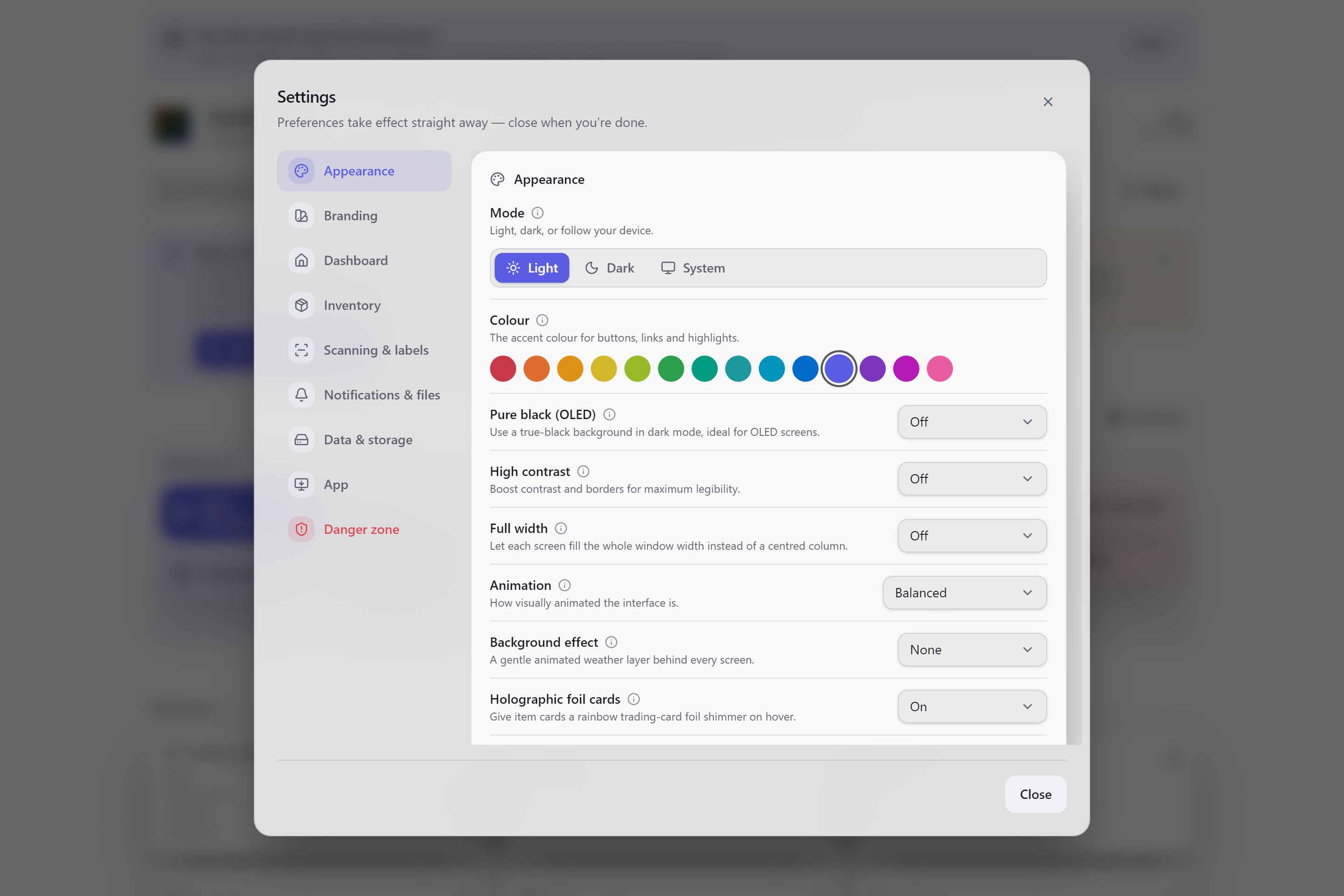
- Light — a bright palette for well-lit rooms.
- Dark — the deep, low-glare default.
- System — follow your device and switch automatically when it does (for example, at sunset).
Your accent colour applies in either mode, so you don't have to re-pick it when you switch.
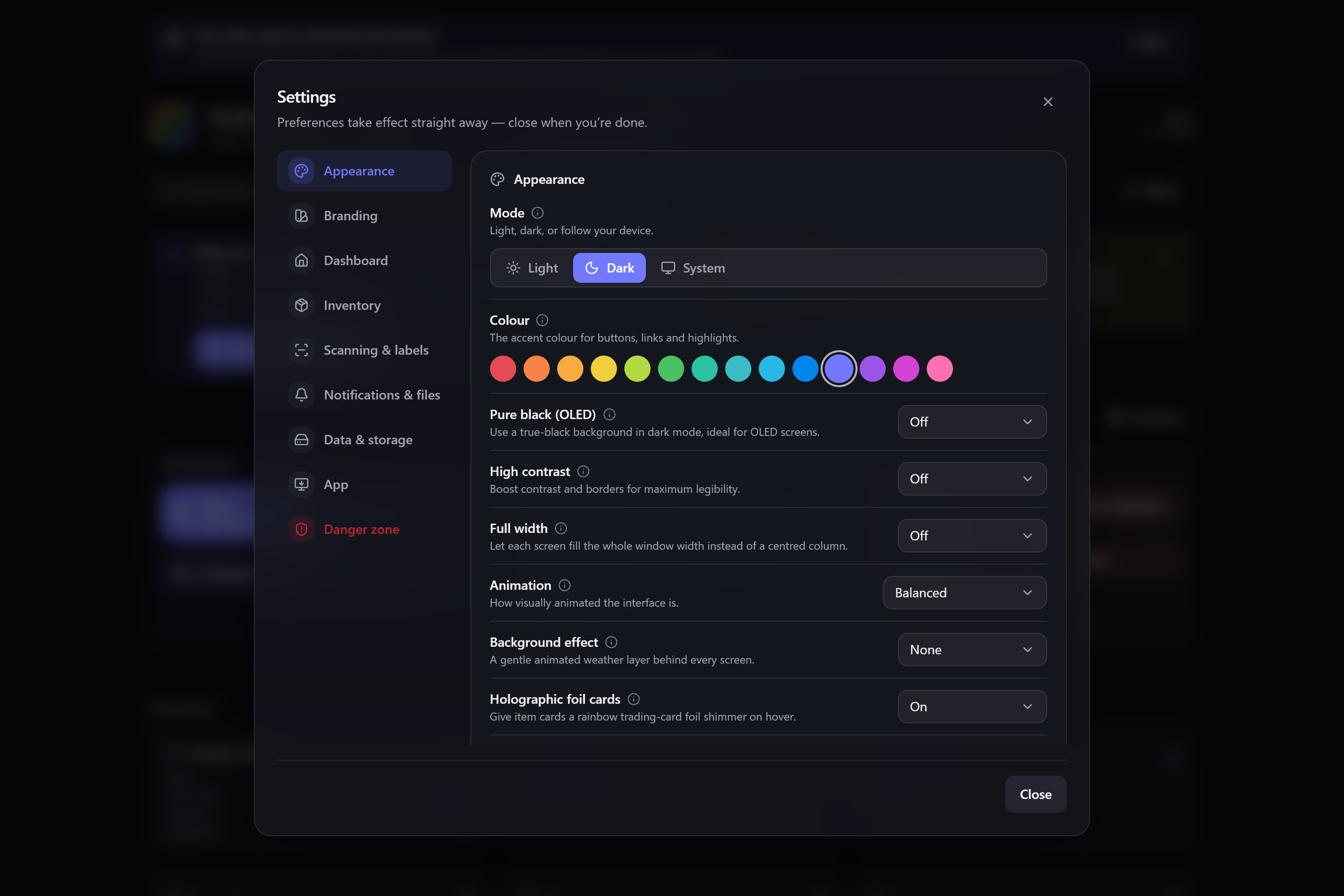
The accent is the colour used for buttons, links and highlights. Pick from the row of swatches — surfaces stay neutral, so only the accent changes. It's tuned to look right in both light and dark mode.
💡 Tip Want a colour that isn't in the row? The Branding tab lets you dial in any accent hue, add your own label beside the app name, and choose how translucent surfaces look.
- Pure black (OLED) — drops dark-mode surfaces to true black, which lets an OLED display switch those pixels fully off (deeper blacks, less power). Only affects dark mode.
- High contrast — an accessibility mode that raises contrast and strengthens borders across the whole app. Works in both light and dark mode.
💡 Tip Pure black and High contrast stack with any accent colour, so you can have, say, a high-contrast dark theme with a teal accent.
By default every screen sits in a centred column with margins either side, which keeps lines comfortable to read on a typical display. Turn Full width on and each screen stretches to fill the whole window instead — handy on a wide monitor, where you get more items across, wider tables and roomier detail views. It's off by default; switch it back any time for the calmer centred layout.
Gubbins has some gentle visual polish that you can dial up or down:
- Animation — how animated the interface is, from calm to lively.
- Background effect — an optional soft animated layer behind every screen (gentle falling snow or rain). While an effect is running, cards and item rows turn very slightly translucent so the drift shows faintly through them, then return to solid when you switch it off. The weather also touches the interface itself: falling snow settles on buttons, cards and other controls, slowly building little drifts along their tops (scroll or move things around and the snow is knocked off, ready to build again), while rain splashes off the tops of controls in small ripples as drops strike them.
- Holographic foil cards / Collector cards — playful trading-card shimmer and rarity frames on item cards.
ℹ️ Note All decoration respects your system's reduced-motion setting — if you've asked your device to minimise animation (for example, Windows' Settings → Accessibility → Visual effects → Animation effects, turned off), Gubbins honours that automatically, whatever these are set to here. Background effect in particular turns off entirely rather than freezing on a still frame — if you've picked Rain or Snow but see nothing, this is why.
💡 Tip Want a calmer app in one move? Turning Animation down (or enabling your device's reduce-motion setting) quiets every decorative effect at once.
- Branding — a custom accent hue, your own tagline, and surface translucency.
- Dashboard & widgets — arranging your landing screen.
- Language & region — language, currency and date formats.
- Kiosk & tablet mode — a locked-down, always-awake display.
- Modular UI — hiding features you don't use.