Container Weights
Whenever you weigh something, you're also weighing whatever it's sitting in — the spool, the jar, the tray. That empty weight is called the tare, and Gubbins subtracts it to get at what you actually care about. The container library saves those weights so you pick a container instead of remembering the number.
Where to find it: the Pick a container… button beside any Tare or Container weight field.
A 3D-printer filament spool weighs a couple of hundred grams empty. Put a half-used spool on a scale and roughly a quarter of the reading is plastic you'll never print. Tell Gubbins what the empty spool weighs and it can turn a single weigh-in into "412 g of filament left" instead of a number you have to do arithmetic on. The same applies to a jar of flour, a bin of screws, or any container you weigh more than once.
Pick a container… opens the library. Search by brand, material or kind — polymaker cardboard, esun, jar — and choose an entry; its weight drops into the field, and everything
after that behaves exactly as if you'd typed the figure yourself.
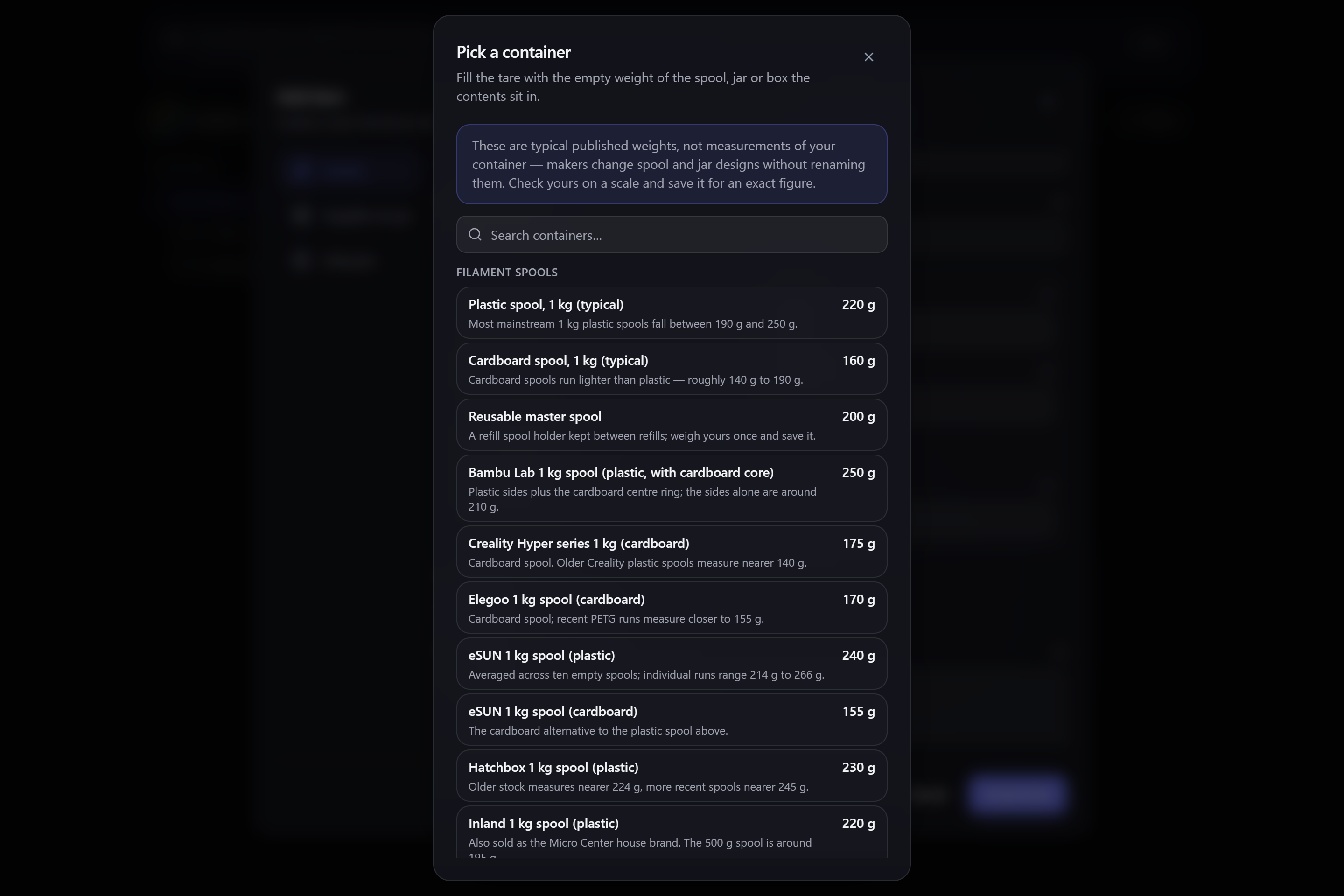
The library is grouped by kind: filament spools, jars, bins and boxes, trays, and anything else you've saved.
⚠️ Heads-up The built-in weights are typical published figures, not measurements of your container. Manufacturers change spool and jar designs without renaming the product — the same brand can vary by 100 g between production runs, and cardboard and plastic versions of one spool are nothing alike. Treat a built-in entry as a starting point and check it on a scale.
Each entry says what was actually measured, so you can judge how much to trust it — whether a figure is an average across ten spools or a single sample, and whether a lighter cardboard version exists.
The reliable answer is always your own scale, so saving a container is a first-class action rather than an afterthought.
Take the container off the scale empty, note the reading, and choose Save a container of your
own…. Give it a name you'll recognise (Flour jar, Blue parts tray), pick a kind, and enter
the weight. If the field you're filling already has a figure in it, the form starts pre-filled
with it — so "I just weighed this, keep it" is a name and a button.
Saved containers appear above the built-in catalogue and are marked Yours, because a container you measured yourself beats any published figure.
Your own containers stay yours to correct. Every entry marked Yours carries an edit and a delete button beside it in the picker:
- Edit reopens the form over that container, pre-filled with its current name, kind and empty weight. Change what you need and choose Save changes — you stay in the library rather than the picker closing, since correcting an entry isn't the same as choosing one. Reweighed the jar after a chip came off the rim? This is where that goes.
- Delete asks first, then removes the container from your library.
ℹ️ Note Editing or deleting a container only changes the library. A tare figure you've already put into an item or a gauge keeps the value it was given — Gubbins copies the number in when you pick a container, it doesn't leave the field pointing at the entry. If you correct a container's weight and want an existing item to match, pick the container again on that item.
Built-in catalogue entries have no edit or delete button. They're the shipped reference list, not your data — if one doesn't match the container in your hand, weigh yours and save it, and your entry sorts above the built-in anyway.
💡 Tip Saved containers travel with your data. They're included in cloud sync and backups, so a jar you weighed on the kitchen tablet is there on the workshop desktop too.
The library appears anywhere Gubbins asks for a tare:
- Consumable gauges — the empty spool or bottle a gauge's contents sit in, set when you create the item and editable afterwards.
- Counting by weight — the tray or bag a handful of parts is weighed in.
ℹ️ Note A gauge measured in something other than weight — a cable reel in metres, a tank in millilitres — has no Pick a container… button. A container weight would be meaningless there, so Gubbins doesn't offer one rather than filling the box with a plausible-looking wrong number.
Weights are shown and entered in whatever unit you've chosen under language & region; Gubbins stores them in one canonical unit behind the scenes, so changing the setting never alters a saved container.
- Counting by weight — counting small parts on a scale.
- Low stock & gauges — weighing a consumable to gauge what's left.
- Items — where an item's own weight is recorded.
- Language & region — choosing your weight unit.
- Cloud sync — keeping saved containers across devices.