First Run and Quick Start
This page takes you from a blank slate to your first tracked item. It should take just a couple of minutes.
ℹ️ Note If you haven't opened Gubbins yet, see Installing Gubbins first.
The very first time you open Gubbins, it offers a short, skippable setup:
- Choose the modules you want. Gubbins can hide whole areas it thinks you may not need (Projects, Purchase orders, Bookings, and more) so the app starts lean. Pick a preset, or just Skip to keep the standard set on — you can change any of this later on the Modular UI screen. (A couple of modules, such as Users, start switched off and are never turned on by a preset.)
- Your currency and region are guessed from your device, so prices and dates look right straight away. You can adjust them under Language & region.
💡 Tip Not sure what you'll use? Skip the chooser. Nothing is switched off, and you lose nothing by turning modules off later — hidden features keep all their data.
Open Inventory from the menu and select Add item. Give it a name — that's the only required field — and select Create item.
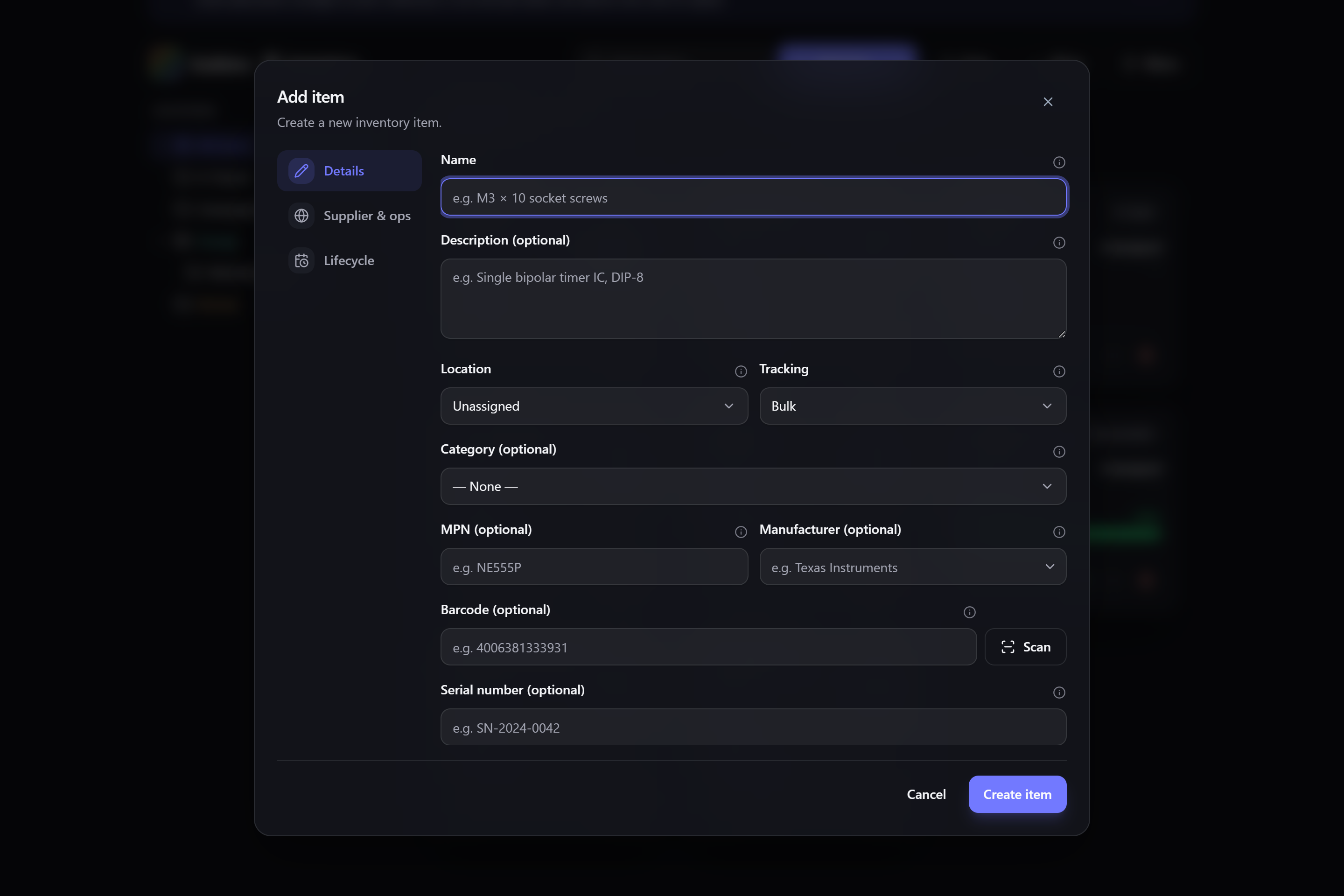
A few fields are worth knowing about even now:
- Tracking decides how Gubbins counts this item. Leave it as the default for a simple count; the full list is on Tracking modes.
- Initial quantity is how many you have right now.
- Everything else — photo, category, price, location, notes — is optional and can be added later by editing the item.
💡 Tip You don't have to create items one at a time. If you already have a list in a spreadsheet or another app, you can paste or import it in one go — see Export & import and Migrating from another tool.
Locations are where things live — a room, a shelf, a drawer, a bin. In Inventory, select Add location, name it, and (optionally) give it a colour and a parent location to build a hierarchy like Garage → Shelf A.
Once you have locations, you can assign items to them and move stock between them. The full picture is on Locations & stock.
- The menu (top of every screen) jumps to any area.
- The dashboard shows totals and anything needing attention.
- Search (and the command palette) finds items instantly — see Search overview.
- Learn the model: Core concepts.
- Flesh out an item: Items.
- Organise where things live: Locations & stock.
- Make it yours: Appearance & theming and Modular UI.
- Sharing this device with other people? Users & accounts.