Tracking Modes
Not everything is counted the same way. An item's tracking mode decides how its quantity behaves — and it's the one choice worth getting right when you create an item. You pick it in the Add item dialog under Tracking.
Where to find it: the Tracking field when creating an item (Inventory → Add item).
For loose, interchangeable stock where you only care how many — screws, resistors, cable ties, offcuts. A single number you nudge up and down.
M3 × 10 socket screws: 250 in stock.
Bulk stock is the one mode you can count on a scale rather than by hand — handy when "how many" runs into the hundreds of near-identical little things.
For individually identified units — tools, instruments, devices — where each one matters. Each unit is tracked separately by serial number, so you can record which specific unit you lent out, serviced, or calibrated. Serialised items unlock per-unit test & calibration records.
For things measured by how full they are rather than a whole count — filament spools, solder reels, liquids, gas bottles. You set a full capacity and a tare (empty weight), and Gubbins shows a gauge.
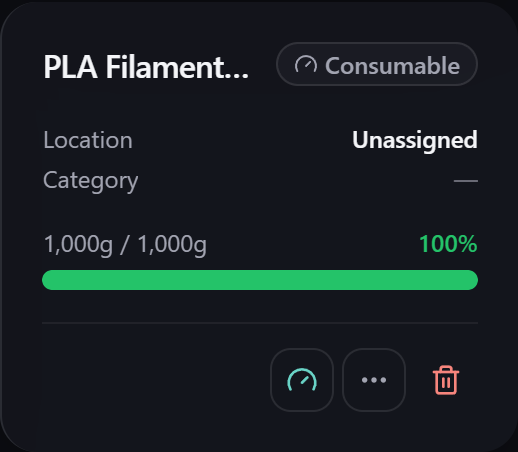
Updating it is quick: record what you used, weigh it in on a scale, or top it up when you fit a fresh one. And when you can't be bothered to reach for the scales, Estimate lets you just pick a level — Full, Mostly full, Half, Low or Empty — and the gauge snaps to it. That's plenty to keep the low-stock alert honest without weighing a half-empty spool every time.
💡 Tip Use Estimate for a quick eyeball, then a proper Weigh-In now and then when you want the number to be exact — for example before starting a long print.
The unit is yours to choose — grams, millilitres, metres, feet, whatever suits the material. A
100 m drum of Cat6 measured in m works exactly like a 1 kg spool measured in g: take 14.5 m
for a network drop and it reads 85.5 m remaining. Amounts can be fractional, so you're never
forced to round to a whole unit.
Open the item, go to Details → Gauge setup, and edit the unit, full capacity or tare. Handy when you mistyped the unit when adding the item, or you've fitted a spool of a different size or a reel with a different empty weight.
⚠️ Heads-up Lowering the capacity below the amount currently in the gauge discards the difference — there's nowhere for it to go. Gubbins tells you how much before you save, and records it in the item's activity log.
Changing the tare doesn't change how much is in the gauge, only what future weigh-ins expect to see on the scale. To record what you've used, use Update rather than this.
For things you want to list but not count — reference material, fixtures, anything where a quantity would be meaningless. No number at all.
| If the item is… | Use |
|---|---|
| Loose and interchangeable, counted by the piece | Bulk |
| A unique unit you need to identify individually | Serialised |
| Measured by fill level, not a whole count | Consumable |
| Something you list but never count | Untracked |
💡 Tip There's also an unlimited supply option for a Bulk-style item you always have on tap (mains power, tap water) — it shows as ∞ with no counter.
⚠️ Heads-up Changing an item's tracking mode after the fact is limited on purpose — switching freely between, say, Serialised and Consumable would make its existing stock history meaningless. Bulk ↔ Untracked can be changed in place; for a bigger change, create the item afresh in the right mode.
- Items — creating and editing items.
- Core concepts — how tracking, stock and locations fit together.
- Batches & lots — splitting stock by delivery and expiry.
- Counting by weight — counting bulk stock on a scale.