Roles and Permissions
A role is a named set of permissions you hand to one or more people — "Stocker", "Viewer", "Workshop lead". Rather than ticking boxes for every person, you describe the job once and assign it.
Where to find it: the Roles section at the bottom of the Users screen (part of the Users module).
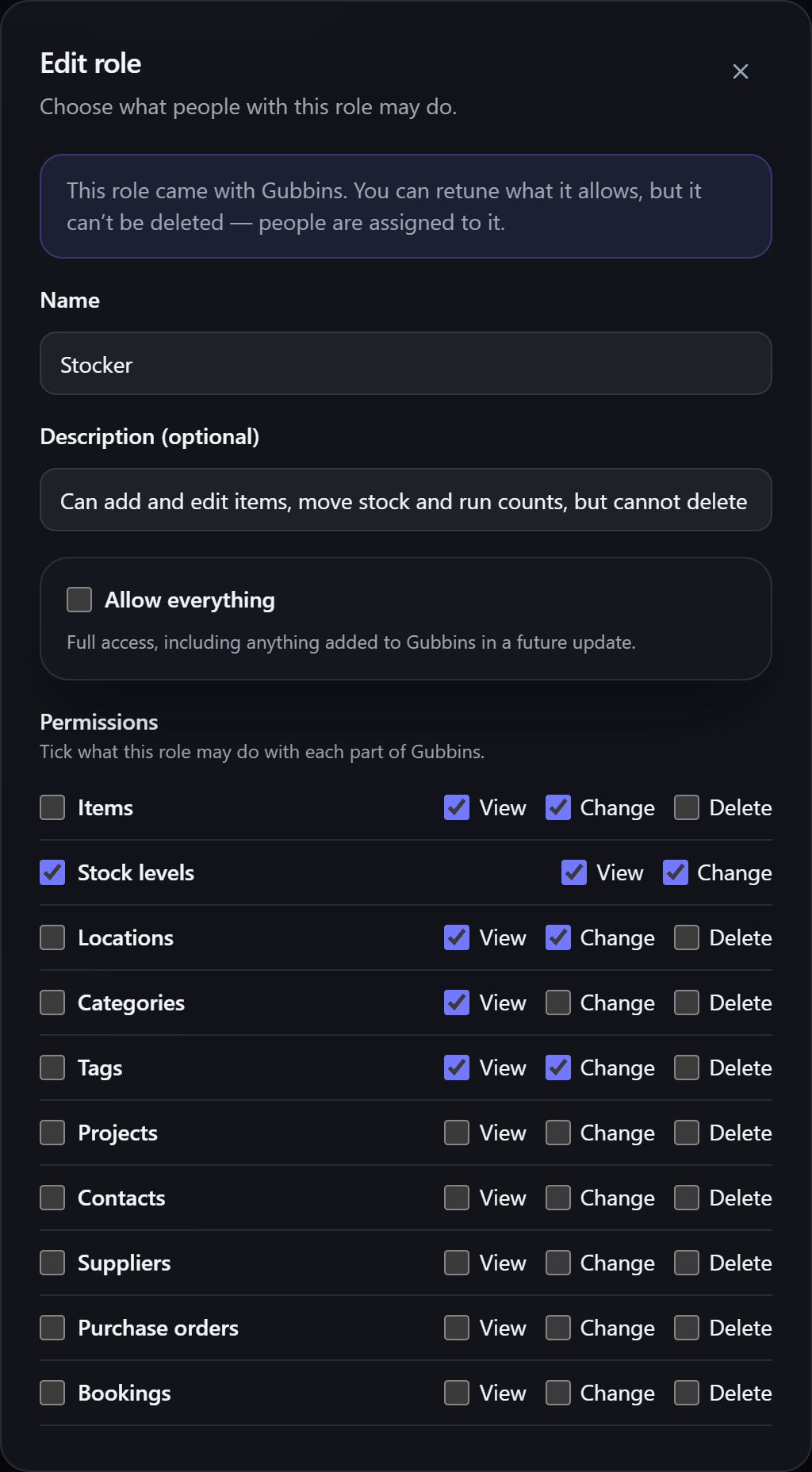
Four roles come ready to use. You can retune what any of them allows, but they can't be deleted — people are assigned to them.
| Role | What it allows |
|---|---|
| Administrator | Everything, including managing users and roles |
| Manager | Everything across inventory, projects and settings, but can't manage users |
| Stocker | Add and edit items, move stock and run counts — but no deleting and no activity history |
| Viewer | Look at everything except the activity history and user accounts; change nothing |
Add your own with Add role whenever none of these quite fits.
ℹ️ Note These four are shown in your interface language. Rename one — or rewrite its description — and your own wording is what Gubbins shows from then on, whatever language you switch to.
Permissions are a grid: a row for each area of Gubbins and a column for each action.
- Areas are the things you work with — items, stock levels, locations, categories, tags, projects, contacts, suppliers, purchase orders, bookings, loans, maintenance, wishlist, reports — plus a few that cut across the app: activity history, settings, users and roles, backups, sync and the bridge.
- Actions are View, Change and Delete, with a couple of sensible exceptions. Stock levels has no Delete — stock is written down or written off, never deleted. Activity history is View and Delete only, because the ledger is a record of what happened and isn't edited. Users and roles is View and Manage, because anyone who can edit an account could grant themselves anything anyway.
ℹ️ Note Change covers an entity's own details and the things attached to it — an item's attachments, photos, capabilities and BOM lines are all part of changing the item. Delete means deleting the item itself.
Two shortcuts save a lot of ticking:
- Everything under <area> grants every action for that row — including any action added to that area in a future update.
- Allow everything grants the lot, across the whole app, again including anything a future version adds. This is how the built-in Administrator role is defined, so "Administrator" keeps meaning everything as Gubbins grows.
⚠️ Heads-up Ticking or unticking any individual box in a whole-area row turns that shortcut off. The row keeps exactly the actions shown at that moment, and stops picking up actions added in future updates. That's deliberate — you asked for a specific set — but it's easy to do by accident when you only meant to remove one action.
💡 Tip Use the whole-area and everything shortcuts for roles you want to grow with the app, and tick individual boxes for restricted roles. That way a new capability reaches your admins automatically and never quietly reaches a Viewer.
A role is set on the account itself — see Users & accounts. Someone with no role can sign in but can't do anything, which is a useful holding state for a new starter.
Deleting a role doesn't delete anyone. People holding it keep their accounts and simply have no permissions until you give them another one.
A role also governs what an outside tool can do. An API token minted against an account is held to that account's role, so a role that can't see suppliers in the app can't read them through the bridge either.
⚠️ Heads-up Permissions decide what Gubbins lets someone do in the app. They are not a lock on the data itself — anyone with access to this device's files can still read everything. See Privacy & security.
If your devices are on different versions, a role edited on a newer one may hold permissions this version hasn't heard of. Gubbins says so, keeps them exactly as they are, and never quietly strips them — so editing a role on an older device can't undo what a newer one granted.
- Users & accounts — creating accounts and assigning roles.
- Signing in — the sign-in gate these permissions sit behind.
- Activity log — the history the Activity history permission covers.
- Bridge API tokens — how a role bounds an outside tool.
- Modular UI — switching the Users module on and off.