Search Overview
Gubbins is built to find things fast. However big your inventory gets, there are four ways to narrow it down — from a quick type-ahead to a precise, saveable query.
Where to find it: the Search items box at the top of the Inventory screen (and the command palette from anywhere).
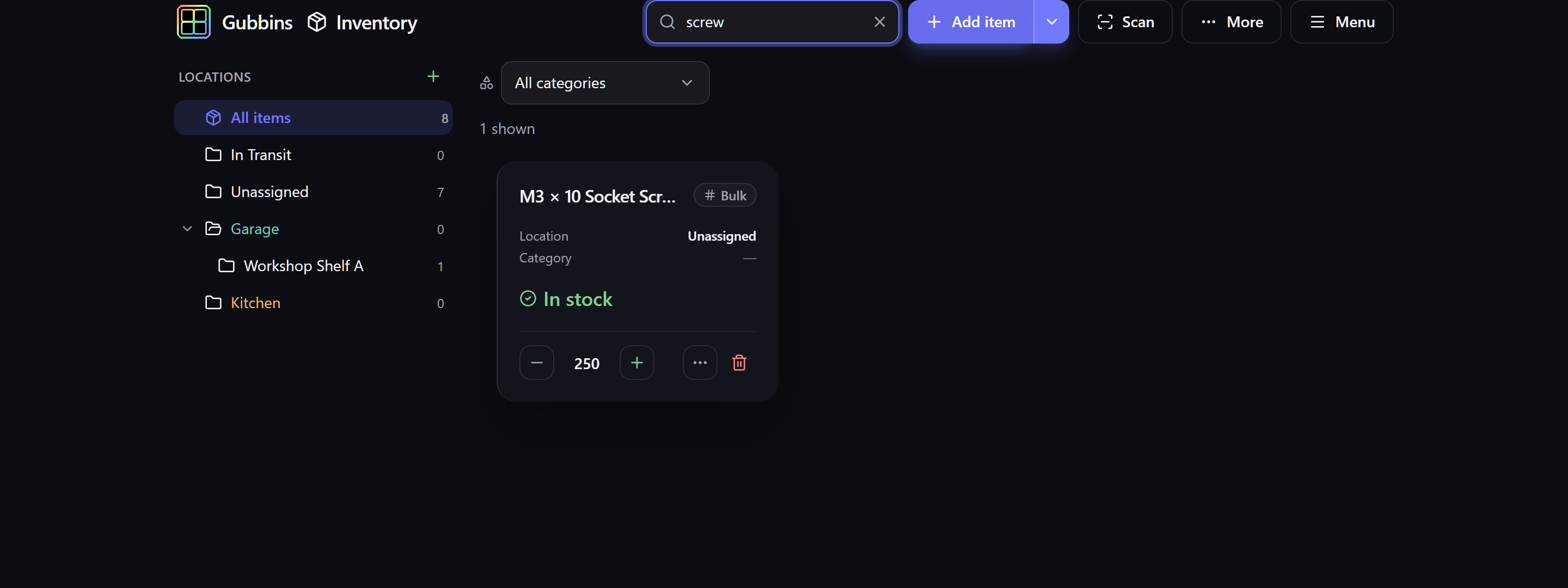
Just start typing in the Search items box. Gubbins matches across your items' names and details as you type, powered by a fast full-text index:
-
Prefix matching — typing
screwfinds screws and screwdriver. - Stemming — drills and drilling find drill.
- Fuzzy matching — a small typo still finds the right item.
💡 Tip Press Escape in the search box to clear it without reaching for the mouse.
| Way | Best for | Page |
|---|---|---|
| Quick search | Finding something by name, fast | (this page) |
| Plain English | A natural request without learning any syntax | Natural-language search |
| Text syntax | Power users who want precise field:value control |
Text query syntax |
| Visual builder | Building complex AND/OR queries by clicking | Visual query builder |
The last three all live in the Visual search panel (open it from the More menu on the Inventory screen) and all do the same thing under the hood — they build up a filter you can refine, re-run and save.
Search combines with the other ways to narrow the list:
- Location — selecting a location in the tree limits results to that place. See Locations & stock.
- Status chips — quick filters for things needing attention (low stock, expiring, overdue, maintenance due). See Alerts.
- Category and tag facets — narrow to a category or tag. The Category picker lists only categories that are actually in use in the current view, so a category with no items simply doesn't appear — and it drops out (or comes back) live as you move items between categories, without a reload.
ℹ️ Note When the Visual search panel is driving the results, it takes over from the quick-search box and status chips — so you're always looking at exactly one query's results, never a confusing mix.
Directly above the list, Gubbins tells you how many items your current search and filters match — for example “128 items match”. That figure is the total across everything that matched, not just the rows currently on screen, so it stays put as you scroll and only changes when you actually change a filter. It reads the same when the list is grouped by location or driven by the Visual search panel.
Because it's announced as a live status, screen-reader users hear the new total each time a filter changes — the quickest way to tell whether a query narrowed too far, or matched nothing at all.
- Capabilities — searchable, weighted attributes with best-match ranking.
- Saved searches & favourites — keep and recall queries.