Modular UI
Gubbins does a lot — but you probably don't need all of it. Modular UI lets you hide the pages and capabilities you don't use, so the app is exactly as simple (or as powerful) as you want. Nothing is deleted; hidden features keep all their data and can come back any time.
Where to find it: the Modules screen (from Settings, the first-run chooser, or the "module hidden" prompt).
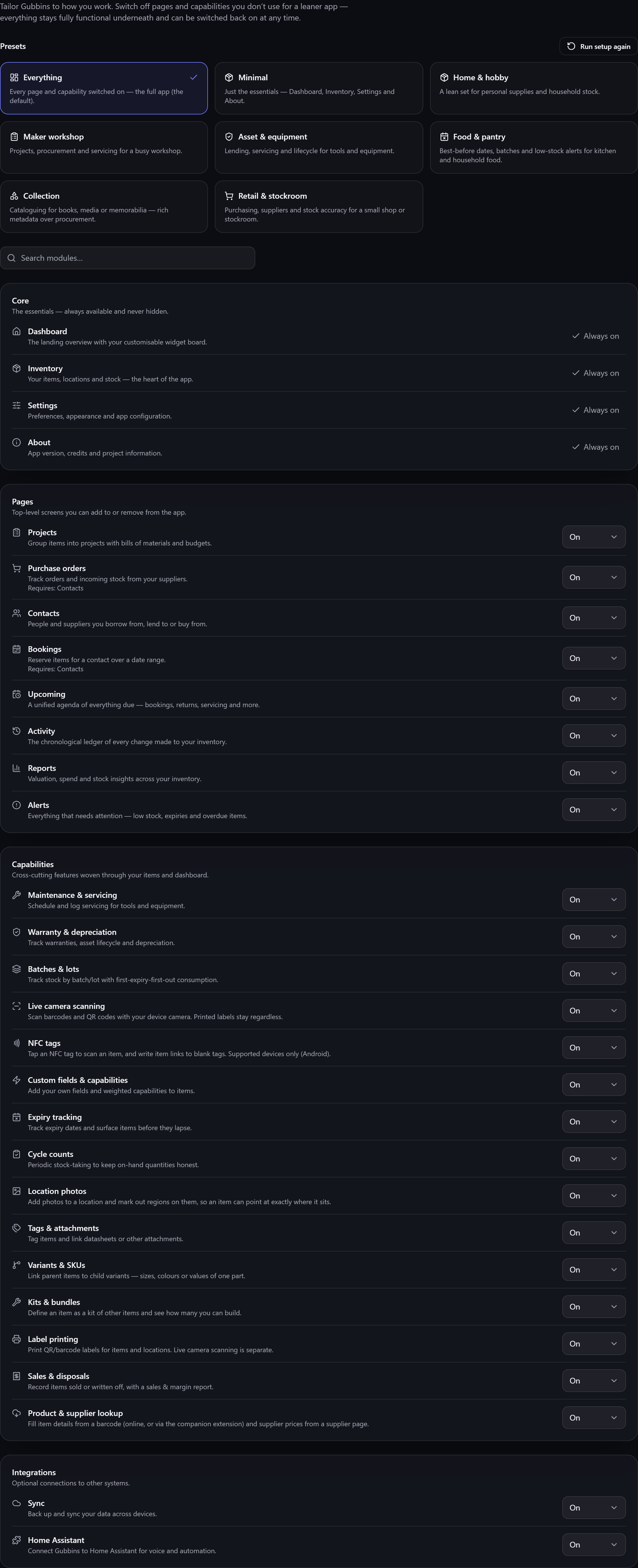
- Pages — whole screens: Projects, Purchase orders, Contacts, Bookings, Reports, and more.
- Capabilities — cross-cutting sub-features woven through the app: Maintenance, Batches, Kits, Variants, Scanner, NFC tags, Sales, and others.
A handful of essentials — Dashboard, Inventory, Settings, About — are always on and can't be hidden.
Most modules are on to begin with, and you turn off what you don't want. A few work the other way round and are off until you ask for them, because switching one on changes how the whole app behaves. Users — accounts, sign-in and per-person permissions — is one of these. No preset switches it on — not even Everything — so it never arrives by surprise.
⚠️ Heads-up Applying a preset switches off every module the preset doesn't list, and no preset lists Users. So if you have sign-in turned on and then pick a preset, sign-in is switched off. Your accounts and roles are kept, but you'll need to turn the module back on.
ℹ️ Note Turning Users on puts a sign-in screen in front of the app, so Gubbins confirms first that somebody can still get in. Turning it back off loses nothing — accounts, roles and the record of who changed what are all kept.
Switch a module off and it disappears everywhere at once — from the nav menu, dashboard tiles and widgets, the command palette, item-detail tabs, and the Alerts/Upcoming feeds. Switch it back on and it all returns, with your data untouched.
- Start from a preset in the skippable first-run chooser, or fine-tune every module on the Modules screen.
- Dependencies are handled. Some modules rely on others (Purchase orders and Bookings need Contacts); turning one off cascades sensibly, and turning one on offers to enable what it needs.
💡 Tip If Gubbins feels like more than you need, start by hiding whole areas you're sure about (Projects, Purchase orders) — the app immediately feels lighter, and you've lost nothing.
ℹ️ Note Modules are a per-device choice. A shared workshop tablet can show a lean, focused set while your own machine has everything — same data, different surface. This is why a feature described in this wiki might not be visible for you: it may simply be switched off here.
- Quick start — the first-run module chooser.
- Dashboard & widgets — what modules add to the dashboard.
- Kiosk & tablet mode — pairing a lean module set with a locked-down display.
- Users & accounts — the opt-in module for sharing a device with other people.