Repository navigation
Characters
The Characters roster is your cast list, with portraits and a search box. The count badge tracks how many characters you are following.
- Go to Characters.
- Click Add Character and enter a name.
- Open the character to fill in the rest.
Building a large cast by hand is slow. Generate with AI — next to Add Character — does it in bulk with any AI assistant, added to the world you are already in.
New names are created; a name that already exists is updated in place, so you can re-run it both to top up your cast and to flesh out characters you already made, without ever creating duplicates. See Generating with AI.
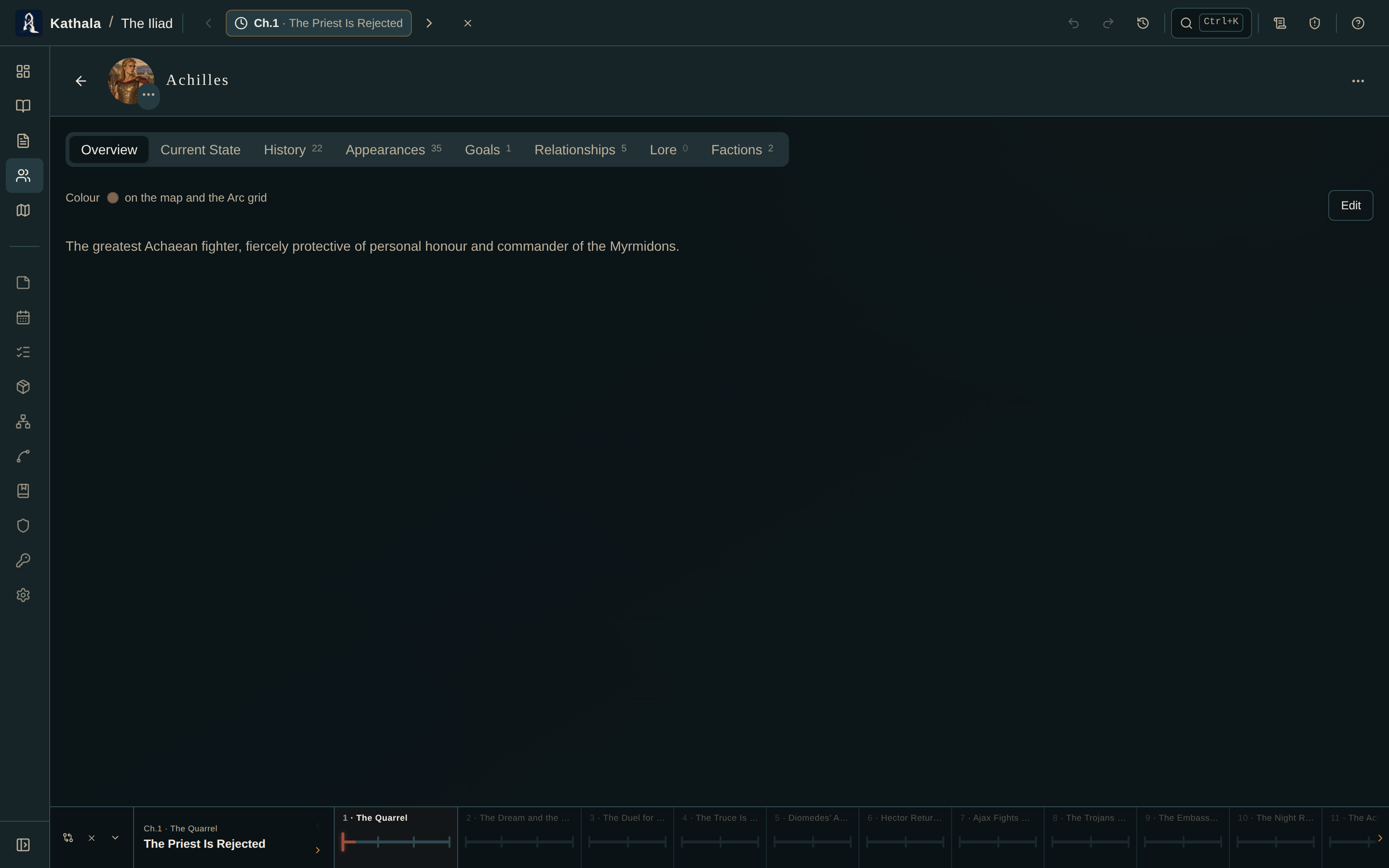
Opening a character gives you a tabbed profile.
| Tab | Contents |
|---|---|
| Overview | Biography, aliases, portrait, map/Arc colour, and an optional birth date when the world has a calendar |
| Current State | Location, inventory, alive status, travel mode, and notes at the current event |
| History | How their state changed event by event, including carried-forward states |
| Appearances | Every event they are in |
| Goals | Their inner life — see below |
| Relationships | Their connections at the current moment |
| Lore | Every lore page linked to them |
| Factions | Their memberships, with roles and start/end events |
State is a snapshot tied to an event.
- Move the time cursor to the target event on the bottom bar.
- Open the character → Current State.
- Edit location, alive status, inventory, travel mode, and status notes.
Changes save as you make them, as a snapshot at that event. Later events inherit it until you record something different.
If you have not recorded anything at the active event, the tab shows the most recent earlier snapshot. Editing it creates a new snapshot at the current event — it does not rewrite the earlier one.
Waypoints record the path a character took within a single event, when they pass through several places in one scene. They appear as a coloured trail on the map and animate during playback.
The Goals tab tracks the inner life behind a character's scenes, along the four classic axes:
| Axis | Meaning |
|---|---|
| Want | The conscious objective they're chasing |
| Need | What they actually require, often at odds with the want |
| Fear | What they're avoiding |
| Flaw | The trait that keeps getting in their way |
Each goal can be scoped in time — from an event until another — so a want they pick up in chapter three and abandon in chapter nine is recorded as exactly that. Leave either end open for a drive they carry from the start, or to the end.
Goals not held at the current cursor stay listed but dimmed and marked inactive here, so the whole arc is visible while you edit.
Goals surface where you are writing, not just where you set them:
- The Writer's Brief lists each present character's active goals alongside their location and inventory.
- The Character Arc grid has a Goals overlay that prints them under each character's name, and every row's name carries them as a tooltip.
Portraits are kept at up to 2048px but shown small — 48px in a character's header, smaller on a card.
Click the portrait on a character's page to open it full size. Press Esc, click the space around it, or use the ✕ to put it away. Clicking the picture itself doesn't close it, so you can lean in without losing your place.
The same works for:
- An item's image on its detail page.
- A world's cover on the dashboard and in World Settings.
- On a map, both the portrait atop the character panel and the picture on a location's panel.
Pictures inside cards and lists are left alone — there, a click still takes you to whatever the card is for.
Upload or link. For a portrait — and likewise for item images and maps — you can upload a file or link an image URL (the ⬆ and 🔗 controls sit on the image). Linked images aren't stored in your browser, so they need an internet connection to display and can break if the source goes away; uploads are self-contained.
Deleting removes their snapshots, movements, relationships, goals, and faction memberships.
Undo brings all of it back as one action — deletion is a single undoable step, not a cascade you have to reassemble.
The location is not updating. Check the time cursor. Current State always shows state at the active event, never globally.
I edited a location and it changed at earlier events too. You edited a snapshot that was being inherited. Record a snapshot at the earlier event with the state you want there, then edit the later one separately.
- Core Concepts · Character Arc Grid · Relationships
- Cast Balance — who is actually carrying the book
- Maps — placing characters, and the film strip