Repository navigation
World Settings
Per-world settings live under Settings in the navigation rail.
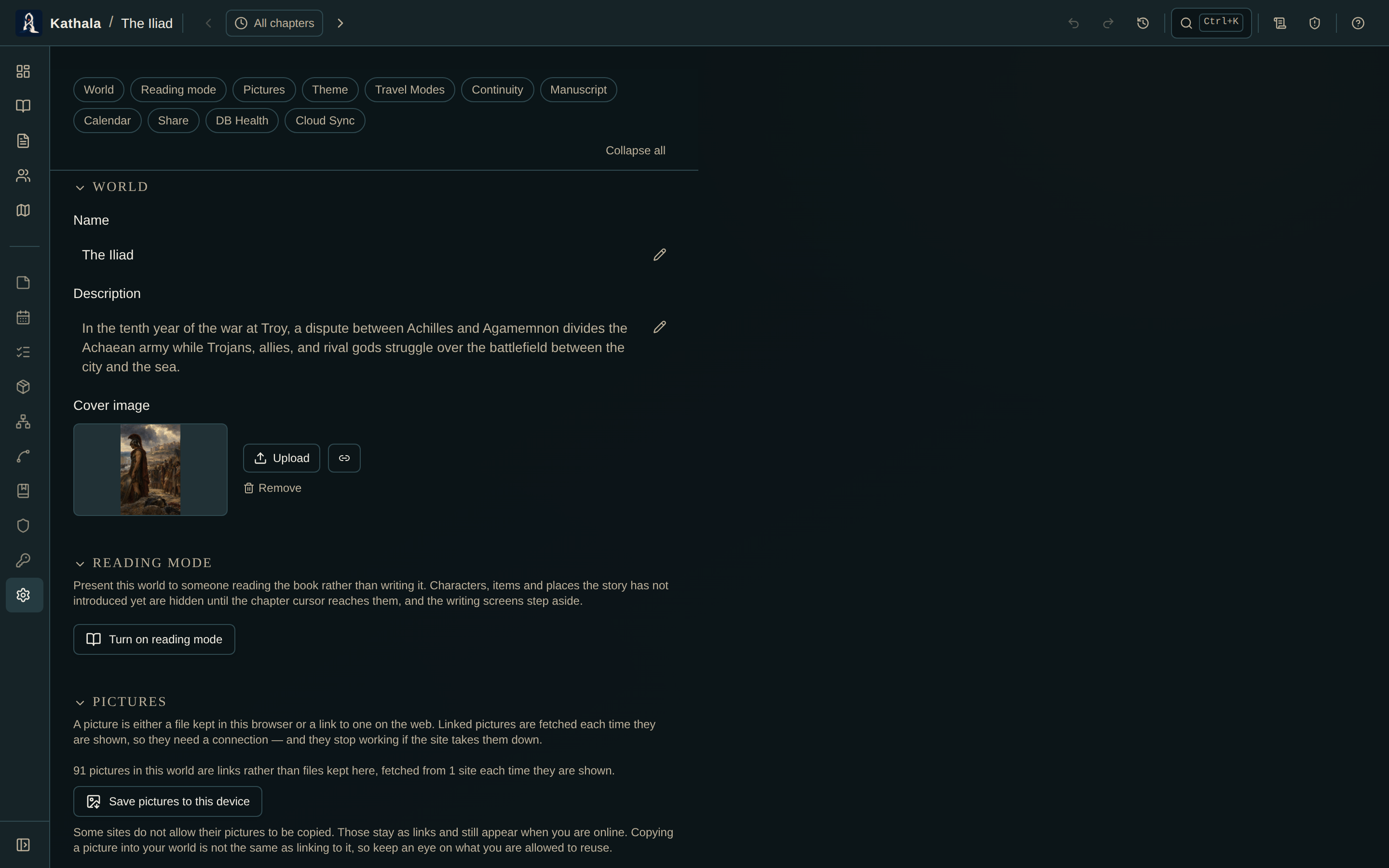
| Setting | Purpose |
|---|---|
| Name | Rename the world |
| Cover image | Shown on the world's card in the selector and in the dashboard header |
| Theme | One of nine visual styles — see Themes |
| Reading mode | Hide everything past the chapter cursor — see Reading Mode |
Upload an image file or link one by URL with the link icon, and Remove it at any time — the same as portraits elsewhere in the app. Click the cover to open it full size.
| Setting | Used by |
|---|---|
| Word target | The burndown bar on the Dashboard |
| Deadline | The words/day and projected finish date on the Dashboard |
Define travel modes with speeds for map distance calculations. The Continuity Checker uses them, together with the map scale, to decide whether a character could actually have crossed the distance in the in-world days available.
Continuity stale-snapshot threshold — how many events a character may go without a fresh snapshot before the checker mentions it. Default 5.
Configure an in-world calendar for story dates and character ages. See Calendar & Ages.
Worlds with more than one timeline get a Timelines section: give each timeline a start day for its clock.
By default every timeline starts at day 0 — right for parallel storylines, but a frame narrative's past, or an earlier era, belongs at a different point on the world clock. Setting, say, day 10,000 on the "present" timeline makes chronological merges (the All-timelines view and the bottom bar) and the calendar place both eras where they actually fall.
An event's pinned in-world day stays relative to its own timeline's clock.
- Export as HTML — a read-only, shareable snapshot of the world that anyone can open in a browser.
- From the world card menu on the selector, export the full world as a
.pwkfile, optionally split with a.pwbimages file.
See Export and Import.
Deleting a parent record can occasionally leave an old snapshot, membership, or sub-map reference behind — especially after importing older files.
- Scan for orphans reports unreachable records by table.
- Clean up removes only the records whose parent no longer exists.
On Chrome, Edge, and the desktop app, choose a sync folder to bind the world to a .pwk file in any local folder — including one managed by Google Drive, OneDrive, Dropbox, or another file-sync service.
- Save writes the current world.
- Load previews the file before applying it.
- Change folder moves the binding.
- Disconnect removes the binding without deleting the file already in that folder.
Smart merge combines the two copies field by field, which is what you want when the same world was edited on two devices.
Lists are combined rather than replaced. If you added one character to a scene's cast and someone else added another, the scene ends up with both. Tags, aliases, inventories, and plot threads work the same way, and the order you each had is kept.
Reordering survives. Moving a card writes only that card's position, so two people rearranging different scenes both get their way, and both devices end up with the same sequence.
Single values cannot be combined — a name, a description, a status. The file records what each copy says, not what each person changed. Where both copies changed one, PlotWeave shows you the two versions side by side before anything is applied, and you choose: Most recent, Keep mine, or Use theirs.
Deletions travel. Anything you deleted stays deleted rather than reappearing because the other copy still had it. If you deleted something on one device and then edited it on the other, the edit wins and the record is kept — keeping is recoverable, discarding later work is not.
Replace all overwrites the local world with the selected file instead.
| State | Meaning |
|---|---|
| Up to date | The folder holds the same version as this device |
| Unsaved changes | You have edits the folder hasn't received yet |
| Newer copy in folder | Another device saved to this folder — Load to catch up |
| Both changed | You edited here and another device saved — see below |
| Reconnect folder | PlotWeave lost permission (browsers drop it between sessions); auto-save does nothing until you re-grant access |
The same status appears next to the world name in the top bar, so you can tell at a glance whether your work is reaching the folder without opening Settings.
Because the bound folder is usually shared between your machines, PlotWeave never overwrites the folder's copy behind your back.
When another device has saved since you last did and you have your own unsaved changes, auto-save writes to a conflict copy beside it — My World (conflict copy 2026-07-29 0315).pwk — rather than either destroying their version or leaving yours unsaved.
Both versions survive. Sort it out whenever you like: Load compares the folder's copy against yours, and Save over replaces it with this device's.
Reading mode keeps only what a reader can decide — the theme, and whether to carry on reading this way. Travel speeds, the continuity threshold, word target and deadline, the calendar definition, folder sync, and the HTML export all wait until reading mode is off.
- Export and Import · Themes · Calendar & Ages
- Continuity Checker — the consumer of travel modes and the stale threshold