Repository navigation
Getting Started
This page walks through building a world from nothing. If you already have a draft, a synopsis, or just want to look around first, you have faster options — see Before you start by hand at the bottom.
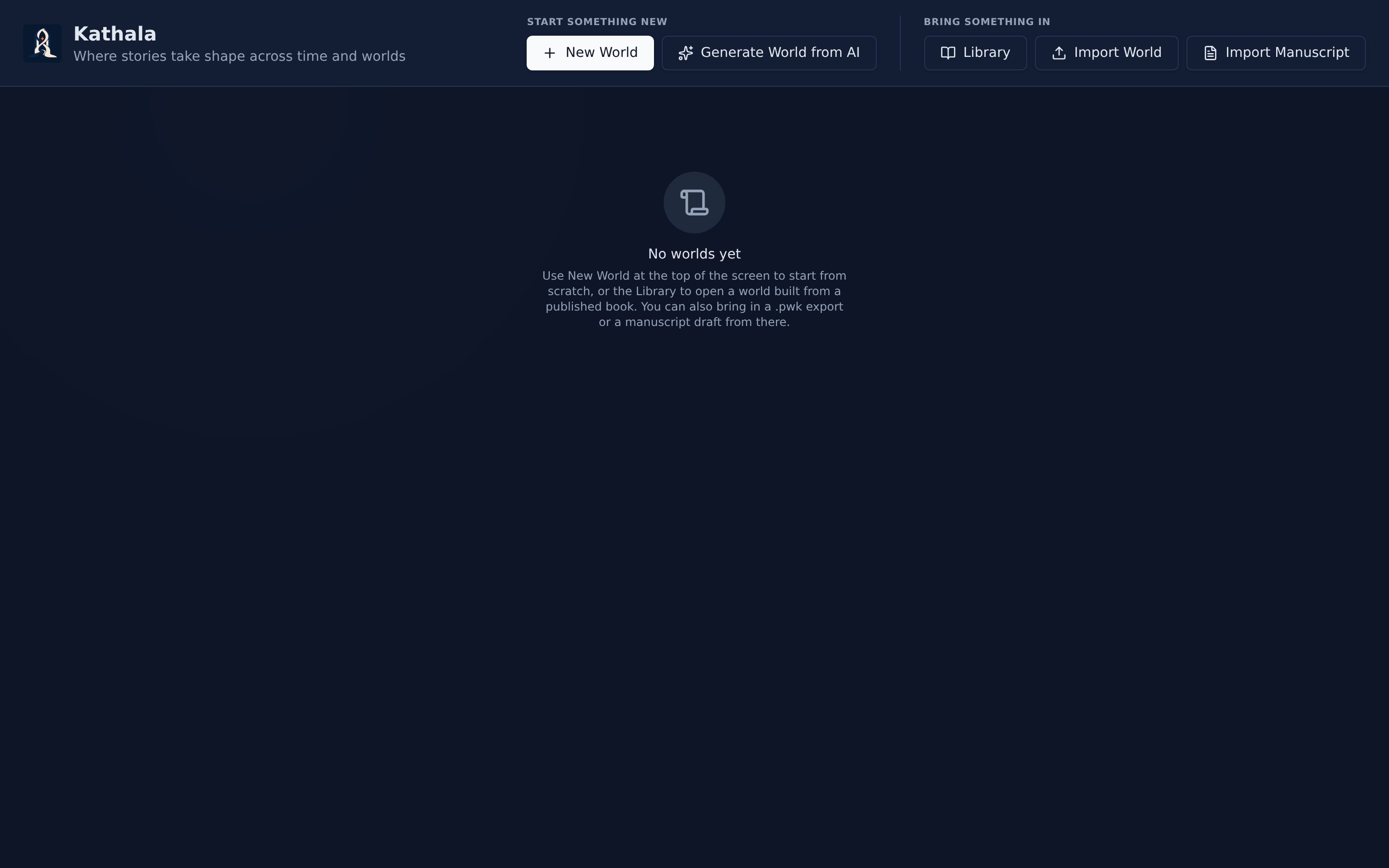
PlotWeave is open and you can see the world selector. See Installation if not.
A world is the top-level container for one story or universe.
- Click New World on the world selector.
- Enter a name, and optionally a description.
- Click Create World.
The world opens immediately, and PlotWeave offers a four-step setup guide: create the first timeline and event, add a main character, place that character at the opening moment, then continue to the Timeline. Every optional step has Skip, so you can leave the guide and build in any order.
A timeline is an ordered sequence of chapters. Every world needs at least one; most only ever need one.
- Go to Timeline in the left navigation rail.
- Click Create Timeline (or New Timeline if one already exists).
- Give it a name — "Main Story" is fine.
- In the timeline view, click Add Chapter.
- Enter a title. The number is filled in for you.
- Optionally add a synopsis.
Chapters inherit all snapshots from the immediately preceding chapter in the same timeline, so a chapter starts where the last one ended.
An event is a scene or beat, and the unit all state is recorded against.
- Open the chapter's detail page (the open button on the chapter row).
- Click Add Event and give it a title.
- Expand the event card to fill in the rest: description, status (Idea → Outline → Draft → Revised → Final), POV character, location, characters and items involved, tags, and travel days.
The event now appears on the chapter bar at the bottom of the screen — that bar is your time cursor.
- Go to Characters.
- Click Add Character and enter a name.
- Open the character to fill in the biography, aliases, portrait, colour, and an optional birth date.
Building a whole cast by hand is slow — Generate with AI next to Add Character does it in bulk. See Generating with AI.
- Move the time cursor to your first event (bottom bar).
- Open the character → Current State tab.
- Set their location, alive status, inventory, travel mode, and any status note.
Changes save as you make them, as a snapshot at that event. Later events inherit it until you record something different. This is the whole model — see Core Concepts.
- Go to Maps.
- Upload a map image, or link one by URL.
- Use + Location in the floating toolbar and click the canvas to drop a marker.
No map image? Generate locations with AI builds a whole tree of places as pins on a blank map — see Maps.
| You have | Do this instead |
|---|---|
A finished or partial draft (.md, .txt) |
Import a Manuscript — one step, chapters and scenes included |
| A synopsis, outline, or the story in your head | Generating with AI — builds cast, factions, chapters and events |
| Book one already in PlotWeave | Sequels — carries the cast and setting into book two |
| Curiosity, and no story yet | The Library — download a worked example built from a published book |
| Goal | Page |
|---|---|
| Understand the time cursor properly | Core Concepts |
| Write scene prose and read it back as a book | Manuscript |
| See the shape of the story | Corkboard · Structure Board |
| Track who knows what | Knowledge |
| Back your work up | Export and Import |