Repository navigation
Reading Mode
Reading mode makes a world safe to open while you are still part-way through the story it describes. It is what Library worlds arrive in, and it is a per-world setting, so it works on anything — including your own draft, before you hand it to a beta reader.
Turn it on or off under Settings for that world.
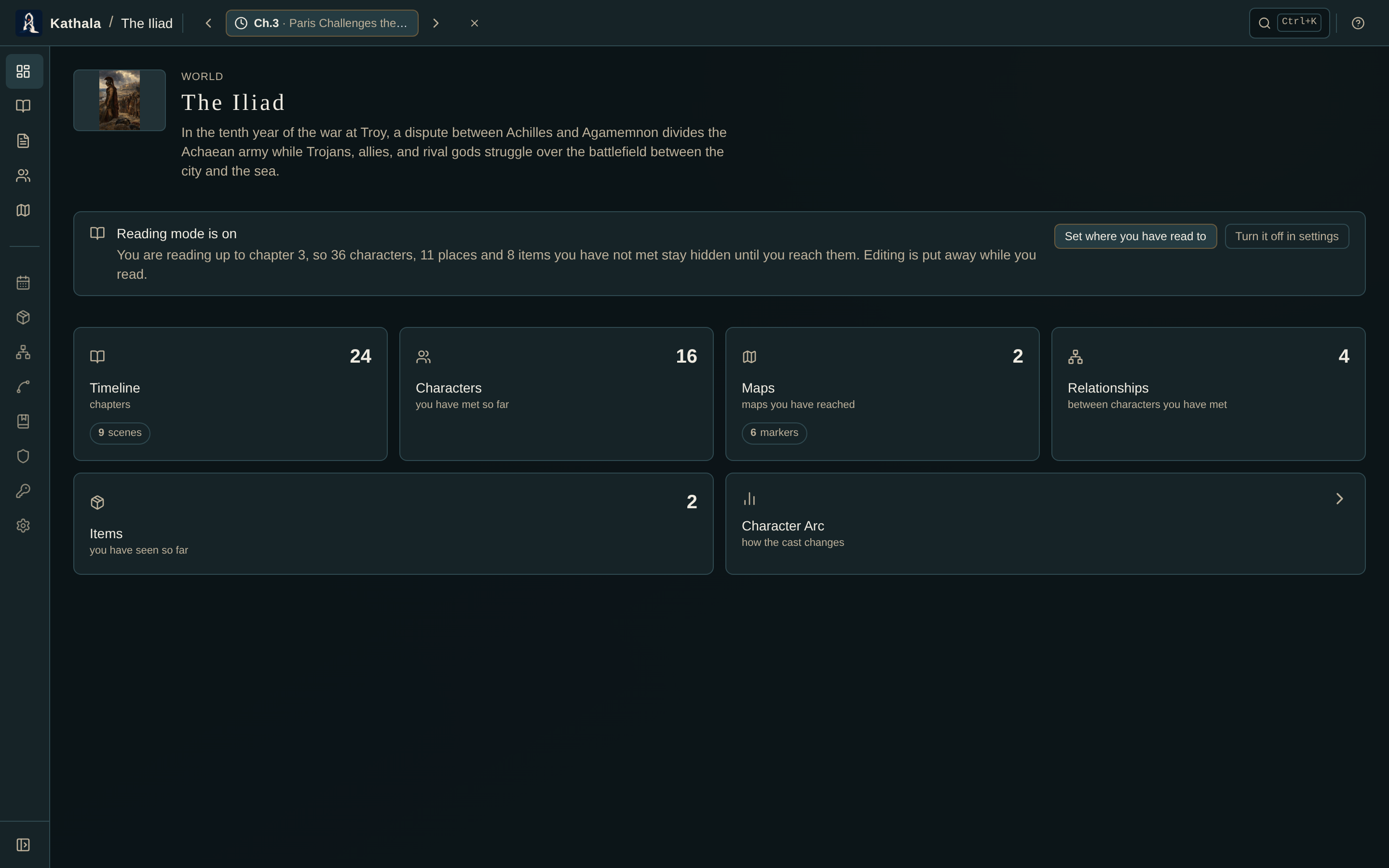
Set the chapter cursor to where you have read up to. PlotWeave then hides everything the story has not introduced yet — everywhere, not just on one screen.
- The Characters page in chapter one shows the handful of people you have actually met, with a note saying how many are still to come, so a short list reads as deliberate rather than broken.
- The timeline stops at your place and keeps later chapter summaries back.
- Lore pages wait until you have met what they are about.
- A knowledge fact stays hidden until the point the reader is meant to learn it.
- A character's page shows where they stand now, not every chapter still to come.
- The map list holds back maps for places you have not been to yet.
- Subplots and motifs are named for where they end up — The Philosopher's Stone Mystery gives away a book on its own — so they wait for the first scene that takes them up.
- Search answers on the same terms. It will not find a character you have not met.
Chapter titles stay visible throughout — they are printed on your own book's contents page, so hiding them would gain nothing.
One thing the cut-off cannot do is edit prose. If a place you have reached is described in a sentence that names one you have not, that sentence is shown as written.
Summary figures that would give the game away — the alive/dead split on the dashboard, for instance — are simply not shown while reading.
PlotWeave remembers your place in each book. Close one, read another, come back a week later — the cursor is where you left it, and the world card says "Chapter 5 of 17" with a progress bar.
If you deliberately choose All chapters, that is remembered too: coming back shows you the whole book again rather than quietly re-hiding it, and the progress bar disappears, because seeing everything is not a place in the story.
Selecting All chapters reveals the whole world. That is a deliberate choice, not the default — and while reading, PlotWeave asks before doing it, since the control is a small ✕ beside the cursor and one stray click would hand you the ending.
Stepping the cursor back never asks. It only ever un-reveals.
Reading mode also clears out everything that only makes sense to the person writing the book, so what is left reads as a companion rather than a workspace you wandered into.
The writing screens — Manuscript, Structure, and the Corkboard — step aside, and their addresses close with them: typing one in takes you back to the dashboard.
Undo, redo, Recent changes, the Writer's Brief, and the Continuity Checker leave the top bar — Ctrl/⌘+Z along with them.
No screen offers to add, generate, or delete anything: no Add Character, no New Page, no Generate with AI, no delete buttons on cards, rows, or map layers.
The map is read-only in the same way, including the parts you change by hand rather than by button:
- Location pins and character pins cannot be dragged to new positions.
- Characters cannot be dragged onto the map from the sidebar.
- Right-clicking the canvas no longer offers to add a location, label, route, or region.
You can still pan, zoom, drill into sub-maps, follow journeys, measure distances, and export the map as a PNG — everything that reads it.
The dashboard becomes a way in rather than a progress report. Recent Events, Scene Status, Writing Progress, Cast Balance, Plot Threads, and Motifs all measure the manuscript rather than the story, so they go — along with the continuity card and the snapshot-coverage figure. The tiles stop talking about your cast and your catalogue; they count what you have met so far.
Detail screens show the same information without the editing furniture. A character's page is read straight through — description, where they stand, what they carry, goals, relationships, factions — with no Edit button and no form fields. Lore pages render as articles. A knowledge fact shows what it is and who knows it, without the controls that set when the reader is let in on it.
Settings keeps only what a reader can decide: the theme, and whether to carry on reading this way.
Travel speeds, the continuity threshold, word target and deadline, the calendar's own definition, folder sync, and the HTML export all describe the draft rather than the story, so they wait. (The HTML export would write out the whole world regardless of your chapter cursor, so offering it here would hand you the ending in a file.)
To edit a world anyway, turn reading mode off in Settings. Everything comes back exactly as it was.
Turn reading mode on before handing a world to a beta reader and they can follow along without the ending being spoiled by the cast list. Turn it off when you want to write again.
- The Library — where reading-mode worlds come from
- World Settings — where the switch lives
- Core Concepts — the cursor that drives the cut-off