Repository navigation
Maps
PlotWeave renders custom, hand-drawn fantasy maps — pixel-coordinate images, not geographic tiles.
Upload a map image or link one by URL, place location markers, group them into layers and sub-maps, stack floors, draw regions and routes, and set a map scale to unlock distance measurement.
| Term | Definition |
|---|---|
| Map layer | A single map image (world map, city map, floor plan) |
| Location marker | A named point — city, dungeon, landmark |
| Sub-map | A child layer linked from a marker; creates drill-down navigation |
| Level (floor) | Another storey of the same place, flipped between rather than drilled into |
| Map route | A named path — road, river, trail, sea route, border |
| Map region | A polygon area with a fill colour and per-event status |
| Map annotation | A text label at a position |
| Scale | A calibration converting pixel distance to real units |
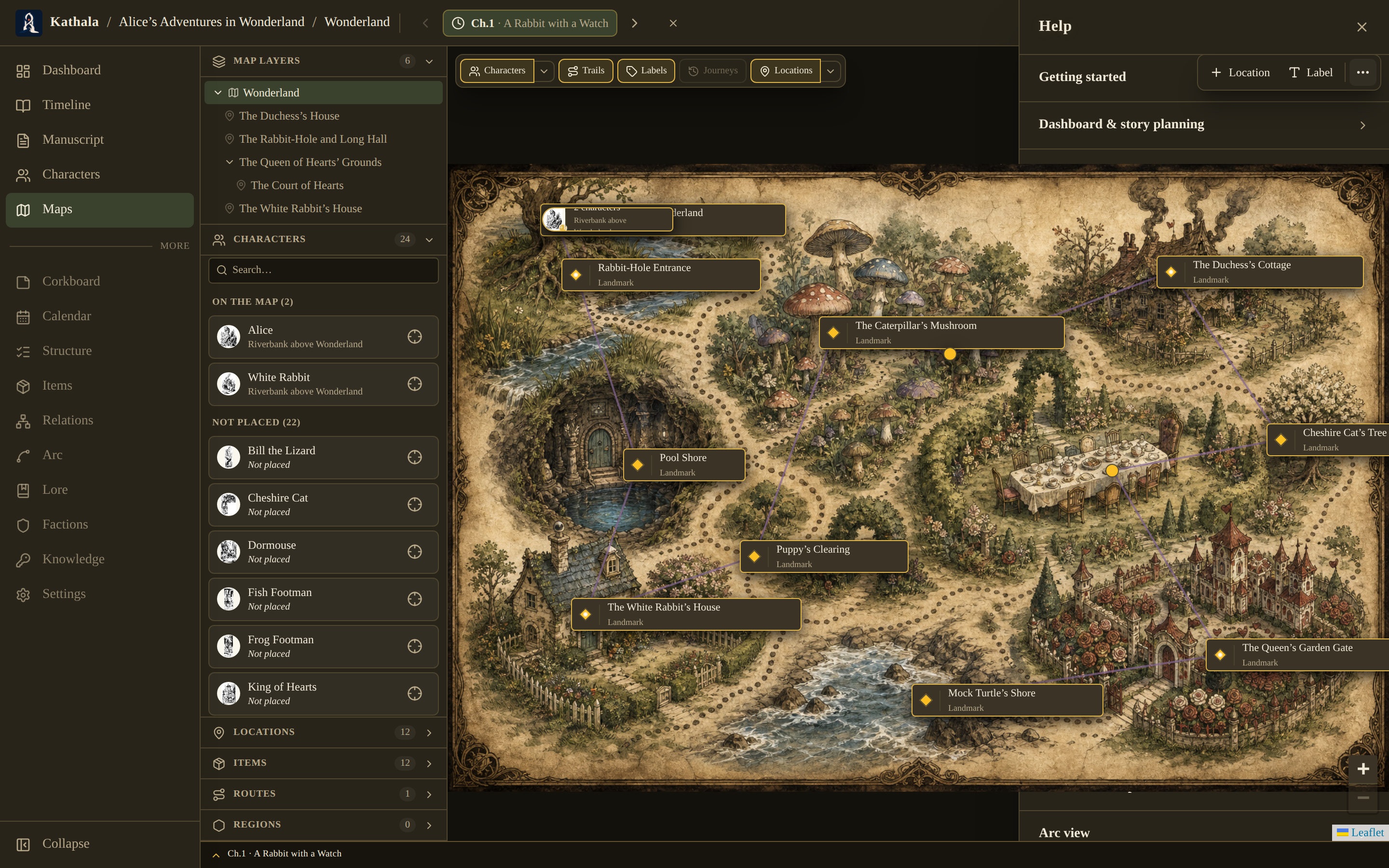
The map's controls float over the canvas rather than sitting in header rows, so the map runs from the top of the view to the chapter bar.
| Position | Contents |
|---|---|
| Breadcrumb (top of window) | Which layer is open, and its scale — PlotWeave / your world / Middle Earth · 1 km = 2 px |
| Top-left | Show chips — characters, trails, labels, journeys, locations. The chevrons narrow those to particular characters or location types |
| Top-right | + Location and Label, plus a ⋯ menu |
| ⋯ menu | Map scale, add level, replace image, export as PNG, and the AI tools |
| Bottom-right | Zoom |
| Right edge | The floor switcher, on a levelled map |
While you're placing or drawing — a location, a label, a route or region's vertices, a scale calibration — the floating controls fade and stop taking clicks, so the whole canvas underneath stays reachable. Press Escape to back out of any of these modes.
- Go to Maps.
- Upload Map, or link one by URL in the upload dialog.
- Name the layer and confirm.
A linked map may not be included in Export map as PNG — browsers restrict drawing cross-origin images to a canvas. Uploaded maps always export.
Either:
- Click + Location in the toolbar, then click the canvas; or
- Right-click the canvas and choose to add a location there.
A marker stores a name, an icon type, description, tags, and an optional owning faction.
Generate with AI on the empty Maps screen (or AI Locations in the ⋯ menu) builds a whole tree of places as pins on a blank Locations map — sub-maps and floors included. See Generating with AI.
A location's panel stores its description, event-based condition and notes, owning faction, characters and items present, an optional linked sub-map, and a picture of the place.
It opens when you pick a place — from the sidebar, from search, or by clicking its pin. Moving the time cursor along the chapter bar only pans the map to wherever that scene happens, so reading through a chapter never buries the map under a panel you didn't ask for.
The picture sits at the top of the panel, and is a different thing from the other two visuals a location has:
| Visual | What it says |
|---|---|
| The pin's icon | What kind of place it is |
| A linked sub-map | A map of it, that you drill into |
| The picture | What it looks like |
Upload one or link it by URL with the buttons in its corner, ✕ to take it away, and click it to open it full size. The pin itself stays an icon, so a city still reads as a city at a glance.
- Upload the child map (e.g. a city map).
- Open the parent marker and set its linked sub-map.
- Click the marker's portal to drill in. The breadcrumb shows the trail; click any level to go back.
Some places are one footprint stacked into several floors — a castle with dungeons, a ground floor, upper floors, and towers.
Choose Add level from the ⋯ menu to give the current map a floor above it: upload that floor's image and name it (e.g. First floor). The map becomes a level group, and a floor switcher appears on the right edge — floors stacked bottom-to-top, the current one highlighted.
- Tap a floor to jump to it. Your pan and zoom are held, so a stairwell or tower lines up between floors.
- Each floor is a full map with its own locations, routes, and regions. A marker on the First floor stays on the First floor.
- Add floors with the + on the switcher, rename one (double-click, or the pencil), or remove one with its trash icon. Deleting the ground floor re-points the place's pin to the next floor so it stays reachable.
Levels vs. sub-maps: sub-maps are places you drill into (Grounds → Castle); floors are levels of the same place you flip between. The two compose, so a castle reached from the grounds can itself have floors.
Characters move between floors just by being at a location on a different floor in the next chapter — no special "stairs" needed. On the parent map a character on any floor shows at the building's pin, and during playback the map follows them: as the story reaches a chapter where a character has crossed to another floor, it switches to that floor and lands their pin at the right spot.
Select a character from an event in the timeline bar, then:
- Drag them onto the map; or
- On a touch device, tap the crosshair on their card and then tap a location.
This writes a Character Snapshot at the active event.
Items are placed the same way from the Items panel, or from the item's own detail page.
Click a character pin to open their film strip — a chronological list of every place they visited. Selecting a stop moves the global cursor to that event, and opens their panel on the right, where the portrait opens full size.
- Right-click the canvas to begin a route or region at that point, or to add an annotation. The Label tool does the same from the toolbar.
- Routes can be roads, rivers, trails, sea routes, borders, or custom paths. Open a route to edit its name, type, notes, and geometry.
- Regions have a fill colour, opacity, notes, and an event-based condition. They can belong to a faction and can link directly to a sub-map.
- Select an annotation to change its text, size, colour, or delete it.
The left sidebar lists map layers and locations.
In the Map Layers tree you can drag a map onto another to nest it inside (re-parent it), or drop it on the "top level" zone to un-nest — handy for fixing a sub-map that landed in the wrong place. This works at any depth.
On a touch device, press and hold a map to pick it up first, so a normal swipe still scrolls the list.
Set the scale from Map scale in the ⋯ menu, by calibrating two points against a known distance.
Once set:
- Movement segments can display distance labels.
- Measure appears in the toolbar. Until there is a scale it sits greyed out in the ⋯ menu, next to the Set map scale entry that unlocks it.
- The Continuity Checker can check travel times against travel-mode speeds.
Replace image (in the ⋯ menu) swaps the picture behind the current map without losing any of its content — for upgrading a sketch to a finished map, or dropping in a higher-resolution version.
Upload (or link) the new image, and keep Reposition existing locations… checked so every marker, route, and region is scaled to the new image's size and stays in the same relative spot. Uncheck it for a same-size redraw. The scale calibration is adjusted to match.
Press play in the chapter bar and the map becomes a playback stage: character pins glide between locations along their routes as the story advances. The story-notes overlay shows the current chapter, synopsis, and relevant character status notes.
For a frame narrative, the map can display outer-timeline characters as ghost pins; a historical-echo relationship marks shared places with echo rings.
See Story Playback.
Reading mode makes the map read-only, including the parts you change by hand: location and character pins cannot be dragged, characters cannot be dragged on from the sidebar, and right-click offers nothing.
You can still pan, zoom, drill into sub-maps, follow journeys, measure, and export as PNG.
Characters are not appearing. Confirm the time cursor is on an event where the character has a location recorded, and that the marker is on the layer you are looking at rather than a sub-map or another floor.
Distance labels show nothing. Set the map scale first.
Measure is greyed out. It unlocks with the map scale. Both live in the ⋯ menu.
A sub-map link does nothing. Confirm the marker's linked sub-map points at an uploaded layer.
- Generating with AI — build a tree of places with no image
- Story Playback · Factions · Continuity Checker