Repository navigation
liMonADe
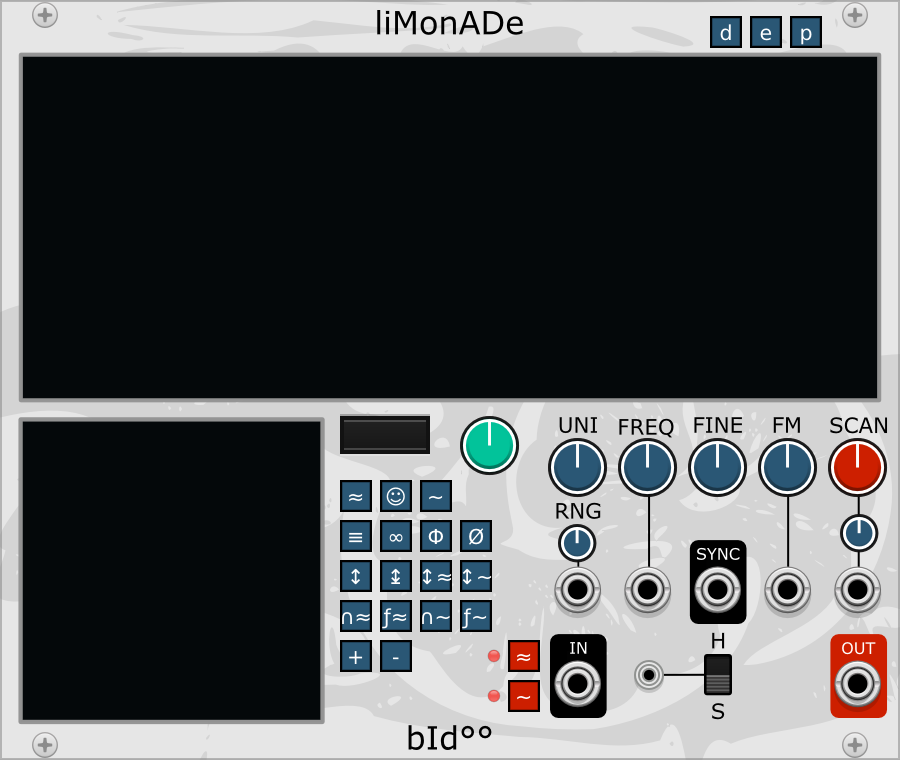
Oscillator · 30 HP
liMonADe is a wavetable oscillator with a built-in wavetable editor. A wavetable holds up to 256 single cycles ("frames") of 2048 samples. You can load ready-made wavetables (WAV, AIFF), turn a PNG image into a wavetable, record one from any signal, draw the harmonics of each frame by hand, fill the gaps between frames with morphing, and export the result as WAV or PNG. Playback is band-limited, polyphonic, with up to 3 unison voices per note.
- Press the first load button (≈, top-left of the button grid) and open a wavetable WAV file, or drop a WAV, AIFF or PNG file on the panel.
- Patch OUT to a mixer or VCV Audio, and a 1V/oct pitch into the jack under FREQ.
- Turn SCAN to move through the frames. The red line in the 3D view shows the frame being played.
- Patch a slow LFO into the SCAN input and open the small attenuverter under SCAN to animate the timbre.
- Turn UNI to 2 or 3 and raise RNG for a thicker, detuned sound.
- Classic wavetable sweep: load a wavetable, then VCV MIDI-CV V/OCT into the jack under FREQ, an ADSR from the same MIDI-CV into the SCAN input (attenuverter at about +50 %) and OUT through VCV VCA. Each note opens up through the table as the envelope rises.
- Make a table from two waves: on an empty table, press + to add a frame and load a single-cycle WAV into it with ~. Press + again, turn the green knob fully right so the new frame is the edited one, and load a second WAV. Then press ∞ (spectral morph): the two frames are spread over the whole table with 254 in-between frames. Scan it with an LFO.
- Record a wavetable from a patch: set the frame size field to 2048, patch any sound (for example a TiARE being swept) into IN and press the red ≈ button. liMonADe records 256 frames in a row (about 11 s at 48 kHz) and plays them right away.
- Draw your own spectrum: add a frame with + on an empty table, then drag up in the top half of the large display on bin 1, 2, 3... to build a sound harmonic by harmonic. Turn on the e button to see the resulting waveform.
- Image to sound: load a PNG with ☺. Each pixel row becomes a frame, bright = high, dark = low. Simple gradients and stripes give the most usable results.
| Control | Range | Description |
|---|---|---|
| Frame size field (small display) | 1-8192 samples (2048 default) | Samples per frame used when slicing a loaded wavetable file or recording. A WAV file that states its own frame size (a "clm" chunk, as written by Serum and most wavetable synths, and by liMonADe itself) overrides this value. |
| Green knob (edited frame) | first to last frame | Chooses the frame shown in the spectrum editor and changed by the frame tools, the frame loader, frame recording, + and -. The editor shows its number. |
| UNI (voices number) | 1-3 | Unison voices per note. 2 voices are detuned up and down by RNG; 3 voices add an undetuned one. Voices start at random phases. |
| RNG (voices range) | 0-0.02 V (0-24 cents) | Detune between unison voices. |
| FREQ | about 11.6 Hz to 5.9 kHz (C4 = 261.6 Hz default) | Base pitch, ±54 semitones around C4. |
| FINE | ±3 semitones | Fine tuning, finer near the centre. |
| FM | 0-100 % | Amount of the FM input (exponential, 1V/oct at 100 %). Finer near zero. |
| SCAN (played frame) | 0-100 % of the table | Position in the wavetable. Between two frames the sound crossfades smoothly. |
| Small knob under SCAN (attenuation) | -100..+100 % (+100 % default) | Attenuverter for the SCAN input. |
| H / S switch (sync mode) | S (Soft) / H (Hard) | Hard sync restarts the cycle; soft sync reverses its direction. Default H. The small jack next to it can also set the mode (see Inputs). |
| d / e / p (top right) | toggles | d: 3D wavetable view on/off. e: draws the edited frame's waveform (green) over the spectrum editor. p: draws the played frame's waveform (red) over the spectrum editor. |
The blue button grid, row by row, left to right:
| Button | Description |
|---|---|
| ≈ (load wavetable) | Opens a WAV or AIFF file and slices it into frames of the frame size (up to 256 frames; the rest of the file is ignored). Each slice is stretched to 2048 samples. Stereo is mixed to mono. Replaces the whole table. |
| ☺ (load PNG) | Opens a PNG image: one frame per pixel row, bottom row = frame 1, brightness from -1 (black) to +1 (white). The image width is the frame size; up to 256 rows. Replaces the whole table. |
| ~ (load frame) | Opens a WAV or AIFF file as one single cycle and puts it into the edited frame (the whole file, stretched to 2048 samples). Creates a frame if the table is empty. |
| ≡ (morph wavetable) | Spreads the original frames across the table (up to 256 frames) and fills the gaps with sample-by-sample crossfades. |
| ∞ (morph spectrum) | Same, but the in-between frames interpolate the magnitude and phase of each harmonic. |
| Φ (morph spectrum, constant phase) | Same as ∞, but every frame takes the phases of the first frame and only magnitudes are interpolated. |
| Ø (remove morphing) | Deletes all frames made by morphing and keeps your original frames. |
| ↕ (normalize all frames) | Normalizes each frame to full scale on its own. |
| ↨ (remove DC offset) | Removes the DC offset of every frame. |
| ↕≈ (normalize wavetable) | Normalizes the whole table with one common gain, so the level differences between frames are kept. |
| ↕~ (normalize frame) | Normalizes the edited frame only. |
| ∩≈ (fade wavetable frame edges) | Applies a short fade-in and fade-out to the edges of every frame. |
| ƒ≈ (smooth wavetable loop points) | Crossfades the first and last 16 samples of every frame, so each one loops without a click. |
| ∩~ (fade frame edges) | Fade edges, edited frame only. |
| ƒ~ (smooth frame loop point) | Smooth loop point, edited frame only. |
| + (add frame) | Inserts a silent frame after the edited frame (or the first frame of an empty table). Max 256 frames. |
| - (remove frame) | Deletes the edited frame. |
| Control | Description |
|---|---|
| Red ≈ (rec. wavetable) | Records 256 frames of the frame size from IN (2048 x 256 samples by default), then replaces the table with them. The light next to it stays on while recording. |
| Red ~ (rec. frame) | Records one frame of the frame size from IN into the edited frame. |
A new recording cannot start while one is running.
| Input | Description |
|---|---|
| RNG (under the RNG knob) | Added to RNG: 10 V = the full 0.02 V range. Polyphonic. |
| V/O (jack under FREQ) | 1V/oct pitch, added to FREQ. Polyphonic: sets the number of voices. |
| SYNC | Sync, triggered when the signal rises through 0 V. Polyphonic. |
| FM | Frequency modulation, scaled by FM. Polyphonic. |
| SCAN | Moves the played frame: 10 V at +100 % attenuation = the whole table. Polyphonic. |
| IN | Audio to record (channel 1). ±10 V maps to full scale in the table. |
| Small port next to the H / S switch (sync mode) | Added to the switch (S = 0, H = 1): a total above 0 selects hard sync. With the switch on S, any positive voltage gives hard sync; with the switch on H, -1 V or lower gives soft sync. Channel 1 only. |
| Output | Description |
|---|---|
| OUT | Audio, one channel per V/O channel. About ±5 V for a full-scale table, divided by the number of unison voices, limited to ±10 V. Silent while the table is empty. |
Spectrum editor (large top display). It shows the edited frame, "Frame n / N", as bars: magnitudes on top (0 to 1), phases below (-π to +π). Each bar is one harmonic (bin 0 = DC, bin 1 = the fundamental...). The columns at harmonics 1, 2, 4, 8, 16... are shaded to help you count octaves. About 36 harmonics are visible at once.
- Drag up or down on a bar in the magnitude area to change that harmonic's level; in the phase area to change its phase. The bar you clicked is the one edited for the whole drag.
- Hold Ctrl while dragging to set the bar to zero.
- Drag the small light thumb on the bar under the graph left or right to scroll through the harmonics (up to about the 530th).
- The waveforms of the edited frame (green) and of the played frame (red) are drawn over the graph when the e and p buttons (or the context menu items) are on.
3D view (lower-left display). It shows up to 64 frames of the table in yellow (morphed frames fainter), the edited frame in green and the played frame in red, and "V=" with the number of unison voices.
- Drag in the view to rotate it.
- The d button hides or shows it.
Drag and drop. Drop a file on the panel: a .png loads as an image wavetable, any other file as a wavetable (WAV or AIFF), like the first load buttons.
The file dialogs open in the folder of the last loaded file.
- Wavetable display: ON / OFF: same as the d button.
- Edited frame display: ON / OFF: same as the e button.
- Played frame display: ON / OFF: same as the p button.
- Export > Wavetable (all frames) to WAV...: saves every frame, morphed ones included, as one mono 32-bit float WAV, 2048 samples per frame, with a "clm" chunk so other wavetable synths read the frame size. The right side shows the frame count.
- Export > Edited frame (single cycle) to WAV...: saves the edited frame alone (2048 samples).
- Export > Wavetable to PNG image...: saves the table as an 8-bit grayscale PNG, 2048 pixels wide, one row per frame, frame 1 at the bottom. It loads back with the ☺ button.
The export items are greyed out while the table is empty.
- Polyphony: up to 16 notes from V/O, each with 1 to 3 unison voices. Mono FM, SYNC, SCAN and RNG cables apply to all notes.
- Playback is band-limited: each frame is stored at several harmonic resolutions and the right one is chosen for each note's pitch, so high notes do not alias. Between two resolutions the next one fades in, so the top harmonics fade out smoothly as the pitch rises.
- Any change to the table (an edit, a load, a morph) crossfades into the sound over 10 ms, without a click.
- Saved with the patch: your original (non-morphed) frames, the morph type (morphing is redone on load), the frame size and the three display options.
- Editing a morphed frame, with the spectrum editor or the frame tools (↕~, ∩~, ƒ~), turns it into an original frame: it is saved with the patch and takes part in the next morph.
- On a morphed table, the whole-table tools ↕, ↨, ∩≈ and ƒ≈ work on your original frames, then the in-between frames are morphed again from them. A reloaded patch rebuilds the same table.
- Initialize (right-click > Initialize) empties the table.
- Loading a whole wavetable or a PNG removes the previous morphing.