Direct Purchase Returns
A Direct Purchase Return processes items bought directly from a supplier (without a purchase order) that need to be sent back — due to damage, wrong items, expired stock, or other reasons. The system tracks the return, updates stock levels, and creates a refund payment to the supplier.
The workflow has three stages, usually performed by different staff:
| Stage | Performed by | Result |
|---|---|---|
| 1. Create | Pharmacy staff | A return is created with selected items and quantities |
| 2. Finalize | Senior staff | The return is reviewed and locked for approval |
| 3. Approve | Supervisor | Stock is deducted, refund payment is created |
Use the Direct Purchase Return feature when:
- Damaged Items: Items from a direct purchase arrive damaged
- Wrong Items: Supplier delivered incorrect items
- Expired Items: Received items are expired or close to expiry
- Over-Supply: More items were received than needed
- Quality Issues: Items fail quality inspection
- From the main menu, go to Pharmacy → Returns and Cancellations
- Click the Direct Purchase Returns tab
- You will see options:
- Create Direct Purchase Return — Start a new return
- Finalize Direct Purchase Return — Review and finalize saved drafts
- Approve Direct Purchase Return — Approve finalized returns
- Completed Returns — View completed returns
- Click Create Direct Purchase Return
- The search page opens with filter options:
- From Date / To Date — Select the date range
- Purchase No — Enter a specific purchase number
- Invoice Number — Search by supplier invoice
- Supplier (Distributor) — Filter by supplier name
- Item Name — Search for purchases containing a specific item
- Click Search
- A table appears listing direct purchase bills with columns: Distributor, Purchase No, Invoice No, Purchase Value
- Find a direct purchase with items you want to return
- Click the Create Return button on that row
- A confirmation dialog appears — click Yes to confirm
- You are taken to the Direct Purchase Return Form page
Note: If you see an error "There is already a pending return for this purchase", you must complete, approve, or close the existing return first.
The return form shows all items from the original direct purchase in a table:
| Column | Description |
|---|---|
| Item Name | Medicine or supply name (with View Item Details button) |
| Date of Expiry | When the batch expires |
| Batch No | Batch/lot number |
| Current Stock | Available stock in the pharmacy |
| Purchased Quantity | Original quantity purchased |
| Free Quantity | Free-of-charge quantity included |
| Already Returned Qty | Previously returned quantity |
| Remaining Total Qty | Remaining quantity available to return |
| Return rate | Cost per unit (total cost rate) |
| Returning Total Qty | Enter the quantity you want to return |
| Return Value | Calculated automatically (quantity × rate) |
| Action | Remove this item from return button |
For each item you want to return:
- Click in the Returning Qty column
- Enter the quantity you are returning
- The Return Value calculates automatically
- The Return Amount in the right panel updates
Validation Rules:
- You cannot return more than the Remaining Qty
- You cannot return items already fully returned
- Quantities must be positive numbers
Tip: You don't have to return every item. Leave quantities at 0 for items to keep.
You can remove individual items you decide not to return:
- Click the Remove this item from return button () in the Action column on the item's row
- The item is removed from the return form immediately
Note: The Direct Purchase Return form does not have a multi-select "Delete Selected" button with checkboxes like the Disposal Issue Return form. Each item is removed individually using its own Remove button.
In the right panel:
- Return Comments — Enter a reason (e.g., "QA Testing - Direct Purchase Return")
- Payment Method — Select from the dropdown (Cash, Credit, etc.)
- Actual Net Value — Leave as-is (auto-calculated)
Important: Both Return Comments and Payment Method are required before finalizing.
Option A: Save
- Click Save to save as draft
- You can return later to continue editing
- Message: "Return saved successfully"
Option B: Finalize
- Click Finalize to submit for approval
- The system validates all required fields
- A print preview is displayed
- Click List of Direct Purchase Returns to Finalize
- OR go to Returns and Cancellations → Direct Purchase Returns → Finalize Direct Purchase Return
- Set From Date and To Date
- Click Search
- Find your return (shows supplier, return number, value)
- Click Finalize
- Review the items and quantities
- Click Finalize to submit
Note: You need the "Approve Direct Purchase Return" privilege.
- Click List of Direct Purchase Returns To Approve
- OR go to Returns and Cancellations → Direct Purchase Returns → Approve Direct Purchase Return
- Set date range and click Search To Approve Requests
- Find your return (status: "Pending Approval")
- Click Approve
- Review one final time
- Click Approve to complete
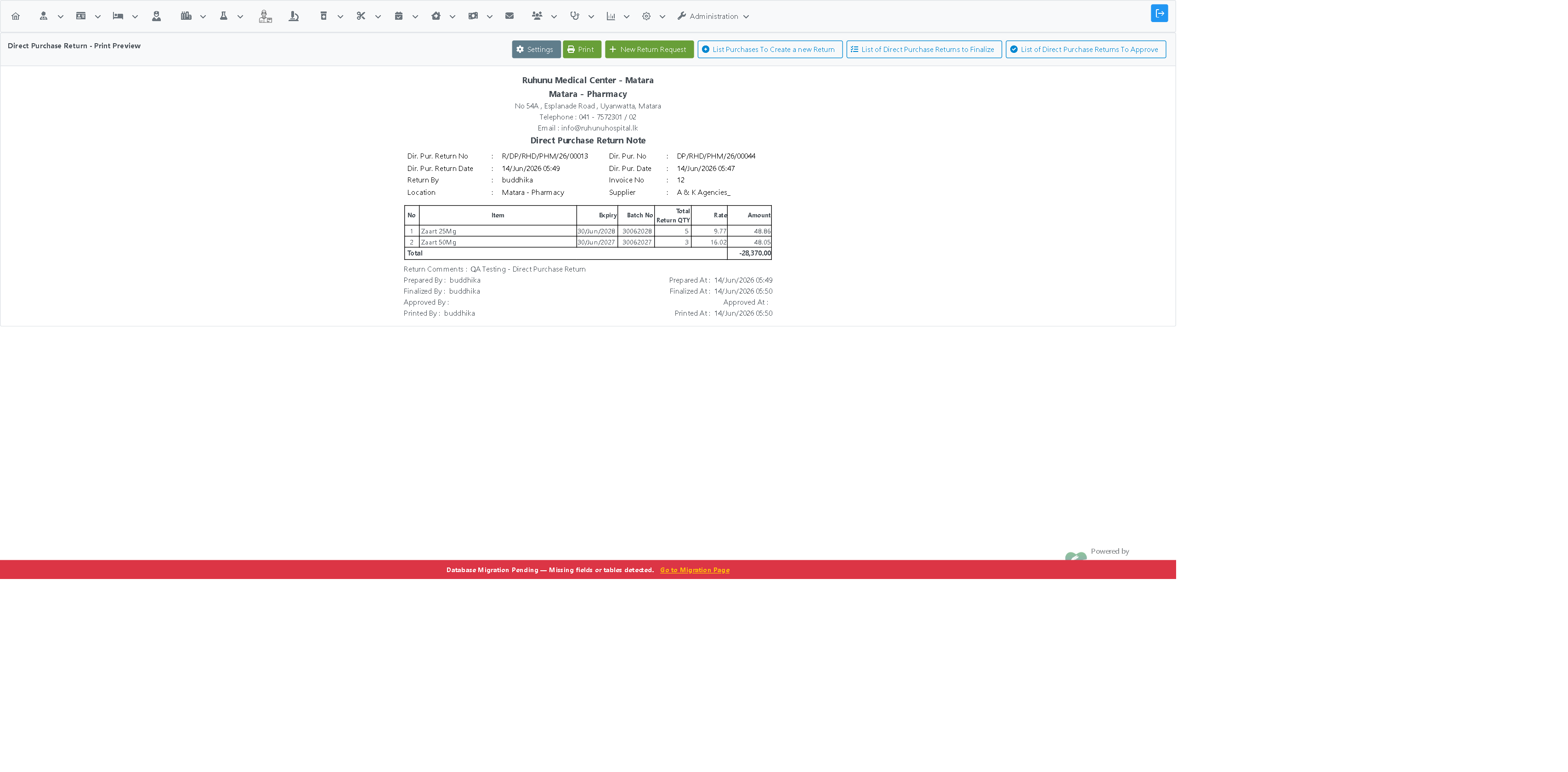
What Happens on Approval:
- Returned items are deducted from stock
- A refund payment to the supplier is created
- The return is marked as "Approved"
- A printable receipt is shown
- Go to Returns and Cancellations → Direct Purchase Returns → Completed Returns
- Set date range and click Search
- Click Print on any completed return to view or reprint
| Message | Meaning | Action Required |
|---|---|---|
| "Direct Purchase Return Request Saved Successfully" | Draft saved | Continue editing or finalize later |
| "Direct Purchase Return Request Finalized Successfully" | Return submitted for approval | View print preview, print, or wait for approval |
| "Return approved successfully" | Return completed | None — process complete |
| Message | Meaning | How to Fix |
|---|---|---|
| "There is already a pending return for this purchase" | A return already exists | Complete or close the existing return |
| "Please enter a reason for return to finalize" | Comment field empty | Enter a reason for the return |
| "Please select payment method" | Payment method not selected | Select from the dropdown |
| "Insufficient stock for [Item] (Batch: [batch])" | Return qty exceeds current stock | Reduce return quantity to current stock or below |
| "Cannot finalize: Stock validation failed" | Stock validation failed | Correct quantities and try again |
| "You are NOT authorized" | Insufficient privileges | Contact administrator |
| Dialog | When It Appears | Action |
|---|---|---|
| "Are you sure you want to create a return for this purchase?" | After clicking Create Return | Click Yes to proceed |
| "Are you sure you want to finalize this return?" | After clicking Finalize | Click Yes to submit |
These scenarios help verify the return process works correctly:
Return the full remaining quantity of at least 2 items. Expected: All items returned, purchase marked as fully returned.
Return only some of the remaining quantity (e.g., 3 out of 15). Expected: Only the entered quantity is returned, remaining qty decreases correctly.
Leave ALL quantities at 0 and try to finalize. Expected: Error — "At least one item must have a return quantity."
Enter some quantities, click Save, navigate away, then find the return via the Finalize list. Expected: Draft is found, quantities preserved, can continue where you left off.
- Verify the Purchase: Ensure you have the correct direct purchase bill
- Document the Reason: Always fill in return comments with a clear reason
- Check Quantities: Physical count should match entered quantities
- Save Frequently: Save drafts if you need to pause
- Print Receipts: Print return receipts immediately after finalization
- Review Before Approving: Check all items and quantities before approving
Problem: "Create Return" button shows error or is disabled
Solutions:
- Check the purchase hasn't been fully returned
- Verify no pending return exists for this purchase
- Try a different purchase if this one has issues
Problem: Finalize button shows validation errors
Solutions:
- Fill in the Return Comments field
- Select a Payment Method
- Ensure at least one item has a return quantity > 0
- Check quantities don't exceed remaining amounts
Problem: Approve button not visible
Solutions:
- Verify return has been finalized
- Check you have approval privileges
- Ensure return hasn't already been approved
Problem: "Insufficient stock for [Item]" error when finalizing
Solutions:
- Check the current stock shown for the item
- Reduce return quantity to match or be below current stock
- The system checks physical stock, not original purchase quantity
| Task | Required Privilege |
|---|---|
| Create returns | CreateDirectPurchaseReturn |
| Finalize returns | FinalizeDirectPurchaseReturn |
| Approve returns | ApproveDirectPurchaseReturn |
| View completed | ViewDirectPurchaseReturn |
Q: Can I return items from multiple purchases at once? A: No, each return is for a single direct purchase only.
Q: What's the difference between GRN Return and Direct Purchase Return? A: GRN Returns are for items received via Goods Received Notes (with purchase orders). Direct Purchase Returns are for items bought directly without a purchase order.
Q: Can I edit a return after finalizing? A: No, but if it hasn't been approved yet, you can close it and create a new one.
Q: What happens to stock when approved? A: Returned items are deducted from pharmacy stock, and a supplier refund payment is created.
- GRN Returns — Returning items received via GRN
- Disposal Issue Returns — Returning disposal/issue items
- Pharmacy Procurement — Purchase Orders — Purchase order management
- Pharmacy Navigation Guide — Complete pharmacy module navigation