Inward Price Adjustment Matrix
Use the Inward Price Adjustment Matrix to apply price margins for inpatient services, investigations, and pharmacy items. You can apply a rule to all companies or limit it to one credit company when the hospital uses separate insurance-company pricing.

Use this page when you need to:
- Add a price adjustment for inpatient services, investigations, or pharmacy items.
- Apply a price margin only for a selected credit company.
- Keep a general rule that applies to all companies when no credit company is selected.
- Review or update existing inpatient price adjustment rules.
- Go to Administration > Manage Inpatient Services > Price Matrix.
- Open the required page, such as Inward Price Adjustment - Service.
- Select the Department.
- Select the Category/Subcategory.
- Select the BHT Type.
- Enter the From, To, and Margin values.
- Select a Credit Company when the rule should apply only to that company.
- Leave Credit Company blank when the rule should apply to all companies.
- Click Add to save the new adjustment.
- Use Fill to load existing price matrix records.
- Change the Credit Company in the table when an existing record needs a different company.
- Click the pencil button to update the selected row.
After using Fill, the matrix shows existing rules with editable fields and action buttons.
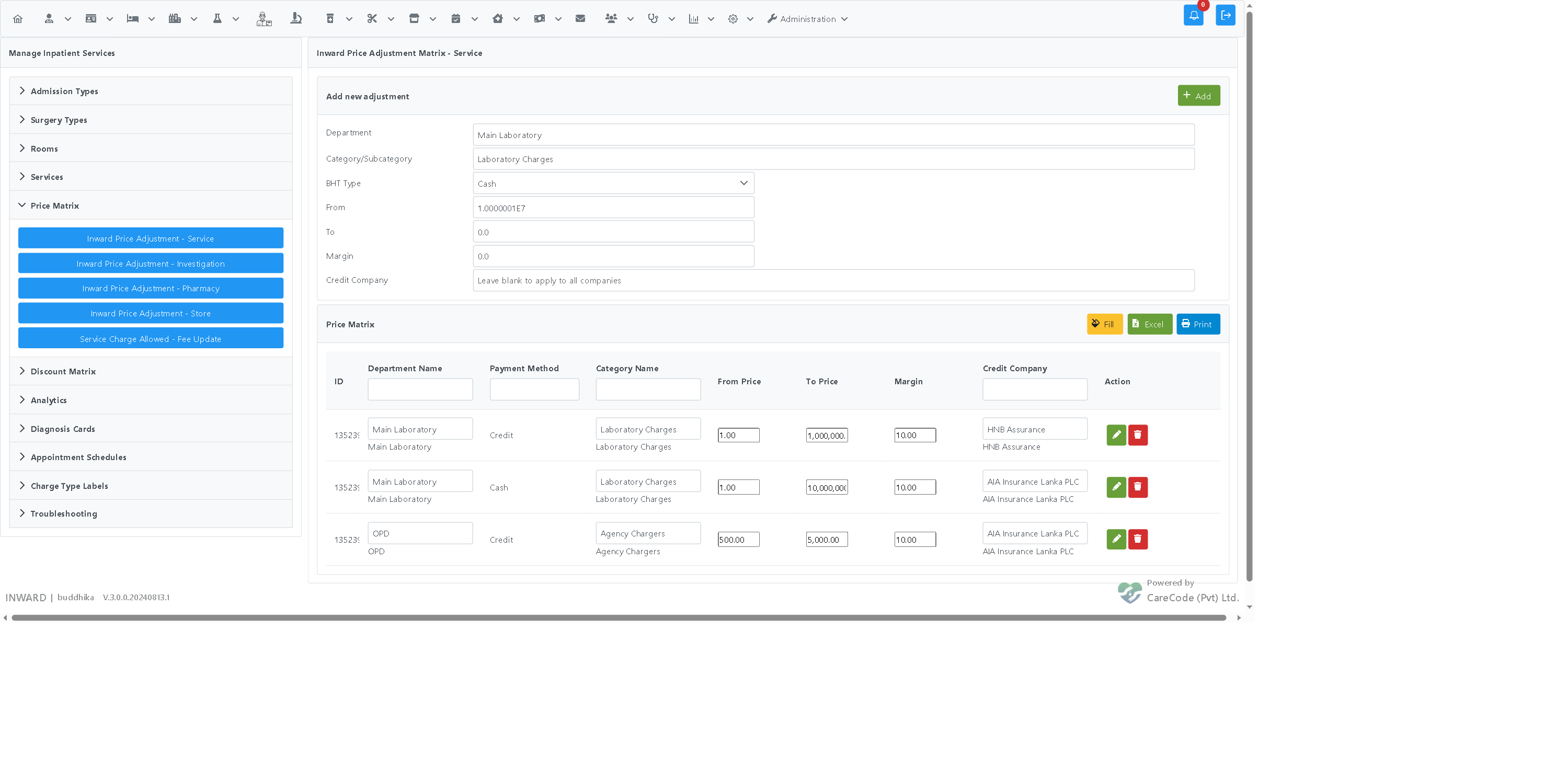
The pencil button saves changes made to the row.
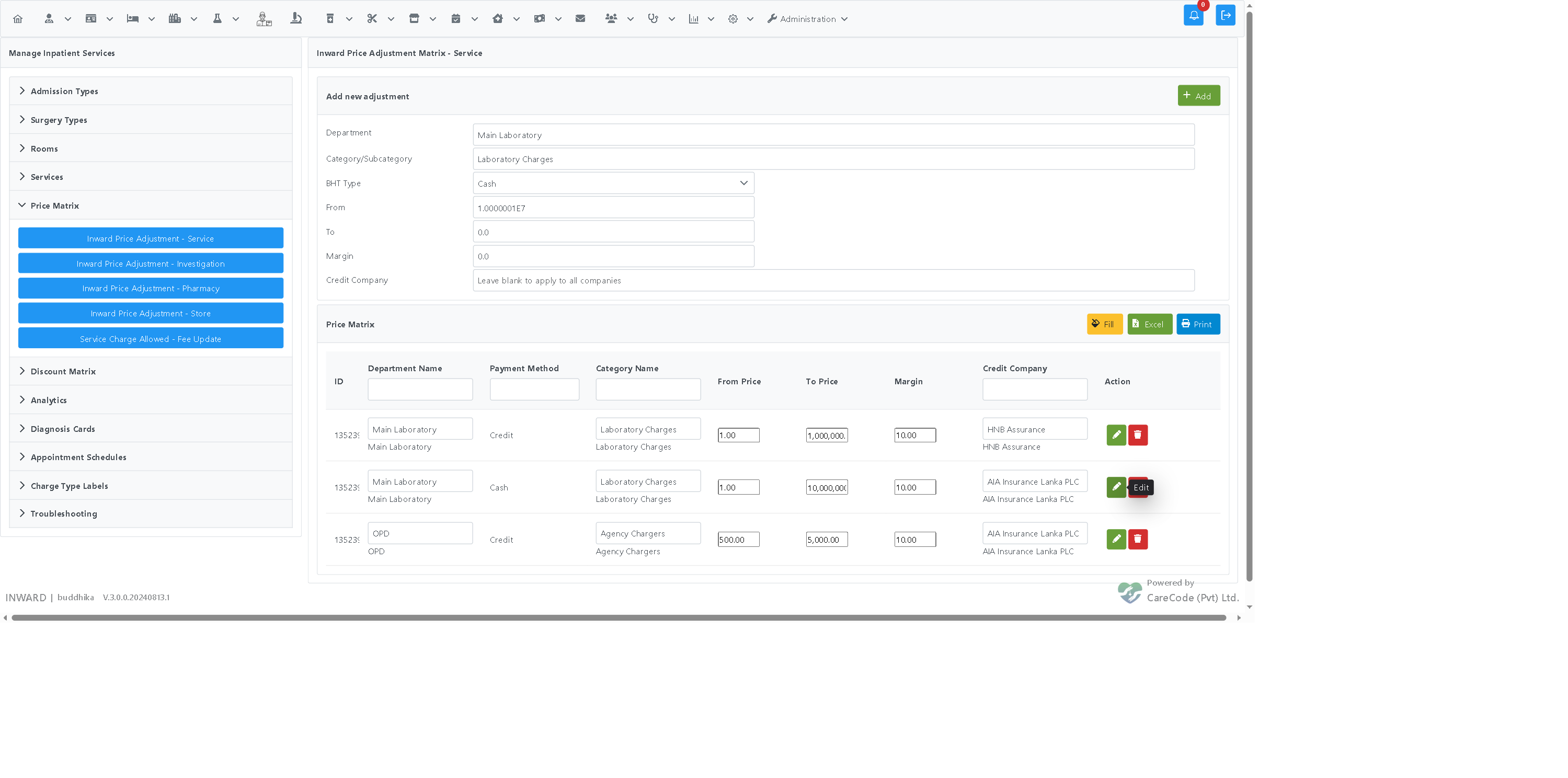
- No records found. No matching matrix rows are loaded for the current filters.
- A selected company name in Credit Company means the rule applies only to that company.
- All Companies means no specific credit company is assigned to the rule.
- Select the credit company only after confirming the correct BHT type and category.
- Use company-specific rules only when pricing is different for that company.
- Keep one all-company rule for standard pricing where possible.
- Use the table filters to find existing rules before adding a new one.
- If the credit company list is empty, type part of the company name and wait for matching results.
- If the expected company is not listed, confirm that the institution is configured as a credit company.
- If a changed company is not saved, click the row update button after selecting the new company.
- If no rows appear after clicking Fill, clear table filters and try again.
Credit companies must be available in the institution setup before users can select them in the matrix. User access to the page depends on the administration and inward-service privileges assigned to the logged-in user.
Can I create a rule for every credit company?
Yes. Add separate rows when each company needs a different margin.
What happens if I leave Credit Company blank?
The rule applies to all companies.
Can I change the credit company after saving a rule?
Yes. Load the matrix, select the company in the row, and click the update button.
Does this apply only to services?
No. The same credit-company selection is available for the related inward price adjustment matrices.