Goods in Transit Report
The Goods in Transit report shows items that have been issued from one department but have not yet been received by the requesting department. This report is essential for tracking stock movements between departments and identifying items that may be lost or delayed in transit.
The report is useful for:
- Stock reconciliation — Ensure stock isn't counted twice (still "in transit")
- Audit and compliance — Track items carried by staff between departments
- Investigating discrepancies — Find items issued but never received
- Operational monitoring — Identify delays in the receive step of the transfer workflow
Use the Goods in Transit report when:
- Month-end closing: Verify all issued items have been received before closing books
- Stock investigation: Stock levels don't match — items may still be in transit
- Audit preparation: Provide evidence of stock movement timing
- Staff accountability: Track which staff members are carrying items
- Transfer monitoring: Verify the receive step was completed for issued transfers
- From the main menu, go to Reports → Inventory Reports
- Click Goods in Transit
- The report page loads with filter options
| Filter | Description | Recommendation |
|---|---|---|
| From Date | Start date for the report period | Set to cover the expected transfer date range |
| To Date | End date for the report period | Set to today or end of period |
| Institution | Filter by institution | Leave as "All" for broad view |
| Site | Filter by site/department | Narrow to specific department if needed |
| From Department | Filter by issuing department | Useful for checking specific supply sources |
| To Department | Filter by receiving department | Focus on specific requesters |
| Doc. Status | Filter by document status | See below |
The Doc. Status filter controls which items appear:
| Status | Description | When to Use |
|---|---|---|
| Any (default) | All issued items regardless of receive status | Broad overview of all transfers |
| Pending | Items issued but not yet received | Find items still in transit |
| Accepted | Items that have been received | Verify completed transfers |
| Cancelled | Transfers that were cancelled | Audit cancelled movements |
Tip: Use the Pending filter to find items that are still in transit and need to be received. Use Any to see the full picture including completed transfers.
- Set your desired date range and filters
- Click Process
- The results table appears below
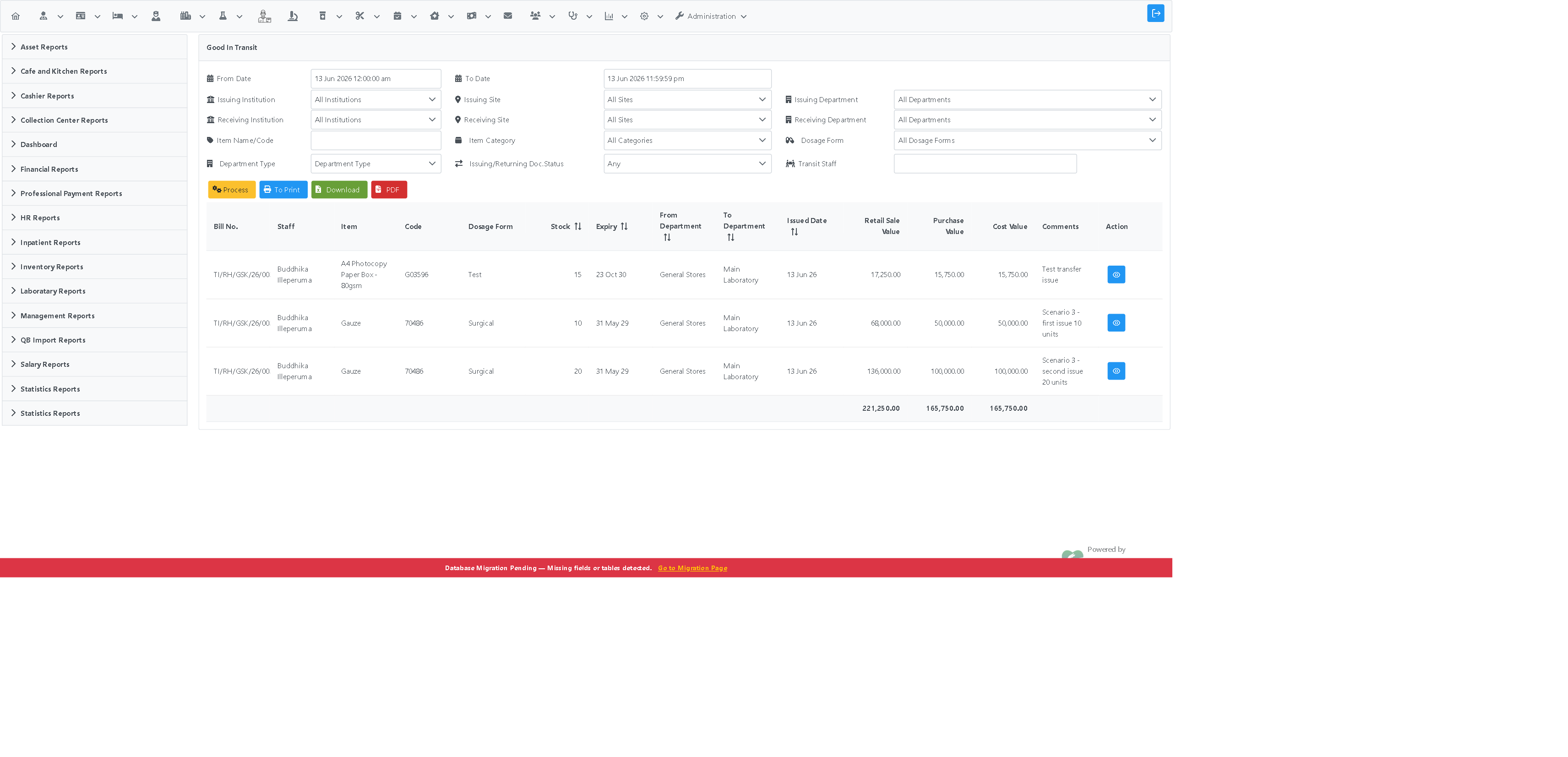
The results table shows:
| Column | Description |
|---|---|
| Bill No | The issue bill number (e.g., TI/RH/GSK/26/00218) |
| Staff | The staff member carrying the items |
| Item | Medicine or supply name |
| Code | Item code |
| Qty | Quantity issued (and still in transit if Pending) |
| From Dept | Department that issued the items |
| To Dept | Department that requested the items |
| Issued Date | When the items were issued |
Consider these transfer activities on a single day:
| Issue Bill | Item | Issued | Received? |
|---|---|---|---|
| TI/RH/GSK/26/00218 | A4 Photocopy Paper | 15 | Yes (TR/RHD/LBK/26/00079) |
| TI/RH/GSK/26/00219 | Gauze | 10 | No |
| TI/RH/GSK/26/00220 | Gauze | 20 | No |
With "Any" status filter, all 3 rows appear — showing the complete picture.
With "Pending" status filter, only the 2 Gauze rows appear (00219 and 00220) — showing items still in transit that need receiving.
The fully received A4 Paper (00218) is excluded from the Pending view because it has already been received.
- ✅ Items that were issued but not yet received (Pending)
- ✅ Items that were issued and fully received (Accepted — when using Any filter)
- ✅ Items split across multiple partial issues (each appears as a separate row)
- ❌ Items that were requested but never issued (qty = 0 on the issue)
- ❌ Transfer requests that were cancelled before issue
- ❌ Direct issues to BHTs (these use a different workflow)
- Run Before Month-End: Check Goods in Transit as part of month-end closing procedures
- Follow Up on Aged Transits: Investigate items in transit for more than a few days
- Use Pending Filter for Action Items: Focus on items needing receipt
- Cross-Reference with Staff: Contact the carrying staff member if items are delayed
- Document Receipts Promptly: Receive items immediately to clear them from transit status
Problem: An item you know was issued doesn't appear in the report
Solutions:
- Check the Doc. Status filter — if set to "Accepted" or "Cancelled", pending items won't show
- Verify the date range covers the issue date
- Check if the item was issued with qty = 0 (not actually issued)
- Try broadening filters (All Institutions, All Departments, Any status)
Problem: Report returns an overwhelming number of rows
Solutions:
- Narrow the date range to a specific week
- Filter by From Department or To Department
- Use Pending filter to focus only on items needing action
- Use Item Name filter for specific items
Problem: Items show as "in transit" for extended periods
Solutions:
- Contact the carrying staff member to verify they still have the items
- Check if the receive step was missed — remind the requesting department to receive
- Verify the items weren't lost or misplaced during transport
- If items are confirmed received but report still shows them, check with IT support
- Pharmacy Stock Transfer: Request → Issue → Receive — Complete transfer workflow guide
- Direct Issue to BHTs from Pharmacy — Direct patient issue workflow (not tracked in Goods in Transit)
- Pharmacy Disposal Issue Search — Searching for disposal issue bills
- Pharmacy Navigation Guide — Complete pharmacy module navigation