Repository navigation
Getting started
Five minutes to go from a fresh install to your first pass: set your station, pick your satellites, and read the pass list.
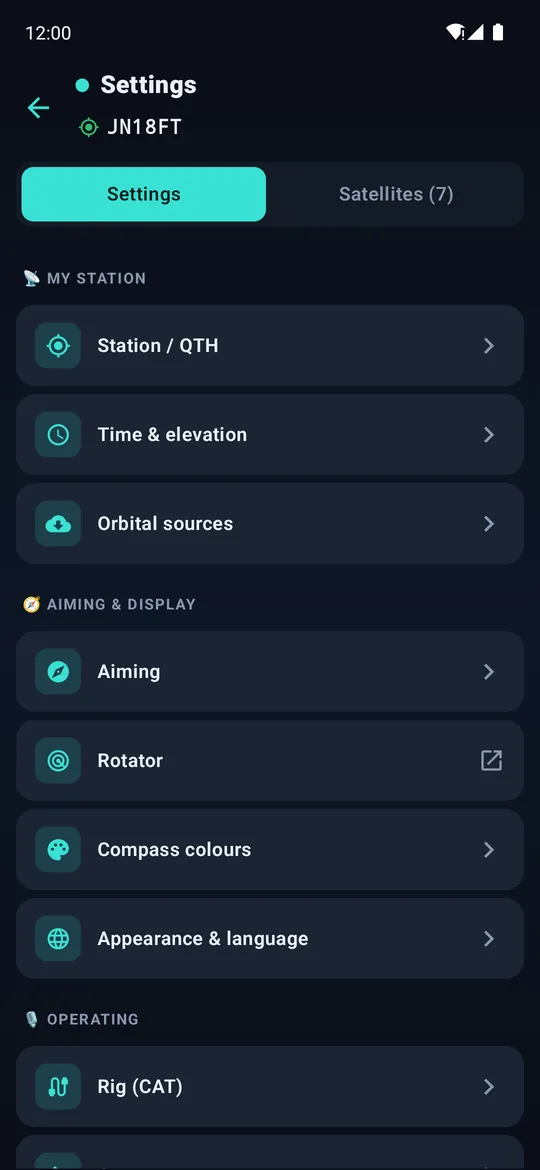


Settings · choosing satellites · the pass list
Open Settings (gear icon, top right) › Station / QTH.
- Choose how SatMe knows where you are:
- GPS position: the phone's location, followed live (handy portable).
-
Manual (Maidenhead locator): type your locator (4 or 6 characters, e.g.
JN18FT), search for a city, or tap a point on the map.
- Type your Callsign. It is used by the logbook, ADIF export, QRV photo and the APRS frames you send — never sent anywhere by itself.
Your locator is always shown under the app title; tap it to open the locator page.
Open Settings › Satellites tab.
- Search by name or NORAD number in Name or NORAD catnum…
- Tap the ☆ to follow a satellite (★ = followed). The counter shows how many you follow.
- Active today keeps only the satellites AMSAT operators reported as heard today.
Satellites whose every transmitter is dead are hidden from the list unless you follow them; a button at the bottom of the list shows them.
The home screen lists 48 h of passes of your followed satellites, computed on the phone.
| On a pass card | Meaning |
|---|---|
| Polar mini-plot | the track across your sky (AOS ● → LOS ○) |
T-1:02:50 |
countdown to AOS; LIVE during the pass |
→ 21:08:57 · 831s · el 70° · Az 320°→135° |
LOS time, duration, max elevation, azimuths |
| 👁 | visual pass: the satellite is sunlit while your sky is dark |
| 🔔 | be notified before this pass |
The big card at the top shows the next pass (or the current pass, with its LOS countdown). Tap any pass to open the pass page.
| Setting (Settings ›) | What it changes |
|---|---|
| Time & elevation › Minimum elevation | hides passes lower than this (0° = all, even grazing ones) |
| Time & elevation › UTC time | all times in UTC instead of local |
| Notifications › Notify passes | alert 5/10/15 min before AOS, for all passes or only Targeted passes |
| Orbital sources | where elements come from — see Orbital elements |
| Appearance & language | theme, language (French / English) |
- The Refresh button (circular arrow) downloads fresh orbital elements at once.
- The Timeline button shows the next hours of all your satellites at a glance — see Passes and tracking.
- ⋮ › Filter by dates plans a portable weekend; ⋮ › Selection for export prints passes as PDF sheets.
→ Next: Passes and tracking