Repository navigation
Logbook
SatMe keeps a log of your satellite contacts on the phone, made to be filled in during the few seconds a pass leaves you. It exports ADIF, sends contacts to Wavelog or Cloudlog, and a PC on the same network can log on a real keyboard.
Open it from Settings › Contact log.
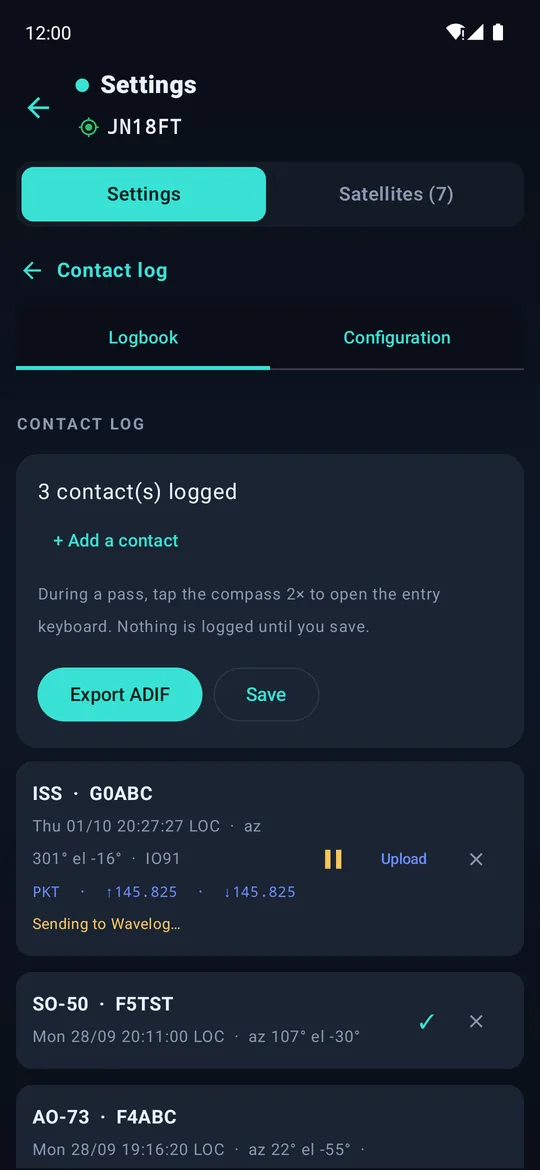

The logbook and its upload state · online logbook settings (Wavelog / Cloudlog).
- On the pass page, tap the compass twice (or three times: Settings › Contact log › Configuration › Taps to open entry).
- The callsign keypad opens: three characters and a suggestion from the memory of past correspondents usually replace a full entry.
- Fill in the locator if needed, then save. Nothing is logged until you save.
The contact is stored with the satellite, the time, azimuth and elevation, your locator, the mode and the rest frequencies of the transponder in use. A running recording gets a marker at the contact's time.
No time to log, or a callsign half heard? The flag ⚑ at the top of the entry marks the moment for the pass journal, nothing written to the log: listen to it again afterwards (from 20.79).
From the pass journal, + Contact here logs a contact at the moment replayed, with all the pass knew (frequencies at rest, mode, azimuth); and Find › From the online log brings back the satellite contacts of Wavelog / Cloudlog missing from the phone, marked as already online (from 20.79).
+ Add a contact in the logbook adds one afterwards (paper log typed in back home): azimuth is computed for the time given.
Settings › Express log: the callsign keypad suggests stations already worked, from your log, from Wavelog, and from an ADIF file you import (only satellite contacts, and only callsign, locator, date, satellite are kept). QRZ.com (username and password) fills in the missing locators.
- Online logbook (Wavelog / Cloudlog) marks neighbouring locators already worked on satellite. A read key is enough for that.
- Logbook of the World: fetches locators worked and confirmed on satellite (full download, on demand). The LoTW password is your ARRL account password.
These locators appear on the locator map.
| Action | How |
|---|---|
| ADIF file | Export ADIF in the logbook |
| Send each contact to Wavelog | Configuration tab: server address, read-write API key, station profile. Each contact leaves after a delay — one minute by default, from 30 s to 30 min to choose from 20.83 — time to hold it back or fix it from the PC control desk. Only contacts logged after turning this on are sent. |
| Upload by hand | Upload on a contact |
Each contact shows its state: waiting, sending, sent ✓, or held back ⏸. A refusal from Wavelog is shown with its reason; a duplicate is marked as sent. The station callsign sent is the one of the Wavelog profile used.
At home, enter your contacts in Wavelog choosing the SatMe radio: satellite, mode and RX/TX frequencies (Doppler-corrected) are filled in. SatMe sends them when they change, not every second. Needs a read-write API key.
Settings › Share and listen: open the address shown in a PC browser on the same network and type the code. Nothing to install. From the PC you can log contacts on a real keyboard, follow the pass, record and switch satellite. While typing, the desk flags a new locator, a locator already worked or confirmed, and a duplicate on the same satellite within 24 h. The desk also lists the last 24 h of contacts, where you can fix, hold back or delete one, and the coming passes.
From 20.80, two more pages under the same code, linked at the top of the desk: the SSTV sheet laid out with the mouse, and the pass journal replayed large, on the sky or a map, with its sound. The phone can be plugged into the PC by its USB cable (USB tethering): no Wi-Fi needed.
SatMe-PC has its own log: the station live beside the contact being typed, the QRZ sheet, deletion, ADIF and the same automatic upload. The phone joins it by scanning its QR code (Settings › Share and listen › Share › Scan the PC's QR code): its passes come over with their pictures, recordings and contacts.
- PDF: in ⋮ › Selection for export, tick passes, then PDF; choose Ticked only or the next 1 to 20 passes of each selected satellite. A printable sheet, six passes per A4 page, with polar plot, RX/TX frequencies, passband or CTCSS. See Passes and tracking.
- Backup: export the whole configuration (followed satellites, QTH, CAT, per-satellite settings, log) as one JSON file, and import it on another phone.
- APRS contacts made through the ISS go to the log in one tap: APRS › Trophies › To the log (mode PKT). See APRS.
- The online log's API key and the QRZ.com / LoTW passwords stay on the phone and are only sent to those services.