Repository navigation
Passes and tracking
Everything about one pass on one page: where to point, when, on which frequencies, and the next passes of the same satellite. Passes are computed on the phone (SGP4) from the orbital elements.
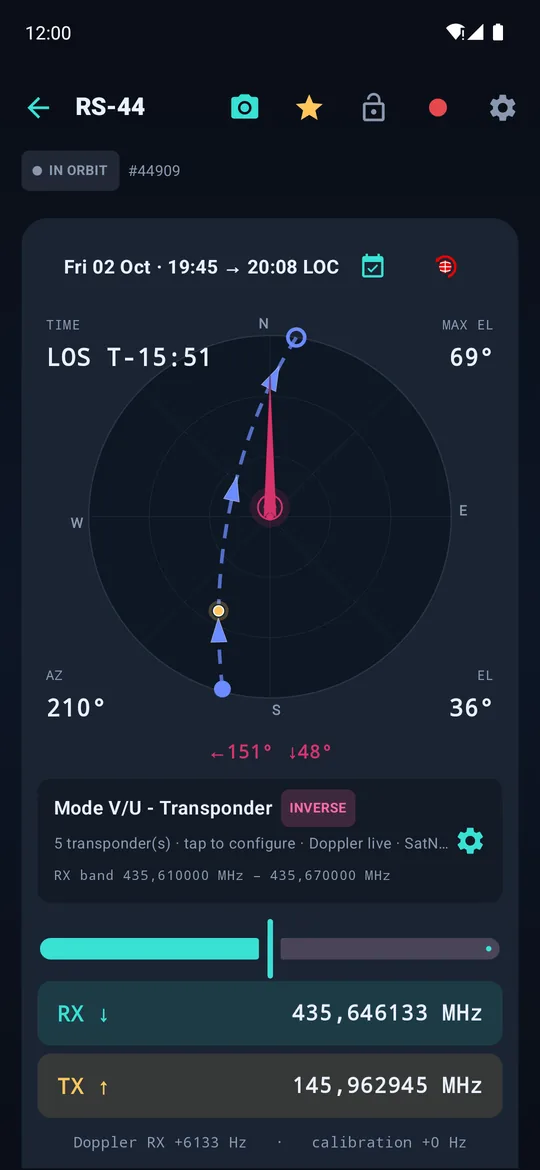


Live pass · frequencies, offsets and world map · the satellite's next passes
Tap a pass on the home screen. The top bar holds:
| Icon | Action |
|---|---|
| 📷 | QRV photo: a picture with the satellite, your locator and callsign on it |
| ★ | follow / unfollow the satellite |
| 🔒 | lock the screen against stray touches in the field |
| ● (red) | start recording the pass — see Audio recording |
| ⚙ | settings for this page |
Under it: the satellite's status badge and NORAD number, then the pass date and times. The calendar icon adds the pass to the phone's calendar (AOS/LOS, azimuths, max elevation — no permission needed). During the pass, the purple flag ⚑ marks the moment for the journal: a callsign heard, an odd signal, nothing written to the log (from 20.79).
The polar plot shows the track across your sky, from AOS (●) to LOS (○), and where the satellite is now.
- TIME: countdown to AOS before the pass, to LOS during it. MAX EL: the highest elevation.
- AZ / EL: live azimuth and elevation of the satellite.
- The needle is where your phone points. The arrow tells you how far you are: magenta = far, amber = close, green = on target, with the remaining azimuth and elevation (
←151° ↓48°). A short vibration confirms alignment. - Settings › Aiming: Slab (phone flat, aim along the top edge) or Back (viewfinder style), on-screen mode buttons, full-screen aiming.
With a rotator, the plot follows the antennas instead — see Rotator below.
Settings › Rotator: a Yaesu GS-232 controller (G-5500 and compatibles) over a USB cable, or Hamlib's rotctld over the network. Simulated moves nothing on the roof: watch the tracking first. Stay within reach of the controller's emergency stop.

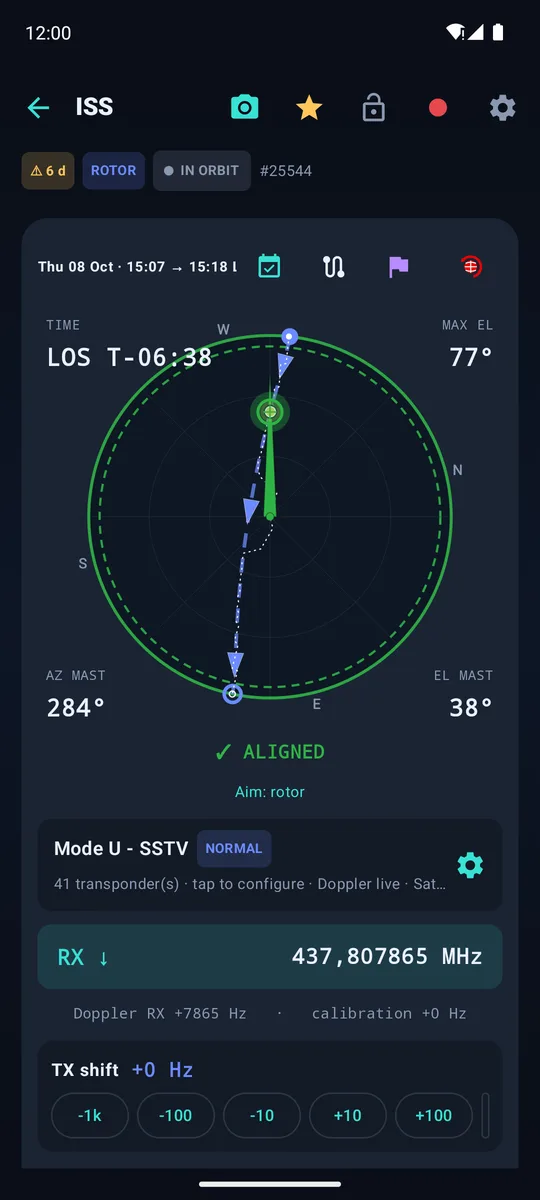
Left: the dial of the ISS pass of 8 October (south stop, 450°). Right: the same pass on the satellite's page, the antennas' path in white.
Mechanics (the card of that name): where the end stop is (north or south), the azimuth travel (360°, 450°…), the maximum elevation (90°, or 180° for a rotator that tilts over the top), whether the controller counts from its stop, and the dead zone — the offset tolerated before the satellite counts as lost; the beam is wide.
The dial (from 20.81):
- red: the end stop; orange: the dead zone either side of it;
- cyan: the pass, its dot at the start; white: the antennas, dashed: the target; white dots: the planned path;
- blue arc: the overlap of a 450° rotator (the azimuths it reaches twice); pink arc: the cable wound from the stop;
- beside it, the elevation gauge (0–90° or 0–180°), and a line saying whether the pass crosses the stop, how, and the largest miss expected.
A pass over the stop (from 20.81). Before the pass, SatMe works out the antennas' whole path, at the rotator's real speed (measured while it turns), so as to miss the satellite as little as possible on the sky:
- near the zenith a large azimuth gap is a small miss: the antennas go round the far side of the zenith, raised, rather than turning back at the stop;
- with 180° elevation, they tilt over the top: the mast aims the opposite way and the stop falls where the mast does not go. With 360° in azimuth and 180° in elevation, no pass ever needs a turn;
- a full turn (about a minute sweeping the sky) only when clearly worth it — a low pass staying long behind the stop — and never during an SSTV picture: expected pictures are guessed from the pace of the last ones (the ISS sends them at a steady pace);
- never while transmitting: the turn waits, and a message says so.
Fewer relay clicks (from the next version after 20.81). Every command starts a motor and stops it. Below the Offset before moving (4° by default; 4 to 6° is plenty for a satellite beam) nothing is sent; beyond it, only the axis that has to move gets a new value, the mast goes a little ahead of the satellite along its path so that it is caught up and passed before the next move, and at most one command leaves every 6 s, unless the miss grows past twice the offset (a turn, a new pass).
The path on the compass: with the rotator connected, the path icon next to the calendar on the satellite's page draws the antennas' path in white over the pass (off by default; white again to hide it).
The transponder card names the selected transmitter (from SatNOGS), shows NORMAL or INVERSE, and how many transmitters the satellite has. Tap it to pick another one (beacon, FM repeater, linear transponder, APRS, SSTV…).
| Field | Meaning |
|---|---|
| Passband bar | where you are inside a linear transponder |
| RX ↓ / TX ↑ | downlink and uplink, Doppler-corrected live |
| Doppler RX / calibration | the current shift, and your own correction for this satellite |
| RX offset / TX shift | nudge the frequencies by ±10 Hz to ±1 kHz; kept per satellite |
| Pass Doppler | the Doppler curve of the whole pass |
With a rig connected, SatMe tunes it for you — see Rig control (CAT).
Further down, a world map shows the ground track over one orbit, the footprint (where the satellite can be heard) and your QTH. Below it, the next passes of this satellite, with LIVE on the current one and 👁 on visual passes.
The Timeline button (top bar of the home screen) shows the elevation of every followed satellite over the next 3 h, 6 h, 12 h or 24 h, one row each, with the peak elevation. Satellites that stay too low are listed at the bottom.
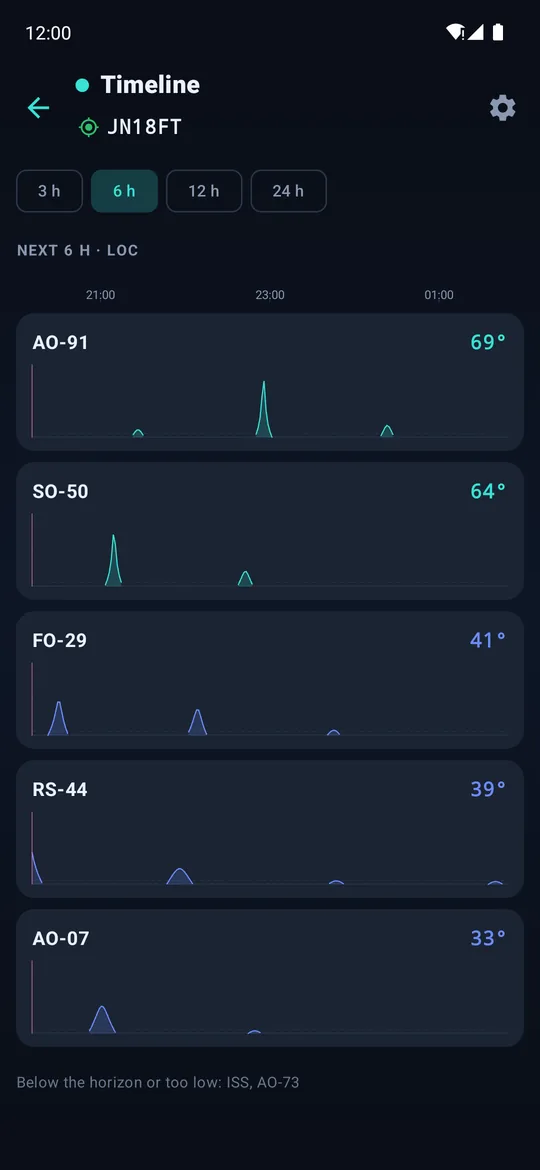
Timeline over 6 hours
Settings › Notifications › Notify passes: an alert 5, 10 or 15 minutes before AOS.
- All followed satellites, or Targeted passes: tap the 🔔 on the passes you care about, only those ring.
- Tapping the notification opens the satellite.
Before a pass, is the station ready? Tap the rocket-and-wrench icon next to the 🔔 of any pass (or next to the name of the next pass).

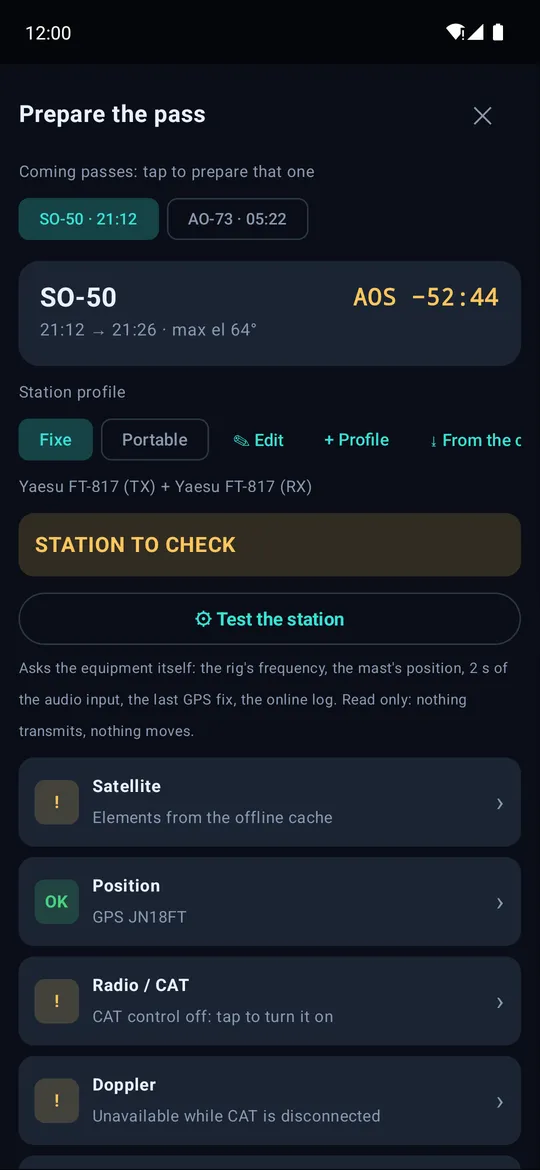
The icon on every pass · the station check.
- Coming passes: the chips at the top switch to another pass; passes at the same time are marked ⇄.
- Station profile: Home, Portable, and those you add (+ Profile, or From the current station). Each profile says what it expects (CAT, pointing, recording, online log) and its equipment: rig or rig pair, compass, audio source. Picking a profile applies it.
- Nine lights: satellite, position, CAT, Doppler, pointing, audio, recording, log, online log — OK, to check, error, or not needed for this profile. Tap a line to go where it is fixed.
- Test the station: asks the equipment itself — the rig's frequency (both sides of a pair), the antennas' position, 2 s of the audio input (silent, good, or clipping), the age of the last GPS fix, the online log. Read only: nothing transmits, nothing moves.
- With CAT connected, the rig goes to the satellite being prepared: on opening, when you pick another pass, and before the test, so that the test reads back its frequency.
- Go to the pass opens the satellite's page on that pass.
- ⋮ › Filter by dates: pick a departure and a return date, the list shows only that period.
-
⋮ › Selection for export: tick passes, then Save or PDF. A window asks how many passes to put in: Ticked only, or the next 1, 2, 3, 5, 10 or 20 passes of each selected satellite (looked for up to two weeks ahead, beyond the 48 h of the list). Tick one pass of each satellite you want, choose the number, Create the PDF. The last answer is offered again next time.
- The PDF: 6 passes per A4 page, polar plot, RX/TX frequencies, passband or CTCSS.
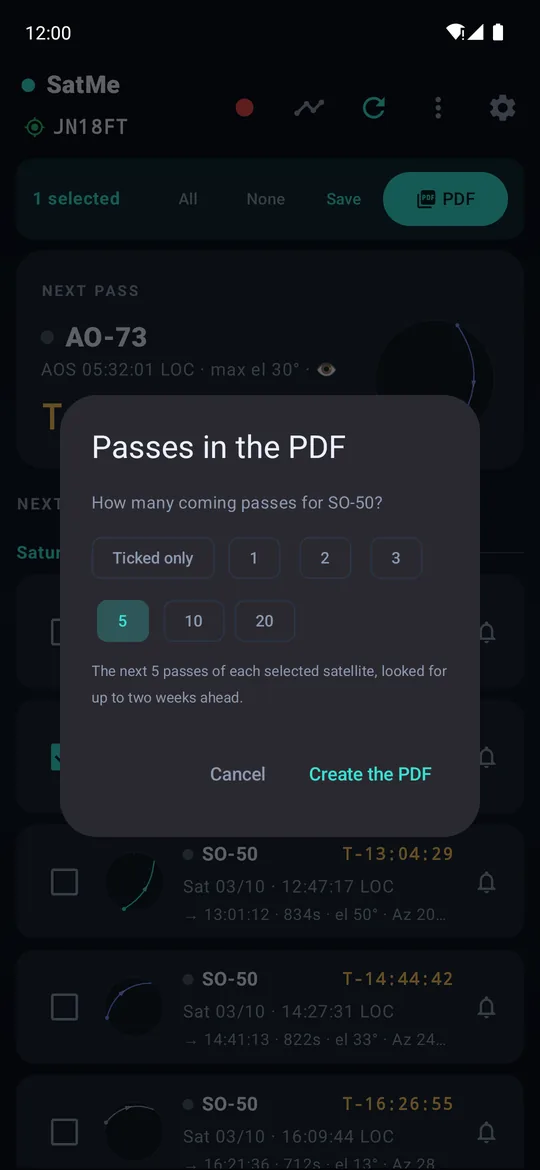
How many coming passes for the selected satellites.
- Settings › PDF sheets: one sheet per followed satellite with its next pass and upcoming passes.
- Settings › Time & elevation › Past passes keeps finished passes in the list, tagged past.
- The 👁 icon is worth a look at dusk: you can watch the satellite while you work it.