Repository navigation
SatMe PC Passes and Agenda
← SatMe-PC guide · October 2026
The Ciel workspace (key 1): the passes, the followed satellite and its Doppler, recording, the agenda and the automatic mode, SSTV campaigns on auto-pilot, the upcoming activities read online, the awards, the timeline, the skeds and the locators.
Where: Ciel › Suivi (the first tab, the one that opens at start).
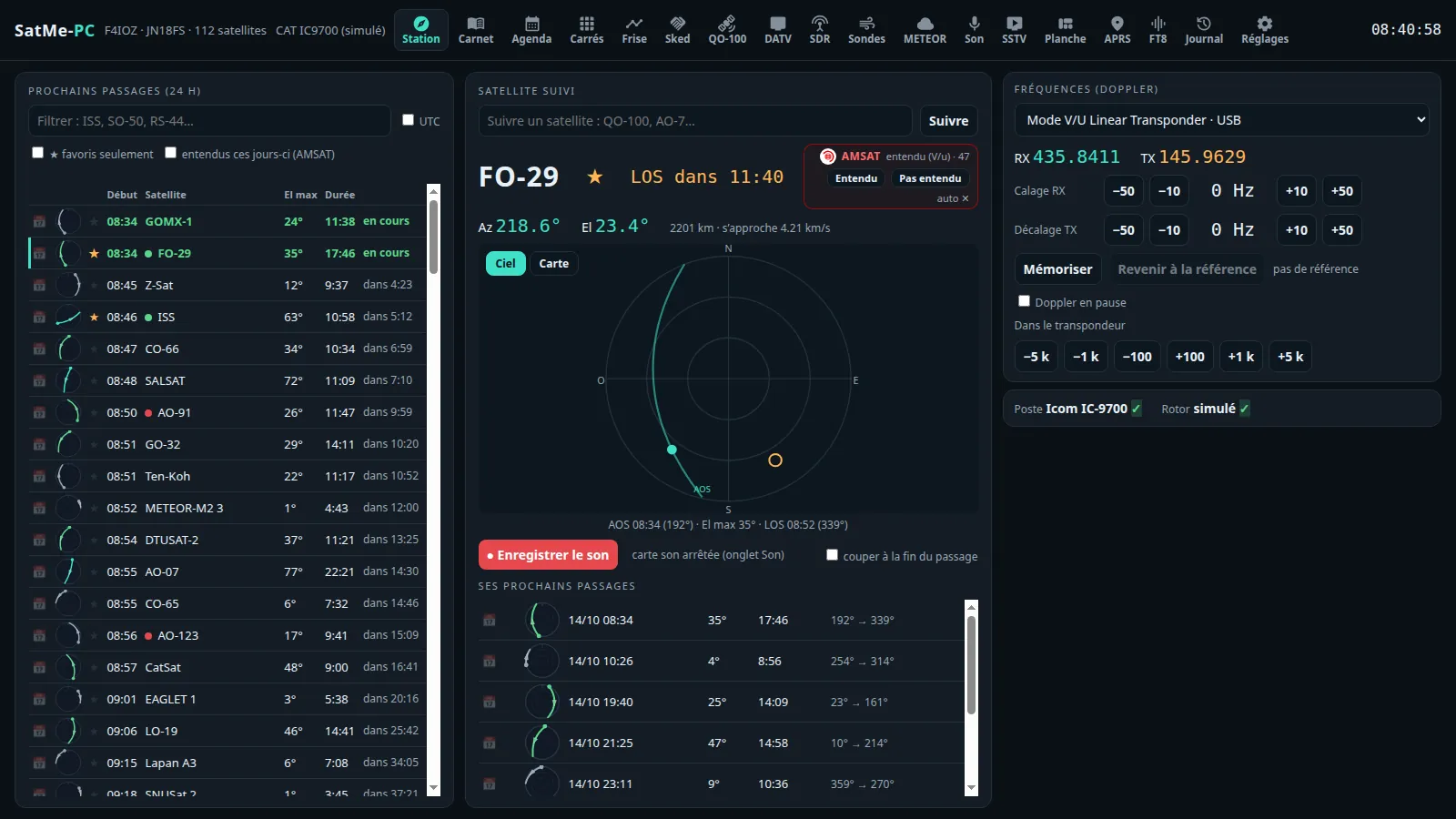
On the left, Prochains passages (24 h) (next passes): Filtrer (filter: ISS, SO-50…), UTC, ★ favoris seulement (favourites only), entendus ces jours-ci (AMSAT) (heard these days), and ⤓ Agenda (.ics): the list's passes, its filters kept, in a calendar file (RFC 5545, UTC; satellite, maximum elevation, AOS and LOS azimuths) for any calendar. Each row: 📅 (add this pass to the appointments or remove it), the pass's small sky, the time, the satellite (a coloured dot: its AMSAT status), the max elevation, the duration, « en cours » (under way) or « dans 4:10 » (in 4:10). A click on a row follows that satellite. 🤖 marks a pass of the SSTV auto-pilot.
In the middle, Satellite suivi (followed satellite):
- Suivre un satellite (follow a satellite: QO-100, AO-7…) then Suivre; ☆ makes it a favourite.
- The AMSAT box beside the name: what stations have reported; Entendu / Pas entendu (heard / not heard) tell amsat.org in one click (your callsign and your locator).
- Azimuth, elevation, range, radial speed; « AOS dans 8 h 44 »; Ciel or Carte: the pass on the sky (and the rotator's plan, below) or on the map.
-
● Enregistrer le son (record the sound: a WAV named after the satellite,
SatMe_RS-44_20261013_203051Z.wav) and couper à la fin du passage (stop at the end of the pass: even started by hand, it stops 30 s after the LOS of the pass it caught). - ⚡ Préparer le passage (prepare the pass; key P): for this satellite, the sound source that hears it, its transmitter's decoders (SSTV, APRS, FT8, CW…), the recording armed for AOS. Receive only.
- Its next passes, with their ⤓ .ics.
On the right, Fréquences (Doppler):
- the satellite's transmitter (list): every live transmitter of the satellite (SatNOGS DB), whatever its mode (« SSDV », « GENESIS FSK »…), each with its frequency and the mode the rig takes — slow FSK (under 1200 bit/s), SSDV and SO-127's « GENESIS FSK » put the IC-9700 in USB-D (USB in data mode), no longer FM; RX and TX corrected for Doppler;
- Autre fréquence… (another frequency), at the bottom of the list: a downlink in MHz, an optional uplink (SatMe never transmits by itself) and the rig's mode (USB, USB-D, LSB, LSB-D, FM, FM-D, CW); Doppler-corrected like the others and kept for that satellite, Oublier (forget) removes it. The page served to the phone does the same (see SSDV);
- Calage RX and Décalage TX (RX trim and TX offset: −50, −10, +10, +50 Hz); Mémoriser (memorise) keeps these two values for this satellite, Revenir à la référence (back to the reference) takes them back;
- Doppler en pause (Doppler paused);
- for a linear transponder, Dans le transpondeur (in the transponder: −5 k … +5 k): where you are in the passband;
- Poste and Rotor by name, with a green tick when they are connected (a click leads to their settings);
- the Émission IC-9700 panel when the rig is a connected IC-9700 (see The IC-9700 transmitting); the small SatMe-Node card when a node is paired; the Spectre du poste (rig's spectrum) when the option is ticked.
The rig follows at once: changing the followed satellite retunes the rig on CAT immediately (to the middle of a linear transponder's band). Régler le poste même quand le satellite n'est pas visible (tune the rig even when the satellite is not visible; Réglages › Poste et rotor, unticked by default) tunes it before AOS — tuning only, never transmission. The knob (USB, or the mouse wheel on the RX/TX frequencies) tunes; see the USB knob.
With the mouse, or a finger on a tablet. Kept in this browser.
- Fold a panel: a click on its title (▾).
- The handles: the one between two columns widens them; the one under the sky, the map or the globe makes it taller. Double-click: the original size. The arrow keys too.
- ⤢ on the followed satellite's screen: the other columns hide (once more: they come back).
- ▭ turns Fréquences (Doppler) compact: the transmitter, RX and TX, nothing else.
- ⊞ Disposition (layout; bottom right): the columns shown, the panels unfolded, Rétablir (reset).
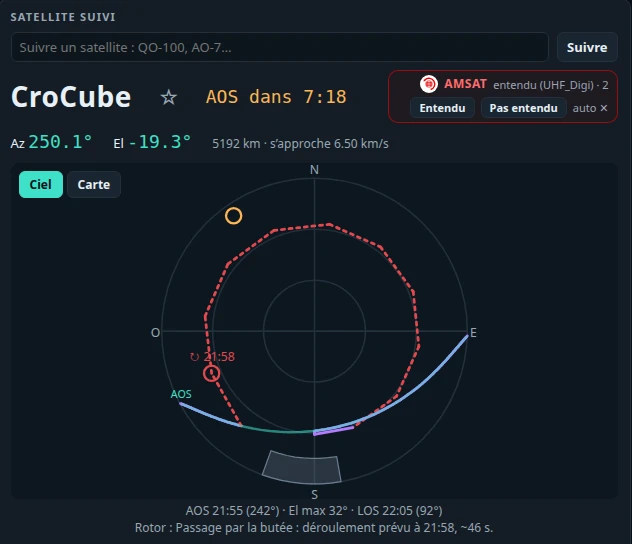
Before AOS, SatMe plans the whole pass: which side of the end stop, upright or flipped (a rotator that goes to 180° follows over the zenith: az + 180°, 180° − el, no turn), and if needed the one moment the rotator changes (a flip, or an unwind: one turn, ~1 min without reception), played at the rotator's measured speed and placed when the satellite is low or hidden. The plan is drawn on the sky of Suivi — violet: upright; amber: flipped; dashed red: the change, with its time; grey: the hidden zones — and said in one sentence below. Tracking takes the plan's branch from the clock: no more hesitating at the edge of the end stop. The settings (travel, end stop, 180°, hidden zones, calibration): The rotator.
Réglages › Ma station › Horizon: the height of the obstacles (roofs, trees, terrain) per azimuth sector — Secteurs (sectors) 8 × 45° or 12 × 30°, one number per sector, drawn as seen from above —, then Enregistrer (Tout à 0, all at 0, clears the fields). Changing the number of Secteurs resets nothing: the obstacles already typed are split again (« redécoupé en 12 secteurs : chacun prend l'obstacle le plus haut de ceux qu'il recouvre ; à vérifier puis enregistrer », each new sector takes the highest obstacle of those it overlaps) — check the numbers, then Enregistrer. Passes then start and end when the satellite clears the obstacles (the time without obstacles stays in a ✱ tooltip); those hidden from end to end are left out. Same setting on the phone.
- ● Enregistrer le son in Suivi, Carnet, SSTV and Son, or the E key, or the Son chip: a WAV named after the satellite, the source started if needed.
- Couper à la fin du passage, Enregistrer chaque passage du satellite suivi (Son tab), or the passes of the automatic mode and of the SSTV campaigns.
- A recording stopped by hand does not start again by itself before the next pass.
- A sound card being recorded keeps its decoders when the SDR receiver starts; when it stops, the SDR gives back the sound card it had taken.
- The files are in
enregistrements/; they are used by the Journal and for SSTV re-decoding.
Where: Ciel › Agenda › Rendez-vous sub-tab (appointments).
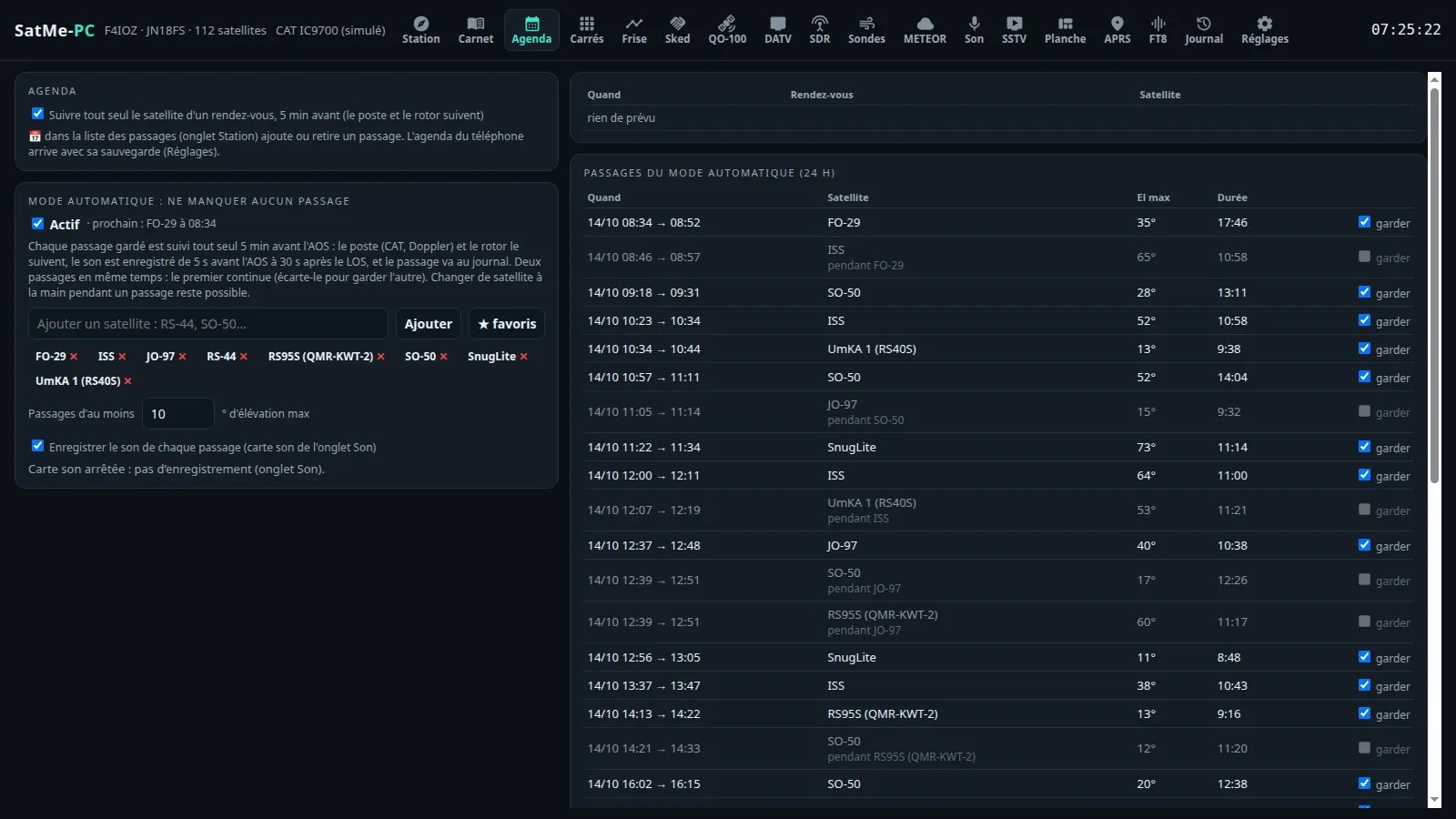
- Agenda: the appointments (📅 in Suivi's pass list adds or removes one; the phone's agenda comes with its backup). Suivre tout seul le satellite d'un rendez-vous (follow an appointment's satellite by itself; ticked). The SSTV campaigns' passes are marked 🤖 there, with › to open them.
- Mode automatique : ne manquer aucun passage (automatic mode: miss no pass): tick Actif (active); add satellites (Ajouter un satellite : RS-44, SO-50… then Ajouter, or ★ favoris for all the favourites); Passages d'au moins N° d'élévation max (passes of at least N° max elevation); Enregistrer le son de chaque passage (record the sound of each pass; the Son tab's sound card). The list Passages du mode automatique (24 h) shows those that will be taken, each of which can be set aside with a tick.
What the automatic mode does:
- 5 minutes before AOS, the pass's satellite becomes the followed satellite: the rig (CAT, Doppler) and the rotator follow it — the rotator goes and waits at the rise azimuth;
- the sound is recorded from 5 s before AOS to 30 s after LOS, and the pass lands in the journal, replayable with its sound;
- two passes at the same time: the first goes on, the other is marked « pendant … » (during …); setting the first aside keeps the second;
- changing satellite by hand during a pass is still possible: the automatic mode does not take over again before the next pass;
- the card says what is missing: rig not connected, rotator without « Suivre », sound card stopped.
The same mode is on the phone (Settings → Recording / SSTV & NOAA → Automatic mode).
Where: Ciel › Agenda › SSTV · auto-pilote sub-tab; the master switch is also in the header (« 🤖 Auto-pilote coupé »).
An SSTV event — an ARISS series, a satellite sending its pictures for a few days — is entered like an appointment, then every pass high enough is received by itself.

Creating a campaign (Campagne SSTV nouvelle card):
- Nom (name: « ARISS SSTV Series 34 »), Satellite (ISS, UMKA-1…).
- The satellite's Émetteur (transmitter), or Fréquence personnalisée… (custom frequency): the Fréquence in MHz (the Doppler is followed), FM or NFM (USB or USB-D for SSDV), the width in kHz.
- Mode SSTV: Auto (l'en-tête VIS le dit) (the VIS header says it) or a mode.
- Début and Fin (start and end); horaire à confirmer (schedule to be confirmed) takes whole days.
- Élévation: N° at least, préparer N min avant l'AOS (prepare N min before AOS) (10° and 2 min by default).
- Rythme (rhythm: « 36 s on / 2 min off », as a reminder), Lien (link: the gallery, nothing is sent), Notes.
- Chaîne de réception (receive chain): a Profil from the Montage, or box by box — Son (Le son du poste (IC-9700 réseau ou carte USB) (the rig's sound, IC-9700 network or USB card), Le récepteur SDR, a sound card, Ne pas toucher au son (leave the sound alone)), Poste (CAT, Doppler) and le connecter tout seul (connect it by itself), Rotor suit le satellite (rotator follows the satellite) and le connecter tout seul, Enregistrer le son, Parquer le rotor après (park the rotator afterwards), Décodeur SSTV prêt (SSTV decoder ready), Décodeur SSDV en BLU (SO-127) (ticked by itself for a satellite that sends SSDV this way: see SSDV; the pass's report then says how many packets came), Annonce vocale (spoken announcement). Le connecter tout seul: the rig only over the IC-9700's network link or the Icom's own USB port; the rotator only through rotctld, or the GS-232 controller that was connected just before.
- Enregistrer la campagne (save the campaign; or Effacer, clear the form).
Importing a flyer: 🖼 Choisir une image… (choose a picture: JPEG, PNG, 10 MB at most) or its https://… address then Lire (read): the flyer is read on this PC by tesseract (sudo apt install tesseract-ocr); frequency, mode, dates, satellite, rhythm and link fill the form, to be checked before saving (Texte lu sur l'affiche, text read on the flyer, shows what was read).
The auto-pilot (Actif box, or the header chip; both, like the palette, ask for confirmation before switching it on: « Activer l'auto-pilote SSTV ? … Réception seulement. », switch on the SSTV auto-pilot? … Receive only): a few minutes before the AOS of each pass high enough, it prepares the chain; it records from AOS to after LOS, attaches the pictures received to the campaign, then puts the reception back as it was. During the pass, a banner under the header (« 🤖 Auto-pilote : … en cours, LOS … ») with Voir (view) and ■ STOP (after confirmation).
- Receive only: it never transmits and touches no transmit setting. A transmission under way, DATV holding the receiver, or another campaign at the same time: the pass is set aside and the reason noted.
- Campagnes: each row with active, ✎ (edit: the form fills in) and ✕ (remove; its history stays). Prochains passages 🤖 (next passes) and Historique (history: what was done at each pass, the recording, the pictures, or the reason a pass was set aside).
- The 🤖 passes are also in Suivi, in the Agenda and on the Frise; the campaign is in the Ctrl+K palette. Campaigns are kept in
sstv-campagnes.jsonand re-armed after a restart.
Where: Ciel › Agenda › Activités à venir sub-tab (an amber counter on the sub-tab when new alerts have come in; it clears when the sub-tab opens).

What the satellites are going to transmit and SatMe decodes, from public sources: the ISS's SSTV (and other satellites'), ARISS contacts with schools (FM voice), SSDV, METEOR LRPT pictures. Never NOAA APT (switched off in 2025).
- Actif (ticked by default) and Actualiser (refresh; each source at most every 5 min).
-
The sources, each at its own pace and with its own tick box: the ARISS schedule (every 6 h at most), the AMSAT-UK and AMSAT-F news (a single box for both), SatNOGS for METEOR-M2-3 and M2-4 (twice a day; « vu récemment sur 137,900 MHz », seen recently on 137.900 MHz, an indication), the AMSAT reports (every 30 min, only during an announced SSTV/SSDV). Each one says when it was read, or its error. Everything is kept on the PC (
activites-cache.json): the list stays available offline. - The list, by day (with Vu récemment, seen recently, at the top): satellite, type (SSTV, Contact ARISS, SSDV, LRPT), confidence (annoncé (announced), confirmé par écoutes · N (confirmed by N reports), vu récemment), en cours, period in local time and UTC, frequency, mode, rhythm, tes passages (your passes) during the activity with their maximum elevation, sources and links. Two sources saying the same thing make a single activity.
- Prévenir (alert): Une nouvelle activité annoncée (une fois) (a newly announced activity, once; an ARISS contact only if it passes over here), Avant chaque passage utile pendant une activité : N min avant l'AOS (before each useful pass during an activity: N min before AOS; 10), « Ça émet maintenant » (it is transmitting now) when AMSAT reports come in. A bubble at the bottom right of the page (📡, ⏰, 🛰), spoken aloud if the announcements speak; the last ten in Dernières alertes (latest alerts). The missing slide alerts take the same path.
- Préparer la campagne SSTV (prepare the SSTV campaign; on an announced SSTV): opens SSTV · auto-pilote with the form filled in (satellite, frequency, mode, period, rhythm, link); nothing is saved before « Enregistrer la campagne ».
-
Activer l'auto-pilote (switch the auto-pilot on; on each SSTV activity): the campaign in one click. A confirmation shows the satellite, the frequency (none announced: the satellite's SSTV transmitter), the mode, the period (whole days from 00:00 to 23:59 when the timetable is to be confirmed; "dates not announced" for mere news), the useful passes with the Élévation minimale (minimum elevation) from which they count — by default the rotator's lowest elevation (Réglages › Poste et rotor) or the station's minimum elevation, the higher of the two; editable, the list follows — and the default chain (no profile, the rig's sound, rig and rotator following, recorded, decoded, announced). Receive only: nothing is transmitted.
- Confirming creates the campaign, switches it on and turns the auto-pilot on if it was off (the confirmation says so); Modifier avant… (edit first) opens the filled-in form. A second click makes no duplicate (it only takes the confirmed elevation again).
- The card then shows Auto-pilote actif ✓, the next pass to be received, Suspendre (pause) and Voir la campagne (see the campaign). If the activity's dates change at a later reading, the campaign follows — unless its period was edited by hand in SSTV · auto-pilote (an activity without dates is never moved).
- A satellite named without its number ("UMKA-1" = "UmKA 1 (RS40S)", "ERMINAZ-2U becomes AO-129") is looked up in the catalogue; otherwise the confirmation has you pick it (the likeliest first) and the choice is remembered (
activites-satellites.json). SSDV, ARISS contacts and METEOR have no auto-pilot.
Where: Ciel › Agenda › Diplômes sub-tab. The awards the station can claim — each session's ARISS SSTV award, the certificates announced by AMSAT, AMSAT-UK and AMSAT-F, the standing awards (VUCC, DXCC, WAS satellite, AMSAT…) — and where it stands for each, from the SSTV gallery and the log. SatMe prepares the request; nothing is ever sent. All on its own page: Awards.
- Frise (timeline; Ciel › Frise): the passes of the ★ favourites, of the followed satellite and of the agenda on a timeline of 6 h, 12 h, 24 h or 48 h; 🤖 the auto-pilot's passes; a click follows the satellite.
- Sked (Ciel › Sked): Son locator (their locator: IN80, FN31…), the satellite, Il voit au-dessus de N° (they see above N°), Chercher (search): the windows within 48 h when you both see the satellite (one minute at least), with the maximum elevation on each side. ▶ replays a window on the map or the globe and both skies (⏸, the slider), Vidéo makes it into an MP4 (see Sked) to send to the other station. Réglages › Services en ligne › Skeds annoncés (hams.at) also shows the skeds announced on hams.at.
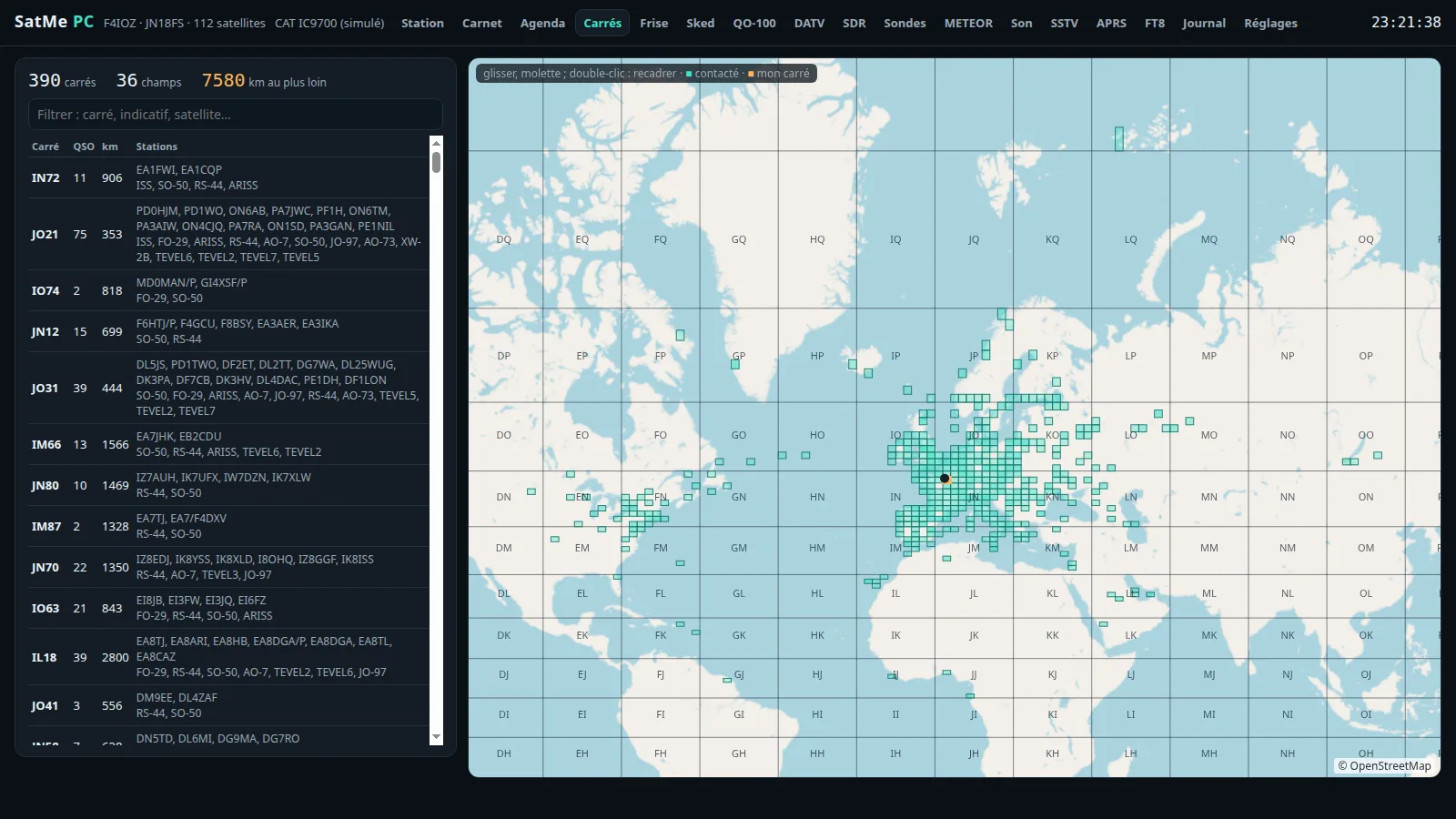
- Locators (Ciel › Locators): the locators worked on a map (drag, wheel; double-click: reframe), the filterable list (locator, QSOs, km, stations), the count of locators and of 2-letter locators (fields).
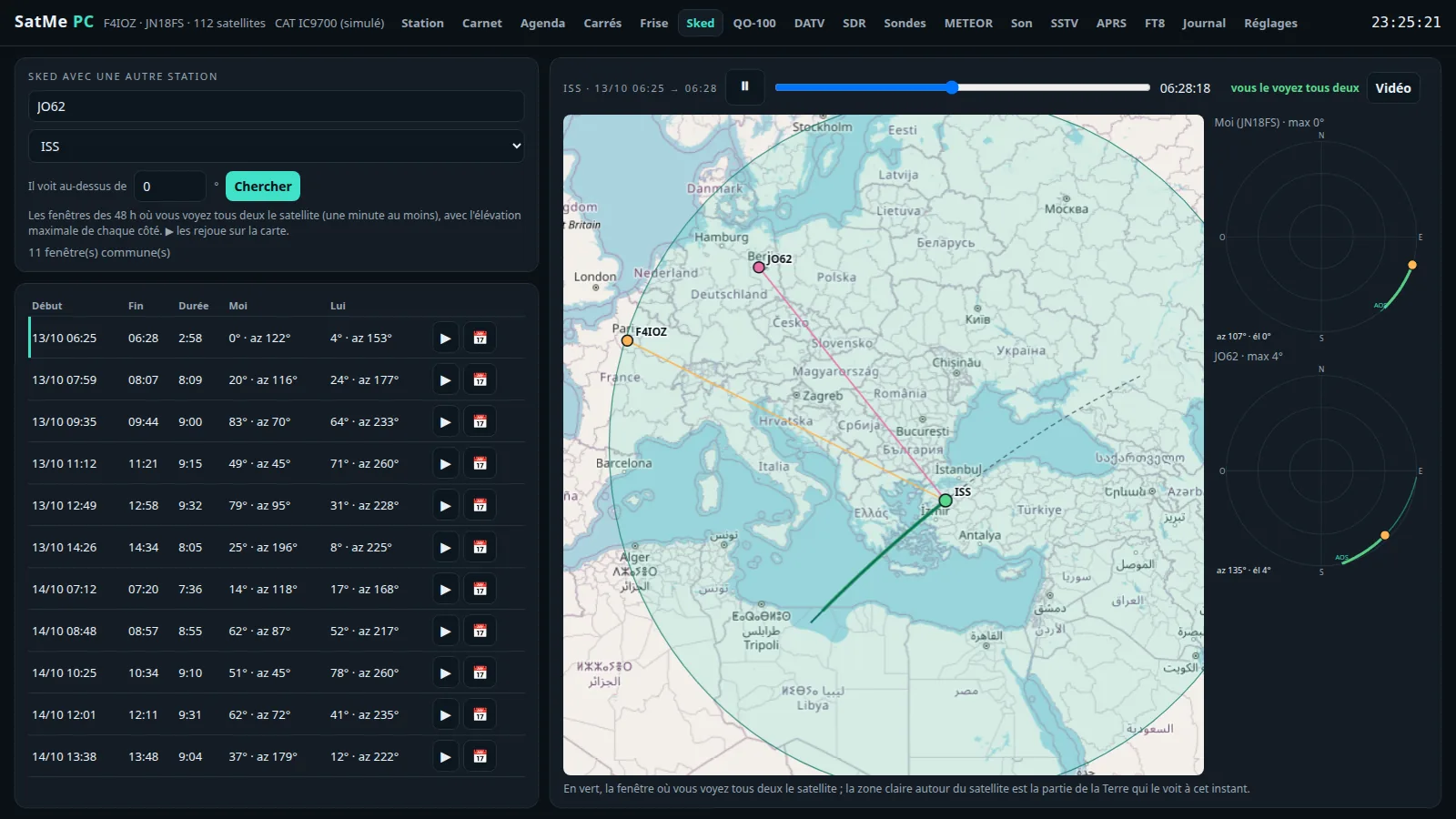
Where: Ciel › Sked. The other station's locator (IN80, FN31…), the satellite, the elevation above which it sees it, Chercher (search): the windows of the next 48 h when you both see the satellite (one minute at least), with the highest elevation on each side. ▶ replays one, with both skies (Moi, Lui); the slider and ⏸ drive it.
- Carte or Globe: the window replayed on the map (the default) or on the Orbites tab's globe — both stations named, the satellite's track with the part you both see in green, its footprint. Drag to turn, wheel to zoom, double-click to frame it again. The choice is kept.
- Réglages du globe (globe settings): the look (the Orbites tab's six), the camera (les deux stations — both stations, poursuite du satellite — chase, depuis ma station — from my station, vue du satellite: the Earth seen straight below the satellite — see Seen from the satellite), details, cities and their names, landmarks (their size and families) and Traces.
- Vidéo: an MP4 of the window as shown, in the format chosen beside the button — 16:9 (1920×1080), 16:9 · 720p or 9:16 (phone upright) —, on the map or on the globe with its look, camera and settings: both stations named (you in amber with callsign · locator, the other with its locator), the satellite and its footprint, the track with the common window in green, the line to each station that sees it, both skies and a band (satellite, date and UTC times, highest elevations, « vous le voyez tous deux », SatMe). The still globe (both stations, from my station) takes about ten seconds on a PC, one to two minutes on a Raspberry Pi 4; a moving camera draws the Earth again for each frame: 30 s to 1 min 30 on a PC, 5 to 15 min on a Pi (Carte ancienne the slowest). It needs ffmpeg.
- Globe animé (comme à l'écran) (animated globe, as on screen; on the globe): the browser films the video from the page's real globe — relief, clouds, landmarks, the cartoon's animated scenery, the look and camera of Réglages du globe: 24 s of the pass then 3 s of the window, with the same band and both skies. A panel shows the picture and the progress (Annuler cancels); keep the tab visible (≈ 30 s), else the browser pauses the recording. SatMe-PC then makes it an MP4 (H.264) kept with the others; should that fail, the video as recorded (WebM or MP4) can be downloaded. It needs a recent browser (Chrome, Edge, Firefox) with WebGL; otherwise the box is greyed out and Vidéo makes SatMe's own.