Repository navigation
SSTV
SatMe decodes SSTV pictures straight from the pass audio: as soon as a recording runs, the decoder watches for the header and builds the picture line by line. It can also record and decode every ISS pass on its own.


Live reception · automatic SSTV · received pictures.
Robot 36/72, Martin M1/M2, Scottie S1/S2/DX and PD 50/90/120/160/180/240/290 — the ISS uses PD 120 and PD 180.

Four tabs: live reception, automatic SSTV, decoding again, the pictures.
- Open SSTV from the ⋮ menu.
- Choose the Audio source: Phone microphone, Bluetooth or Rig sound card (see Audio recording).
- Tap Listen and decode. It starts a recording with SSTV decoding — the same as ● on a satellite's page.
- The picture appears line by line and is saved as a PNG named after the satellite, UTC time and mode. A picture cut short by the end of the pass is kept, marked "partial".
Options:
- Auto (VIS): the mode is read from the header. Picking a mode by hand means no header is expected any more; Lock now locks the frame onto the next sync pulse.
- Continuous decoding (on by default): starts a picture on its sync pulses, even without a header — a header lost as the satellite rose no longer costs the picture.
- Clean the pictures (on by default): a line, or two, lost in a fade and the dashes a burst of noise leaves are mended from the lines around them. Only what clearly breaks from its neighbours is touched: a clean picture comes out unchanged. For the raw picture, untick and decode the sound again.
- Decode each picture again at its end (SSTV options card, on by default): each picture received, once kept with its sound, is decoded again from the whole of that sound and corrected, in the background, without holding back the next picture; the corrected version is kept beside it only when it marks better — the received picture is never changed. Skipped in battery saver. See SatMe-PC › SSTV (with a comparison with other decoders).
The live decoder no longer gets stuck on a wrong line length after a noisy stretch or a jump in the sound.
One switch, and SatMe takes care of an SSTV event for you — on the ISS, or on any of your favourite satellites (RS40, a cubesat sending pictures…).
- Choose the Audio source first (it is fixed when you tick; untick and tick again to change it).
- Satellite (among favourites): the ISS comes first; add a satellite to your favourites to see it here.
- Transmitter: those marked SSTV come first, with 🖼. When none is marked SSTV (often the case for an occasional event), pick the one of the announced downlink.
- Under Stop after the pass of, pick the last pass to record (time and maximum elevation).
- Tick Automatic SSTV.
Then SatMe:
- selects that satellite and transmitter, keeping the one you were using;
- turns recording and SSTV decoding on;
- starts recording 10 s before AOS and stops 5 s after LOS, pass after pass, until the chosen pass;
- keeps a notification between passes ("Next pass … · n to record") — that is what lets it record with the screen off;
- gives the satellite its previous transmitter back when you untick, or after the last pass.
There is no need to tap Listen and decode. Picking another satellite while it is armed brings up a warning: keep it on, or stop it. If CAT drives the rig, the rig then follows the satellite you picked, not the one armed for SSTV.
Tapping stop during an automatic pass ends that pass only; the next ones stay planned.
Pick a recording runs an MP3 back through the decoder — even one made before SSTV support existed. Import a file… adds a WAV or MP3 from elsewhere, for instance the recording on the rig's SD card (IC-9700…) read with a USB card reader; its pictures are labelled IMPORT.
A picture decoded again keeps when and where it was received, not the day and place it is decoded: the time comes from the recording's name (its spoken header taken off), the locator from the recording itself — or, for older recordings, from the same picture received live during that pass. The gallery shows both: "03/10 17:02 · decoded again on 03/10 18:11". Decoding the same picture a second time adds a new one (_r2), it does not replace the first — handy to compare with and without cleaning.
All pictures, newest first, filtered by satellite. Each one can be shared or saved — with a caption below it (satellite, mode, time received, locator, callsign, SatMe logo) or as received — or deleted. When an export folder is set for recordings, the PNGs are copied there too. A ♪ marks the pictures that kept their sound.

Tap a picture: its own sound, and its video.
Tap a picture to see it. Each picture received from 20.76 on keeps its own sound — from its header to its last line, not the whole pass:
- Listen to it again;
- Decode again that sound alone (with the cleaning on or off);
- Share or save the sound (WAV);
- Light video or HD video: the picture drawn line by line in step with its sound, as it was received, with the caption and the SatMe logo. The light one (about 2 MB for a Robot 36) goes by message; the HD one is sharper and about six times heavier. Once made: Share or Save.
- Animated GIF, for the networks that loop GIFs: no sound, sped up — the picture arrives in about twelve seconds, at the pace it was received, then stays 4 s — with the same caption. Any picture can have one, even without its sound. (X also takes the light video, up to 2 min 20 s.)
▦ Sheet, in the Pictures tab: the pictures of a series on one page, as the diplomas of an ARISS event are made. It opens on the pictures, large, with satellite, mode, date and time: a tap puts one in the box chosen, else the first empty one. Share and Save sit just above its tabs; below the preview, what the series still misses ("11/12 received — missing: 12").

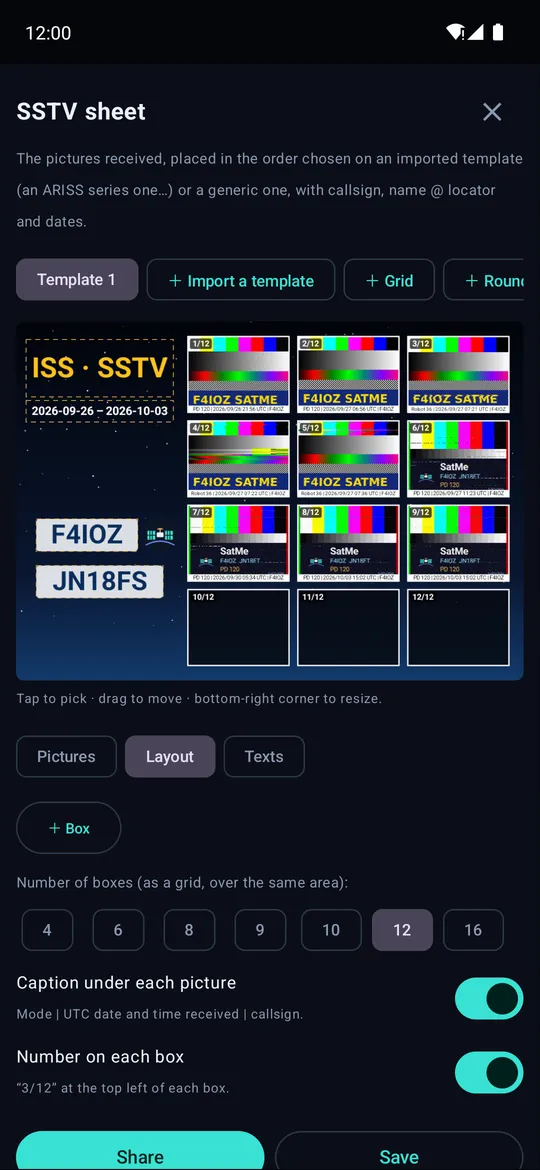
A sheet on a SatMe background, twelve boxes.
- Import a template: the empty picture of the series (the ARISS one, with its "NO IMAGE" boxes). SatMe finds its boxes, in order 1/12 → 12/12, and its "Your Callsign" and "Your Name @ Grid" frames: the callsign and the name @ locator are written there, on the frame's colour. Or start from Grid or Round the title, a SatMe background.
- Pictures: tap a box on the sheet, then its picture below — the next box is picked by itself. The picture's number (1/12…) is written on it: read it to choose. Fill in order of reception places them all at once, complete pictures before partial ones.
- Layout: drag a box to move it, its bottom-right corner to resize it; add or remove boxes, or set a number of them (4 to 16); a caption under each picture (mode, UTC time received, callsign) and its number "3/12".
- Texts: title, callsign (with the SatMe logo beside it), name, locator (the one most pictures were received at) and dates (first to last picture); add free texts, change their colour and background.
- Share or Save: a PNG at the template's size (2400 px wide on a SatMe background).
Templates are kept, ready for the next series.
Fewer pictures than the template (upcoming, after 20.83): Pictures on the sheet — Template (12), or 1, 2, 3, 4, 6, 8, 9… — keeps the background and lays that many pictures out as large as they can be; a tap on a picture puts it on the sheet or takes it off, ◀ Before / After ▶ move it. Fill in order of reception takes one copy of each slide of a series sent again and again, the one least spoilt by the decoder's green noise.
Background (upcoming), a fifth tab:
- Sheet background: Starry sky, Dusk, Abyss, Slate, Nebula, Orbit, or nine NASA pictures (aurora australis and Earth's glow seen from the ISS, an orbital sunrise, Hubble's Lagoon Nebula, the ISS above and against the Earth, its solar arrays, the Earth at night, Spitzer's W40 Butterfly Nebula); or your picture, which fills the sheet without being stretched (what overflows is cut off around the centre). An imported template keeps its own background.
- Patches: up to three (a mission patch, a club logo…), dragged with a finger, pinched or pulled by their corner to resize them. Remove the surround makes the plain background round the patch (black, white…) transparent; a round patch is cut to its circle.
- Picture frame (upcoming): None, Fine, white, Rounded, shadow or Neon, with its Neon colour.
Stylish sheet (upcoming, after 20.83), like an ARISS series poster:
- + ISS poster, next to Grid and Round the title: a sheet ready made — the ISS above the Earth (NASA), « SSTV SERIES » in chrome and neon, twelve boxes in neon frames, the callsign in neon. The series' number comes from the name of the sheet's event: once the event is linked, tap ARISS series again in Texts › Styled titles to have it written.
- Texts › Styled titles: ARISS series, Retro neon, Gold badge, Chrome title dress the title in one tap; Plain title brings the ordinary title back. Each line stays an editable text.
- For the text chosen: Font (SatMe, or seven free fonts bundled with SatMe: Orbitron, Exo 2, Audiowide, Russo One, Michroma, Bungee, Monoton), Effect (Plain, Outline, Relief, Neon, Chrome, Gold, Gradient), Second colour (gradient, outline), Italic, Glowing rules, Letter spacing.
The stylish sheet is drawn the same on the phone and on the PC: see The stylish sheet and its screenshots.
On a big screen, with the mouse: the same sheets, made from the PC. Turn on the control desk (Settings › Share and listen › Share, under the broadcast): below its address, SSTV sheet on the PC gives the same address followed by planche, opened in the PC's browser with the same six-digit code — or the SSTV sheet link at the top of the control desk. The phone can be plugged into the PC by its USB cable (USB tethering in Android's settings): no Wi-Fi, no internet needed.

- The template large, its boxes and texts outlined: click one, drag it, its bottom-right corner resizes it; the arrow keys nudge it (Shift: a bigger step), or type its position in %.
- Pictures: drag one from the gallery onto a box, or pick a box then click a picture; Fill in order of reception, one satellite or all. What the series still misses is written under the sheet.
- Texts: callsign, name, locator, dates and title typed on the keyboard; free texts, their colour and background.
- Import a template straight from the PC (a JPEG or PNG, 25 MB at most): the phone finds its boxes and frames, as when imported on the phone.
- Download the sheet (PNG): made by the phone at full resolution and saved on the PC.
- (upcoming, after 20.83) Pictures on the sheet: fewer pictures than the template, clicked one by one or by number, the sheet fitted so they are as large as can be; Background (the page's Décor tab in French): a background (built in, a NASA picture or your own) and up to three patches dragged with the mouse, the wheel or their corner for their size, the surround removed if need be.
- (upcoming, after 20.83) + ISS poster at the top; Styled titles, each text's font and effect (Texts); the picture frame (Background).
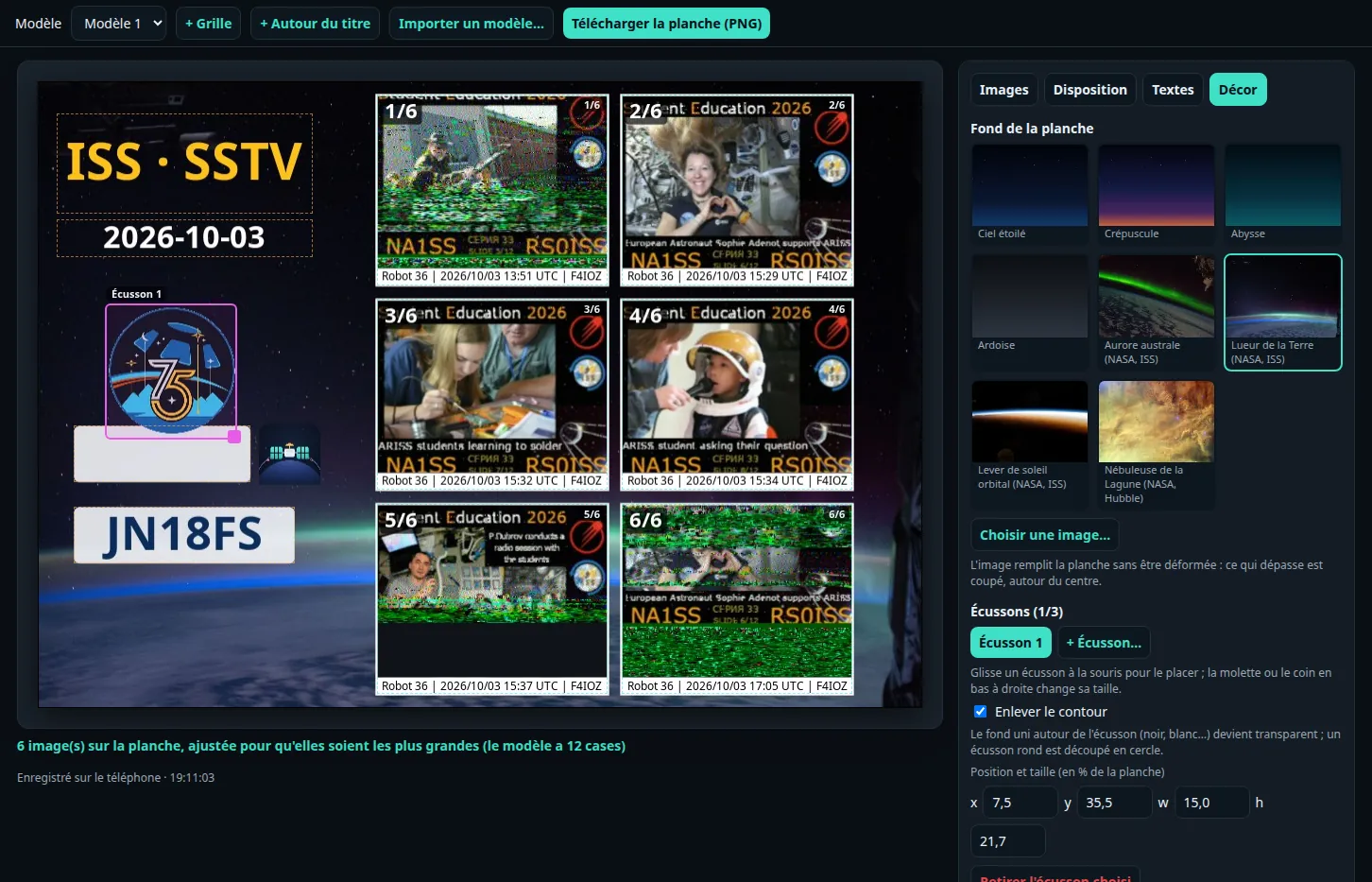
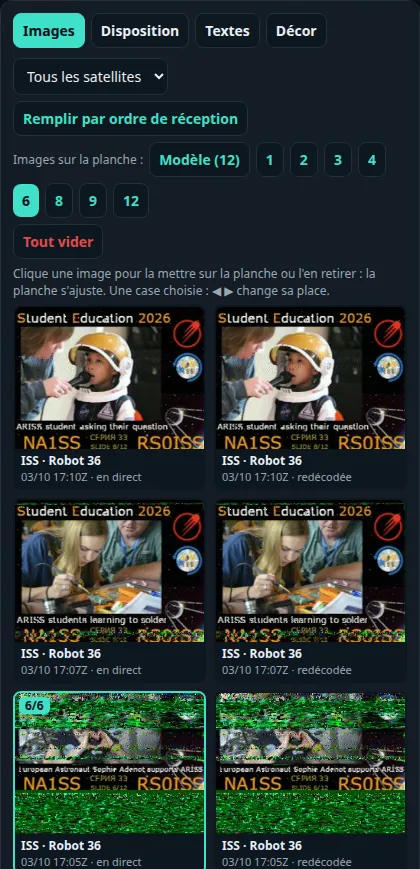
Captured on SatMe-PC (French page); the phone's control desk page has the same tabs.
What the page shows is drawn by the phone, with the very drawing of its own screen: the sheet downloaded is the one seen. Everything is saved on the phone as you go, ready on the phone too. (upcoming, after 20.83) Delete (at the top) deletes a sheet from the PC too, after confirmation; its SSTV pictures stay in the gallery (on the phone, deleting a sheet asks for confirmation too). The callsign, locator and dates typed in Texts are kept with the sheet.
An RTL-SDR dongle on the phone receives the ISS directly, tracks the Doppler and decodes SSTV live — no radio needed. See Extensions.
- Clean, unprocessed audio decodes best: USB sound card or headphone jack, Raw audio on.
- Neither clipping nor too low: aim for two thirds on the level bar.
- Keep the frequency steady: SSTV is sensitive to drift. With CAT, Doppler is followed for you.
- An SSTV test card, with simulated fading, is in the settings to check the chain end to end.
See also: Audio recording · Passes and tracking · Rig control (CAT)