Repository navigation
Export Nodes SourceIOTextureInvertChannelsNode
Inverts (1 - value) any combination of the red, green, blue and alpha channels of a texture.
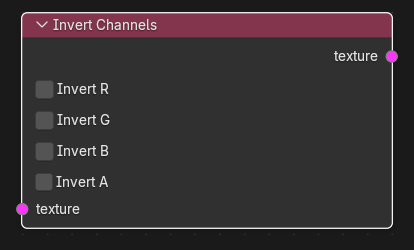
| Input | Type | Description |
|---|---|---|
| texture | Texture (single link) | RGB or RGBA texture. Required. |
| Output | Type | Description |
|---|---|---|
| texture | Texture | Copy of the input with the selected channels inverted. Same size; same channel count unless alpha is inverted on an RGB input. |
| Control | Meaning |
|---|---|
| Invert R / Invert G / Invert B | Replace that colour channel with 1 - value. Default off. |
| Invert A | Replace alpha with 1 - alpha. Default off. If the input has no alpha channel, an alpha channel is added whose implicit opaque value is inverted, so the result is fully transparent (alpha 0). |
The input is copied (the source is never modified) and the selected channels are inverted in place. Nothing is clamped or colour-converted, so values stay in the range of the input. Inversion is performed on the stored numbers, not in linear light: inverting a gamma-encoded colour map is a plain numeric inversion.
Texture operators are evaluated while the export graph is resolved (and by the Texture Preview node): upstream image sources are decoded to float arrays, the operator runs on whole images, and the result is passed on without being written anywhere. If an operator cannot produce a result (a required input is unlinked, sizes differ, wrong data type) the export stops with ": output is unavailable".
- OpenGL to DirectX normal map: Image Source -> Invert Channels (Invert G only) -> VTF Output (Normal map). (Normal Map Ops has a dedicated Flip Green option.)
- Gloss from roughness: Image Source -> Invert Channels (R, G, B) -> use as a phong exponent source or specular mask.
-
Alpha mask polarity: invert A to turn a "hole" mask into a "visible" mask before an
$alphatestbase texture.
- All four toggles are off by default, so the node does nothing until you enable one.
- Inverting A on an RGB texture produces alpha 0, not alpha 1.
- To work on a single channel, use Split Channels and Math (Invert).