Repository navigation
App window
OST's main window is laid out like Teams': the title bar at the top, the app bar on the left, the list (chats, activity, files) next to it and the content on the right.
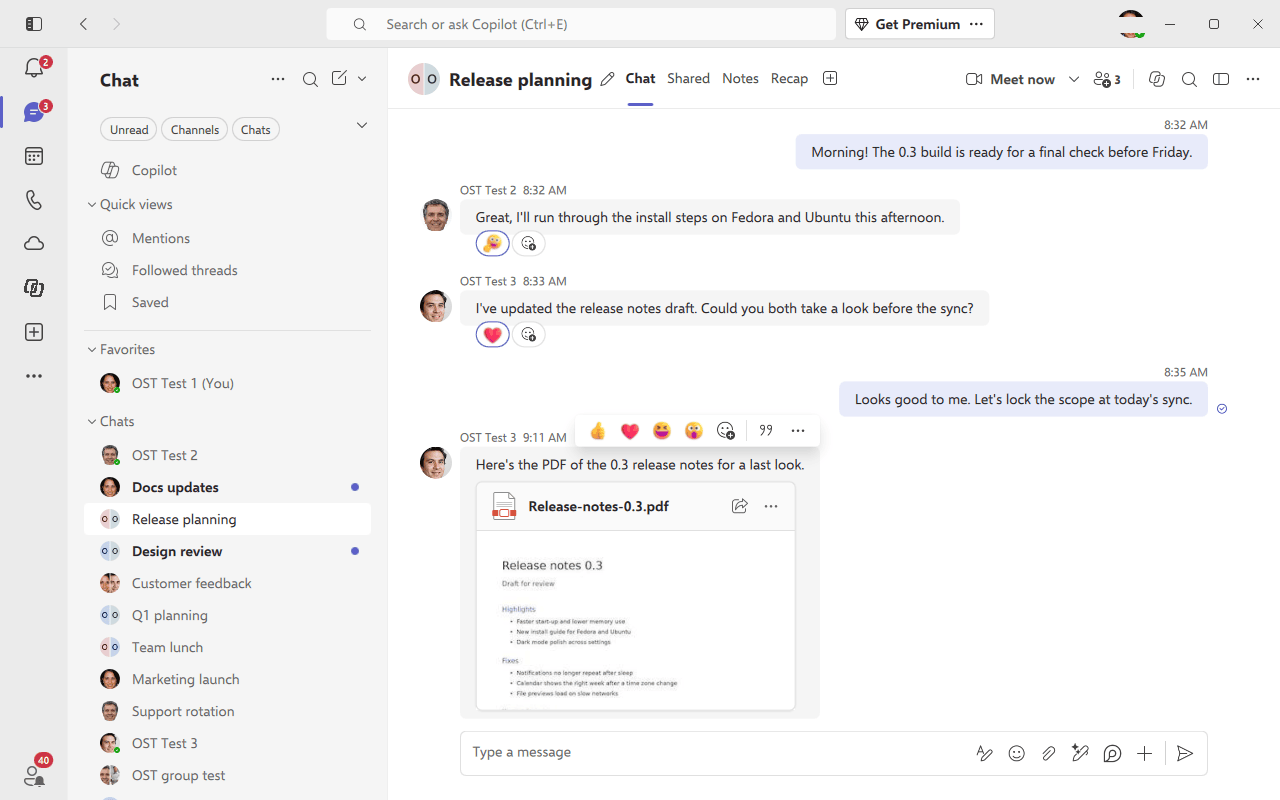
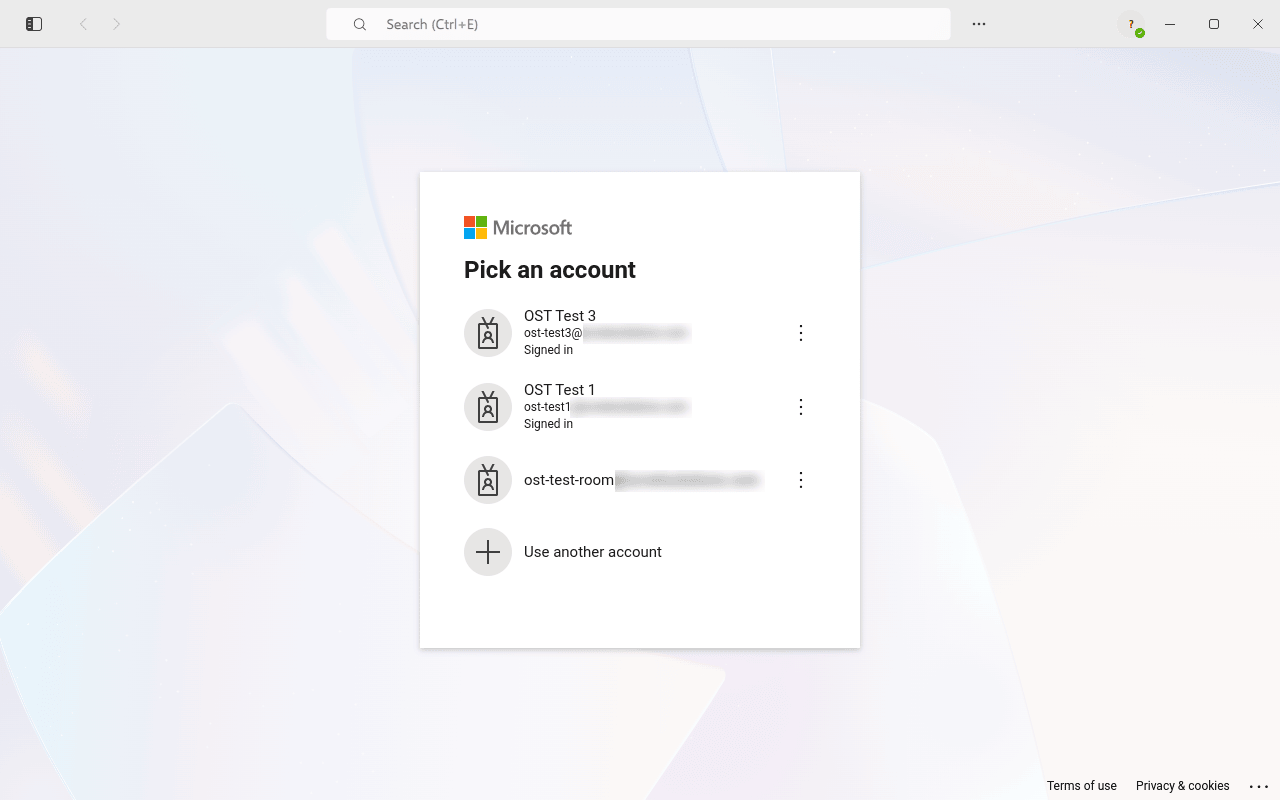
- The first start shows Microsoft's sign-in page inside OST's window (see First sign-in). OST signs in the way Teams on the web does and renews the sign-in by itself afterwards.
- Sign out: your picture ▸ Sign out. OST deletes the account's tokens, restarts, deletes that account's web data and shows the sign-in page again (see Privacy and data).
- Switching accounts: each account runs as its own profile in its own window; your picture lists the others (Switch to account) and Add another account (see Presence and status).
- Back and Forward (Alt+Left, Alt+Right) move through the places you've been, as in Teams.
- Search in the middle (Ctrl+E; see Search).
- Settings and more (···) and your picture (the profile flyout, see Presence and status).
- OST draws Teams' own window buttons (Minimize, Maximize,
Close). Drag the title bar to move the window and its edges to
resize it; double-click to maximize. Start OST with
OST_SYSTEM_FRAME=1to use your desktop's own window frame instead.


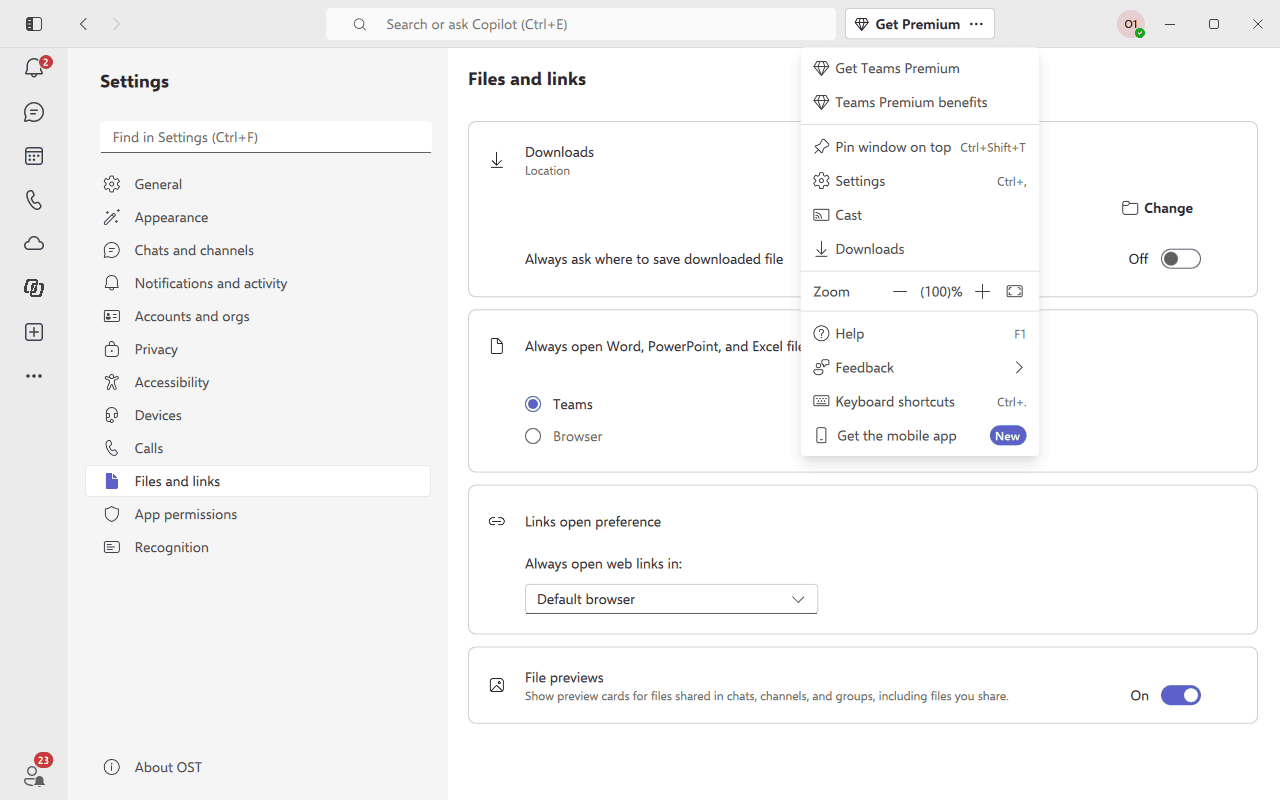
Settings and more (···), next to your picture, in Teams' order:
- Unlock Teams Premium, Get Teams Premium or Teams Premium benefits (as your license allows)
- Pin window on top / Unpin window (Ctrl+Shift+T): keep OST above other windows.
- Settings (Ctrl+,; see Settings)
- Cast: show your screen or a presentation on a nearby Teams Room (see Room mode)
- Downloads
- Zoom: Zoom out (Ctrl+-), the current zoom (Reset zoom, Ctrl+0) and Zoom in (Ctrl+=)
- Help (F1; see Help and feedback)
- Feedback ▸ Report a problem, Give a compliment, Suggest a feature
- Keyboard shortcuts (Ctrl+.; see Keyboard shortcuts)
- Get the mobile app
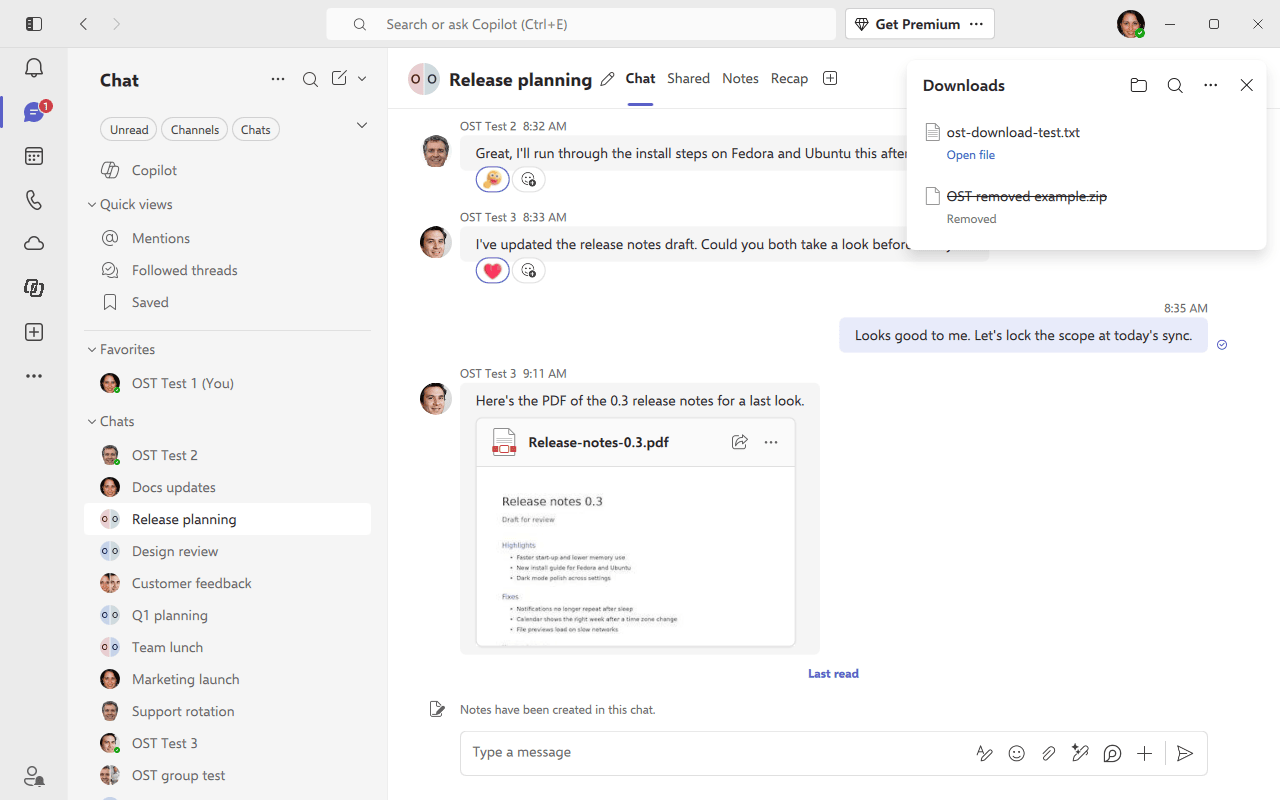
Downloads opens Teams' downloads flyout: the files you downloaded in OST, newest first, each with Open file, Open containing folder (in your file manager) and Delete file; Open downloads folder and Clear all download history.
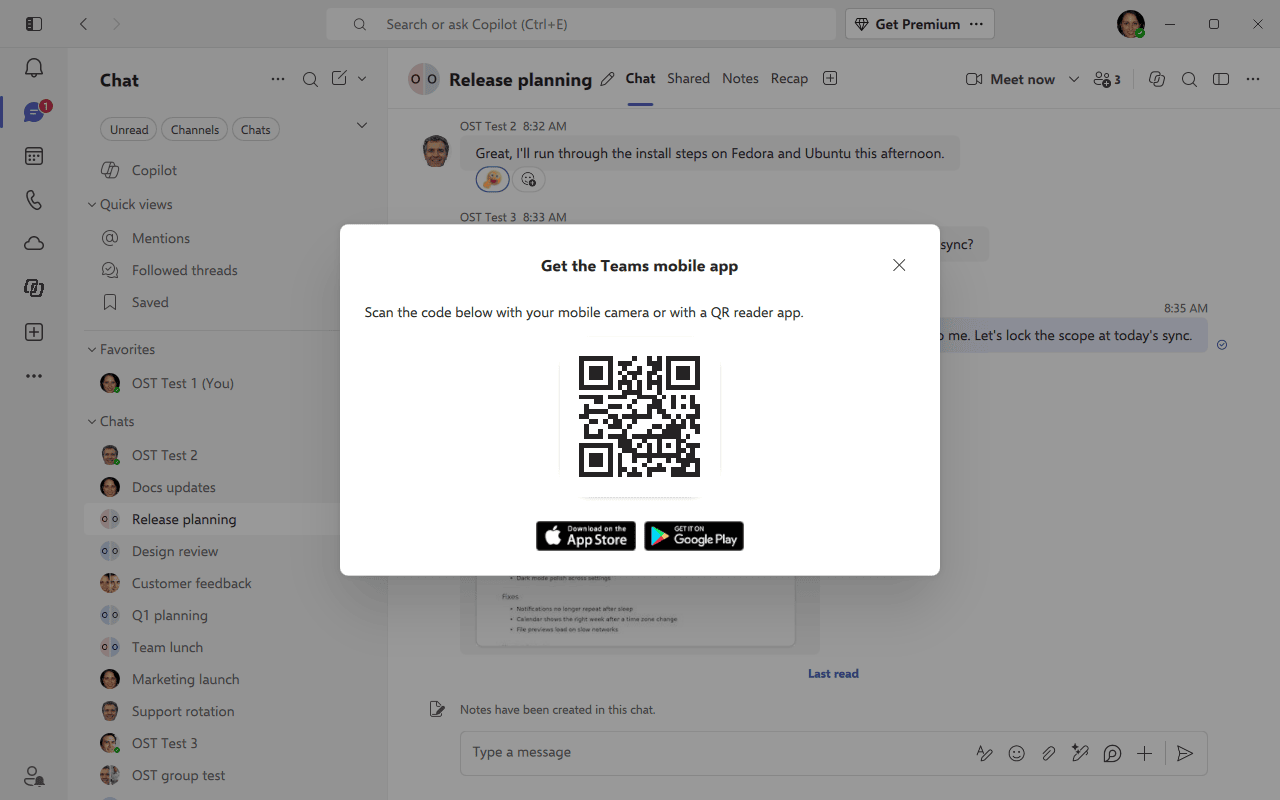
Get the mobile app opens Get the Teams mobile app: a QR code to scan with your phone, and the Download on the Apple App Store and Get it on the Google Play badges.
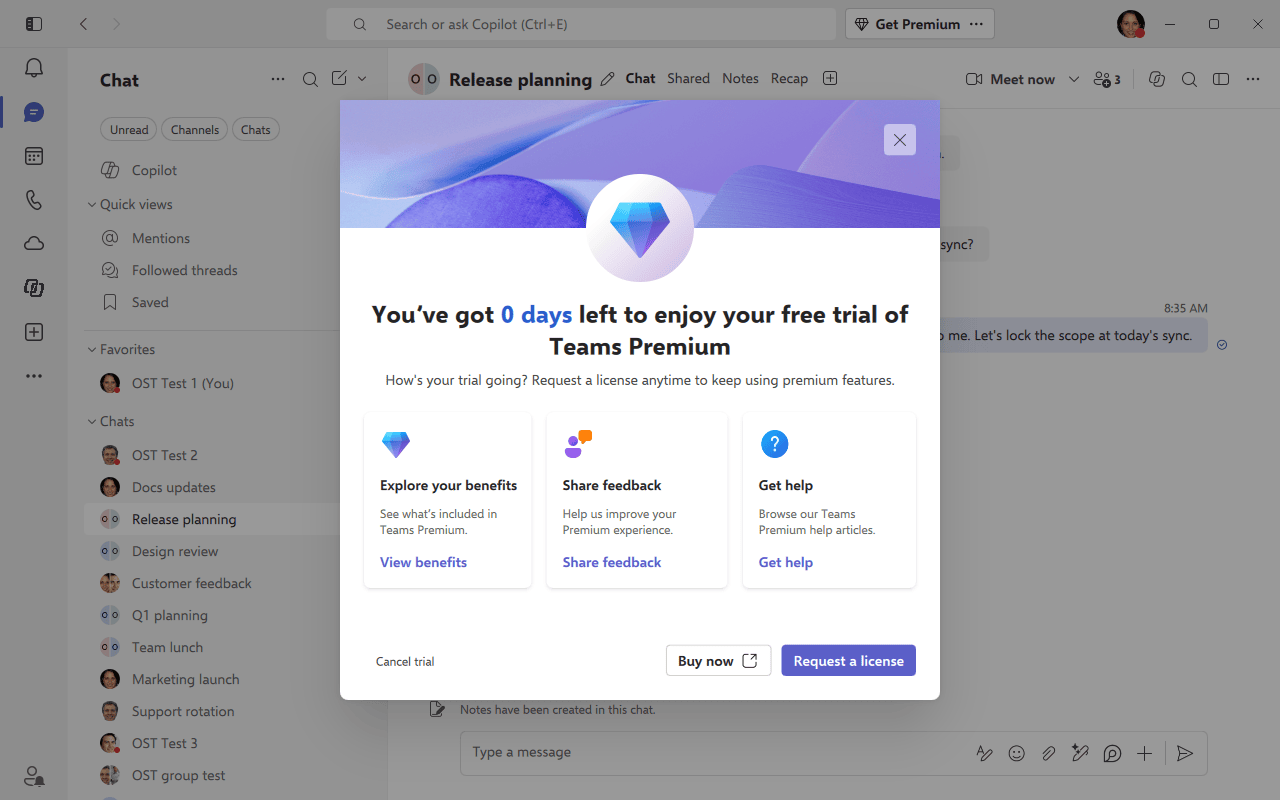
Where your organization offers a Teams Premium trial, Unlock Teams Premium opens Teams' Premium dialog: what Premium adds (More intelligent, More protected, More engaging) and Start your free 60 day Teams Premium trial. During a trial the menu shows Teams Premium benefits, and the dialog the days left, tips and Cancel trial. Requesting a license opens Microsoft 365's request page in your browser.
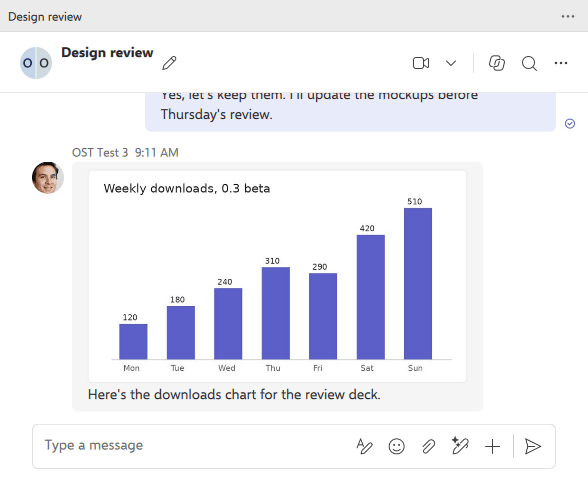
OST opens Teams' pop-out windows, each with its own small title bar (and Pin window on top):
- a chat (Open in new window, Ctrl+O), a channel, a post or thread, New message in new window (from Chat's app bar menu), an app or a Teams view from the app bar menu, and an app tab;
- the call and meeting windows, the Help window, the feedback form, event pages and recap windows.
Settings ▸ General ▸ Opening content in OST windows decides whether links, notifications and new chats open in the main window or a new one.
Launching OST while it already runs brings the running window to the front instead of starting a second copy (per profile). If it's hidden in the tray, the window comes back.
Teams uses Segoe UI, which OST can't ship. OST uses Segoe UI when your computer has it and the open Selawik font otherwise, Cascadia Mono for code (as Teams does), Fluent UI System Icons, and Teams' own glyphs where Fluent lacks them.