Repository navigation
Loop Notes and Whiteboard
Live documents that everyone in a chat, channel or meeting edits together. OST hosts Microsoft Loop, OneNote and Whiteboard where Teams does, signed in with your account.
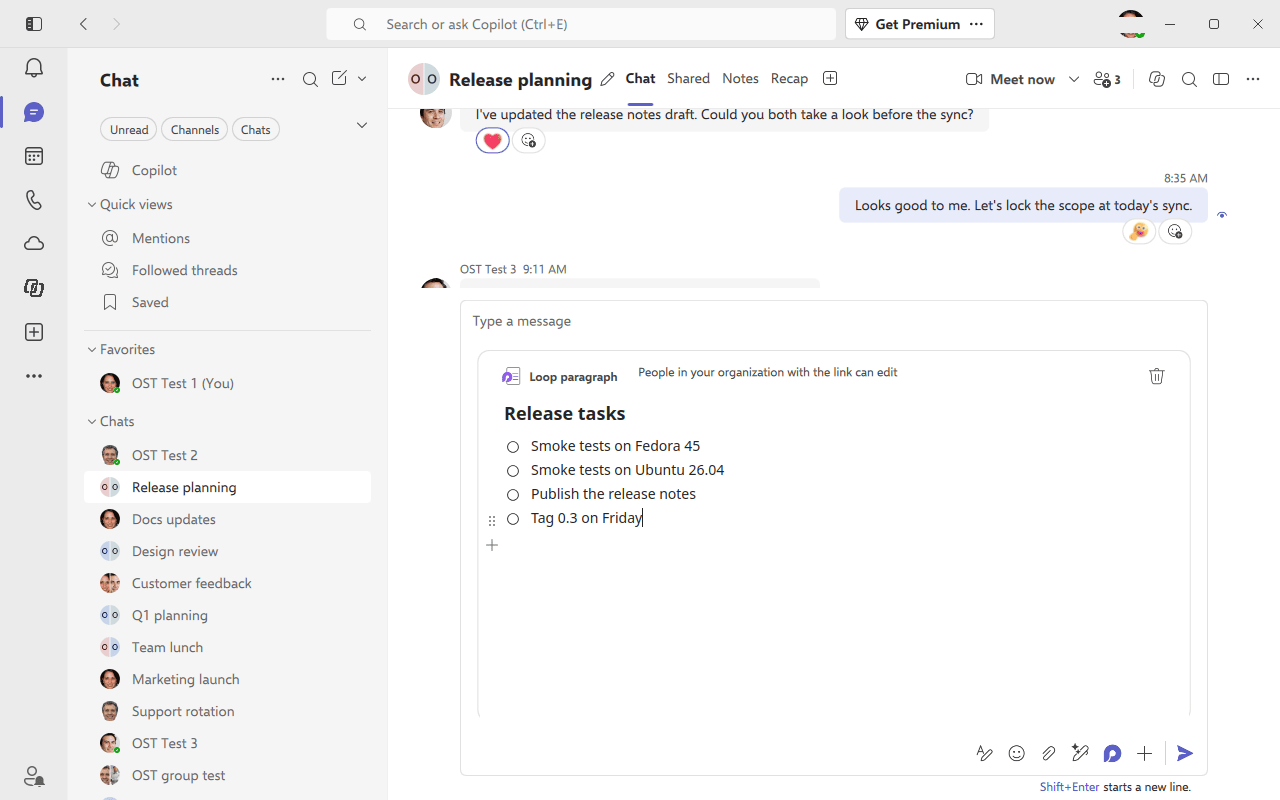
- Loop components (the Loop button in the compose box, or +): insert a Loop paragraph, table, checklist, bulleted or numbered list, task list and more. You edit it right in the compose box; Discard removes it before sending. Its link settings say who can open it.
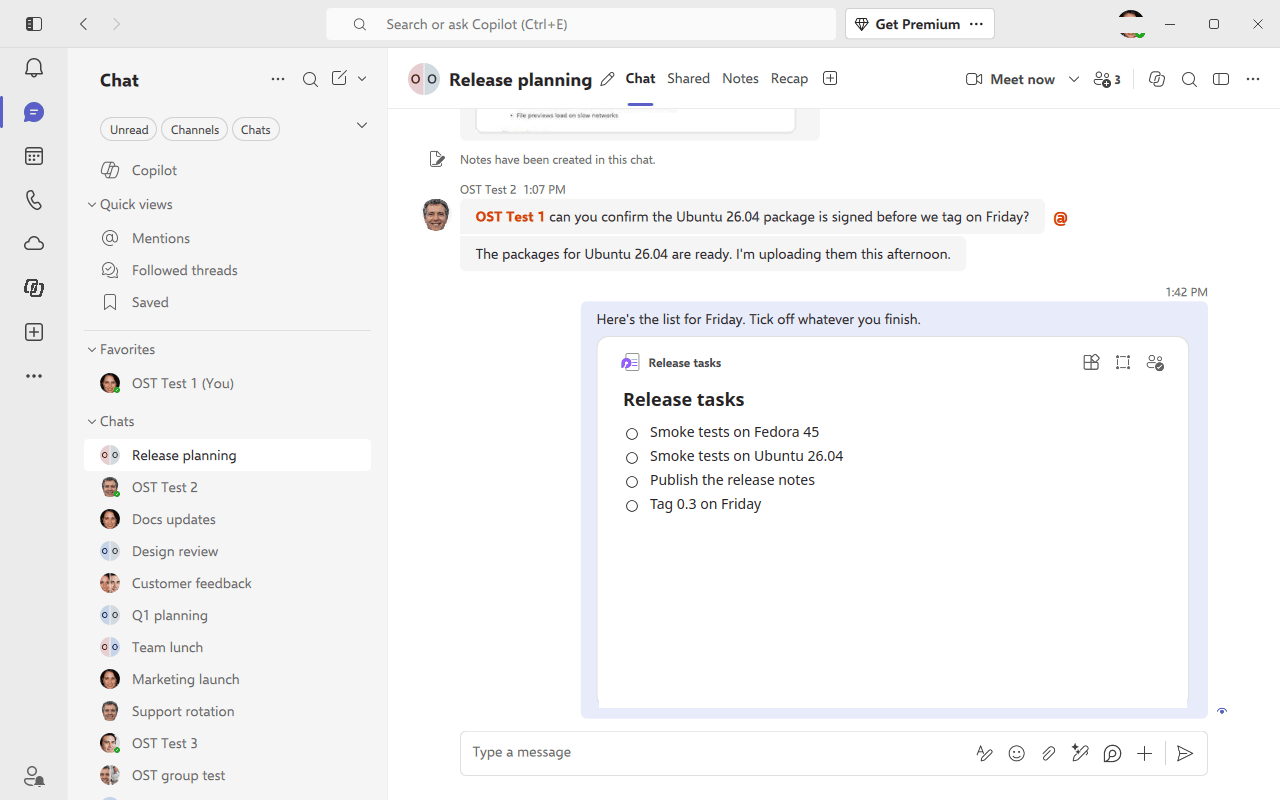
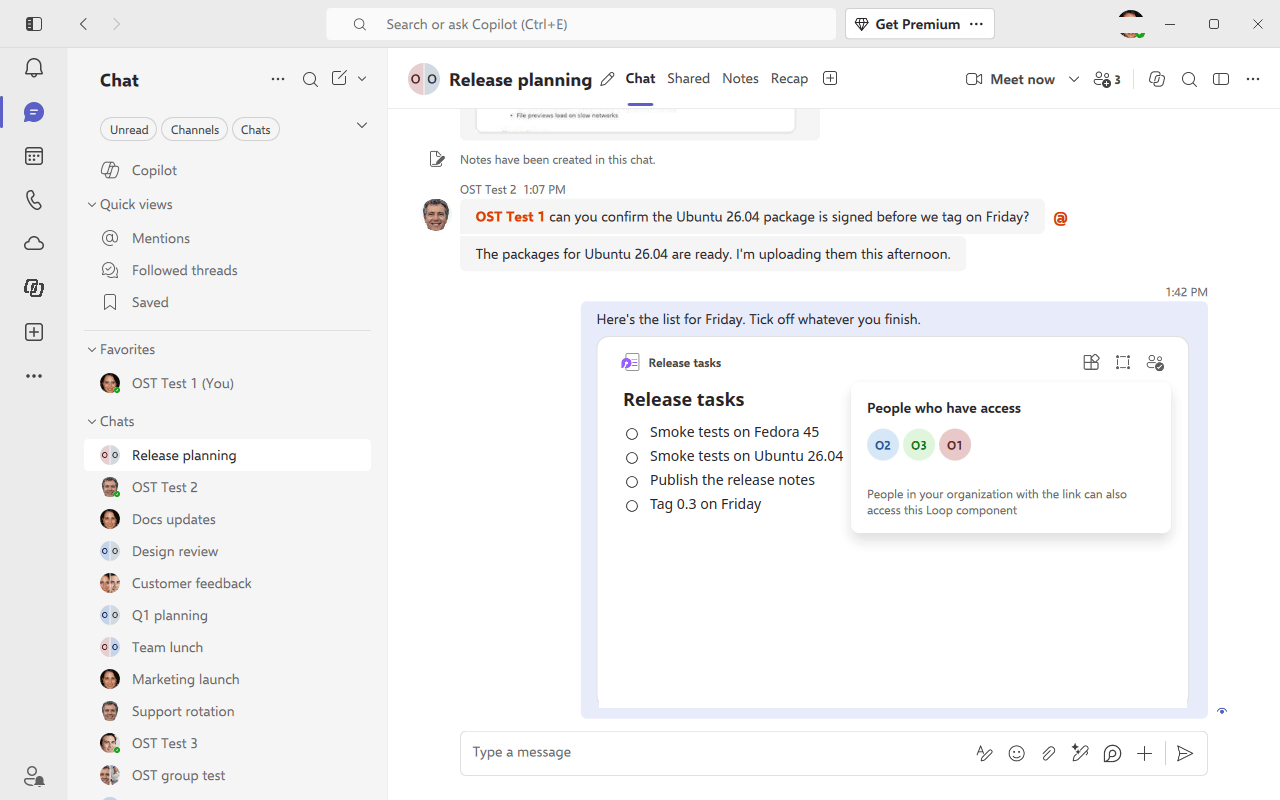
- In a message, the component is live: everyone in the chat can edit it in place. Its header has See who has access, Shared locations, Copy component and More actions (open in Loop, Pin for everyone).
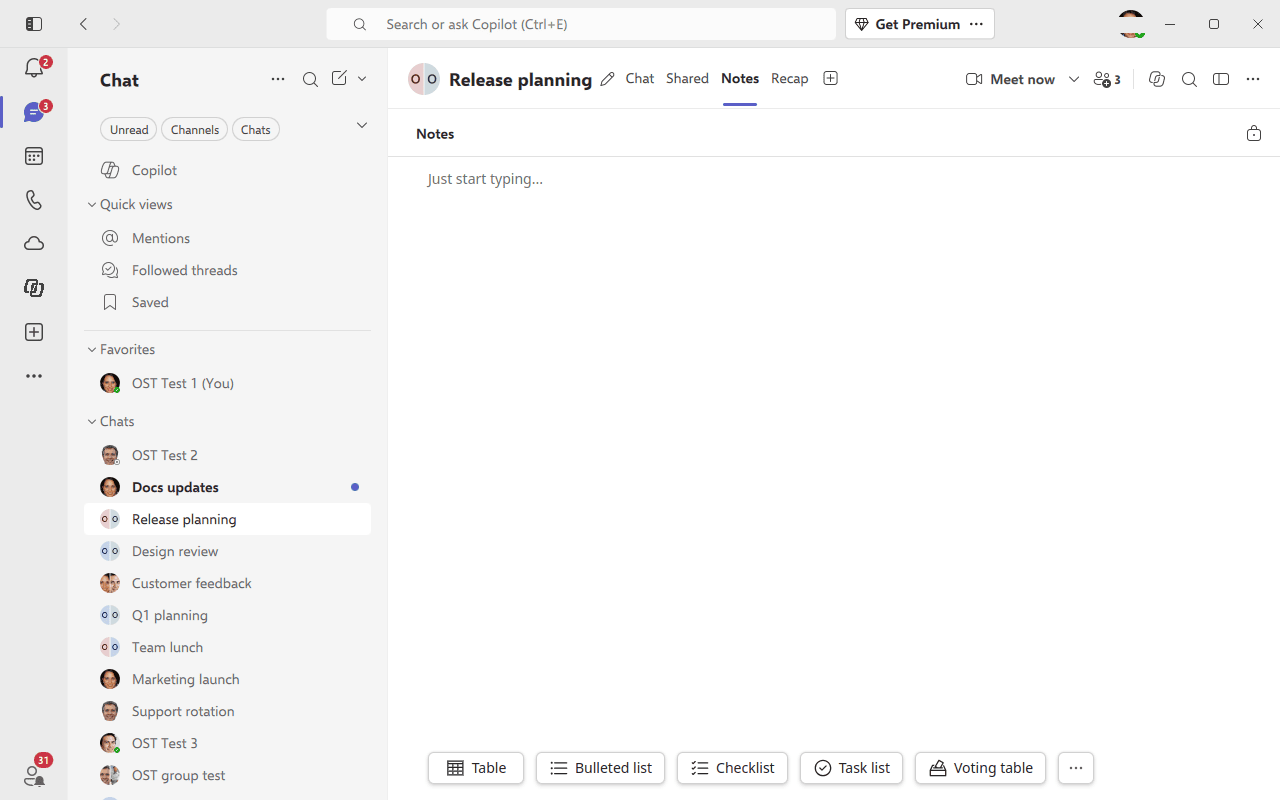
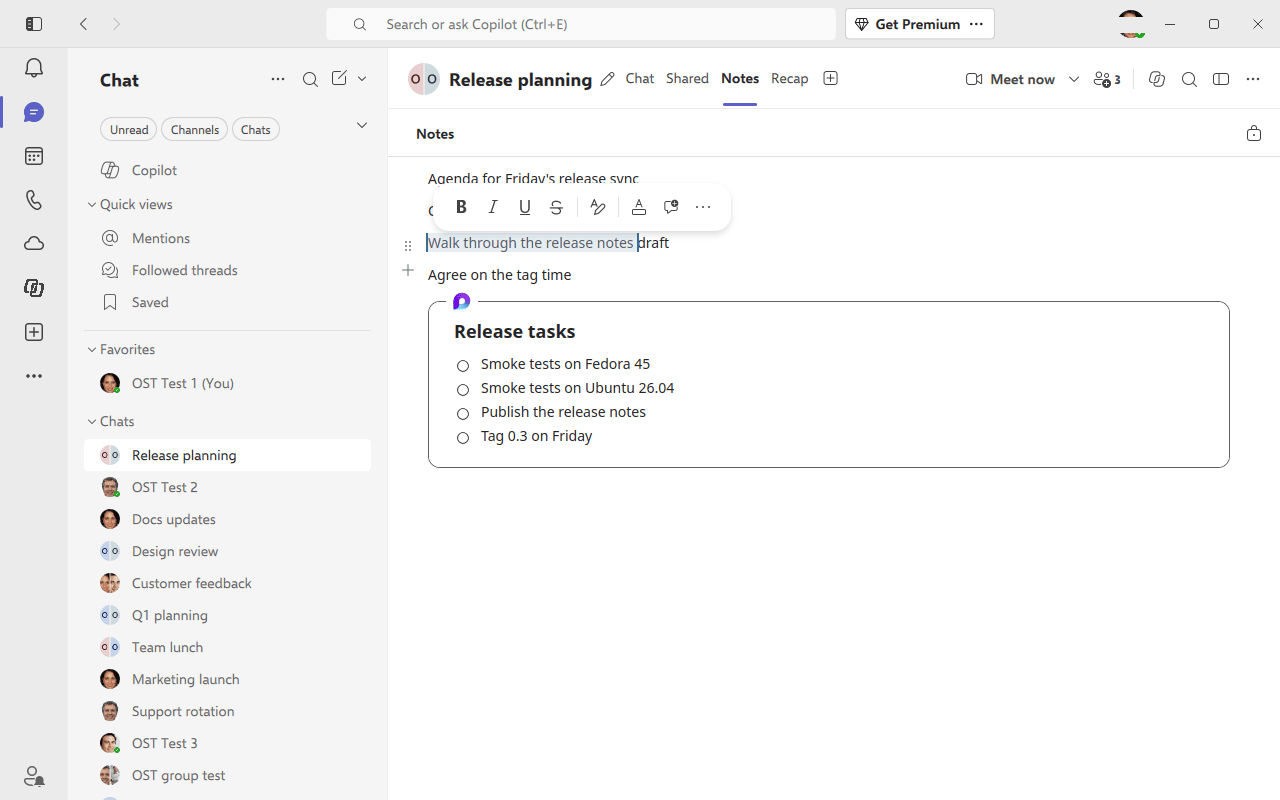
- Notes in a chat's header is the chat's own Loop page, "Only accessible to members of this chat", made the first time you open it. The chat gets a "Notes have been created in this chat." row.
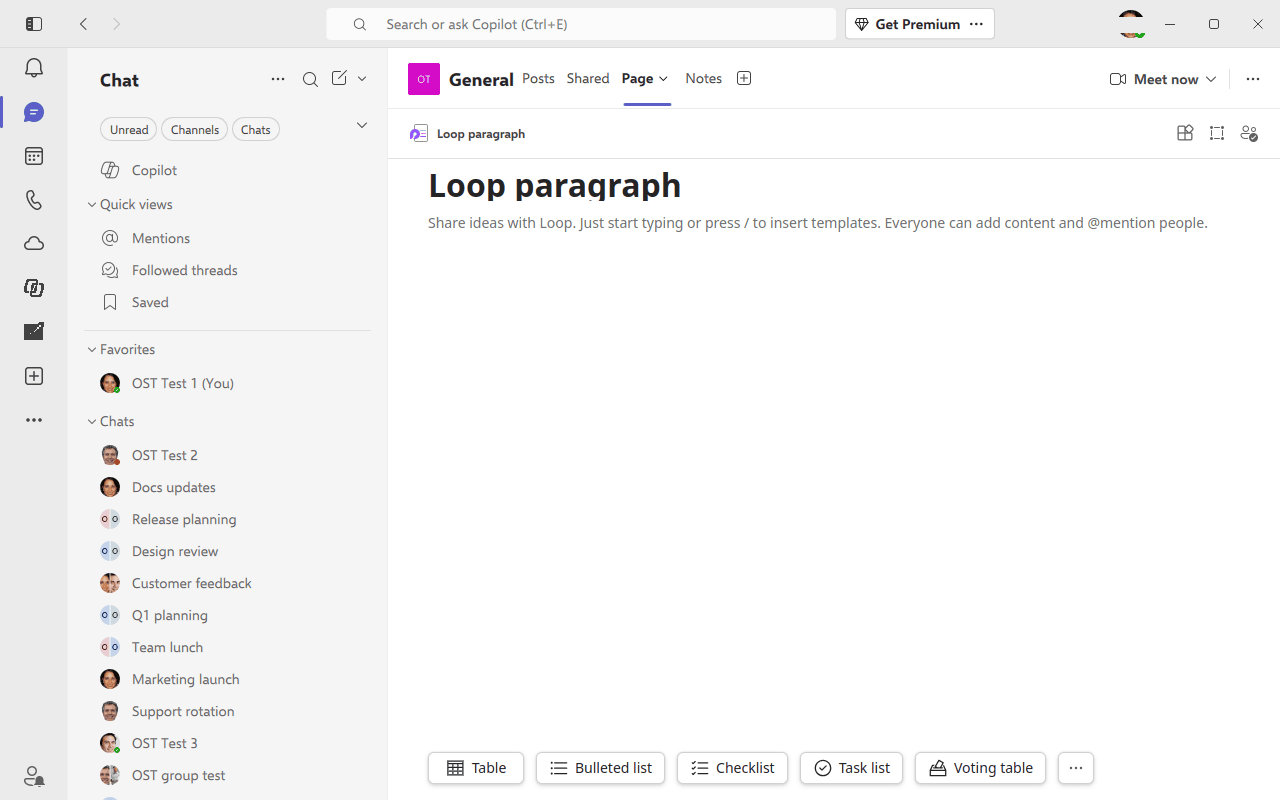
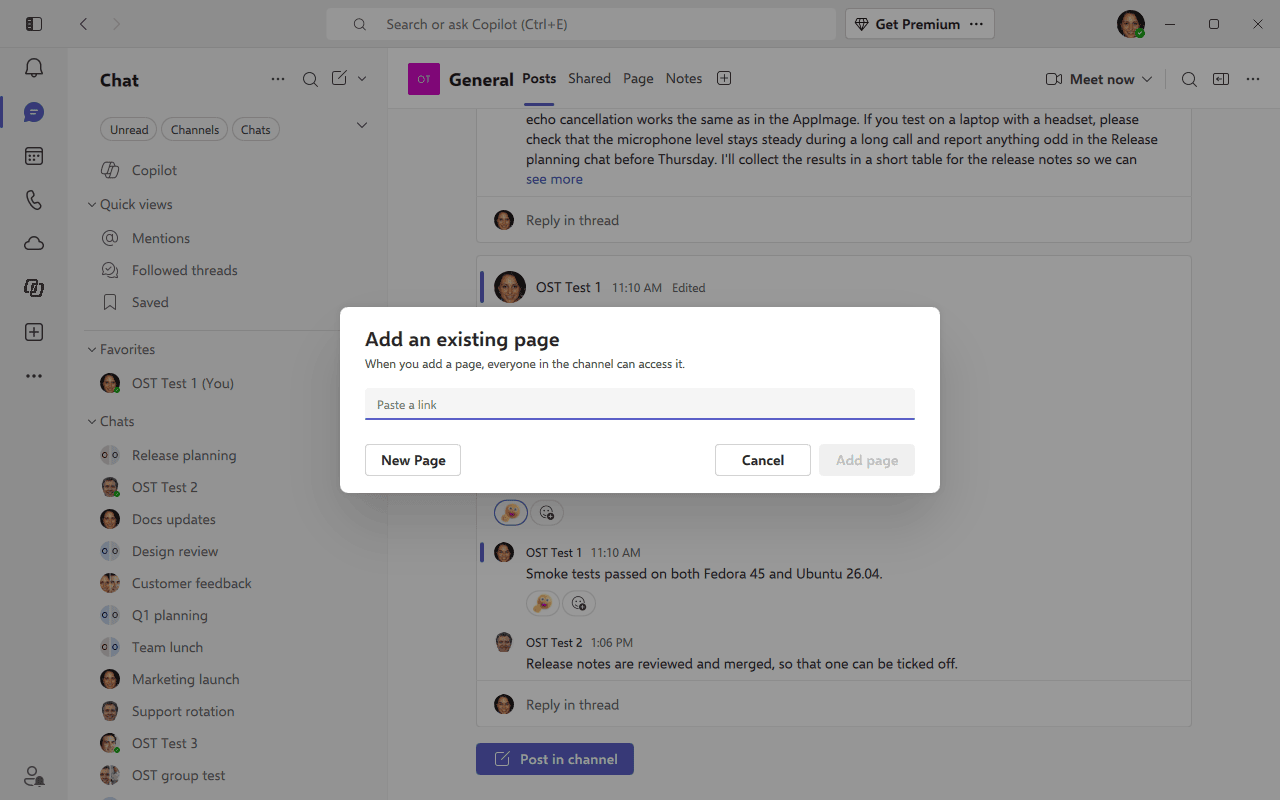
- Page tabs in channels are Loop pages too. + ▸ New page adds one; + ▸ Existing page adds a page you already have (Add an existing page: pick a recent page or Paste a link).
- See who has access lists the people and groups that can open the page or component, and what the link allows.
- Loop's own formatting toolbar works inside the page: text styles, lists, tables, and nested components (a component inside a page).
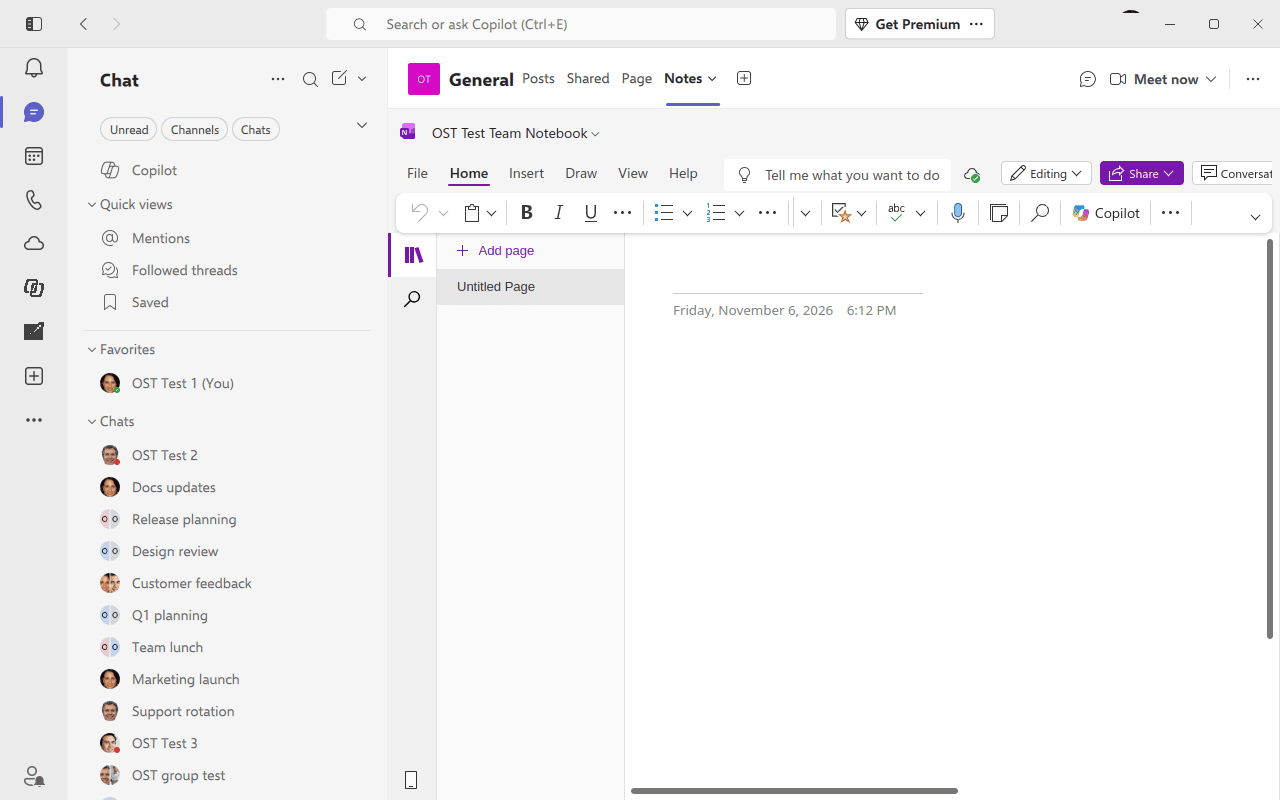
- A channel's Notes tab (in teams that have one) is the team's OneNote notebook section for that channel, set up the first time it's opened; read and edit its pages in place.
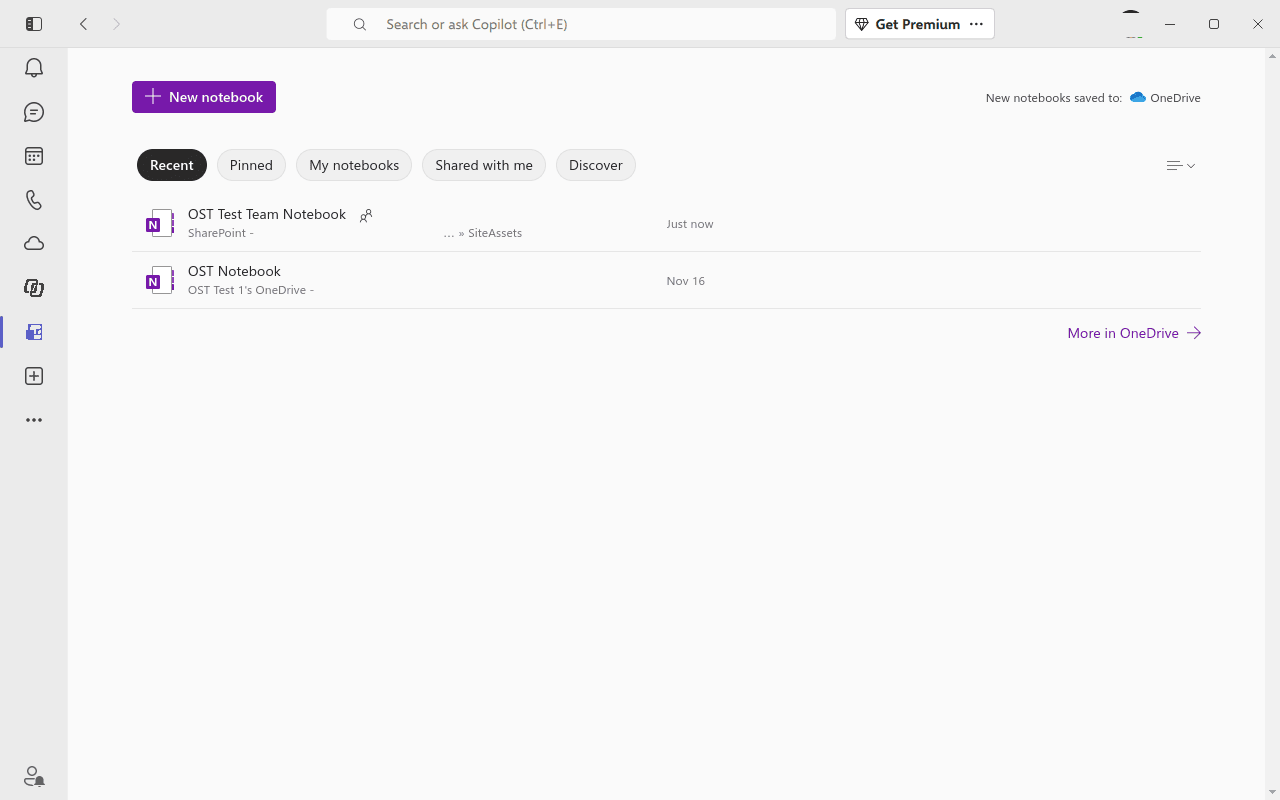
- The OneNote app (in View more apps) opens your notebooks: read, create and edit pages.
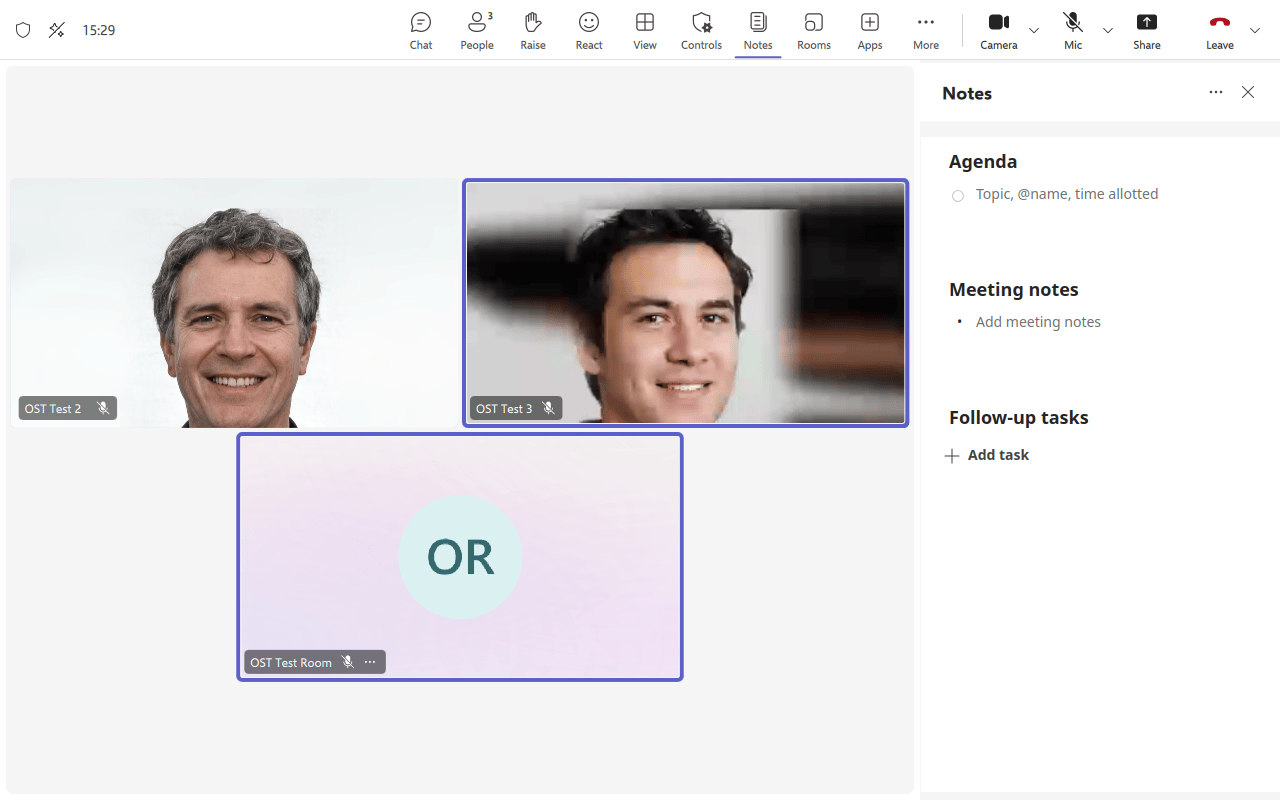
Notes in the meeting toolbar opens the meeting's notes (a Loop page shared with everyone invited) beside the stage: agenda, notes and follow-up tasks, with See who has access, Copy component and Open in Loop. The same notes are in the meeting chat and the recap.
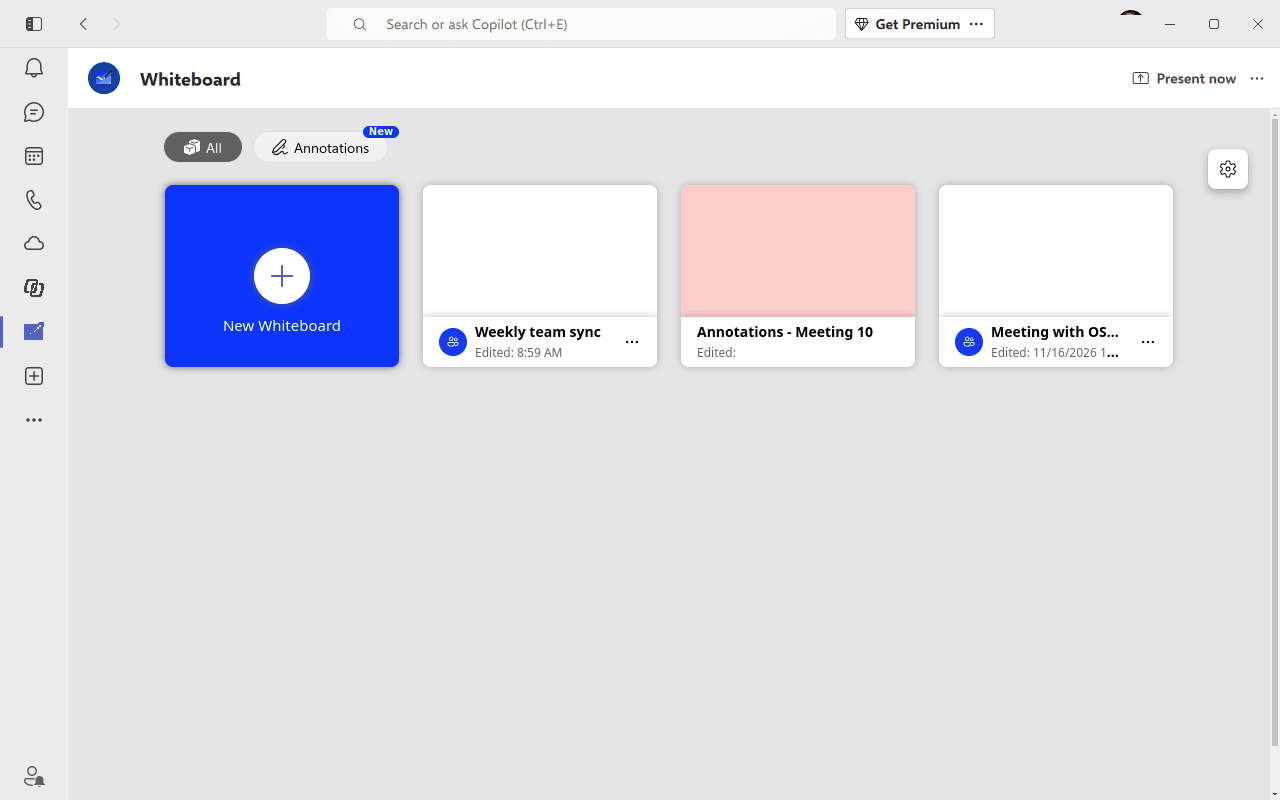
- The Whiteboard app (in View more apps) opens your boards.
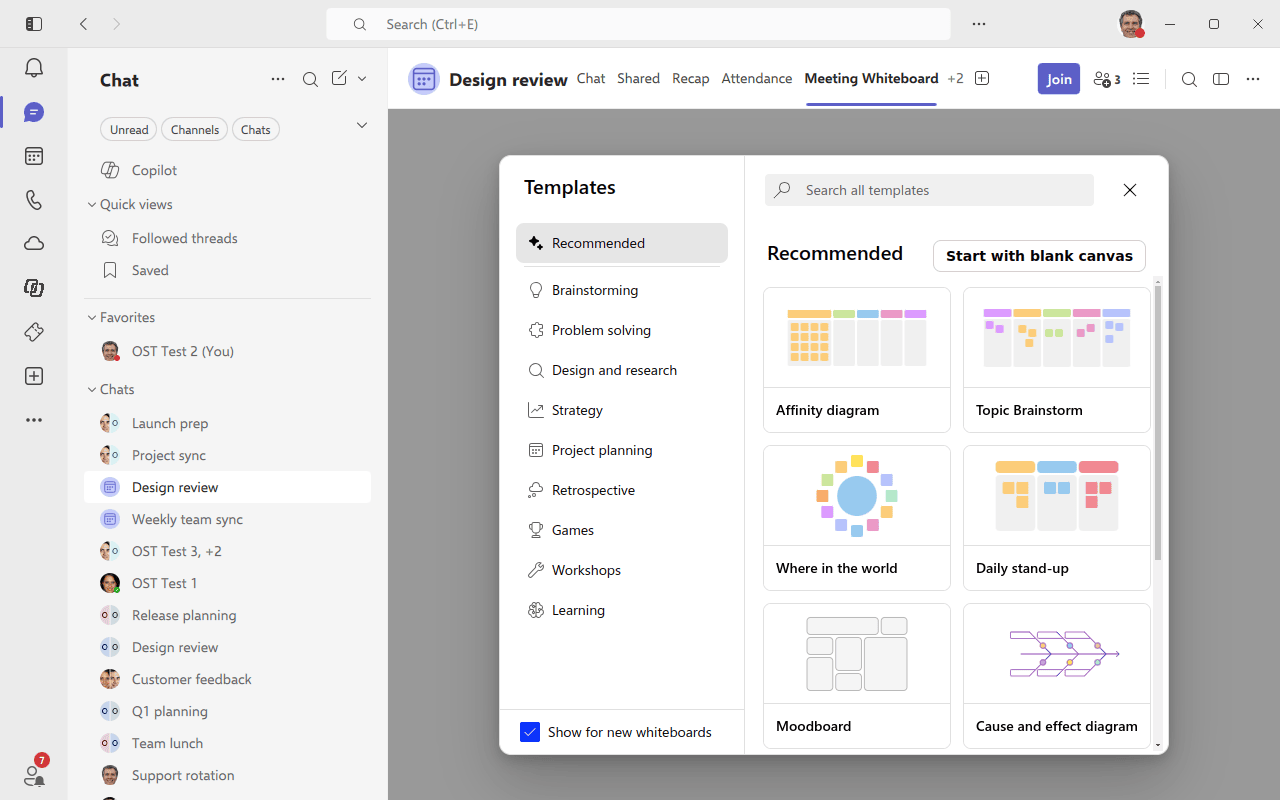
- A meeting's Meeting Whiteboard tab (in the meeting chat) is the board shared in that meeting; Share ▸ Microsoft Whiteboard shares it live (see Sharing and presenting).