Repository navigation
Captions and transcripts
Live captions, recording, transcription and interpretation work as in Teams; the speech recognition is Microsoft's, in the meeting.
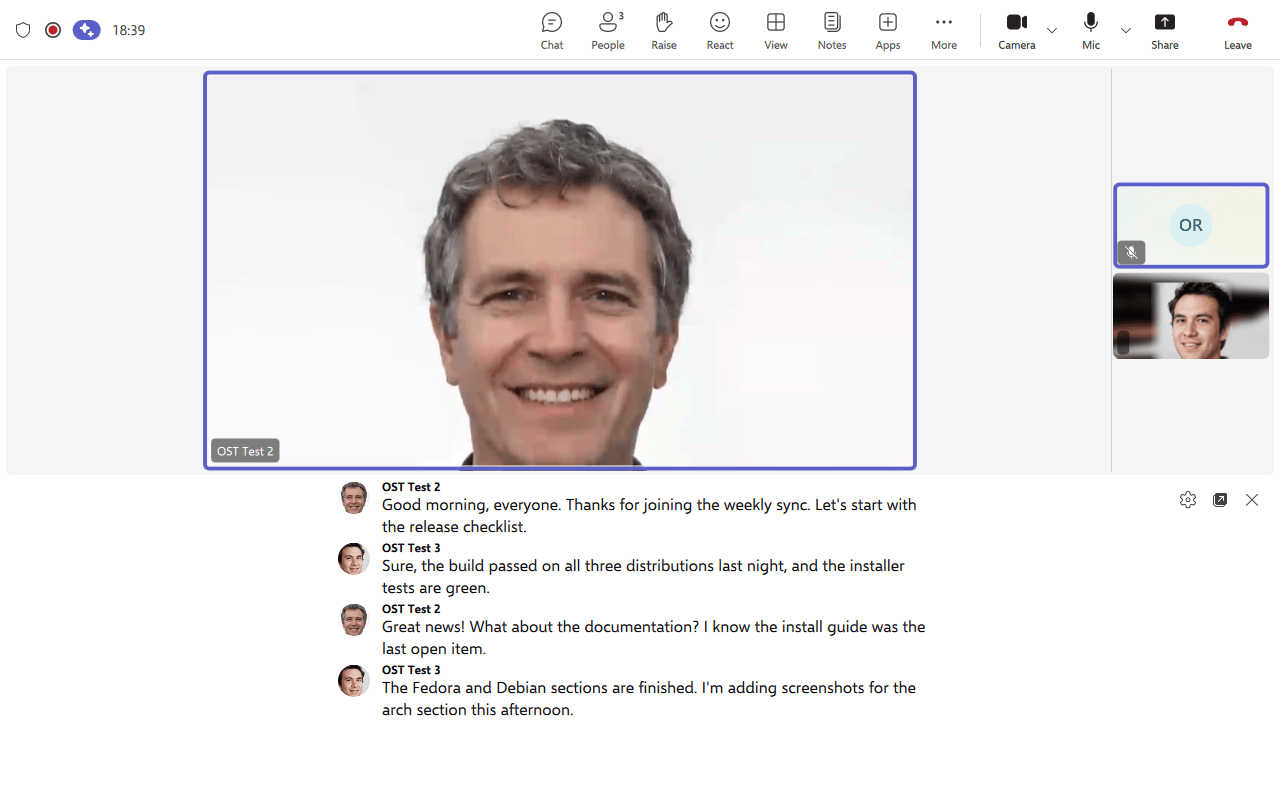
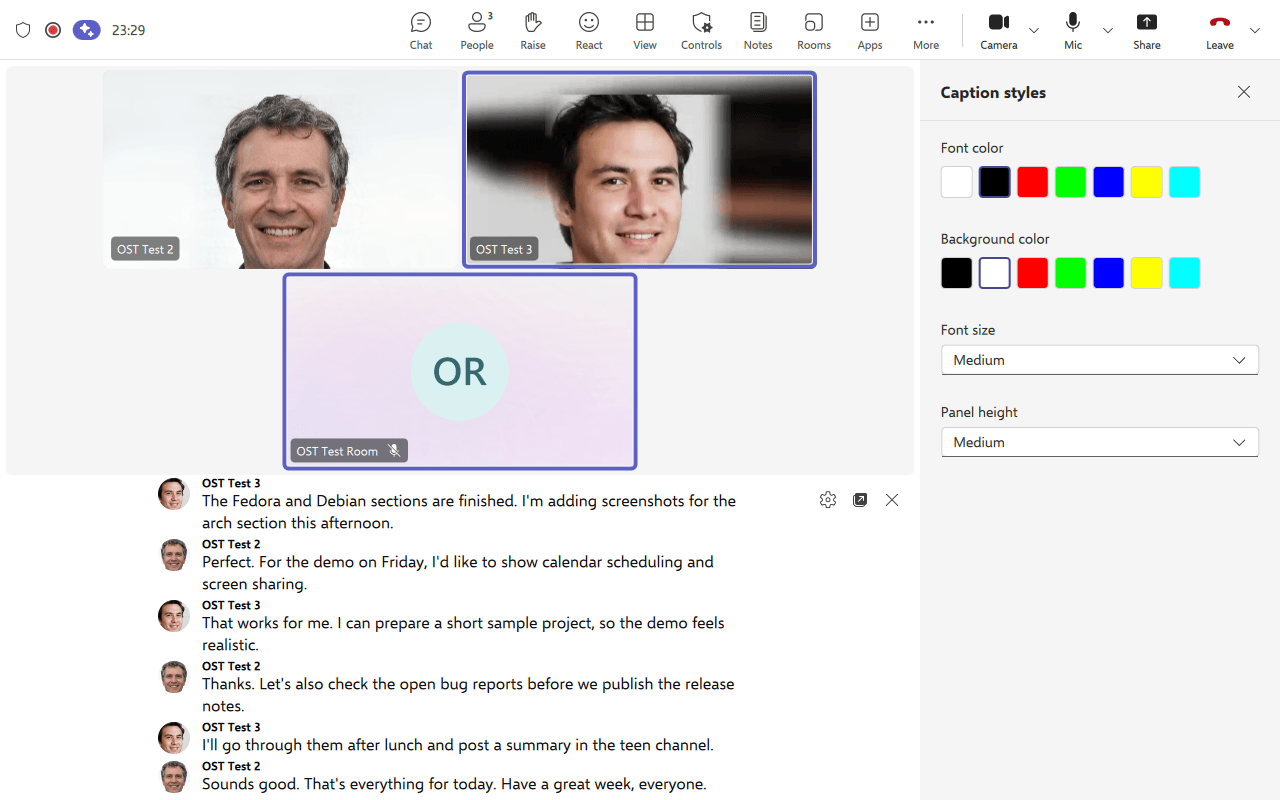
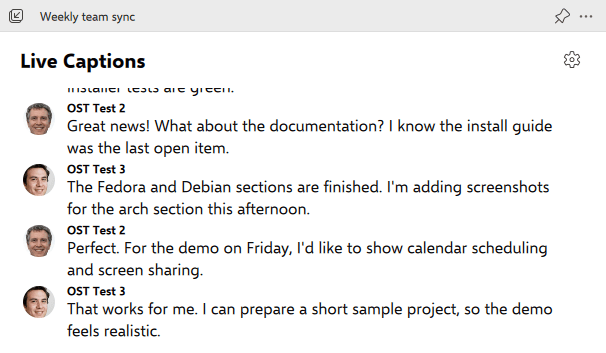
- More ▸ Captions turns on live captions for you: what's said appears under the stage with each speaker's name. Settings ▸ Accessibility ▸ Always show captions in my calls and meetings turns them on every time.
- The captions' Open caption settings menu: Meeting spoken language (the language everyone speaks; organizers set it for all), Always turn on captions, Filter profane words, Position (At bottom, At top), translated captions where your license allows (Teams Premium), and Caption styles.
- Caption styles opens a side pane: Font color, Background color, Font size (Small to Extra large) and Caption window height, with a preview.
- Open captions in new window pops the captions out into their own window, which you can move and resize.
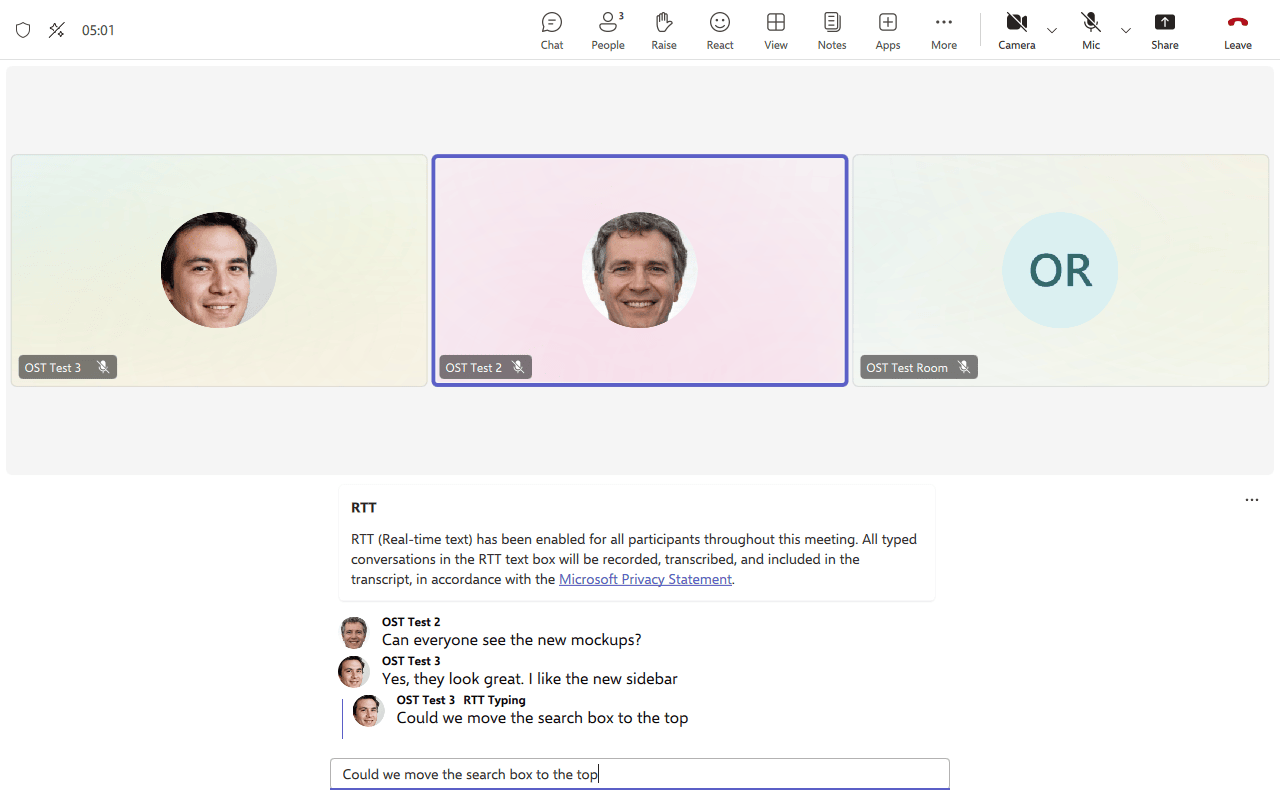
- RTT (real-time text, More ▸ RTT): a box to type in that everyone sees as you type; RTT text is included in the transcript.
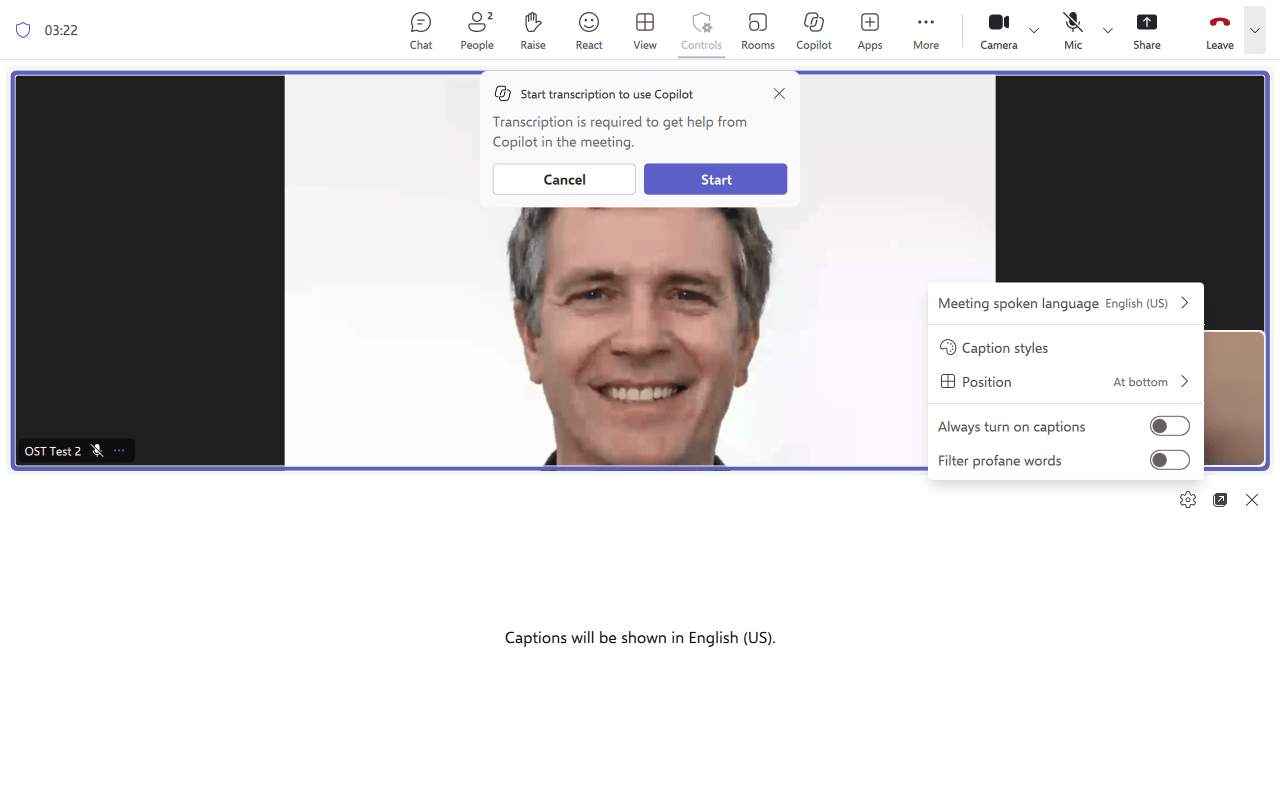
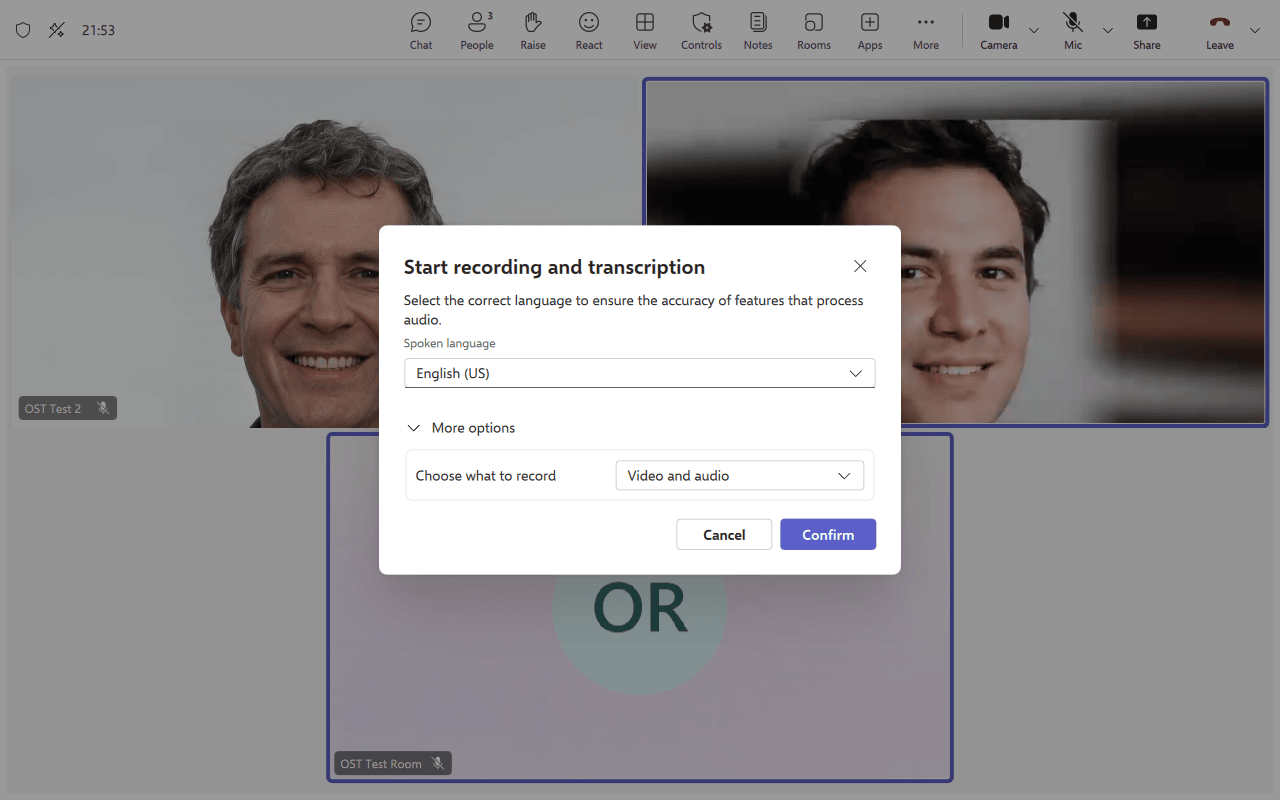
- More ▸ Record or Transcribe asks first, as Teams does: Choose what to record (Video and audio or Audio only) and What language is everyone speaking? (Spoken language), then Start recording or Start recording and transcription. Everyone sees the recording notice.
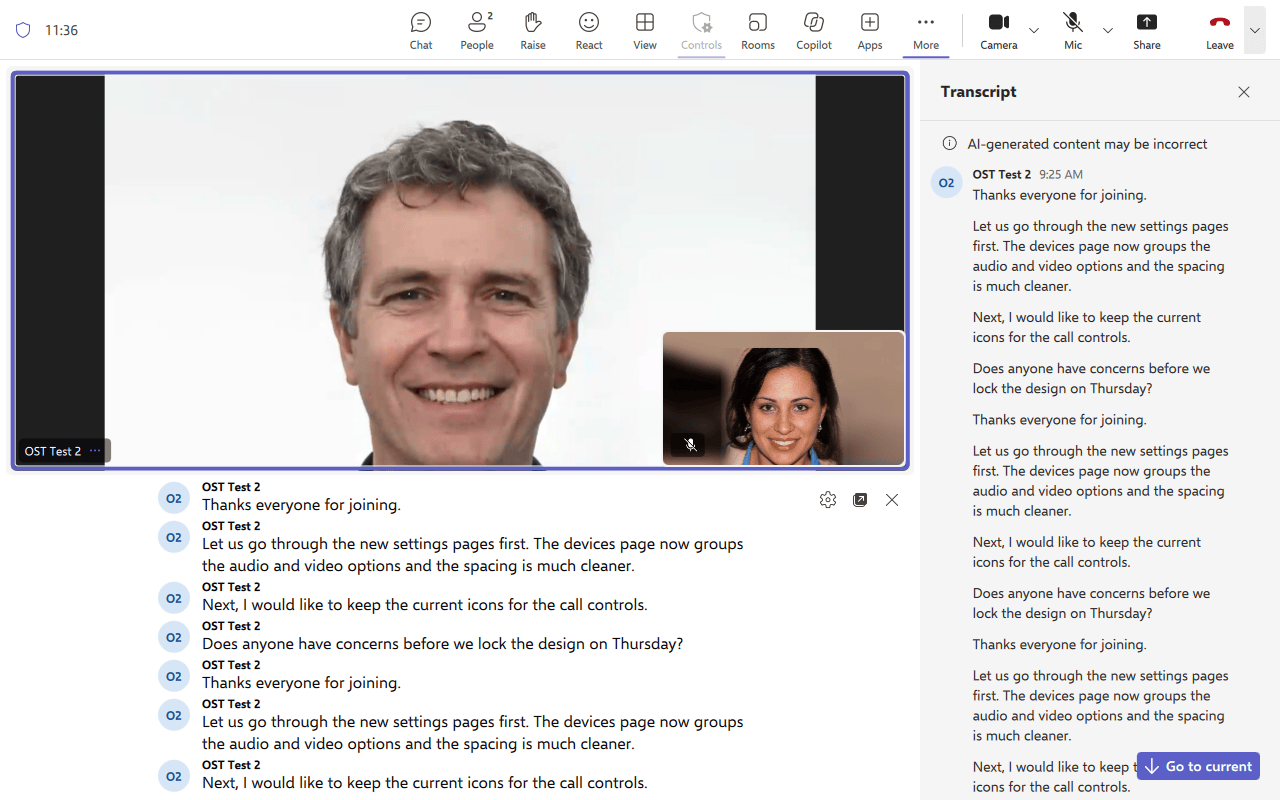
- Show transcript opens the transcript pane: the live transcript with speakers and times, Go to current, Language settings and Switch to live captions.
- After the meeting the recording and transcript are in the meeting chat's Recap (see Meeting recaps).
- In an end-to-end encrypted 1:1 call, recording and transcription aren't available; OST says so, as Teams does.
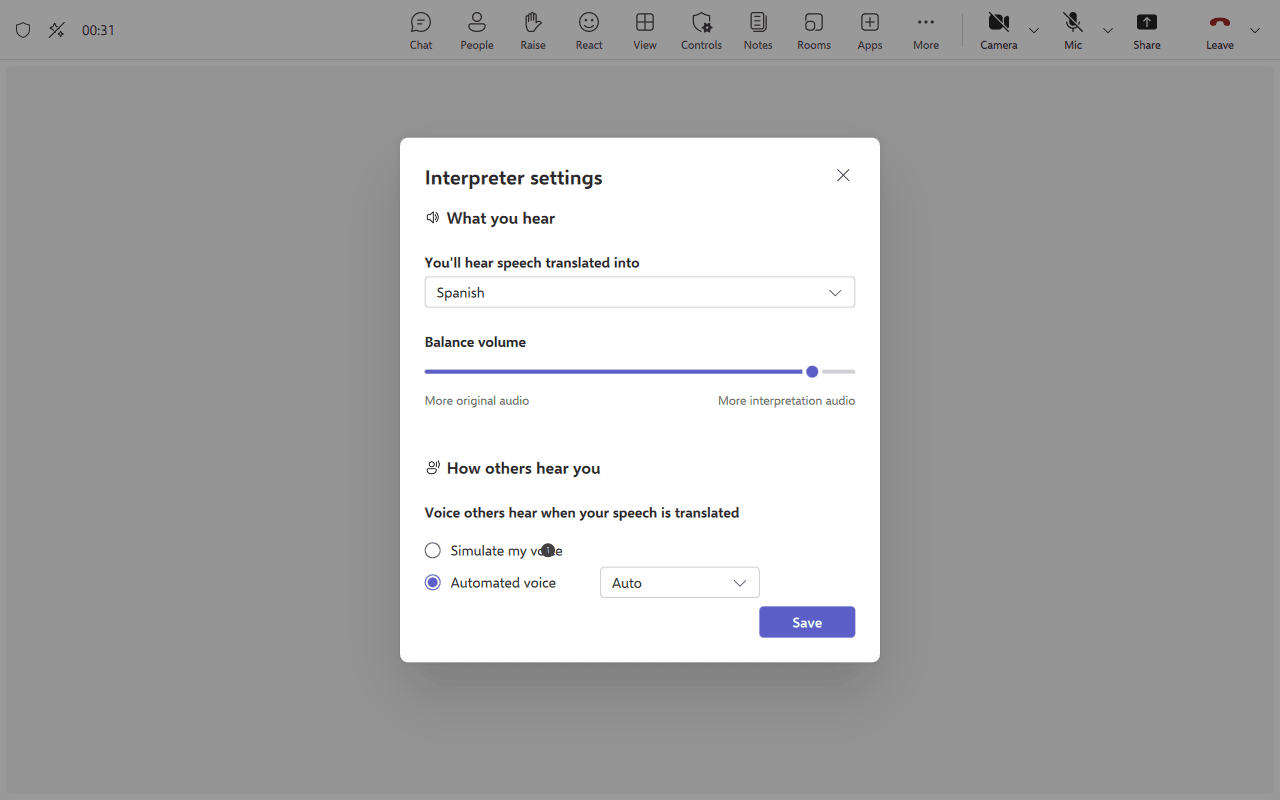
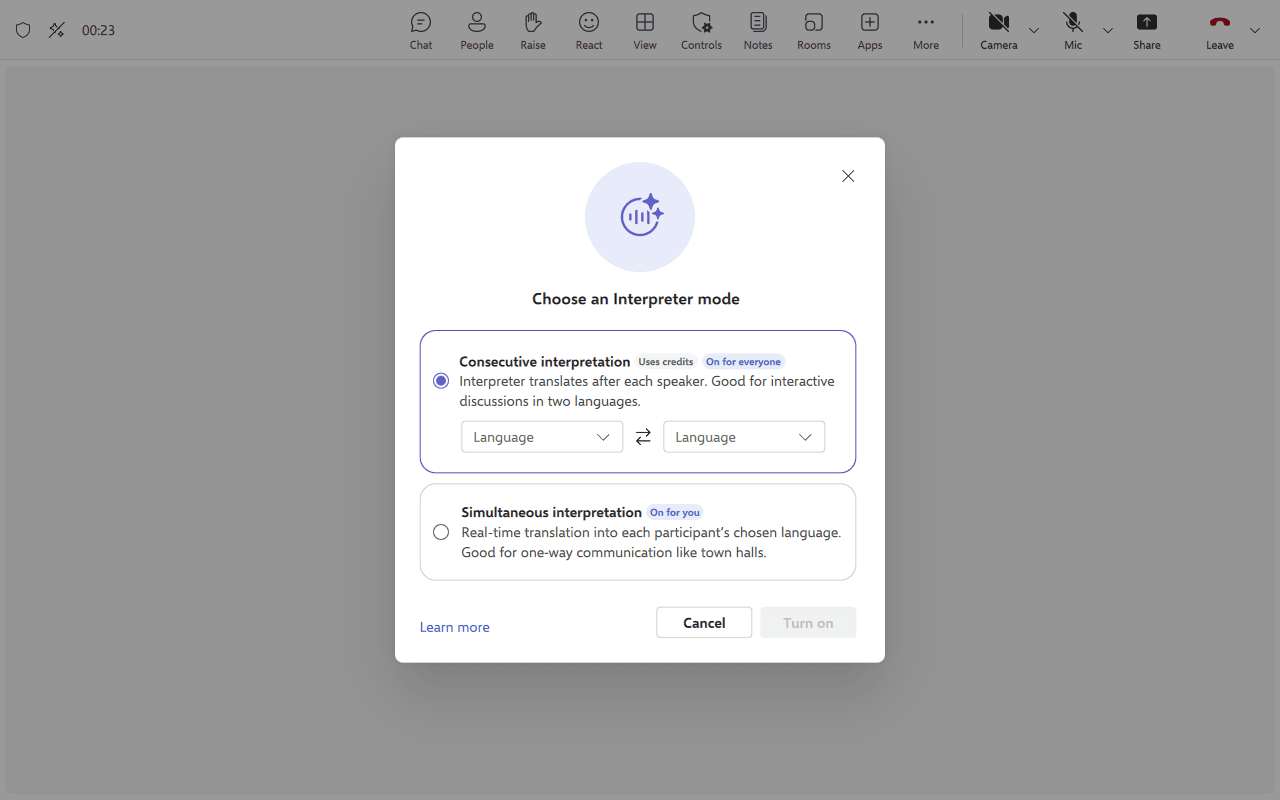
- Interpreter (AI interpretation; with Copilot or your organization's license): More ▸ Interpreter. Organizers Choose an Interpreter mode: Simultaneous interpretation (real-time translation into each participant's language) or Consecutive interpretation (after each speaker, in two languages), On for everyone or On for you. Set up your Interpreter: Choose interpretation language, What you hear (balance between original audio and interpretation), and How others hear you (Simulate my voice or an Automated voice).
- Language interpretation with human interpreters: organizers turn on Enable language interpretation in Meeting options and add the interpreters; attendees then pick the language they hear.