Repository navigation
Presence and status
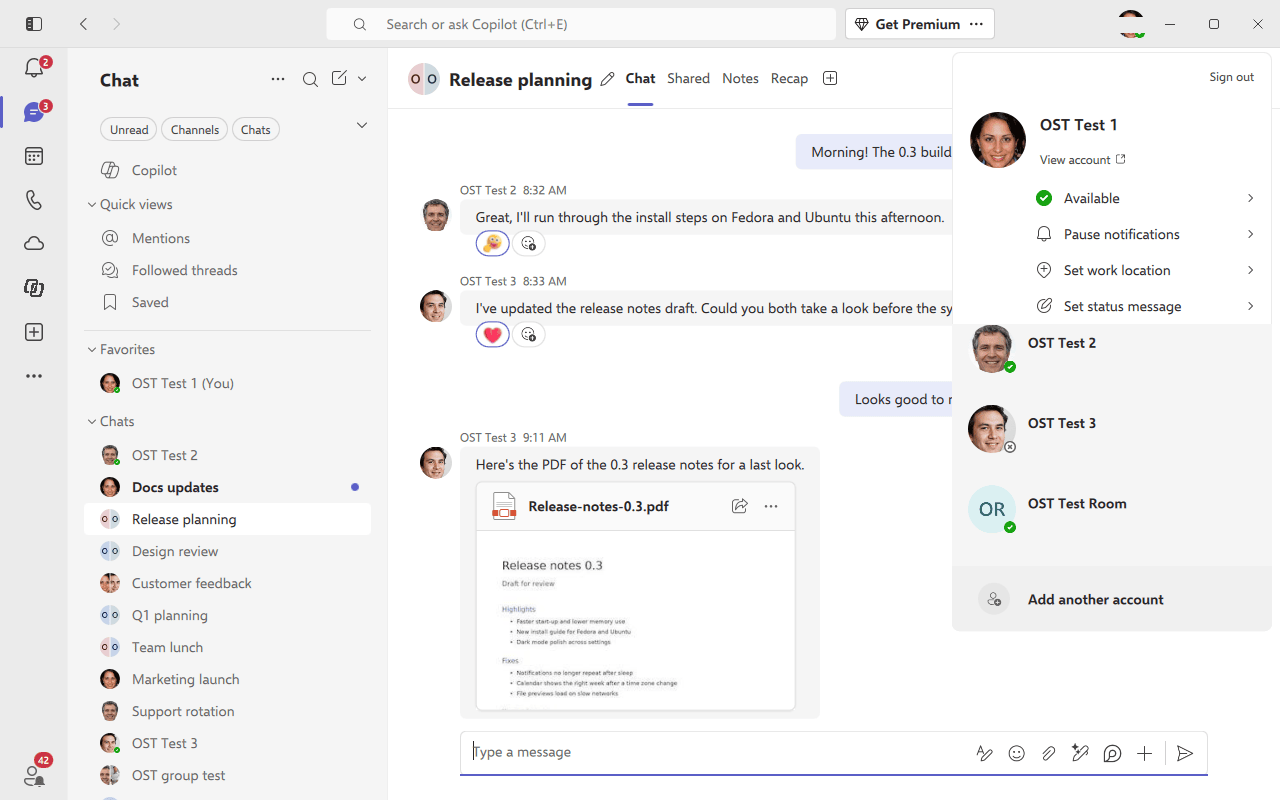
Select your picture (top right) for the profile flyout: your name and address, View account, your status, status message and work location, Pause notifications, Schedule out of office, the other accounts on this computer, Add another account and Sign out.
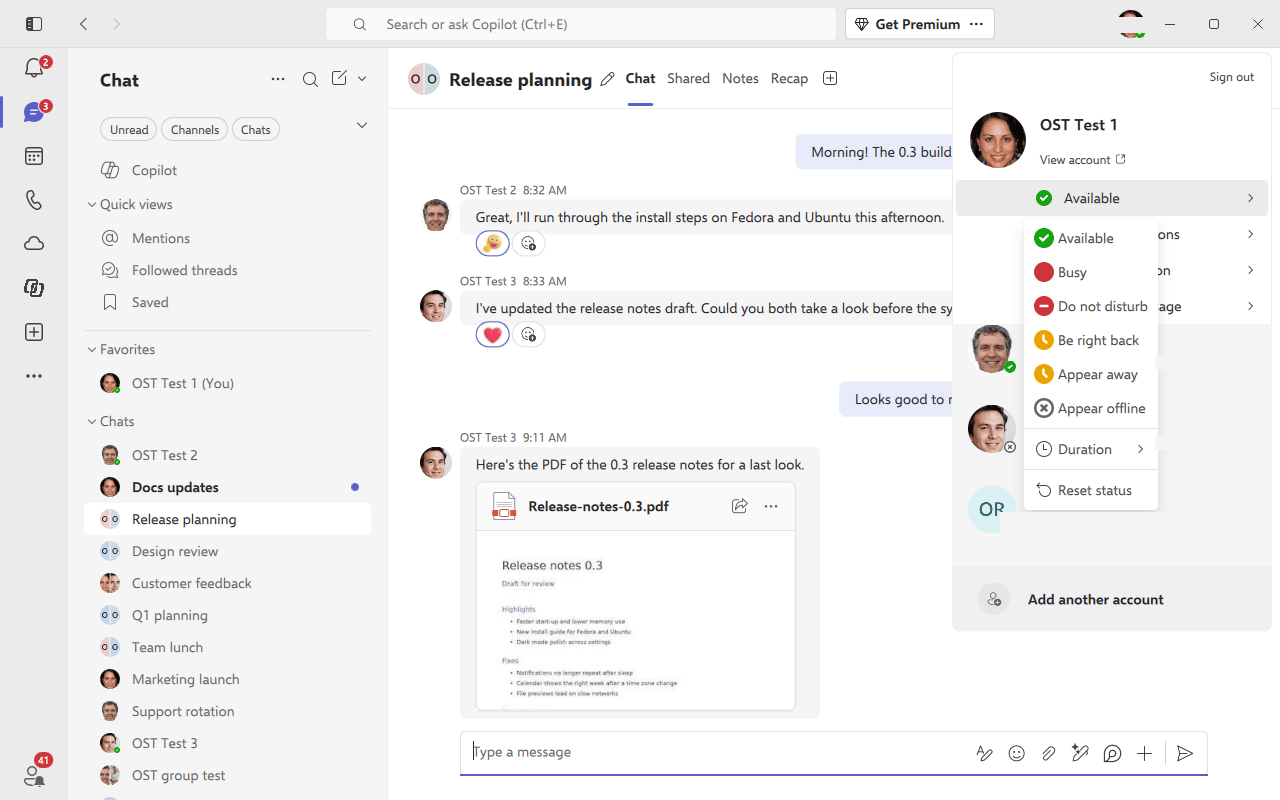
- Pick Available, Busy, Do not disturb, Be right back, Appear away or Appear offline, then Duration: 30 minutes, 1 hour, 2 hours, For today, This week or Custom (a date and time). Reset status goes back to automatic.
- Automatic presence follows what you do, as in Teams: Away when you've been idle, In a call, In a meeting, Presenting while you share your screen (and Do not disturb then, if Settings ▸ Privacy says so), and Out of office while automatic replies are on.
-
teams-cli presence --setsets the same status from a terminal.
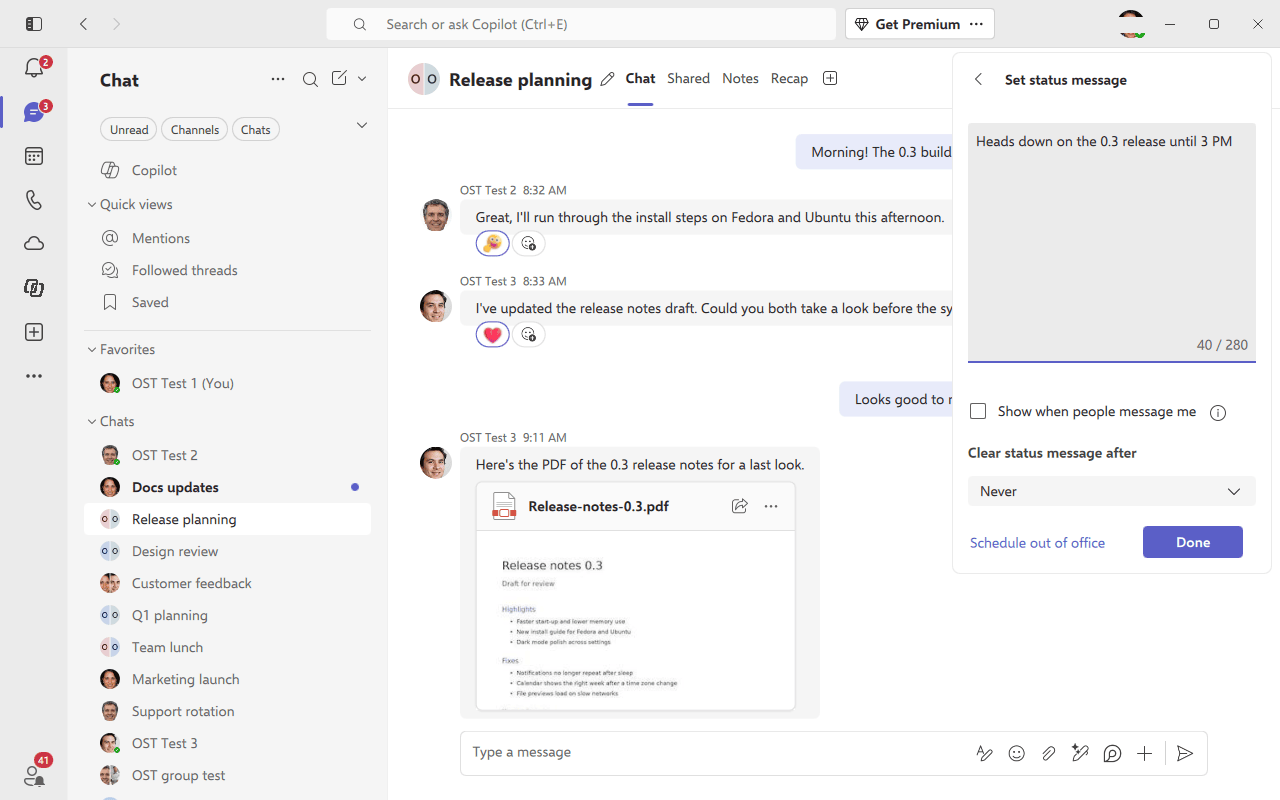
Set status message opens the status message editor: type a message (Type @ to mention someone in your status), Show when people message me (the message shows above their compose box when they write or @mention you), and Clear status message after (Never, Today, 1 hour, 4 hours, This week, Custom). Delete status message clears it.
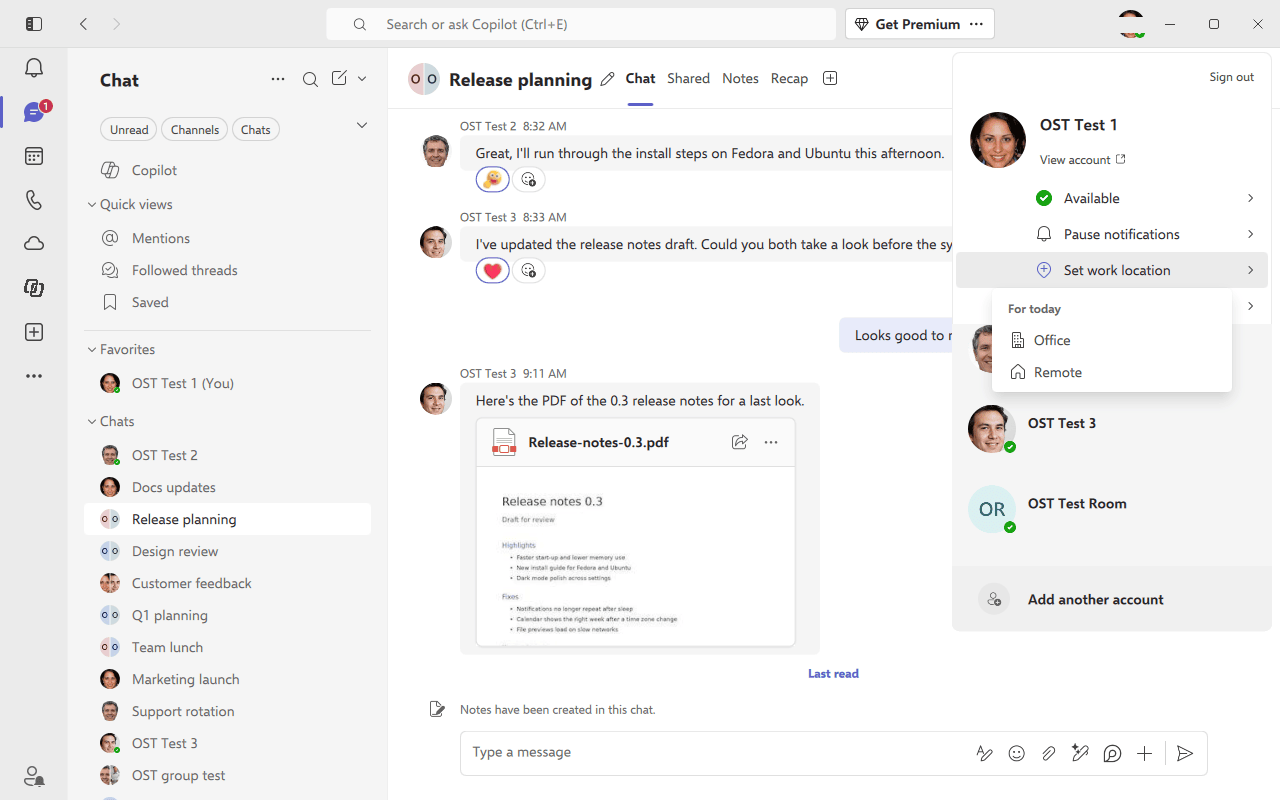
Where your organization uses work location (Microsoft Places):
- Set work location: Office (a building, where offered) or Remote, until the end of the day; Clear work location. It shows on your profile card ("In the office", "Working remotely") and in Outlook.
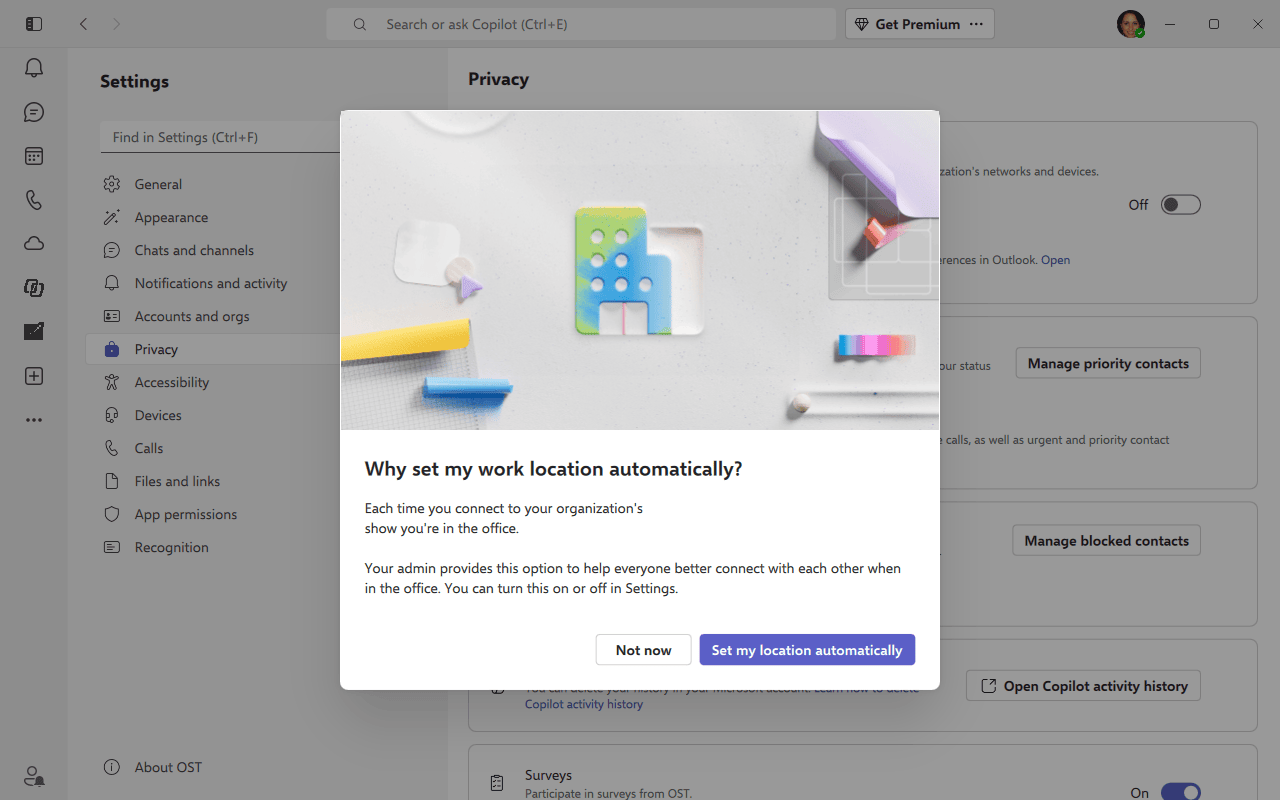
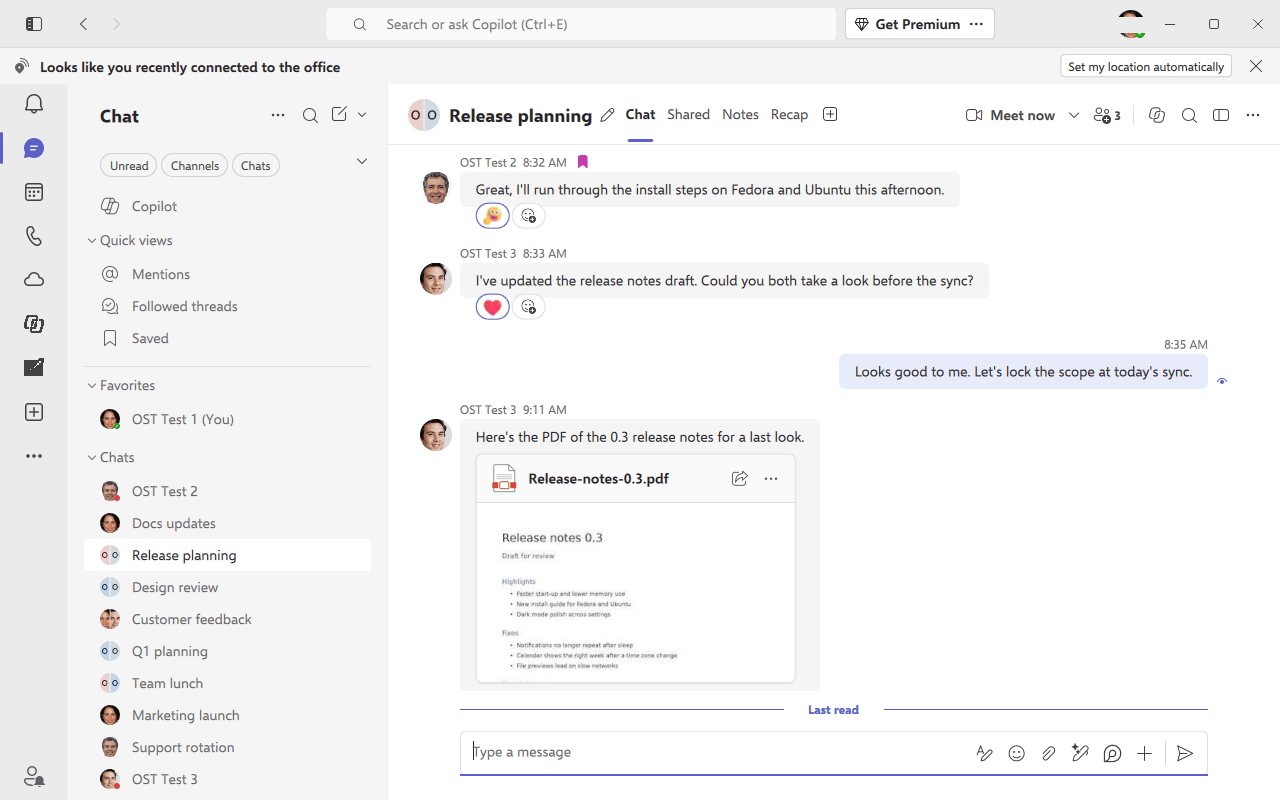
- Automatic work location: with Settings ▸ Privacy ▸ Manage my work location on, OST checks you in to the office when your computer connects to the office Wi-Fi (or a registered office device), and checks you out when you leave. Why set my work location automatically? explains it (Set my location automatically, Not now).
- Banners: the first time you're on an office network, a banner offers to set your location automatically (Tell me more, Set my location automatically). If you're checked out from a computer that stays in one building, a check-out banner offers Open settings (to set a Stationary device location) or Don't show again.
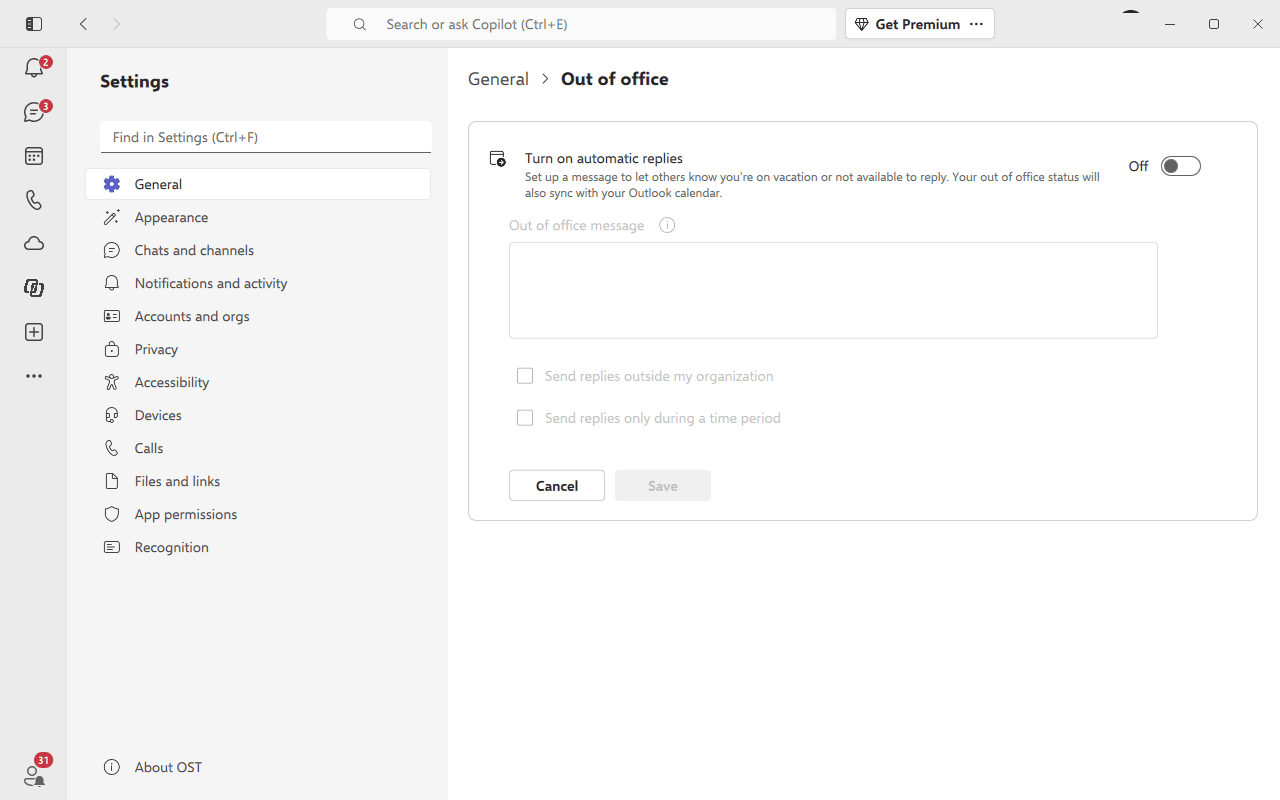
Schedule out of office opens the out of office page (also Settings ▸ General ▸ Out of office ▸ Schedule): Turn on automatic replies, the message, replies outside your organization and an optional time period. See Settings. While it's on your status shows Out of office.
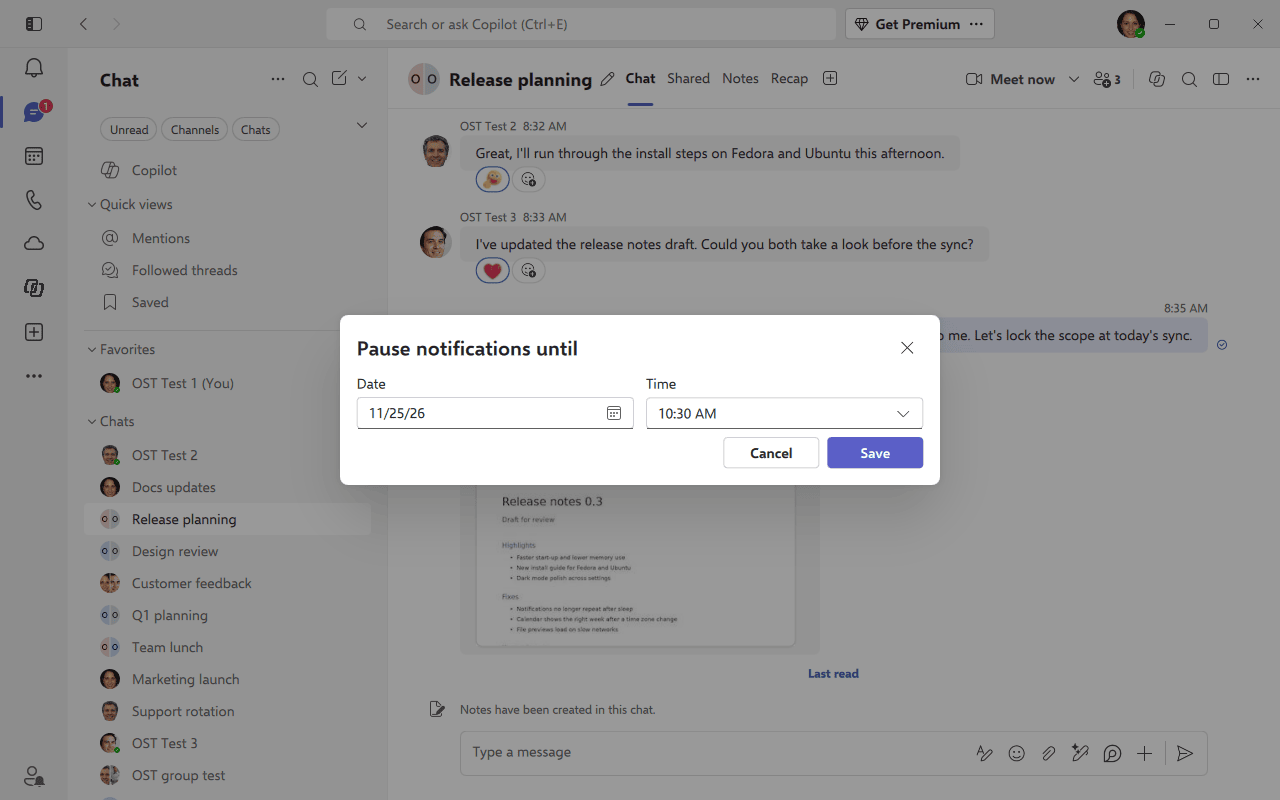
Pause notifications sets your status to Do not disturb and holds banners and sounds until the time you pick (Pause notifications until; Edit pause duration, Resume notifications). The flyout says Notifications paused until then, and Notifications settings opens Settings ▸ Notifications and activity.
Each account runs as its own profile in its own OST window. The flyout lists the other accounts with their status (Switch to account); Add another account starts a new profile's sign-in in a new window. See Configuration.
- OST's tray icon shows your presence. Its menu sets your status and has Help ▸ Collect Support Files and Quit OST. Clicking the icon shows or hides the window.
- Close to tray: with Settings ▸ General ▸ On close, keep the application running on, closing the window leaves OST running in the tray, so calls and notifications still reach you. Quit OST in the tray menu ends it.
- The unread count (or your presence) is drawn on the window icon, and the count is sent as a launcher badge (KDE task manager, GNOME docks), as Teams overlays its taskbar button.