Repository navigation
Teams and channels
Your teams and their channels are in Chat ▸ Teams and channels, as in Teams' combined chat and channels view (filter with Channels). With Settings ▸ Chats and channels ▸ Viewing chats, teams, and channels ▸ Separate, they move to their own Teams app in the app bar.
- Your teams in Teams' order (drag to reorder, or Start reordering), each with its picture and its shown channels. Hidden channels stay in Manage team ▸ Channels.
- Bold teams and channels have unread posts.
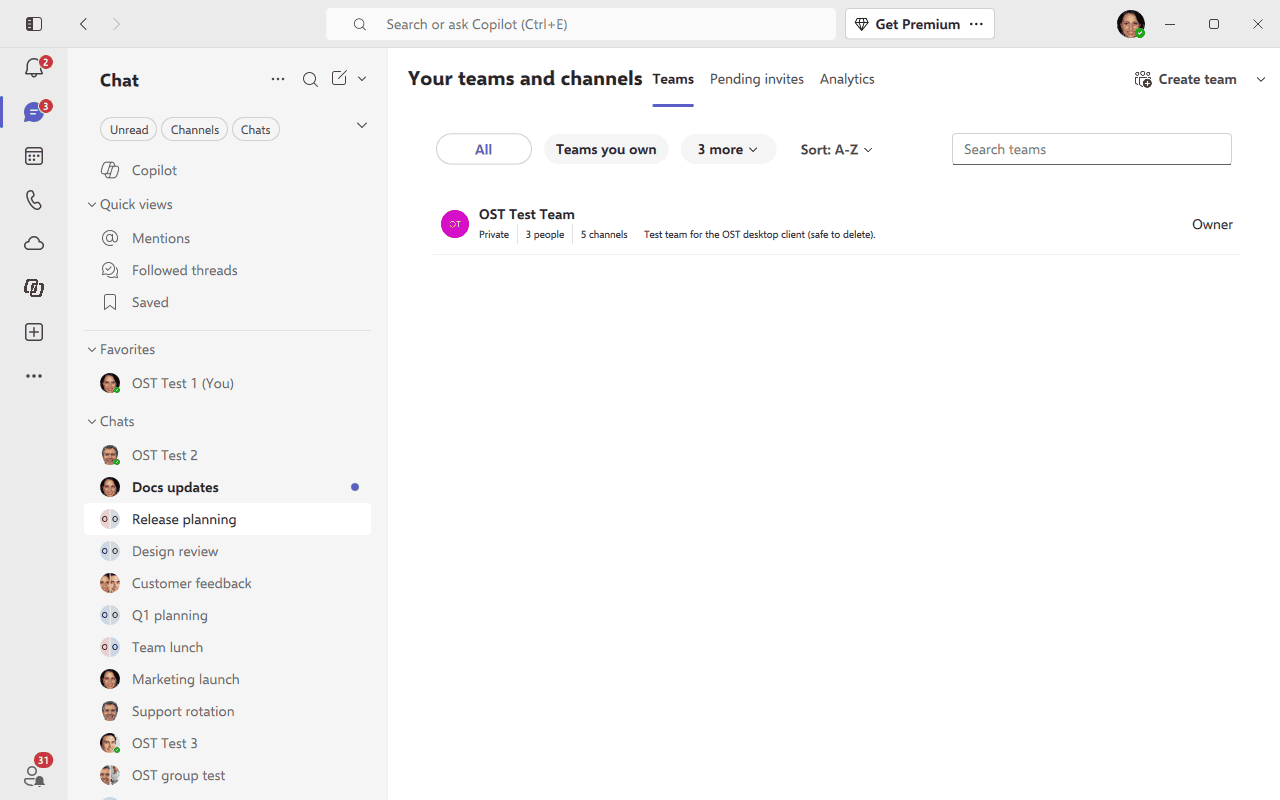
- See all your teams opens Your teams and channels: every team (Teams you own, Teams with channels shown, Teams with channels hidden, Archived Teams), with search, sort (A-Z, Z-A), membership and type filters, and Pending invites to shared channels (Accept, Decline).
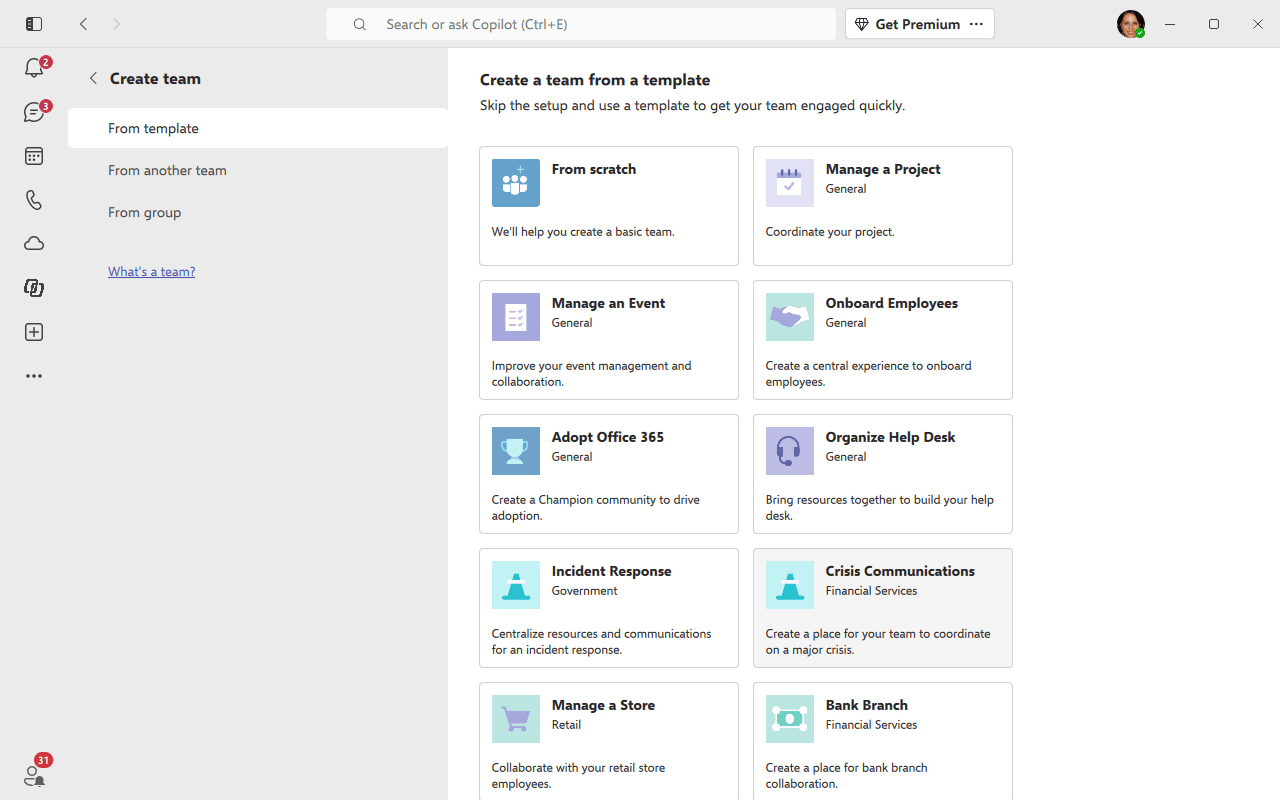
- Create team (at the top of Teams and channels, or in Your teams and channels) opens Create a team: From scratch, From template, From another team (copy its apps, settings and channels) or From group (an existing Microsoft 365 group). Then the Team name, Description, Team type (Public: anyone in your org can join; Private: people need permission), the first channel's name and Add Channel Agent. A template shows its channels, apps and tabs first (Use this template).
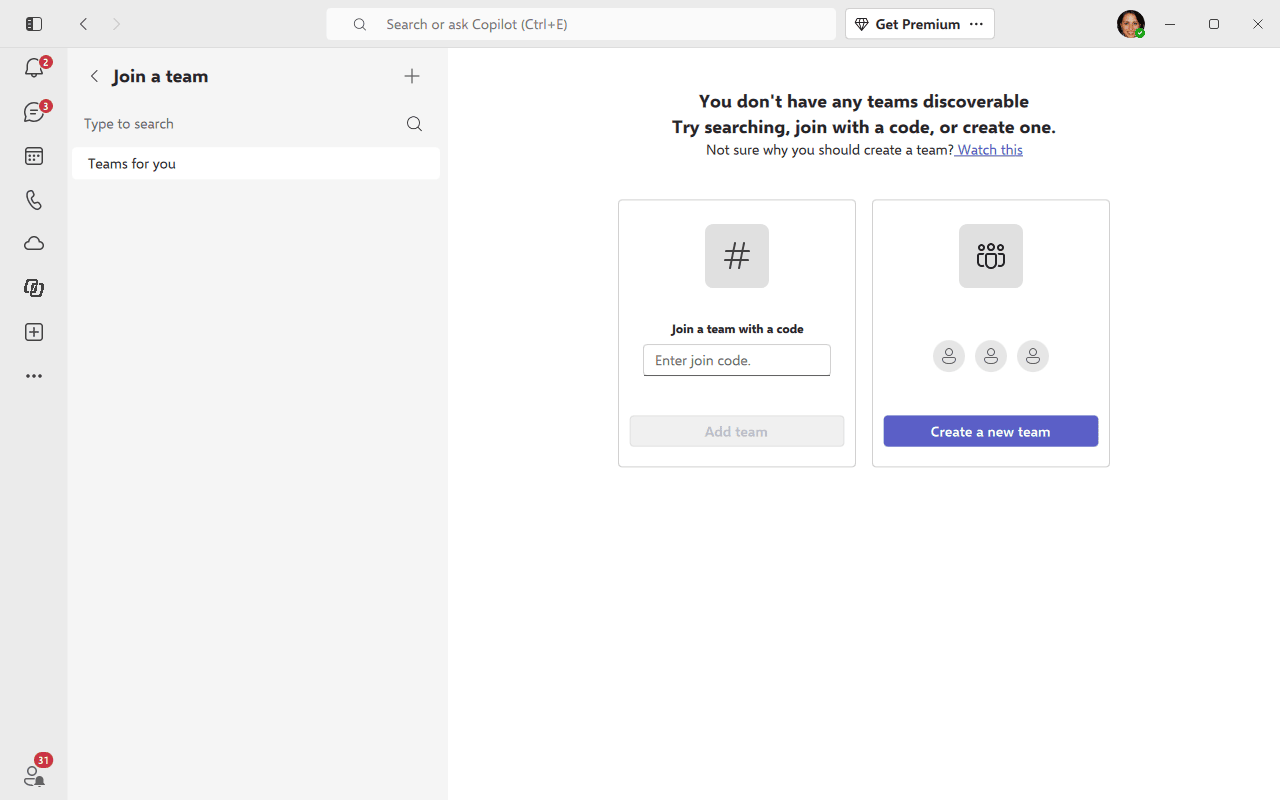
- Join Team opens Join a team: Teams for you (discoverable public teams, with search) and Join a team with a code.
- After creating a team with Channel Agent, a toast reports "Channel Agent is being added." and then "Channel Agent has been added to this channel." with Go to channel.
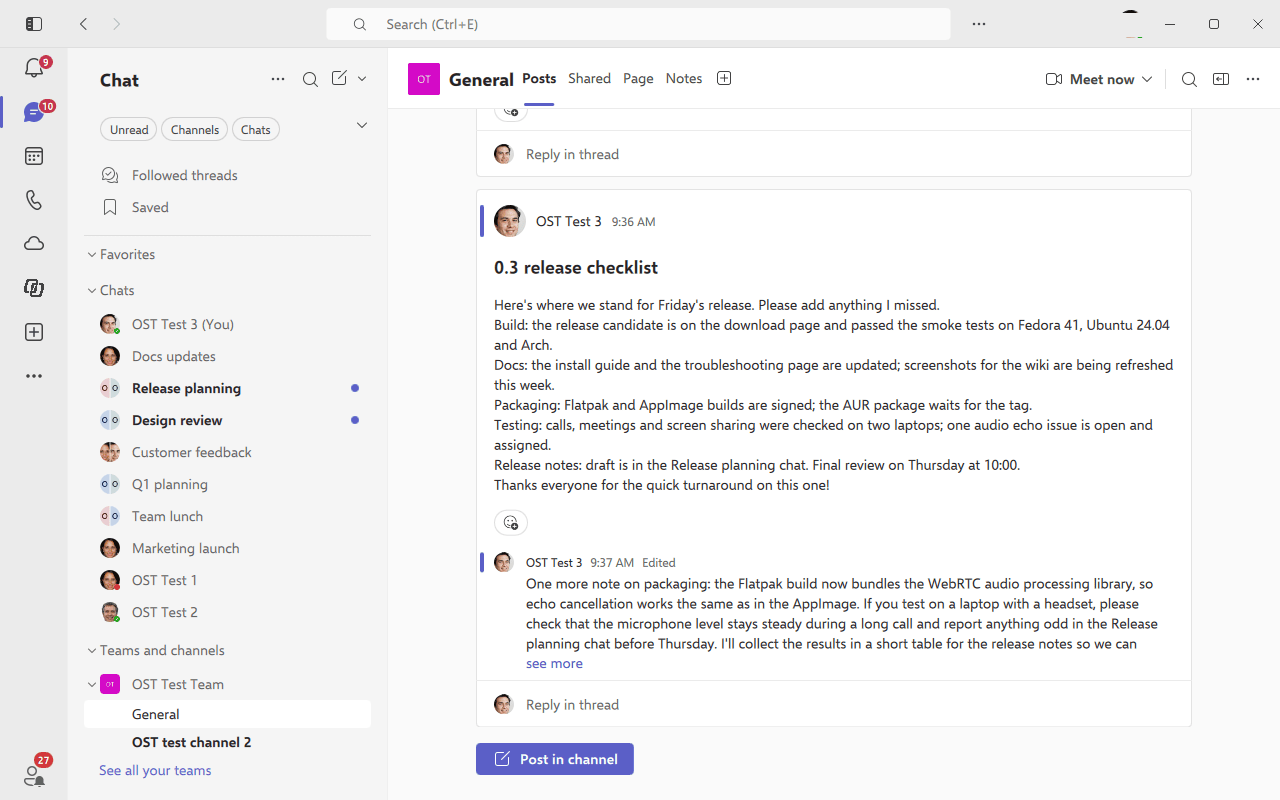
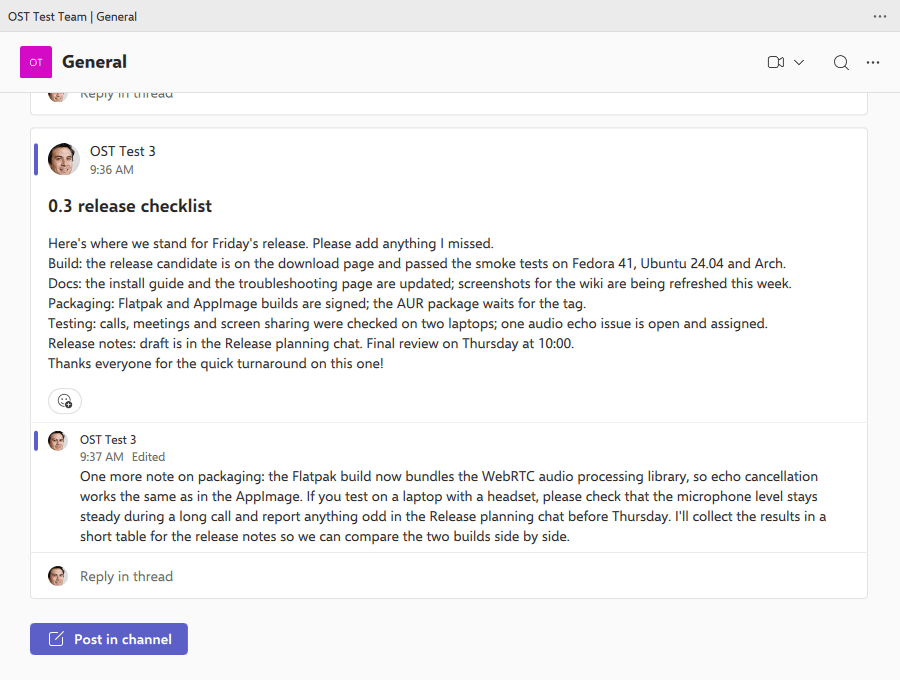
A channel with the classic Posts layout shows each post as a card with its replies. Posts reorder by most recent reply; See new posts at top or at bottom is in the channel's menu, and Settings ▸ Chats and channels ▸ In post channels, show recent activity sets the default.
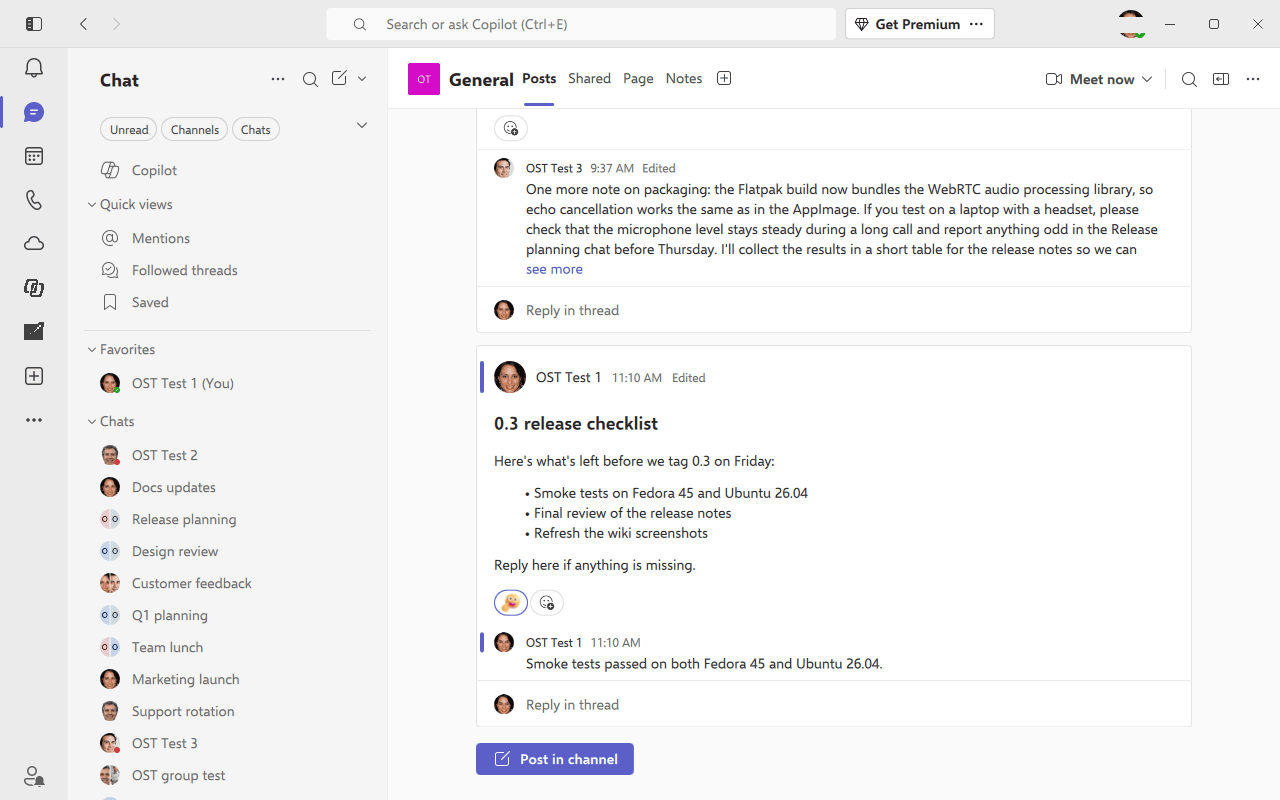
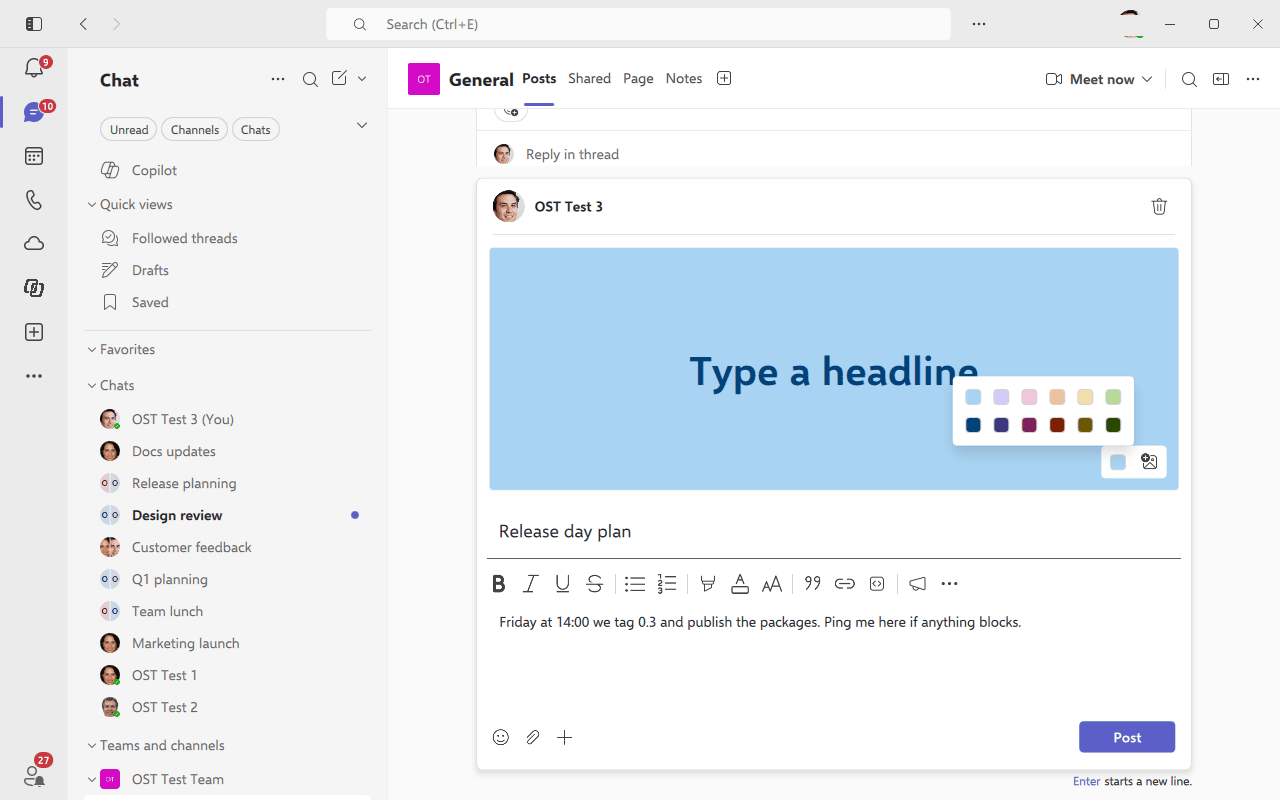
- Post in channel opens the post composer: Add a subject, the message with the format bar, attachments, Loop components and pictures. Announcement (in the format bar's style menu) adds a headline banner (Type a headline, Add a subheading) with a color scheme or Add a background image (Upload an image, crop).
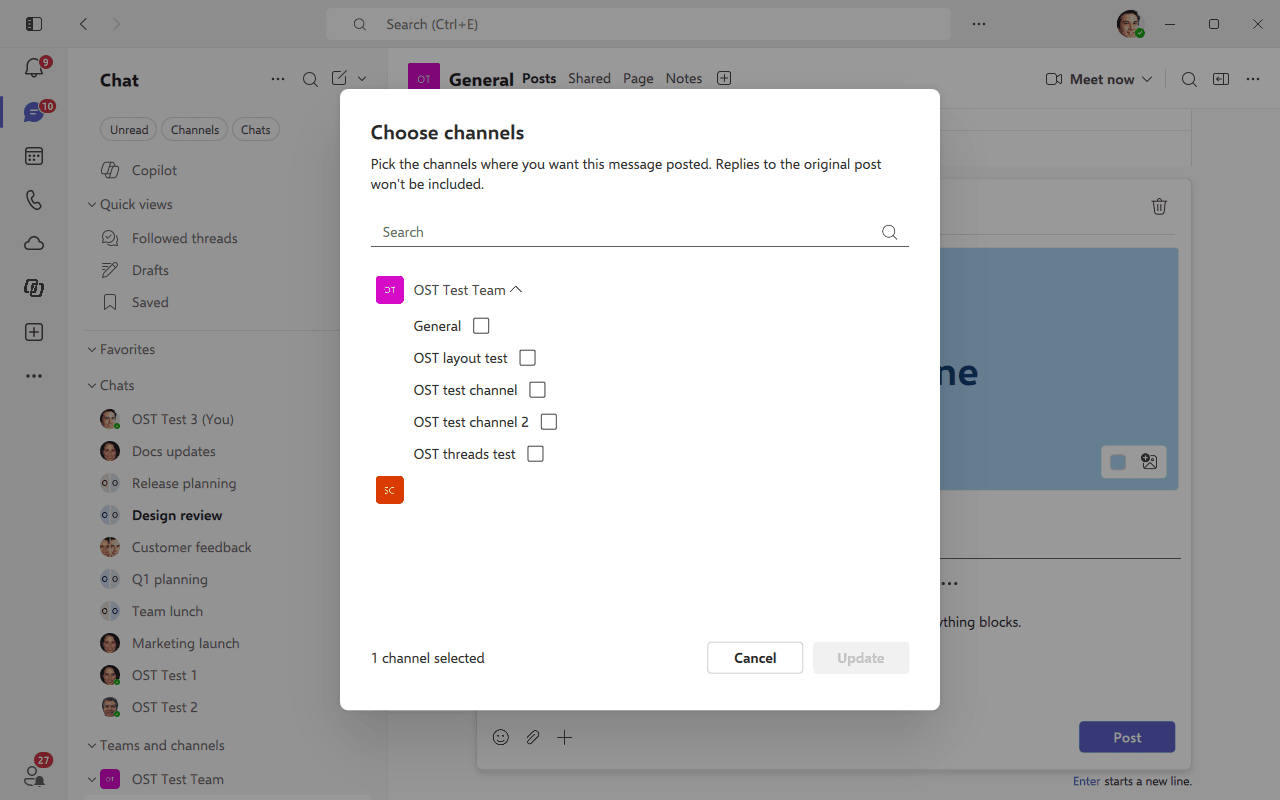
- From the composer's +: Change permissions (Who can reply: Everyone, or You and moderators) and Post in other channels (Choose channels; replies to the original aren't included).
- Reply in thread answers a post below it.
- Pictures in posts show inline and open in the picture viewer.
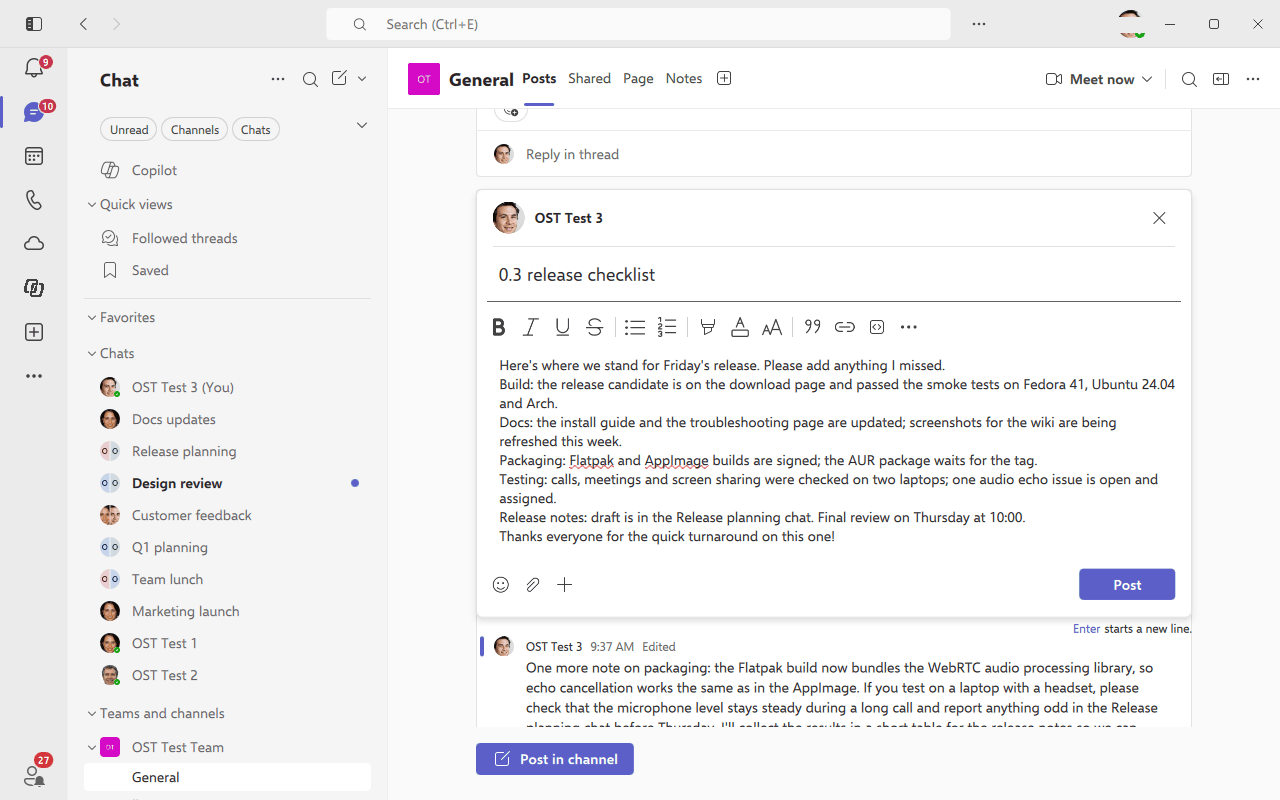
Edit on your own post opens the full post composer in the post's place, with its subject, formatting, attachments and Loop components, and + as above. A message's own Loop component and video clip stay in its edit box.
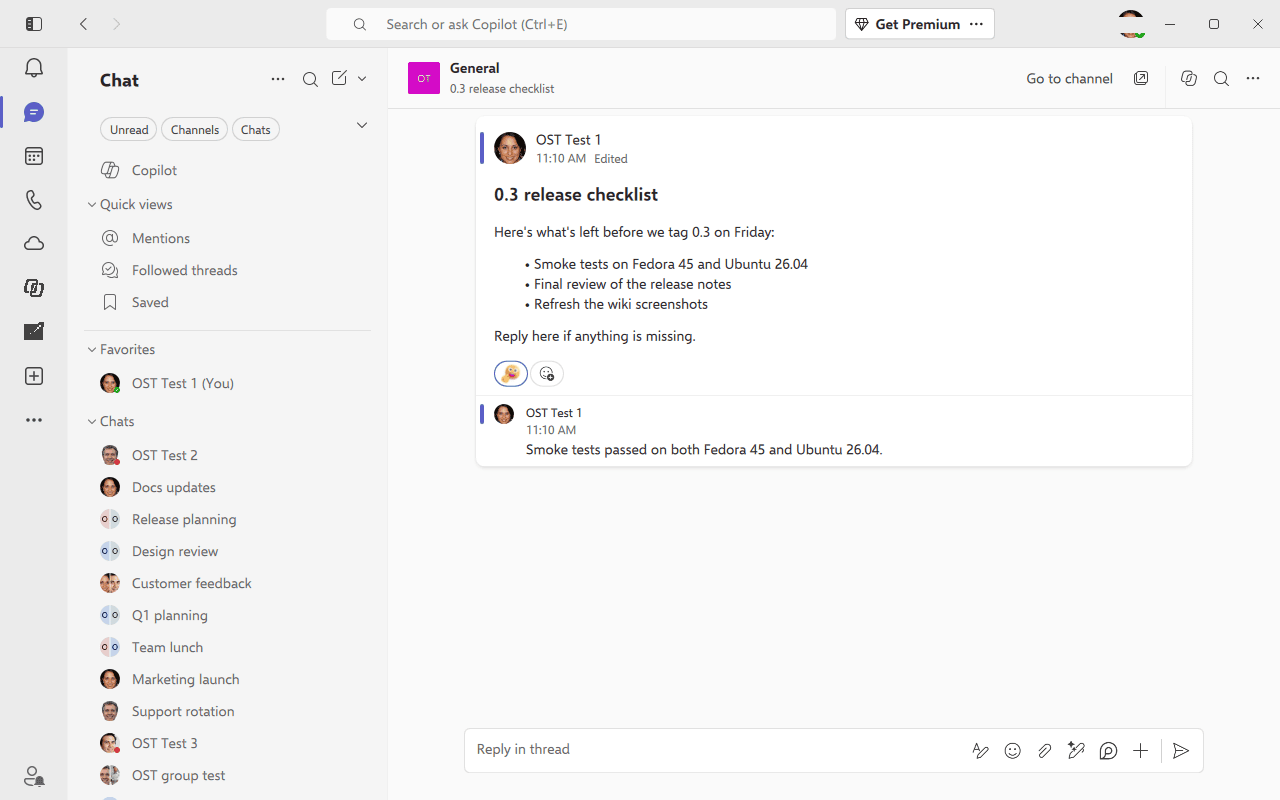
Opening a post shows it on its own (Post by …), with Go to channel and its reply box. Its ··· has Find in post, Follow thread / Unfollow thread, Open in new window and View Copilot history (with Copilot):
A post's own ··· adds Pin for everyone, Follow thread, Open conversation in new window and Mark as unread to the usual message actions (see Chat messages).
- Meet now in the channel header starts a channel meeting. It posts a live card with Join while the meeting runs, then "Meeting ended" with its length, recap and attendance.
- Schedule a meeting in a channel posts the meeting's calendar card.
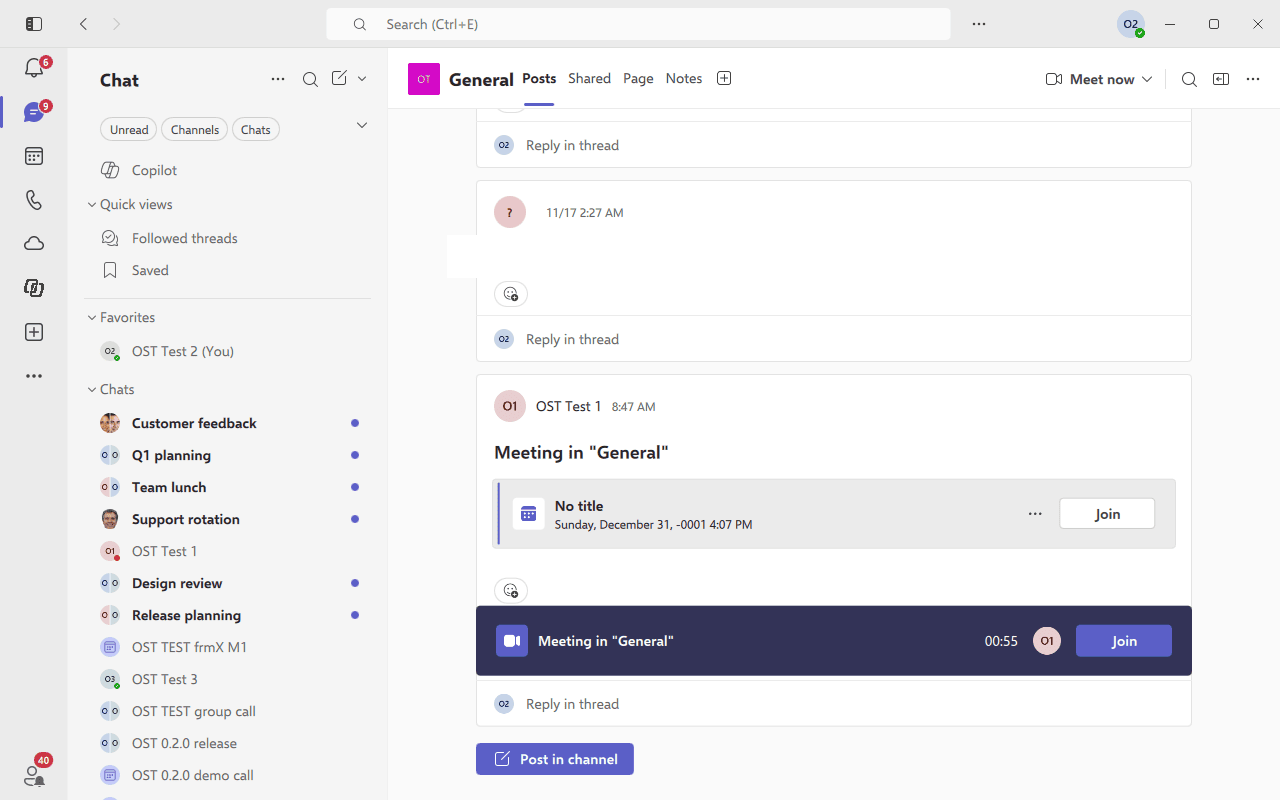
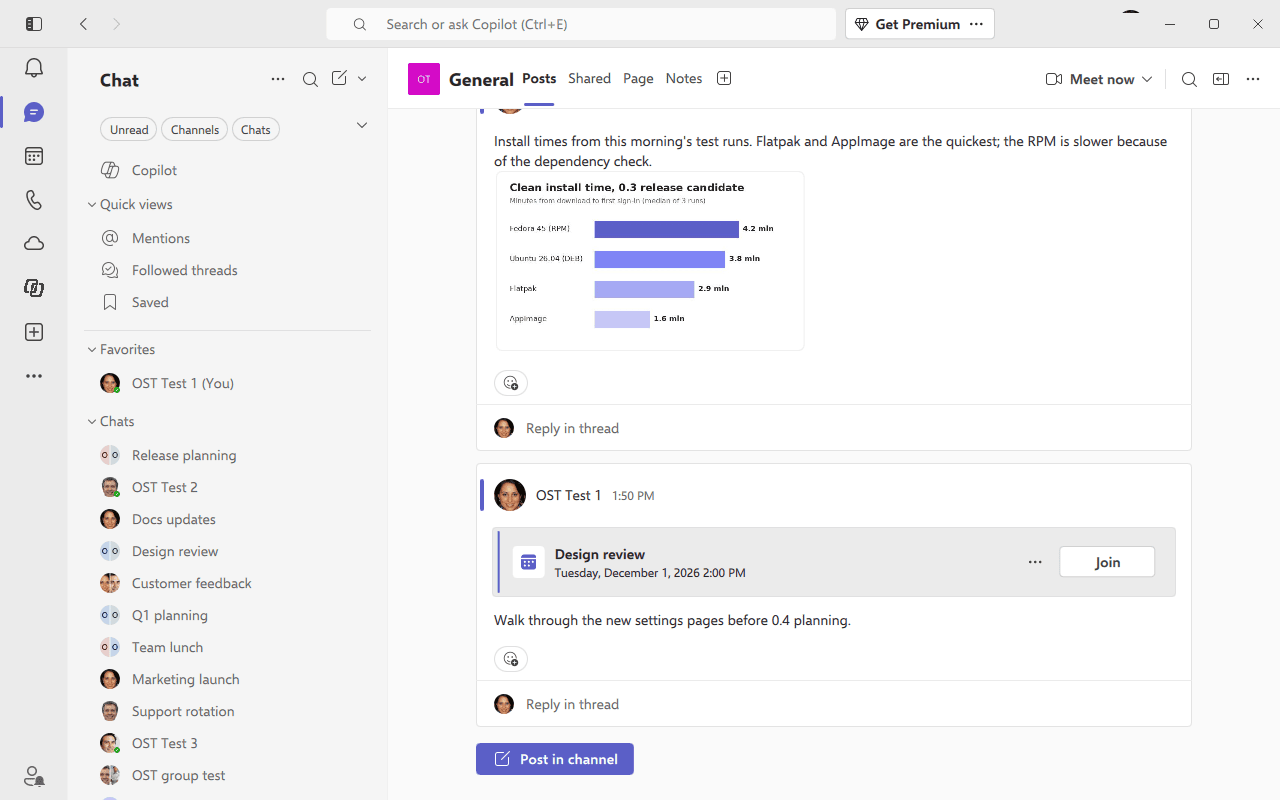
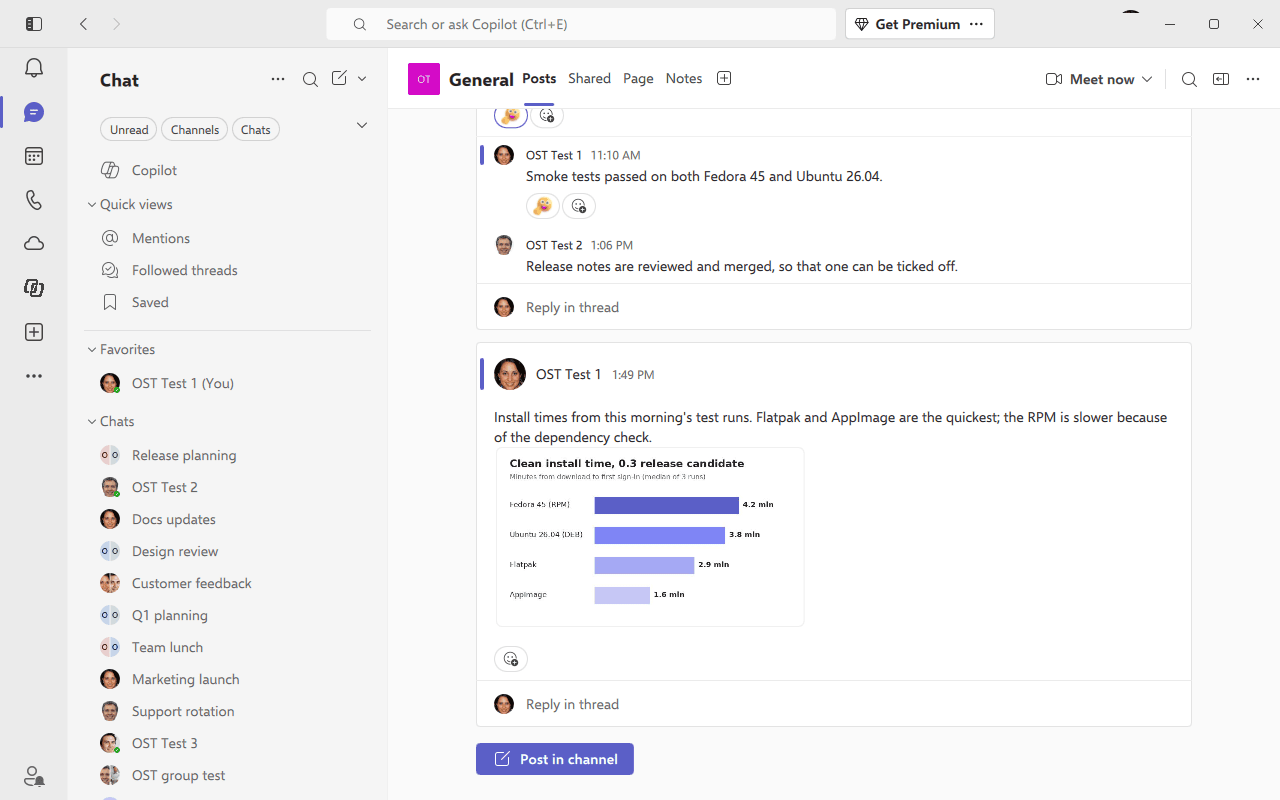
A channel with the Threads layout reads like a chat, in its Conversation tab: messages in bubbles, each with its reply count.
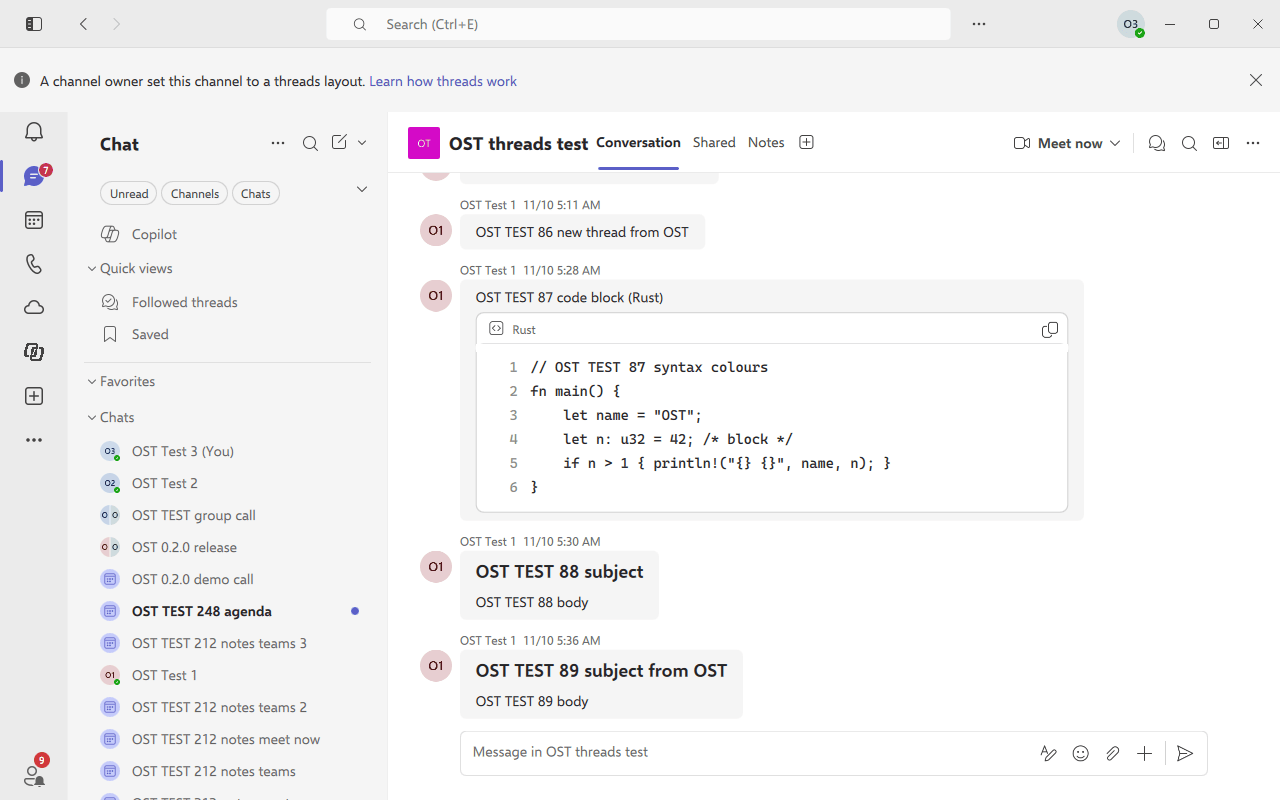
- Reply in thread opens the thread in the side pane (Thread: …), with Jump to original message, Follow thread, Copy link, Mark as unread and Open thread in new window.
- Open threads lists every thread; unread threads have a bold reply count and a Last read line.
- A reply can also go to the channel: Send to: Thread and channel ("Also sent to channel"), or Thread only.
- When an owner switches a channel to threads, the channel shows "A channel owner set this channel to a threads layout".
- In a narrow window the tabs fold into Conversation ⌄.
- Follow thread notifies you of new replies; followed threads are in Chat ▸ Quick views ▸ Followed threads. With Copilot, a thread's header has Open Copilot, told about that thread.
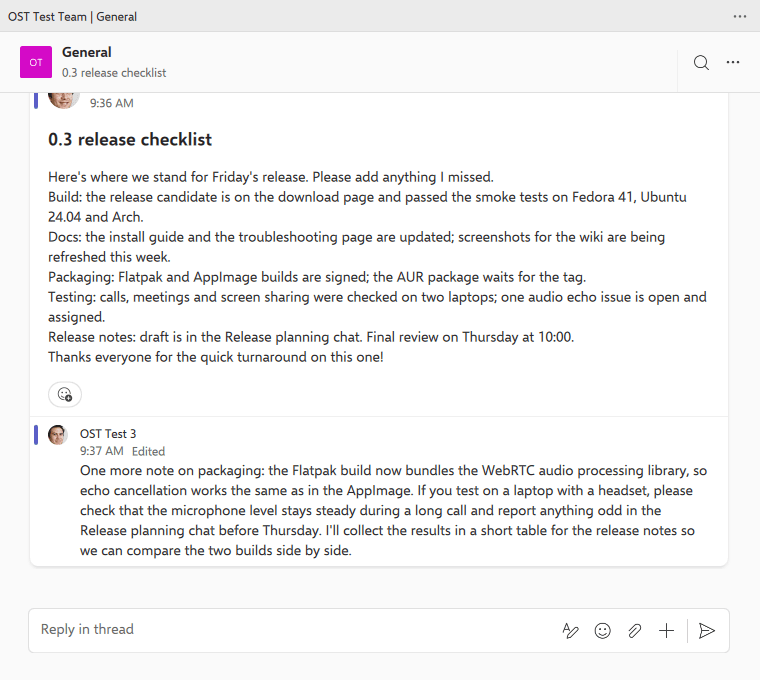
The channel header has Meet now (with Schedule a meeting in its split button), Find in channel, Open channel details (members and details) and More channel options (···).
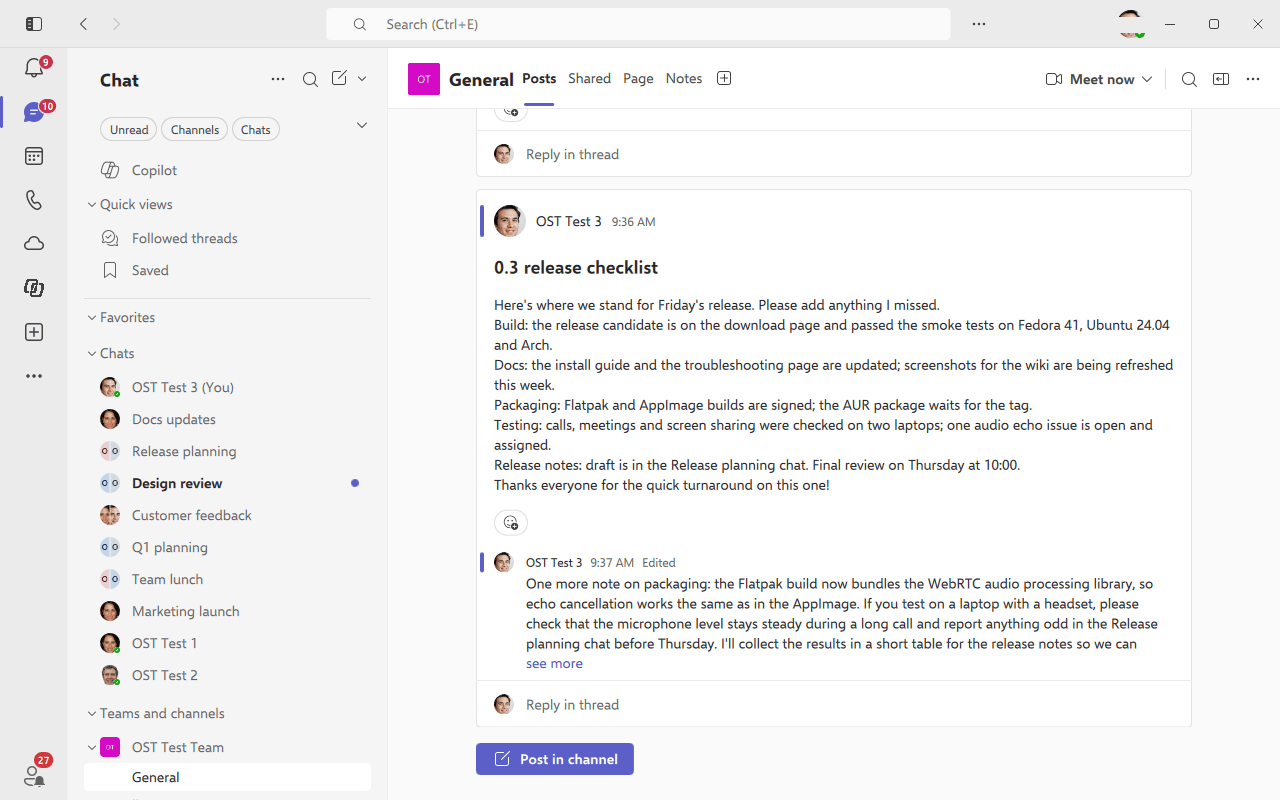
The channel's ··· (in the header or the list):
- See new posts at top / See new posts at bottom (posts channels)
- Manage notifications (Select what content notifies you: All new messages, @mentions and replies, Mute, Customize)
- Hide / Show, Move to section, Start reordering
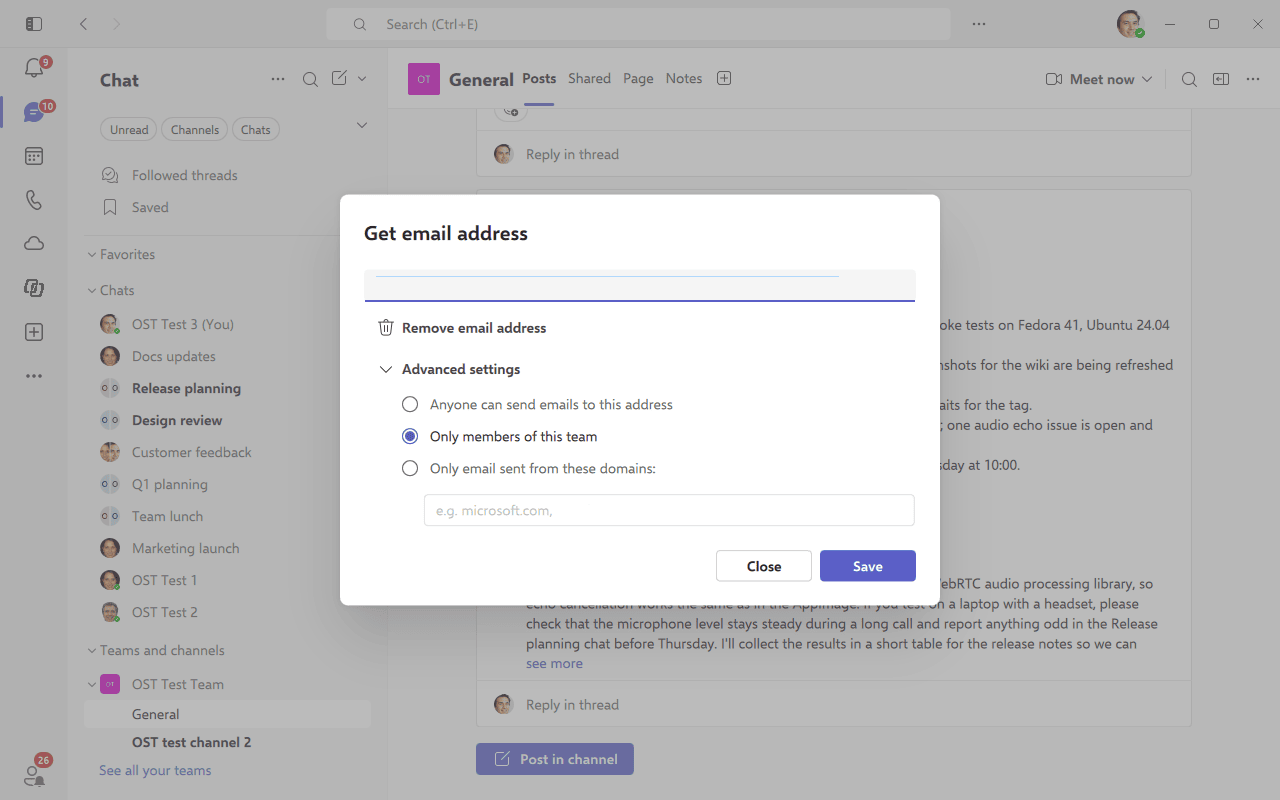
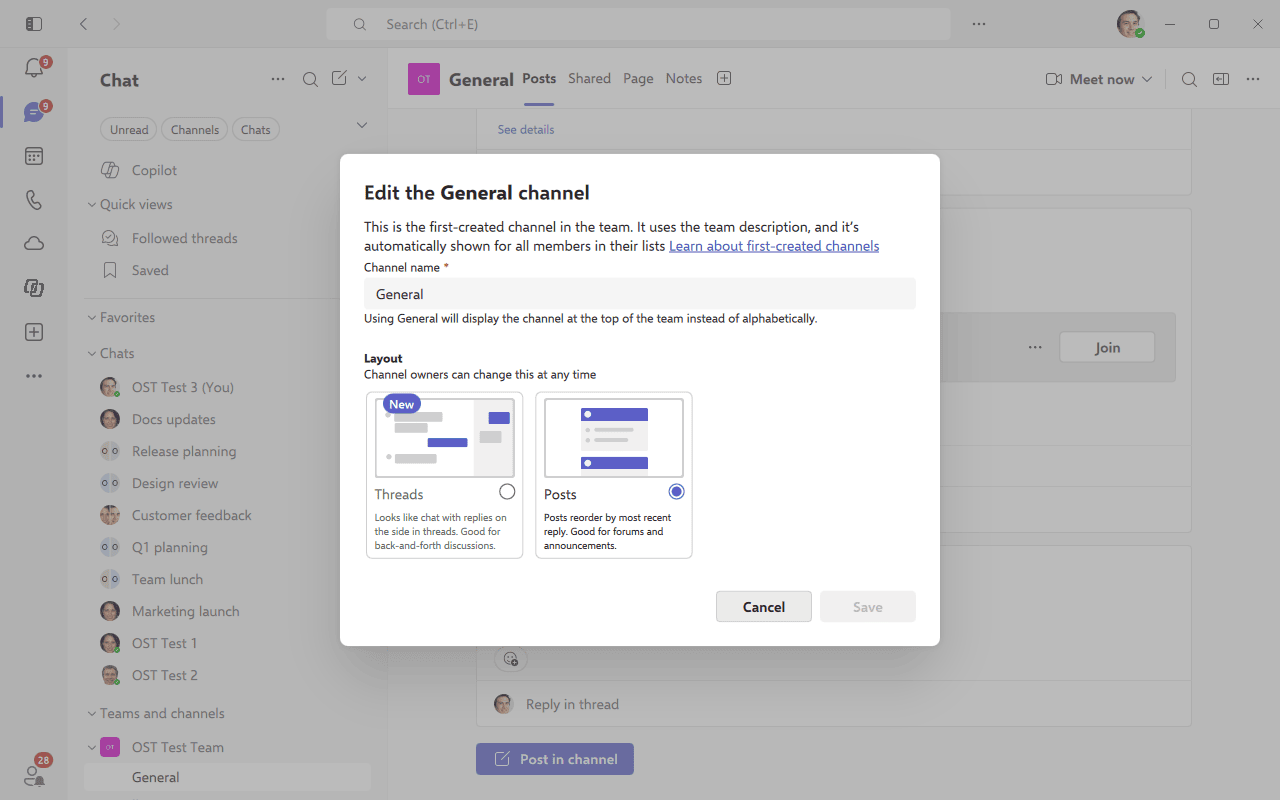
- Manage channel, Add members (private and shared channels), Edit channel, Get email address, Copy link, Workflows, Open in new window
- Recommend for everyone / Stop recommending for everyone (owners)
- Archive channel, Restore channel, Delete channel (owners)
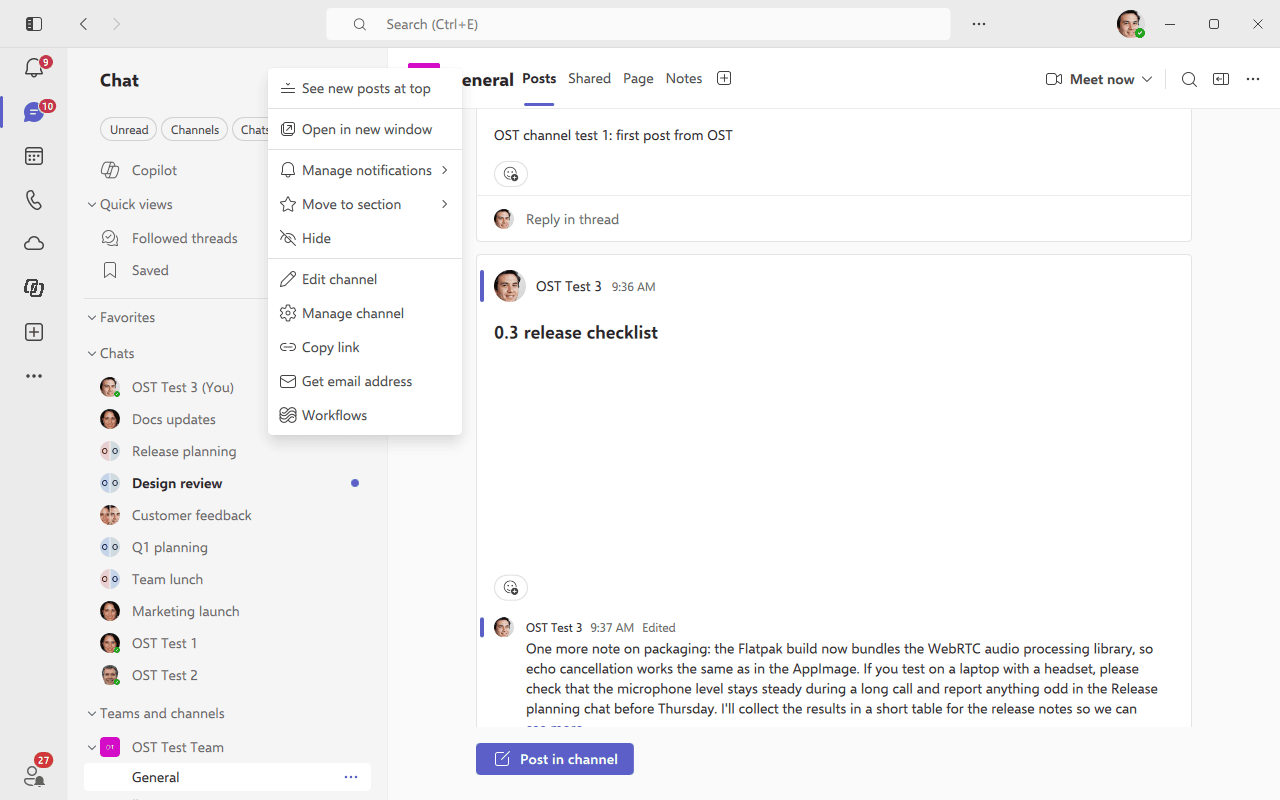
- Customize opens Manage notifications for the channel: All new messages, @mentions and replies, or Get notified for selected content (Follow all new threads, Channel and team mentions, Everyone mentions, Tag mentions), plus Set a desktop notification preference or Match settings used for all channels.
- Get email address: the channel's address with Copy, Advanced settings (Anyone can send emails to this address, Only members of this team, Only email sent from these domains) and Remove email address.
- Edit channel: Channel name, Description and Layout (Posts or Threads).
- Open in new window moves the channel into its own window.
A team's ···: Manage team, Add member, Add channel, Manage tags, Hide (Hide all channels), Copy link, Start reordering, Archive / Restore team, Leave, Delete (owners see the owner items).
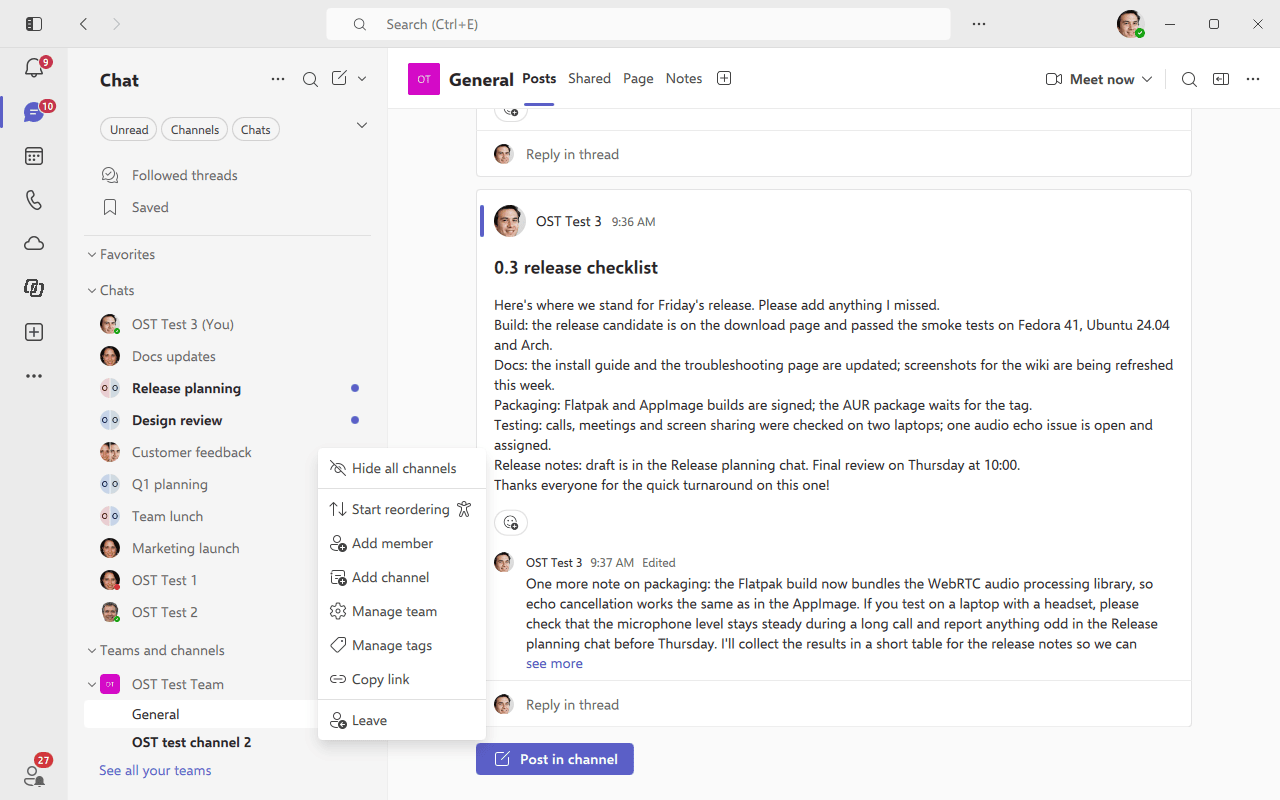
Manage team opens the team's page with tabs:
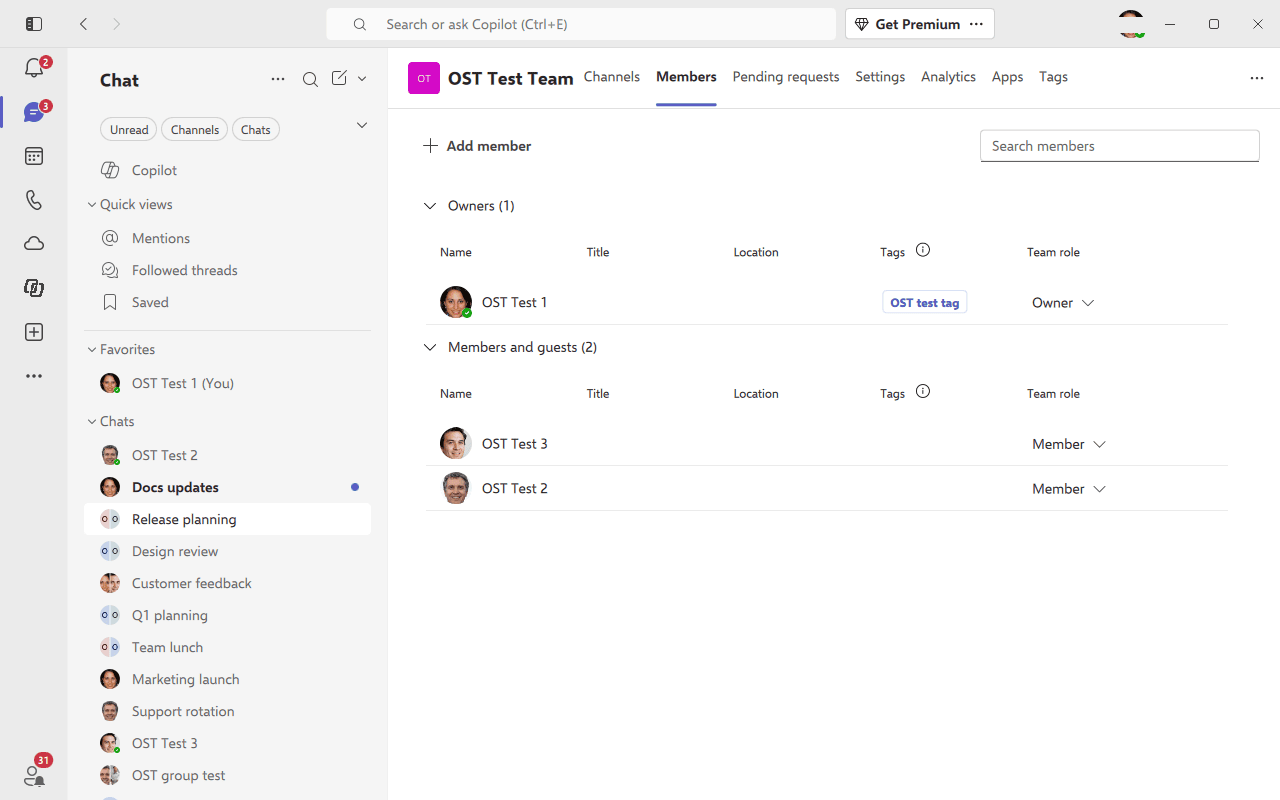
- Members: owners, members and guests with their roles; Add member; Pending requests for a private team (approve, deny, Deny all).
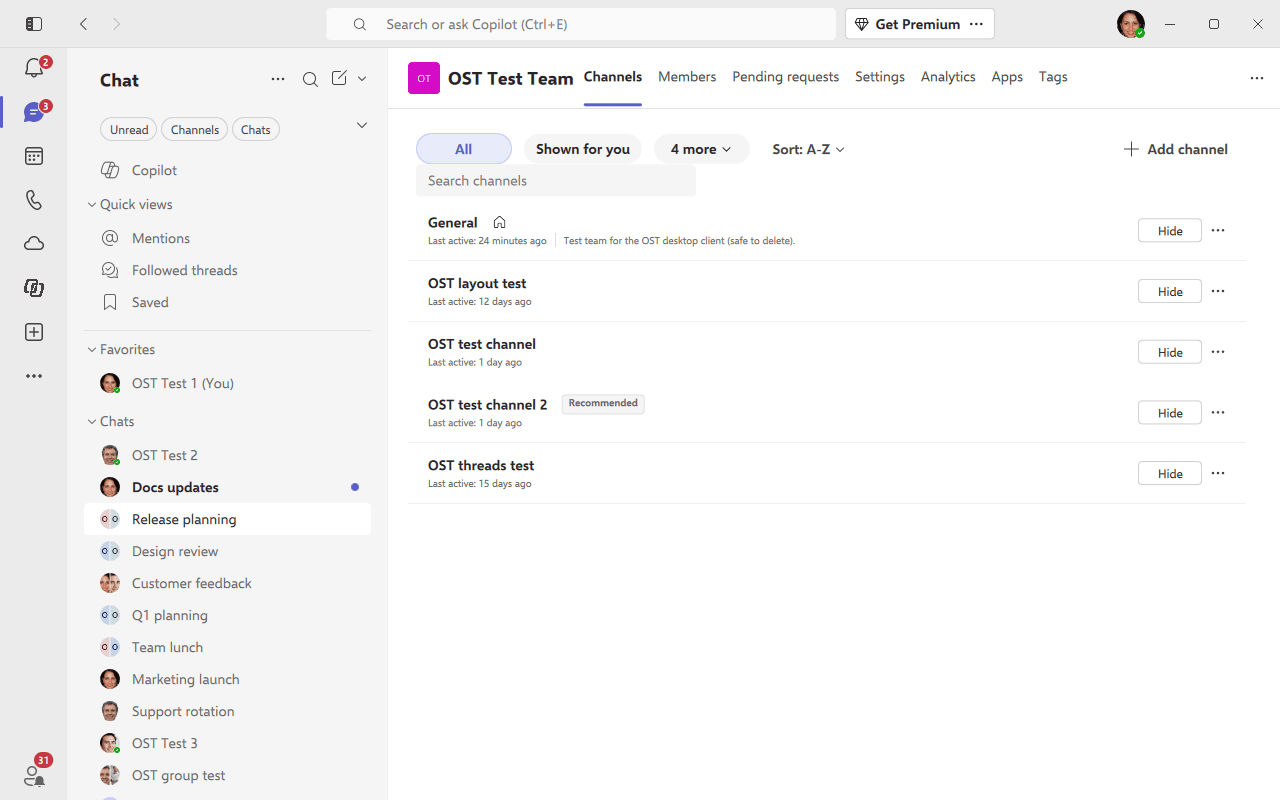
- Channels: every channel (Shown for you, Hidden, Recommended, Archived, Deleted, Shared from other teams), with search, sort, Add channel, Show / Hide and last activity.
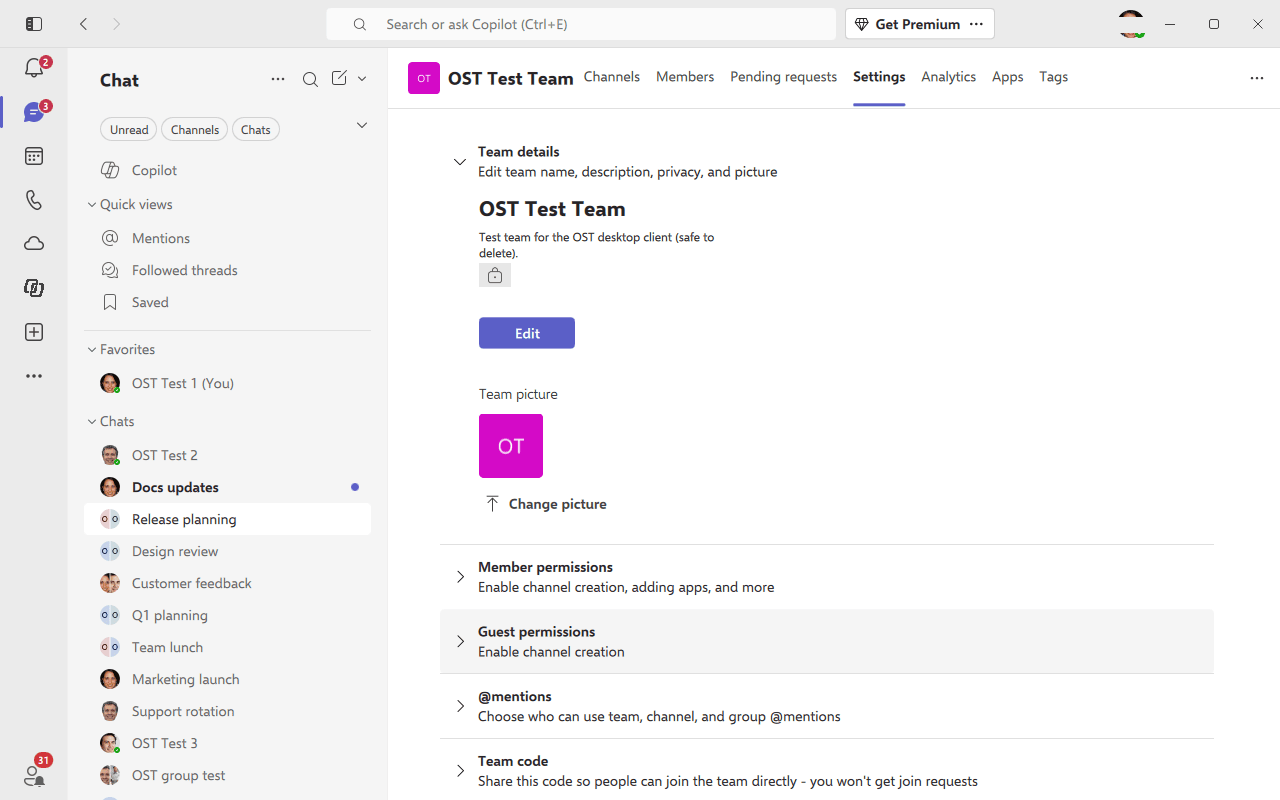
- Settings: Team picture, Member permissions (create, update, delete channels; private channels; apps, tabs, connectors; edit and delete messages), Guest permissions, @mentions, Team code (Generate, Copy, Full screen, Remove), Fun stuff (Giphy with its content rating, stickers and memes) and Tags settings.
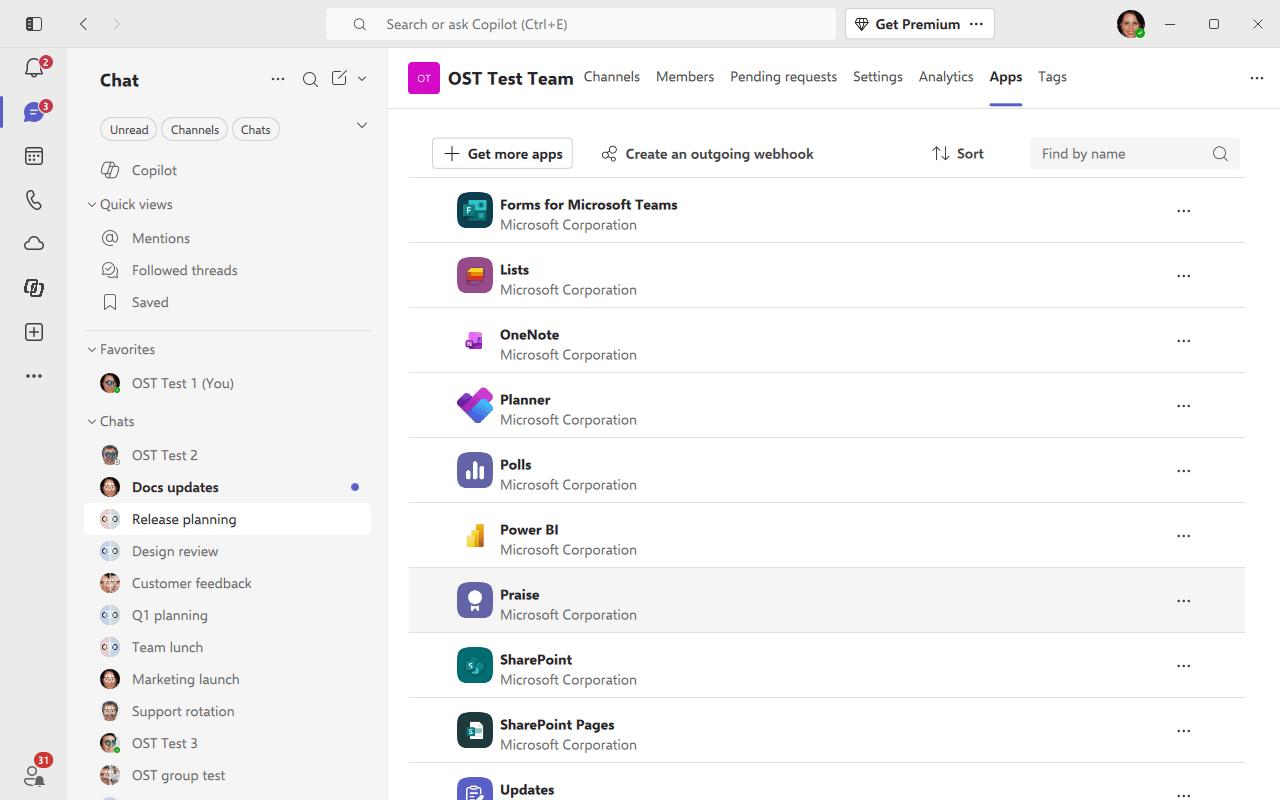
- Apps: apps added to the team.
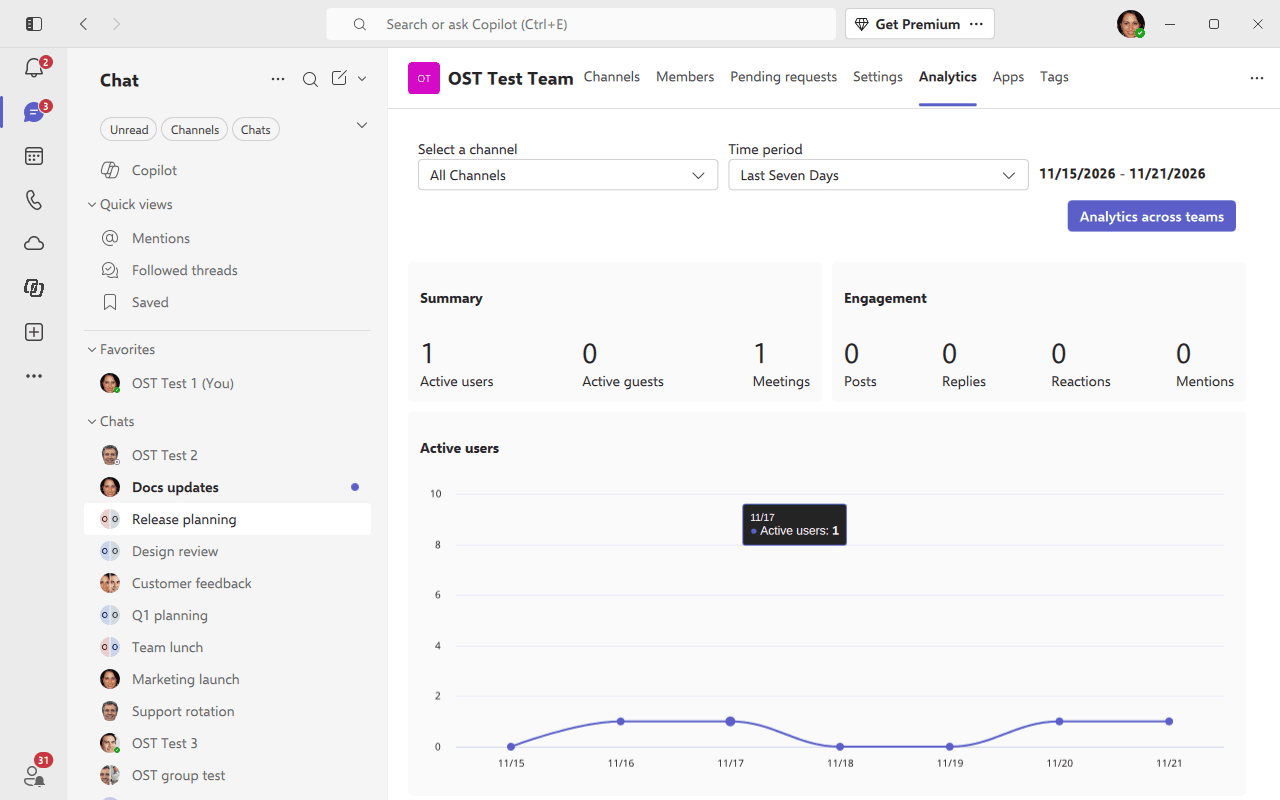
- Analytics: Summary (active users and guests, posts, replies, reactions, mentions, meetings) over the last 7, 30 or 90 days, per channel or across channels.
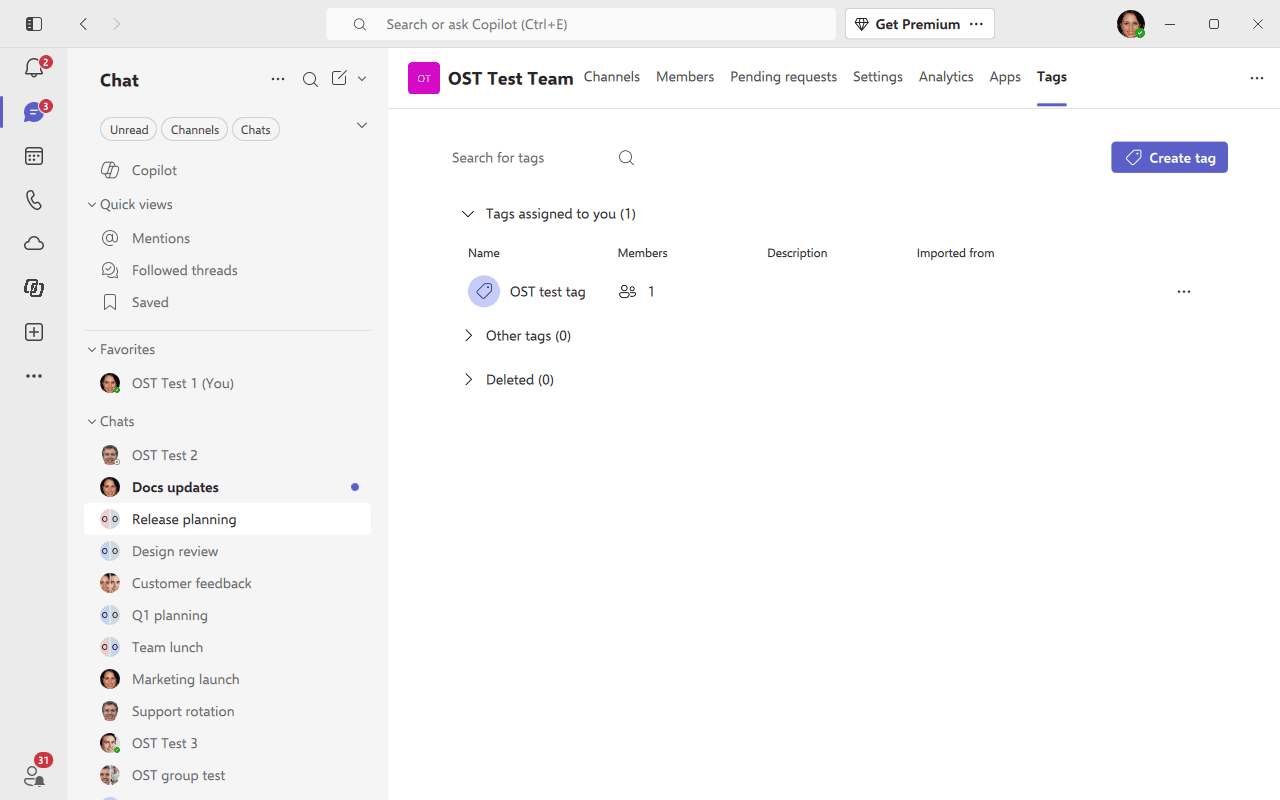
- Tags: tags in the team, with members.
- Manage tags: Create tag (Tag name, Tag description, Add people), and per tag Edit tag details, Chat with group, Delete tag and Restore. Mention a tag with @ to notify its members.
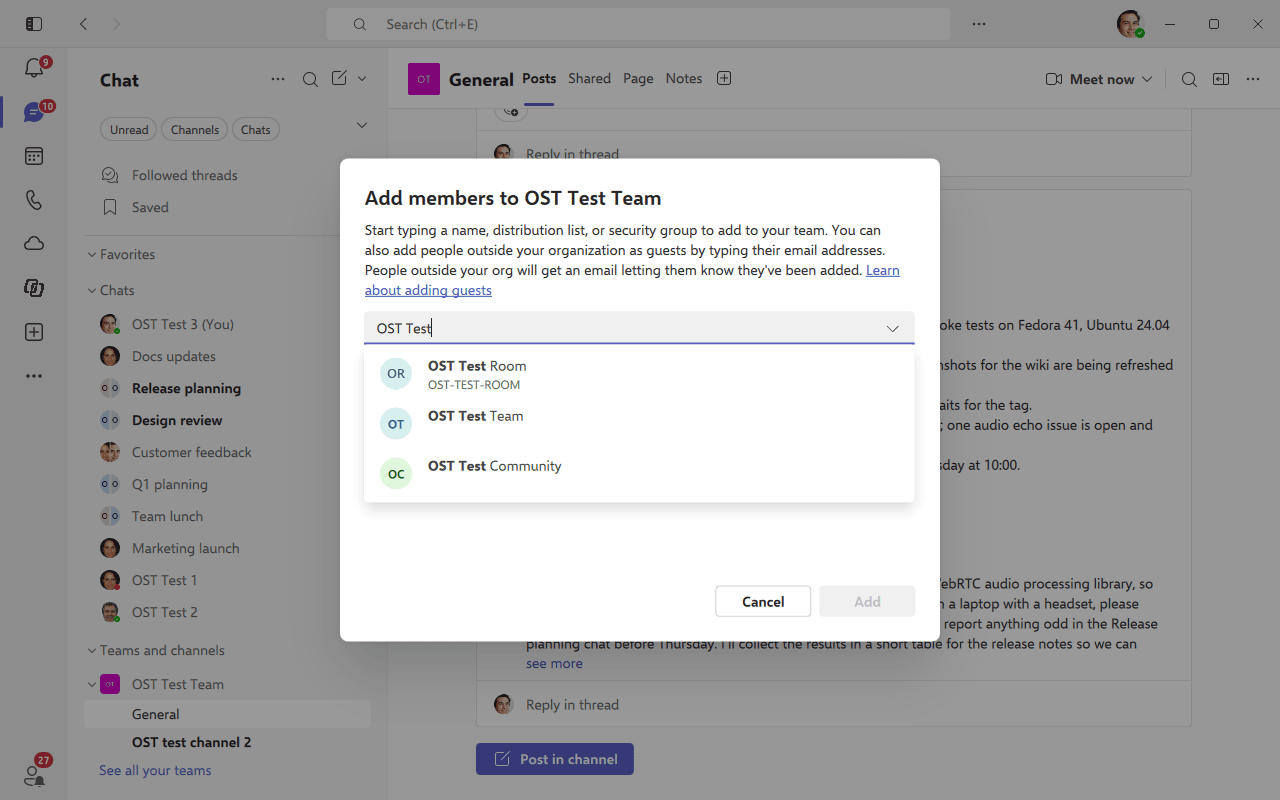
- Add member: type names, distribution lists or groups (or a guest's e-mail address) and Add; then pick Member or Owner.
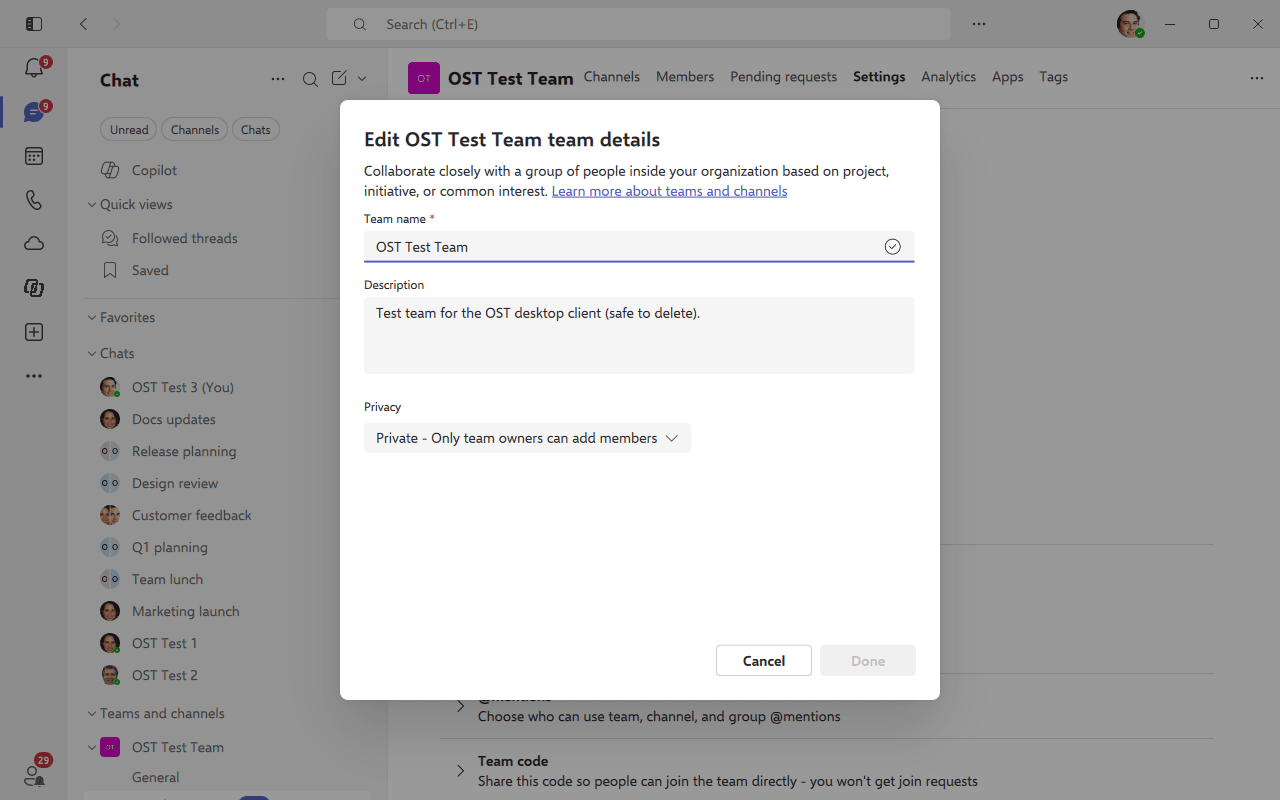
- Edit team (Settings ▸ Team details): Team name, Description, Privacy; Change picture picks a team picture.
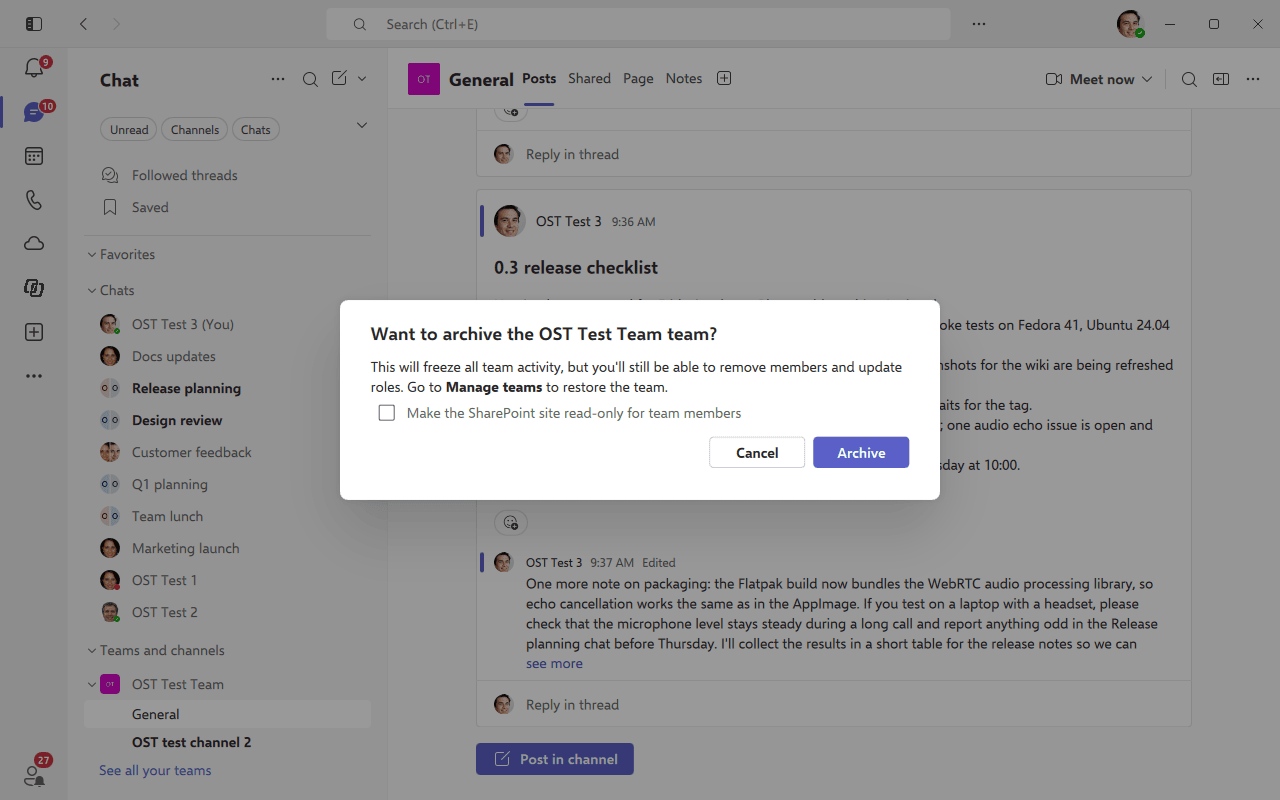
- Archive: freezes the team (optionally Make the SharePoint site read-only for team members); Restore team undoes it. Delete team needs I understand that everything will be deleted. Leave asks first; the last owner can't leave.
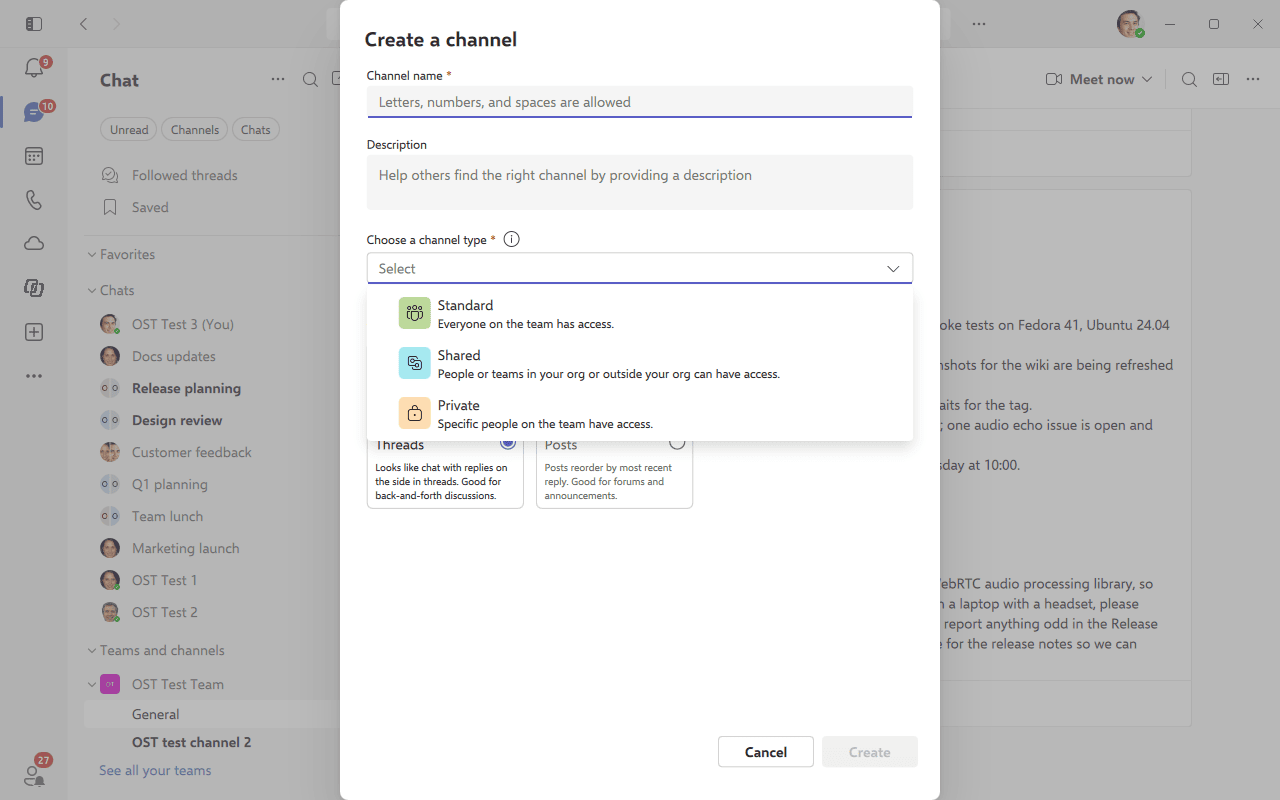
- Add channel opens Create a channel: Channel name, Description, Choose a channel type (Standard: everyone on the team; Private: specific people on the team; Shared: people or teams in or outside your org), Layout (Posts or Threads) and Recommend that people show this channel in their channel lists.
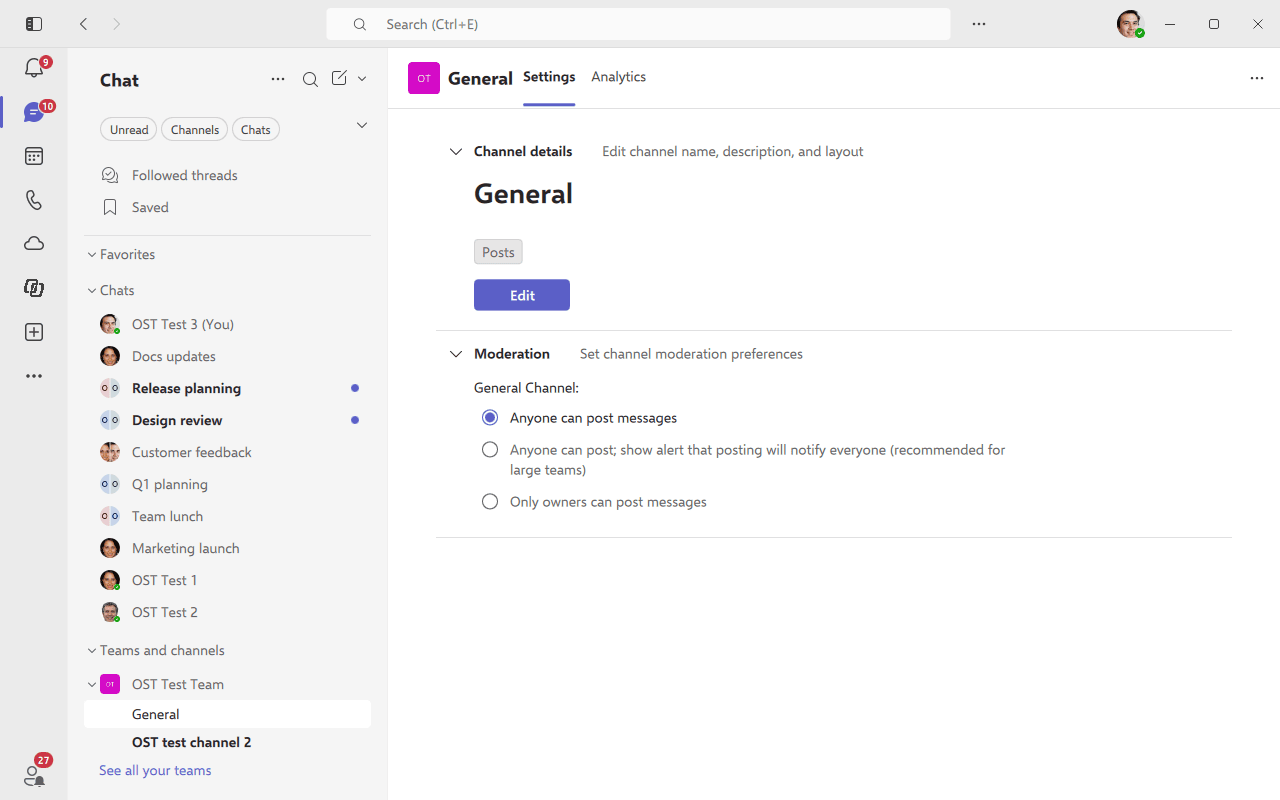
- Manage channel: Members (private and shared channels: owners, members, guests and their Channel role; Add member), Settings (Channel details, Channel moderation: Who can start a new post?, Moderators, Allow members to reply to channel messages, Allow members to pin channel messages, Allow bots to submit channel messages; or for the General channel Anyone can post messages / Only owners can post messages), and Analytics.
- Shared channels: Share with people, Share with a team or Share with a team you own; a team owner accepts the invite for their team. Sent invites and requests are listed in Manage channel.
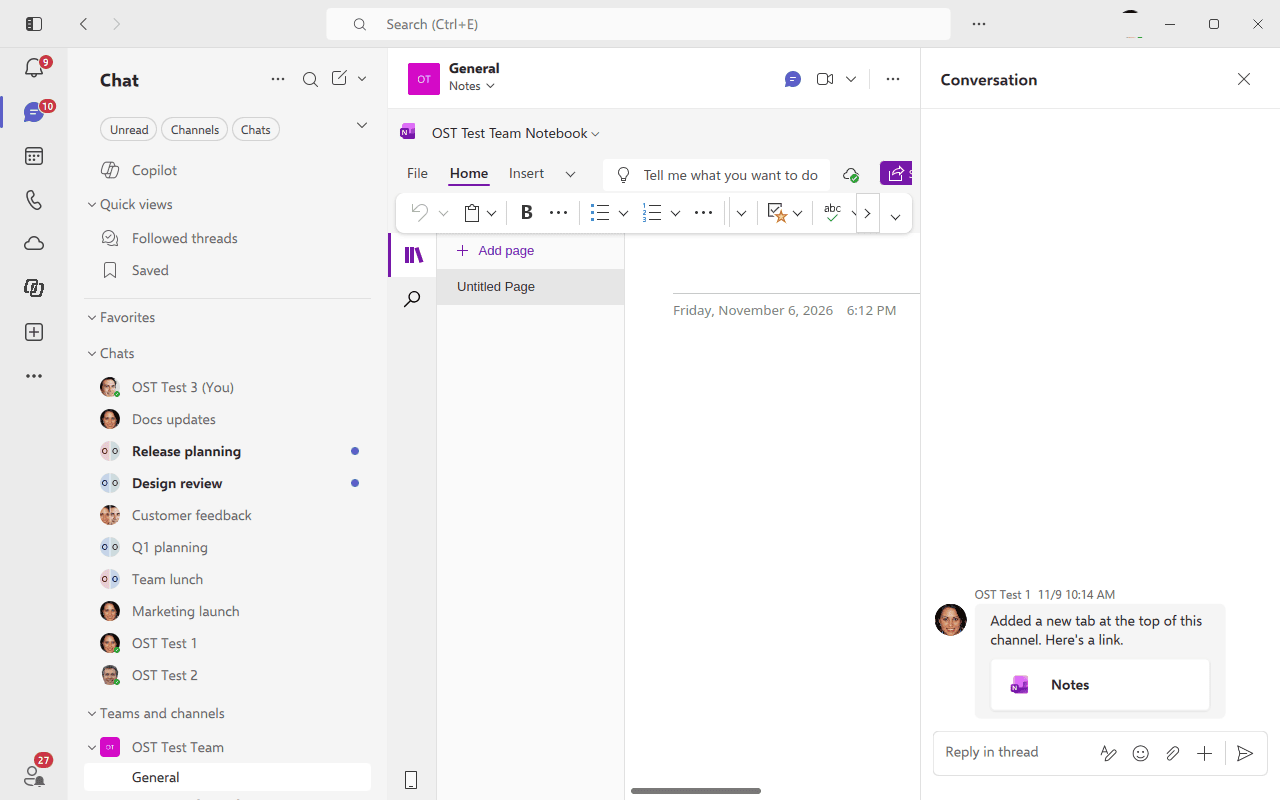
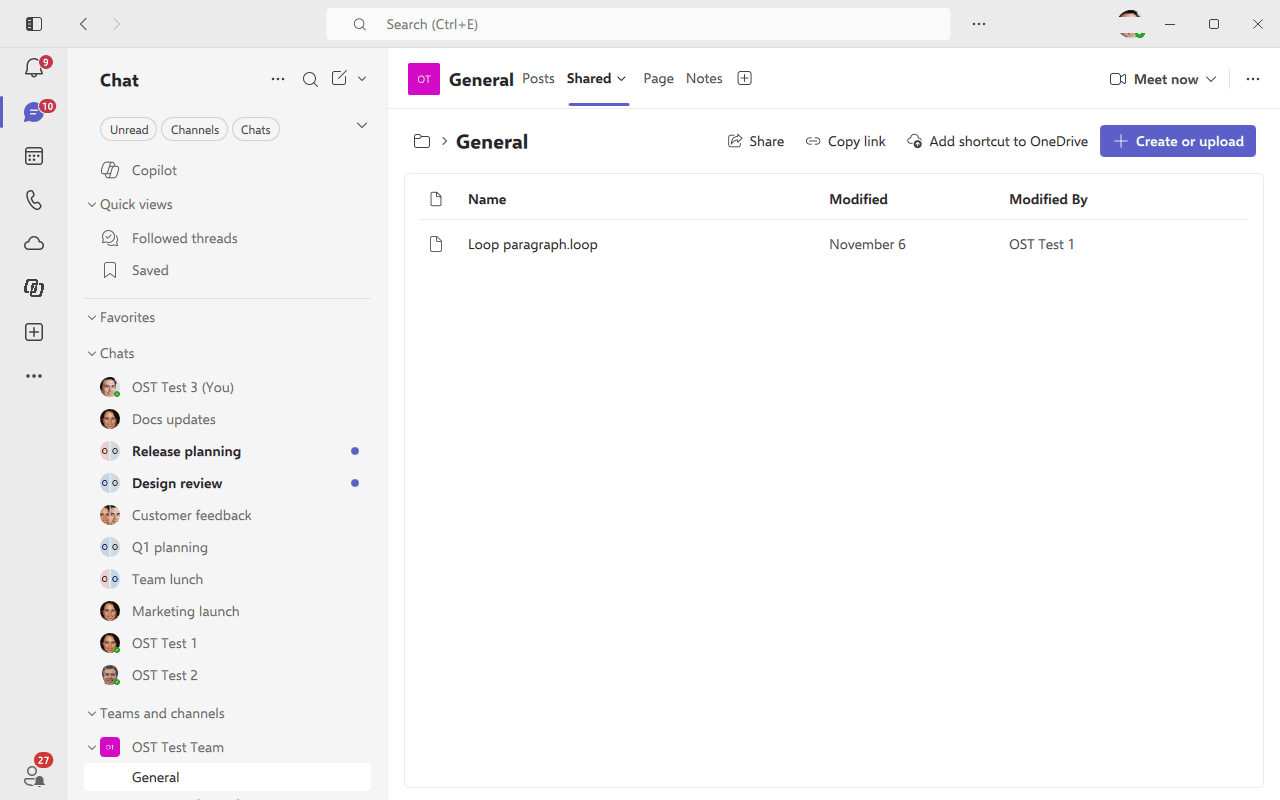
A channel's tabs come from the channel itself: Posts (or Conversation), Shared (the channel's folder in the team's SharePoint library, see Files), and tabs such as Page (a Loop page), Notes, Lists, websites and apps. + adds a tab (see Apps).
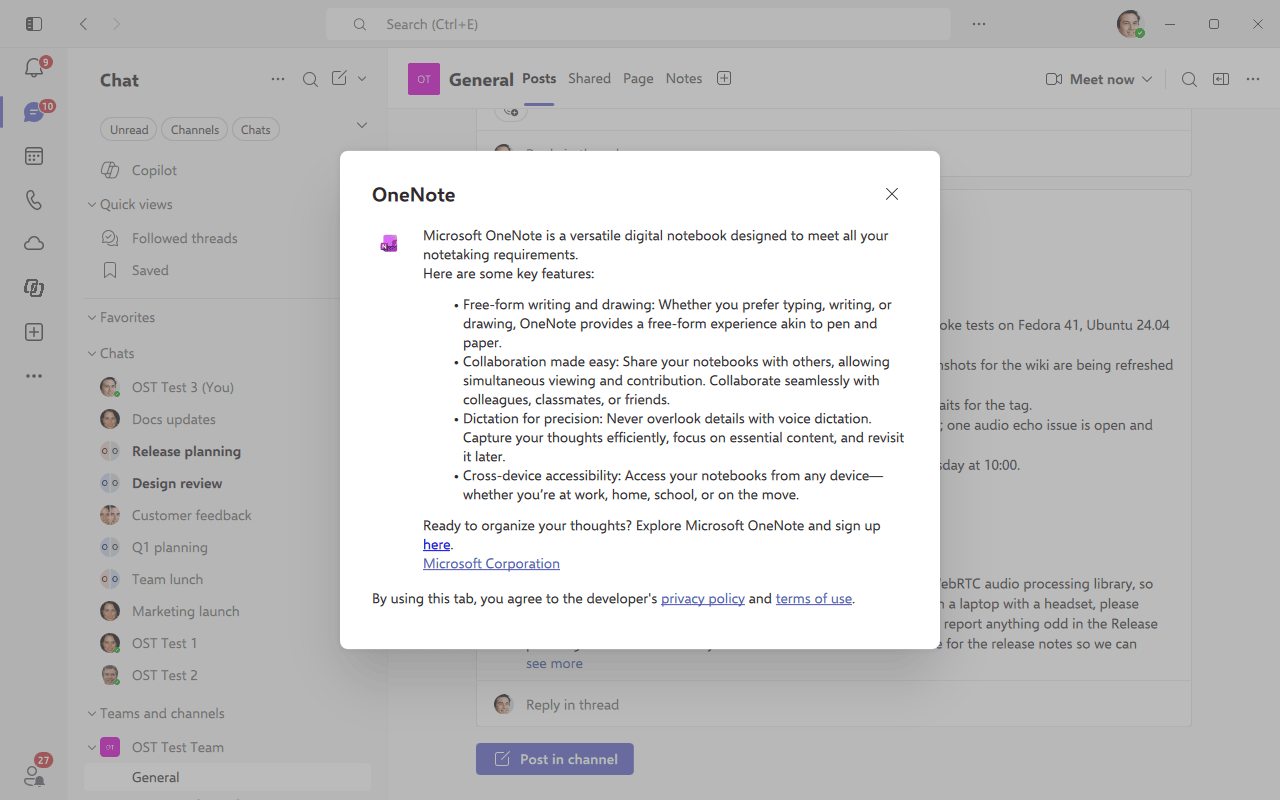
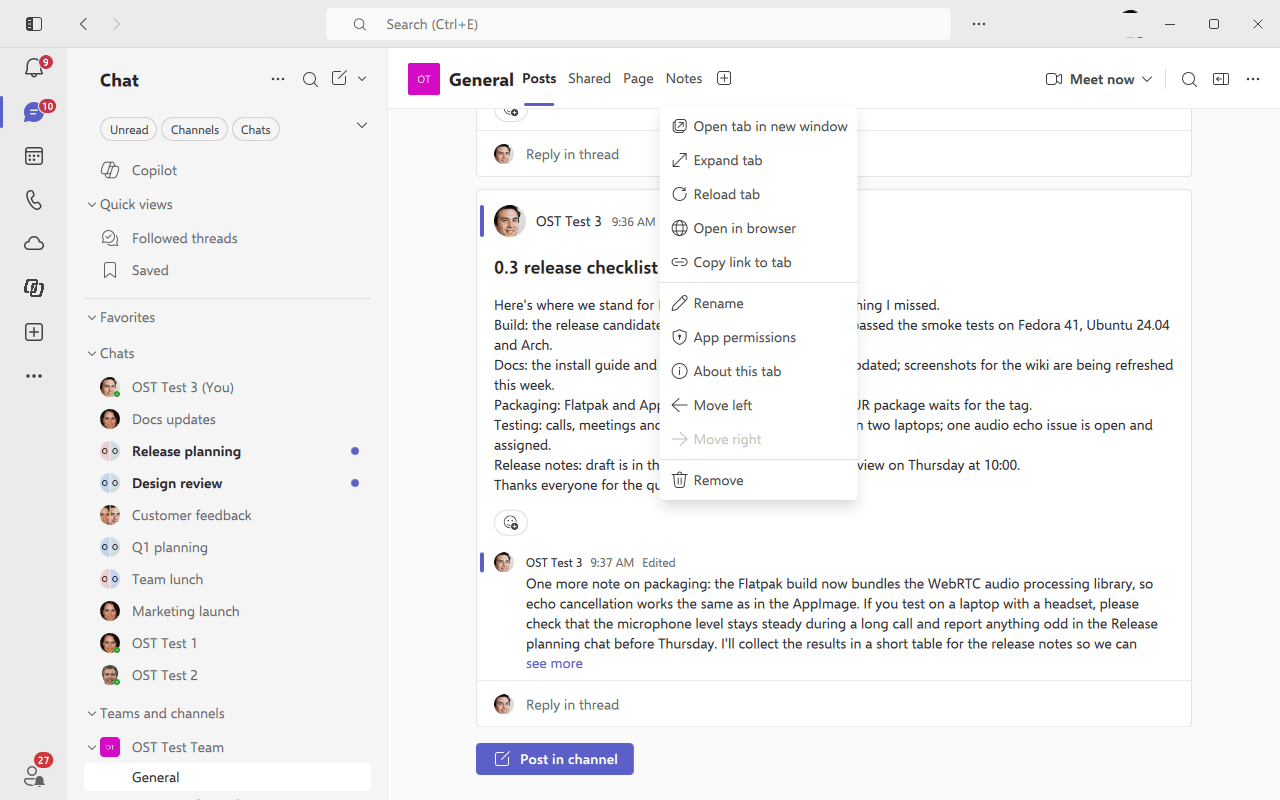
The selected tab's menu (select it again, or right-click): Rename, Settings, Move left, Move right, Copy link to tab, Open in browser, Open tab in new window, Reload tab, Expand tab, App permissions, About this tab and Remove, as the tab allows.
- Rename and Remove ask in a small dialog ("Want to remove this tab?"). About this tab shows the app, what it needs access to and the developer's privacy policy and terms.
- Drag a tab to reorder it.
- Show tab conversation opens the tab's own conversation beside it; Hide tab conversation closes it.