Repository navigation
First sign in
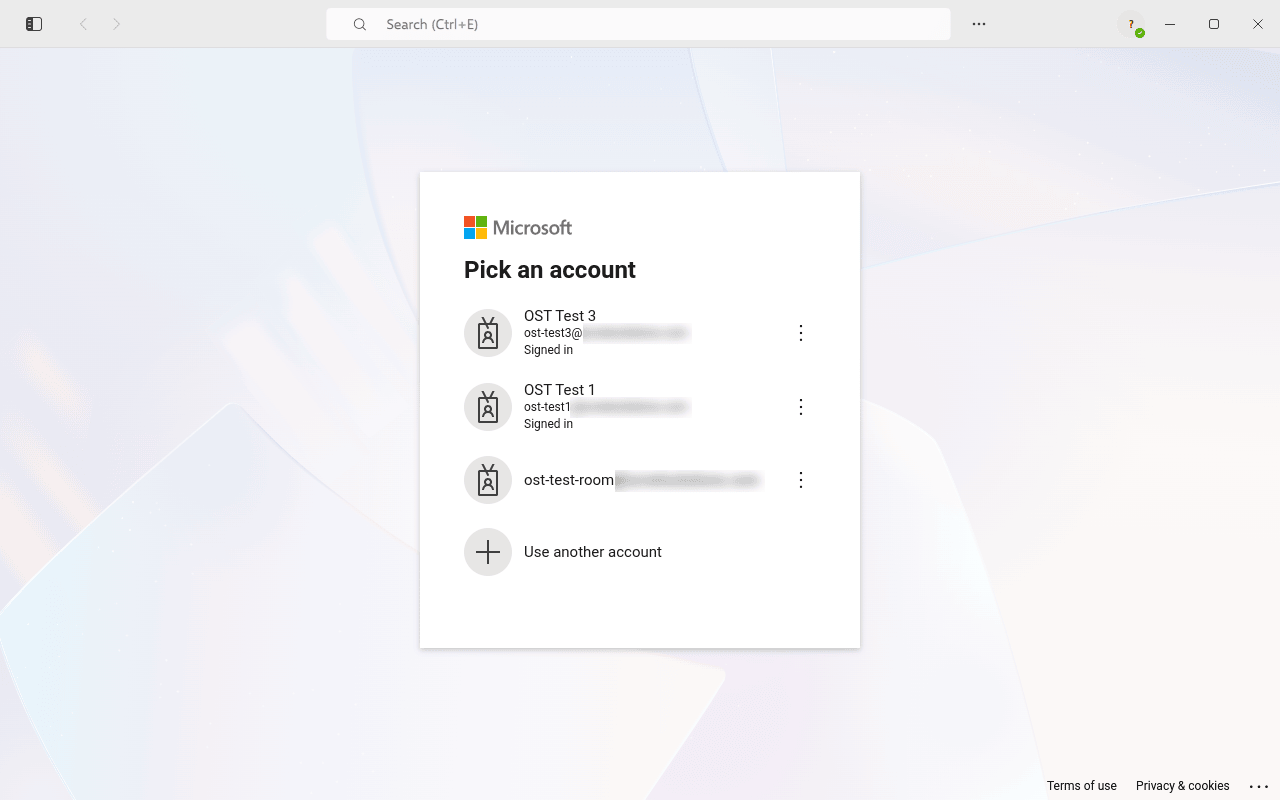
OST signs in with your Microsoft work or school account, the one you use for Teams. It signs in the way Teams on the web does: Microsoft's own sign-in page, shown inside OST's window.
-
Start OST (
ost-desktop, or OST in your app launcher). -
Microsoft's sign-in page appears. Pick your account, or Use another account and enter your e-mail address and password.
-
Complete your organization's second step if it has one (Microsoft Authenticator, a code, a security key).
-
OST opens on Chat. From now on it renews the sign-in by itself.
OST keeps its tokens only in your system keyring (GNOME Keyring, KWallet
or another Secret Service). Without a working keyring it keeps them in
memory and asks you to sign in again the next time it starts; Settings ▸
Accounts and orgs says so. There, Stay signed in without a keyring
(or starting OST with OST_NO_KEYRING=1) stores them in a file readable
only by you, but not encrypted, which is weaker than a keyring. Tokens an
older OST wrote to that file are moved out of it. See
Sign-in storage.
Embedded apps (Loop, Planner, Whiteboard and others) are signed in through
the same session, as in Teams. Each account (OST_PROFILE) has its own web
storage for them.
Select your picture ▸ Add another account to sign in a second account. Each account runs as its own profile in its own window; see Configuration.
Select your picture ▸ Sign out. OST deletes the account's tokens and restarts, and before it opens again it deletes that account's web data (cookies, site storage, cache), so the next sign-in starts fresh. See Privacy and data.
teams-cli login uses Microsoft's device-code sign-in instead: it prints an
address and a code to enter in any browser. See
Terminal client.
See Troubleshooting. If your organization allows only managed devices or approved apps, Microsoft's page says so; only your IT admin can change that.