Repository navigation
Apps
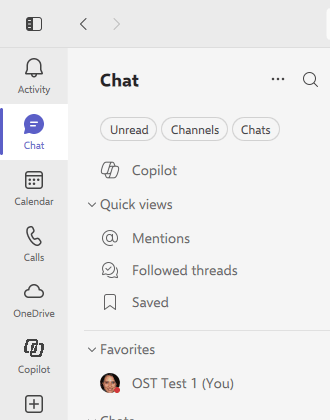
The app bar on the left comes from your apps as Teams keeps them: the pinned apps in Teams' order (Activity, Chat, Calendar, Calls, OneDrive, Copilot and any your organization pins), then View more apps (···) and the Store. Changes are saved to your Teams account, so they show in Teams too.
- Right-click a tile (or point at it and select its ···) for its menu: Open in new window, About, Share app, Move up / Move down, Pin / Unpin, Uninstall and Customize app bar, as the app allows. Chat's menu also has New message and New message in new window. A bot's app has Block bot conversation (or Unblock bot conversation).
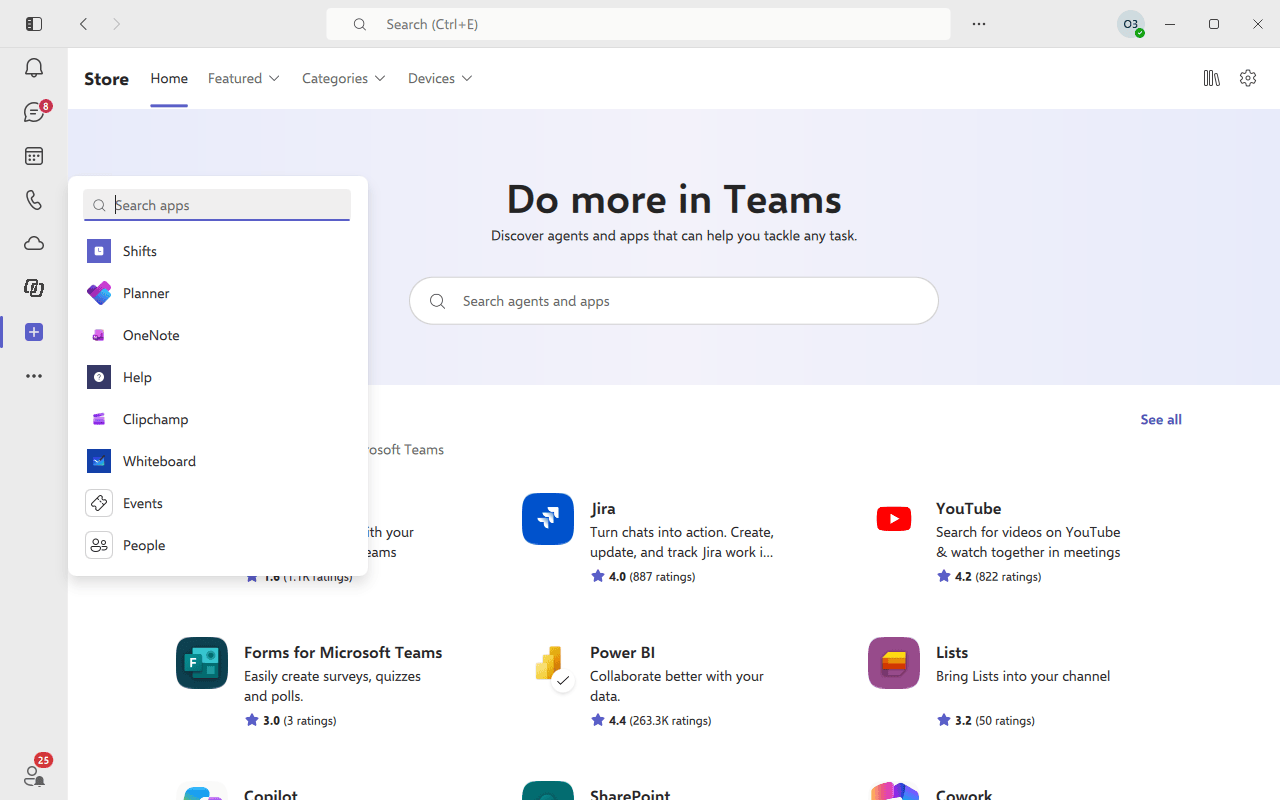
- View more apps (···) lists your other apps (Planner, OneNote, People, Events, Meeting Recaps, Whiteboard, Shifts, Clipchamp, your installed apps) with a search and Get more apps. Selecting one opens it in the app bar until you switch away; Pin keeps it.
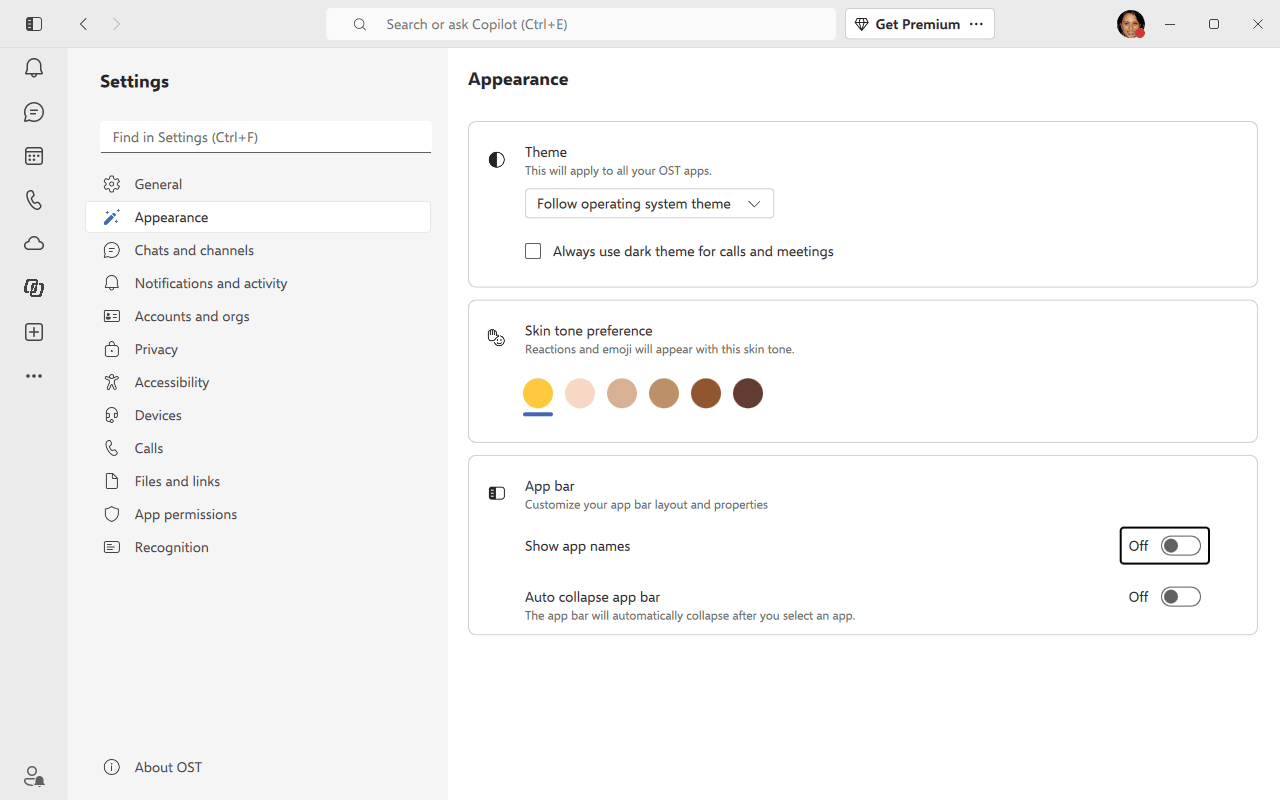
- Customize app bar (also Settings ▸ Appearance ▸ App bar) shows the pinned apps to reorder and unpin, with Show app names and Auto collapse app bar.
- Open in new window works for Teams' own views as well (Calendar, Activity, Calls, OneDrive and others): the view opens in its own window with a child title bar.
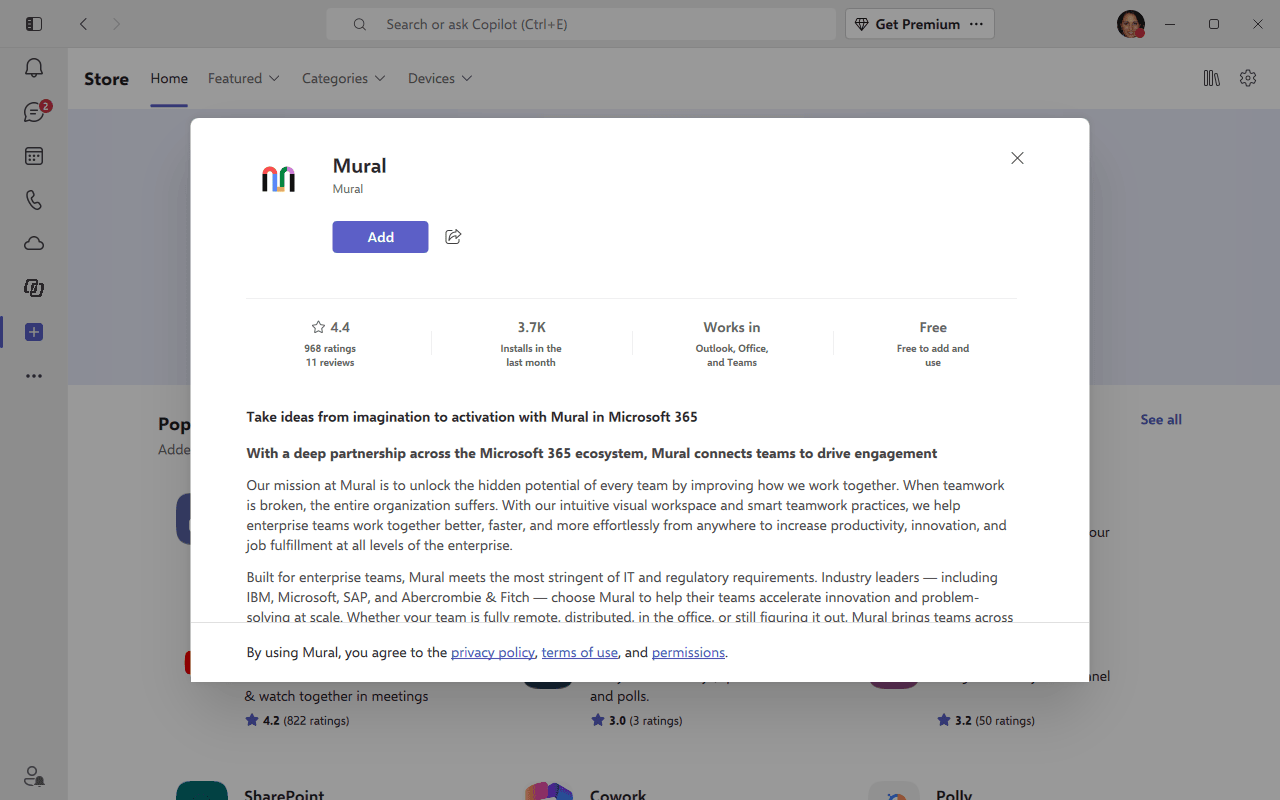
- About opens the app's details: Details (description, Created by, version, Works in, Capabilities in Teams, languages), Reviews (ratings, Write a review, Report review), Permissions (View detailed permissions), More like this, and Add or Open.
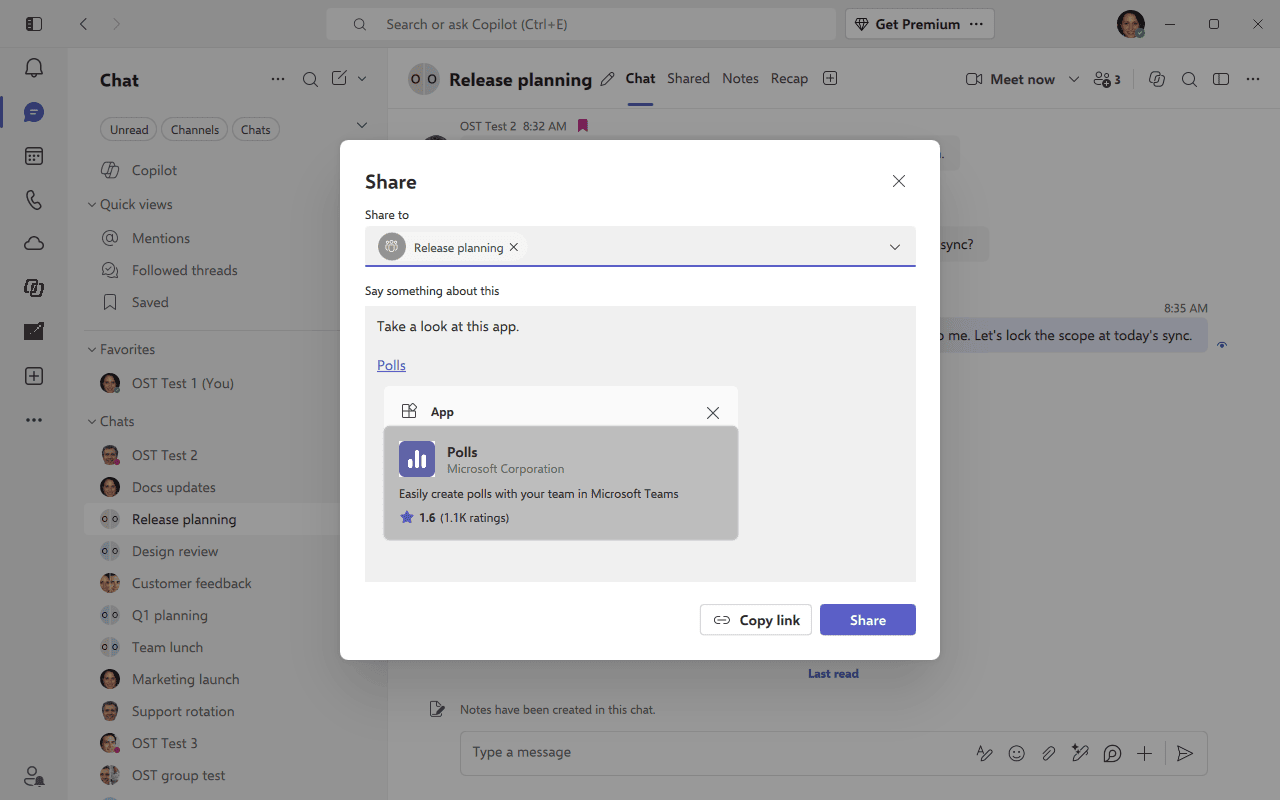
- Share app opens a form: Share to people, groups, chats or channels with Say something about this, or Copy link. It posts the app's card (see Chat messages).
- An app opened in the app bar has its own header menu: Reload app, About and Share app.
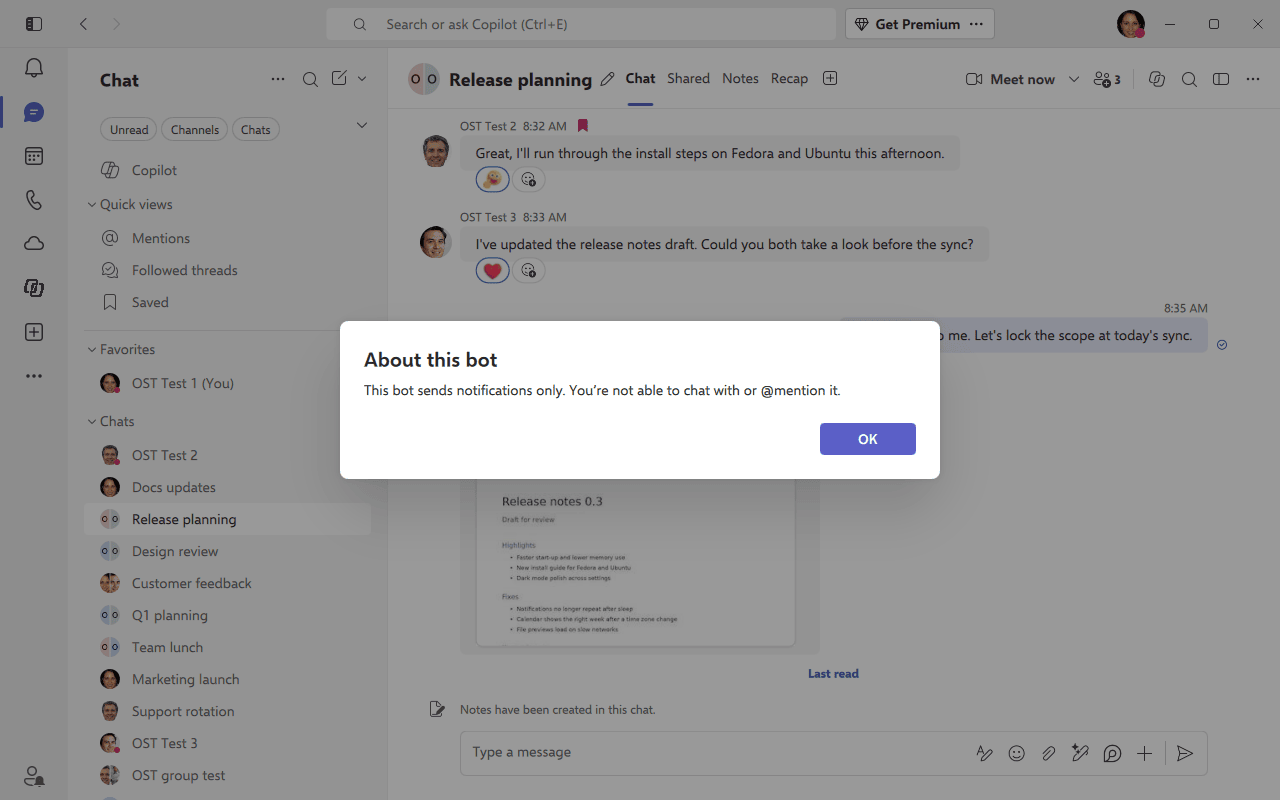
- A notification-only bot shows About this bot: "This bot sends notifications only. You're not able to chat with or @mention it."
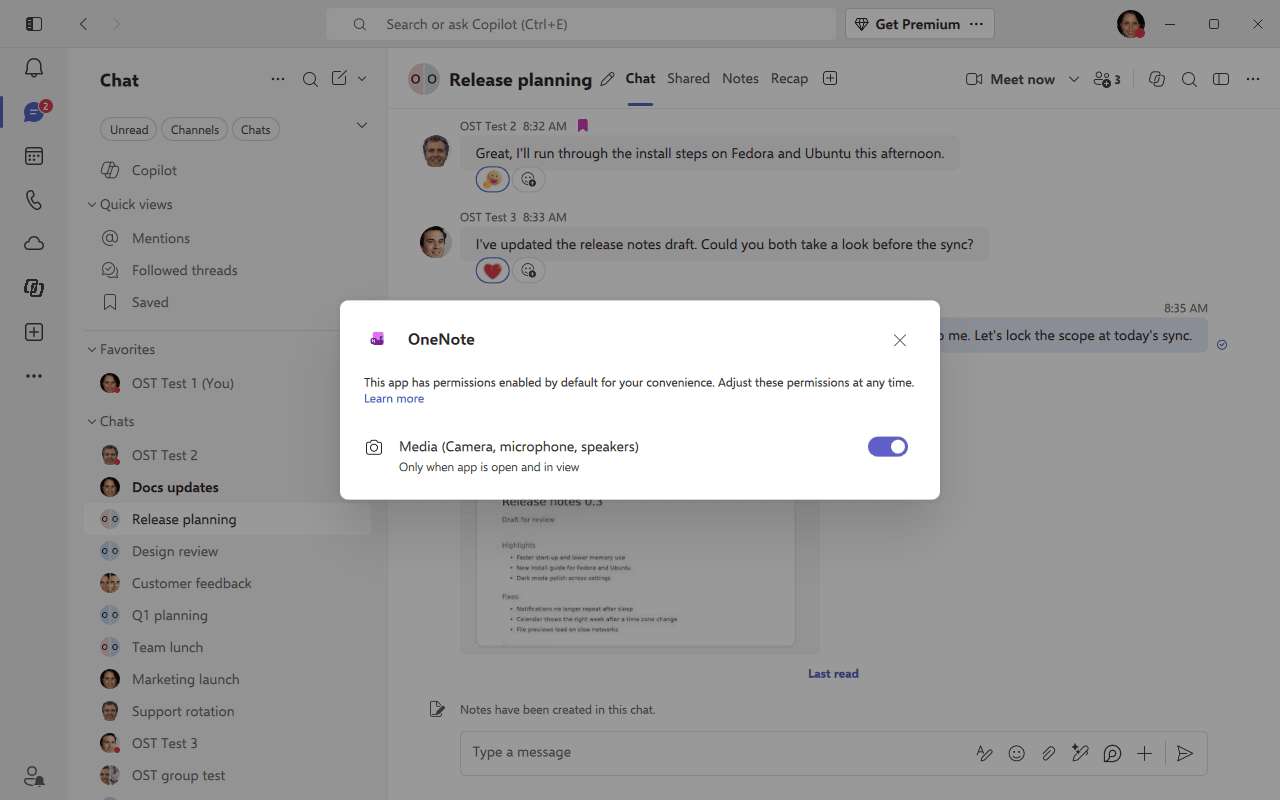
- An app's permissions (camera, microphone, location, notifications and others) open in the App permissions dialog; Settings ▸ App permissions has the same switches for every app.
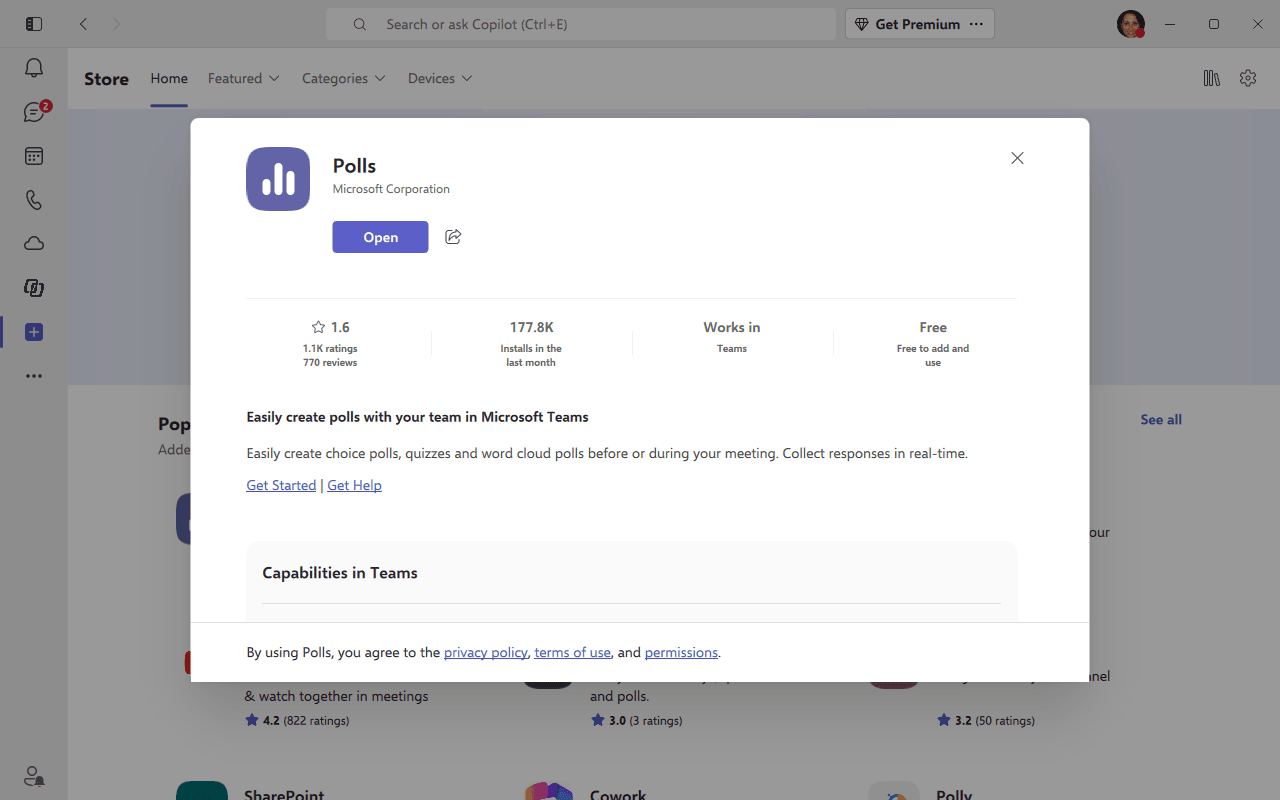
Store is your organization's Teams app catalog, as Teams shows it.
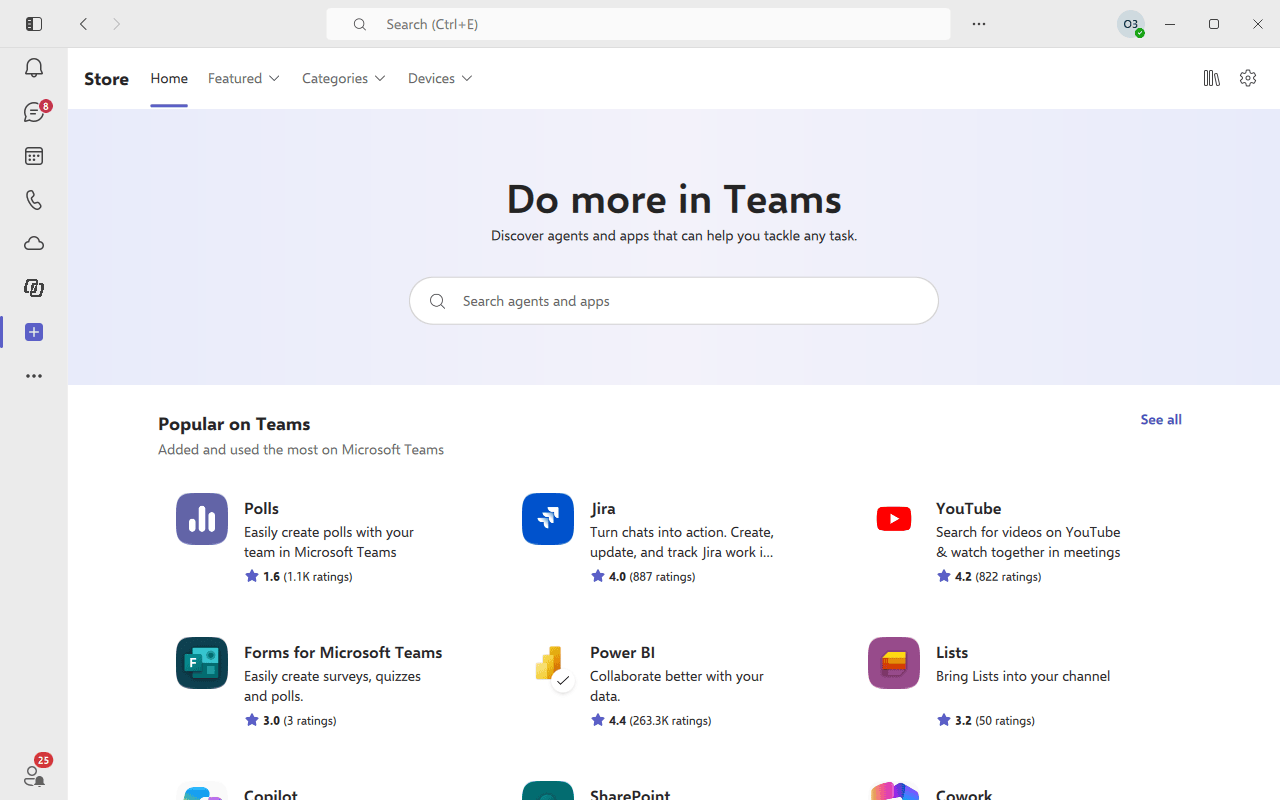
- Home: the "Do more in Teams" banner with Search agents and apps, then collections (Your agents and apps, Built for your org, Popular on Teams and others), each with See all.
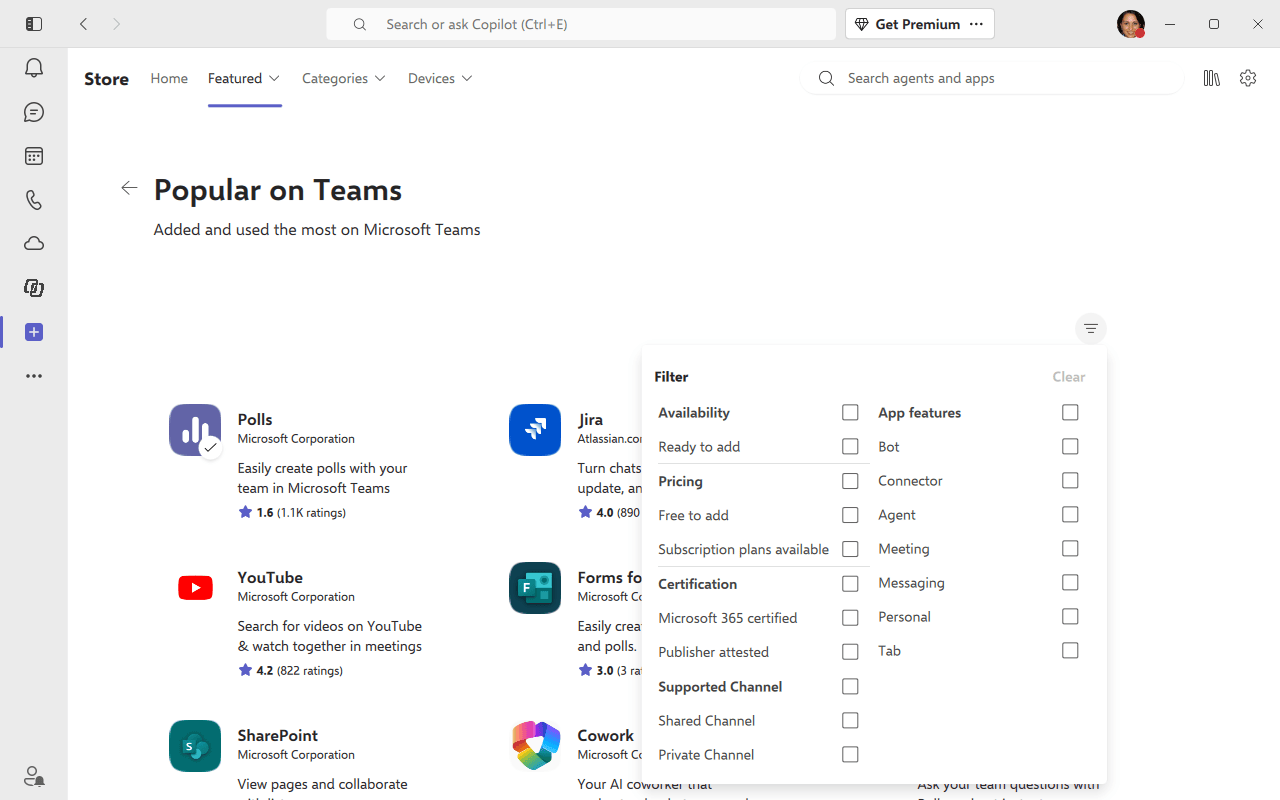
- Featured and Categories menus; See all opens a list with Filter (type: Agent, Bot, Tab, Connector, Messaging; where it works: Personal, Group Chat, Meeting, channels; Pricing; Certification; Availability).
- An app's page: its details as above, and Add (or Open when it's added). An app that needs your admin shows Requires approval.
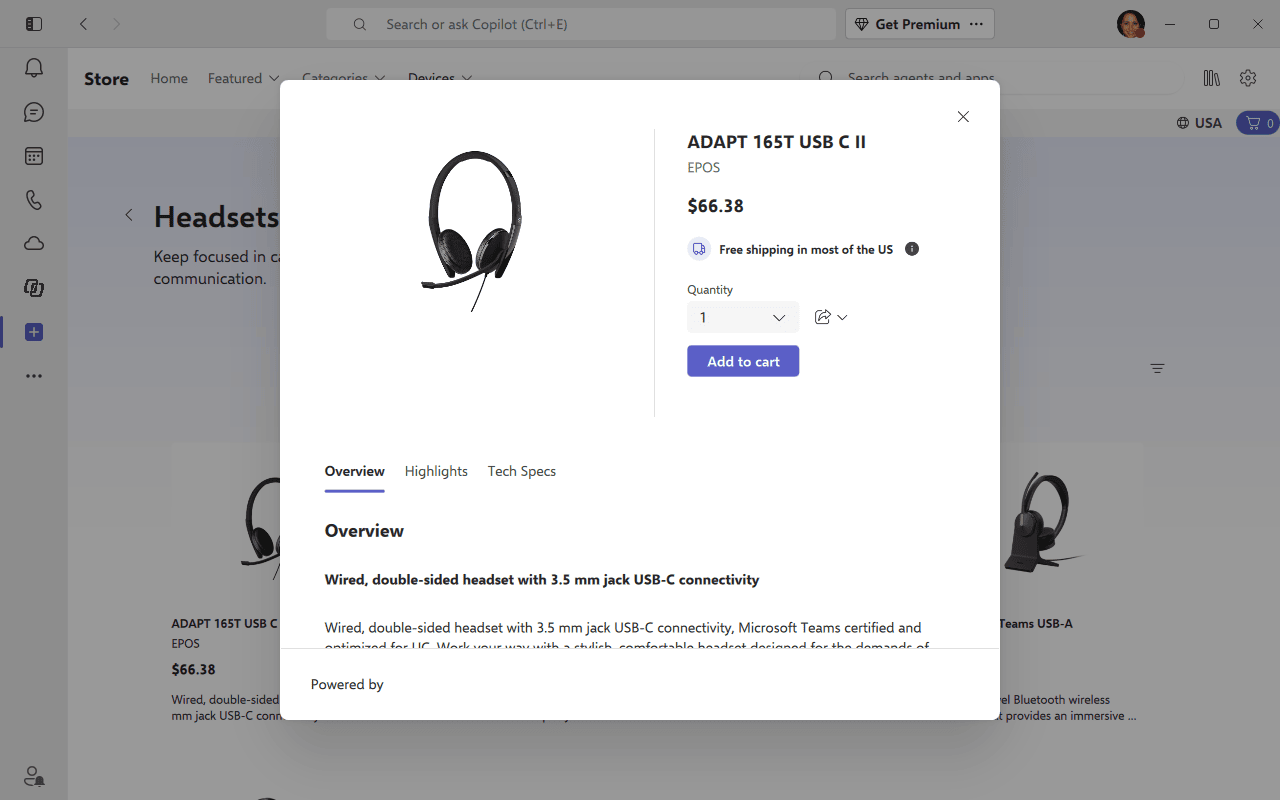
- Devices: Teams' devices store (Headsets, Web cameras, Speakerphones, Desk phones & Teams displays, Teams Rooms, Monitors, Room systems accessories), with a device's details and Your cart (Checkout continues on the seller's site).
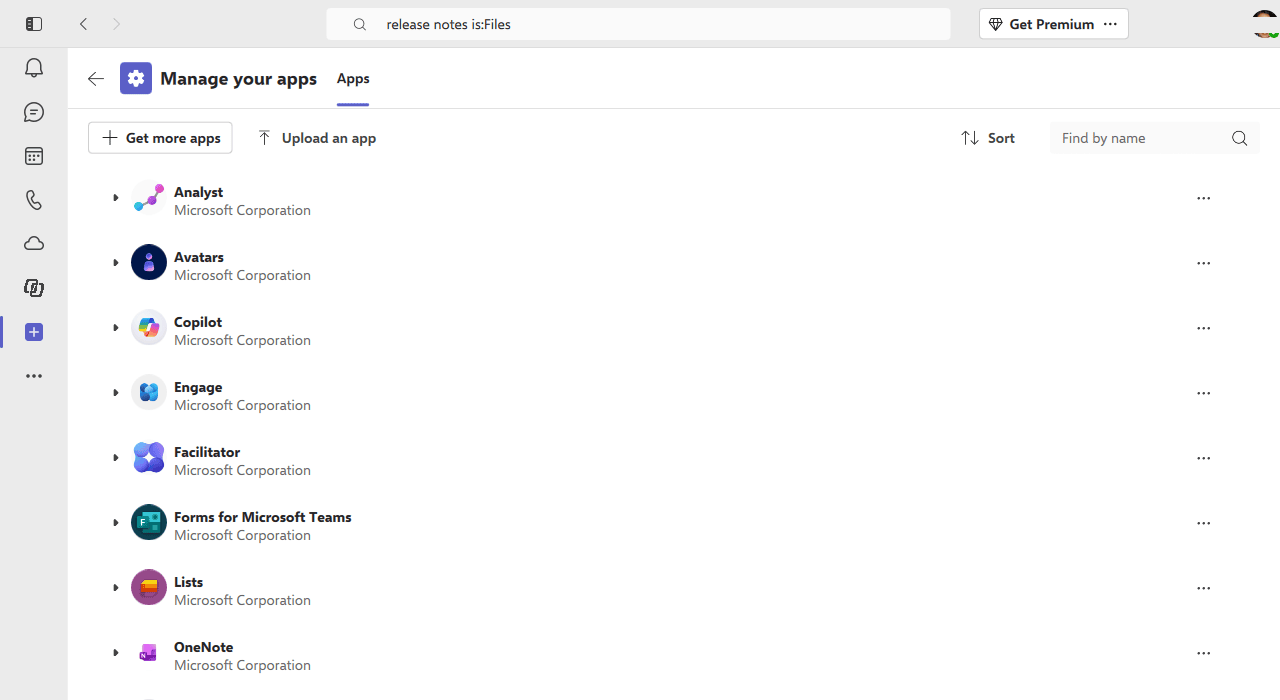
- Manage your apps: Installed apps with search and sort, Recently used, View details, Copy link, Remove, Upload an app and Submit an app to your org.
- People: your Outlook contacts (see People and profile cards).
- Events: Teams' town halls and webinars app (see Town halls and webinars).
- Meeting Recaps: recent meetings and audio recaps (see Meeting recaps).
- Calls, Calendar and OneDrive (see Calls and voicemail, Calendar, Files).
Where Teams hosts a web app, OST hosts the same app in its TeamsJS host, signed in with your account:
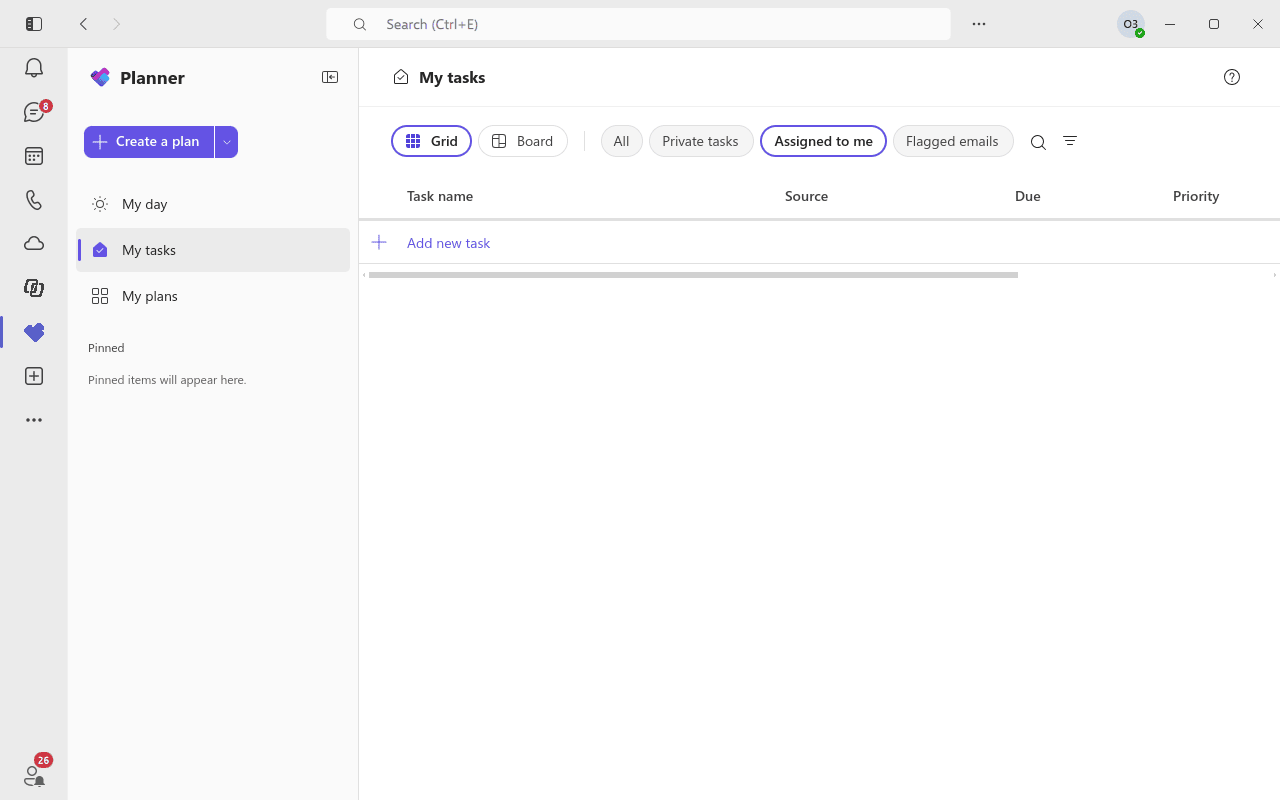
- Planner: My day, My tasks, My plans, and a plan's Grid, Board, Schedule and Charts views, with task details.
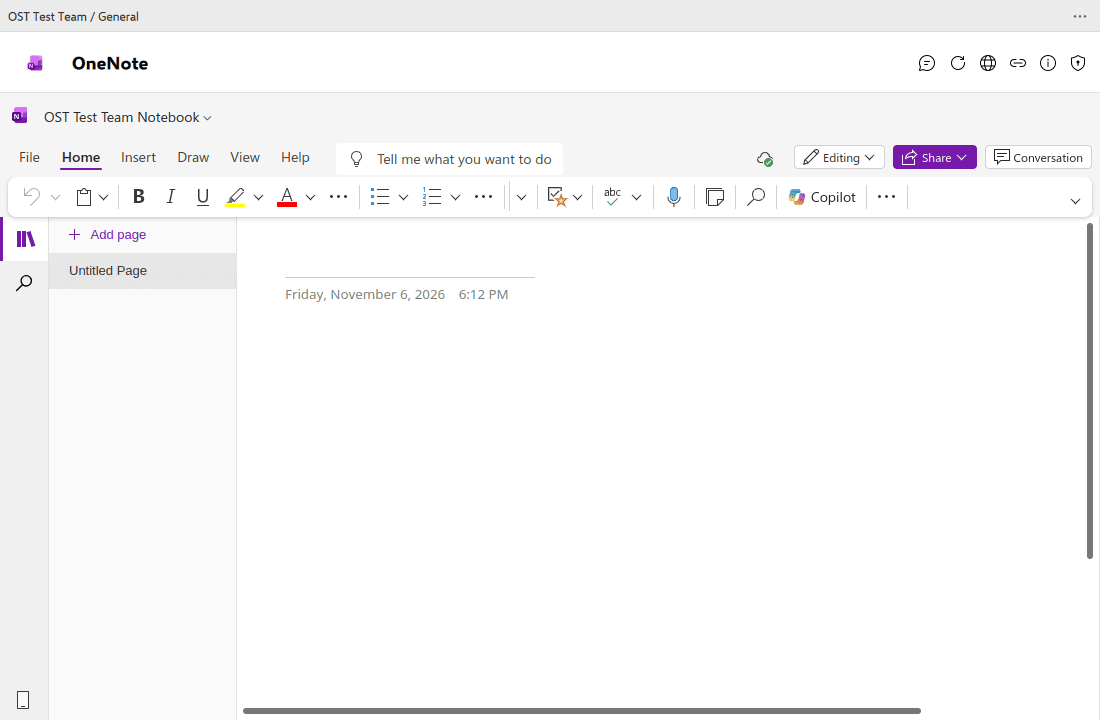
- OneNote, Whiteboard (see Loop, Notes and Whiteboard).
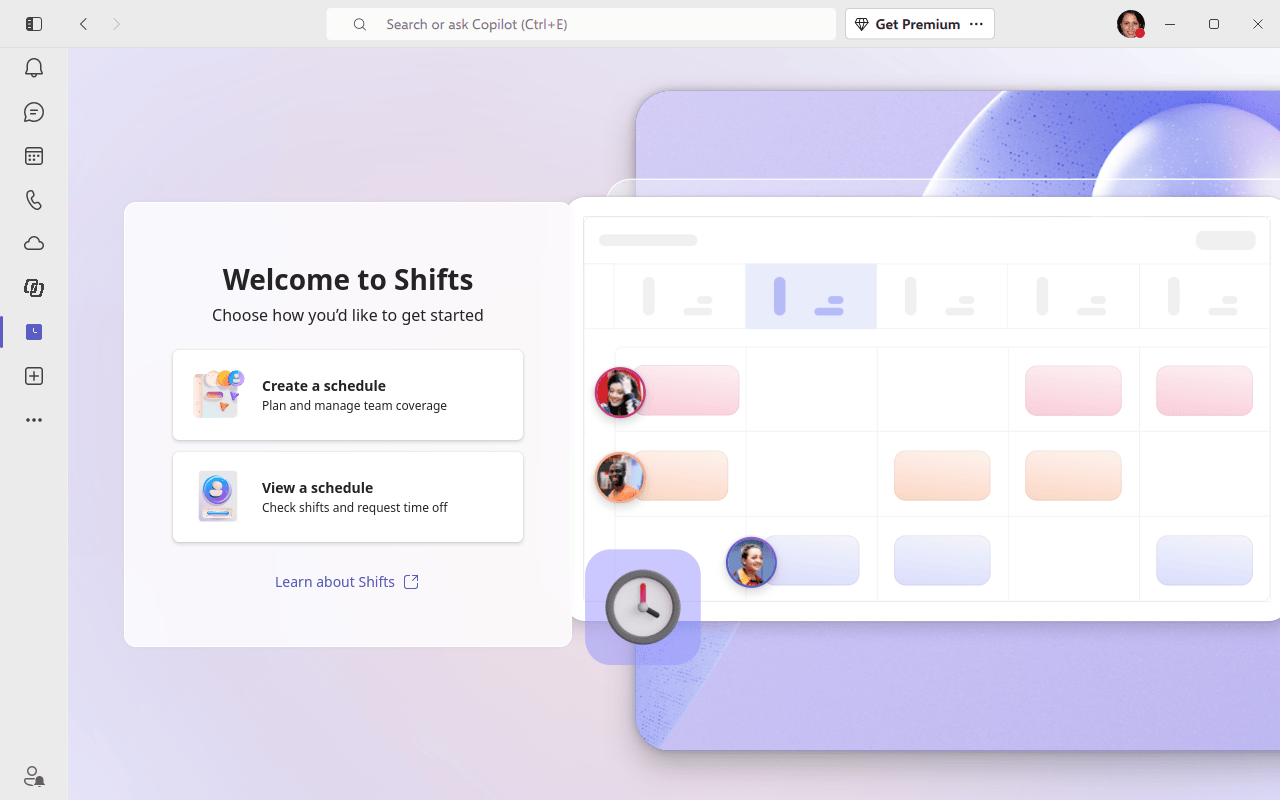
- Shifts and Clipchamp.
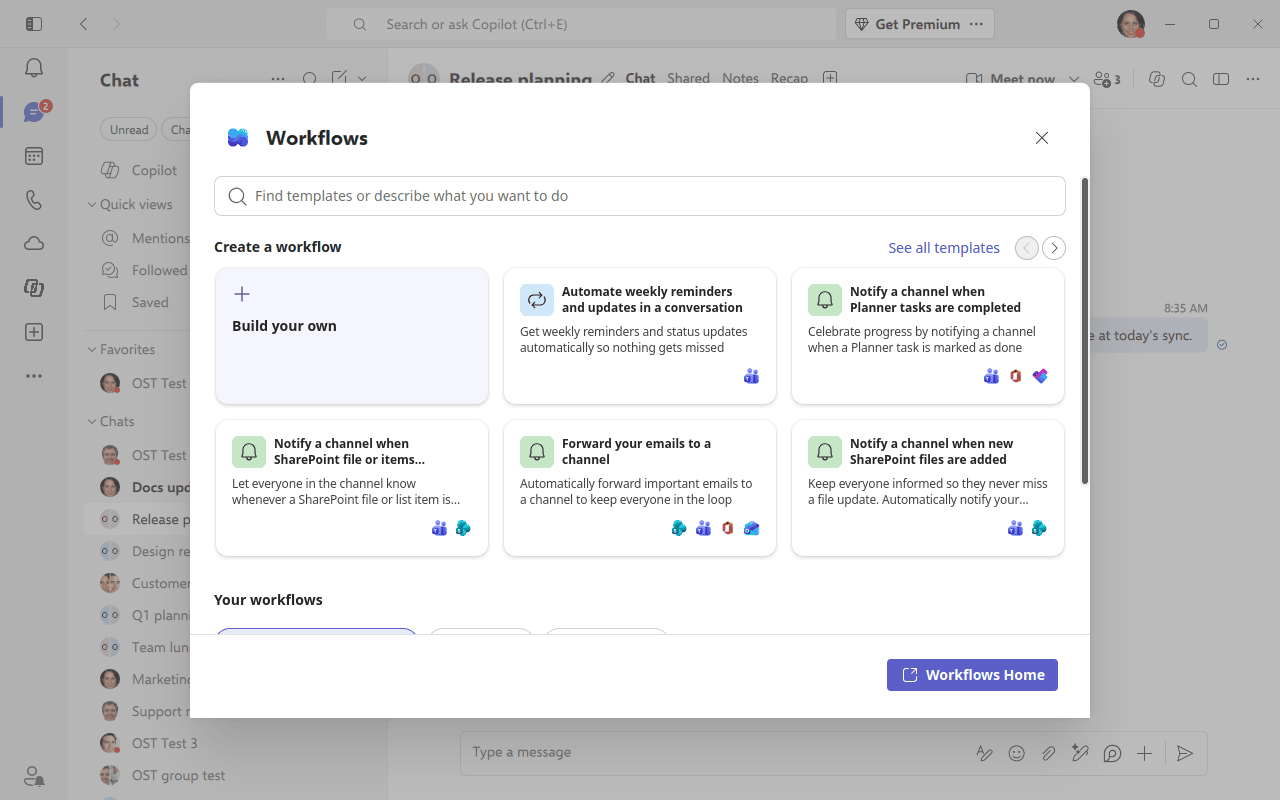
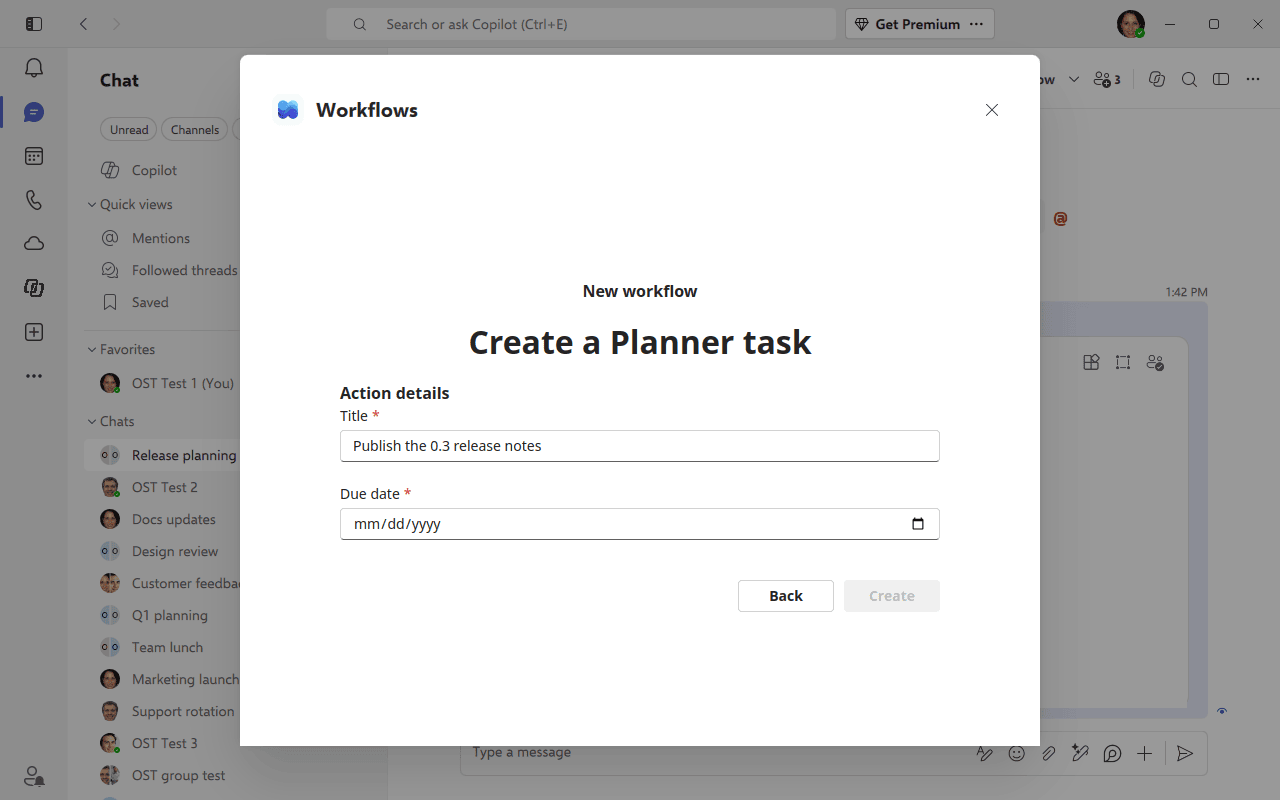
- Workflows: create and manage Power Automate workflows from Teams' templates.
- Microsoft 365 Copilot (see Copilot).
- Third-party apps' personal tabs, channel and chat tabs.
- Sign-in windows: an app that signs you in to its own service opens its sign-in page in a small OST window, as Teams does.
- Task modules: an app's dialogs (forms, pickers) open as OST dialogs over the window.
- Web app windows: pages an app opens in a new window show in an OST window with the page title.
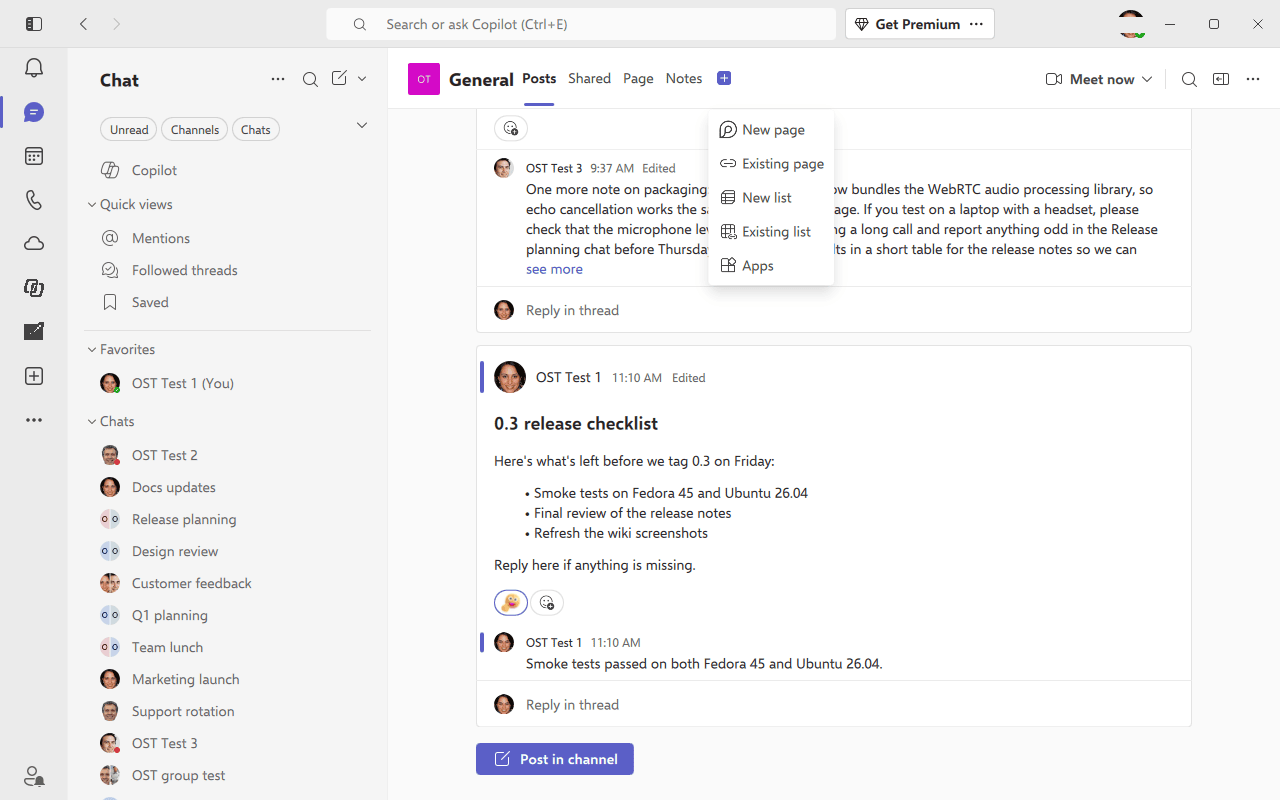
+ (Add a tab) next to a chat's or channel's tabs. In a channel it first offers New page, Existing page, New list, Existing list and Apps; in chats it opens the app picker at once.
- Add an app: your apps that have a tab, See all, Search for apps, and more from the Store.
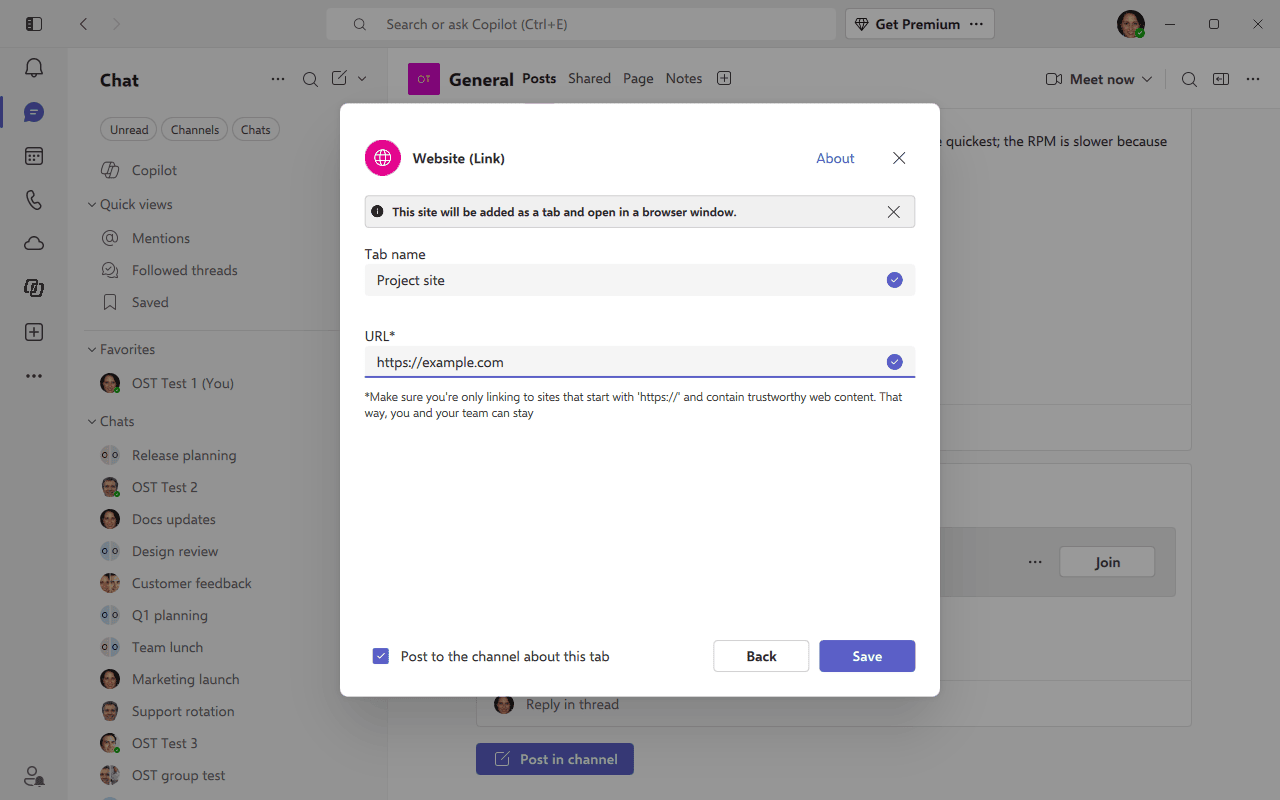
- Website: Tab name and URL (https only); Post to the channel about this tab (or chat).
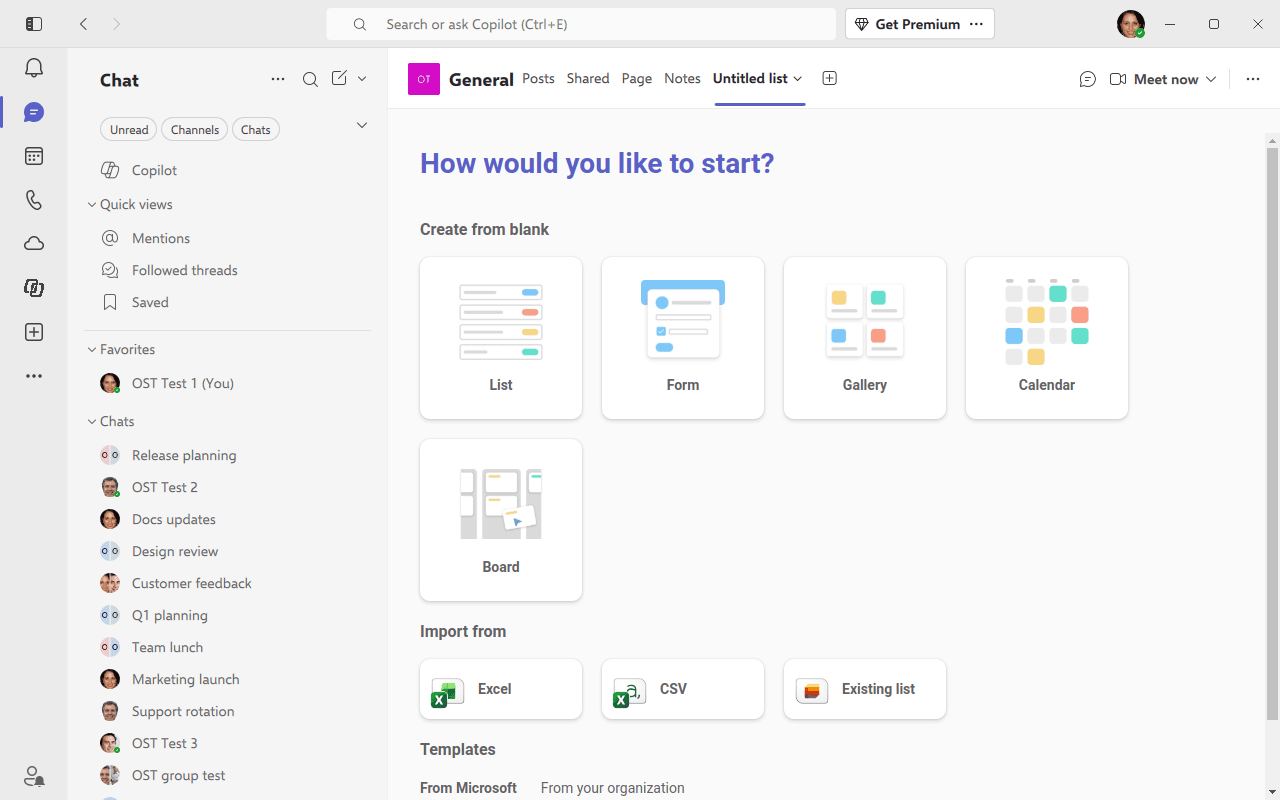
- Lists and SharePoint: a new or existing list, or a SharePoint page or library.
- An app's own configuration page opens in OST's host; Save adds the tab. Settings in the tab's menu opens the configuration again.
- App tabs run inside OST; Open tab in new window pops one out into its own window.
- + under the message box lists your apps with message actions (Polls, Power BI and others), and Schedule message (see Chat messages).
- Bots and agents (Channel Agent, Workflows) post adaptive cards, suggested actions and Loop answers, drawn as Teams draws them.