Repository navigation
Meeting controls
The call and meeting window's toolbar, panes and menus, as in Teams. What you see depends on the kind of call (1:1, group call, meeting, town hall) and your role, exactly as Teams decides it.
Teams' controls, from the left: indicators (encryption, AI, recording, timer), Chat, People, Raise, React, View, Notes, Apps, More, Camera ▾, Mic ▾, Share and Leave ▾. Controls that don't fit the window's width move into More, as in Teams. A 1:1 call adds Hold, Transfer and Dial pad where they apply.
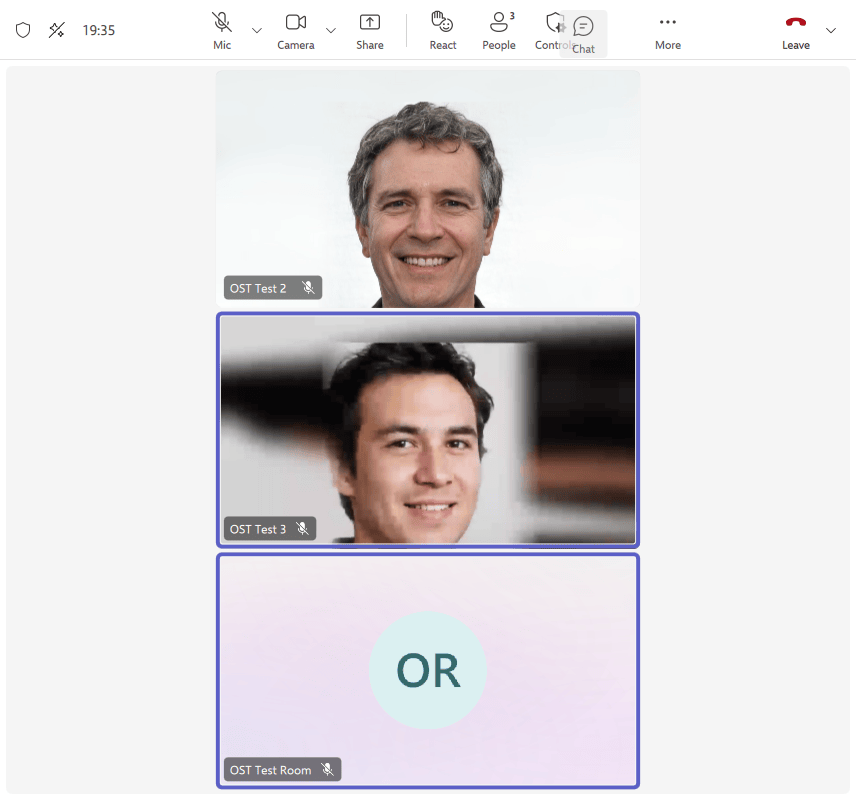
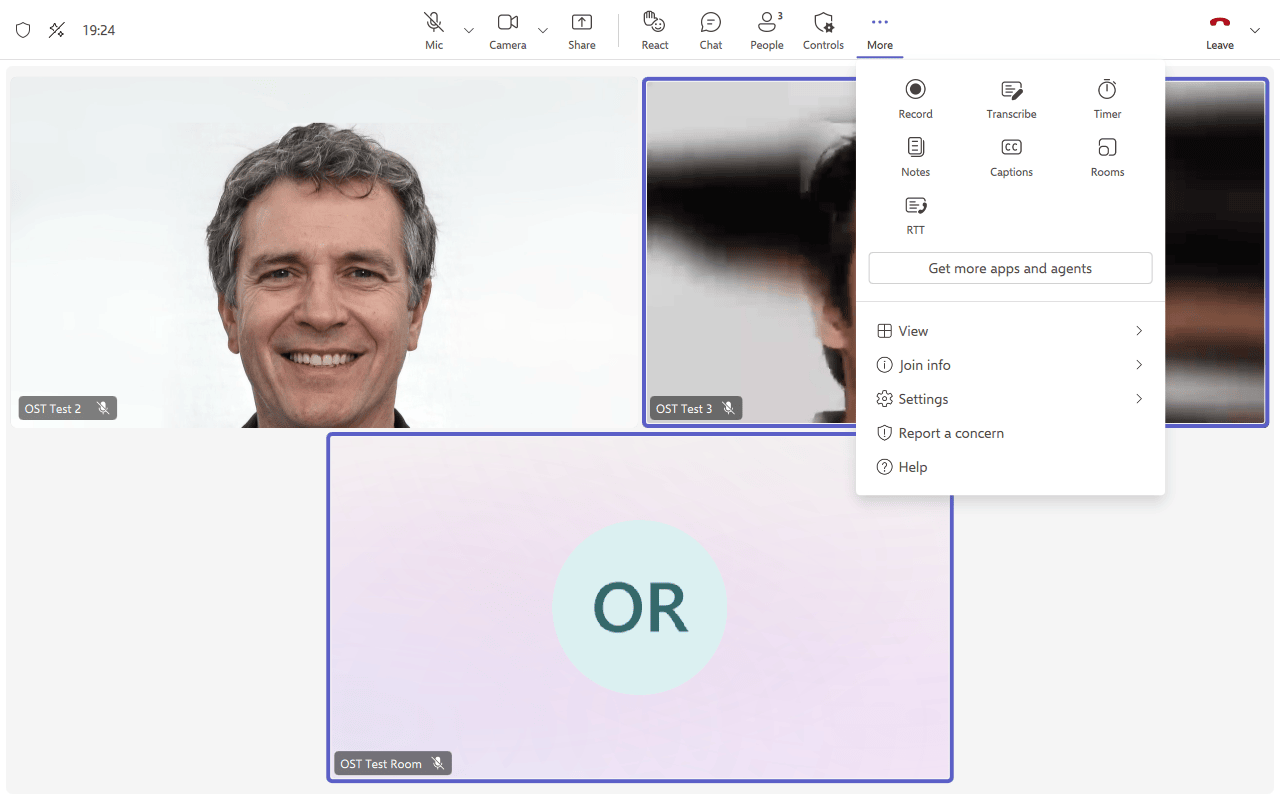
With Settings ▸ General ▸ Meeting ▸ New meeting controls on, OST uses Teams' simplified layout: Mic, Camera and Share in the middle, then React, Chat, People, Copilot, Controls and More, with Leave at the end. More becomes a grid of collaboration controls (Record, Transcribe, Timer, Notes, Captions, Rooms, RTT, Apps) over a list (View, Join info, Settings).
- Arrange the controls: drag a control from the bar into More, or from More onto the bar; your order is kept.
- Camera ▾: the camera, Backgrounds (None, blur, images), Avatars, Adjust brightness, Soft focus and More video effects and settings (Ctrl+Shift+O turns the camera on or off).
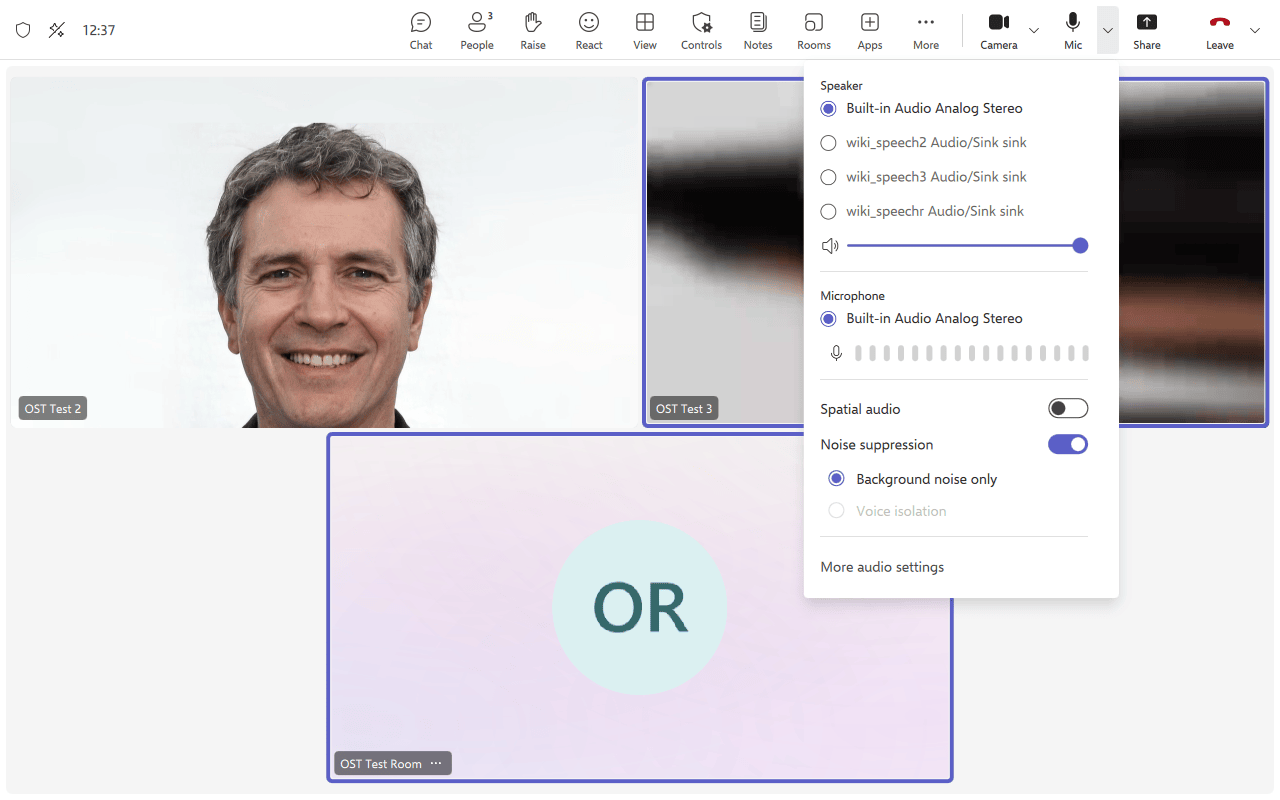
- Mic ▾: the microphone and speaker with a live meter and the speaker volume (Mute speaker), Noise suppression, Spatial audio and More audio settings (Ctrl+Shift+M mutes or unmutes).
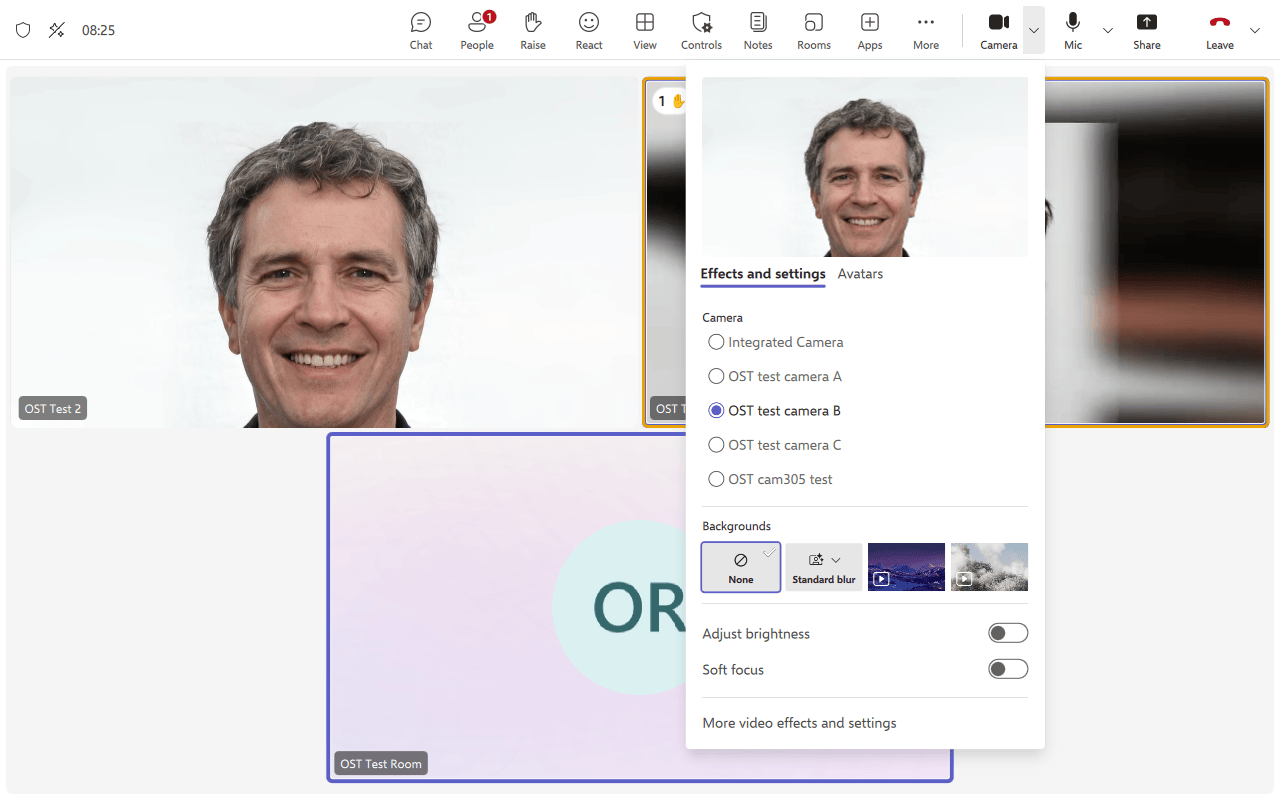
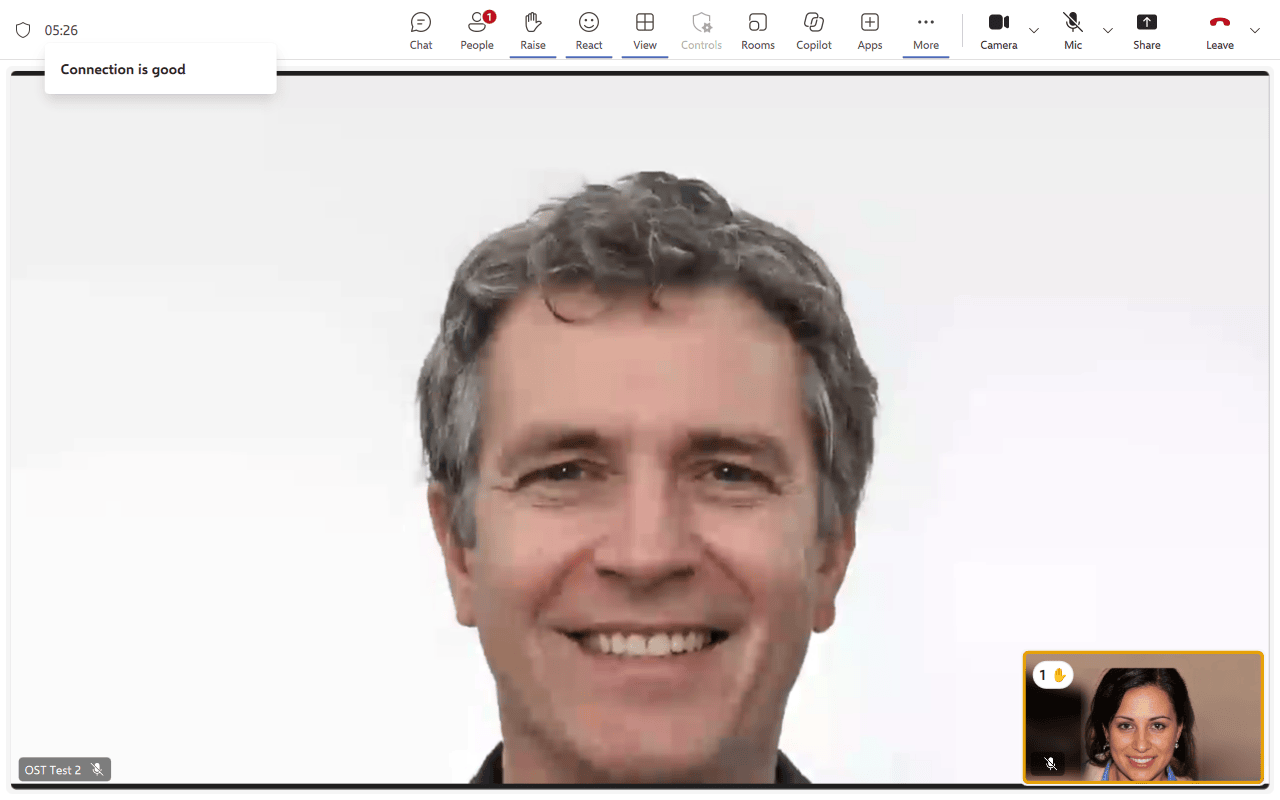
- Raise puts up your hand: a gold outline and a hand on your tile, and your place in the queue in People. Lower my hand (or the organizer's Lower all hands) takes it down.
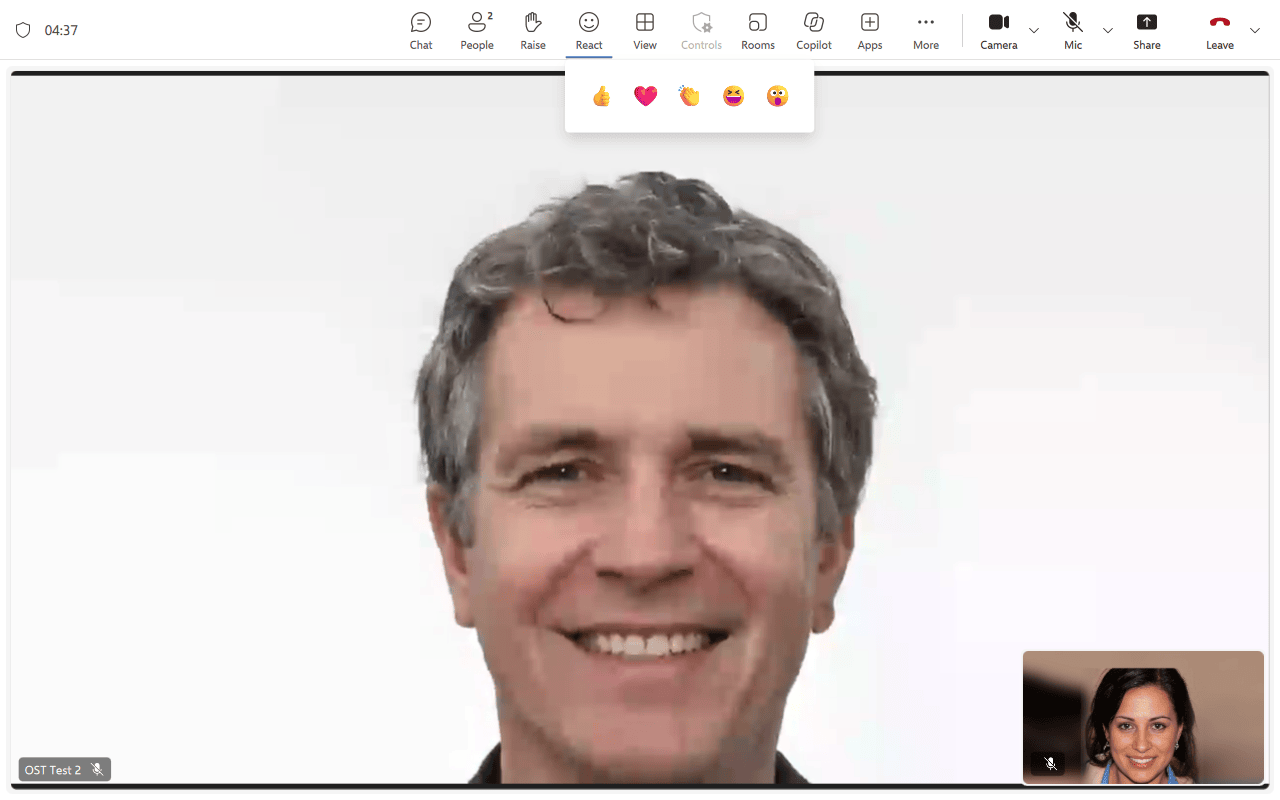
- React sends a reaction (like, love, applause, laugh, surprise) that floats over the stage for everyone; others' reactions float over theirs.
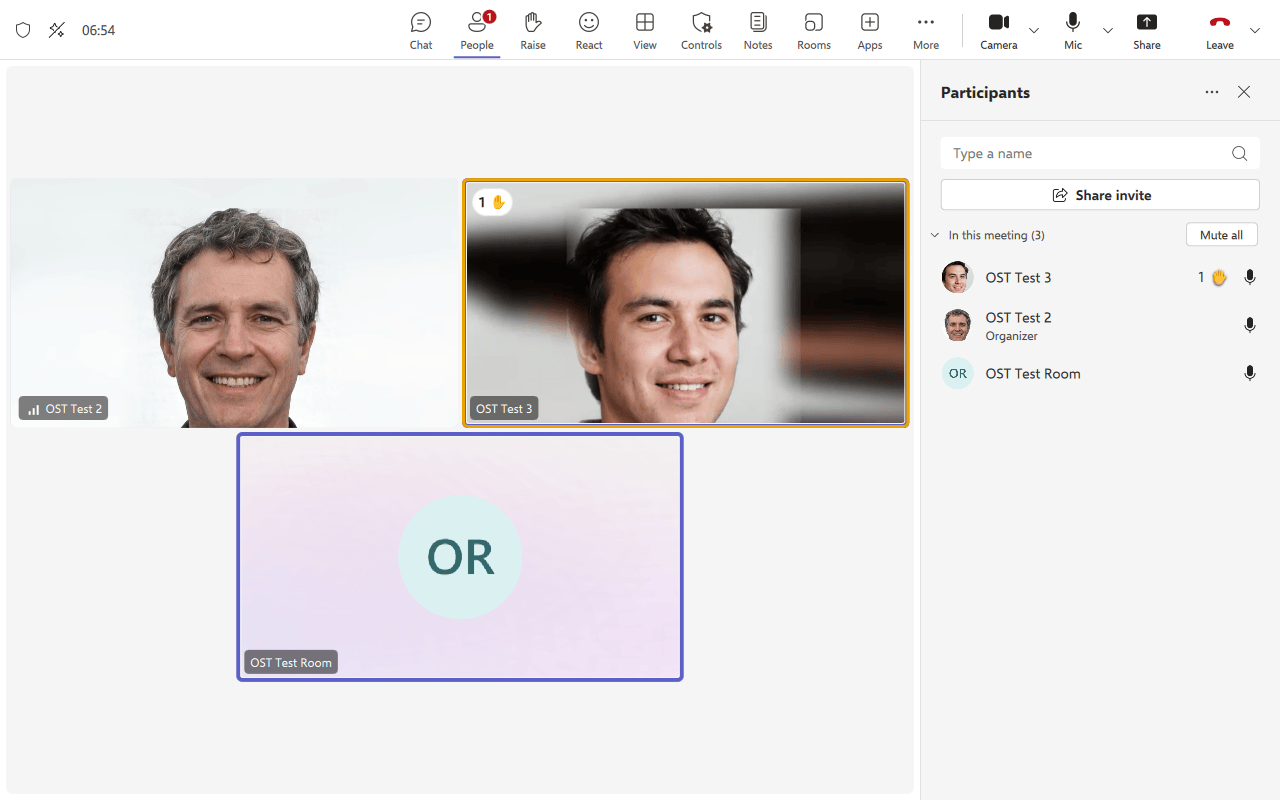
People opens the participants pane:
- Sections: Presenters, Attendees, Waiting in lobby (with Admit all), Suspected threats, people in a joined room, and People added to the chat who aren't in the meeting. Raised hands come first, in order.
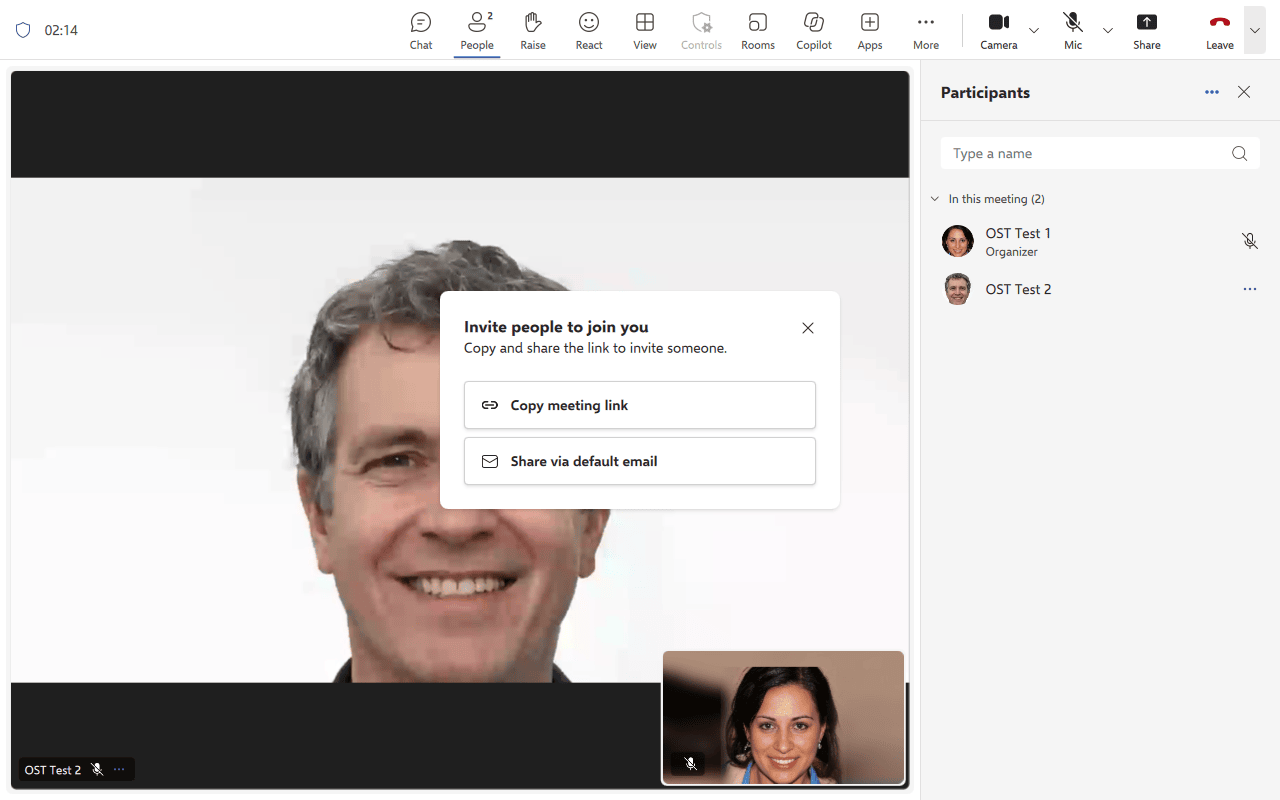
- Type a name to search; Share invite (Invite people to join you: Copy meeting link, Share via default email); Mute all for organizers.
- Each person's mic and camera state is shown as they set it themselves.
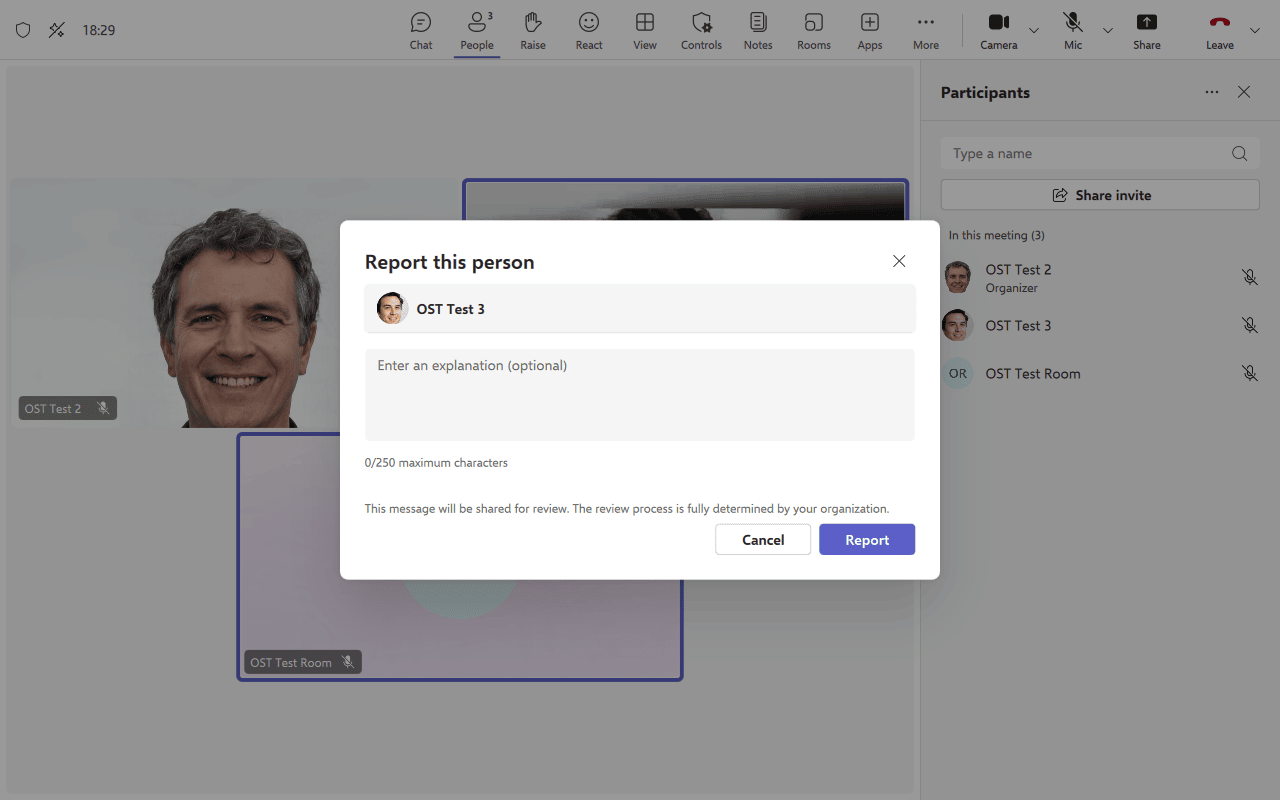
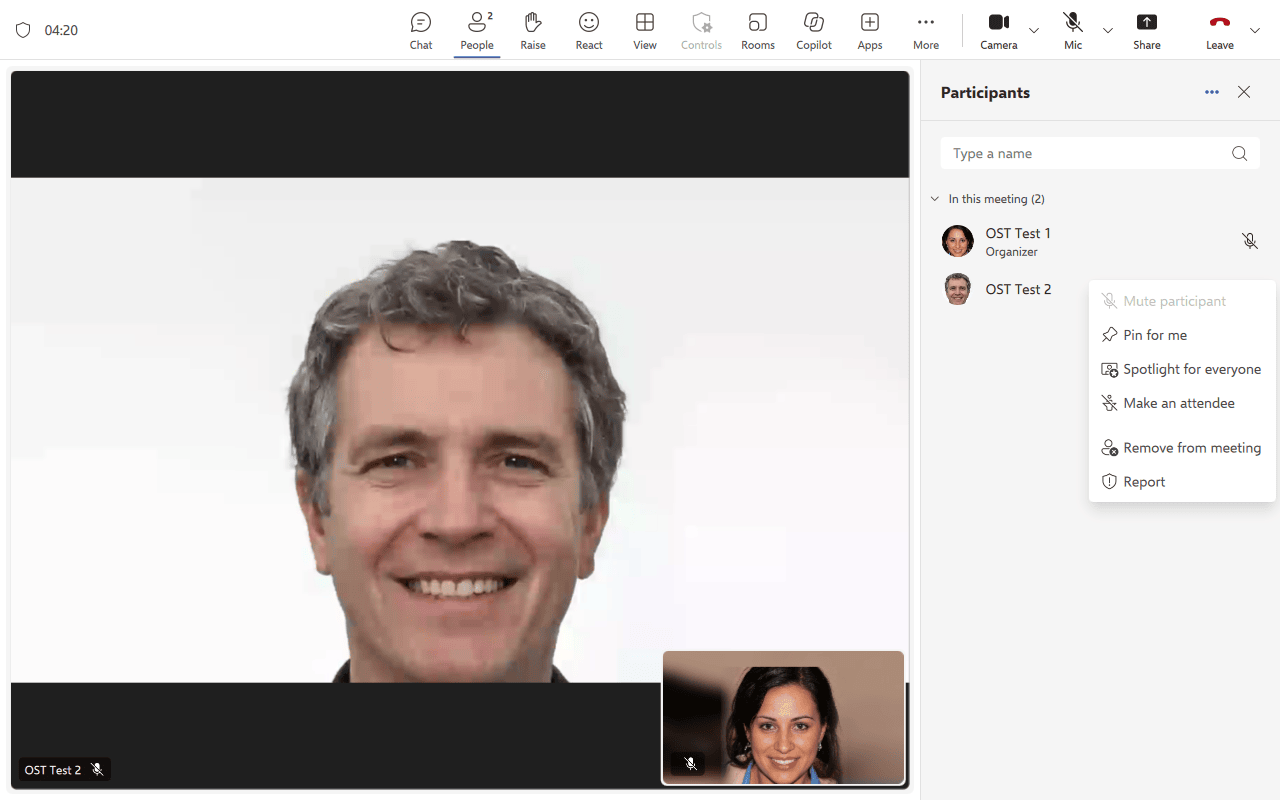
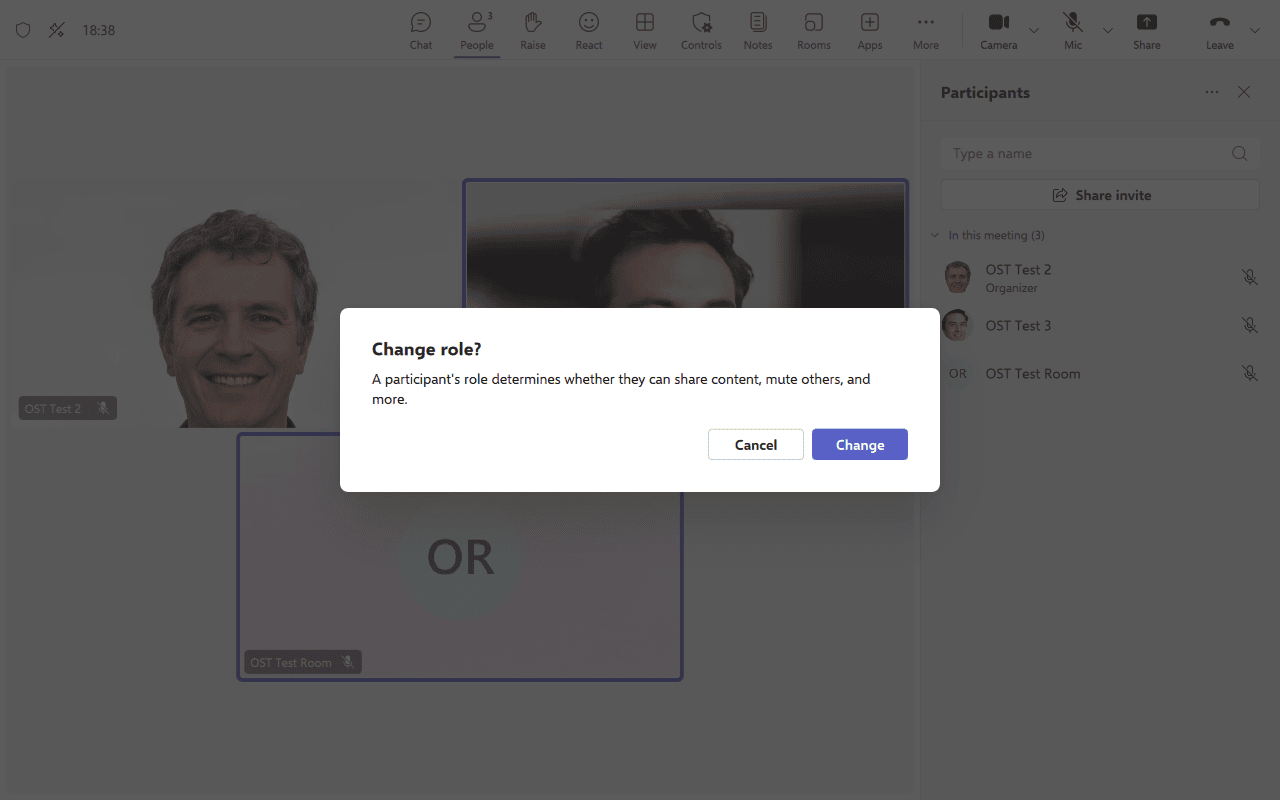
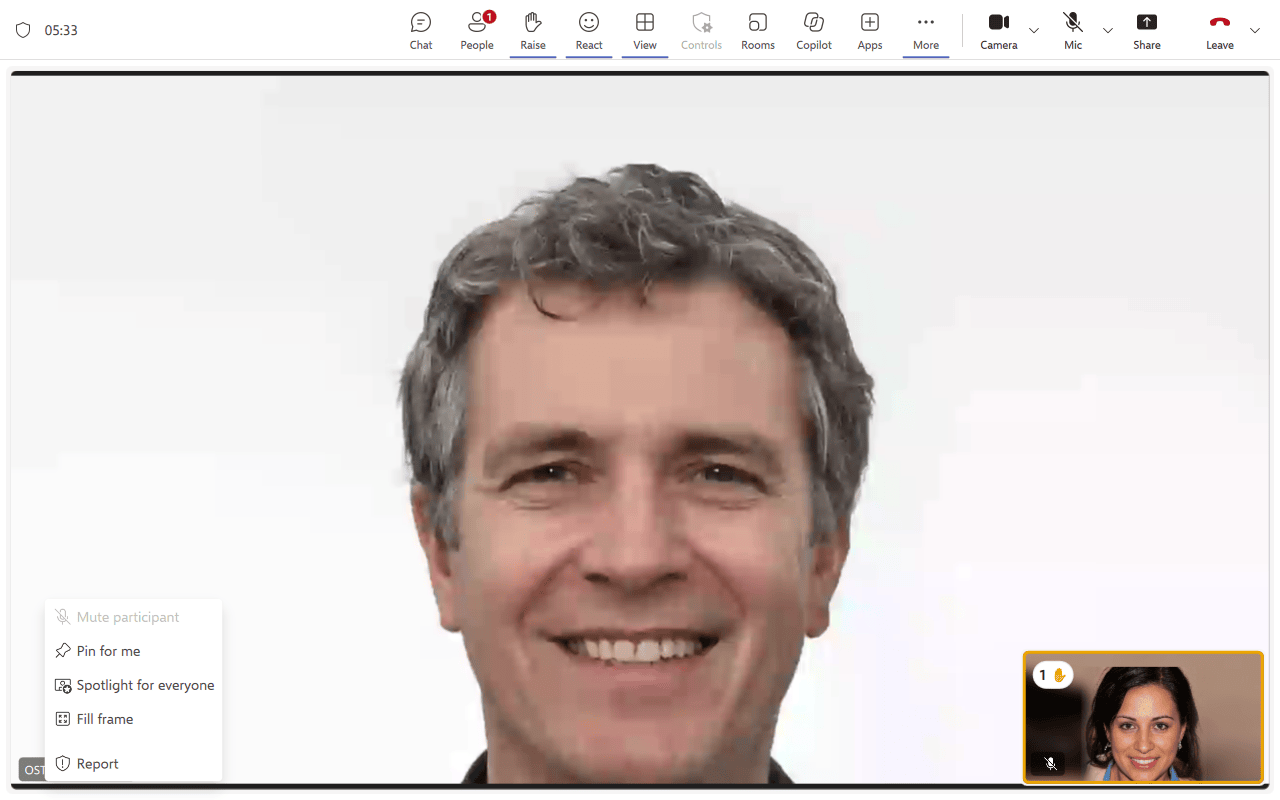
- A person's ···: Mute participant, Pin for me, Spotlight for everyone, Bring on screen / Take off screen, Make a presenter / Make an attendee (Change role?), Remove from meeting, Chat, Control Room System (a Teams Room) and Report.
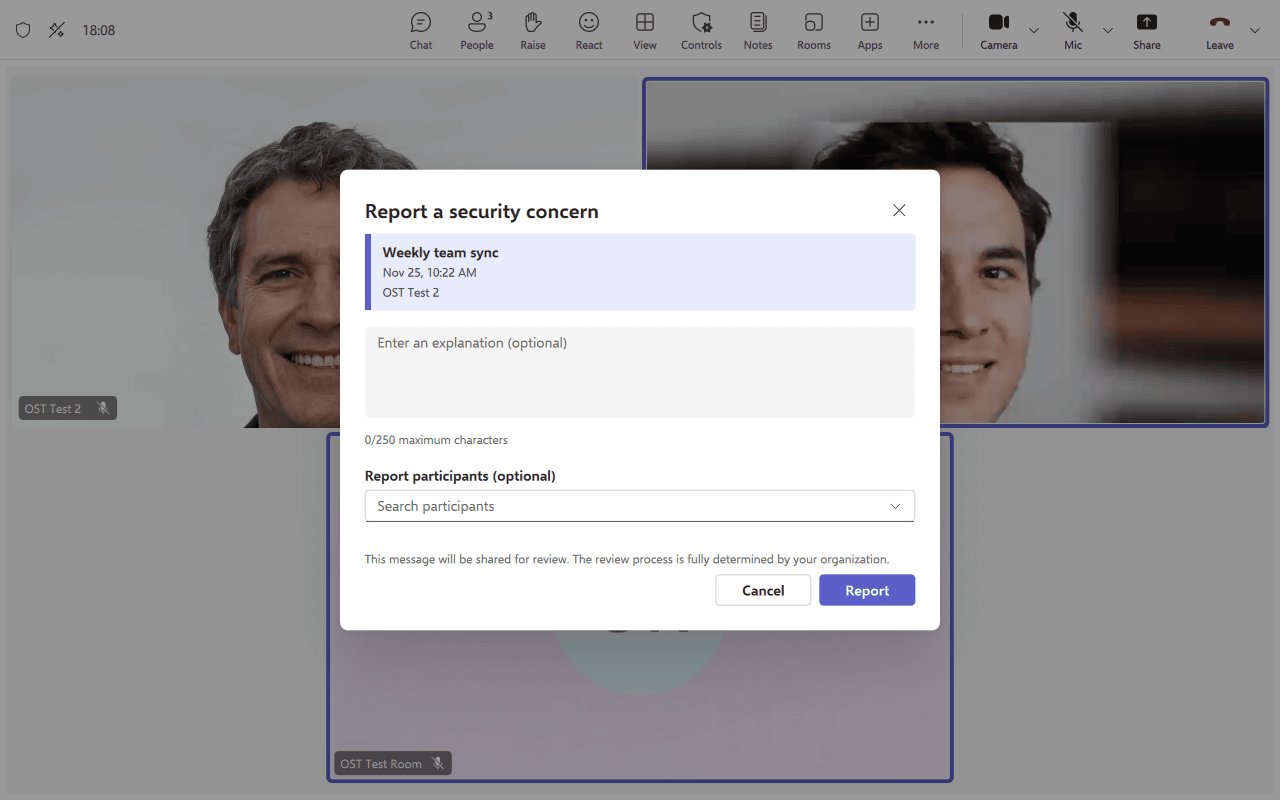
- Report opens Report a security concern: pick participants, add an explanation and Report (it goes to your organization's review).
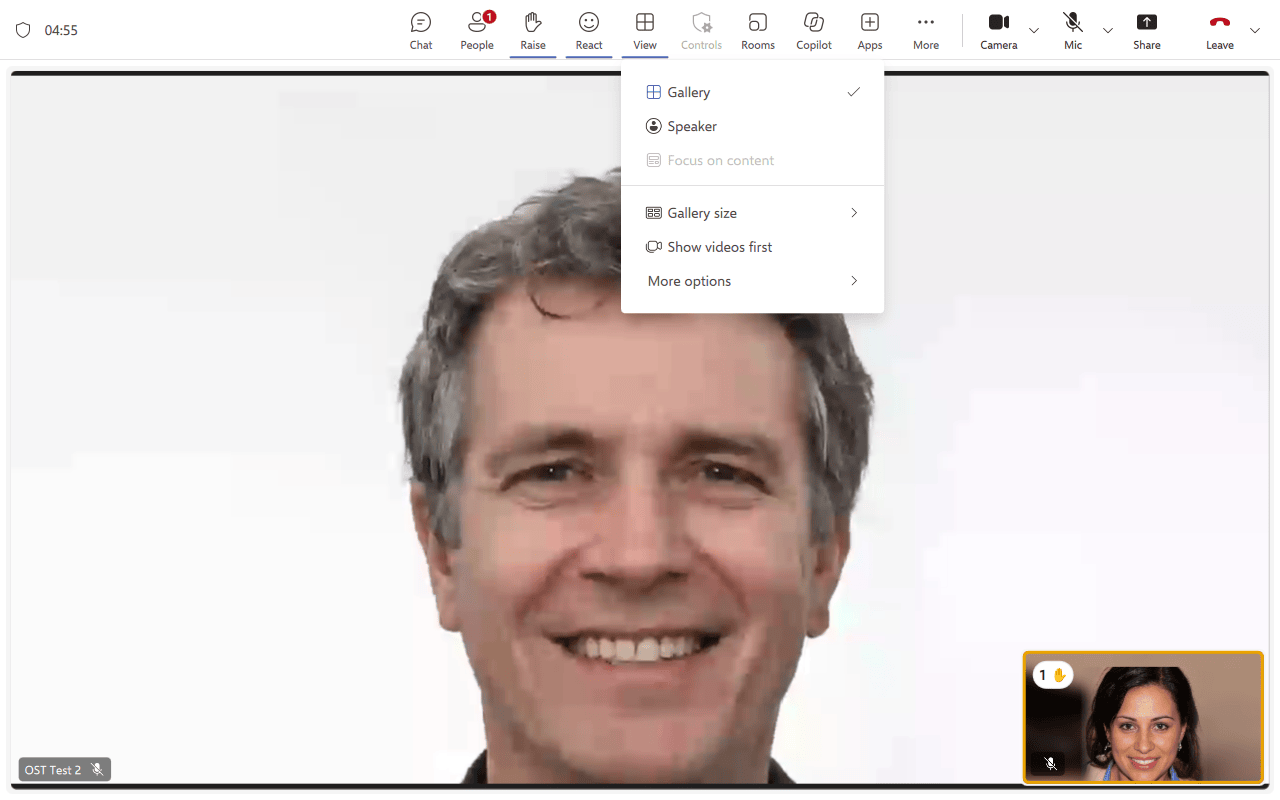
View: Gallery, Speaker, Focus on content, the gallery's size (how many tiles) and place, Full screen, and turning incoming video off. Speaker view follows the active speaker, as Teams' does.
A video tile's ··· (or right-click): Pin for me, Spotlight for everyone / Stop spotlighting, Fit to frame / Fill frame, Mute participant, Hide me / Include me in gallery, Lower hand, Bring on screen, Switch camera, and on a Teams Room, Control Room System.
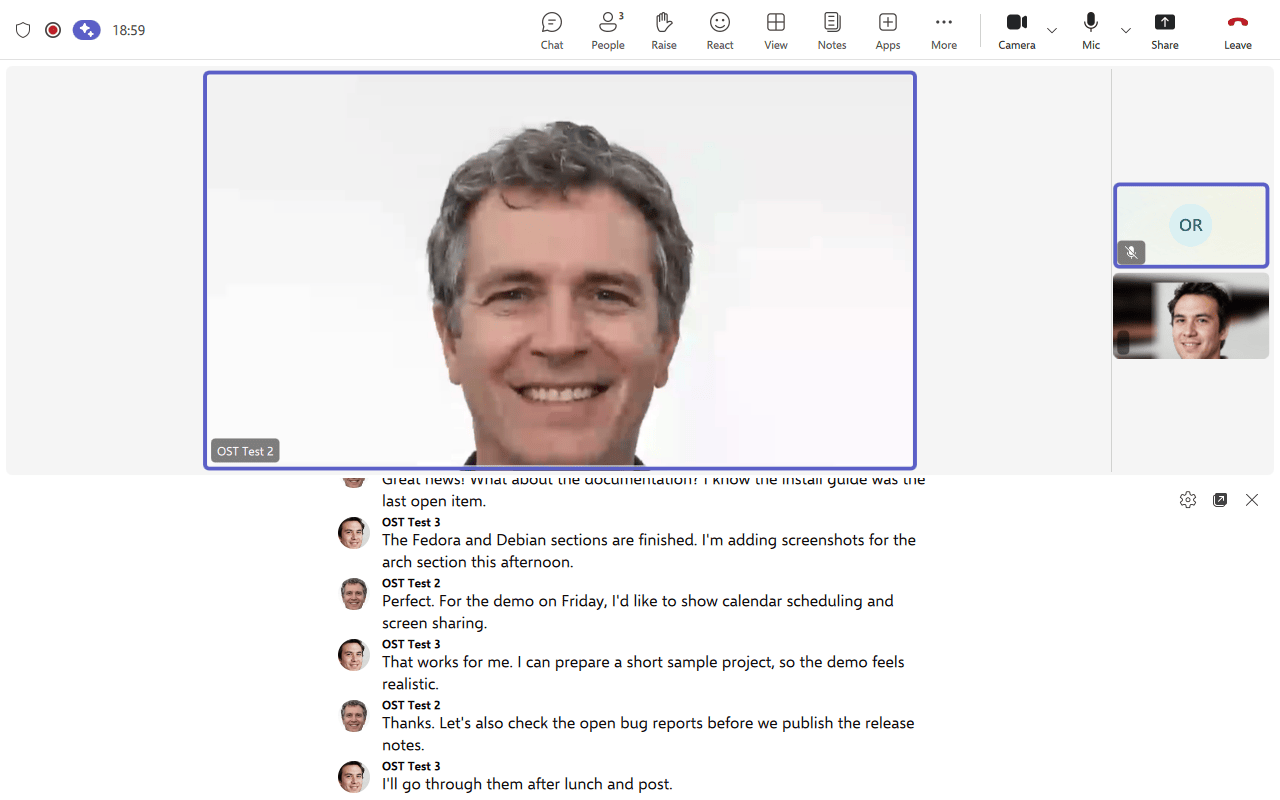
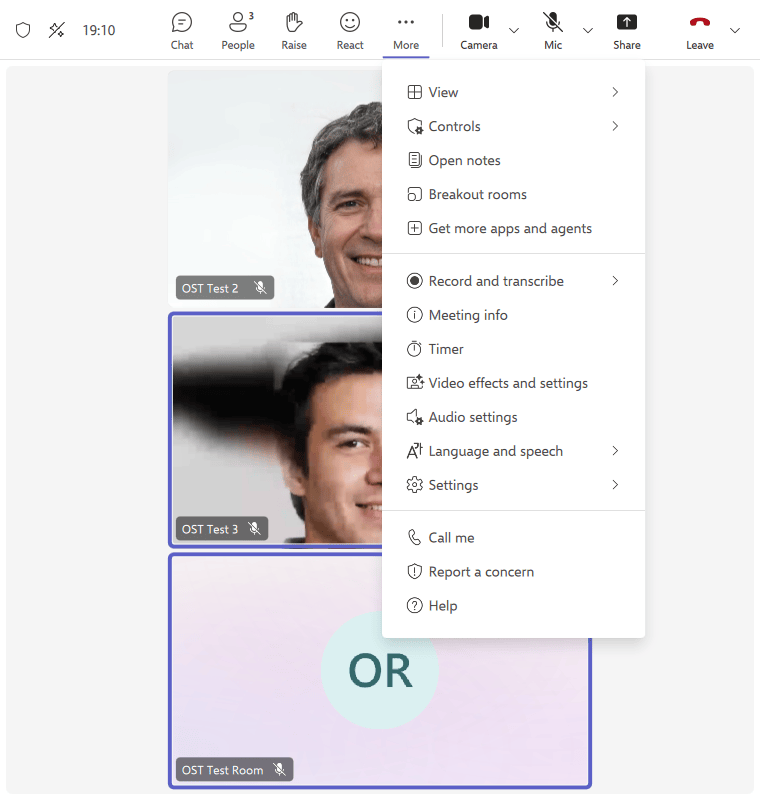
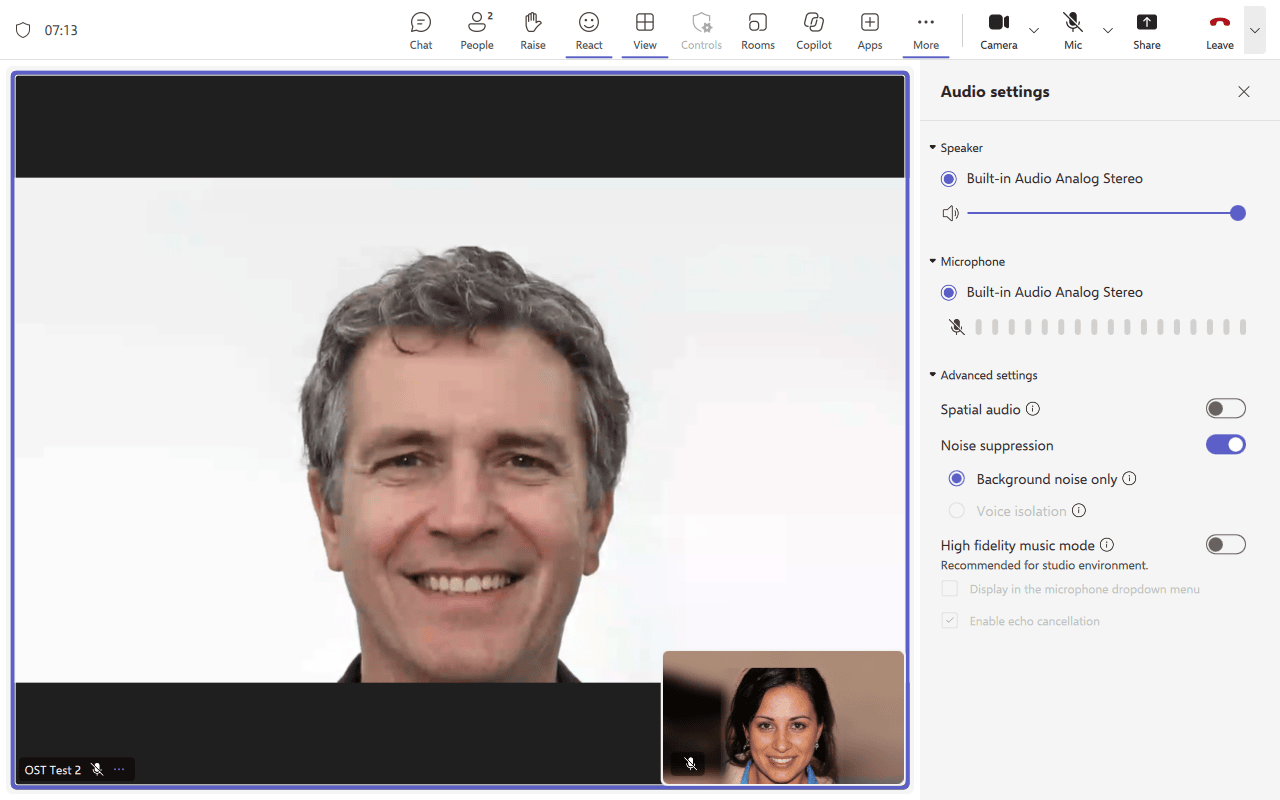
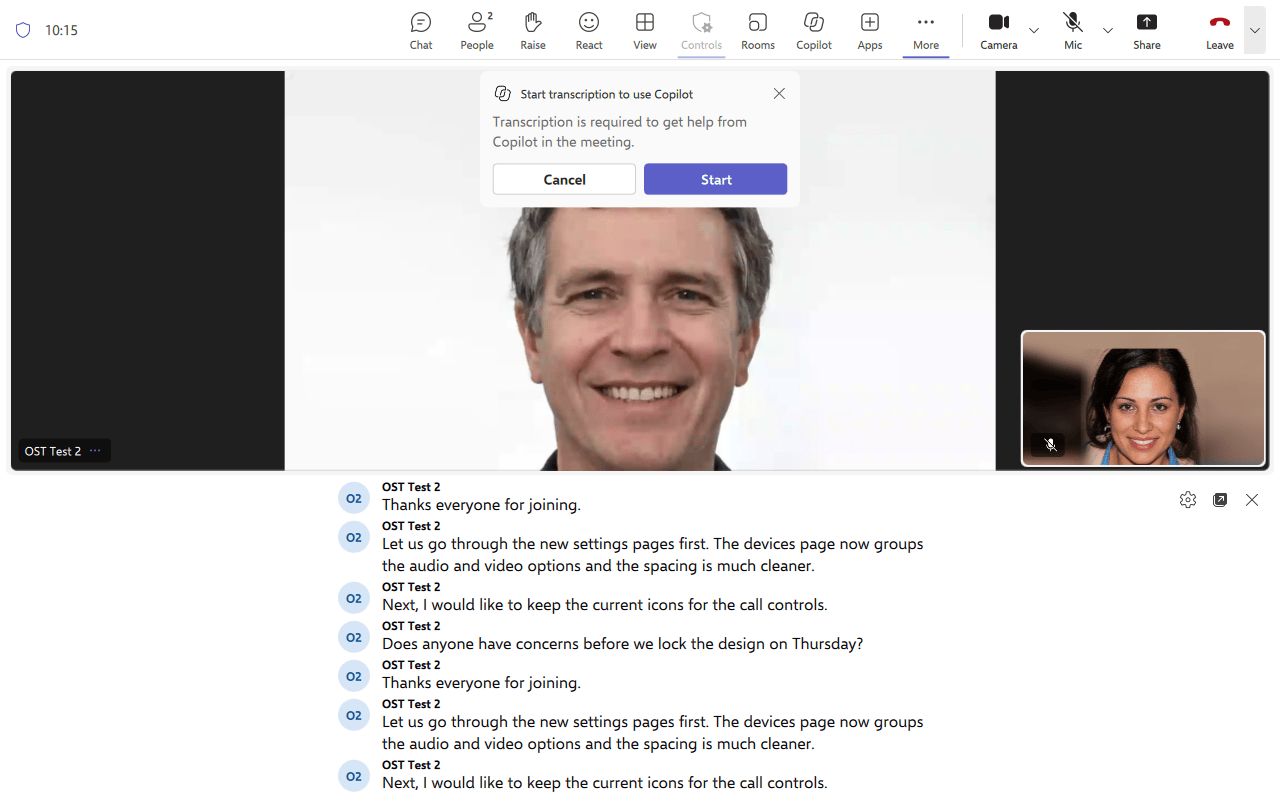
More (···): Record, Transcribe (Show transcript), Captions, Timer, Interpreter, Notes, Rooms (breakout rooms), RTT, Get more apps and agents; Join info (Meeting info, Call me, Call health); Settings (Accessibility settings, Show chat bubbles, Hide me, Video effects and settings, Audio settings, Optimize for room); Pop out; Report a concern; Help. A 1:1 call adds Hold, Transfer, Consult, Dial pad and Park Call.
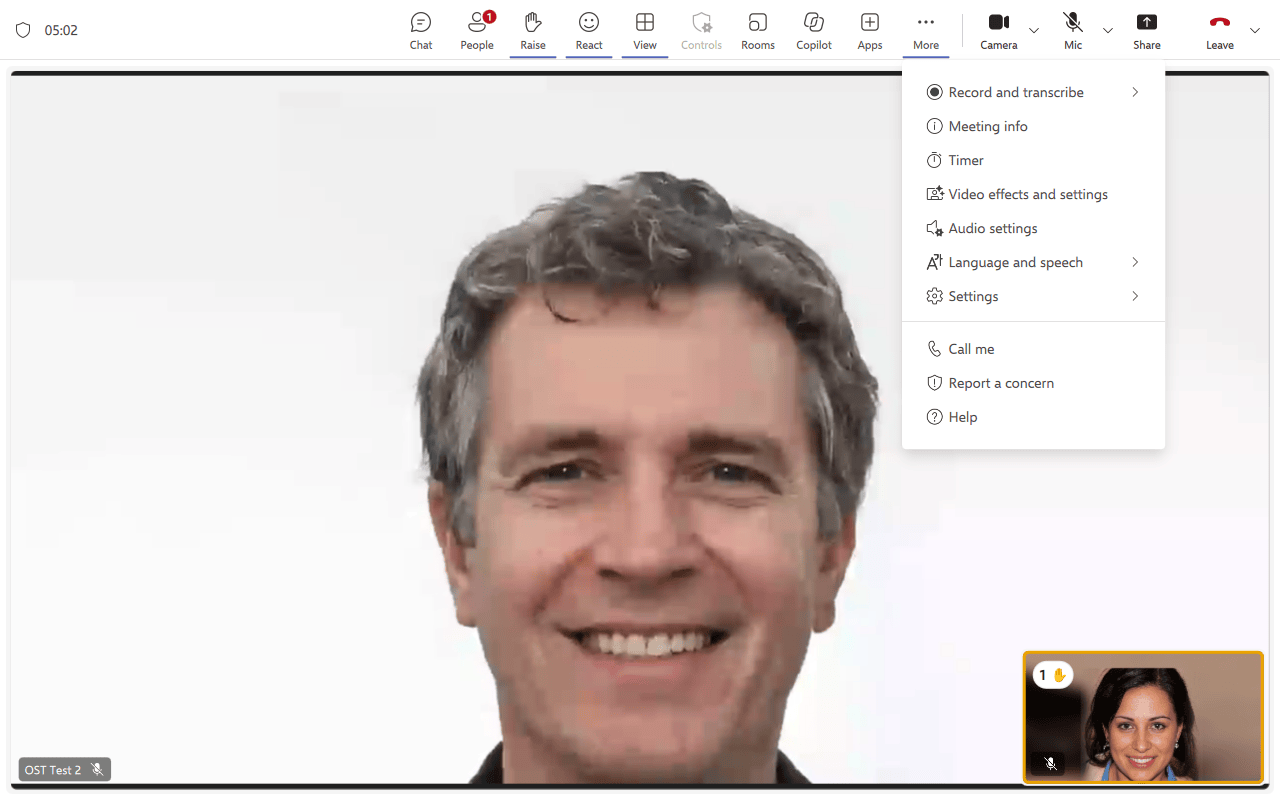
- Audio settings opens a side pane: speaker, microphone, Noise suppression, Spatial audio, Enable echo cancellation, High fidelity music mode and Advanced settings.
- Report a concern opens Report a security concern for the meeting (with an explanation; it goes to your IT admin).
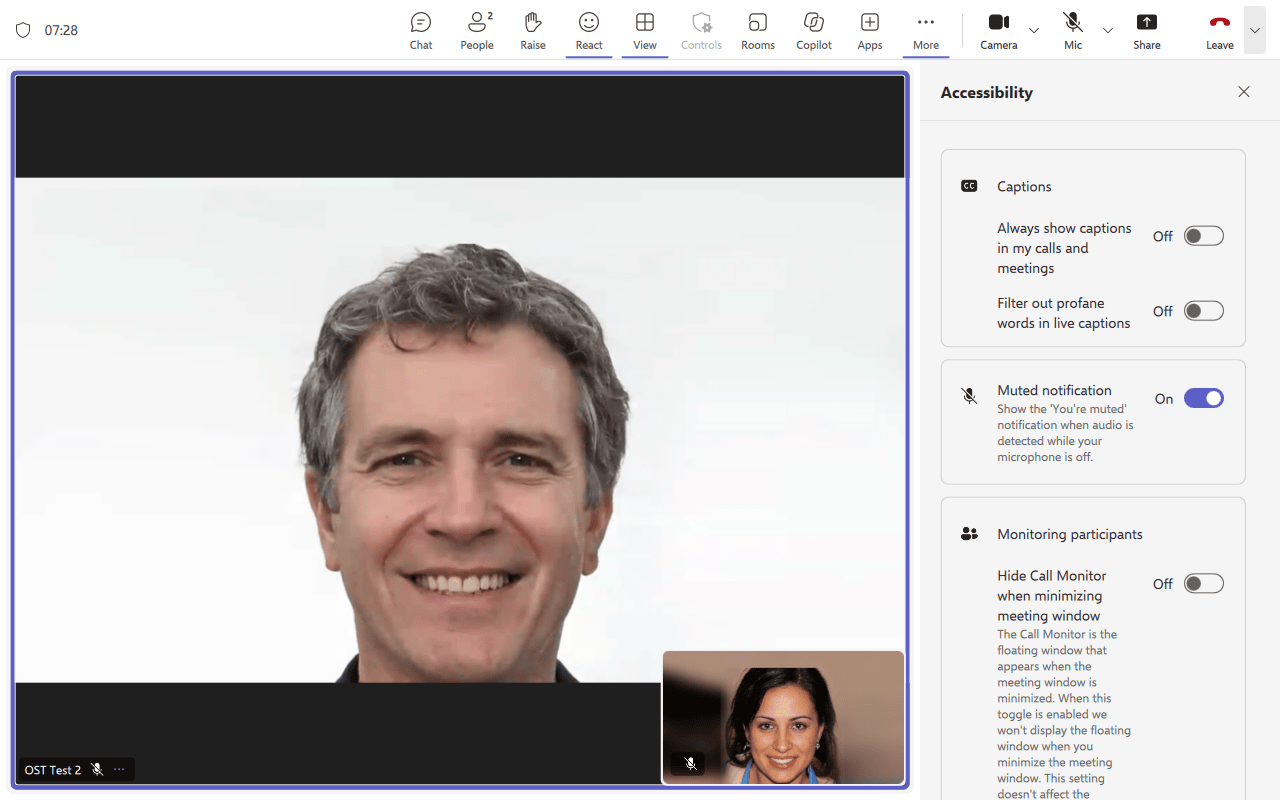
- Accessibility settings: Always show captions, Filter out profane words in live captions, Muted notification, and Hide Call Monitor when minimizing meeting window.
Controls (organizers and co-organizers):
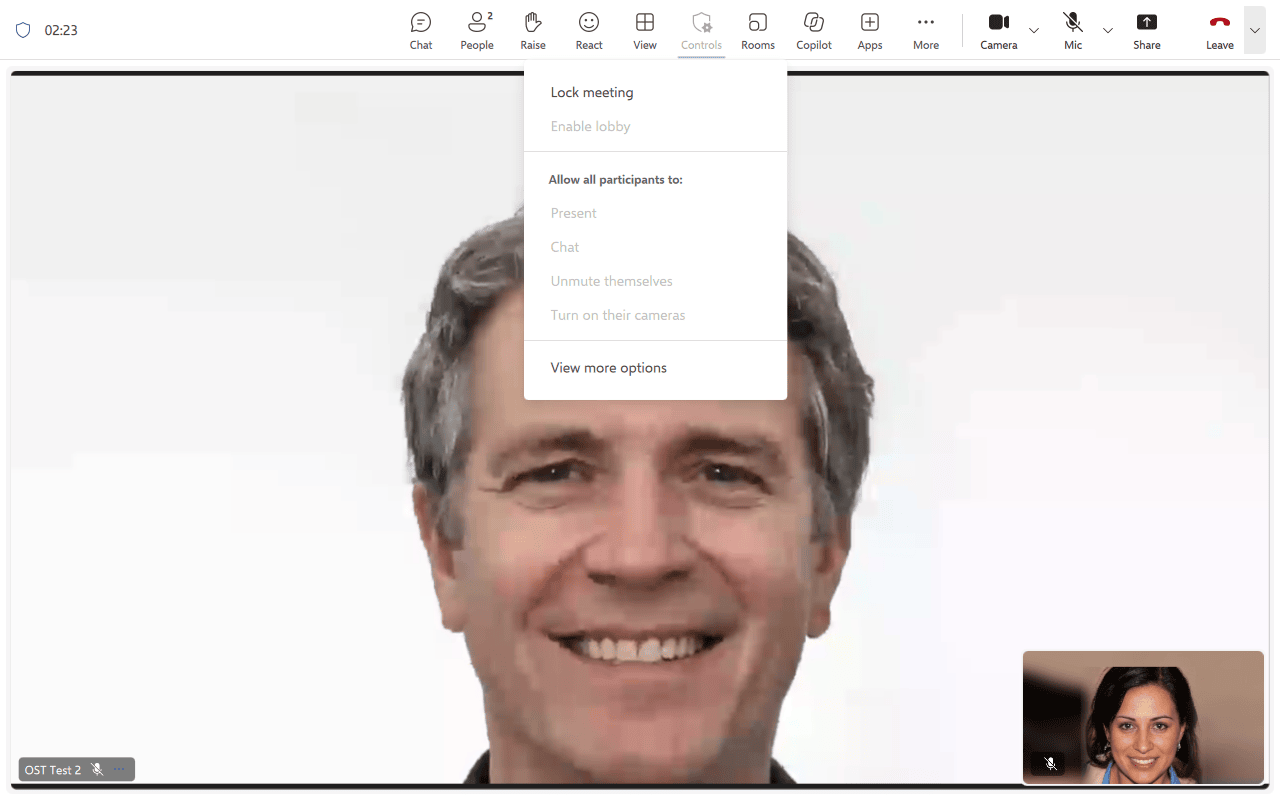
- Lock meeting ("When the meeting is locked, nobody else can join the meeting."; Lock the meeting?), Enable lobby.
- Allow all participants to: Present, Chat, Unmute themselves, Turn on their cameras.
- Mute all, Disable mic for attendees / Allow mic for attendees, Disable camera for attendees / Allow camera for attendees, Lower all hands, Stop all spotlights, Download attendance list.
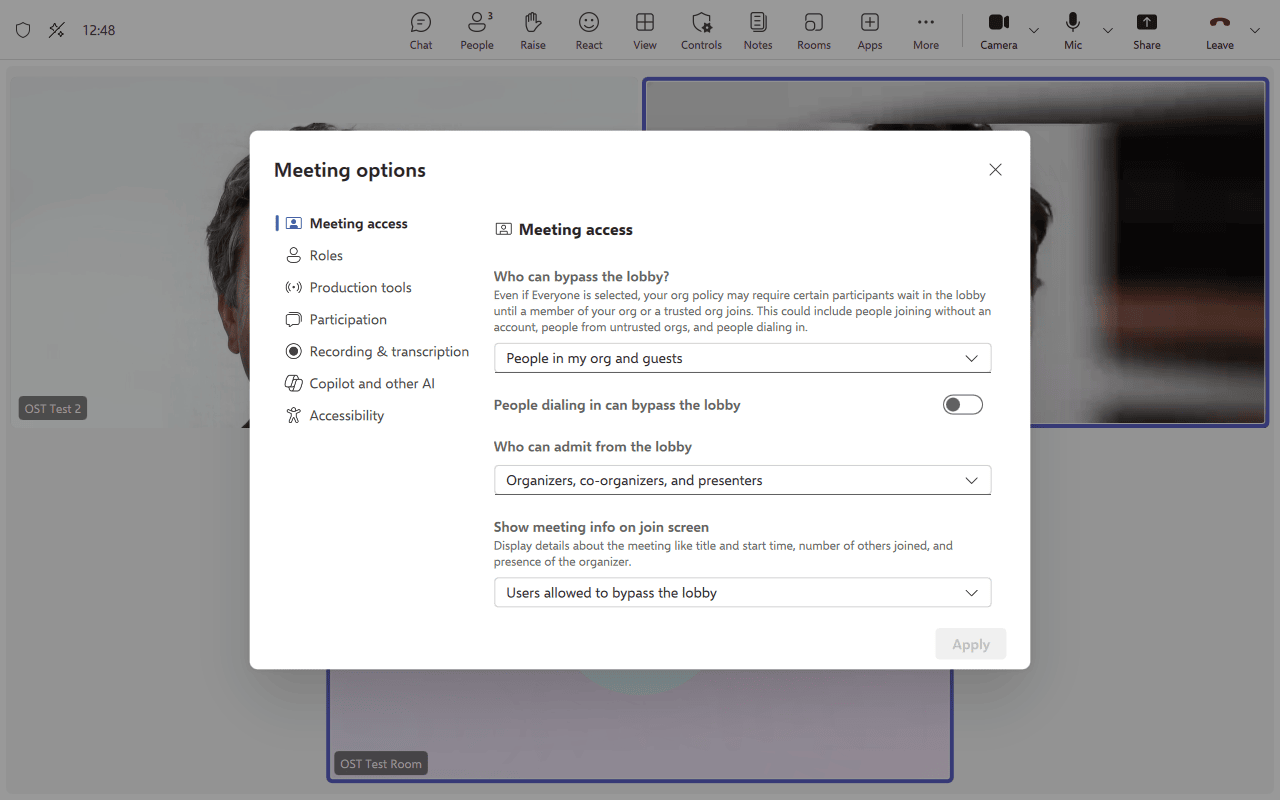
- View more options opens Meeting options: who can bypass the lobby, who can present, co-organizers, mics and cameras for attendees, Allow reactions, Allow attendance report, recording and transcription, Copilot and other AI (Allow Copilot), language interpretation, Enable green room, Enable multilingual speech recognition and more; Apply saves them.
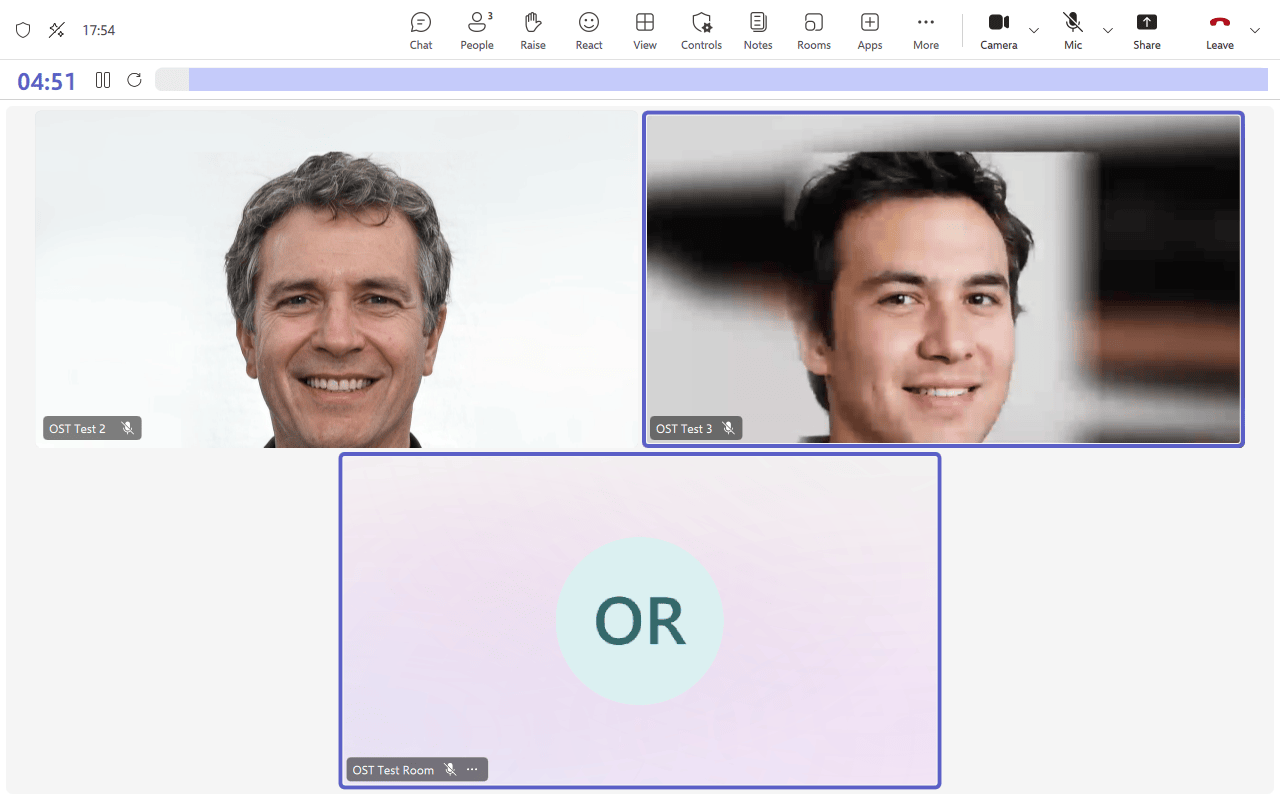
- Timer (More ▸ Timer) puts a countdown strip over the stage for everyone: set the minutes and seconds, Start, Pause timer, Resume timer, add a minute, Reset timer or Cancel timer for everyone; "Time's up!" when it ends.
- Facilitator (with Copilot): an Agenda timer with the meeting's topics (Add topic, mark as Discussed, resize sections, move left or right), and Facilitator's notes.
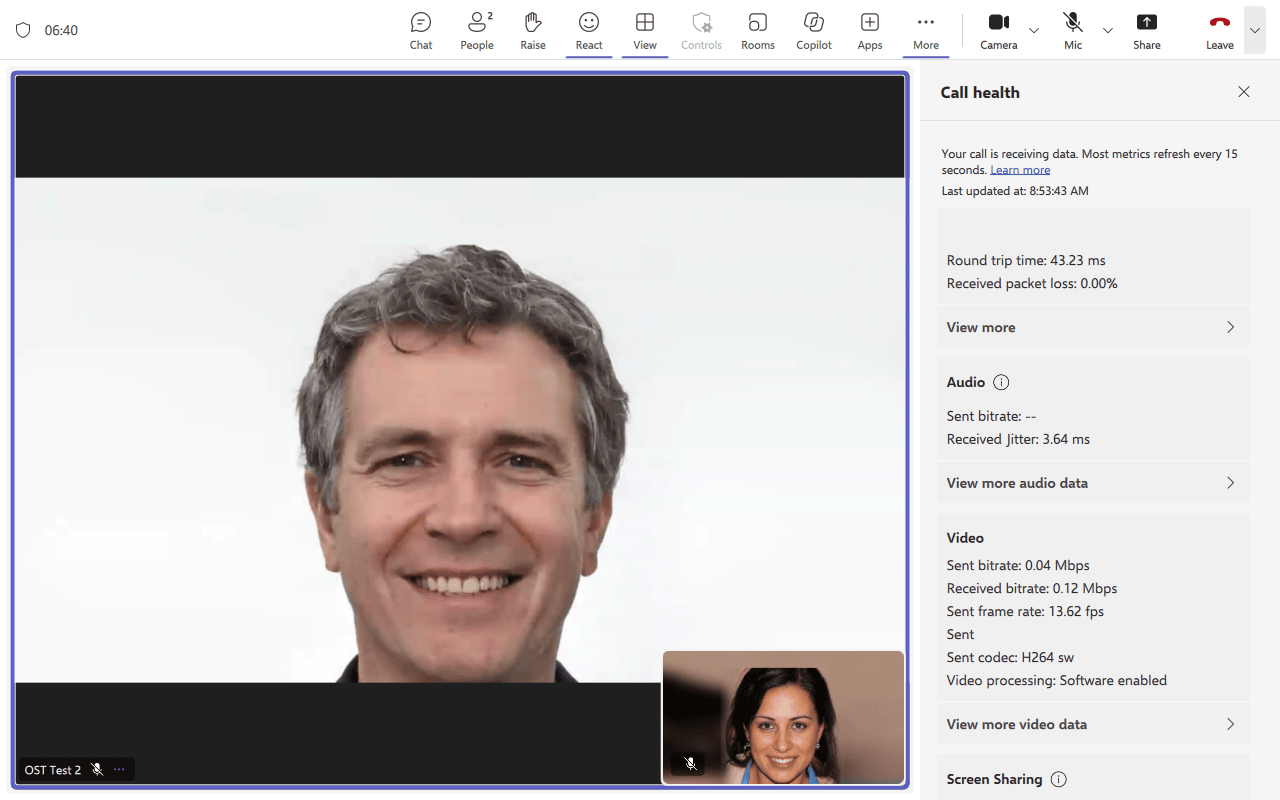
- Call health (More ▸ Join info ▸ Call health): Network (round trip time, packet loss, Teams send and receive limits), Audio, Video and Screen Sharing (sent and received bitrate, codec, packets, jitter, resolution, frame rate), updated live.
- Network strength: on a weak network a bars icon shows in the toolbar; its popover says what's wrong and offers Turn off all video.
- AI indicator (Meeting AI: Copilot, Facilitator, Intelligent recap) and the recording indicator show what's active.
Ctrl+Shift+M mic, Ctrl+Shift+O camera, Ctrl+Shift+H leave,
Ctrl+Spacebar (hold) to unmute for a moment, Ctrl+Alt+Shift+S announce
the active speaker. See
Keyboard shortcuts.