Repository navigation
Help and feedback
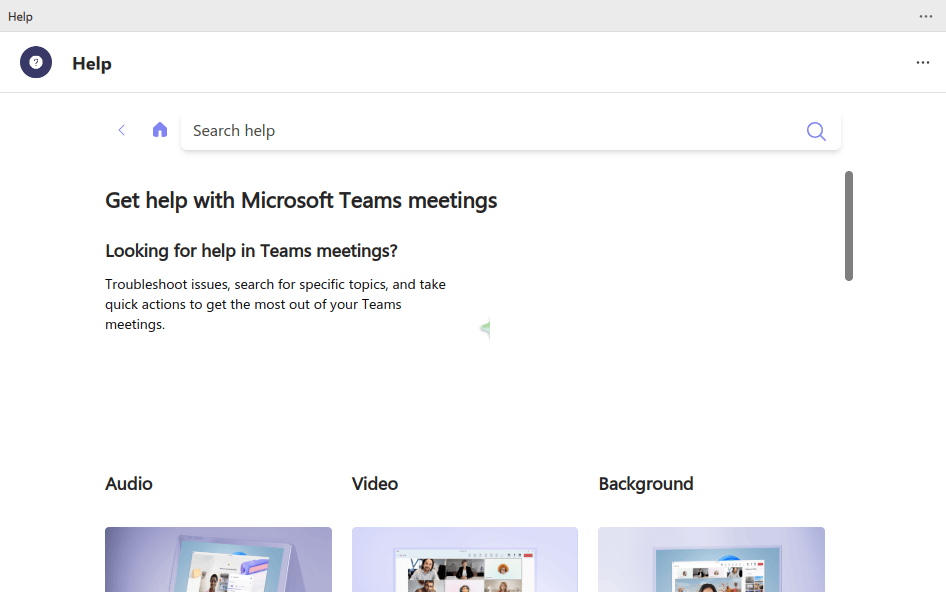
OST keeps Teams' Help and Feedback entry points, layouts and wording. Only the destination changes: Help shows OST's own articles, and feedback goes to OST's GitHub as an issue or idea that you submit yourself. OST never posts anything on its own.
Settings and more ▸ Help (F1), or the Help app in View more apps, opens the Help window.
- Home: Search help, "Help for OST", three featured cards, Browse all help (the nine categories: Get started, Chat, Meetings, Teams & channels, Notifications & settings, Calls & devices, Files, Apps & services, Troubleshoot) and Featured topics.
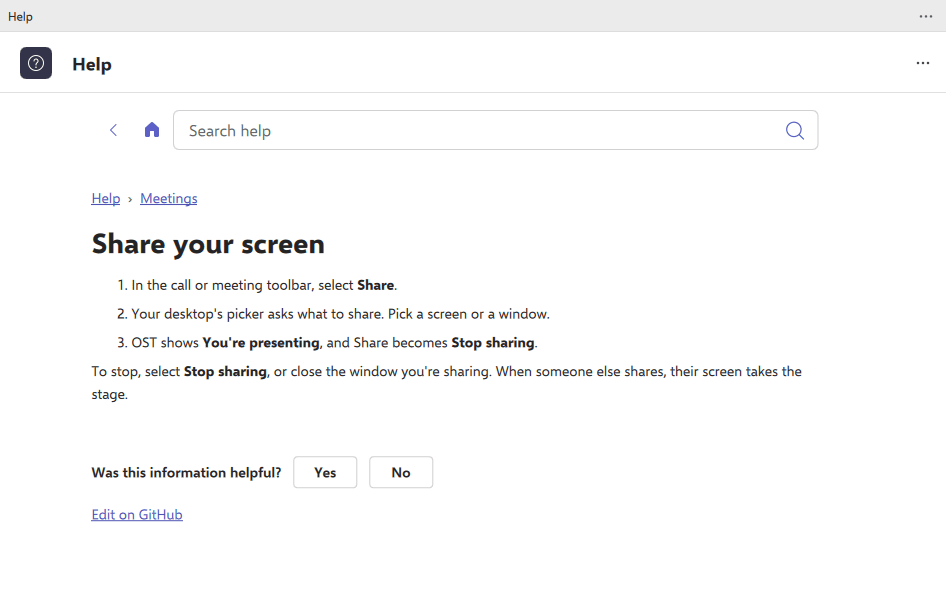
- Articles are written for OST, in English, and built into the app, so they work offline. Each ends with Was this information helpful? (Yes opens Give a compliment, No opens Report a problem, with the article filled in) and Edit on GitHub.
- Search help finds articles by their words ("Results for …").
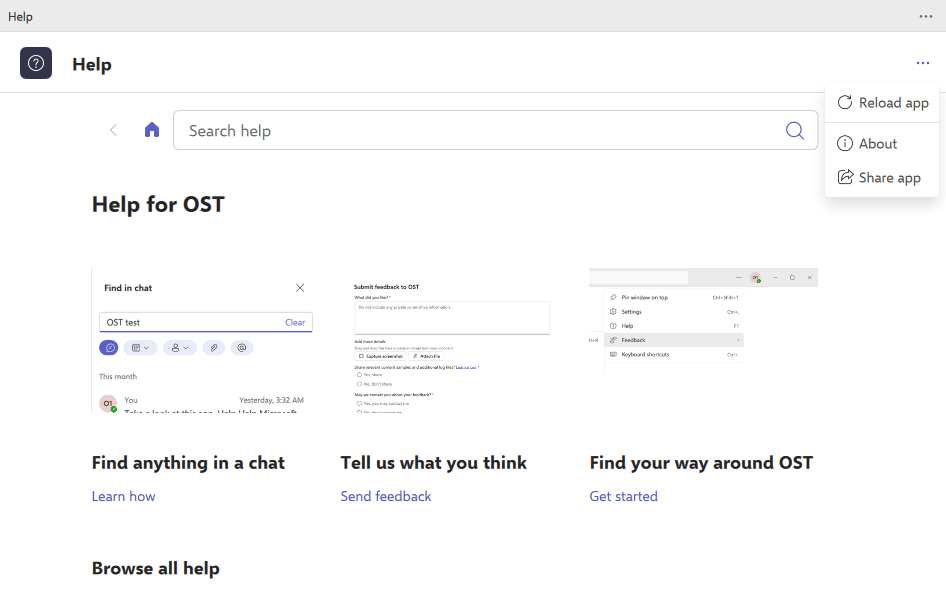
- The header's More Help actions (···): Reload app, About and Share app.
- In a meeting, More ▸ Help opens the same Help.
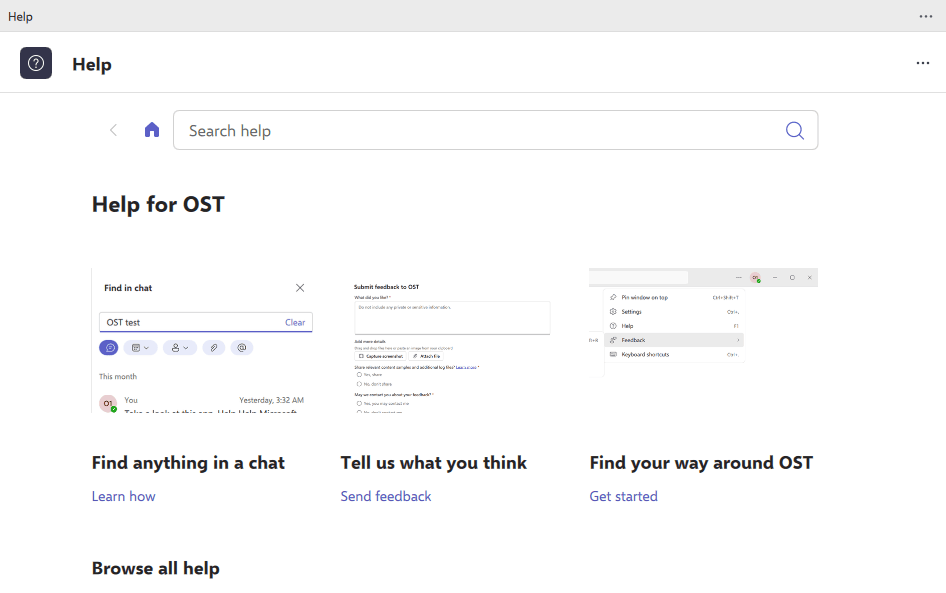
Settings and more ▸ Feedback ▸ has Teams' three items:
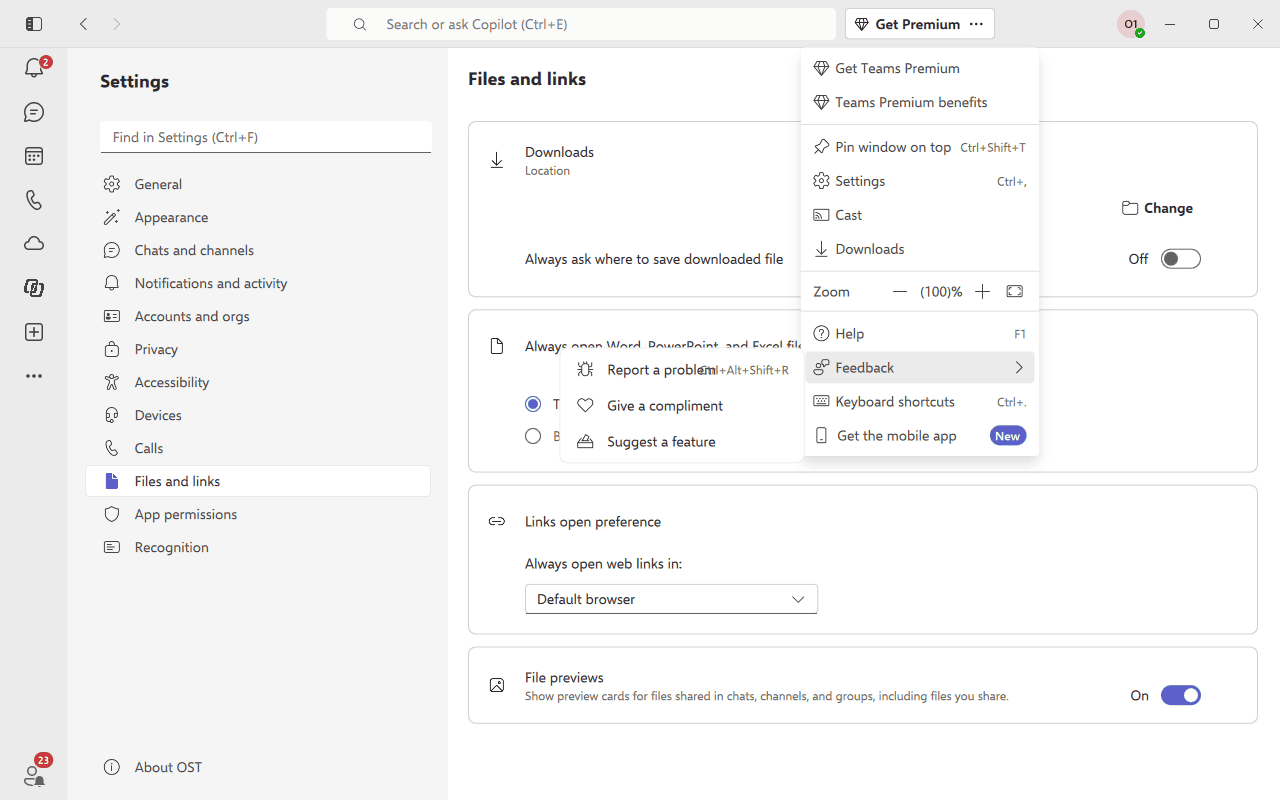
Report a problem (Ctrl+Alt+Shift+R, also in child windows' ···) opens Teams' form, "Submit feedback to OST":
- What did you dislike? (required) with "Do not include any private or sensitive information."
- Add more details: Capture screenshot (OST's window) and Attach file, or drag and drop and paste a picture.
- Share relevant content samples and additional log files? (Yes, share adds OST's recent log lines to the details file, with names, e-mail addresses, phone numbers, ids, message text and tokens masked first) and May we contact you about your feedback?
- Submit opens GitHub's new-issue page with only your text (and a title from its first line) and your contact answer filled in. Nothing else leaves your device when the page opens.
- At the same time OST opens the report's folder on your device
(
~/.cache/ost/feedback/<time>/, readable only by you). It holds OST report details.txt: OST's version, your operating system, where in OST you sent it from, the names of your screenshots and files and, if you chose Yes, share, the masked log lines. Your screenshots and files are there too, and the first screenshot is on the clipboard (Ctrl+V). - Review the details file, drop it and any screenshots you want to share into the issue, and select Create. Issues are public; nothing is posted until you do.
OST's logs never hold tokens: tokens, cookies and token, code and signature parameters in addresses are removed from every line before it is written. See Privacy and data.
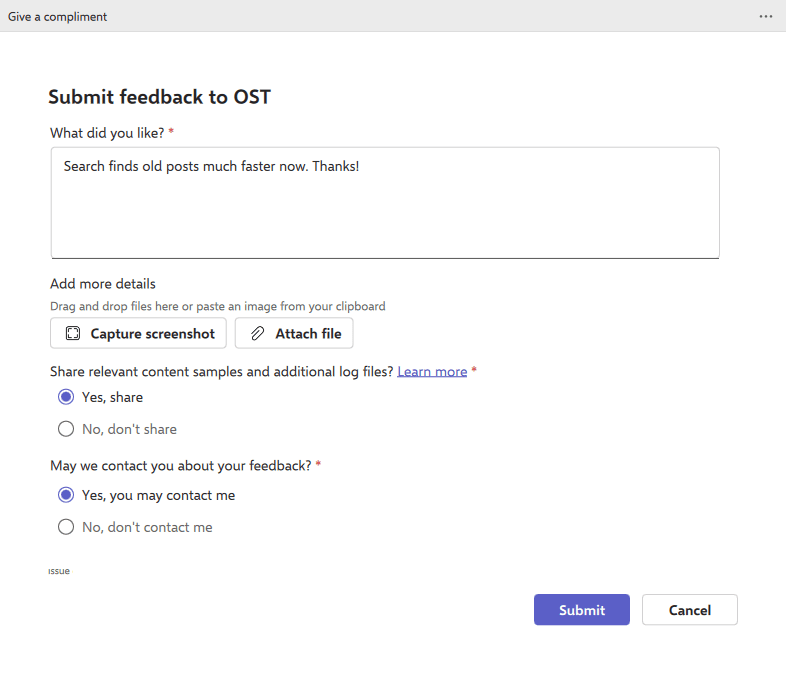
Give a compliment is the same form with What did you like?; it opens GitHub's compliment issue form.
Suggest a feature opens OST's Ideas discussions in your browser, where you can suggest ideas and upvote others', as Teams' feedback portal works.
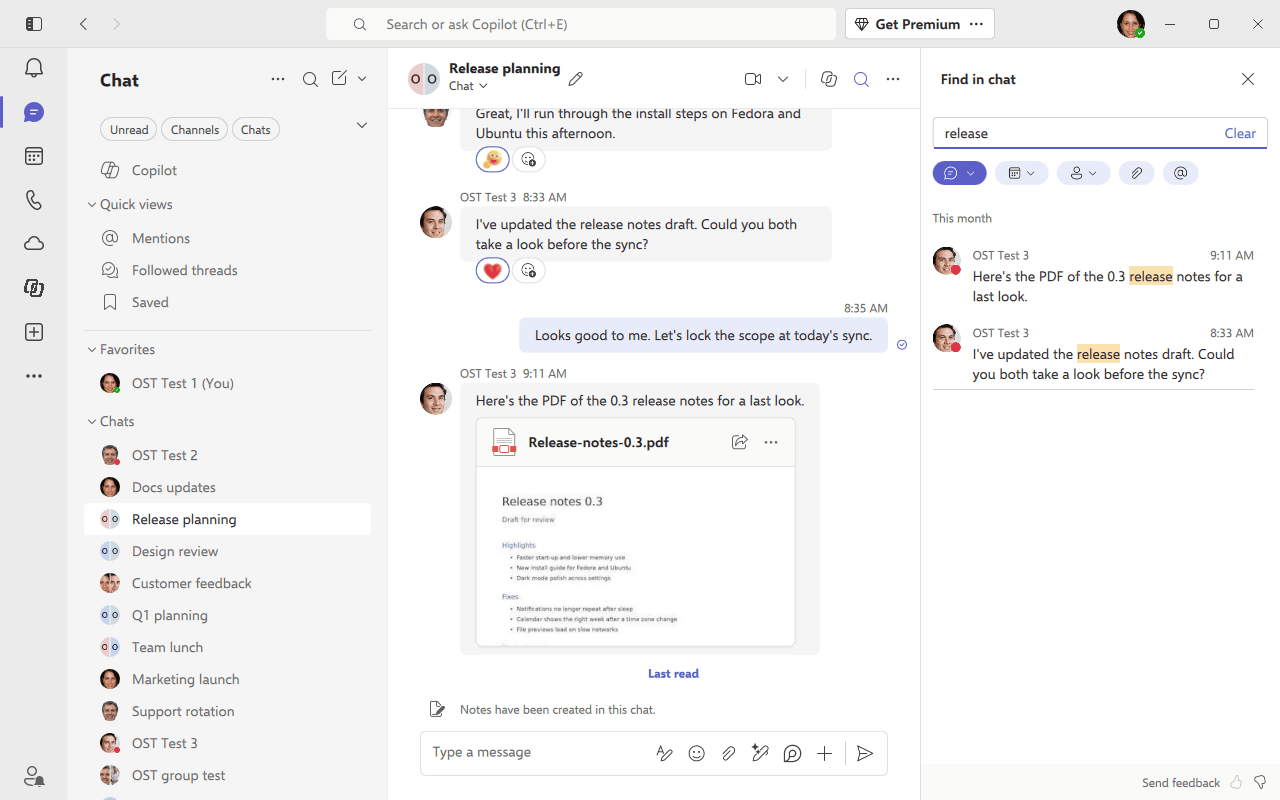
- Send feedback footers with 👍 and 👎 at the end of Find in chat and the search results: 👍 opens Give a compliment and 👎 Report a problem, with the search filled in.
- Suggested reply feedback ("Help us improve our suggestions"): the issue form holds your comment or the reasons you picked; the details, including the message the suggestions were for when you choose to attach it, go to a details file for you to review and attach.
- Call quality survey: with Settings ▸ Privacy ▸ Ask me about call quality after calls on (off by default), OST sometimes asks "How was the call quality?" after a call. Good sends nothing. Had issues asks "What could've been better?" (Audio, Video, Screenshare reasons), and Send feedback opens Report a problem with the reasons as its text and the call's technical details (no one's name) in the details file.
For a fuller log: right-click OST's tray icon ▸ Help ▸ Collect Support Files. OST writes a folder with its log and version to your Desktop; look through it before attaching anything. See Troubleshooting.