Repository navigation
Calls and voicemail
OST makes and receives Teams calls with its own media engine: audio (Opus, with noise suppression and voice isolation), video (H.264) and screen sharing, encrypted (SRTP) as Teams' are. For meetings, see Meetings.
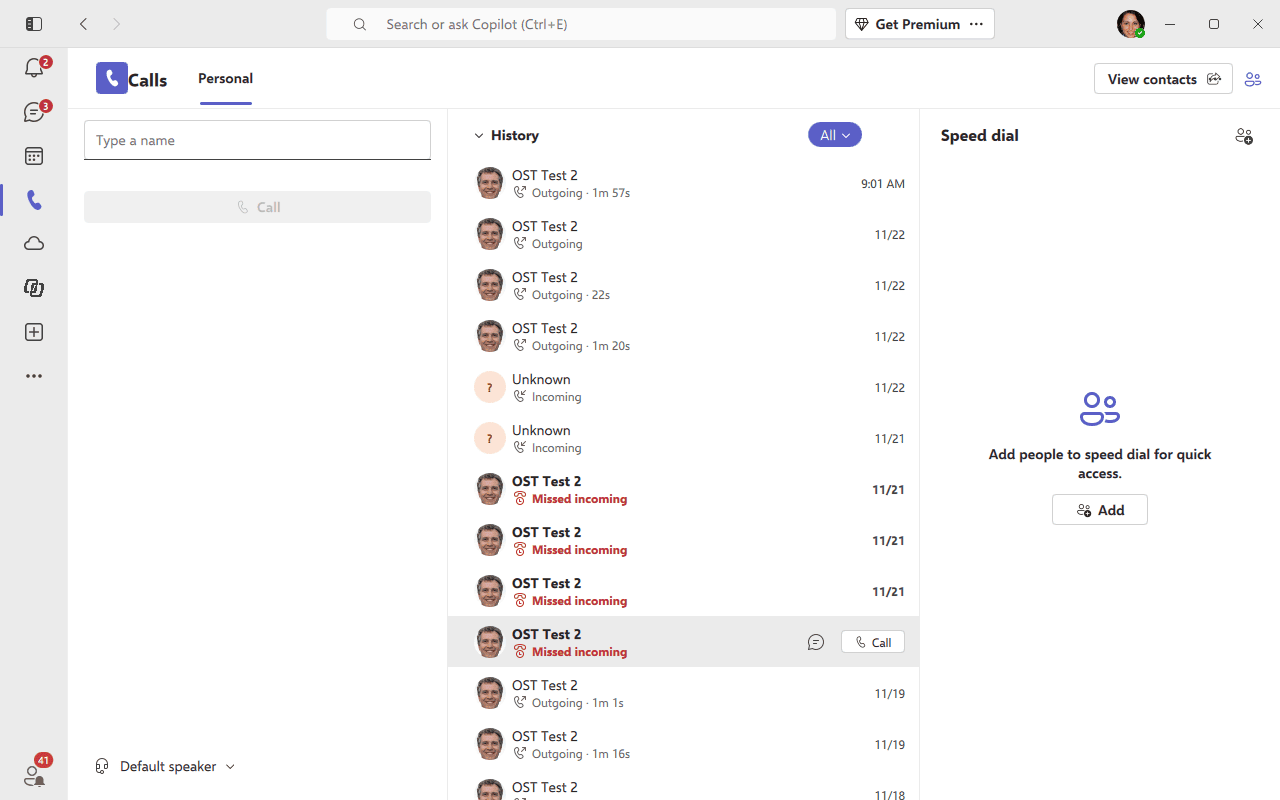
Calls in the app bar:
- History: your calls with All, Missed, Incoming and Outgoing filters; each with Call and Chat.
- Speed dial: people you call often (Add people to speed dial for quick access, Remove from speed dial), and View contacts.
- Dial pad: type a name or a phone number and Call. Calling phone numbers needs Teams Phone in your organization.
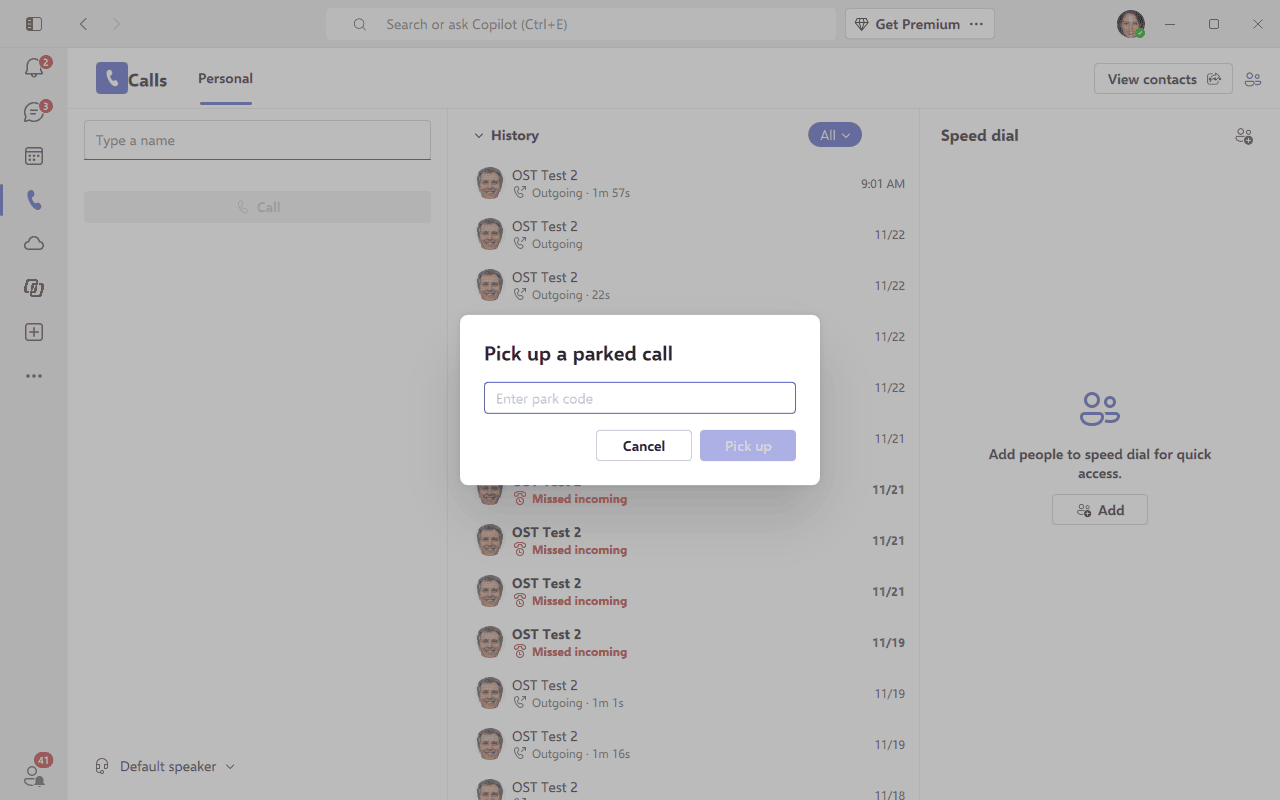
- More calls options (···): Pick up a parked call (Enter park code, Pick up).
-
Start a call: Video call or Audio call in a chat's header
(Alt+Shift+A for audio), the profile card, the Calls app, or
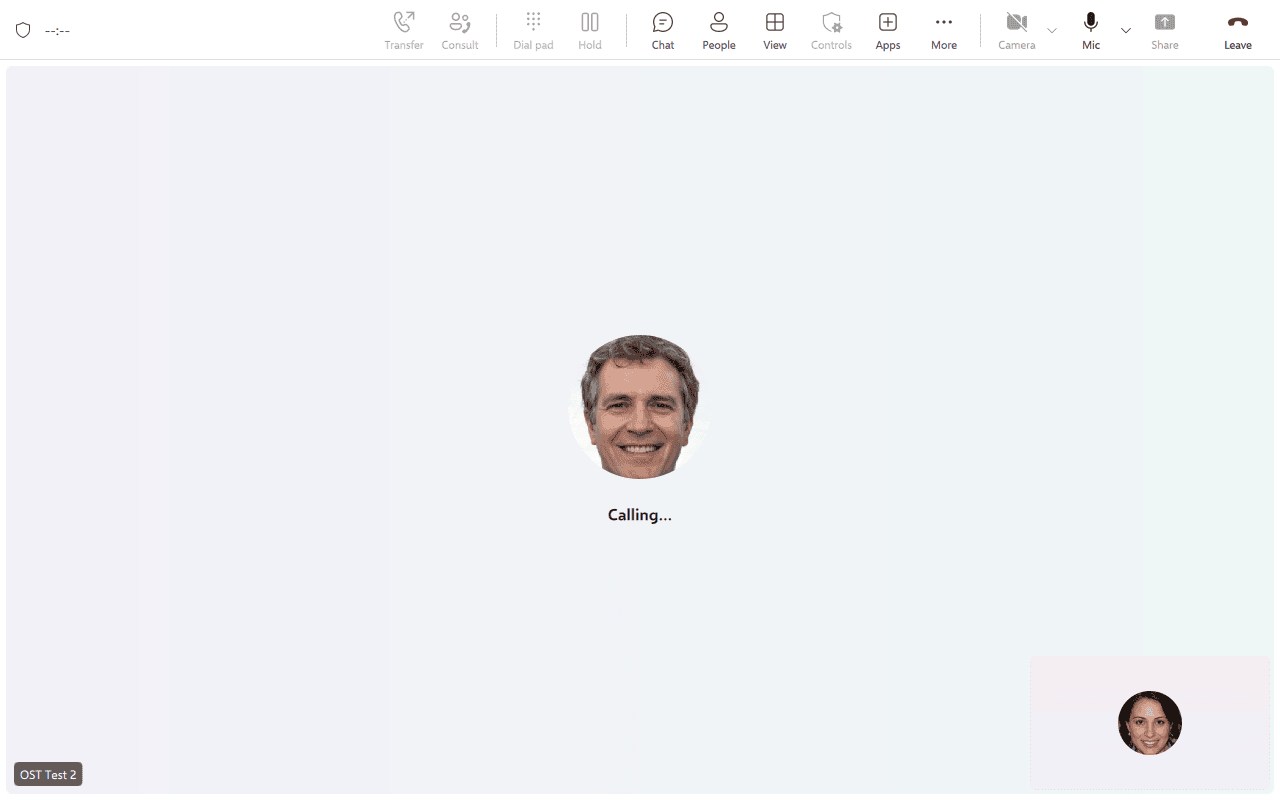
teams-cli call-test. In a group chat, Meet now or Audio call rings everyone in it (up to 20 people). - Outgoing: OST shows Teams' calling screen ("Calling…") until the other person answers.
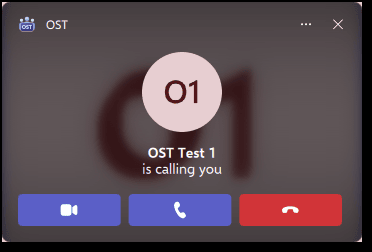
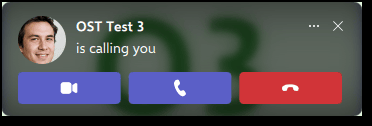
- Incoming: Teams' call toast, "Name is calling you", with Accept with video (Ctrl+Shift+A), Accept with audio (Ctrl+Shift+S) and Decline call (Ctrl+Shift+D), ringing with your Teams ringtone. Settings ▸ Calls ▸ Viewing incoming calls ▸ Small window shows the compact banner instead.
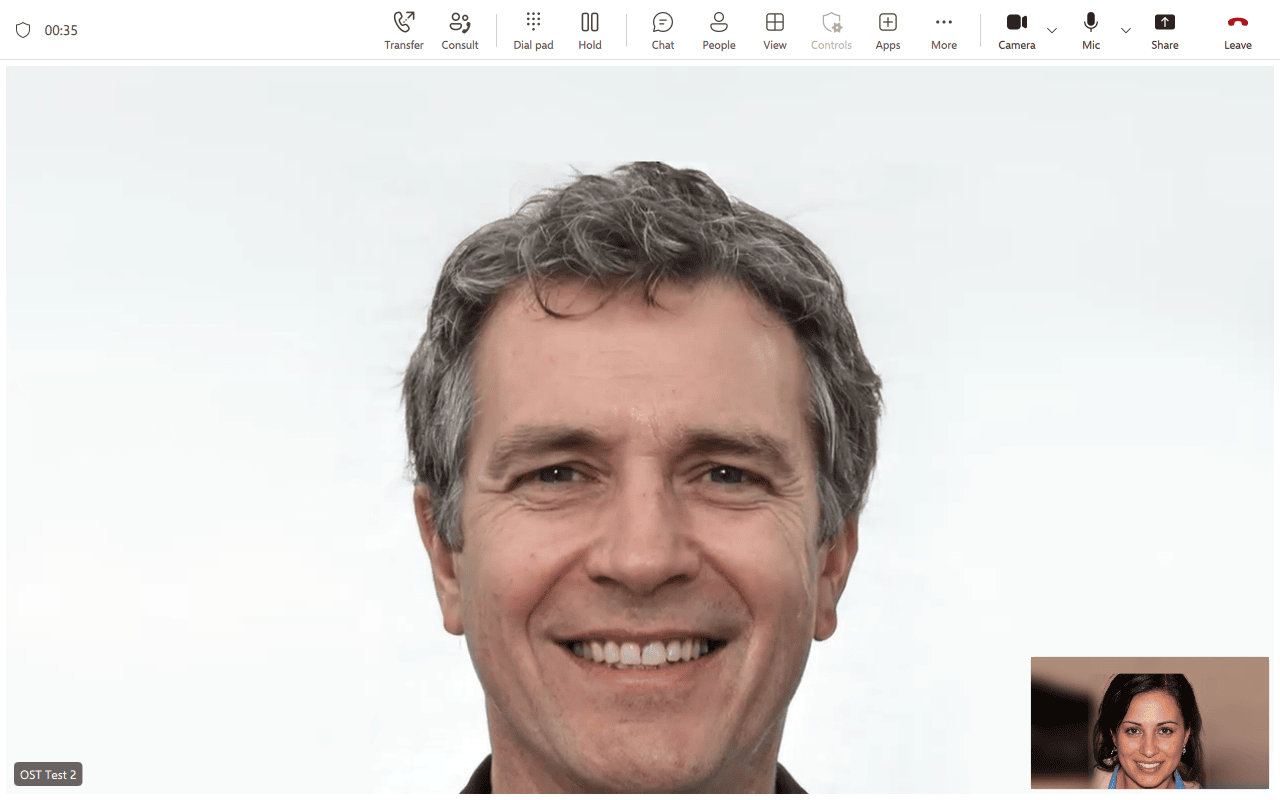
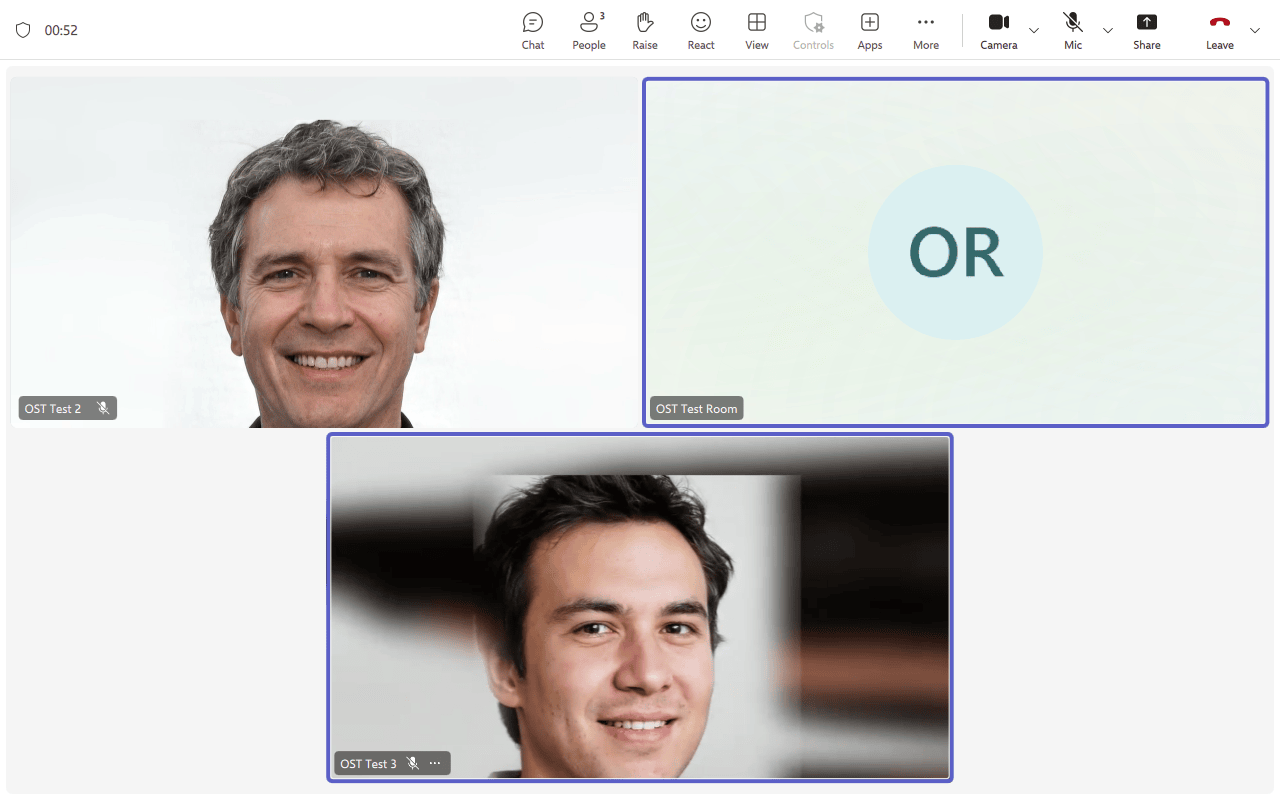
- The call window: the other person's video (or picture) with your self view, and Teams' call controls: Chat, People, React, View, More, Camera, Mic, Share and Leave (see Meeting controls).
- Minimized: when you switch away, a compact call window floats on top with Mute mic, Turn camera on, Share, Leave and Maximize meeting window.
In a 1:1 call, from More (···):
- Hold puts the other person on hold; they hear Teams' hold music. Resume brings them back.
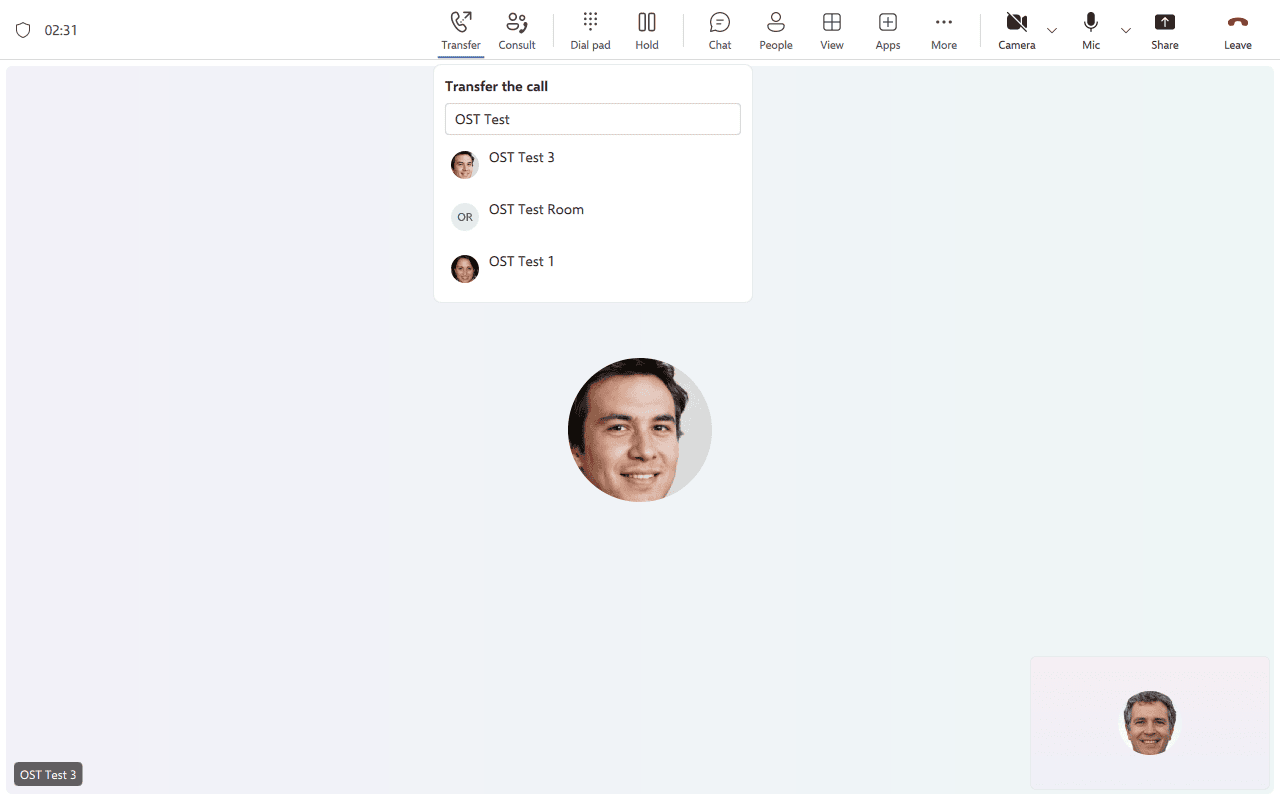
- Transfer: pick someone and the call goes to them.
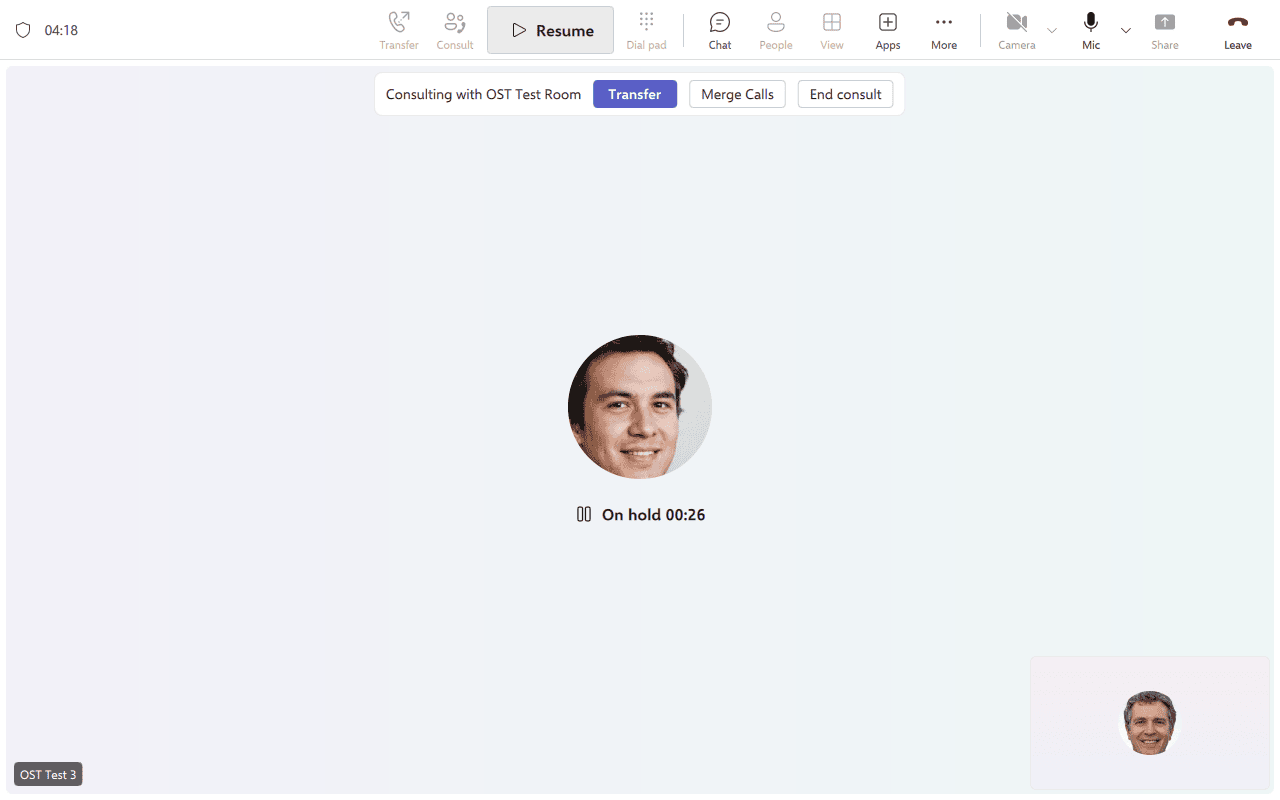
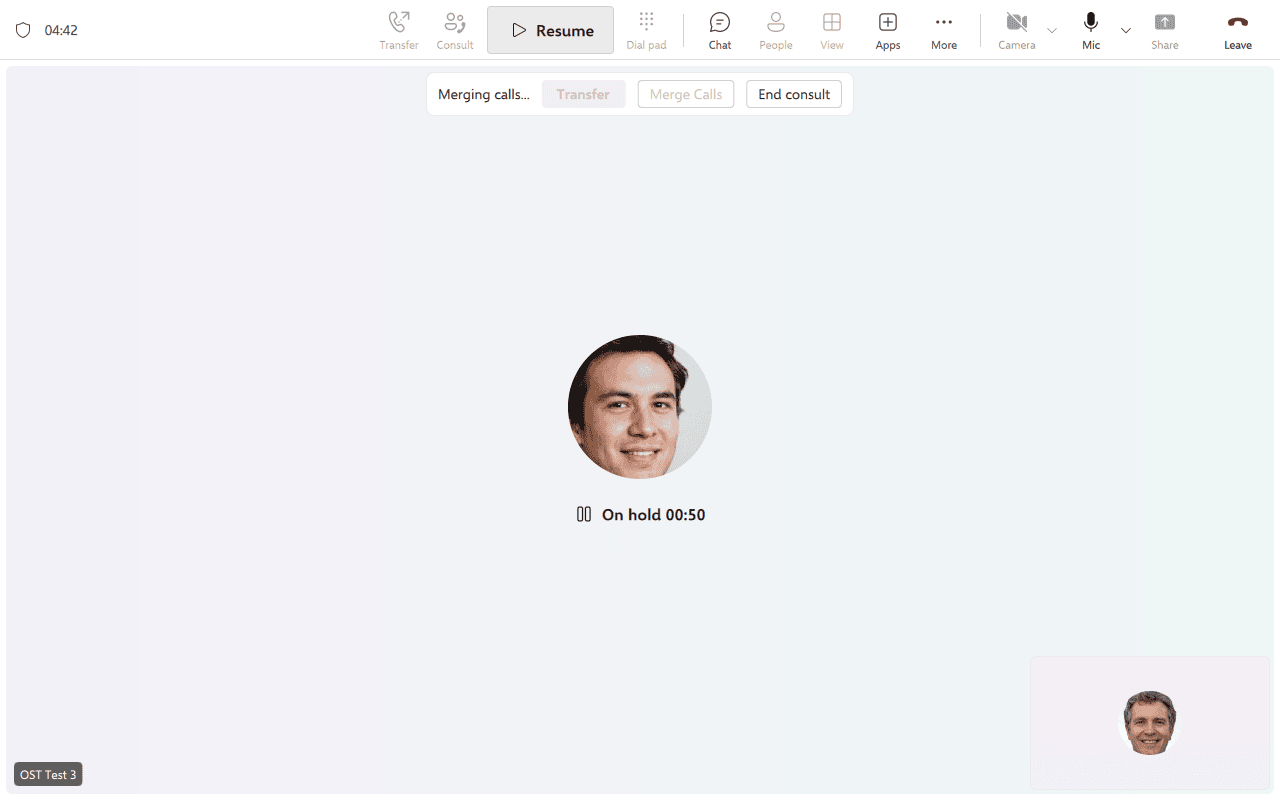
- Consult then transfer: puts the caller on hold and calls (or chats with) the person first; then Transfer or Resume. Merge calls joins the held call and the consult call into one group call.
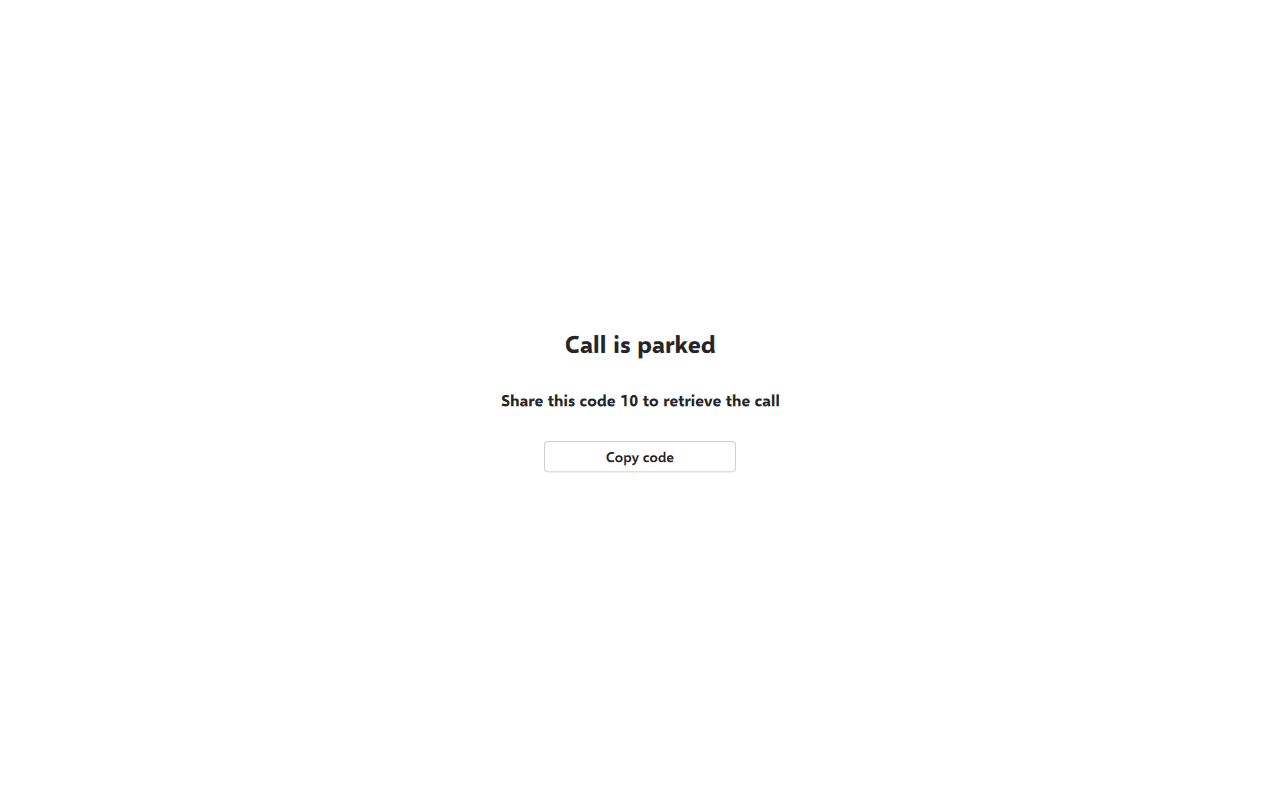
- Park: parks the call and shows a park code; anyone in your organization can pick it up with Pick up a parked call.
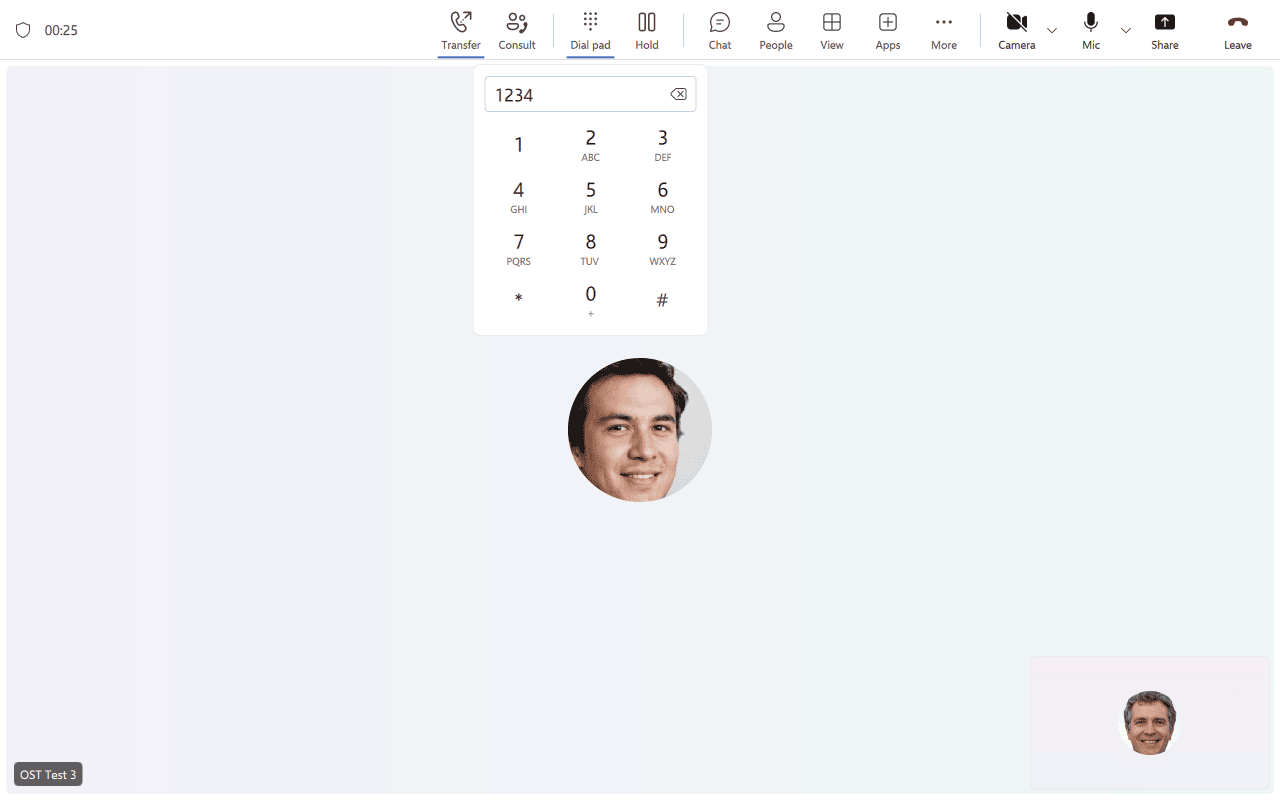
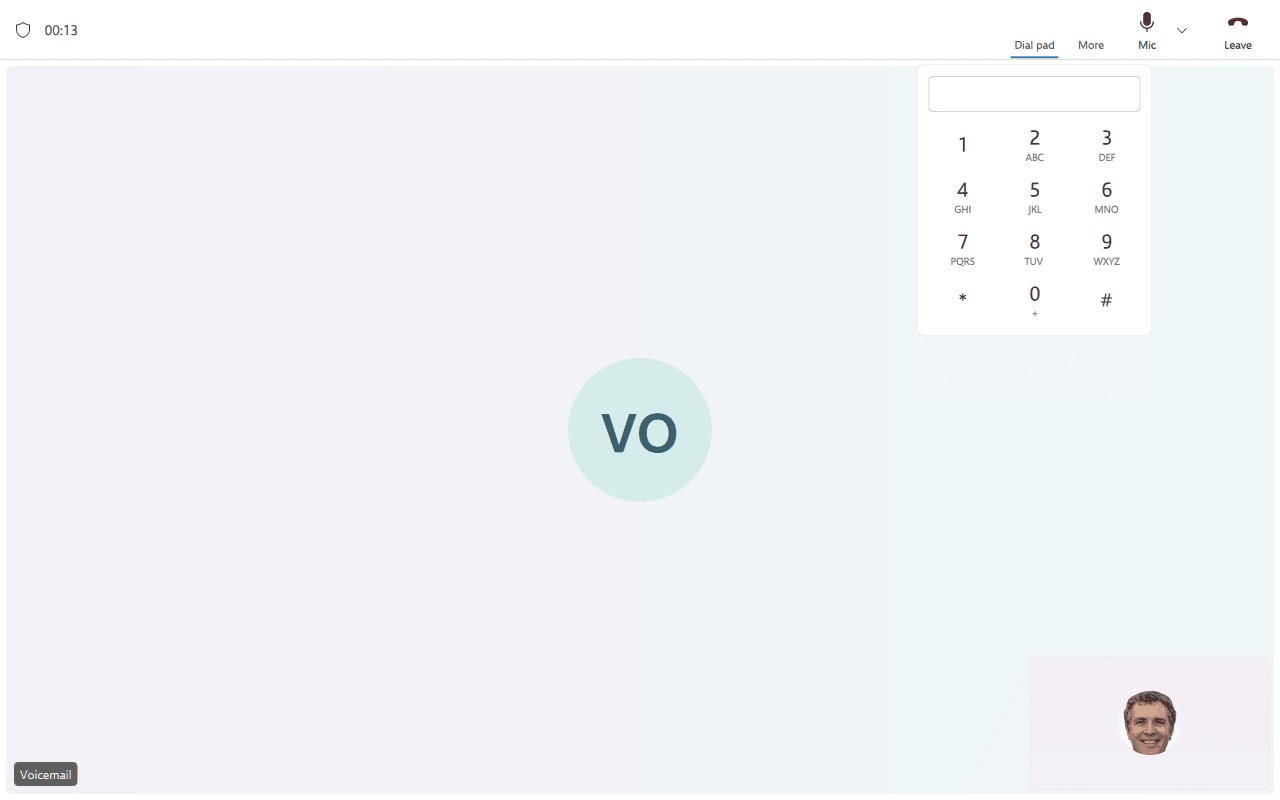
- Dial pad: sends tones, for menus that ask you to press a number.
- Add people: invite someone to the call; it becomes a group call.
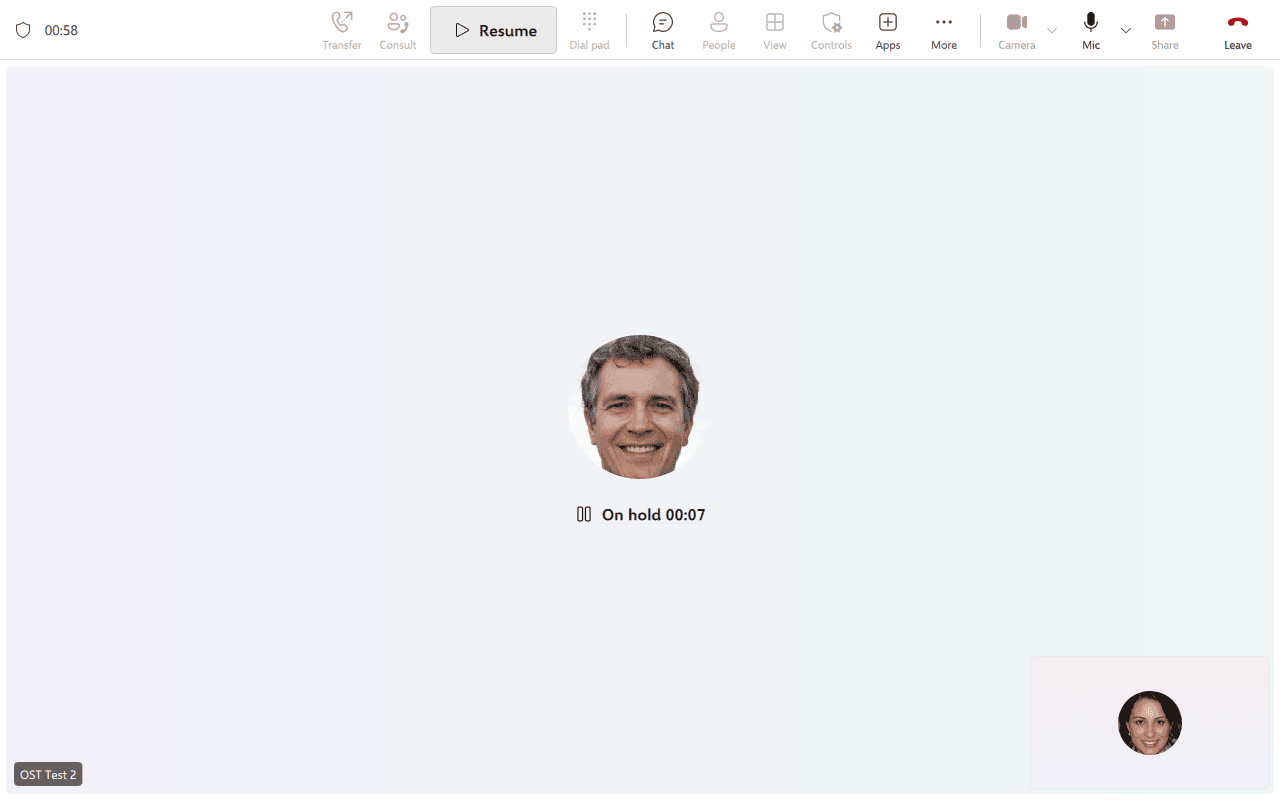
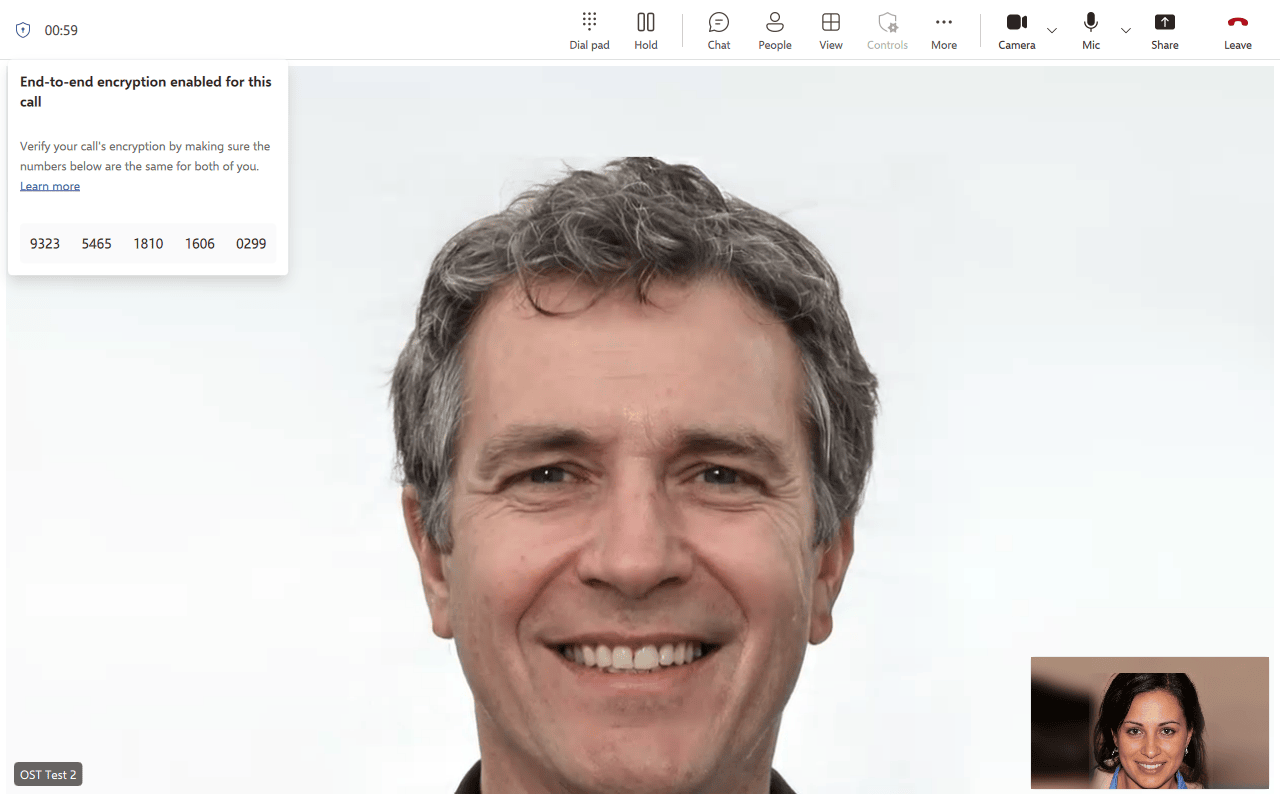
With Settings ▸ Privacy ▸ End-to-end encrypted calls on for both people (where your organization lets you choose), a 1:1 call is end-to-end encrypted. The call window shows the encryption shield; select it for the verification numbers, the same ones Teams shows, to compare with the other person. Recording and transcription aren't available in these calls.
- New voicemail shows in Activity with the voicemail icon; select it for the message. OST's Calls app doesn't list voicemails in its history yet.
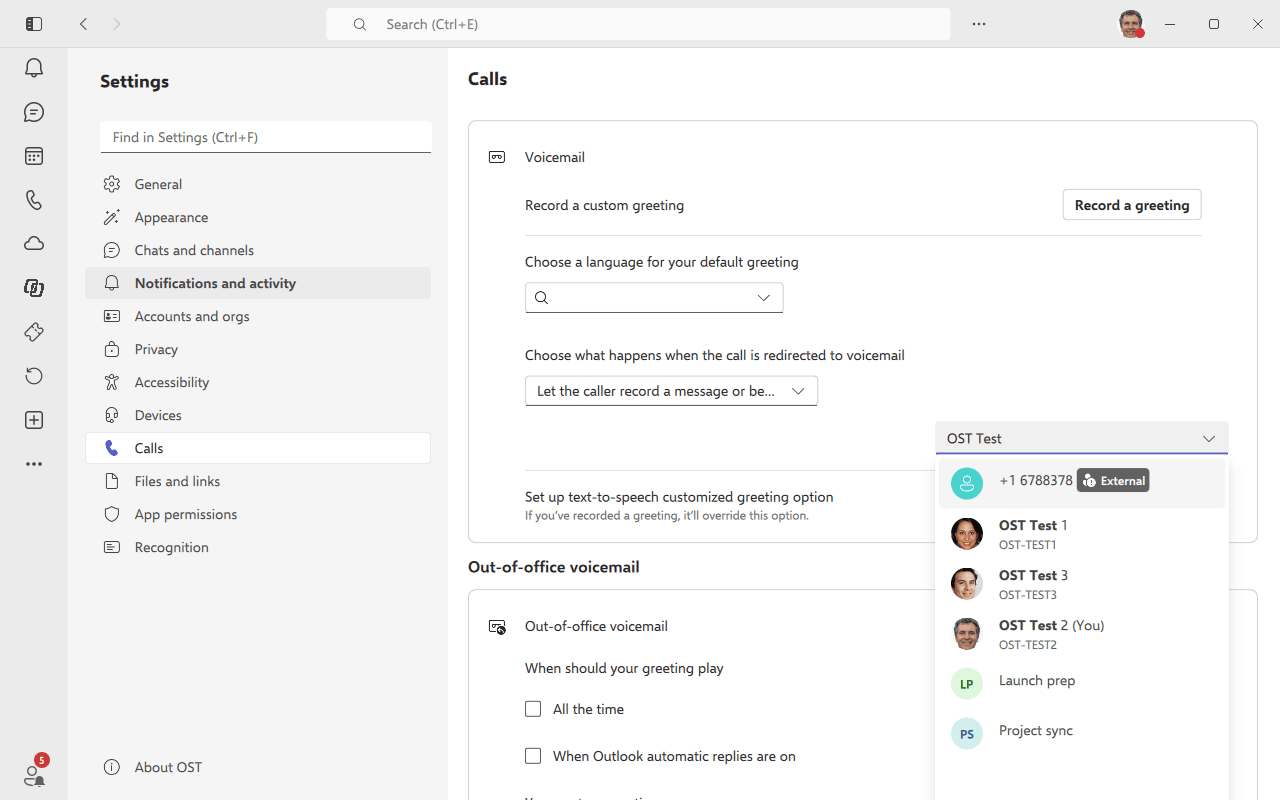
- Record a custom greeting (Settings ▸ Calls ▸ Voicemail) calls your own voicemail, as Teams does; the call window shows only Mic, the Dial pad, More and Leave, and the voicemail system guides you.
- Write a custom greeting sets a text-to-speech greeting instead.
- Choose what happens when the call is redirected to voicemail: the rules that transfer the caller ask whom to transfer to (a person or an external number).
See Settings ▸ Calls for call forwarding, call groups, delegates and ringtones.
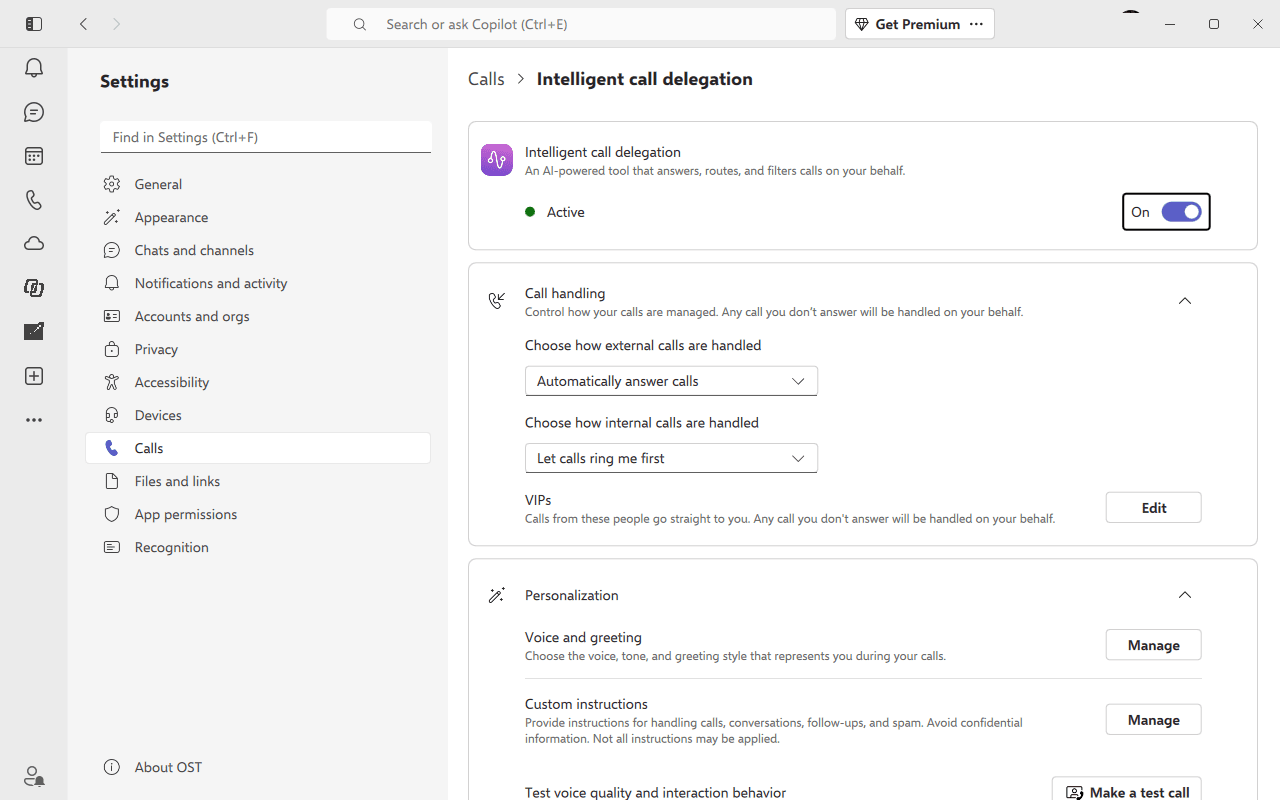
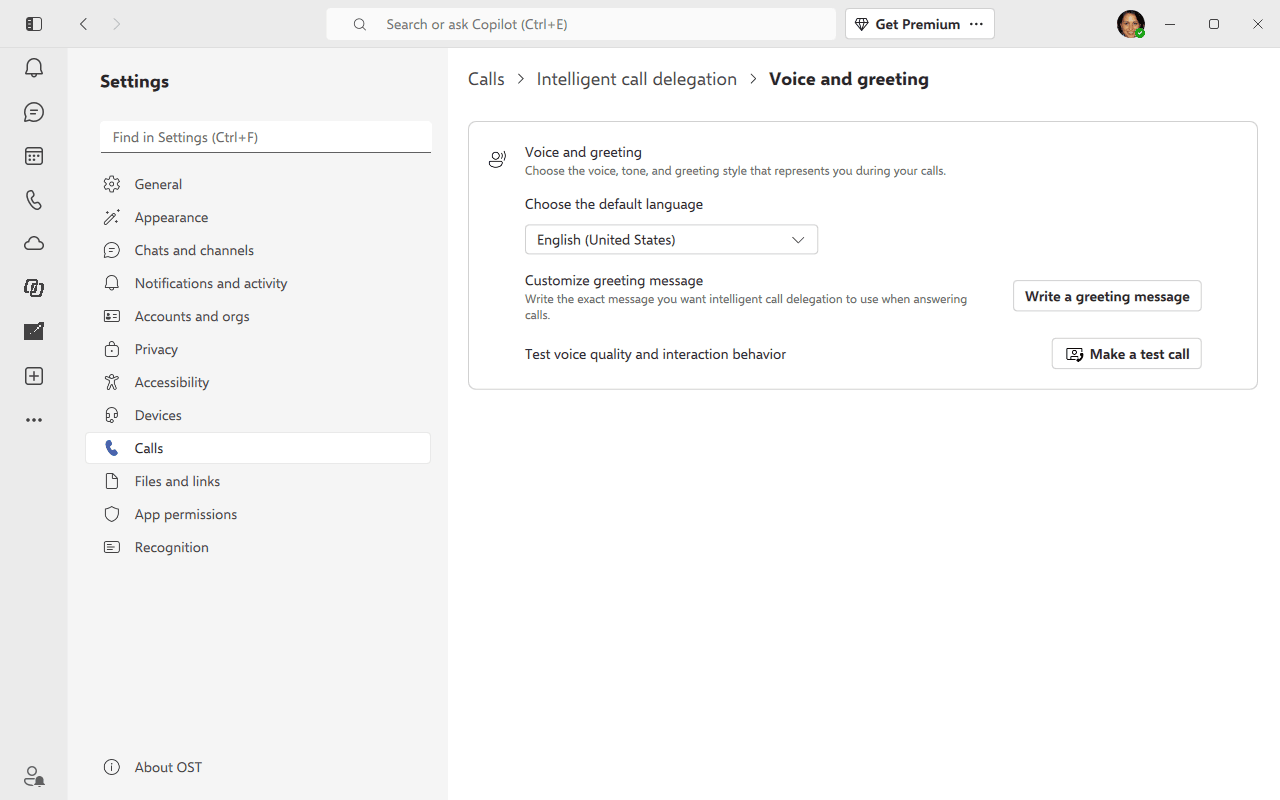
Where your organization licenses it, Settings ▸ Calls ▸ Intelligent call delegation sets up an AI delegate that answers, routes and filters calls for you:
- Call handling: Choose how external calls are handled and internal calls (Automatically answer calls or Let calls ring me first), and VIPs whose calls always come straight to you.
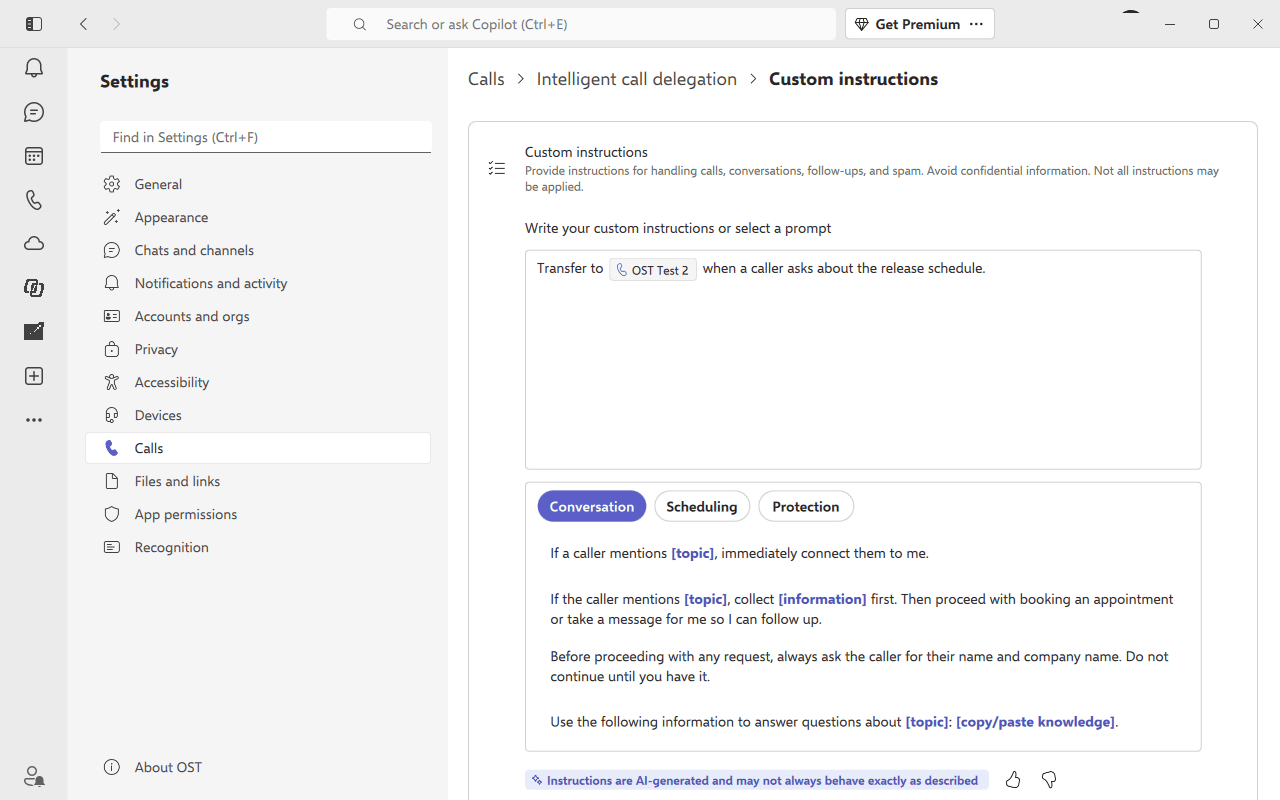
- Personalization: Voice and greeting (the default language and Customize greeting message), and Custom instructions for calls, conversations, follow-ups and spam, from your own text or a prompt, with @mentions of people to transfer to.
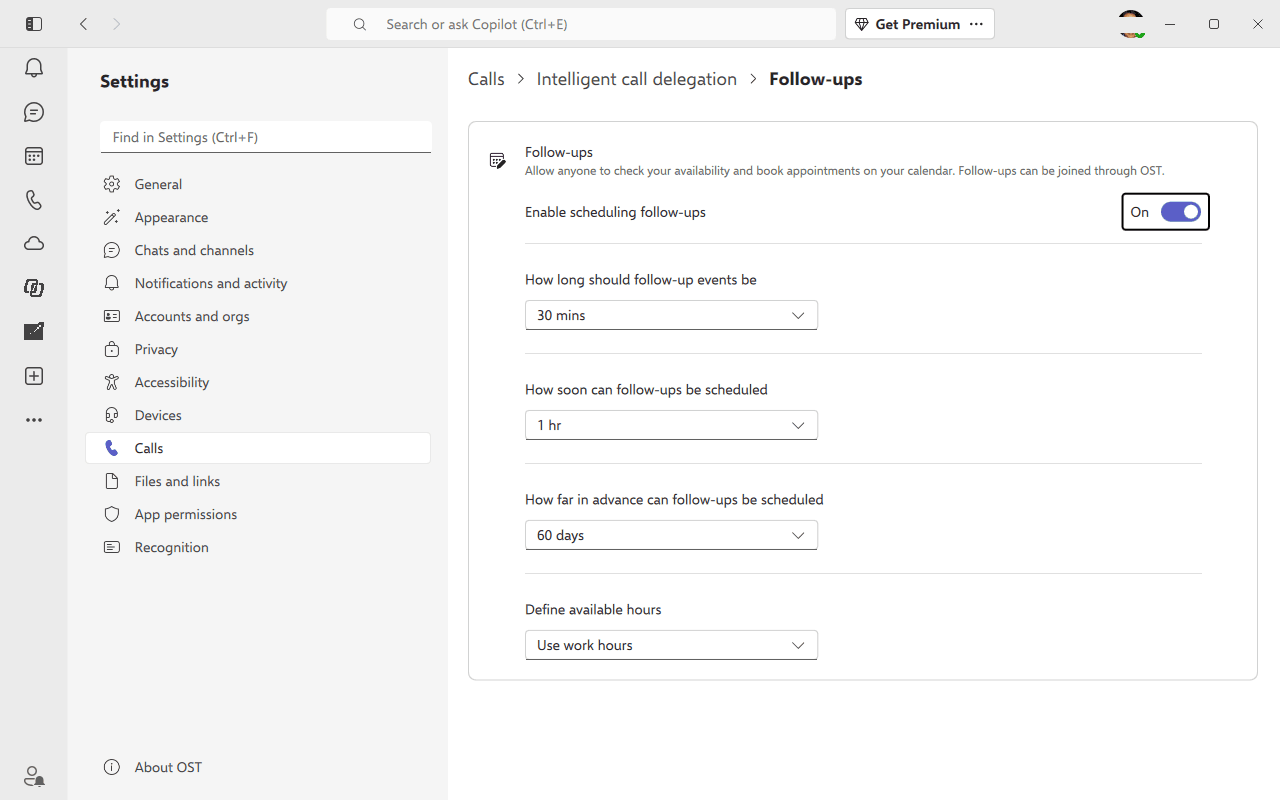
- Skills: Follow-ups (Enable scheduling follow-ups, how long, how soon and how far ahead, Define available hours with work hours or custom hours), Prevent suspected spam calls from disturbing you, and Save transcriptions and recordings for all screened calls.
- Notifications: Display banner for answered calls.
- Make a test call tries the delegate.
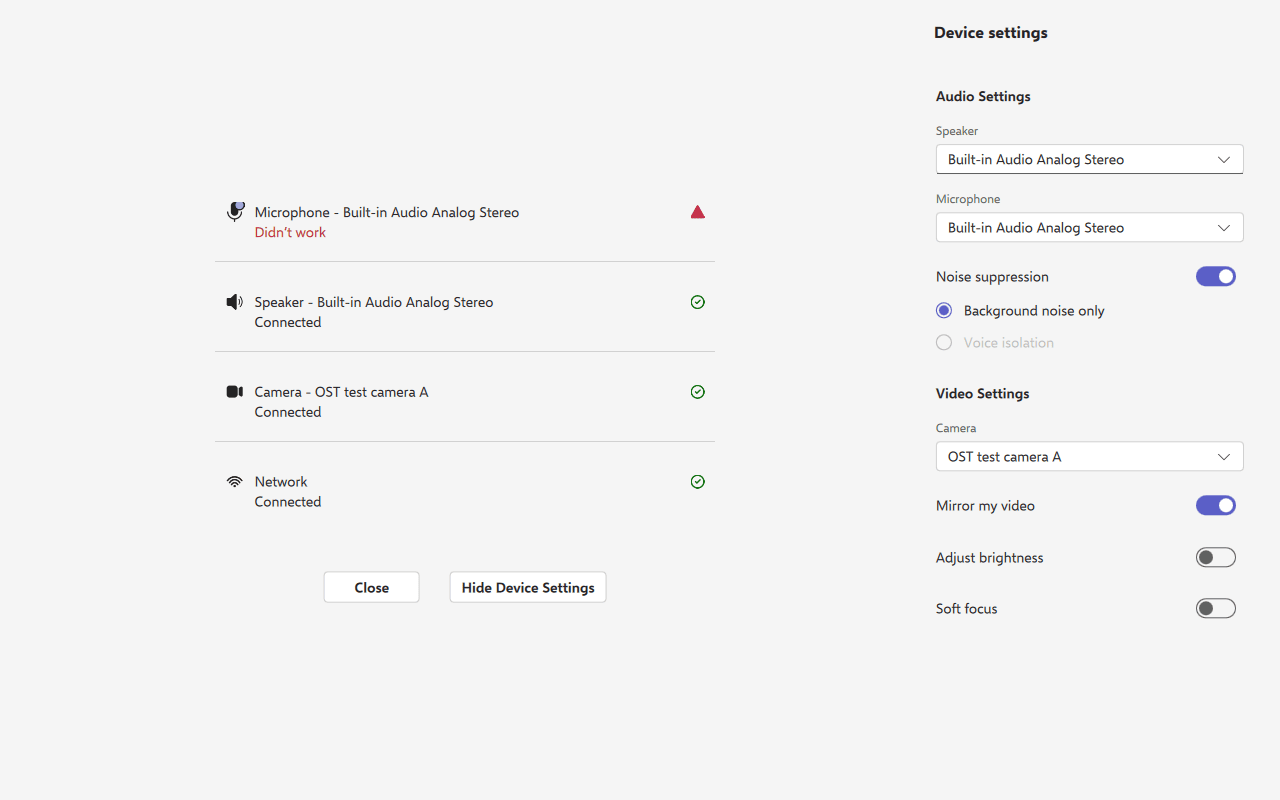
Settings ▸ Devices ▸ Make a test call calls Teams' echo service: record a short message, hear it played back, and see the report (microphone, speaker, camera and network, each Connected or not), with Show Device Settings to change devices on the spot.
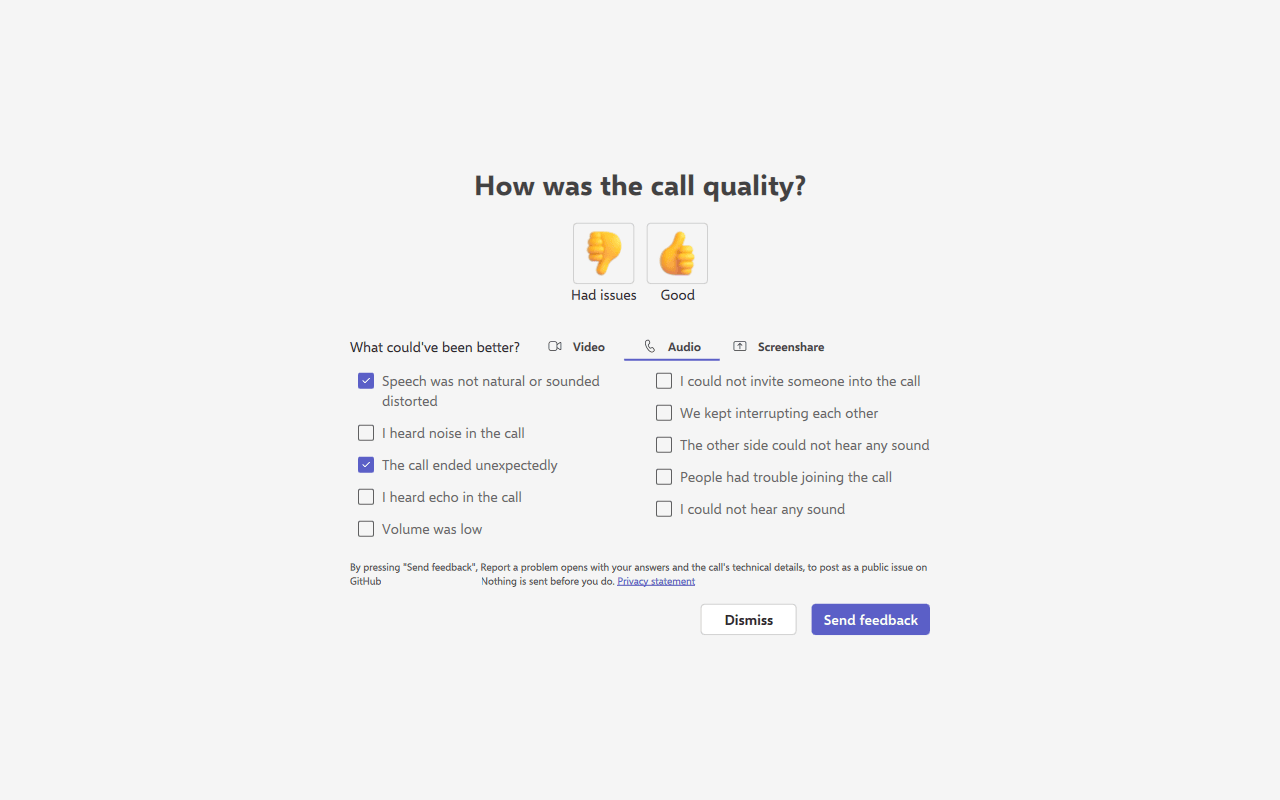
With Settings ▸ Privacy ▸ Ask me about call quality after calls on, OST sometimes asks "How was the call quality?" after a call. See Help and feedback.