Repository navigation
Themes
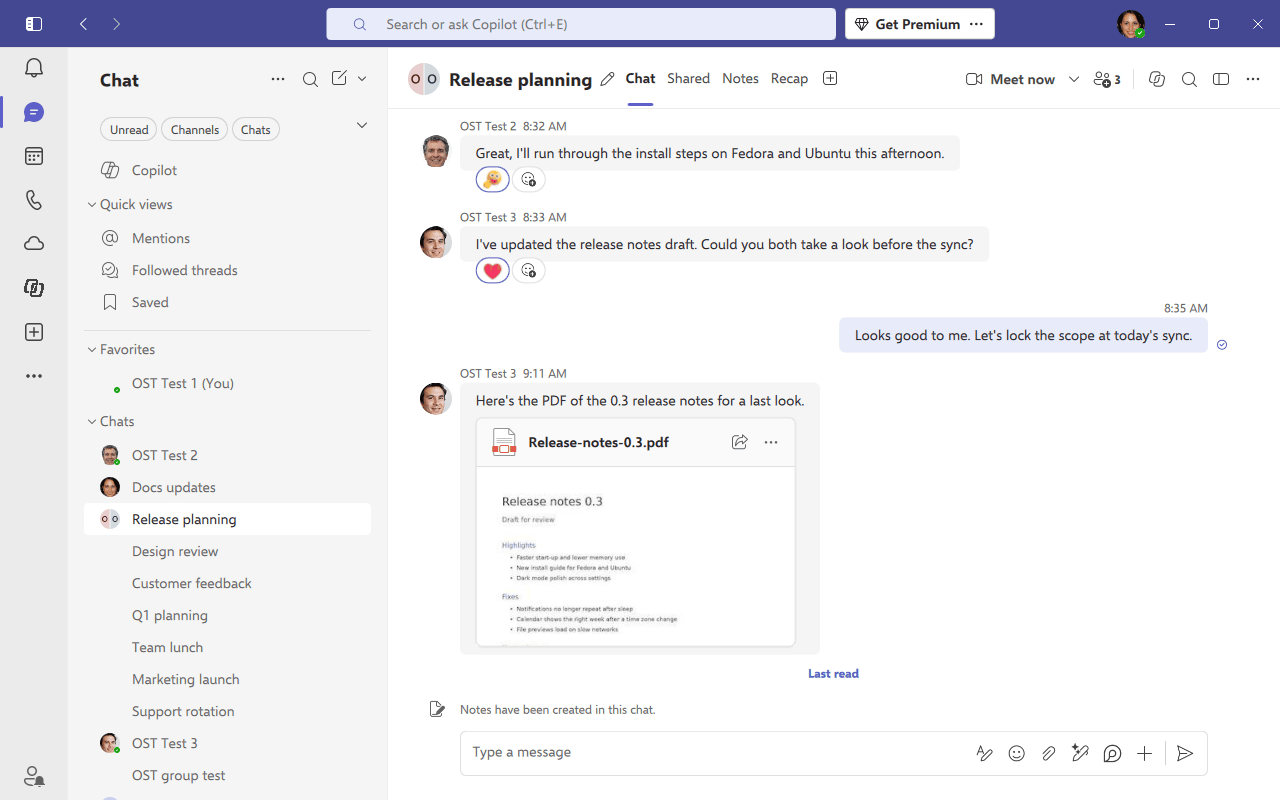
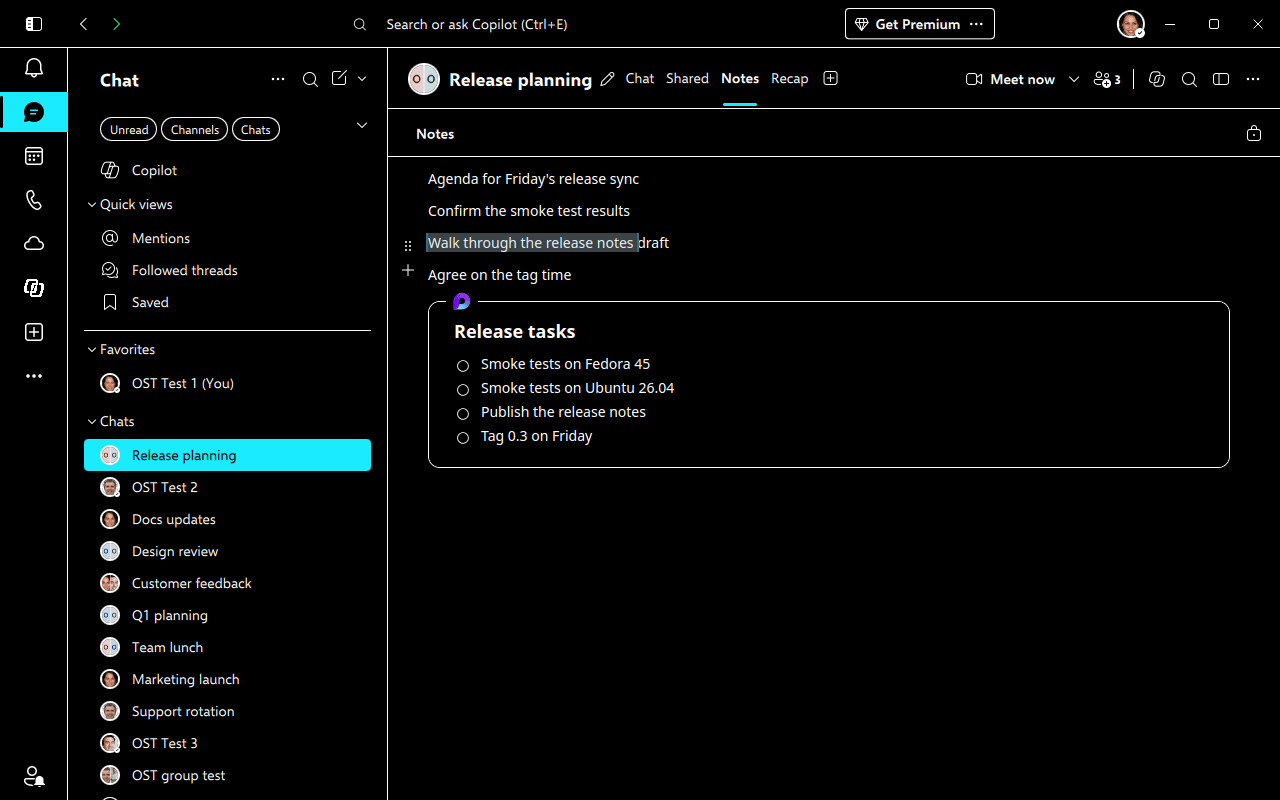
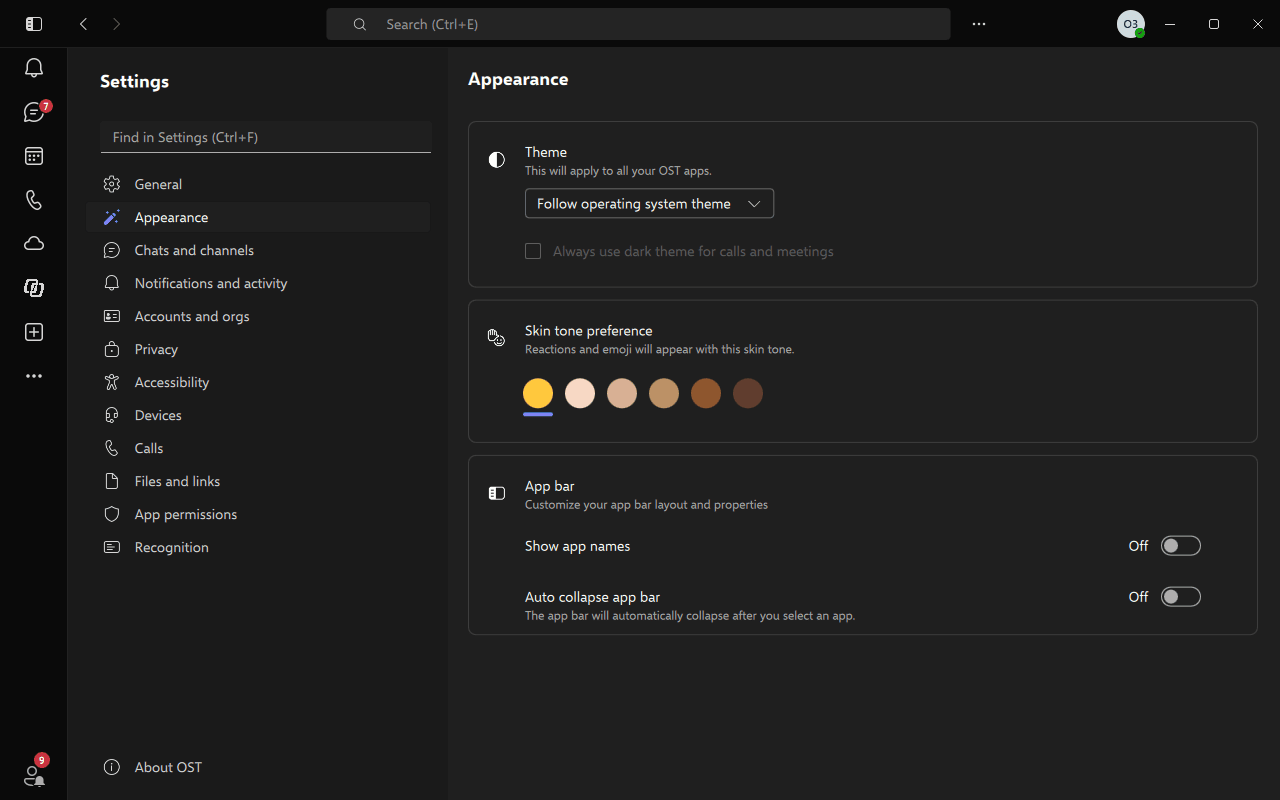
OST has Teams' themes, with Teams' own color tokens for each. Pick one in Settings ▸ Appearance ▸ Theme; it applies to every OST window at once.
| Theme | What it is |
|---|---|
| Follow operating system theme | Light or dark, following the color scheme your desktop reports to Qt (KDE and GNOME set it). Changes when your desktop switches. |
| Light | Teams' default light theme. |
| Dark | Teams' dark theme. |
| Classic | Light, with Teams' purple title bar. |
| High contrast | Teams' high contrast theme: black background, white text, yellow and cyan accents, strong outlines. |
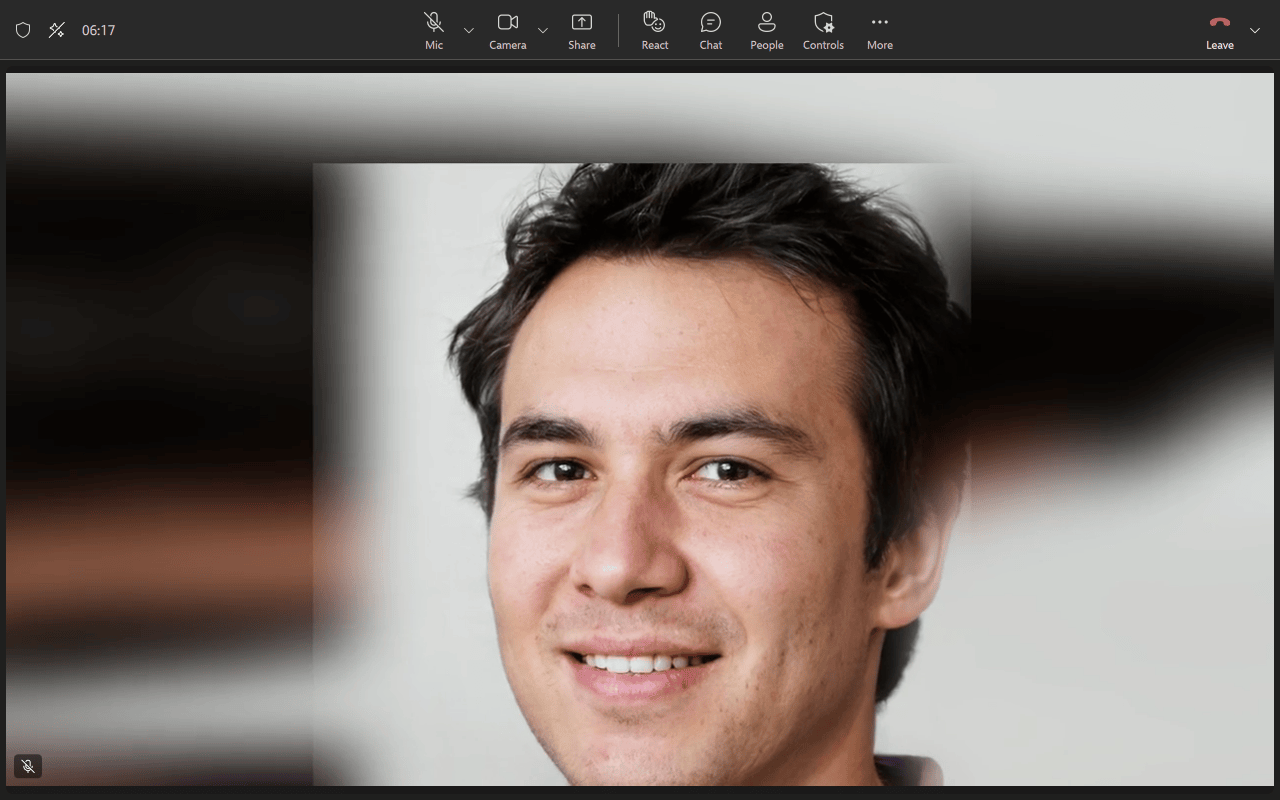
Always use dark theme for calls and meetings (in the light theme) keeps call and meeting windows dark.
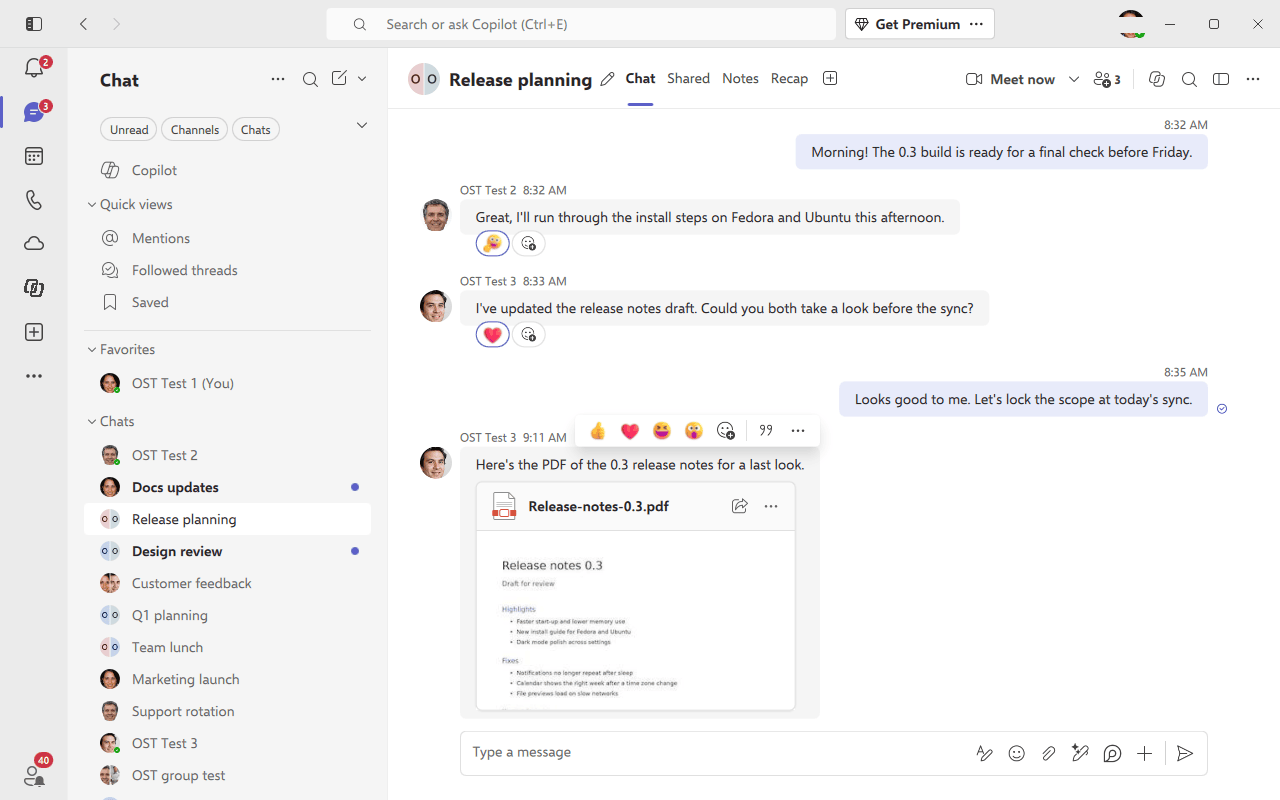
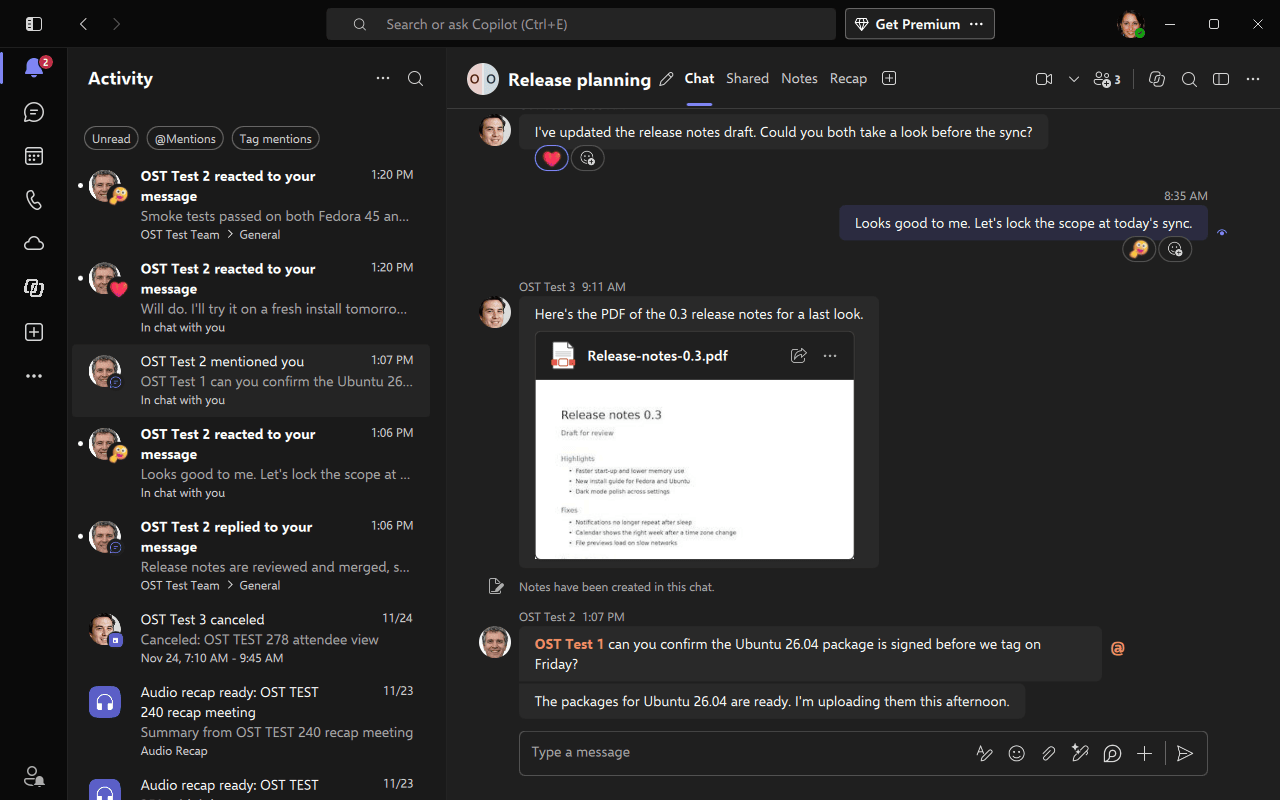
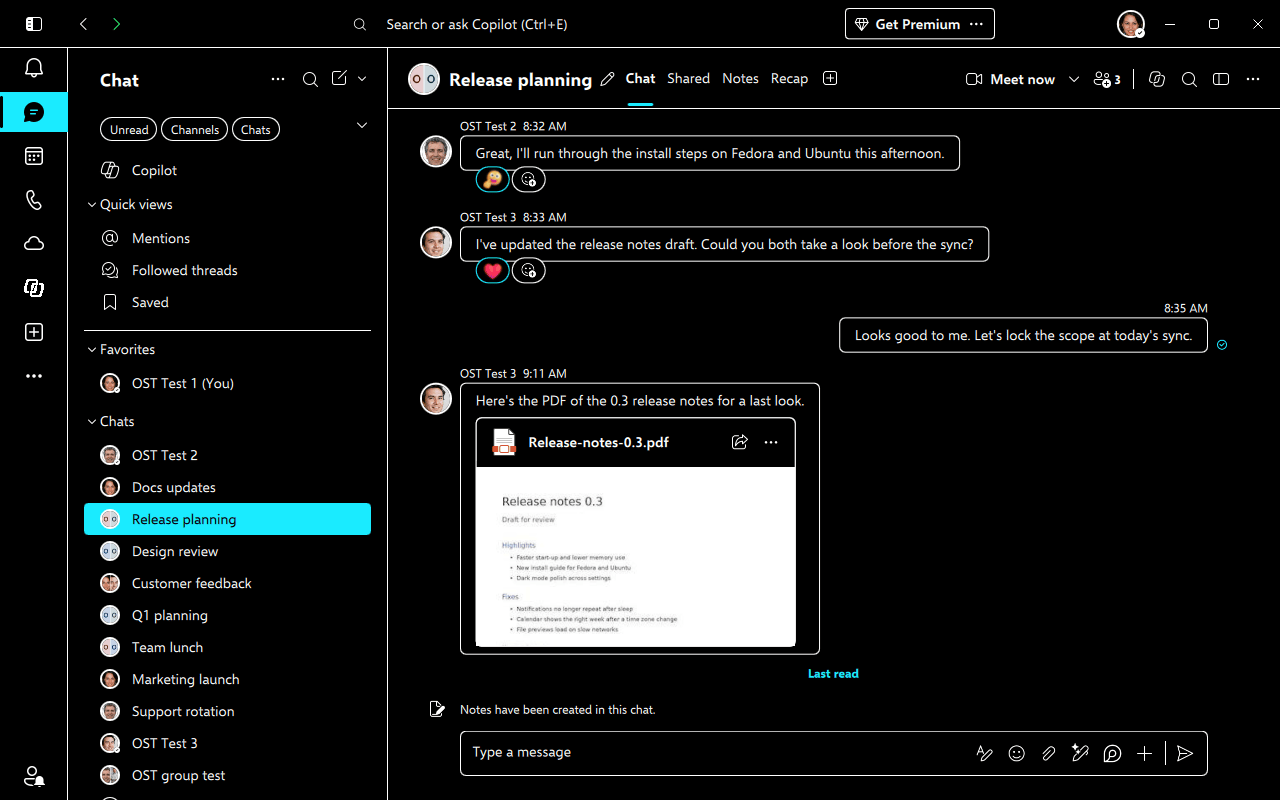
Every view follows the theme, including parts Teams draws from other products:
- The calendar and Outlook's event pages.
- Loop pages and components.
- The call and meeting windows and the new meeting controls.
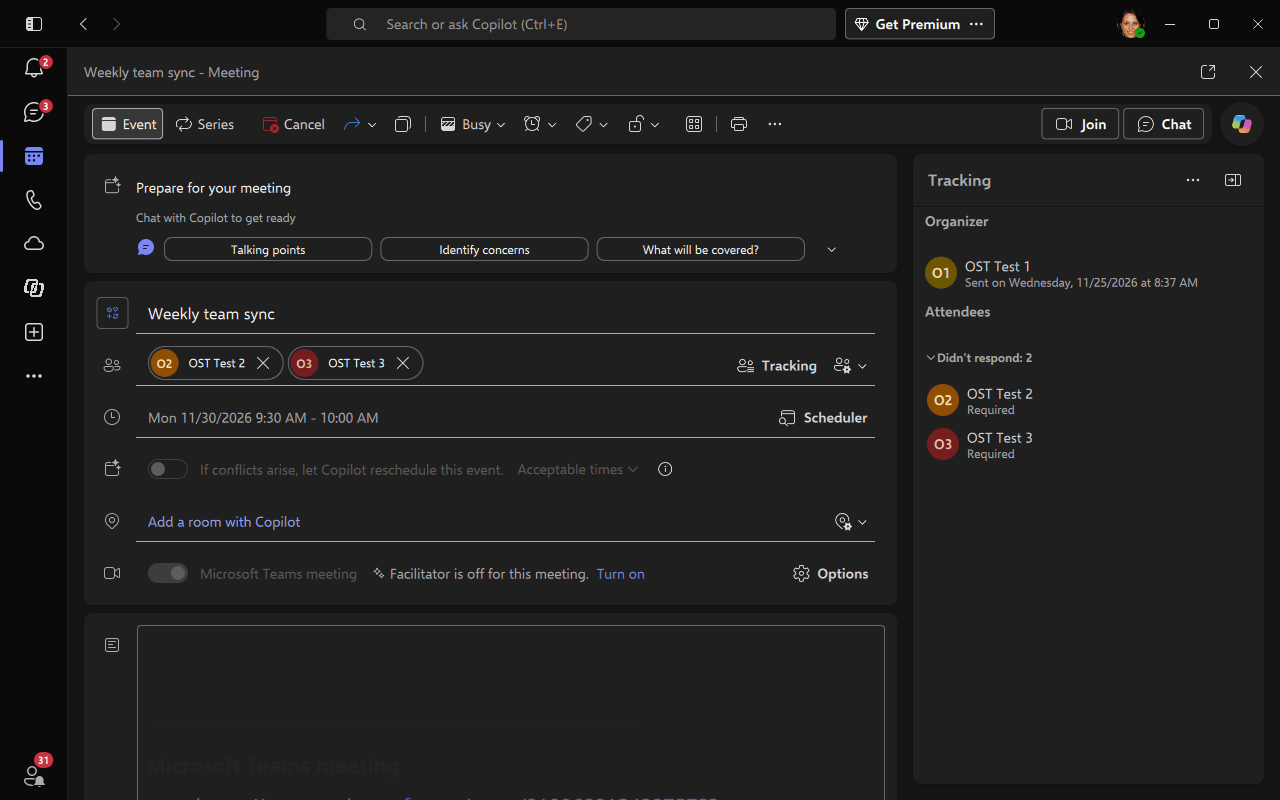
Web apps that Teams hosts (Planner, Whiteboard and others) get the theme through TeamsJS, as in Teams, and draw it themselves.