Repository navigation
Troubleshooting
Press F1 in OST for the built-in Help, which has a Troubleshoot section. The most common problems:
- Start it from a terminal (
ost-desktop) and read what it prints.ost-desktop --versionprints the version,ost-desktop --helpthe options. - A build from source that reports a missing Qt module (
module "QtWebEngine" is not installedor similar) needs that module's package; see Building from source. It needs Qt 6.9 or newer. The AppImage brings its own Qt. - The AppImage says
GLIBC_2.43 not found: your system is older than the AppImage supports (see Installation). Build from source instead. - The AppImage can't mount itself (an error about FUSE or
fusermount3): install your distribution'sfuse3package, or run it with--appimage-extract-and-run. - The log is in
~/.local/state/ost/ost-desktop.log(ost-desktop-<profile>.logfor other profiles).RUST_LOG=info ost-desktopprints more, and Settings ▸ Privacy ▸ Extended diagnostics data keeps a longer log. - Launching OST while it already runs brings the running window to the front instead of starting a second copy. If it's hidden in the system tray, use the tray icon.
- OST signs in with Microsoft's sign-in page inside its window. If the page stays blank, check your network and that Qt WebEngine is installed.
- OST keeps its tokens in your system keyring. Make sure a Secret Service keyring (GNOME Keyring, KWallet) runs and is unlocked; see I have to sign in at every start.
- If your organization requires compliant devices or blocks third-party clients, sign-in fails with Microsoft's message about it; only your IT admin can change that.
- See First sign-in.
-
teams-cli loginsays the profile uses OST desktop's browser sign-in and exits: that's on purpose, so the desktop's embedded apps keep working. Runost-desktopto sign in again, orteams-cli login --device-codeto switch the profile to a device-code sign-in (see Terminal client).
OST couldn't use a system keyring, so it keeps your sign-in in memory only and asks for it again the next time it starts. Settings ▸ Accounts and orgs then shows "Your sign-in isn't saved".
- Install a Secret Service keyring, such as GNOME Keyring or KWallet
(with its Secret Service interface), make sure it starts with your
session and is unlocked, then restart OST. Seahorse or KWalletManager shows whether it runs; OST's
entry is under the service name
ost. - On a machine without a keyring (a headless machine, for example), opt
in to a file instead: turn on Stay signed in without a keyring in
Settings ▸ Accounts and orgs, or start OST with
OST_NO_KEYRING=1. The file is readable only by you but isn't encrypted.
See Sign-in storage.
Each account (OST_PROFILE) now has its own web storage for the sign-in
page and the embedded apps (Loop, Planner, Whiteboard, OneNote and
others), so two accounts never share cookies. Accounts you started with
OST_PROFILE (every account but the first) start with an empty web
storage after the update, so their embedded apps ask you to sign in once.
After that they stay signed in. Signing out also clears that account's
web storage, so the same happens after each sign-out.
- Check Settings ▸ Devices: speaker, microphone and camera, and use Make a test call.
- In a call, More ▸ Settings ▸ Audio settings switches devices.
- OST uses PipeWire for audio and cameras; make sure PipeWire (with its PulseAudio or ALSA compatibility) and WirePlumber run.
- A camera another app holds can't be opened. Close the other app.
OST lists the cameras PipeWire offers, and V4L2 devices PipeWire doesn't offer (see Devices).
- Check that PipeWire and WirePlumber run (
systemctl --user status pipewire wireplumber). - See what PipeWire offers:
wpctl statuslists its video sources under Video, andpw-dumplists every object with its properties. OST takes a node whosemedia.classisVideo/Sourceand whosedevice.apiisv4l2orlibcamera(or whosemedia.roleisCamera, for virtual cameras); screen casts are left out. A camera that PipeWire doesn't offer is listed only if OST can open it through V4L2 itself. - A built-in camera that only libcamera can drive (laptops with Intel
IPU6, for example) needs libcamera and PipeWire's libcamera plugin
(Arch:
pipewire-libcamera; Debian and Ubuntu:libspa-0.2-libcamera; Fedora:pipewire-plugin-libcamera).cam -l, from libcamera's tools, lists the cameras libcamera sees. The many raw "ipu6" device nodes are never listed: they can't deliver a picture by themselves. - A v4l2loopback device is listed only while it can deliver a picture:
with
exclusive_caps=1, once something writes to it. - In the Flatpak (or with
OST_CAMERA_PORTAL=1), cameras come through the desktop's camera portal:xdg-desktop-portalmust run with a backend that offers it, and you must have allowed OST to use the camera. If you refused, allow it again in your desktop's privacy or app permission settings (orflatpak permission-reset io.github.RandyNorthrup.ost), then restart OST. The portal shows only PipeWire's cameras, so a v4l2loopback device that PipeWire doesn't offer isn't seen there.
Sharing goes through your desktop's screen-cast portal. Install
xdg-desktop-portal and the backend for your desktop
(xdg-desktop-portal-kde, -gnome, -hyprland, -wlr…). The desktop's
picker then asks what to share.
- Check Settings ▸ Notifications and activity, and that you're not in Do not disturb.
- On Wayland, Teams-style banners need a layer-shell desktop (KDE Plasma,
Hyprland, sway, other wlroots desktops) and LayerShellQt installed
(
layer-shell-qt). Elsewhere (GNOME's Wayland, for example) OST uses the desktop's notifications.
Mute works out of the box; answer and hang-up need a one-time setup. See Bluetooth headsets.
The language's strings are downloaded on first use. If you were offline, restart OST once you're online. See Translations.
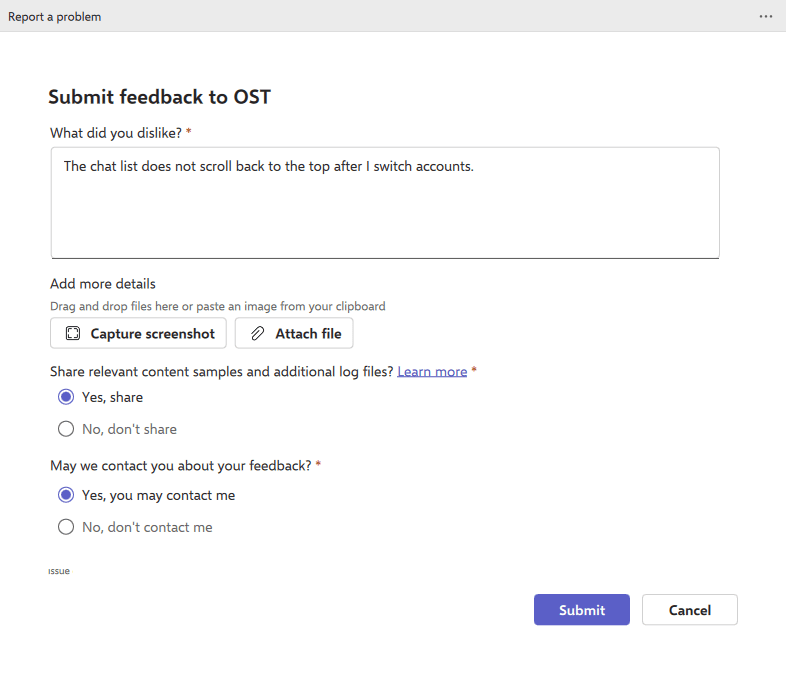
Settings and more (···) ▸ Feedback ▸ Report a problem (Ctrl+Alt+Shift+R) opens an issue on OST's GitHub in your browser with only your text and your contact answer. The details (OST's version, your system, where you sent it from and, if you choose to share them, OST's recent log lines with names, addresses, message text and tokens masked) go to OST report details.txt in a folder OST opens on your device, for you to review and attach. Issues are public. See Help and feedback.
To collect a fuller log for a report: right-click OST's tray icon ▸ Help ▸ Collect Support Files. OST writes a folder with its log and version to your Desktop; look through it before attaching anything.