Repository navigation
Chat messages
Reading, writing and acting on messages in chats, as in Teams. Channel posts and threads use the same compose box and message actions; see Teams and channels for what differs there.
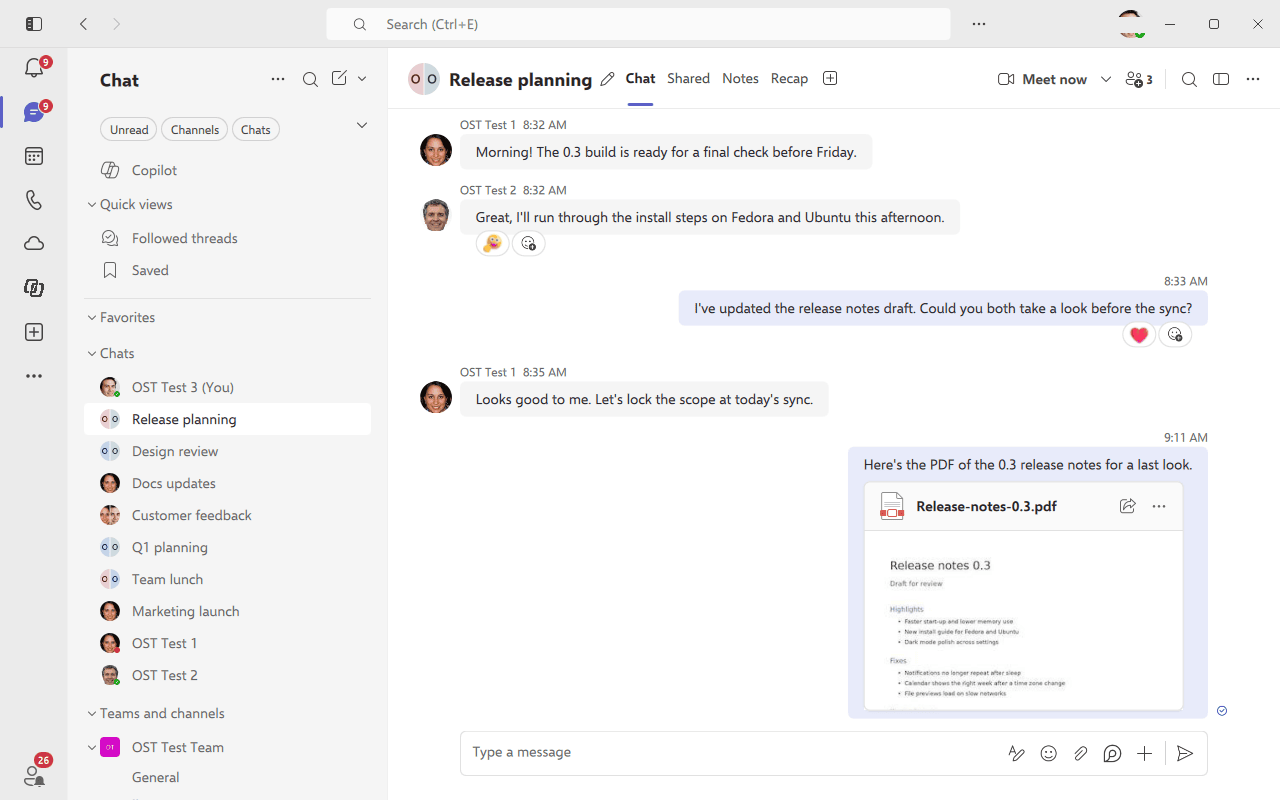
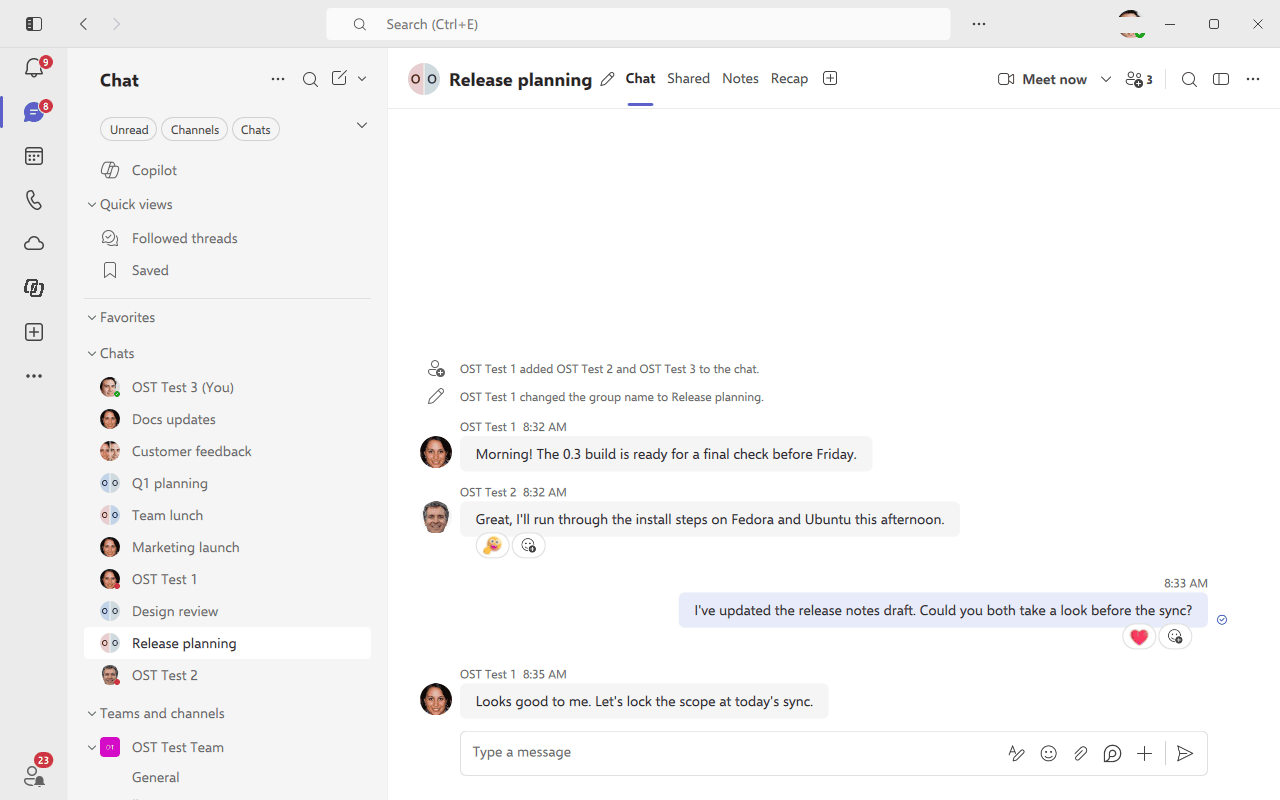
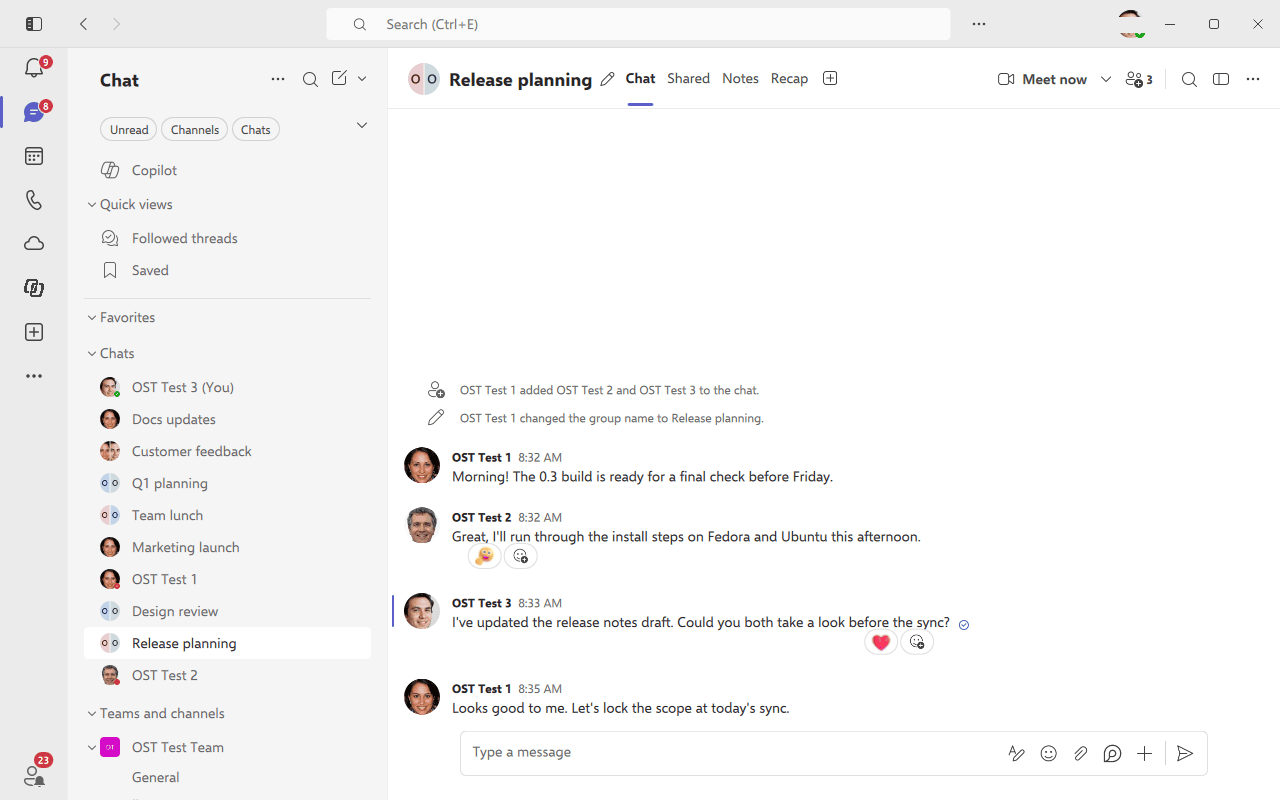
- Timeline: messages are grouped by sender, with date headers ("Yesterday", the weekday or the date) and day dividers. A Last read line marks where you stopped reading.
- System messages: people added or removed, the chat renamed, a meeting started or ended, calls (missed, ended, with duration), tabs and Notes added.
- Older messages load as you scroll up.
- When I open a chat, take me to the Last read message or the Newest message (Settings ▸ Chats and channels ▸ Chat). Ctrl+J jumps to the newest message.
- Message density: Comfy or Compact (Settings ▸ Chats and channels ▸ Chat). Compact puts names and messages on one line and drops the pictures.
- Read receipts: in a 1:1 chat your sent messages show Sent, then Seen once read. In a group chat, Seen by everyone, and your message's ··· has Read by N of M with the names. Turn them off in Settings ▸ Chats and channels ▸ Read receipts.
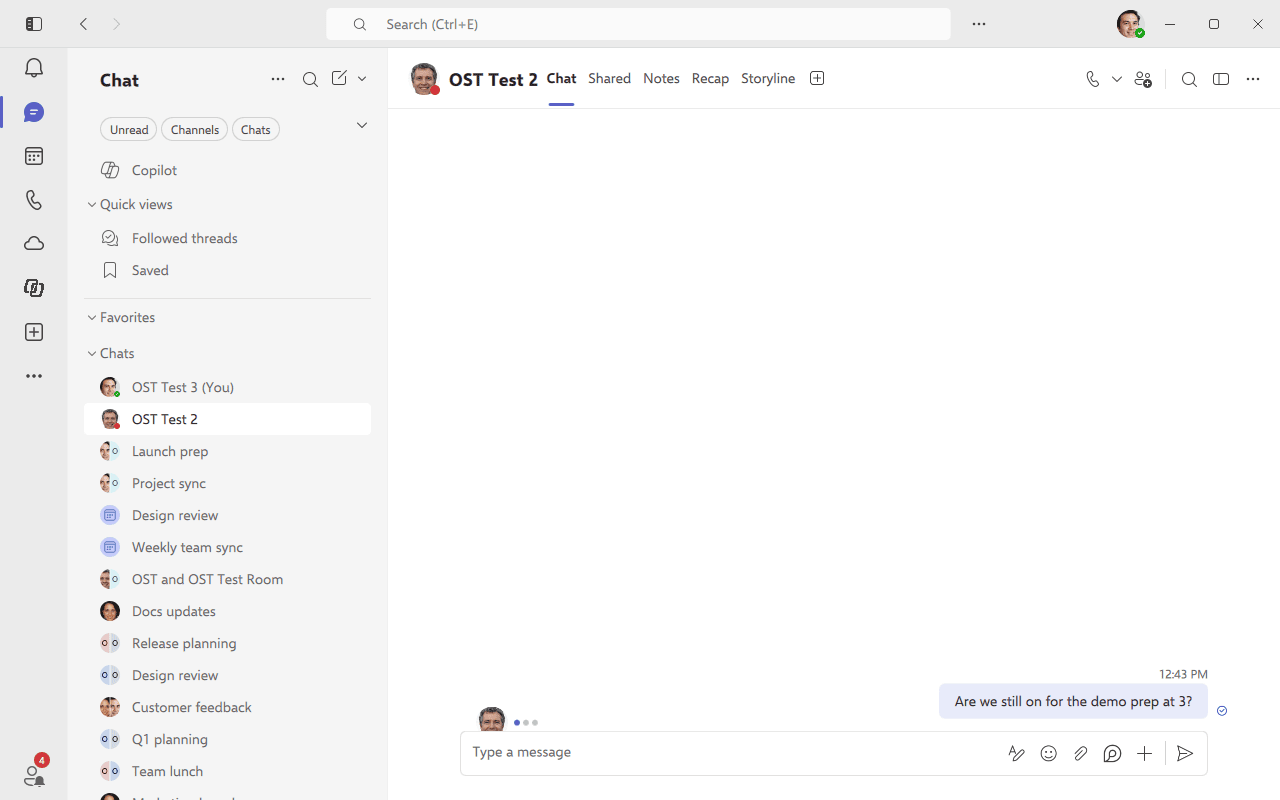
- Typing: "Name is typing" shows under the messages.
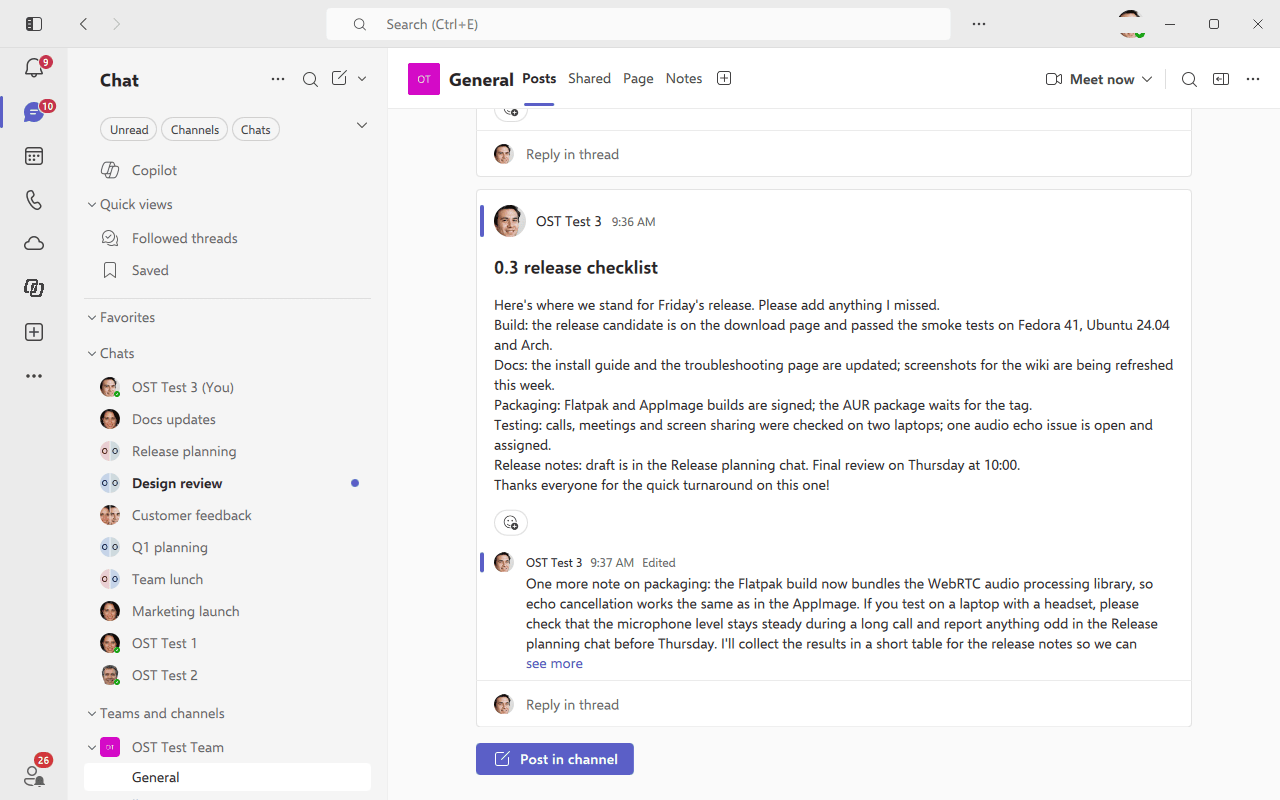
- Long messages are cut with See more (See less folds them again).
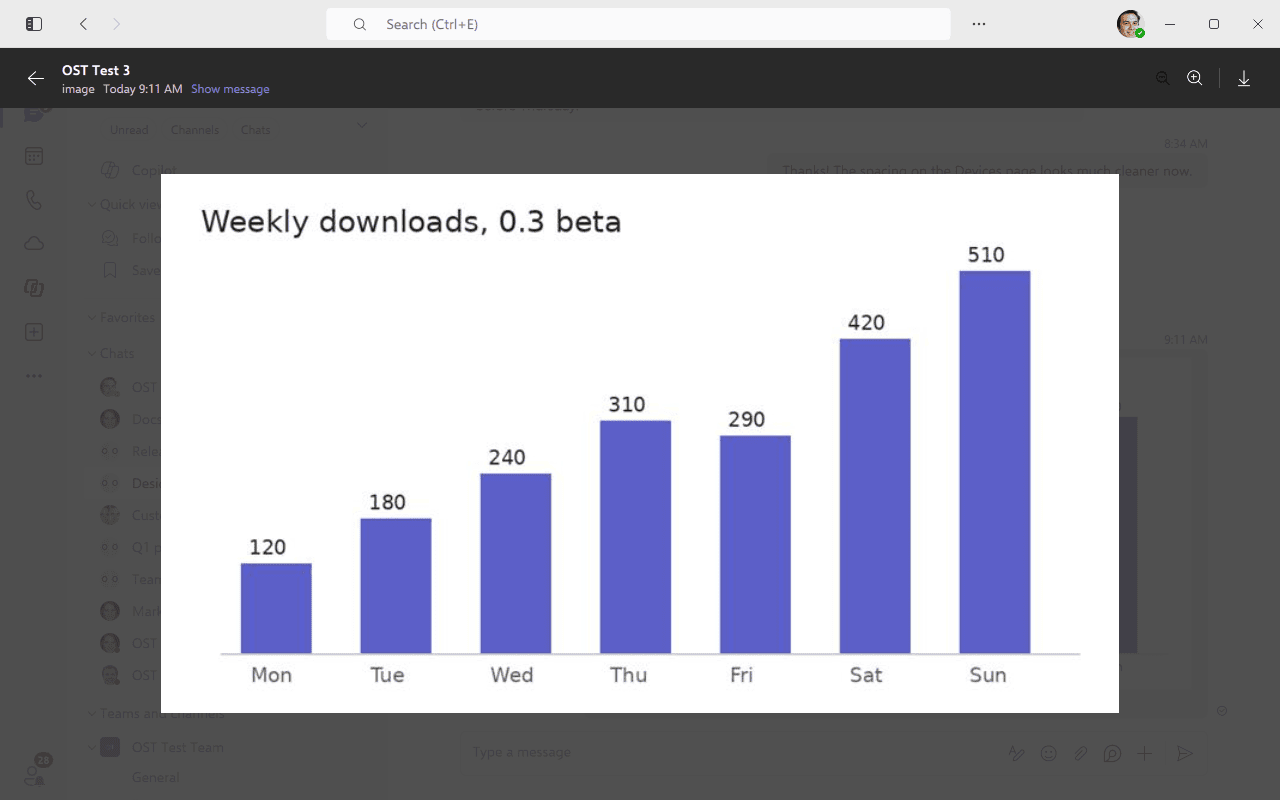
- Pictures open in the picture viewer: Zoom in, Zoom out, Download and Show message.
- Code in received messages shows in a code box with Copy code.
- Enter sends and Shift+Enter starts a new line, unless you chose Start a new line in Settings ▸ Chats and channels ▸ Compose; then Enter starts a new line and Ctrl+Enter sends. With the format bar open, Enter always starts a new line. Ctrl+R puts the cursor in the compose box.
- The box grows with the text up to a maximum height, then scrolls.
- Your message shows at once with Sending; if the network drops it is kept and retried (Retrying), and a message that couldn't be sent shows Failed with Retry. Messages written offline wait in OST's outbox and go when you're back online.
- Drafts are kept per chat, with their formatting, until you send them (Quick views ▸ Drafts lists them). Where your organization roams drafts between devices, a draft written elsewhere shows There's a draft saved from another platform with View draft and Use this version.
Show Formatting options (the A with a pen) opens the format bar: Bold, Italic, Underline, Strikethrough, Text highlight color, Font color, Font size (Small, Medium, Large), Paragraph styles (Heading 1 to Heading 3), Bulleted list, Numbered list, Decrease indent, Increase indent, Quote, Insert link, Code, Code block, Insert horizontal rule, Insert table, Clear all formatting, Undo typing and Repeat typing. Keyboard: Ctrl+B, Ctrl+I, Ctrl+U, Ctrl+Alt+X.
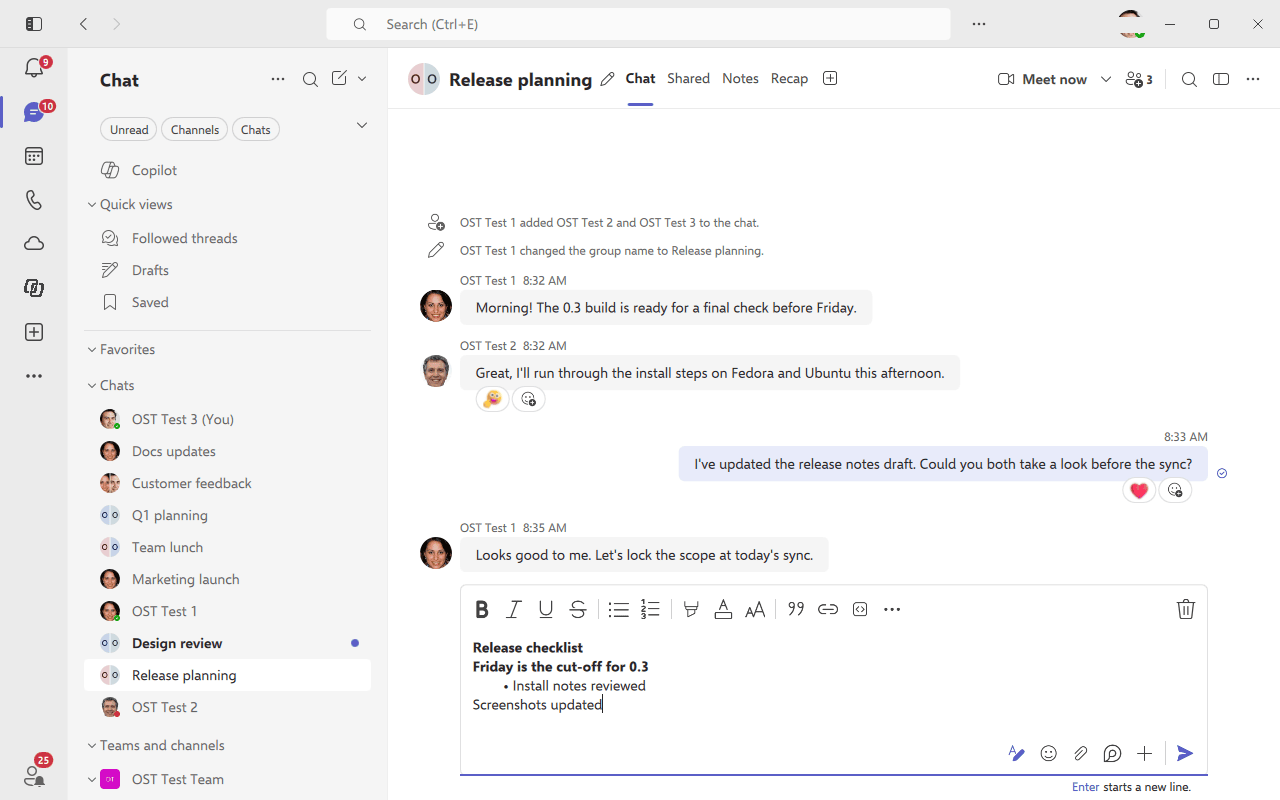
- Tables: Insert table picks the size from a grid; the table's menu inserts rows and columns and deletes them or the table.
- Code blocks pick the language (or Auto-detect language) and color the code as you type. A sent code block is a card with the language and Copy.
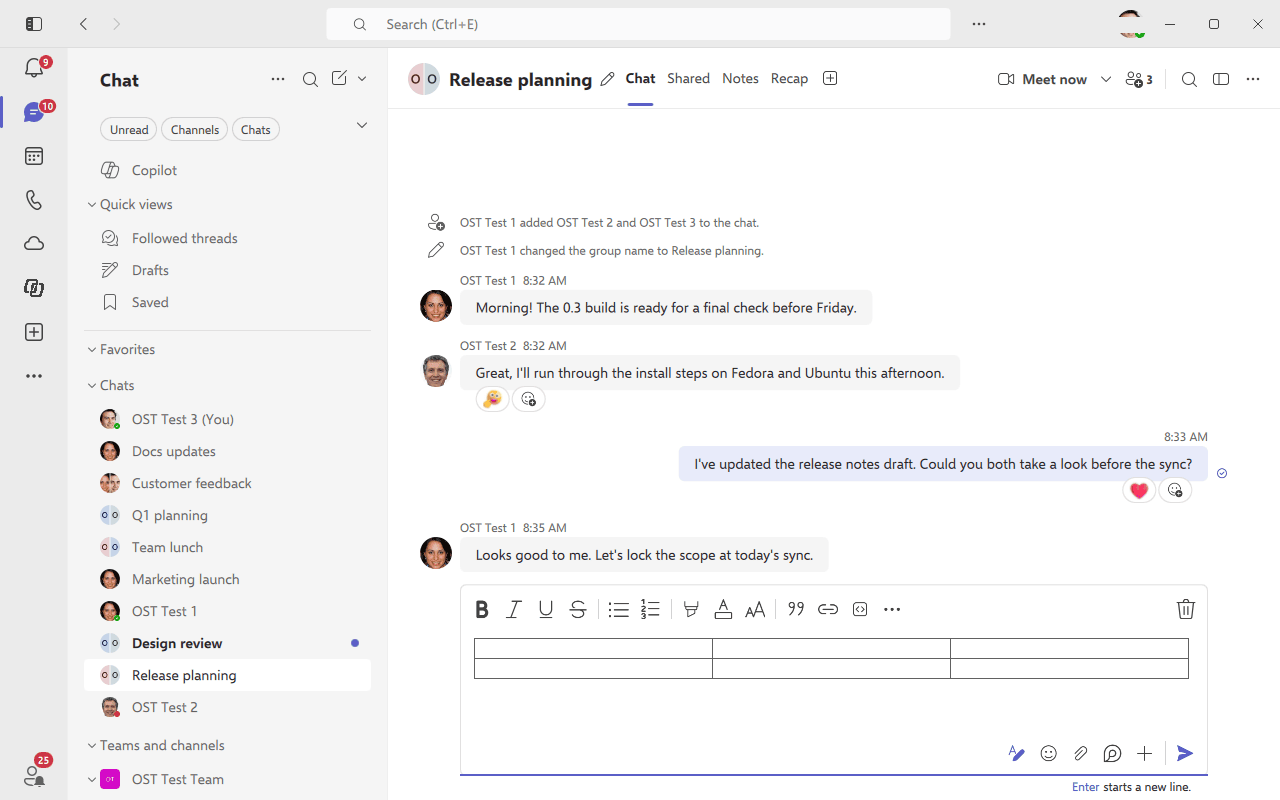
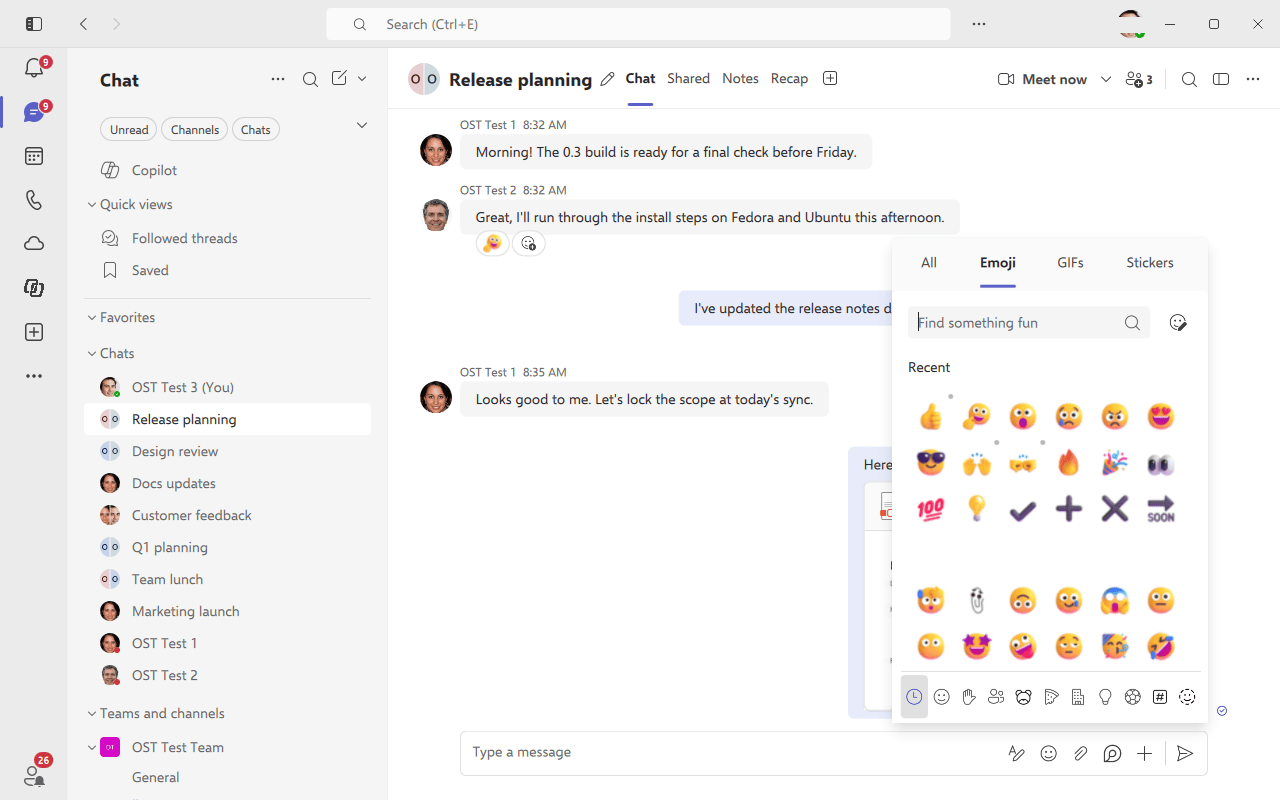
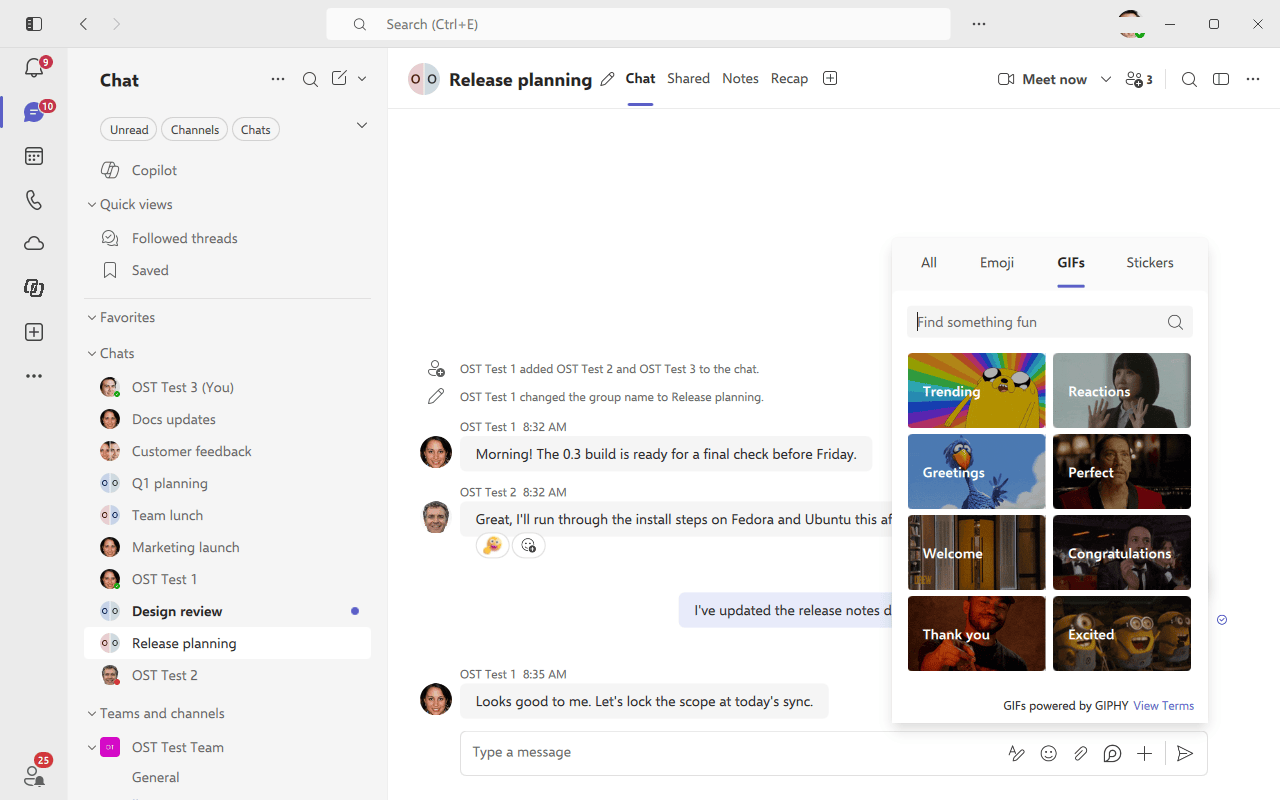
- Emoji, GIFs and Stickers (the smiley) opens the picker: Emoji (Recent, Smilies, People, Animals, Food, Travel, Activities, Objects, Symbols, and your organization's custom emoji), GIFs (from GIPHY) and Stickers (sticker packs, with Top Caption and Bottom caption). GIFs and stickers need Optional connected experiences on (Settings ▸ Privacy).
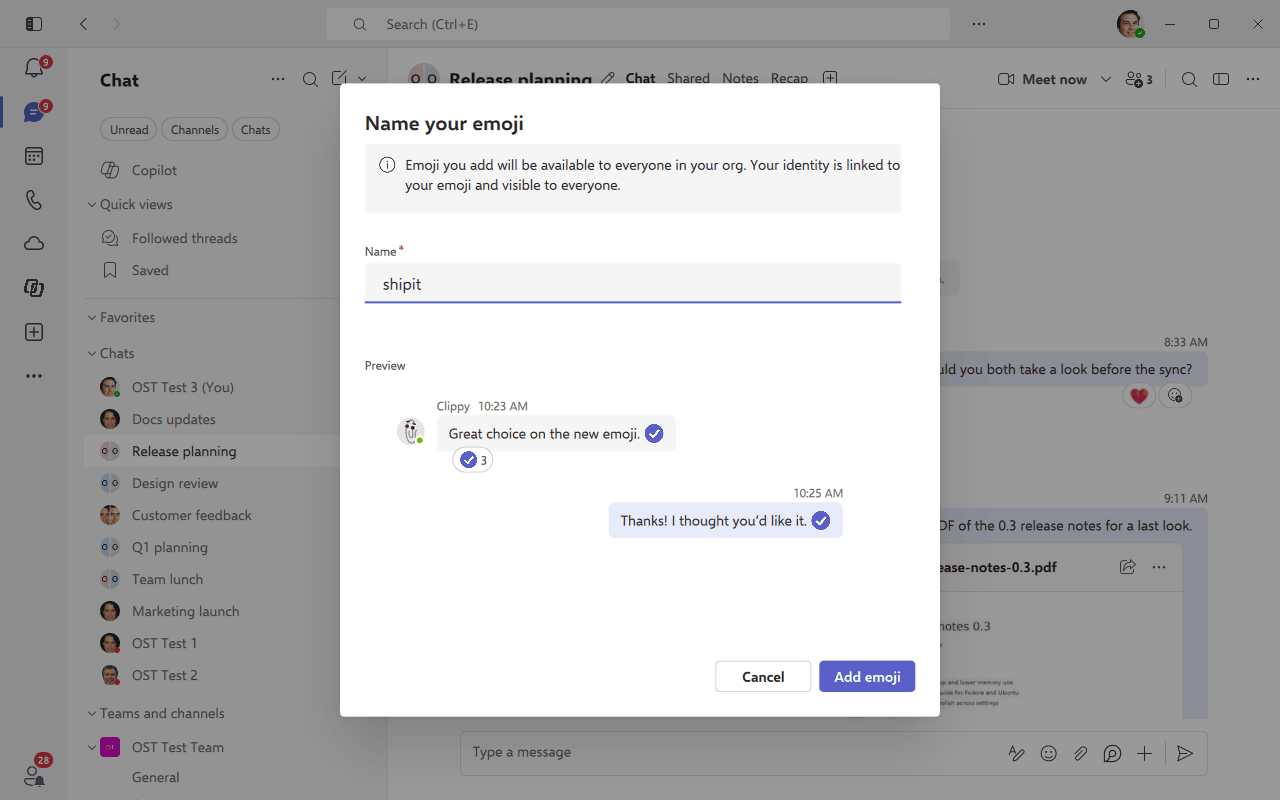
- Custom emoji: Add emoji in the emoji tab uploads a picture (PNG, JPEG or GIF) and names it (lowercase, no spaces). Custom emoji are available to everyone in your organization. Your own custom emoji can be deleted from its menu.
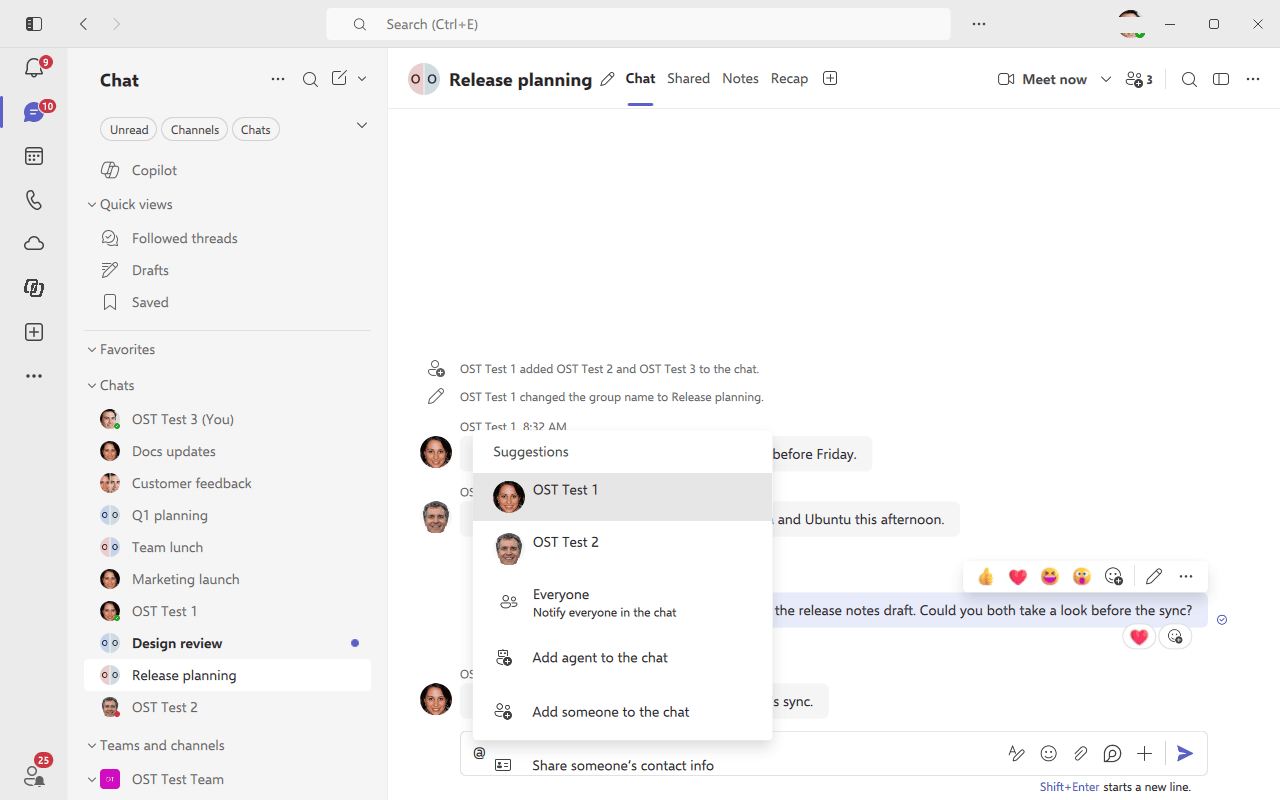
Type @ and a name to mention someone. The picker offers people in the chat (and others in your organization), tags, Everyone (Notify everyone in the chat) in group chats, and in channels the channel and the team. A mention notifies that person.
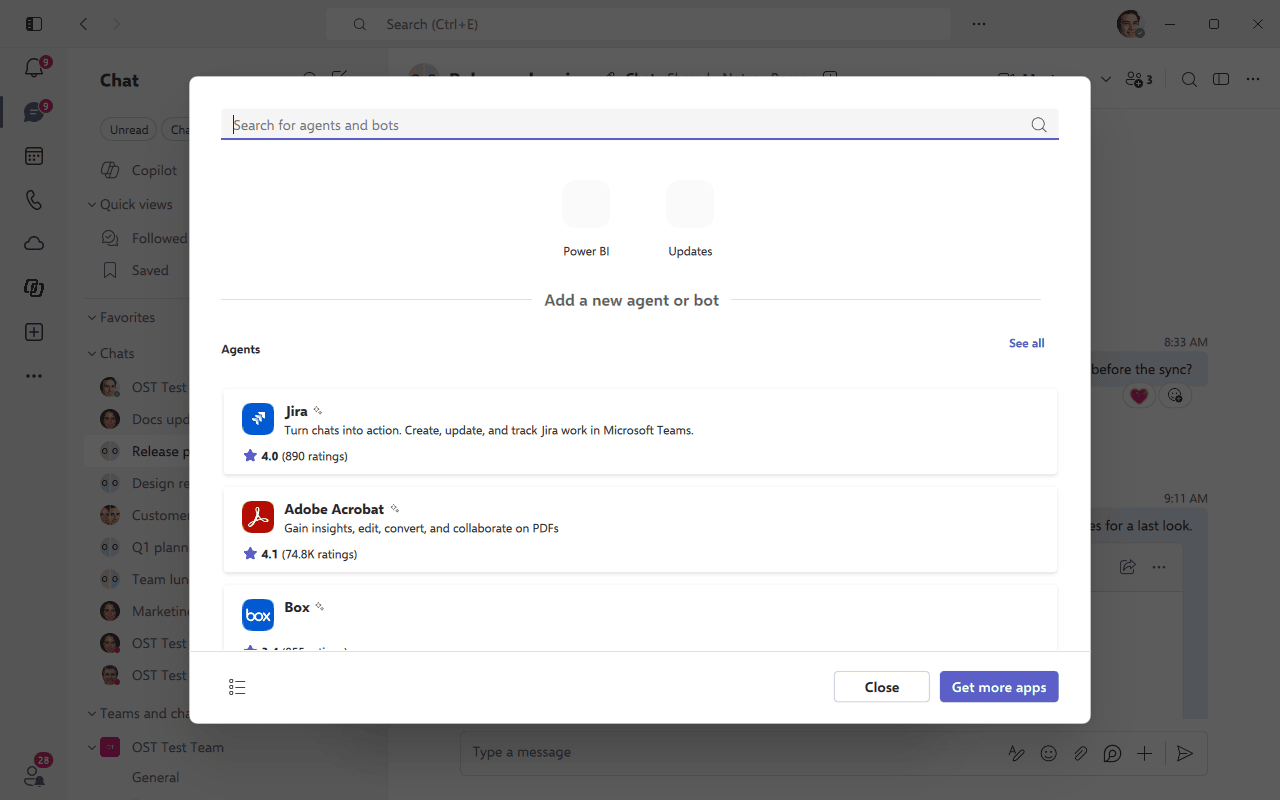
Add agent to the chat (from @ or +) opens a small Store of agents and bots (Search for agents and bots, Add a new agent or bot, Manage your apps).
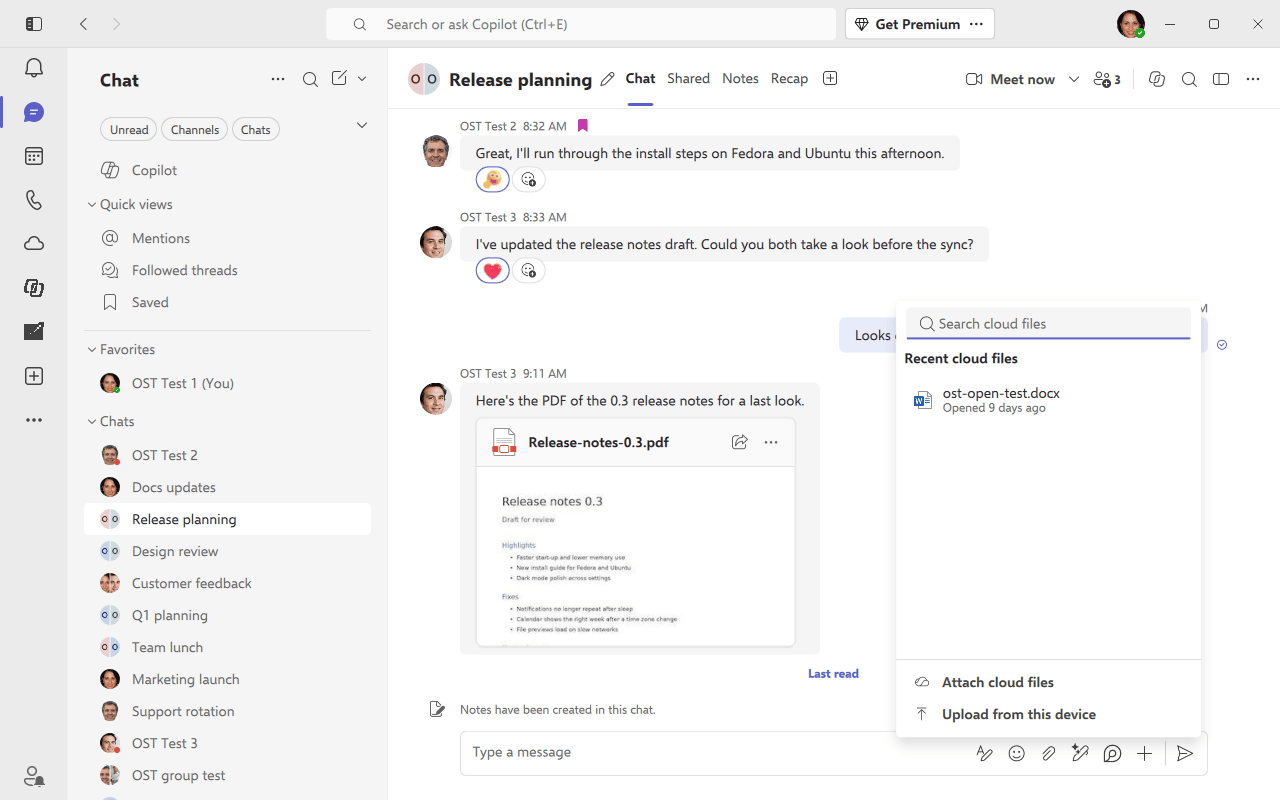
- Attach files (the paper clip, Alt+Shift+O): Recent cloud files, Search cloud files, Attach cloud files (Teams' cloud file picker), Browse Teams and Channels and Upload from this device (see Files).
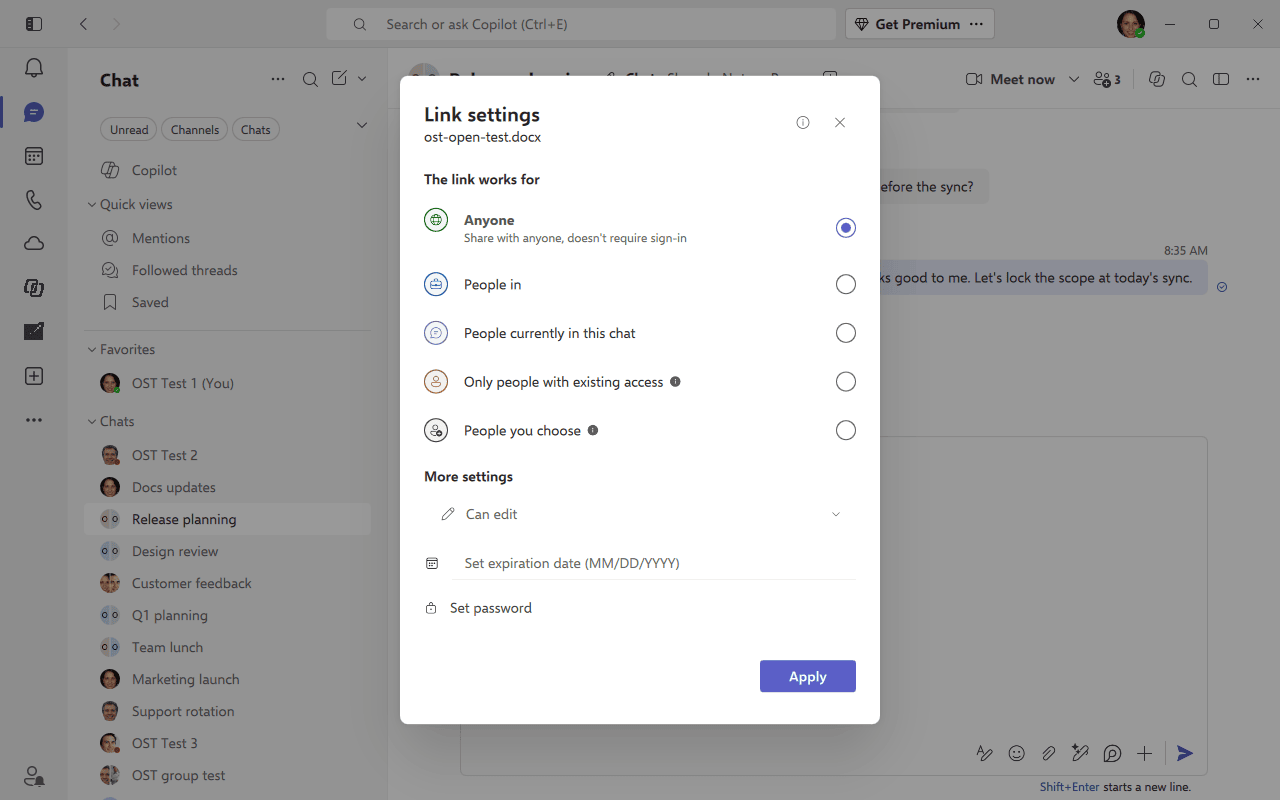
- An attached cloud file is a card in the compose box with Link settings: Anyone with the link can view or edit, People in your organization with the link can view or edit, People you choose can view or edit.
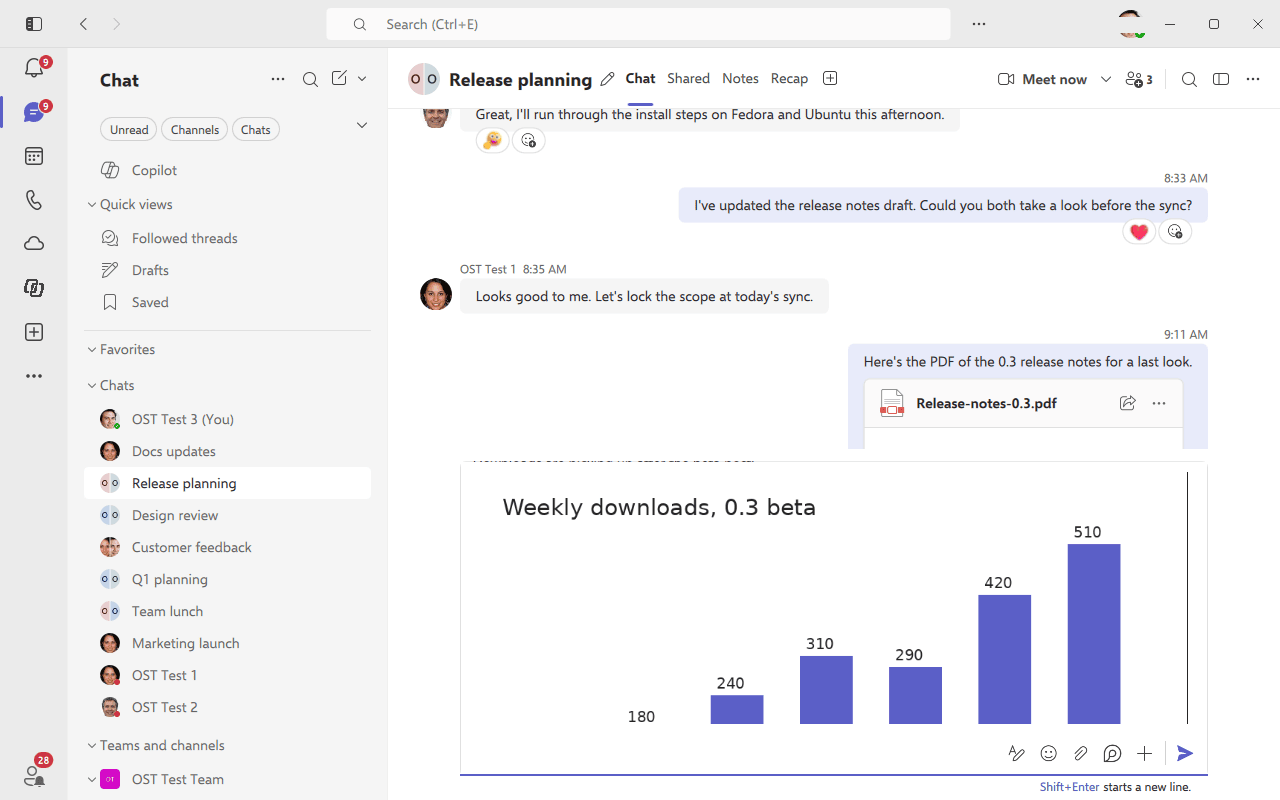
- Paste a picture (Ctrl+V) to put it inline in the message.
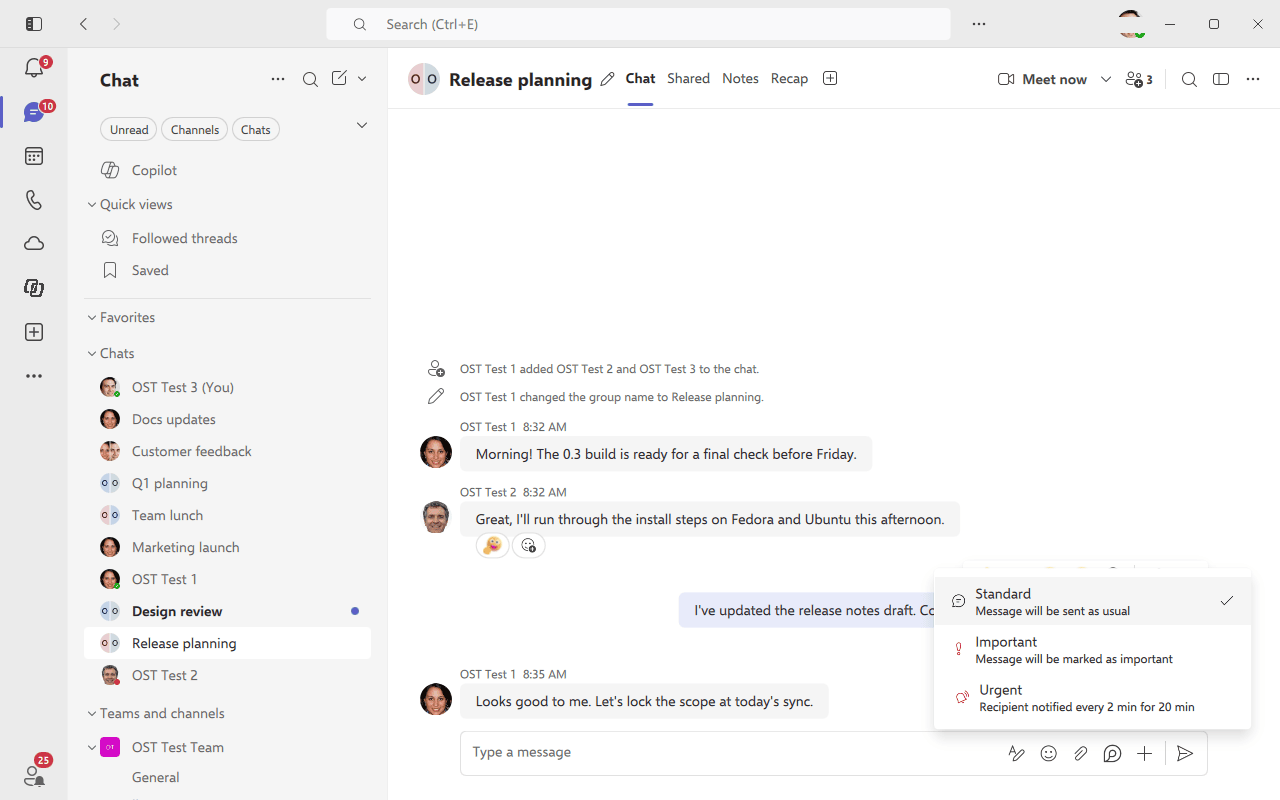
- Set delivery options (the exclamation mark): Standard, Important (marked "IMPORTANT!" for everyone) or Urgent (notifies the recipients every 2 minutes for 20 minutes until they read it).
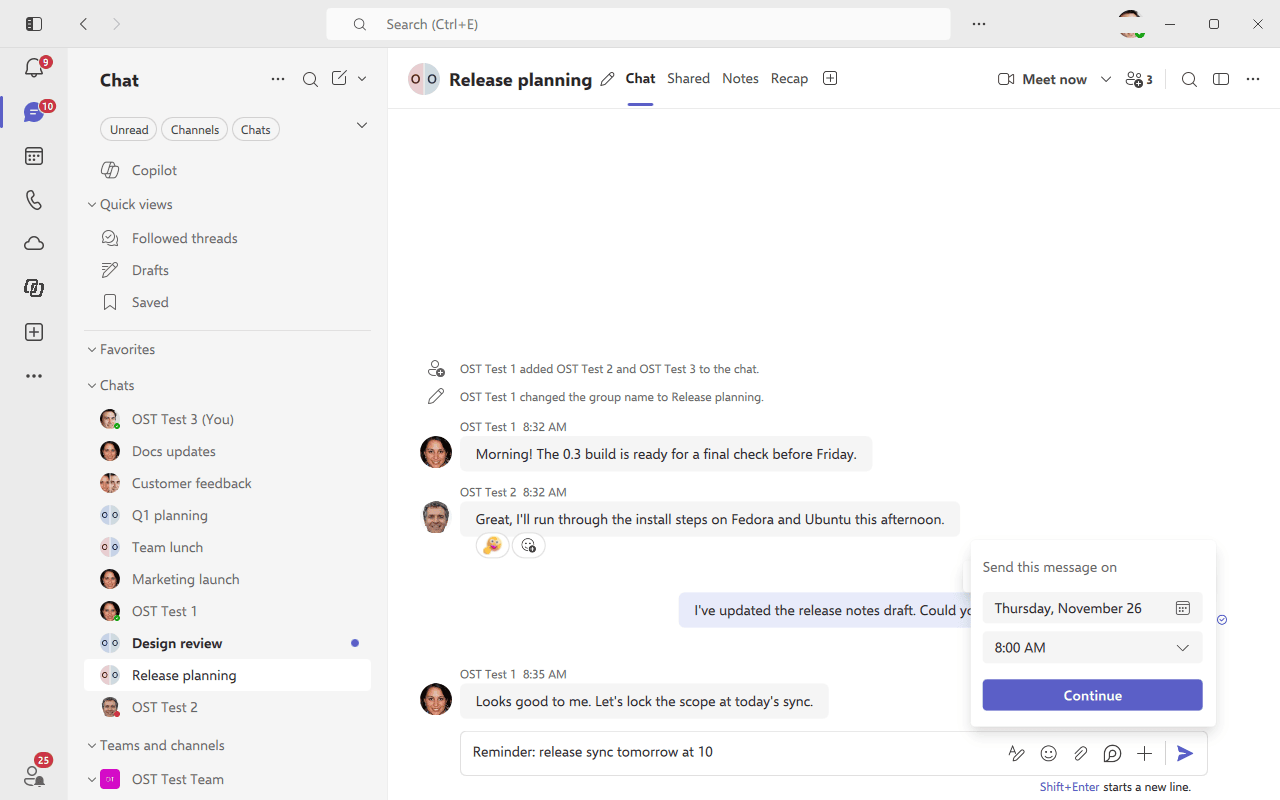
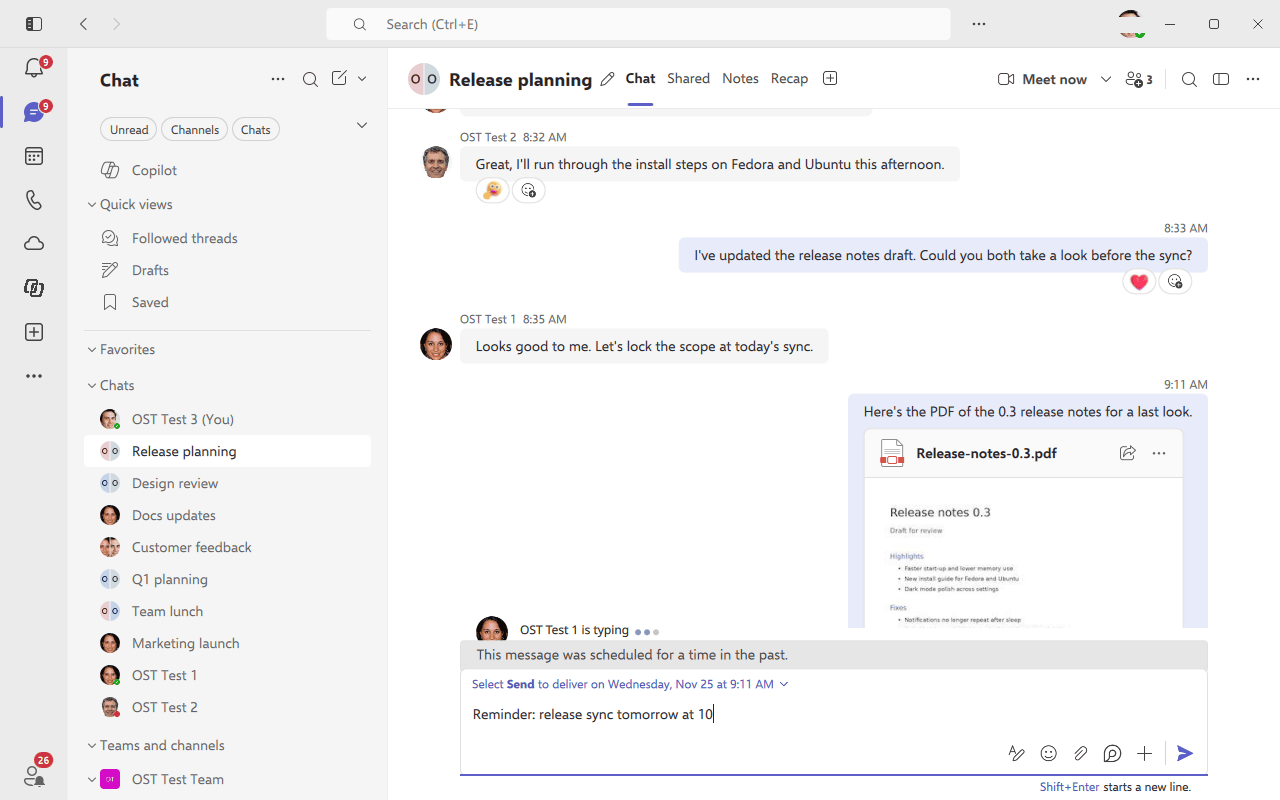
- Schedule message (from +, or the send button's menu): pick a date and time; the message waits grayed in the chat with the time it will be sent ("Sending on … at …") until then. Its ··· has Delete, which cancels it, and you can edit it before it goes.
OST shows Teams' banners above the compose box when something needs your attention before sending, for example 3 or more chat members are out of office and may not respond, Message is too large to send., or a bot mention in a reply that goes to the channel.
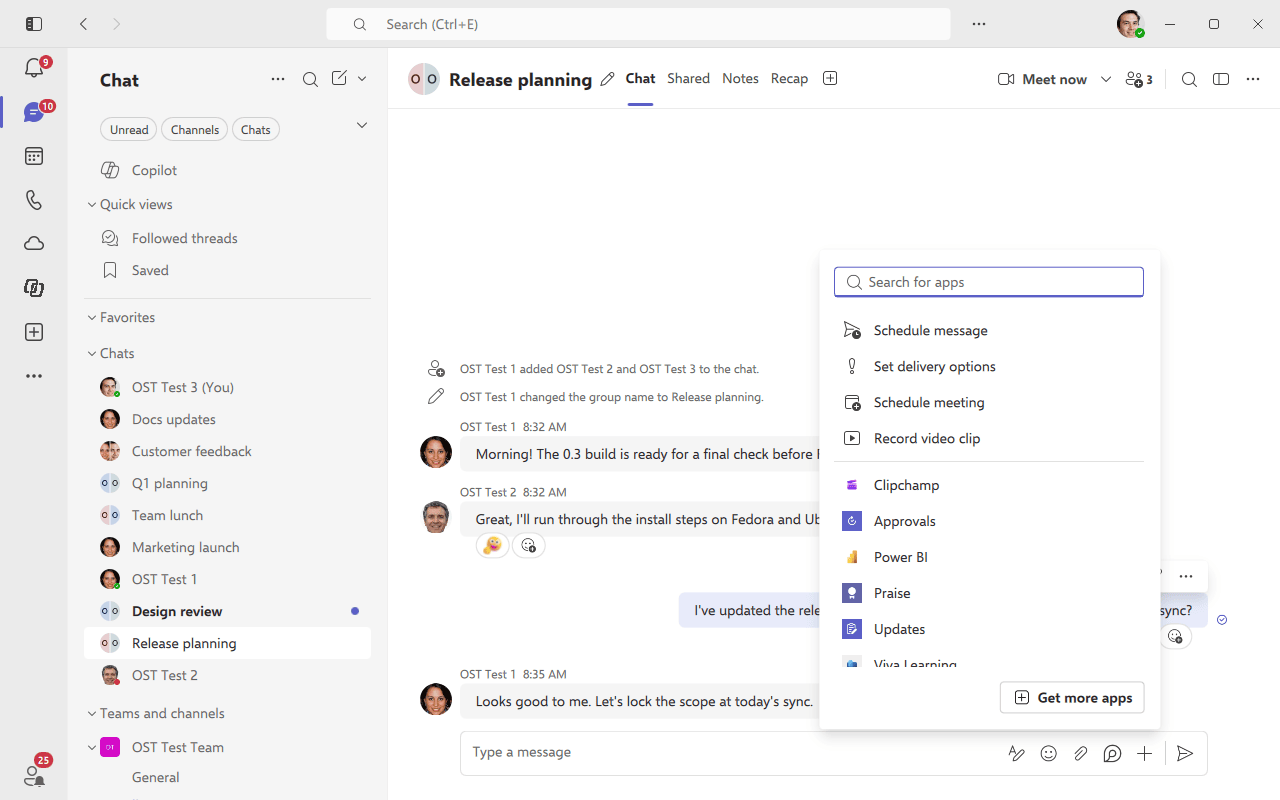
+ (Actions and apps) lists your apps' message actions (Polls, Power BI, Planner and others), Schedule meeting, Schedule message, Record video clip, Loop components, Get more apps and Search for apps. A message extension opens its own panel or dialog and inserts a card. See Apps.
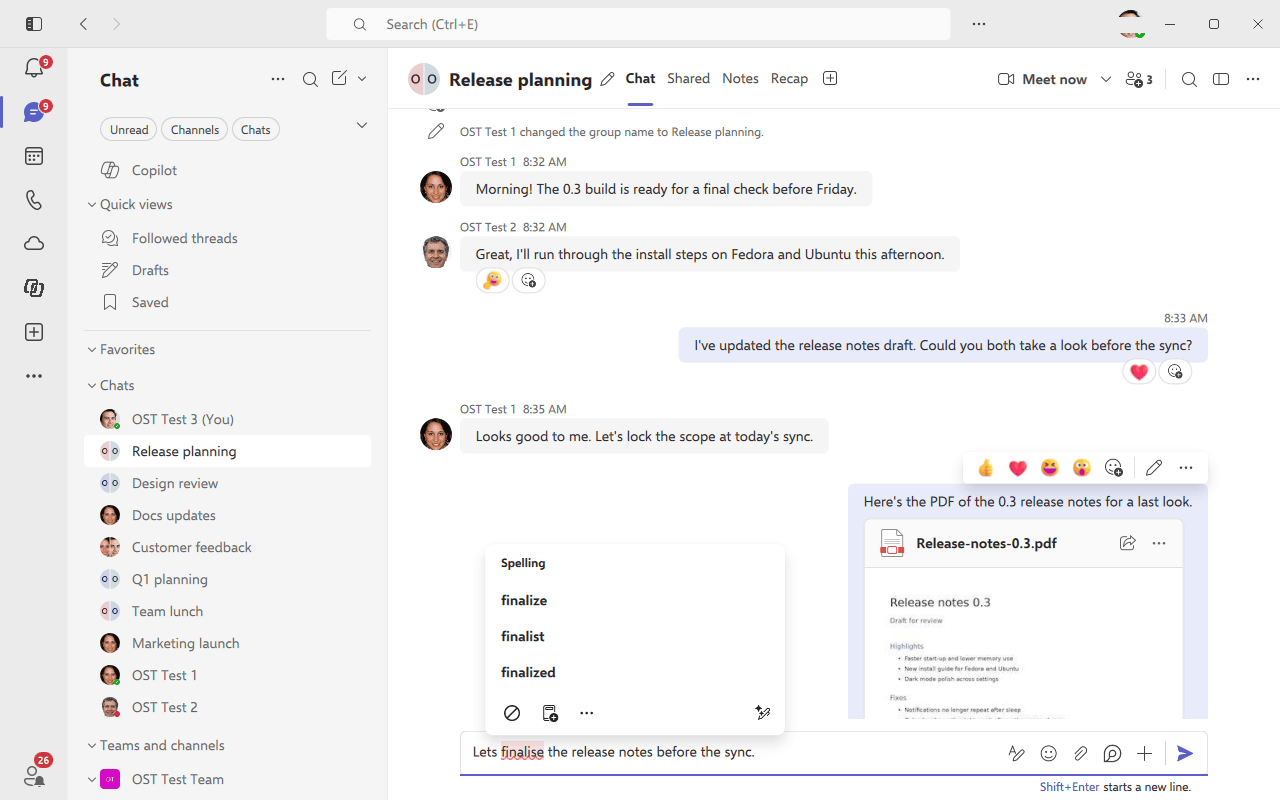
Microsoft Editor underlines spelling and grammar issues as you type. Select an underlined word for the Editor card: suggestions, Ignore all, Add to Dictionary, Manage languages... and Editor settings... (Settings ▸ General ▸ Editor spellcheck).
With a Copilot license, Write with Copilot rewrites, adjusts or proofreads your draft. See Copilot.
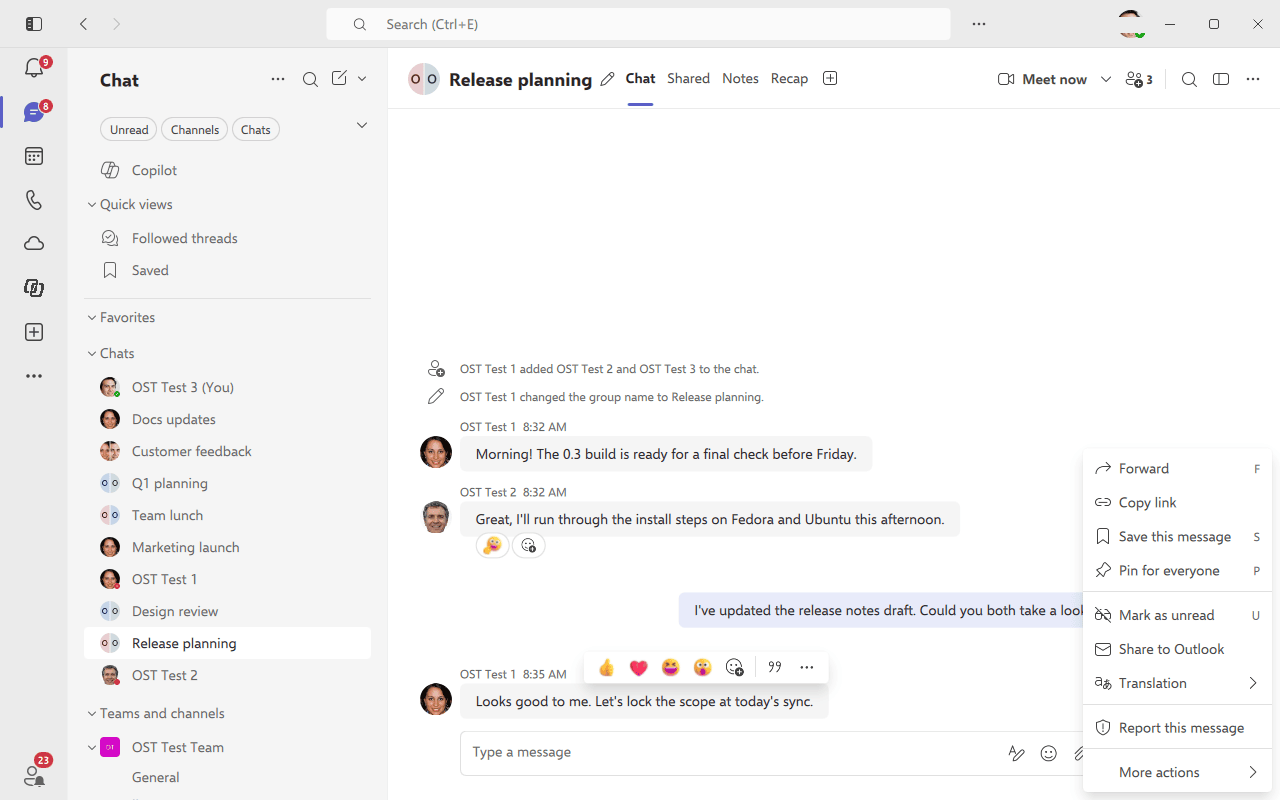
Point at a message for its hover bar: your quick reactions, More reactions, and for your own messages Edit; More options (···) opens the message menu.
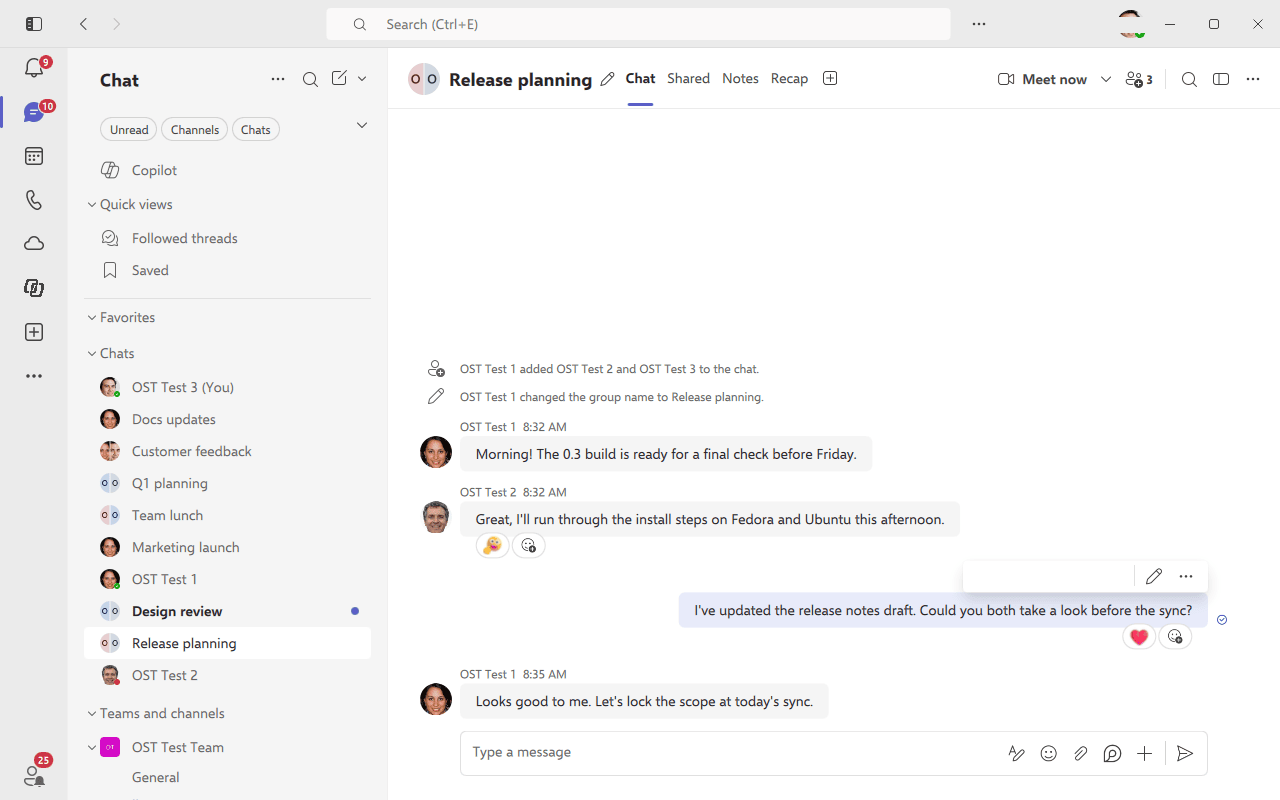
··· on a message, in Teams' order:
- Reply with quote (Q), Edit (E, your messages), Forward (F), Copy link
- Save this message / Unsave this message (S): saved messages are in Quick views ▸ Saved; only you see that you saved it.
- Delete (Del, your messages)
- Pin for everyone / Unpin for everyone (P): a pinned message shows in a banner at the top of the chat.
- Read by N of M (your messages in group chats)
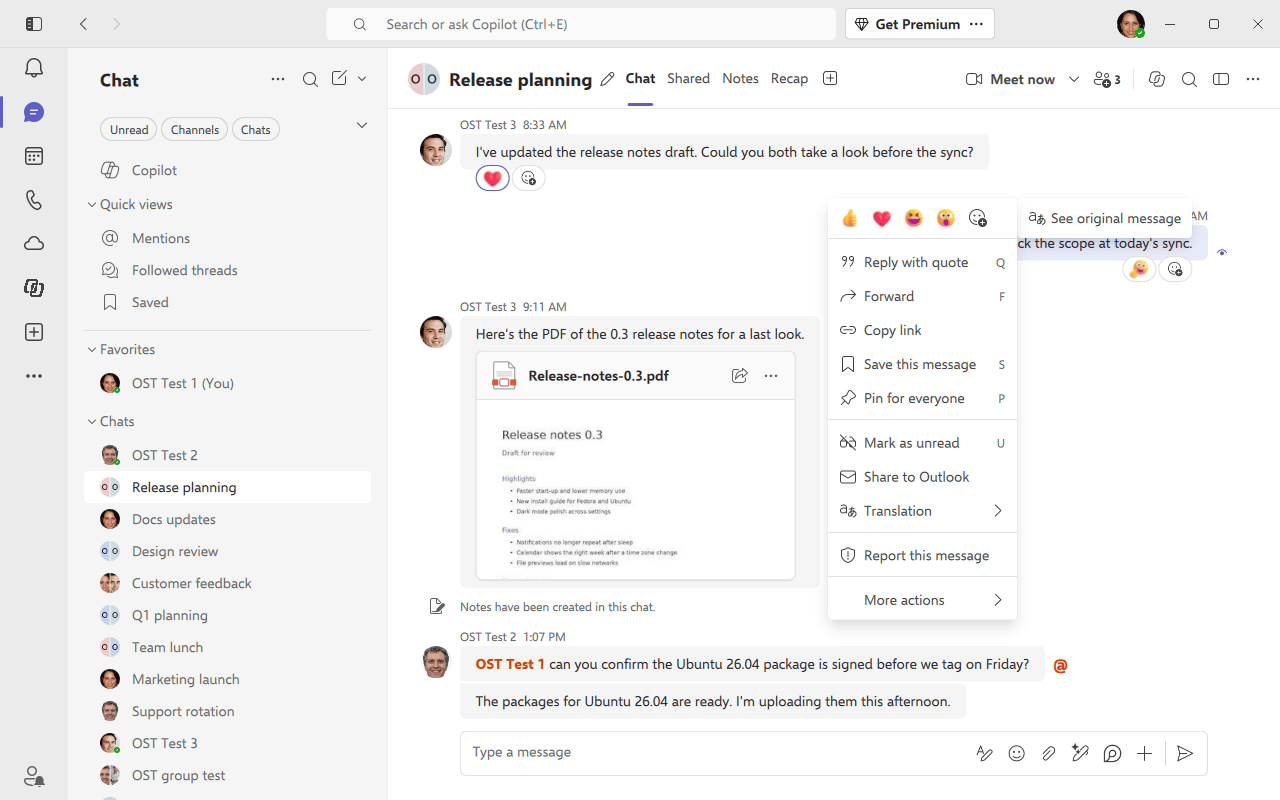
- Mark as unread (U), Share to Outlook, Translation ▸
- Report this message (others' messages)
- More actions ▸: Immersive Reader and your apps' actions
Right-click a message for the same menu with a strip of reactions at the top.
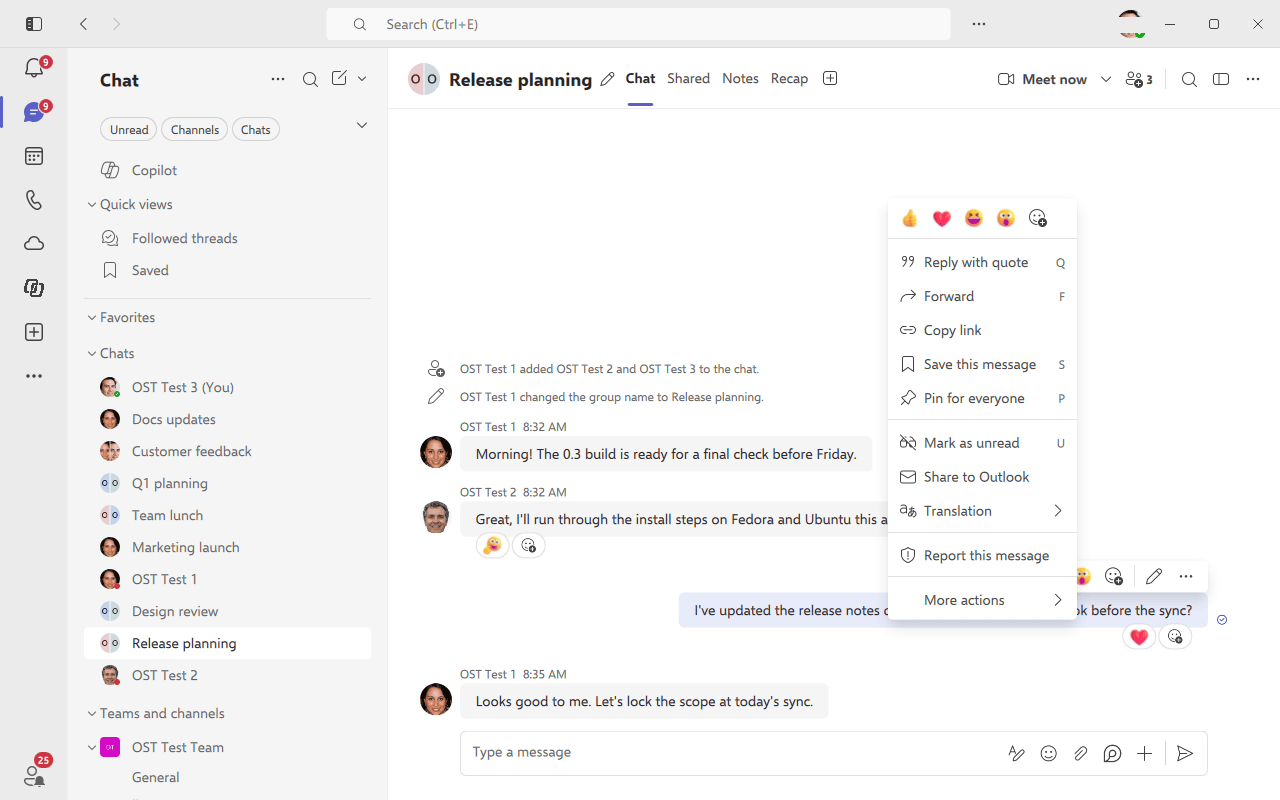
- React with a quick reaction or any emoji from More reactions. Select your reaction again to remove it.
- Point at a reaction for who reacted; the reaction summary lists everyone by reaction, with Chat with them.
- You can add up to 20 reactions to one message; past that OST says "You've reached the 20-reaction limit".
- Customize your reactions (from More reactions) replaces the quick reactions with emoji you choose and sets your skin tone.
- Ctrl+Alt+R reacts to the last message.
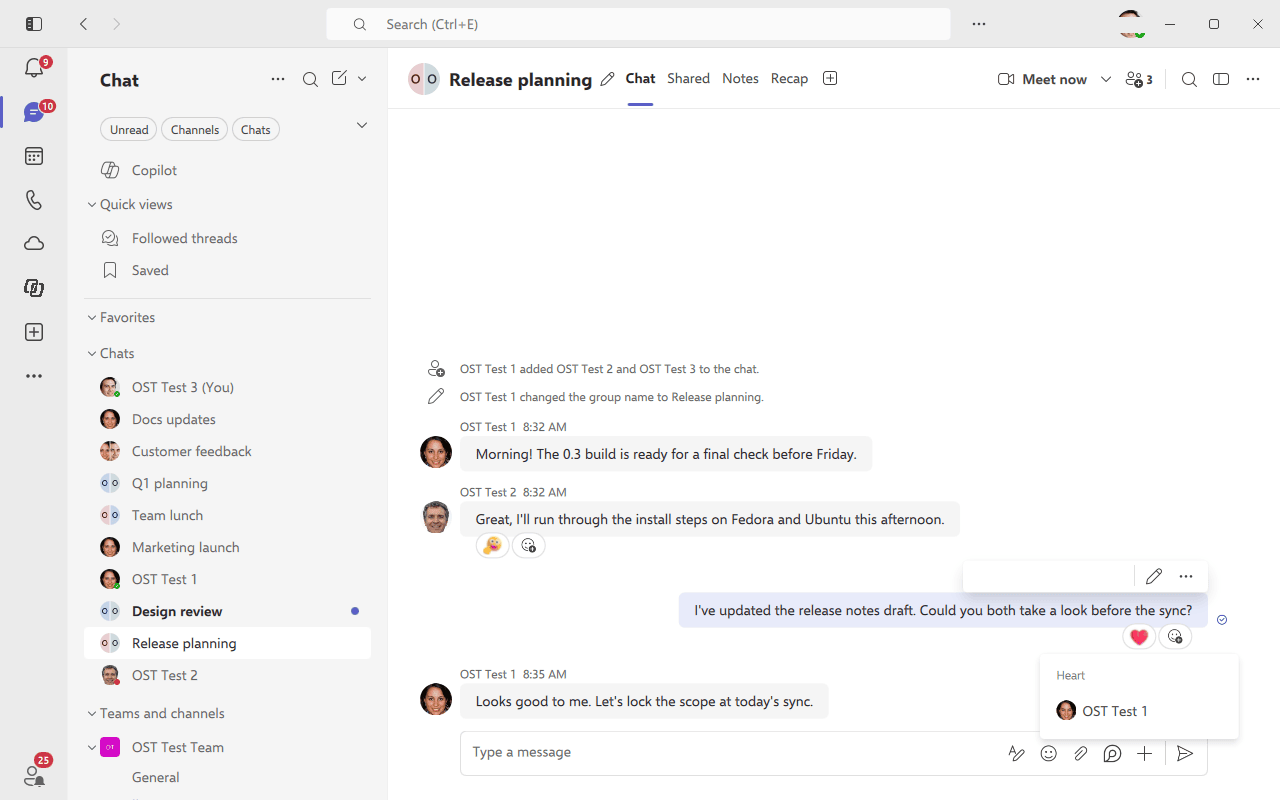
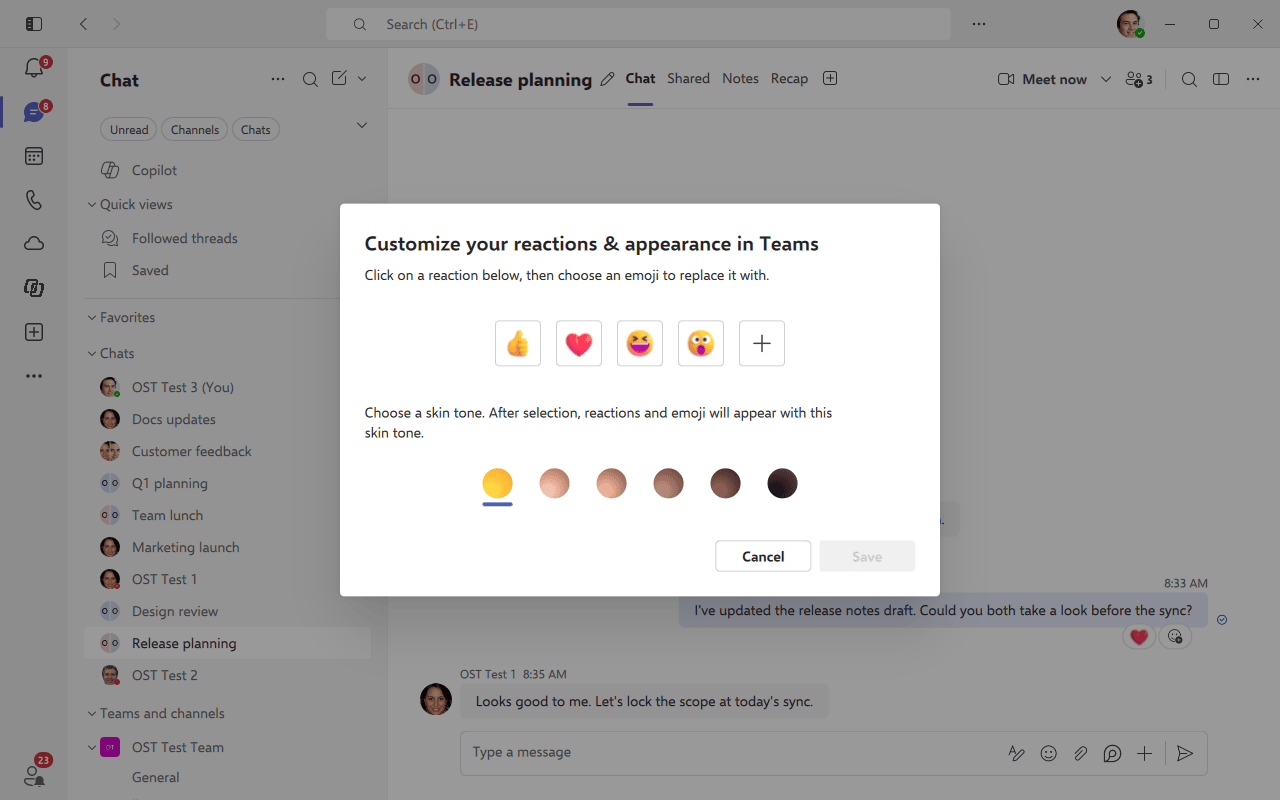
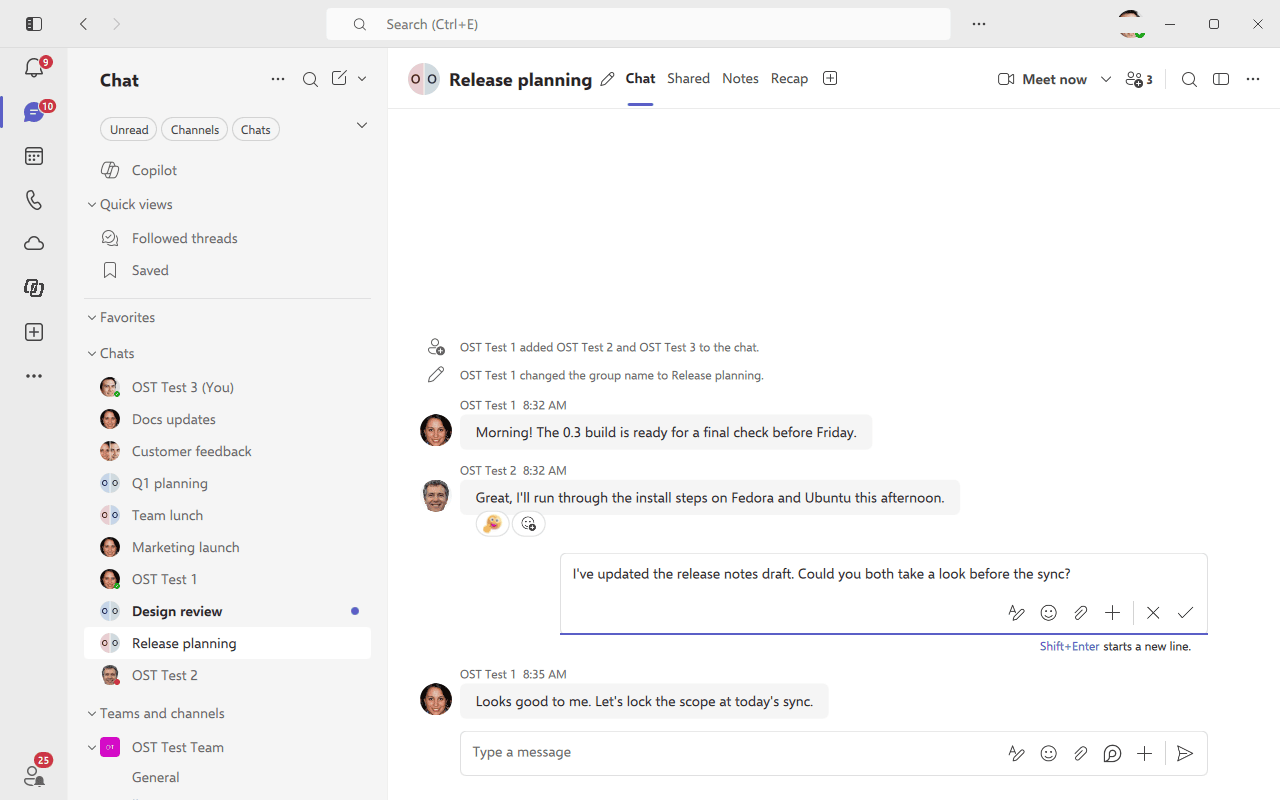
- Edit opens the message in an edit box with the format bar, attach, Loop and Copilot. A message's own Loop component and video clip stay in it. Edited messages show Edited.
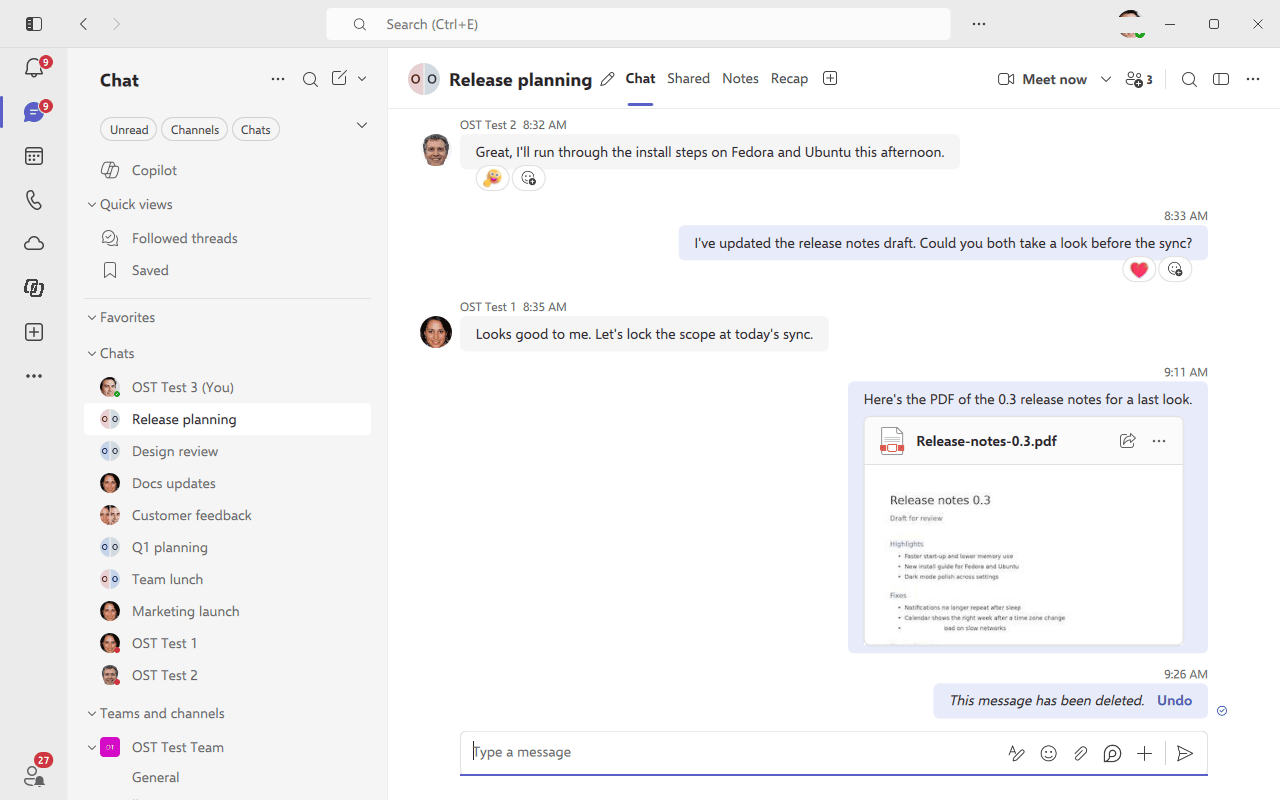
- Delete leaves "This message has been deleted." with Undo for a while.
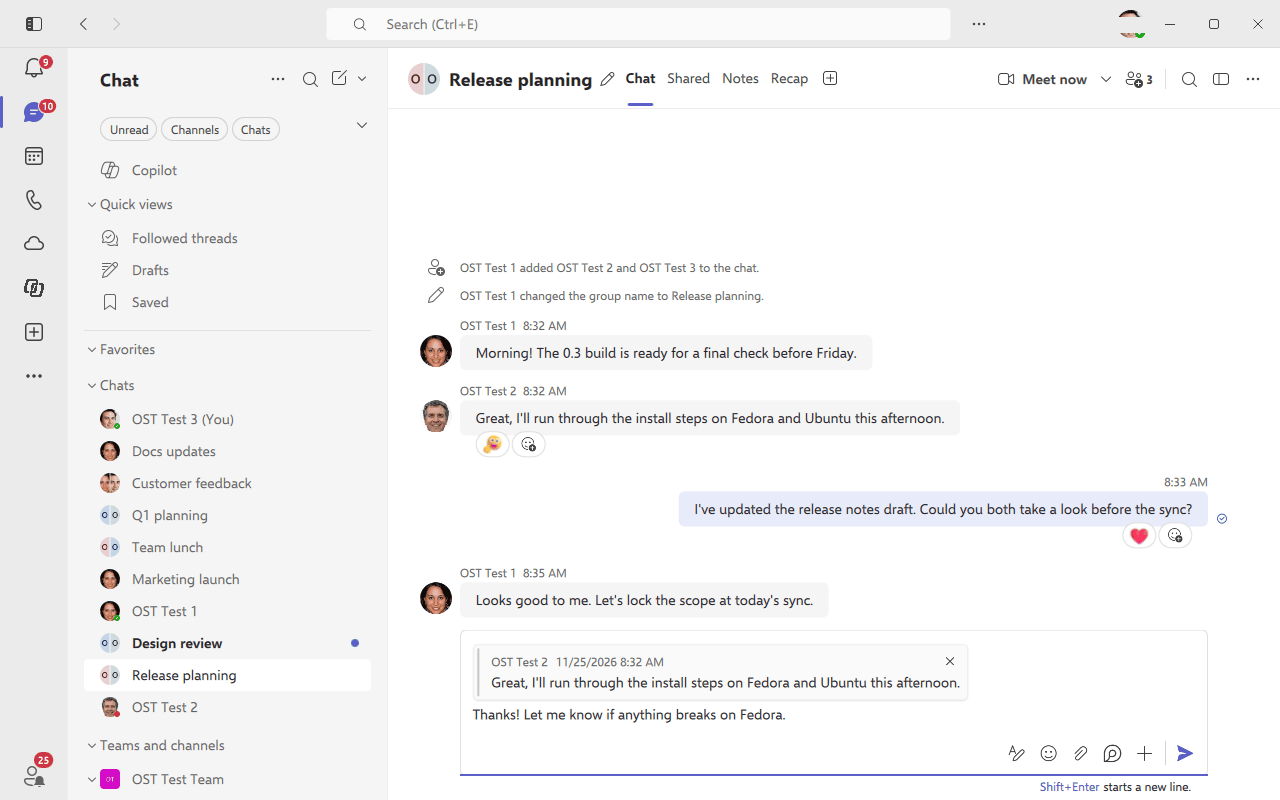
- Reply with quote puts a quote card of the message above your reply.
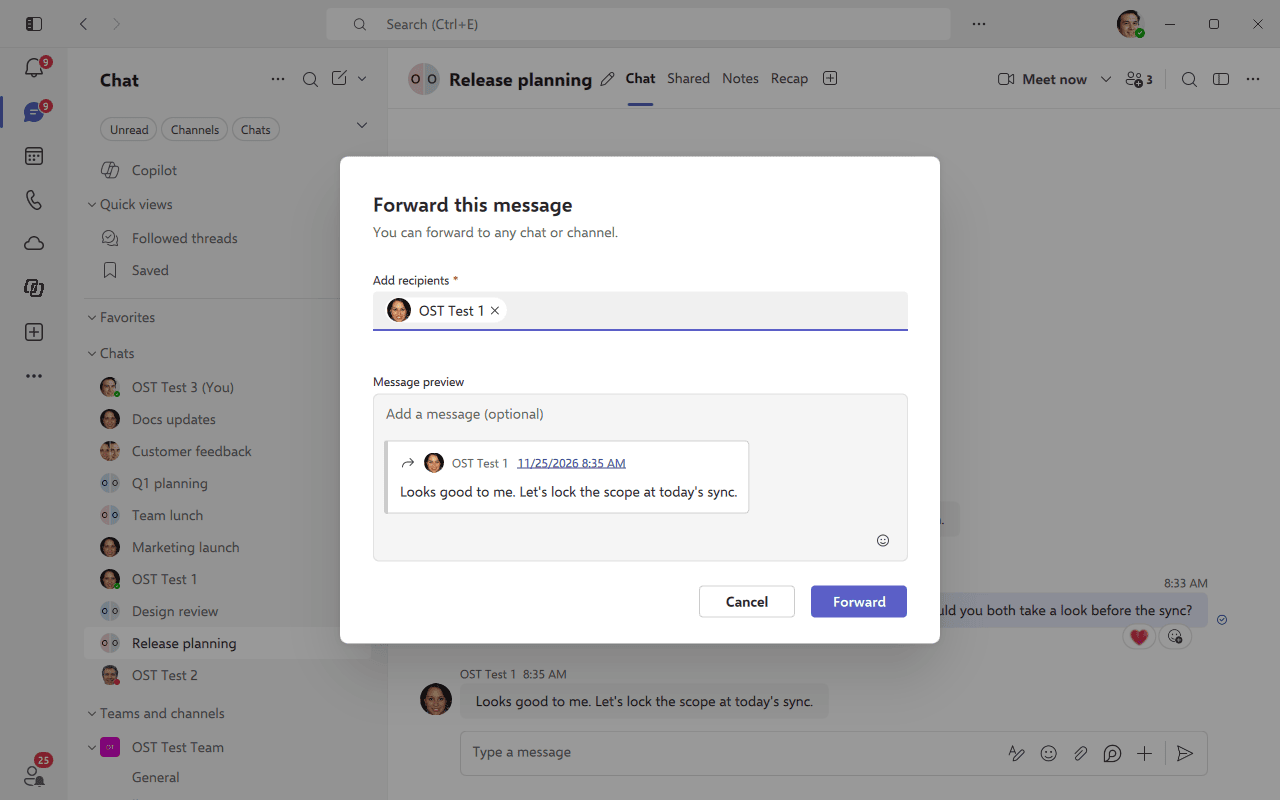
- Forward opens Forward this message: Add recipients (people, groups, tags, chats and channels), Add a message (optional) and a message preview. The forwarded message shows as a card with the original sender.
- Select text in a message with the mouse and copy it (Ctrl+C).
- Translation ▸ Translate shows the message in your translation language ("Translated from …"), See original message switches back, and Never translate a language (Settings ▸ General ▸ Translation).
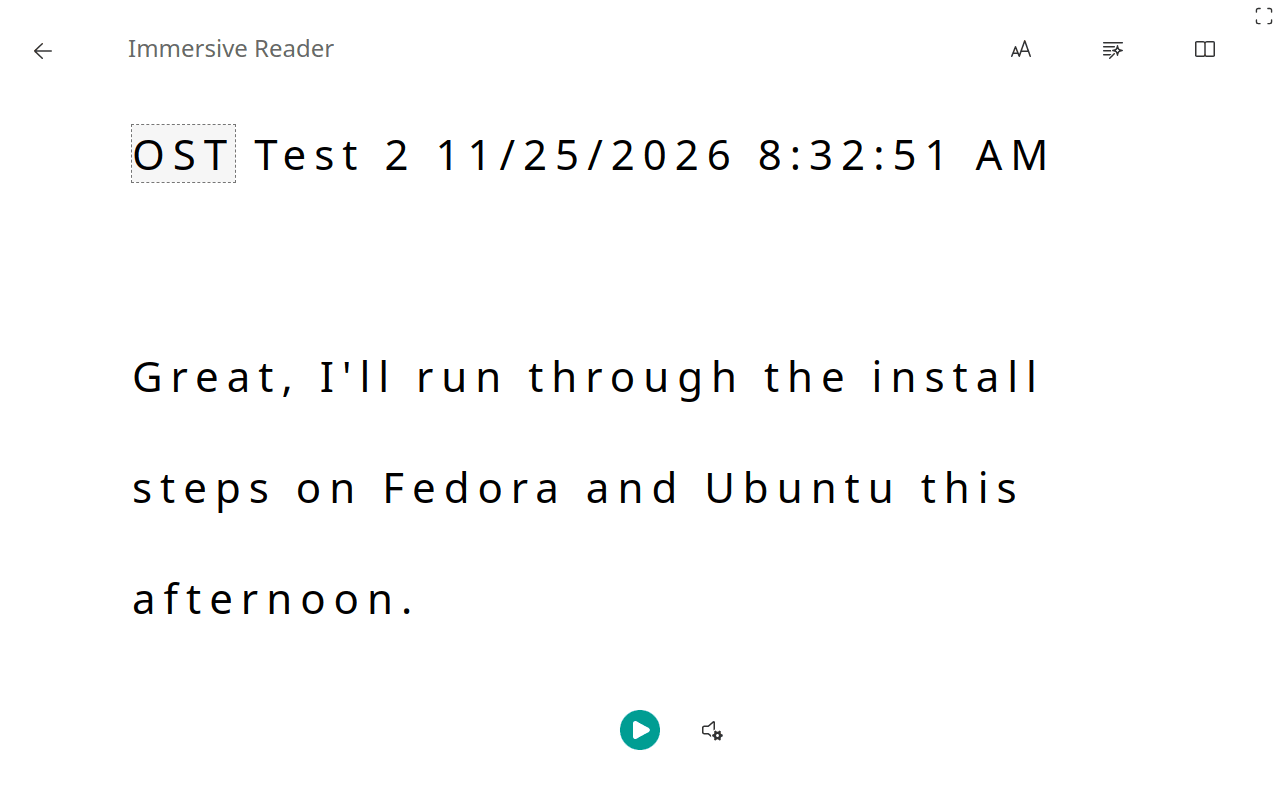
- Immersive Reader reads a message (or a card's text) aloud in Microsoft's reader, with its text and reading options.
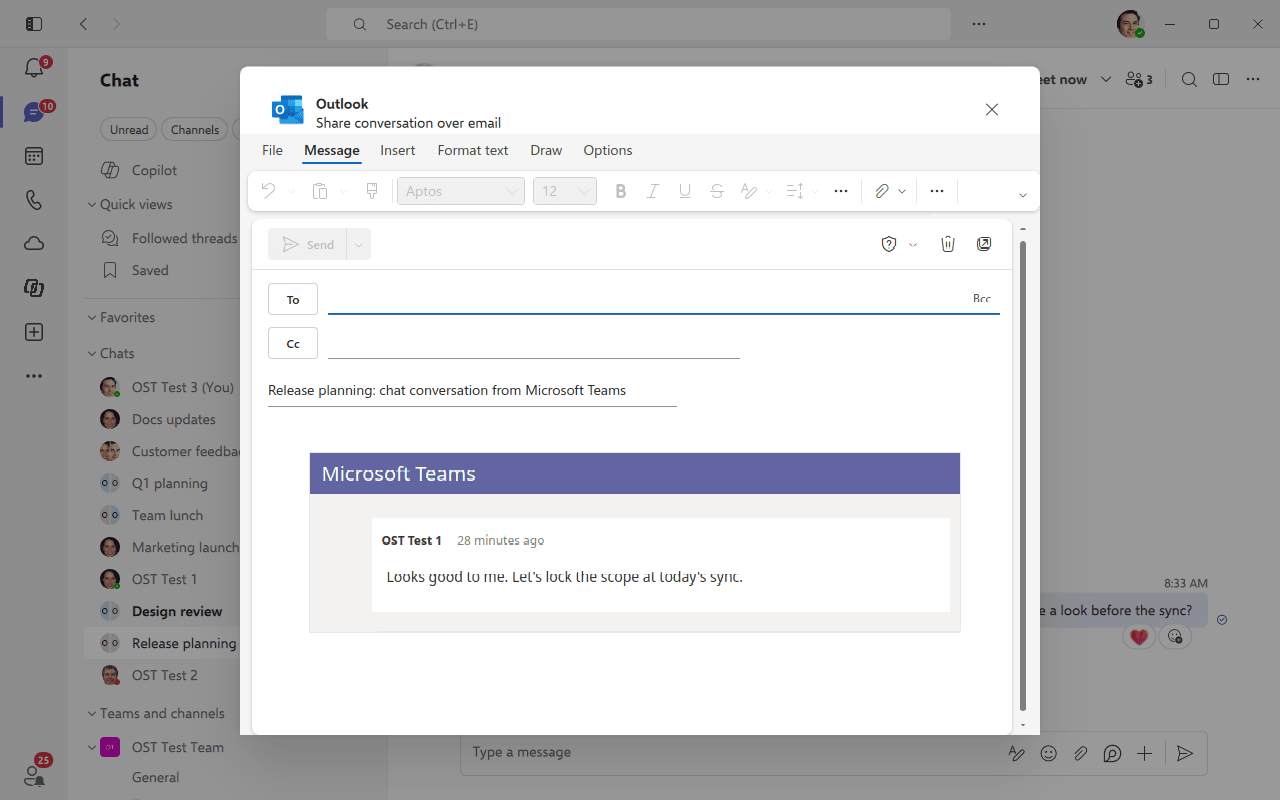
- Share to Outlook opens Share conversation over email in Outlook.
- File cards: the file's icon, name and place, Share, ··· (open, download, copy link) and a preview where the file type has one (see Files).
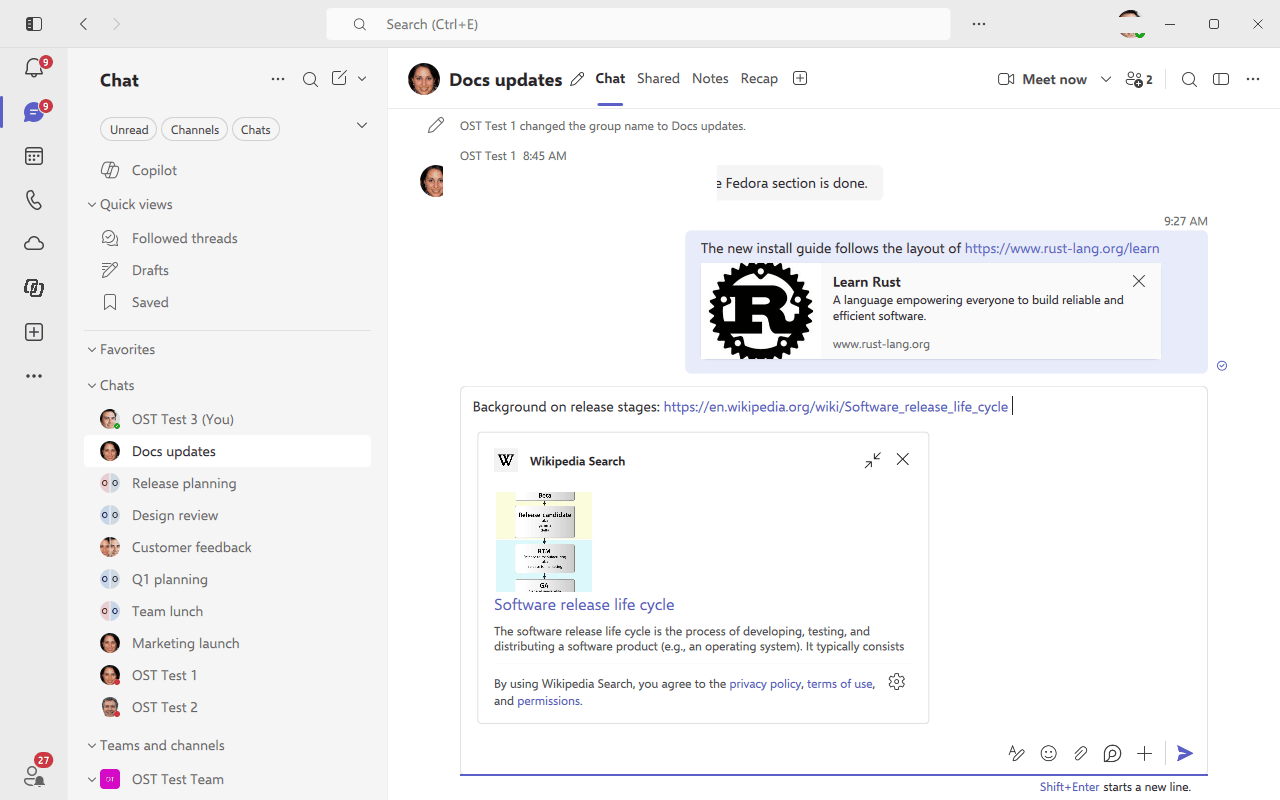
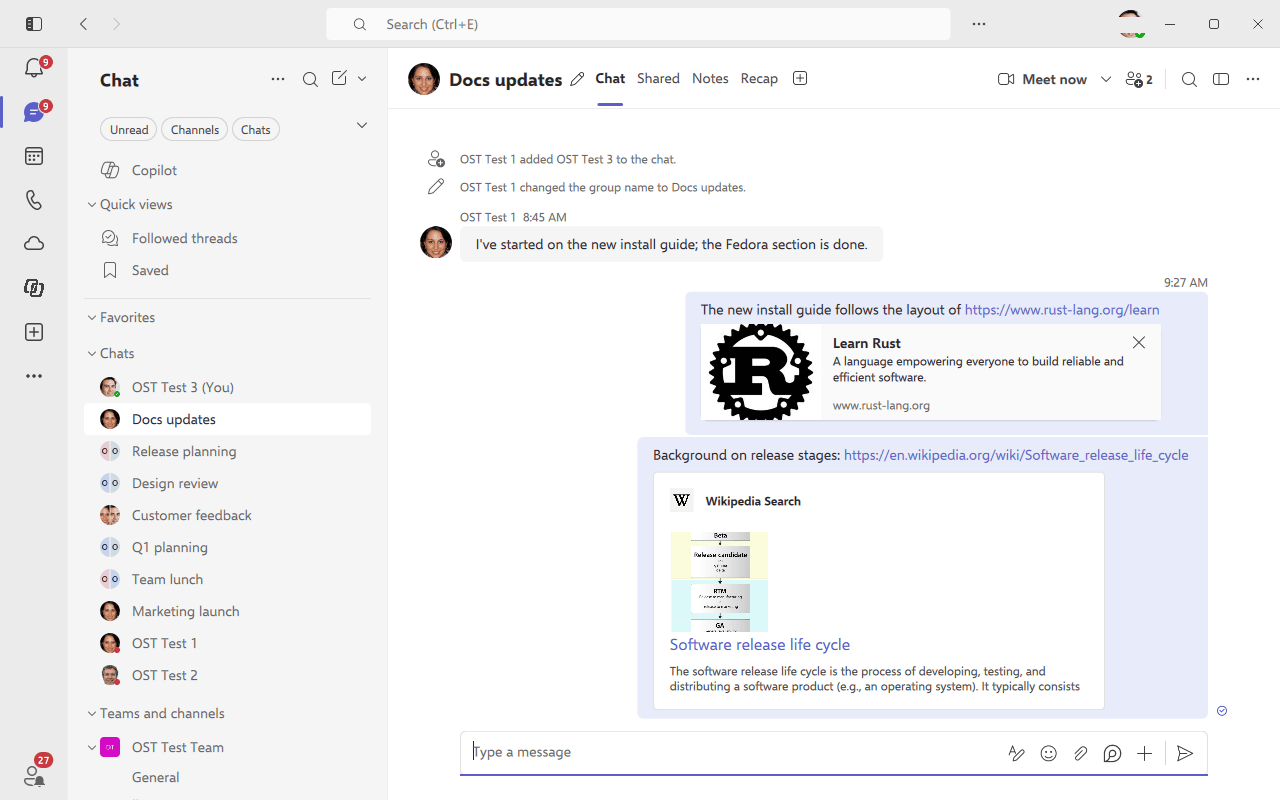
- Link previews: a link gets a preview card (title, description, picture) in the compose box, which you can remove before sending, and in the message. Needs Optional connected experiences.
- App link cards: links that an app understands (Wikipedia, YouTube, your installed apps) unfurl into the app's card; some ask you to sign in to the app first.
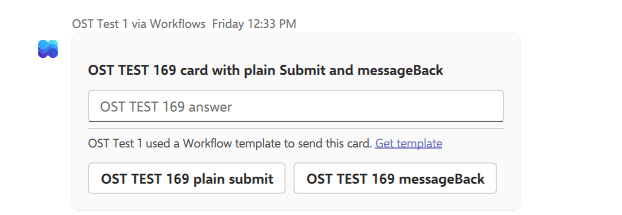
- Adaptive cards from bots and workflows, with their buttons (Action.Submit, Action.Execute, messageBack) and the response bar.
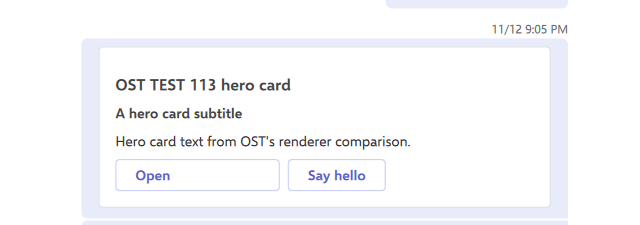
- Hero, list and Office 365 connector cards from older bots and connectors.
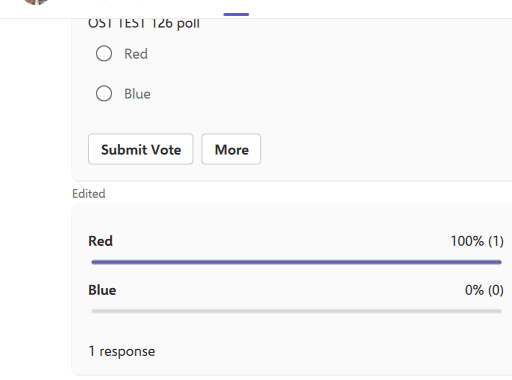
- Polls: the Polls app's card; vote and see results update.
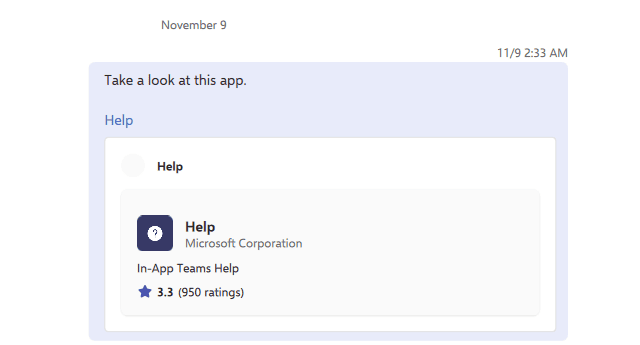
- Shared app card: an app someone shared from its About page, with Add.
- Agent answers (Channel Agent and other agents): the reasoning block, plan and task cards, and inline Loop answers.
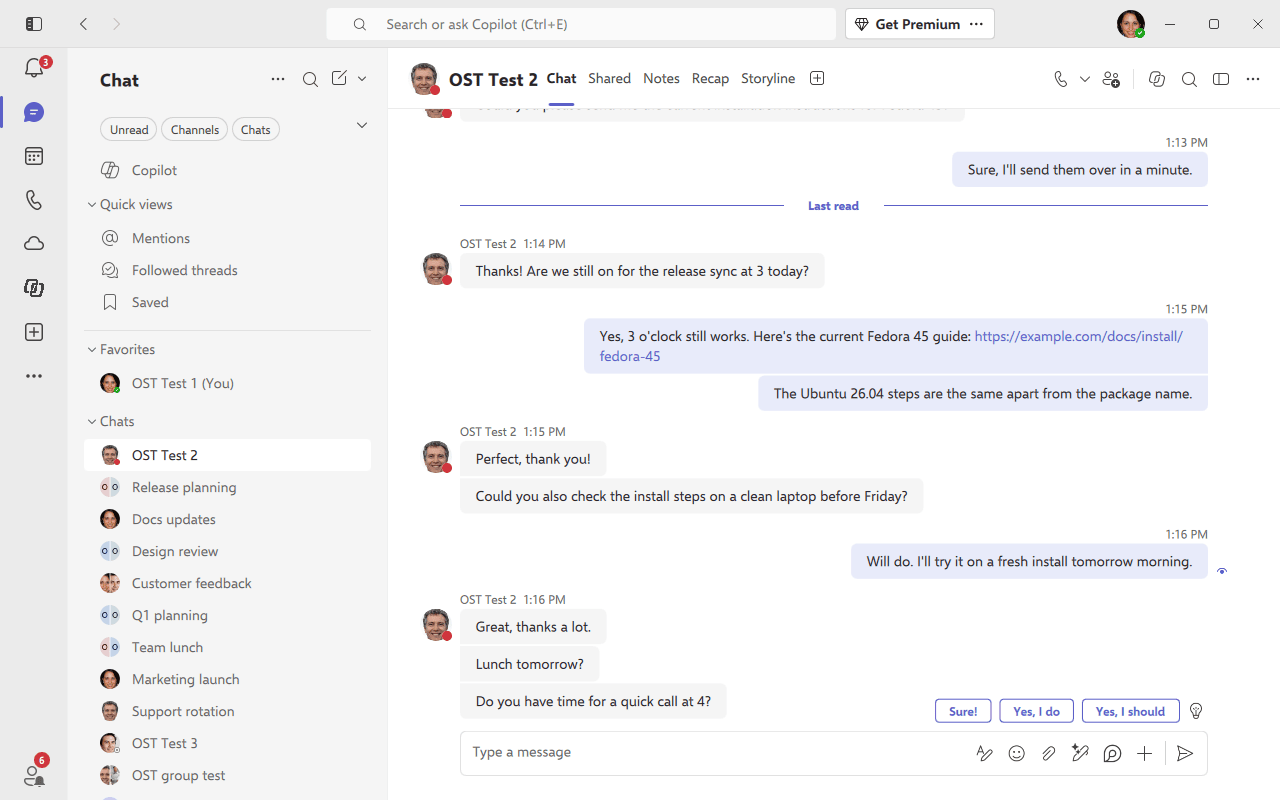
With Show suggested replies in chat on (Settings ▸ Chats and channels), OST shows Teams' suggestions under an incoming message:
- Text replies: select one to put it in the compose box.
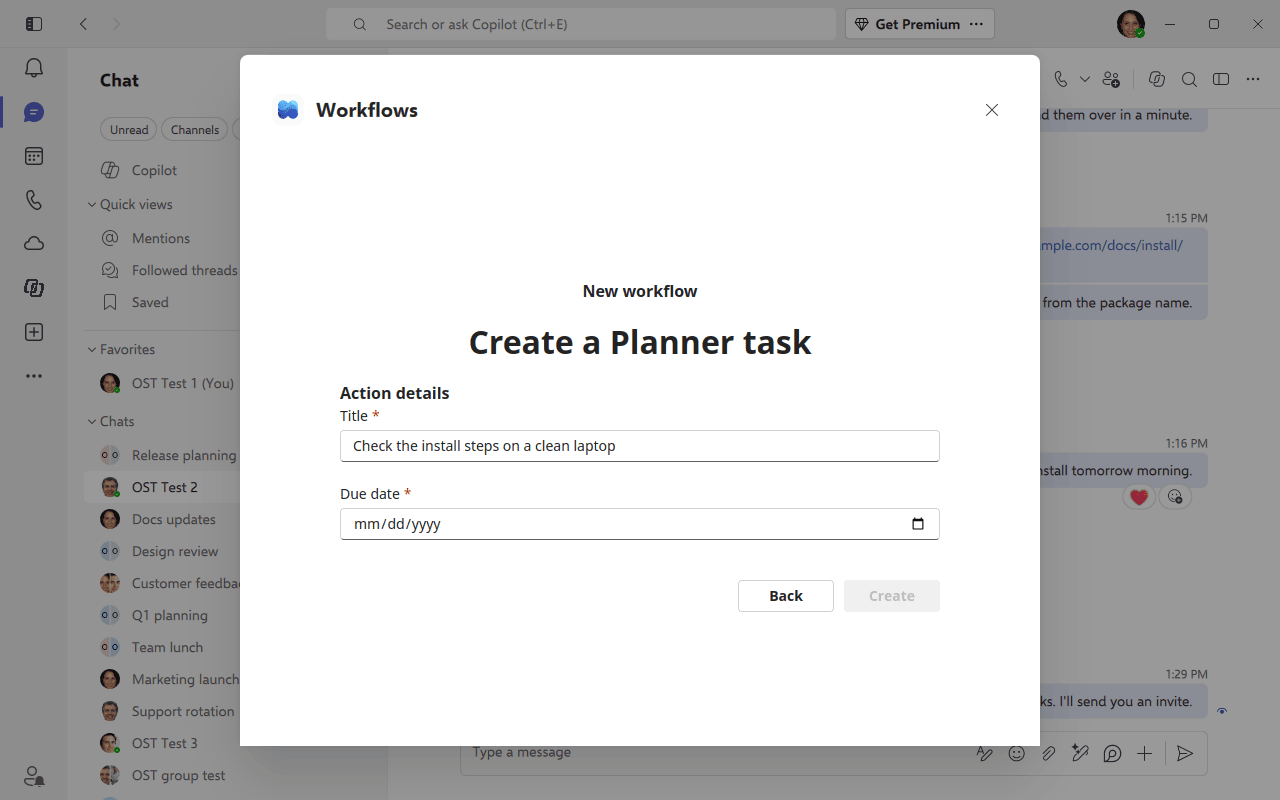
- File, meeting and workflow suggestions: "Would you like to schedule a meeting?", "Would you like to create a Planner task?", "Would you like a reminder to follow up?" and suggested files. A workflow suggestion opens the Workflows dialog.
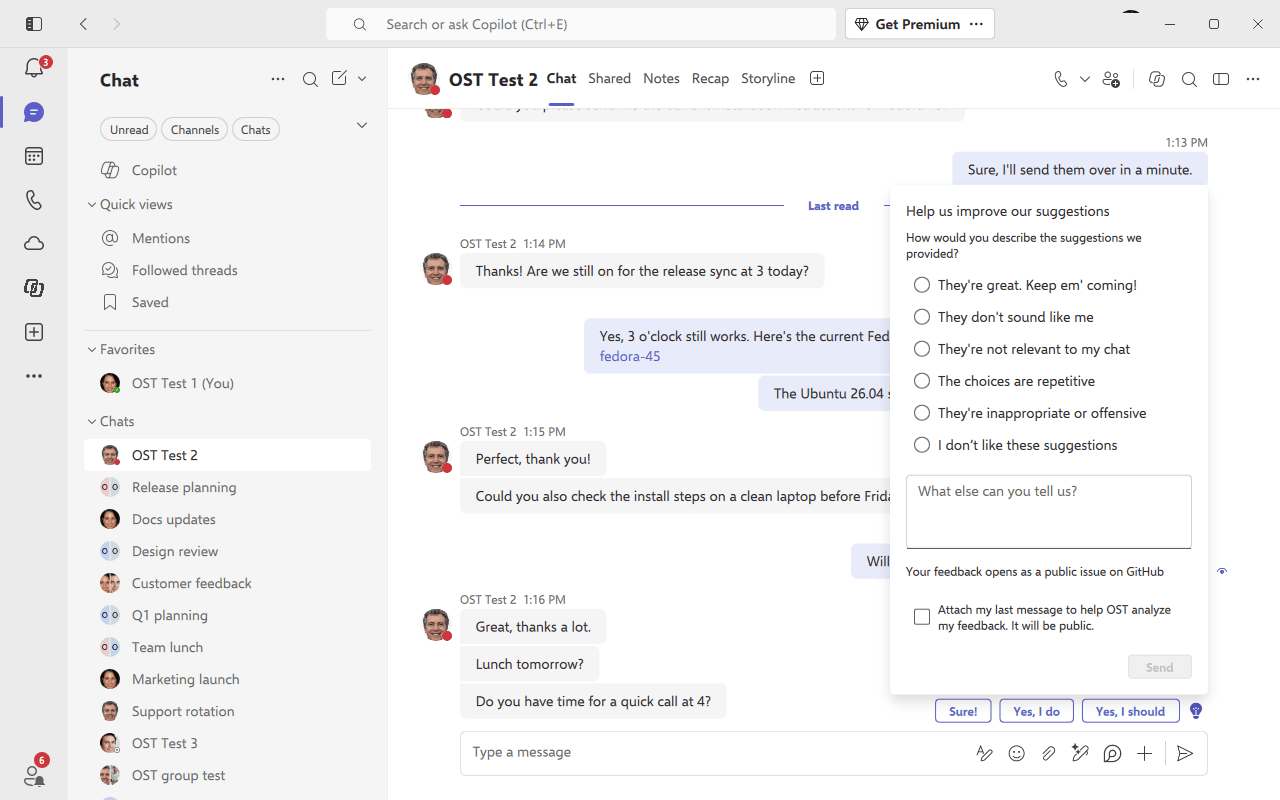
- Suggested reply feedback: "Help us improve our suggestions" opens a public issue on OST's GitHub that you review and submit.
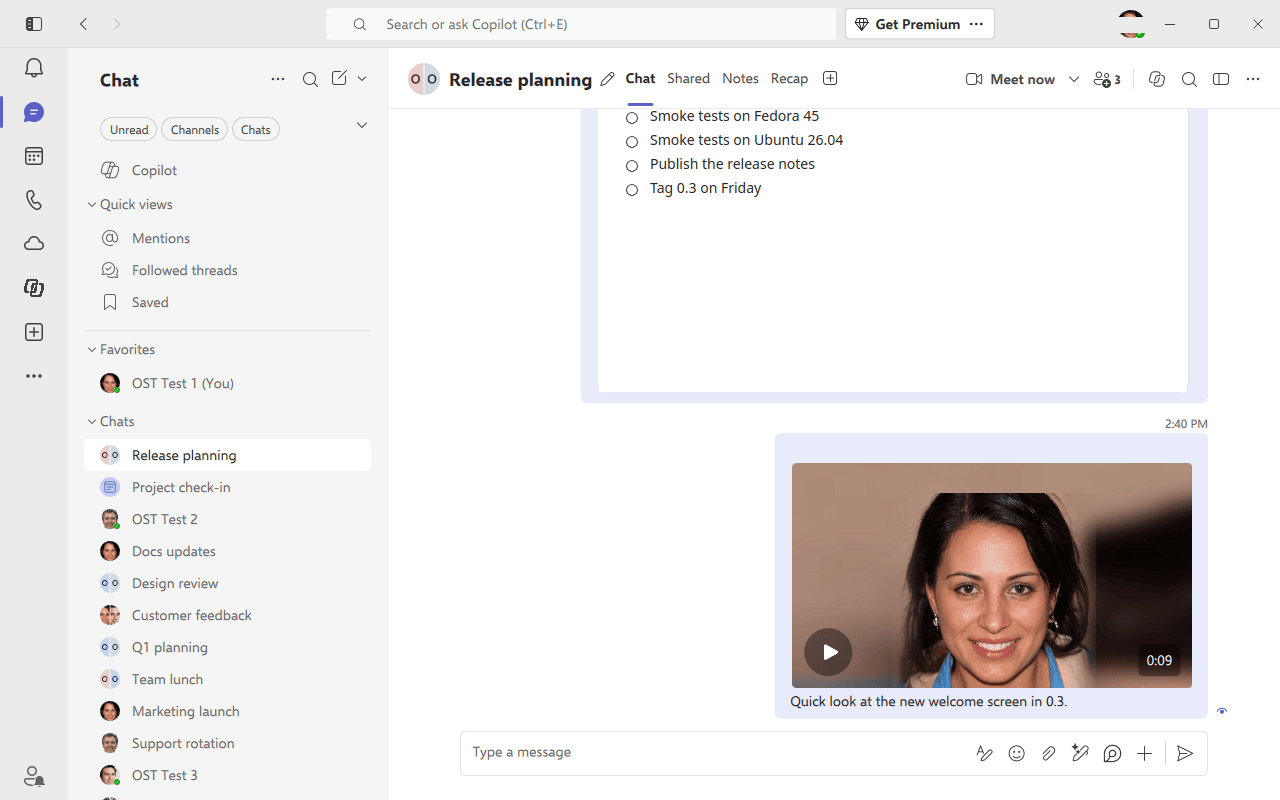
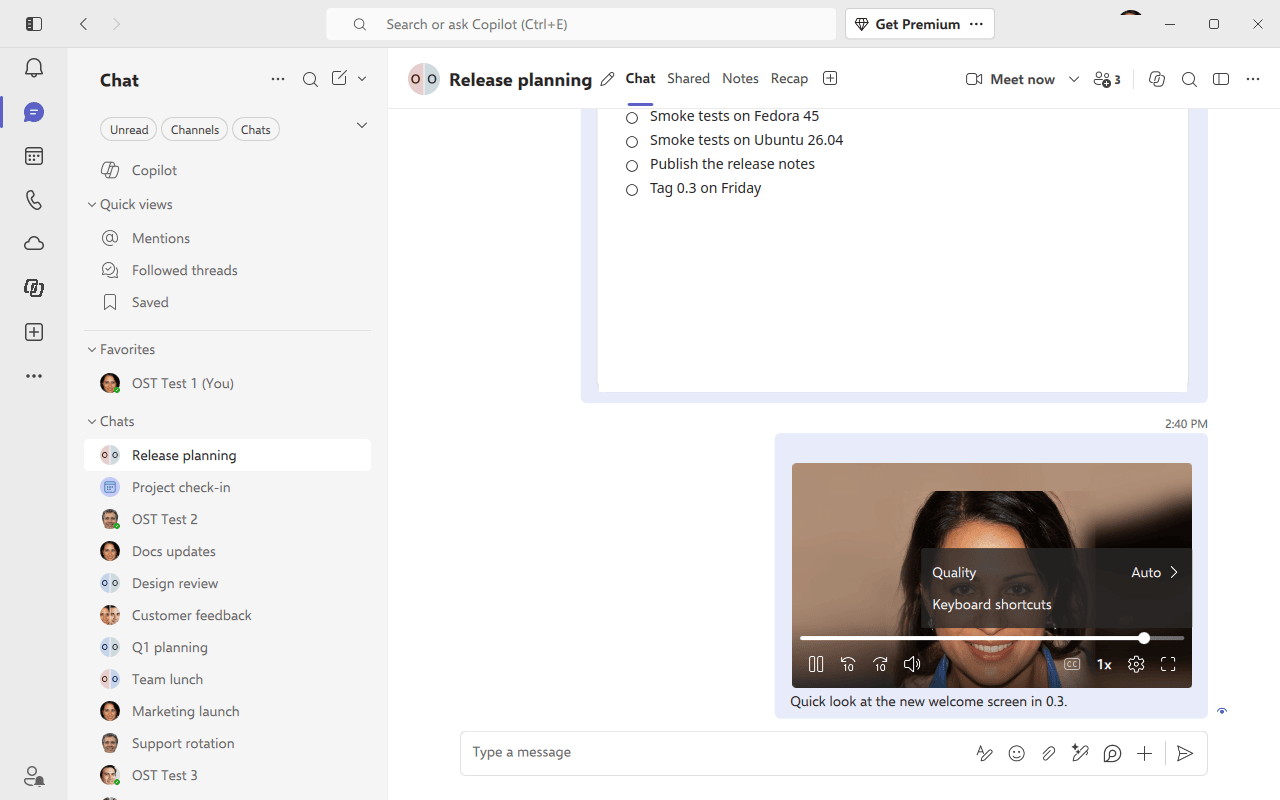
A video clip (see Video effects and clips) shows as a card with its poster and length. Select it to play inline: play and pause, skip, volume, Playback options (speed, captions, quality), full screen, and Options ▸ Download video. Your own clips have Re-upload video clip and Remove video clip; Reply with a video clip records an answer.